> For the complete documentation index, see [llms.txt](https://docs.avonnicomponents.com/llms.txt). Markdown versions of documentation pages are available by appending `.md` to page URLs; this page is available as [Markdown](https://docs.avonnicomponents.com/dynamic-components/tutorials/components/data-table/set-up-search.md).
# Set Up Search
## Overview
The search feature lets your users quickly filter and find specific records in a [**data table**](/dynamic-components/components/data-table.md). By configuring search, you can customize the user interface, enable searches on hidden data, and set default terms to streamline the user experience.
**Note** that the search box will appear on your live page only after at least one field has been marked as "**Searchable**."
***
## 1. How to Make a Field Searchable
To enable search for a specific column, follow these steps in the editor:
1. Select your Data Table component.
2. Open the Properties panel on the right.
3. Navigate to the Data Mappings section.
4. Click on the specific Column/Field you want users to be able to search.
5. Scroll down to the Searchable attribute and toggle it on.
***
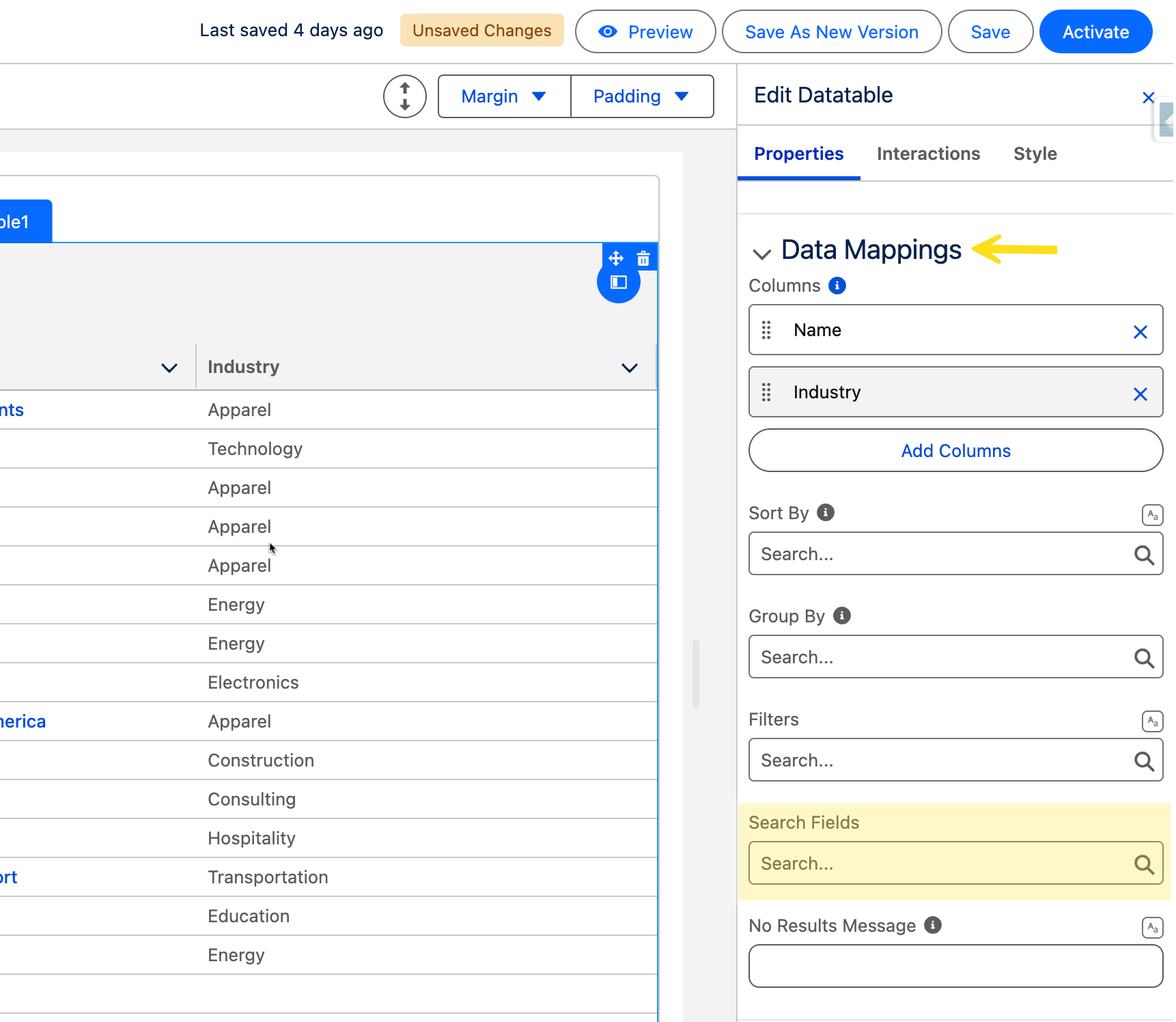
## 2. Searching on Non-Visible Data
Sometimes you may want users to find records based on data that isn't displayed in the table (e.g., searching by "ID Number" or "Internal Tags" without showing those columns).
1. Select the **Data Table**.
2. Open the **Data Mappings** section in the Properties panel.
3. Locate the **Search Fields** attribute.
4. Select the fields from the dropdown that should be searchable even though they are hidden from the table view.
***
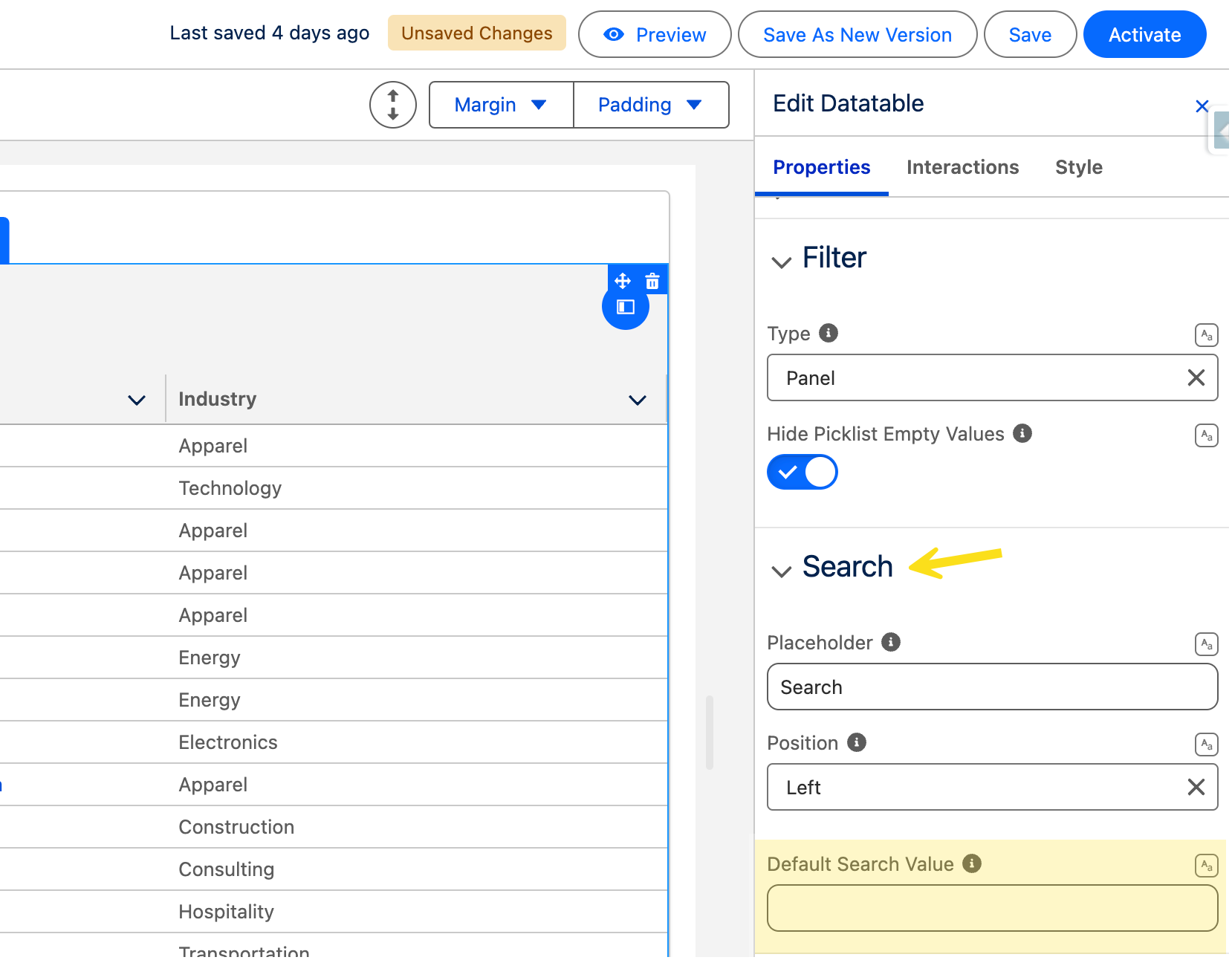
## 3. Adjusting Search Box Placement and Appearance
Once search is enabled, you can refine how the search box looks and behaves:
* **Placeholder Text**: Change the hint text (e.g., "Search by name or email...") to guide your users.
* **Position**: Move the search box to the left or right of the table header. OR FILL
* **Default Search Value**: Use the `defaultSearchValue` attribute to pre-fill the search box with a specific term. When the table loads, it will automatically filter the data based on this value.
***
## 4. Field Type Compatibility
The ability to search depends on the Data Source type you are using. Reference the table below to see which fields are supported:
| Field Type | Query Data Source | Variable Data Source |
| -------------------- | ----------------- | -------------------- |
| **Lookup Fields** | ✅ Supported | ✅ Supported |
| **Rich Text Fields** | ❌ Not Supported | ✅ Supported |
***
## Troubleshooting
The Search Box is Missing
If you cannot see the search input area at the top of your table, check the following:
* **Is at least one field searchable?** The search box is hidden by default if no columns are enabled for search. Go to Data Mappings, click a column, and ensure the Searchable toggle is active.
* **Check the Search Options**: Ensure that the search feature hasn't been accidentally disabled in the general Search properties panel
Results Aren't Appearing for Specific Data
If you type a term you know exists but the table shows "No results found," verify these settings:
* **The Field-Specific Toggle**: Even if search is "on" for the table, it must be enabled for each specific column you want to search. If you are searching for a "Last Name," make sure the "Last Name" column has the Searchable attribute toggled on.
* **Hidden Data Search**: If you are trying to search for data that isn't a visible column (like an ID number), ensure that field is manually added to the Search Fields attribute in the Data Mappings section.
* **Case Sensitivity**: Depending on your backend configuration, search might be case-sensitive. Try matching the exact capitalization of the data (e.g., "Admin" vs "admin")
Searching Works for Some Fields but Not Others
This is usually related to the Data Source type being used. Check your source settings
The Default Search Value Isn't Loading
If you set a `defaultSearchValue` but the table shows all records on load:
* **Syntax Check**: Ensure there are no extra spaces or hidden characters in the `defaultSearchValue` attribute.
* **Field Mapping**: Ensure the term you set as default exists within a field that has been marked as Searchable.
---
# Agent Instructions
This documentation is published with GitBook. GitBook is the documentation platform designed so that both humans and AI agents can read, navigate, and reason over technical content effectively. Learn more at gitbook.com.
## Querying This Documentation
If you need additional information that is not directly available in this page, you can query the documentation dynamically by asking a question.
Perform an HTTP GET request on the current page URL with the `ask` query parameter, and the optional `goal` query parameter:
```
GET https://docs.avonnicomponents.com/dynamic-components/tutorials/components/data-table/set-up-search.md?ask=&goal=
```
`ask` is the immediate question: it should be specific, self-contained, and written in natural language.
`goal` is optional and describes the broader end goal you are ultimately trying to accomplish on behalf of the user. GitBook uses it to tailor the answer towards what is most useful for that goal.
The response will contain a direct answer to the question and relevant excerpts and sources from the documentation.
Use this mechanism when the answer is not explicitly present in the current page, you need clarification or additional context, or you want to retrieve related documentation sections.