> For the complete documentation index, see [llms.txt](https://docs.avonnicomponents.com/llms.txt). Markdown versions of documentation pages are available by appending `.md` to page URLs; this page is available as [Markdown](https://docs.avonnicomponents.com/dynamic-components/components/image-list.md).
# Image List
The Avonni Image List component displays a responsive, configurable image grid from manual entries or Salesforce query data. Use it to build photo galleries, team directories, product showcases, or any collection of images with optional search, filtering, and item actions.
## Overview
The Image List renders images in four distinct layout styles — base grid, quilted, woven, or masonry — with configurable column counts per breakpoint, a customizable header, item-level actions, pagination, and filtering. Users can browse, search, and filter images, while click interactions let them navigate or take action on individual items.
### Use Cases
* **Displaying product image galleries** on Product record pages, where sales reps need to see all available photos.
* **Building team directory pages** with employee photos that link to their user profiles.
* **Creating portfolio showcases on Experience Sites** for partners or customers to browse project examples.
* **Showing property photos on real estate listing** records for agents reviewing available inventory.
* **Presenting event photo collections** from marketing campaigns with filtering by event type or date.
* **Displaying asset libraries** where users can search and filter images by category, name, or custom attributes.
***
{% hint style="info" %}
**See it in a real project**
[Visual product catalog](https://docs.avonnicomponents.com/projects/use-cases/record-pages/visual-product-catalog): A product catalog on the account record, with an Add to order button.
{% endhint %}
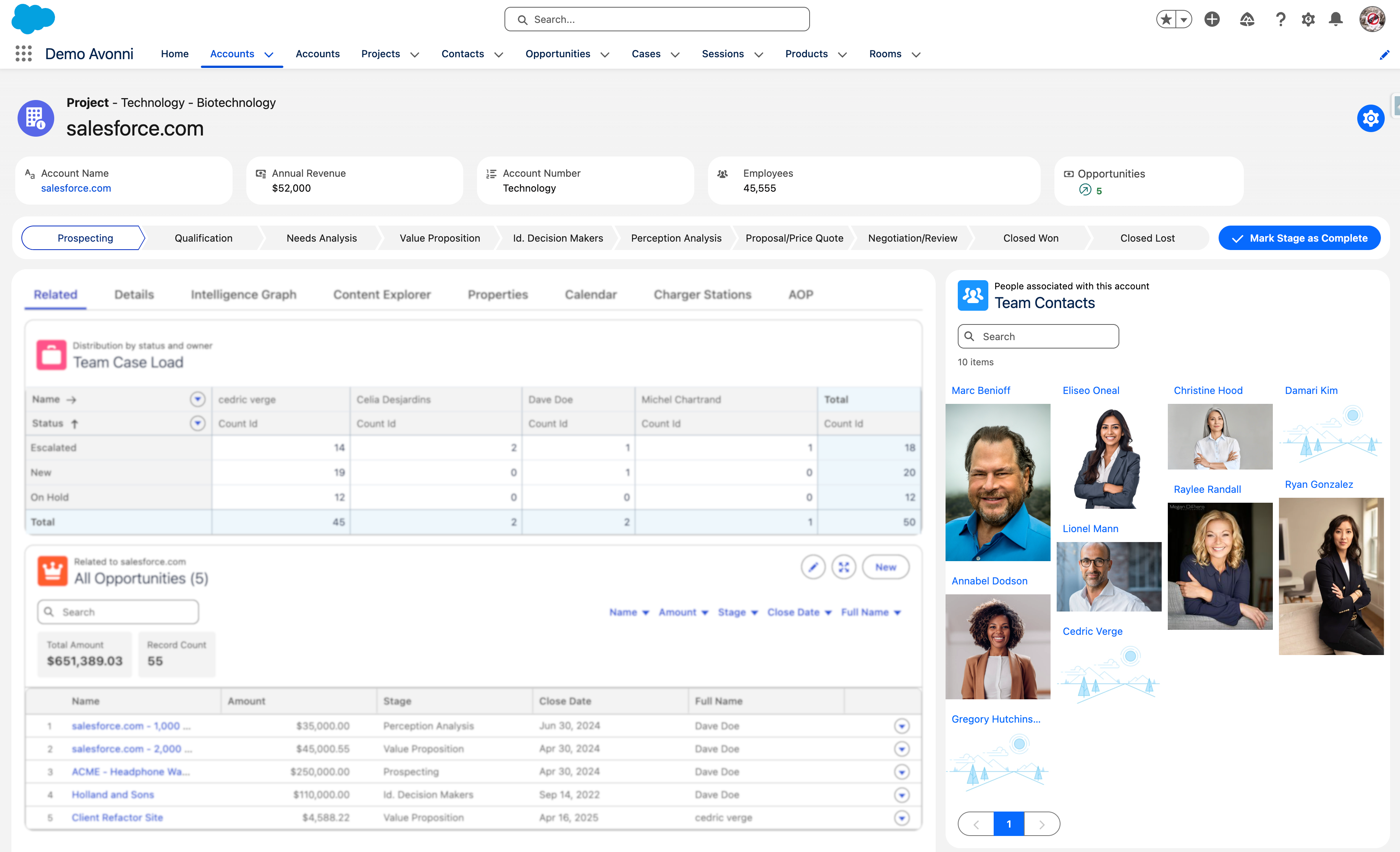
## Quick Start: Display Contact Photos on an Account Page
Build a working image gallery showing all Contacts associated with the current Account. This uses standard Salesforce objects so that you can follow along in any org.
Prerequisites: Your Contacts need photos. If they don't have PhotoUrl populated, you can use the standard user icon as a fallback, or upload pictures to a few test Contacts first.
{% stepper %}
{% step %}
#### Create a New Component in Dynamic Components
* Open the **Avonni Dynamic Components** app from the App Launcher
* Click **New Component**
* Give your component a name (e.g., "Contact Photo Gallery")
* Set [**Target Page Object**](/dynamic-components/core-concepts/target-page-object.md) to **Account** — this tells the component it will operate on Account record pages and gives you access to the `$Component` variable for referencing the current record fields.
{% endstep %}
{% step %}
#### Add the Image List Element
* In the component canvas, click **Add Element** or drag from the Elements panel
* Select **Image List** from the available elements
* The Image List appears on your canvas, ready for configuration in the Properties Panel
{% endstep %}
{% step %}
#### **Configure the Data Source**
In the Properties Panel on the right:
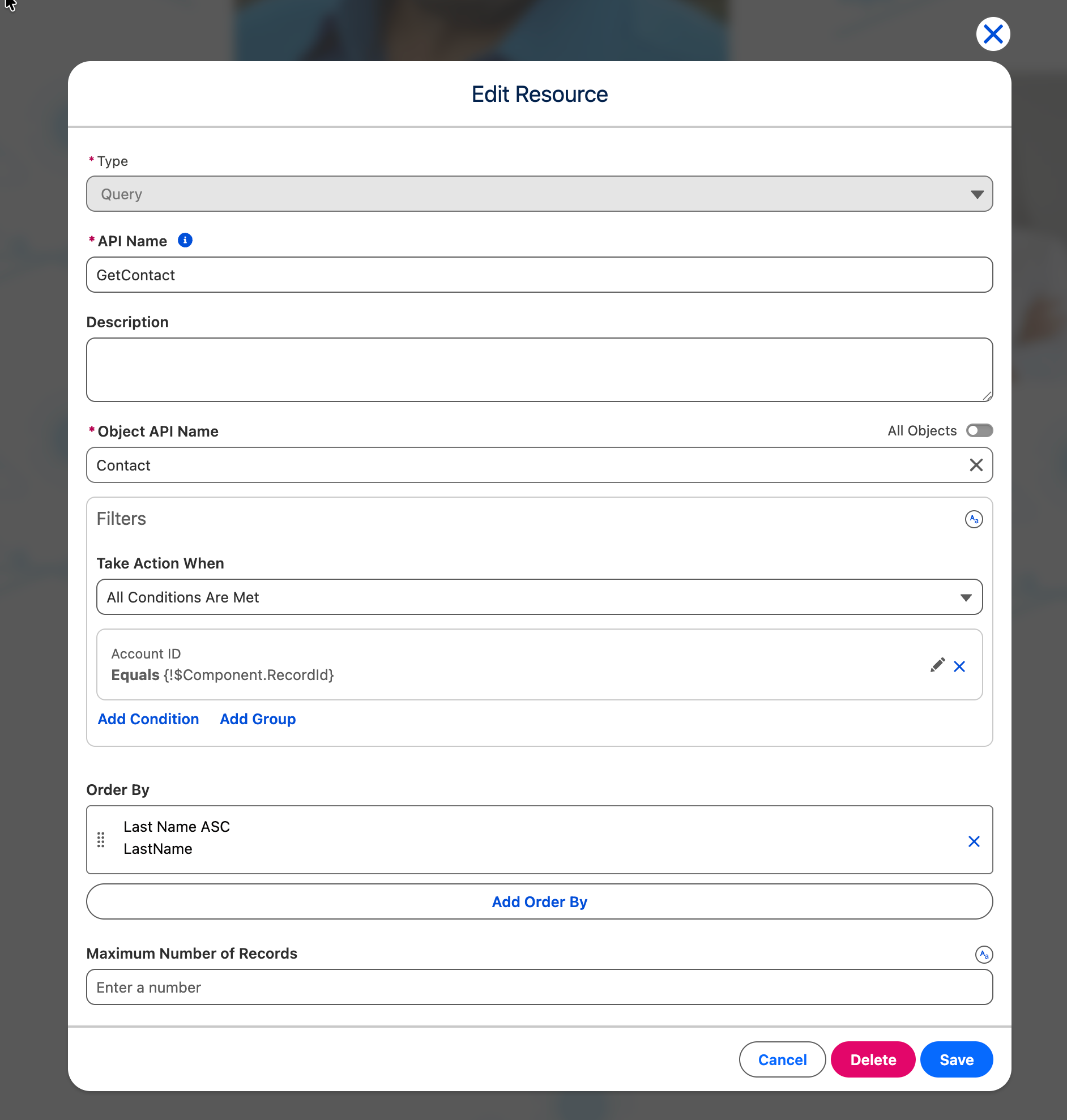
* Set **Data Source** to **Query**
* Click **Create Query**
* For **Object**, select **Contact**
* Under **Filters**, add: [`AccountId = '$Component.RecordId'`](#user-content-fn-1)[^1]
* For **Order By**, select **LastName** with direction **Ascending**
* Click **Done** to save the query
{% endstep %}
{% step %}
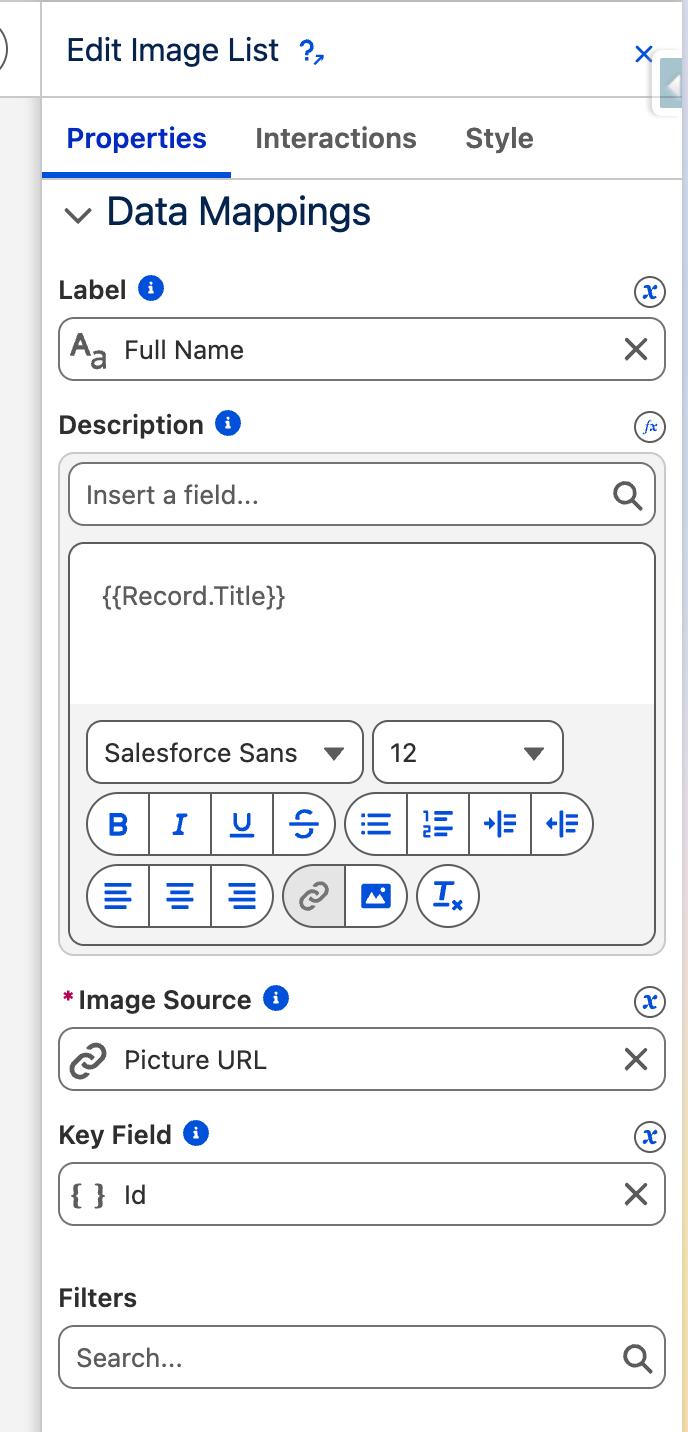
#### **Map Your Fields**
In the **Data Mappings** section:
* **Label**: Select `Name` (this shows the Contact's full name under each photo)
* **Description**: Select `Title` (shows their job title)
* **Image Source**: Select `PhotoUrl` (the standard Contact photo field)
{% hint style="info" %}
#### Note
Label and Description are optional. Only Image Source is required to display the gallery. Use Label and Description when you want to show additional context alongside each image—leave them empty for a cleaner, image-only display.
{% endhint %}
{% endstep %}
{% step %}
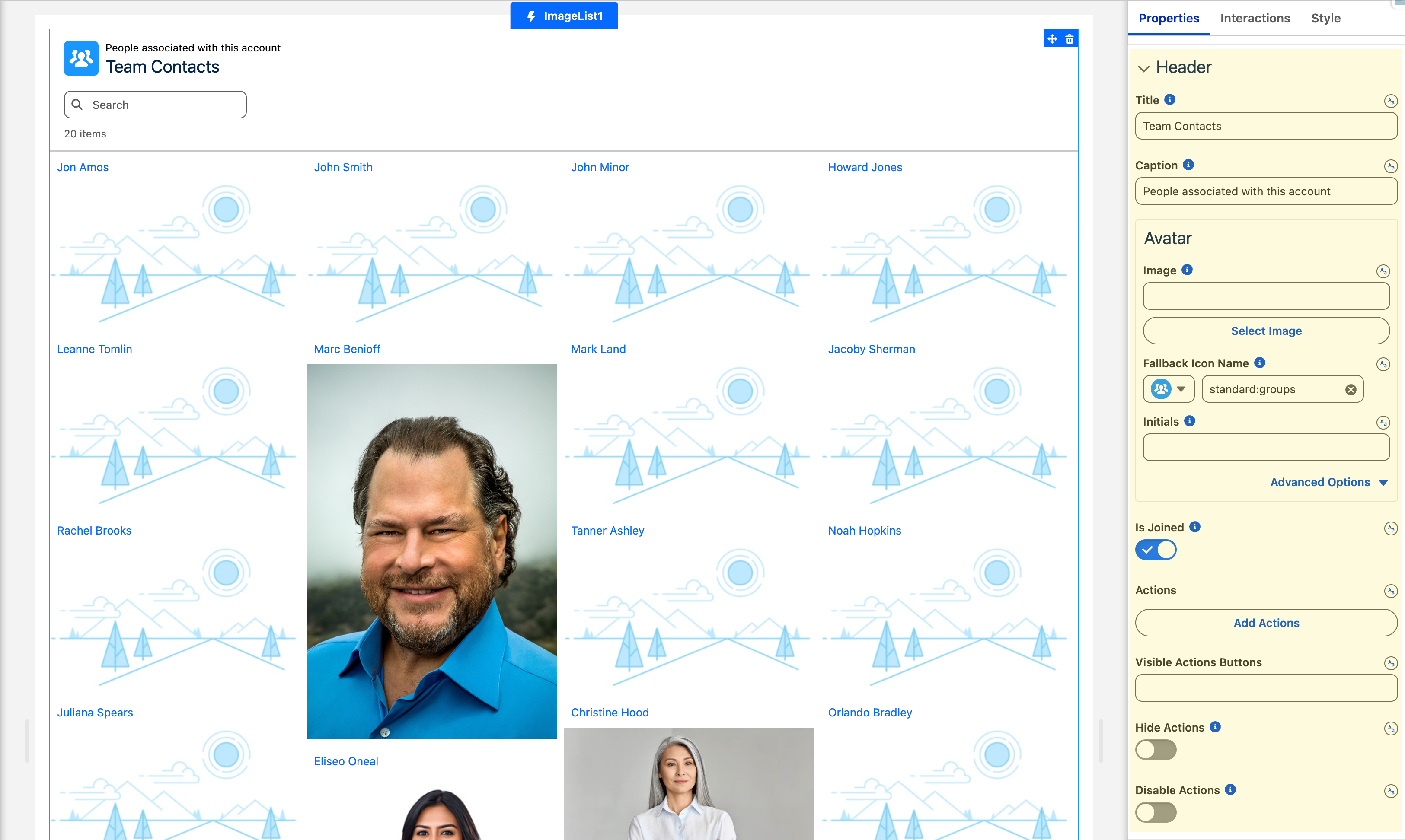
#### Configure the Header
In the **Header** section:
* **Title**: Enter `Team Contacts`
* **Caption**: Enter `People associated with this account`
* **Is Joined**: Toggle **On** — this visually connects the header to the gallery body
{% endstep %}
{% step %}
#### **Configure the Layout**
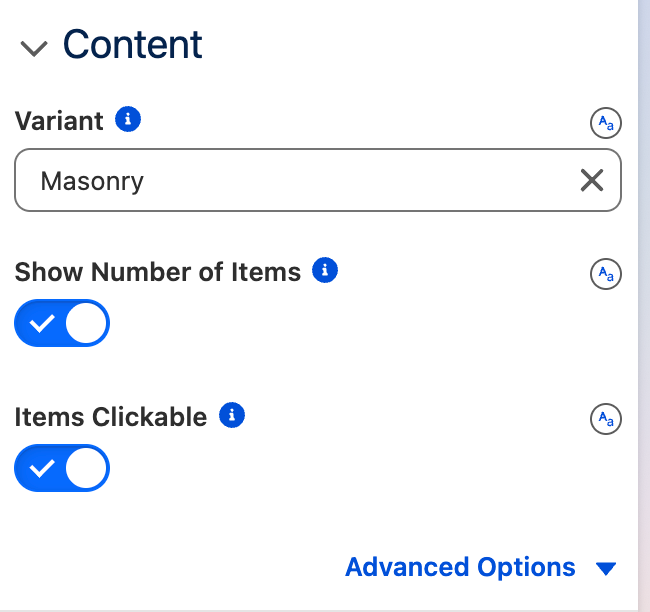
In the **Content** section:
* **Variant**: Select `Masonry` for a clean grid layout
**Other layout options:**
* **Quilted** — Alternates between larger featured images and smaller ones, creating visual hierarchy
* **Woven** — Interlocking pattern that weaves images in alternating rows for a balanced look
* **Base** —
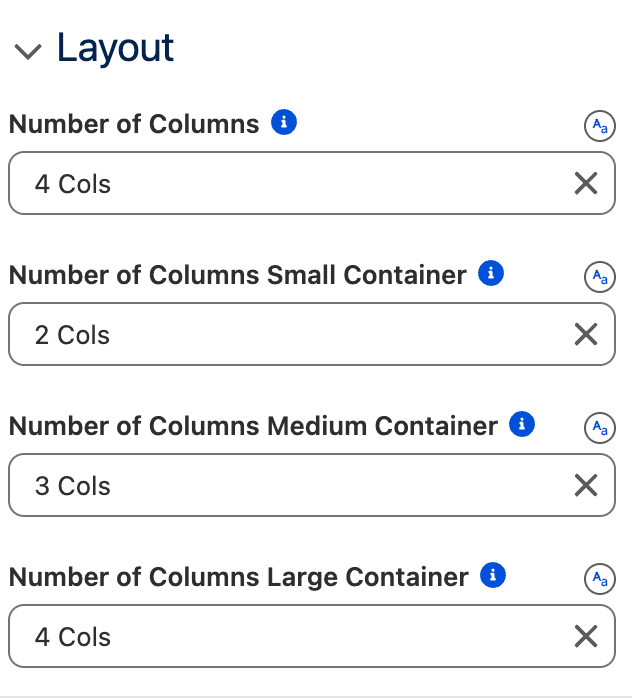
In the **Layout** section:
* **Number of Columns**: `4`
* **Number of Columns Small Container**: `2`
* **Number of Columns Medium Container**: `3`
* **Number of Columns Large Container**: `4`
{% endstep %}
{% step %}
#### **Set a Fallback Image**
In the **Image** section:
* **Image Fallback**: Enter a URL to a placeholder image, or use an SLDS icon reference.
This ensures Contacts without photos still display cleanly.
{% endstep %}
{% step %}
#### Add Click Interaction
Make contact photos clickable to navigate to the Contact record:
* Click the **Interactions** tab in the Properties Panel
* Under **Item Click**, click **Add Item Click**
* In the interaction dialog, configure:
* **Type**: Select `Navigate`
* **Page Reference Type**: Select `Record Page`
* **Object API Name**: Select `Contact`
* **Record Id**: Select `Record: Id` (the ID of the clicked Contact)
* **Action Name**: Enter `View`
* **Open Console Tab**: Leave toggled Off
* Click **Save**
Now when users click any contact photo, they navigate directly to that Contact's record page
{% endstep %}
{% step %}
#### **Save and Activate**
* Click **Save**
* Click **Activation** and assign the page to your org, app, or record type
* Navigate to any Account record with Contacts to see your gallery
{% endstep %}
{% endstepper %}
***
## Configuration
To configure the Image List, select it on the canvas. The **Edit Image List** panel opens on the right with three tabs: **Properties**, **Interactions**, and **Style**. The sections below mirror the Properties tab.
### Data Source
The **Data Source** setting determines where your images come from.
| Source | Description |
| ---------- | -------------------------------------------------------------------------------------------------- |
| **Manual** | Define images directly in the component — ideal for static galleries that don't change frequently. |
| **Query** | Pull images dynamically from Salesforce records using a SOQL query. |
**Manual mode items**
When using Manual mode, you define each image tile directly in the configuration:
| Setting | Description | Example |
| --------------- | ------------------------------------------- | ---------------------------------- |
| **Label** | Display name for the image | "Product Front View" |
| **Description** | Additional detail text shown with the image | "High-resolution photo showing..." |
| **Image** | URL to the image file | /resource/products/widget.png |
| **Name** | Internal identifier for the item | product-front-01 |
### Data Mapping
When using Query mode, the **Data Mappings** section connects Salesforce fields to the image list display. Each mapping tells the component which field contains the data for that element — for example, which field holds the image URL or the display label.
| Mapping | Description | Example |
| ----------------- | ------------------------------------------------------------------------------------ | ------------------------------ |
| **Label** | Field containing the display name shown under the image | Name, Title\_\_c |
| **Description** | Field containing supplementary detail text | Description\_\_c, Caption\_\_c |
| **Image Source** | Field containing the image URL | PhotoUrl, ImageURL\_\_c |
| **Key Field** | Field that uniquely identifies each item. Defaults to the record `Id` if left empty. | Id |
| **Filters** | Field whose values drive the filter menu | Category\_\_c, Type\_\_c |
| **Search Fields** | Fields to search against when the search input is active | Name, Description\_\_c |
### Content
These settings control the overall appearance and behavior of the image list.
**Variant**
The **Variant** setting changes the layout style of the image list. Choose the option that best suits your content:
* **Base** (default) — A clean, uniform grid where all images display at the same size. Best for consistent content like headshots or product thumbnails.
* **Quilted** — A structured layout that alternates between larger featured images and smaller supporting images, creating visual hierarchy.
* **Woven** — An interlocking pattern that weaves images together in alternating rows for a balanced, symmetrical appearance.
* **Masonry** — A Pinterest-style staggered layout where images maintain their natural aspect ratios. Ideal for varied content like portfolio work or user-generated images.
**Show Number of Items**
If enabled, the total count of images is displayed in the component.
**Items Clickable**
If enabled, all items can be clicked. Make sure to configure an **Item Click** interaction on the Interactions tab for this to take effect.
**Highlight On Click**
If enabled, the last clicked item remains visually highlighted. When an Item Click interaction opens a panel, the last clicked item is highlighted automatically regardless of this setting.
**Alternative Text**
Accessible description for the image list. If the list is sortable, describe the keyboard behavior — for example: "Sortable gallery. Press spacebar to grab or drop an item."
### Header
Add a header above your image gallery with a title, caption, avatar, and action buttons.
| Setting | Description |
| --------------------------- | ------------------------------------------------------------------------------------------------------------ |
| **Title** | Main heading text displayed in the header. |
| **Caption** | Secondary text displayed above the title in the header. |
| **Avatar** | Display an image, fallback icon, or initials in the header. Adjust size and shape under Advanced Options. |
| **Help Text** | Informational text displayed as a hoverable icon in the header. |
| **Is Joined** | Makes the bottom border square and shadowless so the header sits flush onto the component below it. |
| **Actions** | Add interactive buttons to the header. Configure what happens when they are clicked on the Interactions tab. |
| **Visible Actions Buttons** | Number of action buttons displayed before the rest overflow into a dropdown menu. |
| **Hide Actions** | If enabled, all header actions are hidden. |
| **Disable Actions** | If enabled, all header actions are grayed out and non-interactive. |
### Layout
Control how many columns display at different container sizes. Setting different values for each breakpoint ensures the gallery looks good on mobile, tablet, and desktop.
| Setting | Description | Options |
| -------------------------------------- | --------------------------------------------------------------------------- | --------------------------- |
| **Number of Columns** | Default column count — also the fallback for containers smaller than 480px. | 1 (default), 2, 3, 4, 6, 12 |
| **Number of Columns Small Container** | Columns when the container is wider than 480px. | 1, 2, 3, 4, 6, 12 |
| **Number of Columns Medium Container** | Columns when the container is wider than 768px. | 1, 2, 3, 4, 6, 12 |
| **Number of Columns Large Container** | Columns when the container is wider than 1024px. | 1, 2, 3, 4, 6, 12 |
### Image
Configure how individual images are rendered in each tile.
| Setting | Description | Options / Default |
| ------------------- | ------------------------------------------------------------------------- | ------------------------------------ |
| **Image Fallback** | Image to display when an item's image source is missing or fails to load. | Any image URL |
| **Position** | Where the item title appears relative to the image. | Top, Bottom (default), Below |
| **Crop Fit** | How images scale to fit their container. | Cover (default), Contain, Fill, None |
| **Crop Position X** | Horizontal focal point for cropped images, expressed as a percentage. | 0–100 |
| **Crop Position Y** | Vertical focal point for cropped images, expressed as a percentage. | 0–100 |
### Actions
Add actions that appear on individual image items — for example, a button to view details, download, or edit. Each item action requires a **Label**, a **Name** (used to identify it in interactions), an optional **Icon**, and an optional **Disabled** toggle.
Configure what happens when an item action is clicked using the **Item Action Click** interaction on the Interactions tab.
### Pagination
For galleries with many images, pagination breaks the collection into pages.
| Setting | Description | Default |
| ---------------------------- | -------------------------------------------------------------------------------------------- | ------- |
| **Show Pagination** | Display pagination controls at the bottom of the gallery. | Off |
| **Number of Items per Page** | Number of images per page when pagination is on; the batch load size when pagination is off. | 100 |
When **Show Pagination** is on, you can also customize the pagination button icons and labels (First, Last, Next, Previous) to match your language or branding. The **Last** button options are only available for Manual data sources.
{% hint style="info" %}
**Items loading.** With **Pagination** off, the Image List loads **Number of Items per Page** items at a time behind a **Show More** button — or, if you set a fixed **Height** (Size style), it switches to **infinite scroll** (loading the next batch as you reach the bottom). With **Pagination** on, it shows one page of **Number of Items per Page** items with pagination controls.
{% endhint %}
### Filter
The **Filter** section controls how the filter menu is presented to end-users. Filter fields are enabled in the Data Mappings section.
| Setting | Description | Options / Default |
| ------------------------------- | ---------------------------------------------------------------------------------------------------------------------------------------------------------------- | ------------------------------------ |
| **Type** | Where the filter controls appear. | Horizontal (default), Popover, Panel |
| **Use Record Picklist Values** | If enabled and the filter field is a picklist, filter options are derived from values present in the records rather than the full picklist definition. | Off |
| **Use Cascading Filter Values** | If enabled, applying one filter dynamically narrows the options available in other filters to match the current selection. Overrides Use Record Picklist Values. | Off |
### Search
Enable a search input that lets users find images by typing keywords. The search matches against the fields configured in the **Search Fields** data mapping.
| Setting | Description | Options / Default |
| --------------- | -------------------------------------------------------------------------------- | ------------------------------------------ |
| **Show Search** | Display a search bar above the gallery. | Off |
| **Placeholder** | Placeholder text shown inside the search input. Requires: **Show Search** is on. | Search |
| **Position** | Where the search bar appears. Requires: **Show Search** is on. | Left (default), Right, Center, Fill, Panel |
### Side Panel
Configure an optional side panel for filters or search. The panel appears when the filter type is set to **Panel** or the search position is set to **Panel**.
| Setting | Description | Options / Default |
| ---------------------- | ------------------------------------------------------------------------------------------------------ | --------------------- |
| **Position** | Which side the panel slides out from. | Left (default), Right |
| **Is Closed** | If enabled, the panel starts collapsed when the page loads. | Off |
| **Hide Toggle Button** | If enabled, the expand/collapse toggle button is hidden. Useful when the panel opens programmatically. | Off |
| **Reset Button Label** | Text for the button that clears all active filters in the panel. | Clear all selections |
### No Results Message
Customize what users see when no images match their search or filter criteria.
| Setting | Description |
| ---------------------- | ---------------------------------------------------------- |
| **No Results Message** | Message displayed when the data source returns no records. |
### Set Component Visibility
All components support conditional visibility — see [Component Visibility](/dynamic-components/core-concepts/component-visibility.md).
## Interactions
[Interactions](/dynamic-components/component-builder/interactions.md) define what happens when users interact with the Image List. Configure them from the **Interactions** tab of the Edit Image List panel.
### Item Click
Fires when a user clicks an image item. Requires **Items Clickable** to be enabled in the Content section. Use this to navigate to a record page, open a larger preview, or show related information in a panel.
### Item Action Click
Fires when a user clicks an action button on an individual image item. Use the **targetName** output to identify which action was clicked and branch your flow logic accordingly — for example, to download, edit, or delete the selected item.
### Header Action Click
Fires when a user clicks one of the header action buttons. Use the **targetName** output to identify which action was clicked and branch your flow logic accordingly.
***
## Example: Build a Product Photo Gallery
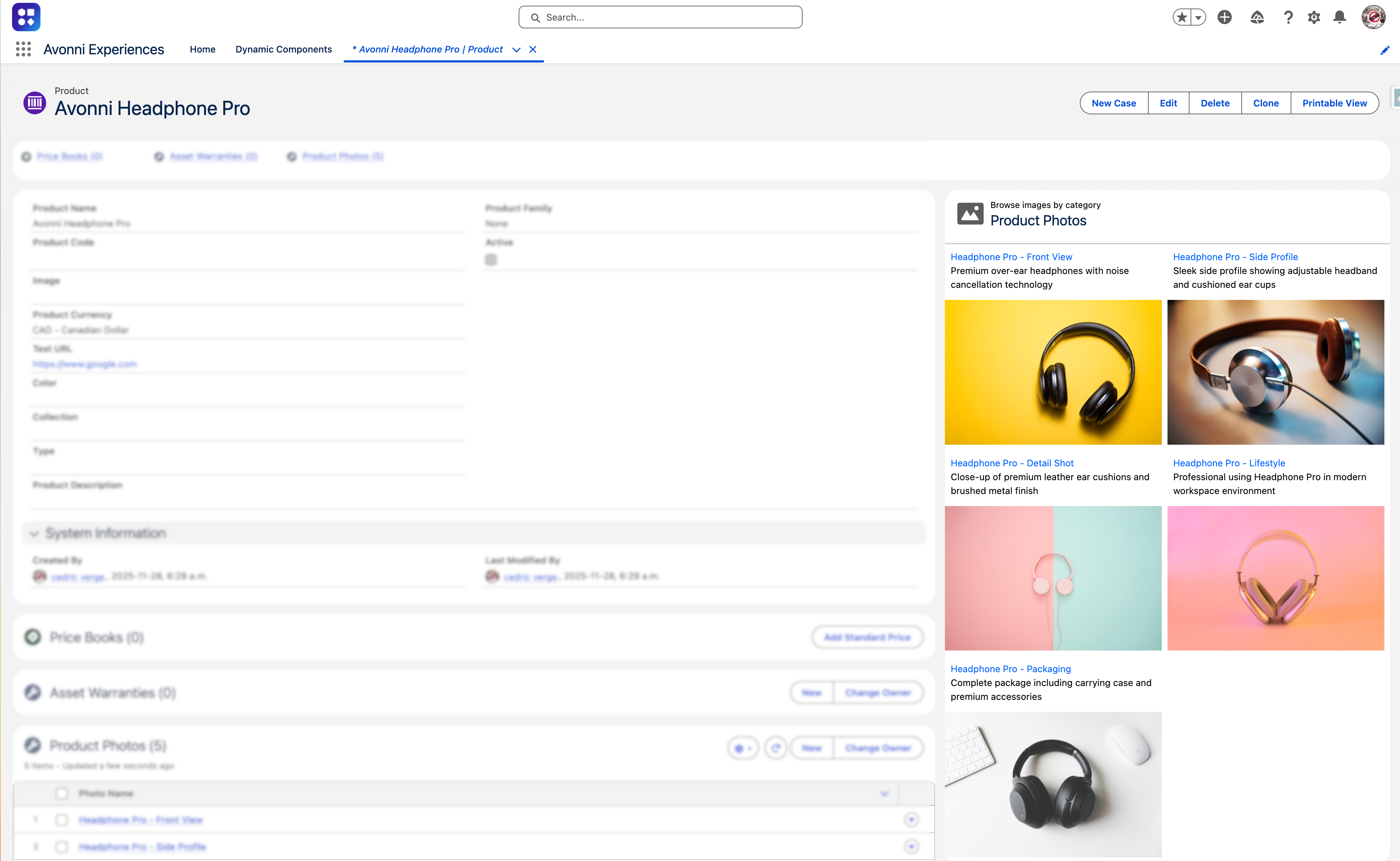
This tutorial walks you through creating a Pinterest-style photo gallery that displays on Product record pages. Users will be able to browse product images, filter by category, and click photos to take action.
#### What You'll Build
A masonry-layout gallery displaying all photos associated with the current Product. The gallery includes horizontal category filters, pagination for extensive collections, and clickable images.
#### Where It Will Appear
Once you build and deploy this component, it appears on **Product record pages** in Lightning Experience. When a user opens any Product record, they see the photo gallery showing all images linked to that specific Product. The component automatically filters to show only photos belonging to the Product they're viewing
### Prerequisites
This example assumes you have a custom object to store product photos. If you don't have one, create a custom object called **Product Photo** (API name: `Product_Photo__c`) with these fields
| Field Label | API Name | Type |
| -------------- | -------------- | --------------------------------------------------------- |
| **Photo Name** | Name | Text (standard) |
| **Product** | ProductId\_\_c | Lookup (to Product2) |
| **Photo URL** | PhotoURL\_\_c | URL |
| **Caption** | Caption\_\_c | Text |
| **Category** | Category\_\_c | Picklist (e.g., Front View, Side View, Detail, Lifestyle) |
| **Sort Order** | SortOrder\_\_c | Number |
***
{% stepper %}
{% step %}
#### Create a New Component in Dynamic Components
* Open the **Avonni Experiences** app from the App Launcher
* Click on Get Started on the Dynamic Components card
* Click **New Component**
* Give your component a name (e.g., "Product Photo Gallery")
* Set **Target Page Object** to **Product** — this tells the component it will operate on Product record pages and gives you access to the `$Component` variable for referencing the current record fields
{% endstep %}
{% step %}
#### Add the Image List Element
* Select **Image List** from the available elements
* The Image List appears on your canvas, ready for configuration in the Properties Panel
{% endstep %}
{% step %}
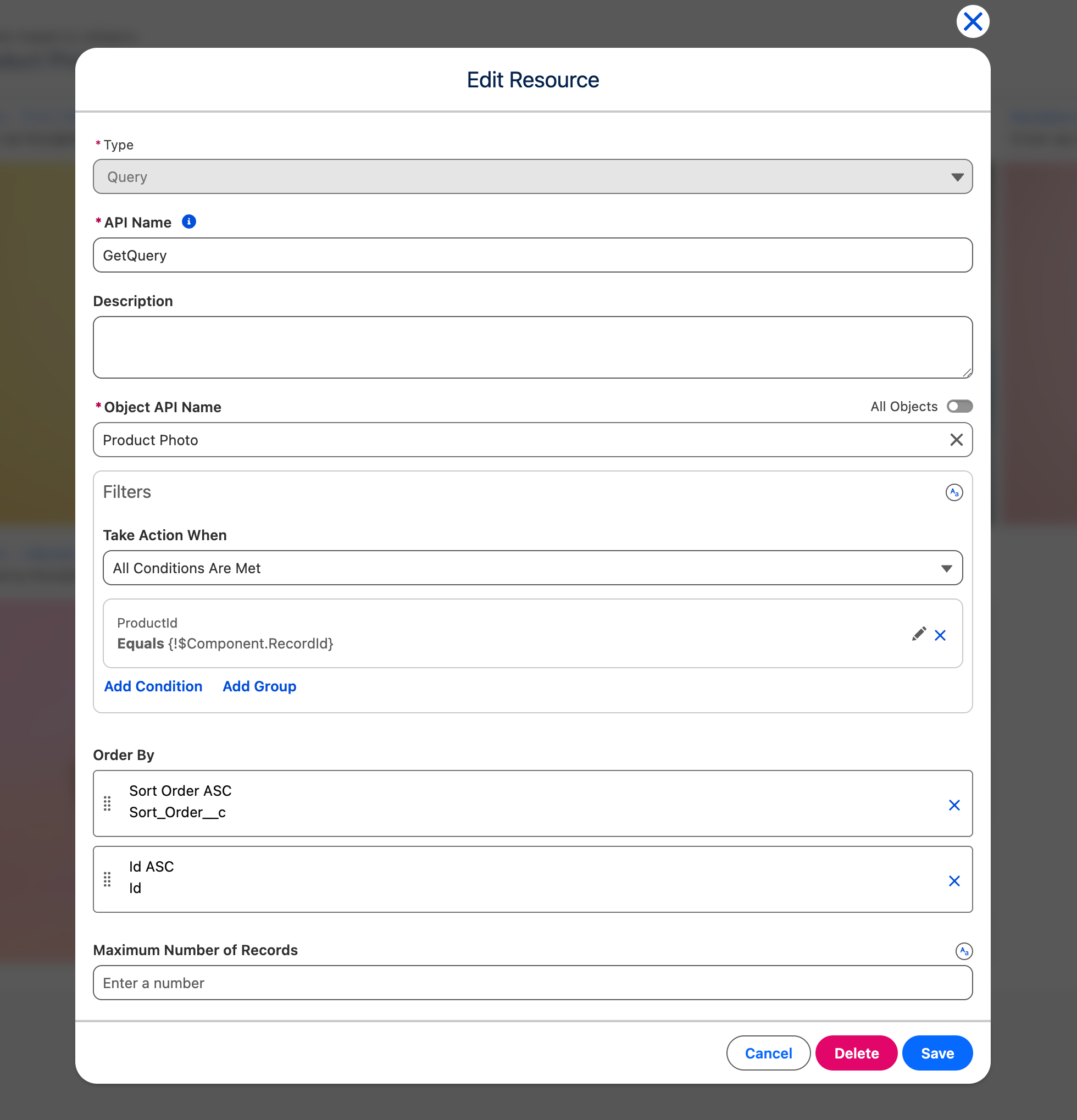
#### Configure the Data Source
With the Image List element selected, configure the query in the Properties Panel:
* Set **Data Source** to **Query**
* Click **Create Query**
* **Object**: Select `Product_Photo` (the custom object you created in Prerequisites)
* **Filters**: Add `ProductId__c = '{{$Component.recordId}}'` — this filters the photos only to show records where the Product lookup matches the Product record the user is currently viewing
* **Order By**: Select `SortOrder__c` with direction **Ascending**
* Click **Done**
{% endstep %}
{% step %}
#### Map Your Fields
In the **Data Mappings** section, connect your Salesforce fields to the gallery display:
* **Label**: Select `Photo Name` — displays the photo name below each image
* **Description**: Select `Caption__c` — shows additional context for the photo
* **Image Source**: Select `PhotoURL__c` — the actual image to display
* **Filters**: Select `Category__c` — enables filtering by this picklist
{% endstep %}
{% step %}
#### Configure the Header
In the **Header** section:
* **Title**: Enter `Product Photos`
* **Caption**: Enter `Browse images by category`
* **Is Joined**: Toggle **On** — visually connects the header to the gallery body
{% endstep %}
{% step %}
#### Configure the Gallery Appearance
In the **Content** section:
* **Variant**: Select `Masonry` — creates a Pinterest-style staggered layout
* **Items Clickable**: Toggle **On** — allows users to interact with images
{% endstep %}
{% step %}
#### Set Up Responsive Columns
In the **Layout** section, configure how many columns display at different container sizes:
* **Number of Columns Small Container**: `1` — single column on mobile
* **Number of Columns Medium Container**: `2` — two columns on tablets
* **Number of Columns Large Container**: `3` — three columns on desktop
{% endstep %}
{% step %}
#### Enable Pagination
In the **Pagination** section:
* **Show Pagination**: Toggle **On**
* **Number of Items per Page**: Enter `9` — shows 9 photos before pagination controls appear
{% endstep %}
{% step %}
#### Configure Filters
In the **Filter** section:
* **Type**: Select `Horizontal` — displays category filters as a horizontal bar above the gallery
{% endstep %}
{% step %}
#### Add Click Interaction
Now when users click any photo in the gallery, they navigate directly to that Product Photo record page
* Click the **Interactions** tab in the Properties Panel
* Under **Item Click**, click **Add Item Click**
* In the interaction dialog, configure:
* **Type**: Select `Navigate`
* **Page Reference Type**: Select `Record Page`
* **Object API Name**: Select `Product Photo`
* **Record Id**: Select `Record: Id` (the ID of the clicked image record)
* **Action Name**: Enter `View`
* **Open Console Tab**: Leave toggled Off
* Click **Save**
{% endstep %}
{% step %}
#### Save and Test
* Click **Save** in Lightning App Builder
* Click **Activation** and assign the page to your org or specific apps
* Navigate to a Product record that has associated photos
{% endstep %}
{% endstepper %}
#### What You Should See
Your gallery displays product photos in a masonry layout, with images of varying heights elegantly arranged. Above the gallery, horizontal filter buttons let users filter by category (Front View, Side View, etc.). Pagination controls appear at the bottom when there are more than 9 photos.
## Output Variables
The Image List exposes these output variables you can reference elsewhere on the page after the user interacts with it.
### Item Click
When a user clicks an image item, these variables update with the clicked item's data.
| Output variable | Type | What it returns |
| ------------------------ | ---------------- | ---------------------------------------------------------------------------------------------- |
| **Clicked Item** | Object | The clicked item's data — its label, description, and name. |
| **Clicked Item sObject** | Record (SObject) | The full Salesforce record associated with the clicked item. Requires a **Query** data source. |
> **Example:** When a user clicks a contact photo, use **Clicked Item sObject** to display that contact's details in a record-detail component beside the gallery.
### Item Action Click
When a user clicks an action button on an image item, these variables update with the action and item details.
| Output variable | Type | What it returns |
| -------------------------------------- | ---------------- | ---------------------------------------------------------------------------------------------------------------------- |
| **Clicked Item Action - Action Name** | Text (String) | The name of the item action button the user clicked. |
| **Clicked Item Action - Item** | Object | The item on which the action was clicked — its label, description, and name. |
| **Clicked Item Action - Item sObject** | Record (SObject) | The full Salesforce record associated with the item on which the action was clicked. Requires a **Query** data source. |
> **Example:** Use **Clicked Item Action - Action Name** to branch logic — for instance, route a "Download" action differently from a "Delete" action on the same gallery.
### Header Actions
| Output variable | Type | What it returns |
| ------------------------------ | ------------- | ------------------------------------------------------ |
| **Clicked Header Action Name** | Text (String) | The name of the header action button the user clicked. |
### Others
| Output variable | Type | What it returns |
| ------------------- | ------ | -------------------------------------------------------- |
| **Number of Items** | Number | The total number of images currently loaded in the list. |
## Styling
Configure the Image List's appearance from the **Style** tab of the Edit Image List panel.
{% tabs %}
{% tab title="Margin" %}
Controls the *outer* spacing around the list.
* **Top / Right / Bottom / Left:** Adjust the space on each side.
{% endtab %}
{% tab title="Padding" %}
Controls the *inner* spacing between the list's content and its border.
* **Top / Right / Bottom / Left:** Adjust the inner spacing on each side.
{% endtab %}
{% tab title="Size" %}
Controls the list's dimensions.
* **Width / Height:** Set fixed dimensions for the list.
* **Min Width / Max Width / Min Height / Max Height:** Constrain the size within bounds.
* **Overflow:** Control how content that exceeds the bounds is handled.
{% endtab %}
{% tab title="Border" %}
Customizes the border surrounding the list.
* **Color / Size / Style / Radius:** Set the border color, thickness, style, and corner rounding.
{% endtab %}
{% tab title="Header" %}
Styles the header background and spacing.
* **Background Color:** Set the header background color.
* **Padding Top / Right / Bottom / Left:** Adjust the inner spacing of the header.
* **Margin Bottom:** Set the space below the header.
{% endtab %}
{% tab title="Item" %}
Styles each image item's spacing, label, description, and background.
* **Spacing:** Top / Bottom / Left / Right around each item, plus Block Between / Inline Between between items.
* **Label:** Text Color / Link Color / Link Color Hover, and Font Size / Font Style / Font Weight.
* **Description:** Color / Font Size / Font Style / Font Weight, plus Line Clamp to limit the number of lines.
* **Background:** Color / Color Hover / Color Highlight.
{% endtab %}
{% tab title="Pagination Buttons" %}
Customizes the pagination buttons.
* **Background Color / Text/Icon Color / Color Border:** Set the colors for the default, active, hover, and disabled states.
* **Border Size / Border Style:** Control the button border.
* **Active Button** variants: set the same colors for the currently active page button.
{% endtab %}
{% tab title="Footer" %}
Styles the footer bar.
* **Background Color:** Set the footer background.
* **Border Color / Border Size / Border Style / Border Radius:** Customize the footer border.
{% endtab %}
{% tab title="Show More Button" %}
Customizes the "Show More" button (when load-more is used).
* **Background Color / Text Color / Border Color:** Set the colors for the default, active, and hover states.
* **Border Size / Border Radius:** Control the button border.
* **Block Start / Block End / Inline Start / Inline End:** Set the spacing around the button.
{% endtab %}
{% endtabs %}
[^1]: $Component component is accessible from the mapped values.
---
# Agent Instructions
This documentation is published with GitBook. GitBook is the documentation platform designed so that both humans and AI agents can read, navigate, and reason over technical content effectively. Learn more at gitbook.com.
## Querying This Documentation
If you need additional information that is not directly available in this page, you can query the documentation dynamically by asking a question.
Perform an HTTP GET request on the current page URL with the `ask` query parameter, and the optional `goal` query parameter:
```
GET https://docs.avonnicomponents.com/dynamic-components/components/image-list.md?ask=&goal=
```
`ask` is the immediate question: it should be specific, self-contained, and written in natural language.
`goal` is optional and describes the broader end goal you are ultimately trying to accomplish on behalf of the user. GitBook uses it to tailor the answer towards what is most useful for that goal.
The response will contain a direct answer to the question and relevant excerpts and sources from the documentation.
Use this mechanism when the answer is not explicitly present in the current page, you need clarification or additional context, or you want to retrieve related documentation sections.