circles-overlapInteractions

Overview

Interactions define the logic and behavior of your Dynamic Components. They determine how the application responds when users engage with the interface—whether clicking a button, selecting a row, or loading a page.

Using the no-code builder, you can define complex behaviors following a simple Event-Driven Pattern:

Trigger (e.g., On Click) \rightarrow Action (e.g., Navigate) \rightarrow Result (e.g., Opens Page)


How to Configure Interactions

  1. Select Component: Open your Dynamic Component and click on the specific element (e.g., Button, Data Table) you wish to make interactive.

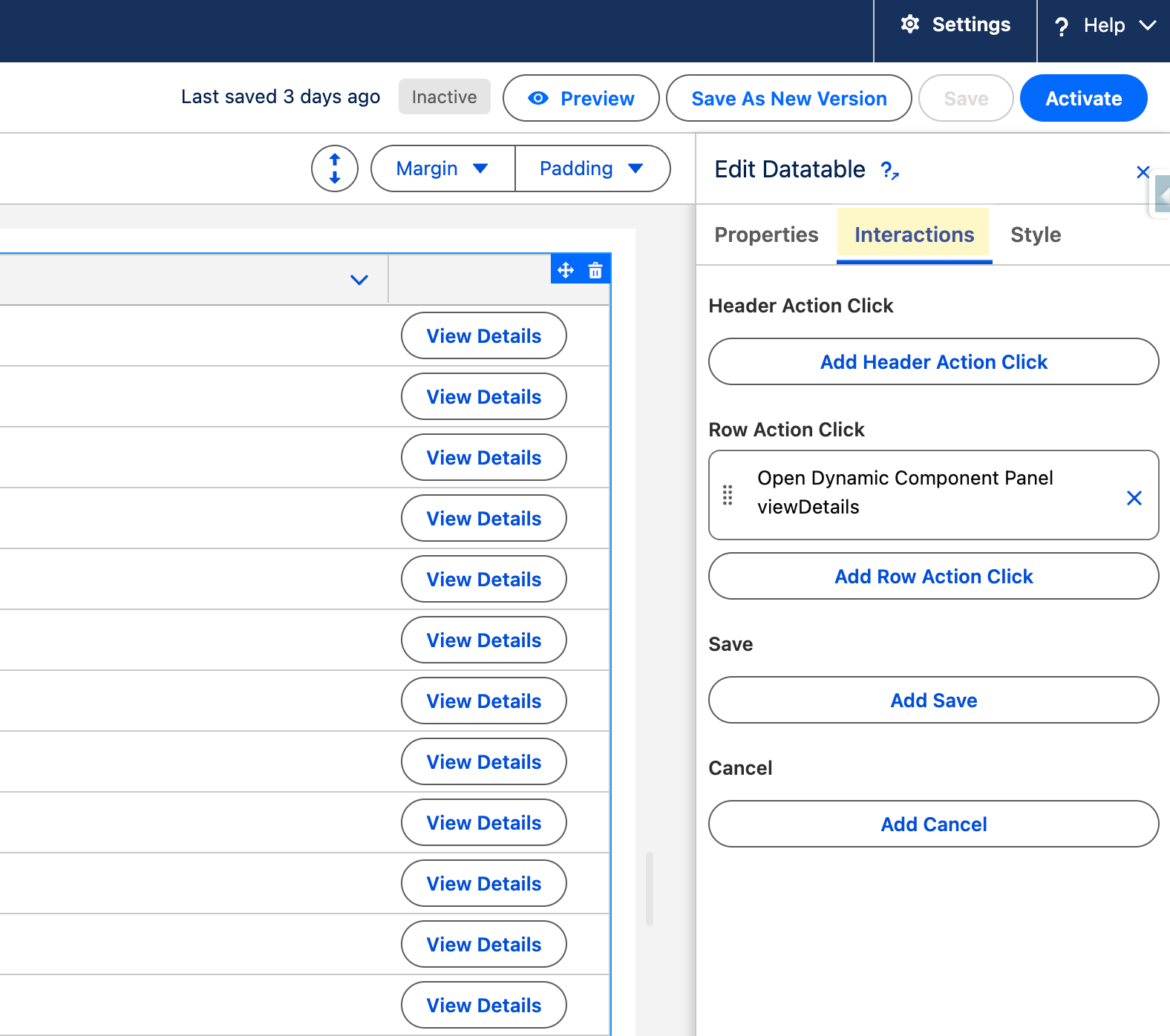
  2. Access Interactions: Navigate to the Interactions tab in the right-hand Properties Panel.

  3. Choose Trigger: Select the event that starts the sequence (e.g., On Click, On Row Action, On Load).

  4. Add Action: Click Add Action and select the desired interaction type from the library below.

  5. Chain Actions (Optional): You can add multiple actions to a single trigger. They will execute sequentially (e.g., Update Record \rightarrow Show Toast \rightarrow Close Modal).

💡 Tip: Chain multiple actions together for one trigger. They execute in order, letting you create sequences like Execute Flow → Show Toast → Navigate.


Interaction Reference

Guide users to different pages and provide visual feedback on their actions.

Action
Description

Redirects the user to a Record Page, Object Home, External URL, or another App.

Displays a temporary notification banner (Success, Warning, Error, or Info) at the top of the screen.

Interrupts the workflow with a critical message that requires user acknowledgment to proceed.

Requires the user to confirm or cancel an action (ideal for "Delete" or "Submit" scenarios).

Dynamic Components

Open other Dynamic Components within your current page for layered workflows.

Action
Description

Opens another Dynamic Component in a modal overlay. Great for wizards or complex forms.

Opens another Dynamic Component in a sliding side panel.

Flows

Integrate Salesforce Flows to execute business logic and display guided processes.

Action
Description

Runs an Autolaunched Flow in the background to perform calculations or data operations.

Launches a Screen Flow inside a modal window (pop-up) over the current page.

Launches a Screen Flow inside a sliding side panel, keeping the main content visible.

Selected Records Operations

Use these native operations to manage data in bulk directly from the Data Table component without needing to build custom logic.

Action
Description

Automatically removes one or multiple records from Salesforce after a mandatory user confirmation.

Creates exact clones of the selected records in a single backend transaction.

Opens a modal allowing users to select a field and apply a new value to all targeted records.

Records & Data

Manage Salesforce records and export data directly from your components.

Action
Description

Creates a new record in Salesforce using values stored in a record variable.

Commits changes made to a record variable back to Salesforce.

Permanently deletes the record associated with the current record variable.

Refreshes or fetches the latest data for a specific record variable from the database.

(Data Table Header Only) Copies selected rows to the clipboard, formatted for pasting into Excel or email.

Enables direct file downloading from Data Table content.

Variables & AI

Store information and leverage AI capabilities within your components.

Action
Description

Modifies the value of a variable (e.g., Set, Add, Toggle). Used for state management and calculations.

Triggers an AI agent to perform tasks like recommendations, summarization, or automated decision-making.

Other Actions

Additional specialized interactions for specific use cases.

Action
Description

Launches a standard Salesforce Quick Action (e.g., Log a Call, New Task).

Captures the device's current geographic coordinates and updates location-based data fields.


Common Patterns

After updating data: Always add a "Refresh Query" action to show the latest information.

Before deleting: Use "Open Confirm Dialog" to prevent accidental deletions.

Complex workflows: Chain actions like Execute Flow → Assignment → Show Toast → Navigate.

User feedback: Include Show Toast after important actions to confirm success or explain errors.


Troubleshooting

chevron-right⚠️ My interaction doesn't do anything when I clickhashtag

Interactions don't work in the Component Builder's preview. You need to test them on an actual page.

Here's how to test your interaction properly:

  1. Save your Dynamic Component in the builder

  2. Go to a Lightning Page where you've added this component (like your Account page or Home page)

  3. Refresh the page to load your latest changes

  4. Try your interaction - click the button, select a row, etc.

If you haven't added your component to a page yet:

  1. Go to Setup → Lightning App Builder

  2. Edit a page (or create a new one)

  3. Drag your Dynamic Component onto the page

  4. Save and activate the page

  5. Now go view that page and test your interaction

Still not working? Press F12 on your keyboard to open the browser console. Look for red error messages - they'll tell you what's going wrong

chevron-right↕️ My actions happen in the wrong sequencehashtag

When you add multiple actions to one interaction, they run top-to-bottom in the list.

To change the order:

  1. Go to the Interactions panel

  2. Find your list of actions

  3. Drag and drop them into the correct order (grab the handle on the left side)

  4. Save your component

If actions still seem out of sync, they might be running too fast. Try adding a small delay between them.

chevron-right↻ My data shows old information after an actionhashtag

When you update, create, or delete records, the component doesn't automatically know to refresh what it's displaying.

The fix:

  1. Open your interaction

  2. After your update/create/delete action, click "Add Action"

  3. Choose "Refresh Query"

  4. Select which data table or component needs to refresh

  5. Save

Now your component will reload the data after making changes, so users see the updated information immediately.

chevron-right→ My navigation button goes to the wrong placehashtag

Your Navigate action has settings that tell it where to go. One of these is probably incorrect:

Check these settings:

  • Page Reference Type: Are you trying to go to a "Record Page" but selected "Object Home"?

  • Record ID: If going to a specific record, is this the correct record's ID? (It might be pulling from the wrong field)

  • Object API Name: Did you type "Account" when you meant "Contact"?

How to verify:

  1. Click on the interaction in the Interactions panel

  2. Review each field in the Navigate configuration

  3. Make sure you're using the right variable or field name for Record IDs

  4. Test with a record you know exists

Still having issues? Try navigating to a simple test record first to make sure the Navigate action itself works.


Next Steps

Start with simple interactions like Navigate and Show Toast, then build up to complex sequences as you get comfortable. Each interaction type has detailed documentation with specific examples and configuration options

Last updated

Was this helpful?