> For the complete documentation index, see [llms.txt](https://docs.avonnicomponents.com/llms.txt). Markdown versions of documentation pages are available by appending `.md` to page URLs; this page is available as [Markdown](https://docs.avonnicomponents.com/dynamic-components/tutorials/tips-and-tricks.md).

# Tips and Tricks

The reference pages tell you what every setting does. This page is the other half: the handful of moves that make the Component Builder faster to work in, and the things that most often make a finished component look broken when it is working exactly as designed.

***

## Before you build

### Set the Target Page Object first

The [**Target Page Object**](/dynamic-components/core-concepts/target-page-object.md) is what connects a Dynamic Component to the record it sits on, and it does two things at once. It fills the **Fields** tab with that object's fields, and it turns on `$Component.record`, so `$Component.record.Name` and `$Component.record.Id` become available everywhere in the builder.

A component placed on a record page without it has no record to read. Nothing on screen says so, and the symptom is an empty component rather than an error, which is why this is worth doing before anything else.

The **Settings** button only appears once the component has been saved. On a component you have just started it is not on screen yet: click **Save**, and the New Component dialog carries the same field.

### Let the Fields tab write the binding for you

When a component is about one record, drag its fields in from the [**Fields**](/dynamic-components/component-builder/configuring-components/fields.md) tab rather than adding components from the **Components** tab and binding them by hand. A field dragged from there arrives already bound to `$Component.record`, which is both faster and impossible to misspell.

### Rename elements as you add them

Every element gets an automatic API Name, so a canvas fills up with `Layout3` and `Button2`. Those names are what you will be reading later: in the Resource Selector, in visibility conditions, and in the list of components a Refresh Query interaction targets.

Renaming is safe at any point. When you change the **API Name** field at the top of the Properties panel, the builder rewrites every reference to that element in the same action, so nothing breaks and there is no reason to postpone it. The name must start with a letter, use only letters, numbers and underscores, avoid a trailing or doubled underscore, and be unique inside the component.

***

## While you build

### The Properties panel links to the component's own reference page

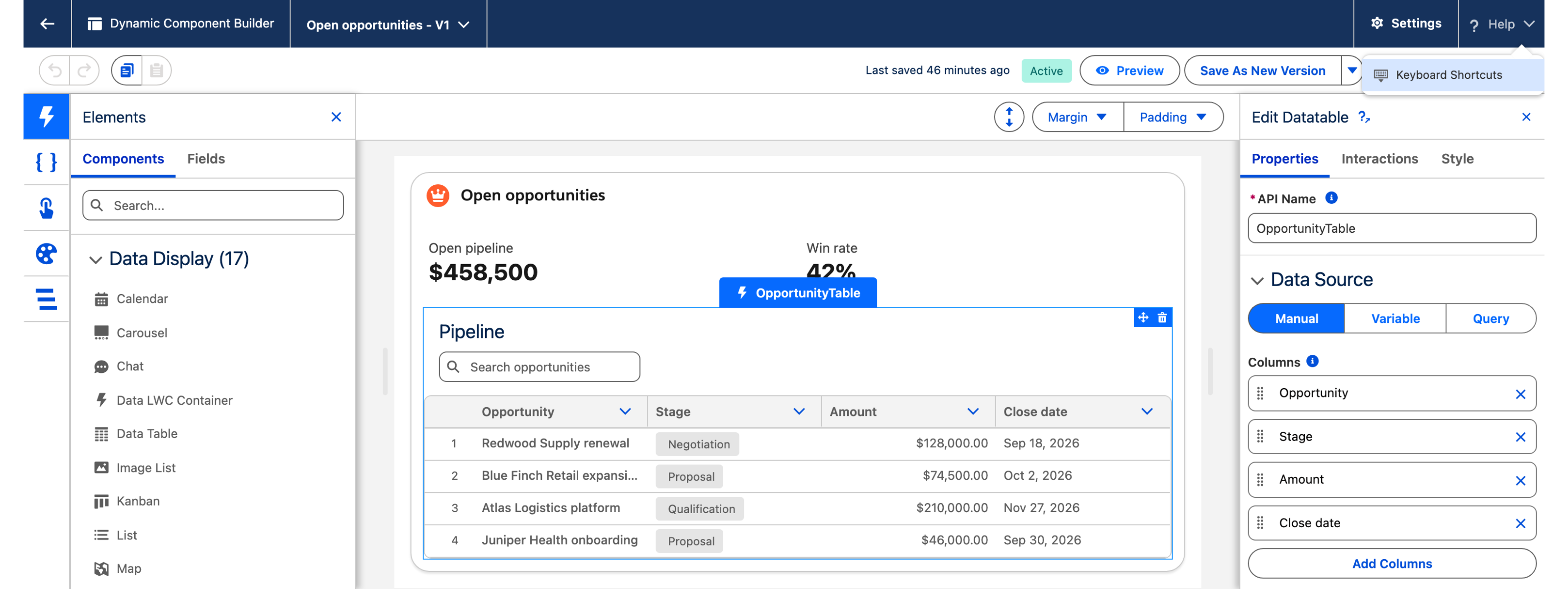
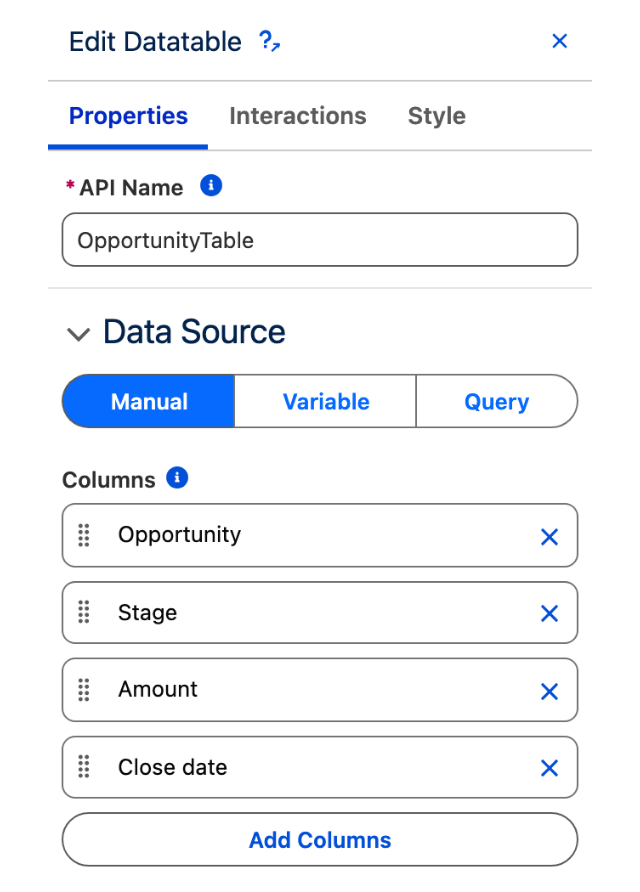
Next to the component's name at the top of the Properties panel there is a small documentation icon. It opens the reference page for the component you have selected, in a new tab. It is there for almost every component in the library, and it is quicker than searching the site.

<figure><img src="https://2532358799-files.gitbook.io/~/files/v0/b/gitbook-x-prod.appspot.com/o/spaces%2FODPvvv7Cx9Z9RECLn3oV%2Fuploads%2FACAAZk8S6DiB055OdkVU%2Ftips-properties-panel.png?alt=media" alt="" width="320"><figcaption><p>The documentation icon sits beside the component name, above the API Name field and the data source switch.</p></figcaption></figure>

### Three keys worth learning

| Key                  | What it does                                                   |
| -------------------- | -------------------------------------------------------------- |
| `Ctrl` / `Cmd` + `S` | Save the component                                             |
| `Ctrl` / `Cmd` + `B` | Show or hide the left panel, so the canvas gets the full width |
| `Escape`             | Unselect the current element and close the Properties panel    |

The builder also lets you highlight, select, move and add elements from the keyboard alone. **Help** in the top right, then **Keyboard Shortcuts**, lists those canvas interactions.

<figure><img src="https://2532358799-files.gitbook.io/~/files/v0/b/gitbook-x-prod.appspot.com/o/spaces%2FODPvvv7Cx9Z9RECLn3oV%2Fuploads%2Fle2AUI5ImmiM8CxjcEeI%2Ftips-help-menu.png?alt=media" alt=""><figcaption><p>Help, top right of the builder, opens the list of keyboard interactions.</p></figcaption></figure>

Undo and Redo are the two curved arrows in the toolbar above the canvas.

### Use the Structure panel to select what you cannot click

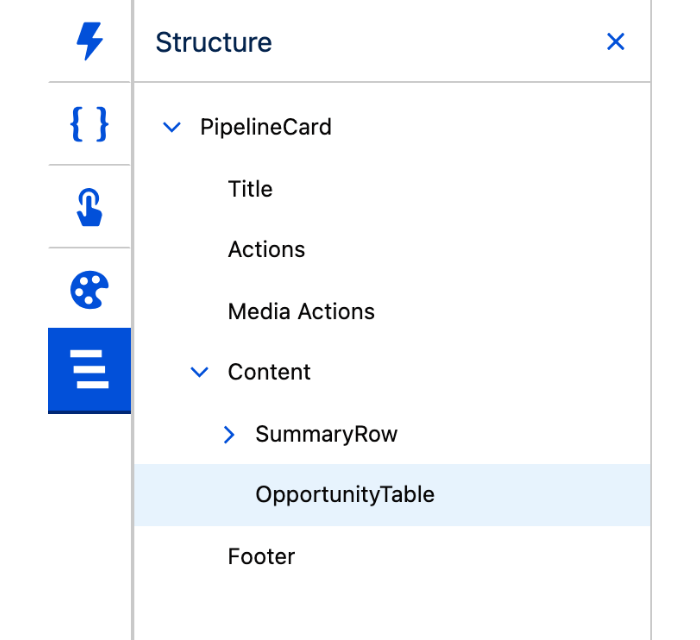
Nested layouts produce elements that are hard to hit on the canvas: a container sitting behind its own children, a component with no visible surface, an element inside a collapsed section. The [**Structure**](/dynamic-components/component-builder/advanced-features/structure-panel.md) panel lists every element as a nested tree, and clicking a name selects it. It is also the fastest way to understand a component somebody else built.

<figure><img src="https://2532358799-files.gitbook.io/~/files/v0/b/gitbook-x-prod.appspot.com/o/spaces%2FODPvvv7Cx9Z9RECLn3oV%2Fuploads%2FDjkoqxV6ycQ8LWjnCMJb%2Ftips-structure-panel.png?alt=media" alt="" width="320"><figcaption><p>The tree mirrors the nesting, and the selected element is highlighted in it.</p></figcaption></figure>

### Read another component's value instead of computing it

Components can read each other's live state directly, and that is the mechanism behind most reactive pages. Open the [**Resource Selector**](/dynamic-components/core-concepts/using-variables-and-component-data.md) next to a property, pick a component, then pick an attribute.

| Attribute           | On                          | What it holds                           |
| ------------------- | --------------------------- | --------------------------------------- |
| `.value`            | Inputs, comboboxes, sliders | The current entered or selected value   |
| `.firstSelectedRow` | Data Table                  | The full row object of the selected row |
| `.activeItemValue`  | Tabs                        | The value of the active tab             |

A query filter pointed at one of these re-runs on its own when the value changes, so a Data Table can follow a combobox, or a detail panel can follow a selected row, with no formula in between.

***

## Before you ship

### Test in Preview, not on a page

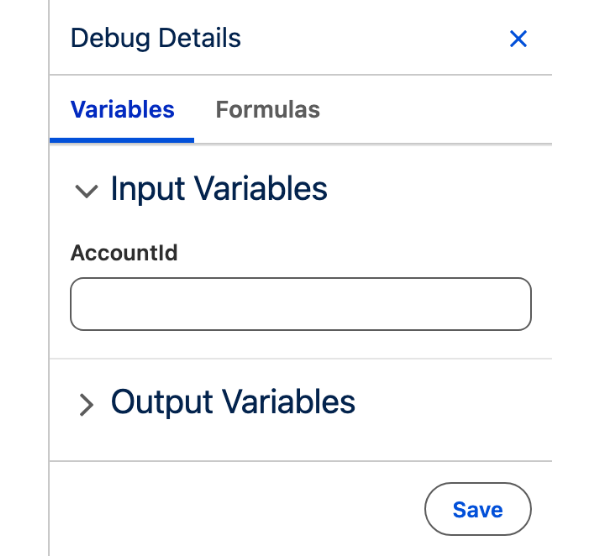
**Preview** opens the [**Debug Details**](/dynamic-components/component-builder/advanced-features/debug-panel.md) panel, where you type a record ID into an input variable and watch the component re-render against real data. You get the same result as deploying to a record page without deploying anything, and you can switch records between two tests in a second.

A variable only appears there if **Available for Input** or **Available for Output** is ticked in its configuration.

<figure><img src="https://2532358799-files.gitbook.io/~/files/v0/b/gitbook-x-prod.appspot.com/o/spaces%2FODPvvv7Cx9Z9RECLn3oV%2Fuploads%2FsOU44ccf13kuAP9zDgQl%2Ftips-debug-panel.png?alt=media" alt="" width="320"><figcaption><p>The Debug Details panel, with one variable made available for input.</p></figcaption></figure>

### Chain a refresh after every write

Creating, updating or deleting a record does not refresh the components that were already showing that data. A Data Table keeps its old rows until somebody reloads the page.

Add a refresh to the **On Success** chain of the record operation:

* [**Refresh All Queries**](/dynamic-components/component-builder/interactions/refresh-all-queries.md) for the common case, with **Refresh Current Component Only** when the change is contained.
* [**Refresh Query**](/dynamic-components/component-builder/interactions/refresh-query.md) when one or two named components need to reload and the rest of the page should be left alone.

### Two things that make a working component look broken

**A condition is comparing a label.** [Visibility conditions](/dynamic-components/core-concepts/component-visibility.md) compare the value stored on the record, not the label shown in the builder. Record types are where this bites: the editor offers `Distribution Headquarters` while the record stores `Distribution_Headquarters`, so the condition is false, the component stays hidden, and no error appears. To find out which of the two problems you have, change the operator to **Is Not Null** and reload. If the component appears, only the compared value is wrong.

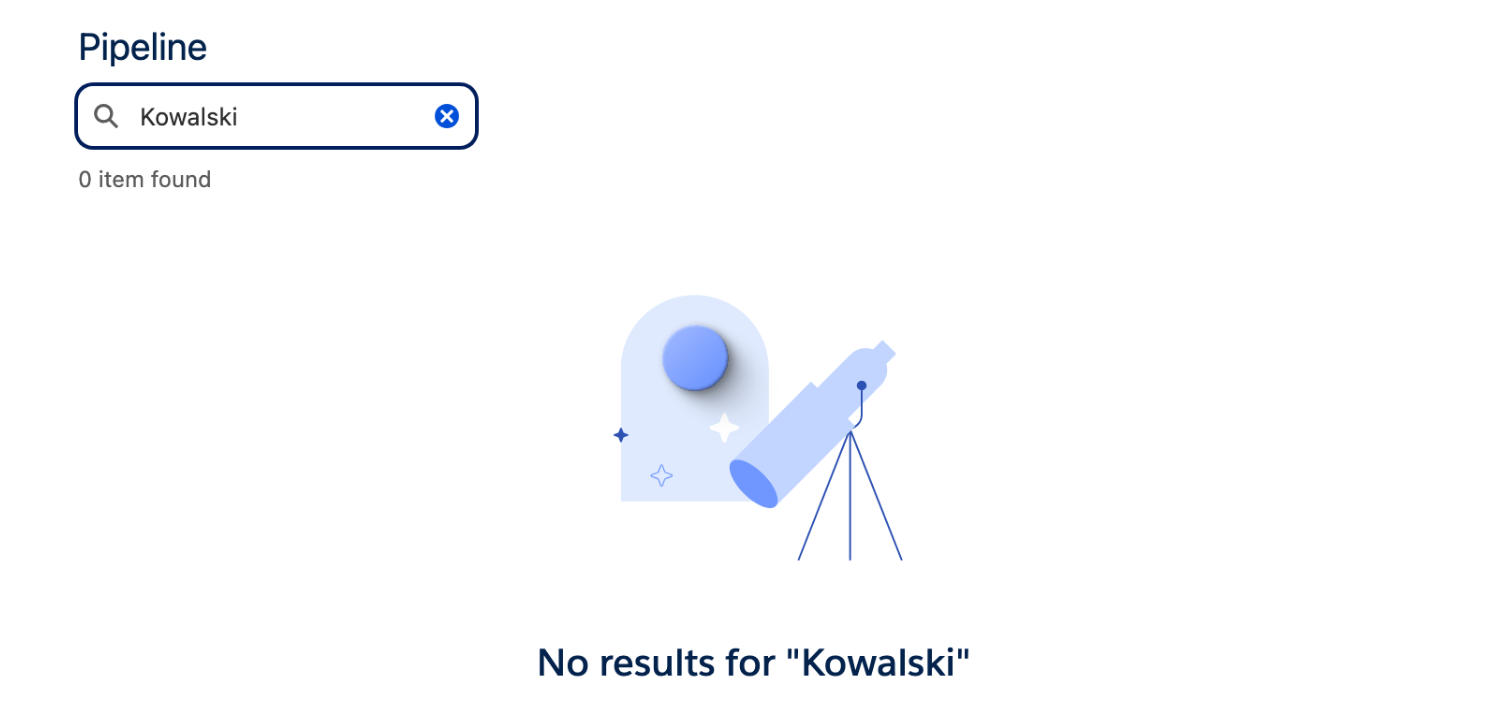
**An empty result is not an error.** When a data source returns zero rows, data components show a "no results" illustration. That is the intended empty state, not a failure. Every data component lets you replace it: set a **No Results Message** in your own words, tick **Hide No Results Image** for text only, or tick both hide options to leave the area blank.

<figure><img src="https://2532358799-files.gitbook.io/~/files/v0/b/gitbook-x-prod.appspot.com/o/spaces%2FODPvvv7Cx9Z9RECLn3oV%2Fuploads%2FGCa8trpTYuvWuUXJd2GJ%2Ftips-empty-state.png?alt=media" alt=""><figcaption><p>Zero rows after a search. The component is working; there is simply nothing to show.</p></figcaption></figure>

### Know what copy and paste does not carry

[Copying an element](/dynamic-components/component-builder/advanced-features/copy-and-paste.md) brings its type, all of its properties and its nested components. Two things do not travel:

* **Resources** are never copied, in either direction. Recreate the variables, constants and formulas in the target component first, then paste.
* **Data sources** are copied within the same Dynamic Component, where the pasted element then shares the same data source instance, so editing one affects both. Between two different Dynamic Components they are not copied at all.

Interactions are copied, but their references point at the original component's element names, so they need adjusting after a paste into a different component.

***

## Where to go next

<table data-view="cards"><thead><tr><th></th><th data-hidden data-card-target data-type="content-ref"></th></tr></thead><tbody><tr><td><strong>Troubleshooting &#x26; FAQ</strong></td><td><a href="/dynamic-components/resources/troubleshooting-and-faq.md">Troubleshooting &amp; FAQ</a></td></tr><tr><td><strong>Performance Guide</strong></td><td><a href="/dynamic-components/resources/performance-guide.md">Performance Guide</a></td></tr><tr><td><strong>Known Issues</strong></td><td><a href="/dynamic-components/resources/known-issues.md">Known Issues</a></td></tr></tbody></table>


---

# Agent Instructions
This documentation is published with GitBook. GitBook is the documentation platform designed so that both humans and AI agents can read, navigate, and reason over technical content effectively. Learn more at gitbook.com.

## Querying This Documentation
If you need additional information that is not directly available in this page, you can query the documentation dynamically by asking a question.

Perform an HTTP GET request on the current page URL with the `ask` query parameter, and the optional `goal` query parameter:

```
GET https://docs.avonnicomponents.com/dynamic-components/tutorials/tips-and-tricks.md?ask=<question>&goal=<endgoal>
```

`ask` is the immediate question: it should be specific, self-contained, and written in natural language.
`goal` is optional and describes the broader end goal you are ultimately trying to accomplish on behalf of the user. GitBook uses it to tailor the answer towards what is most useful for that goal.

The response will contain a direct answer to the question and relevant excerpts and sources from the documentation.

Use this mechanism when the answer is not explicitly present in the current page, you need clarification or additional context, or you want to retrieve related documentation sections.