> For the complete documentation index, see [llms.txt](https://docs.avonnicomponents.com/llms.txt). Markdown versions of documentation pages are available by appending `.md` to page URLs; this page is available as [Markdown](https://docs.avonnicomponents.com/dynamic-components/tutorials/components/data-table/configuring-data-grouping.md).
# Configuring Data Grouping
## Overview
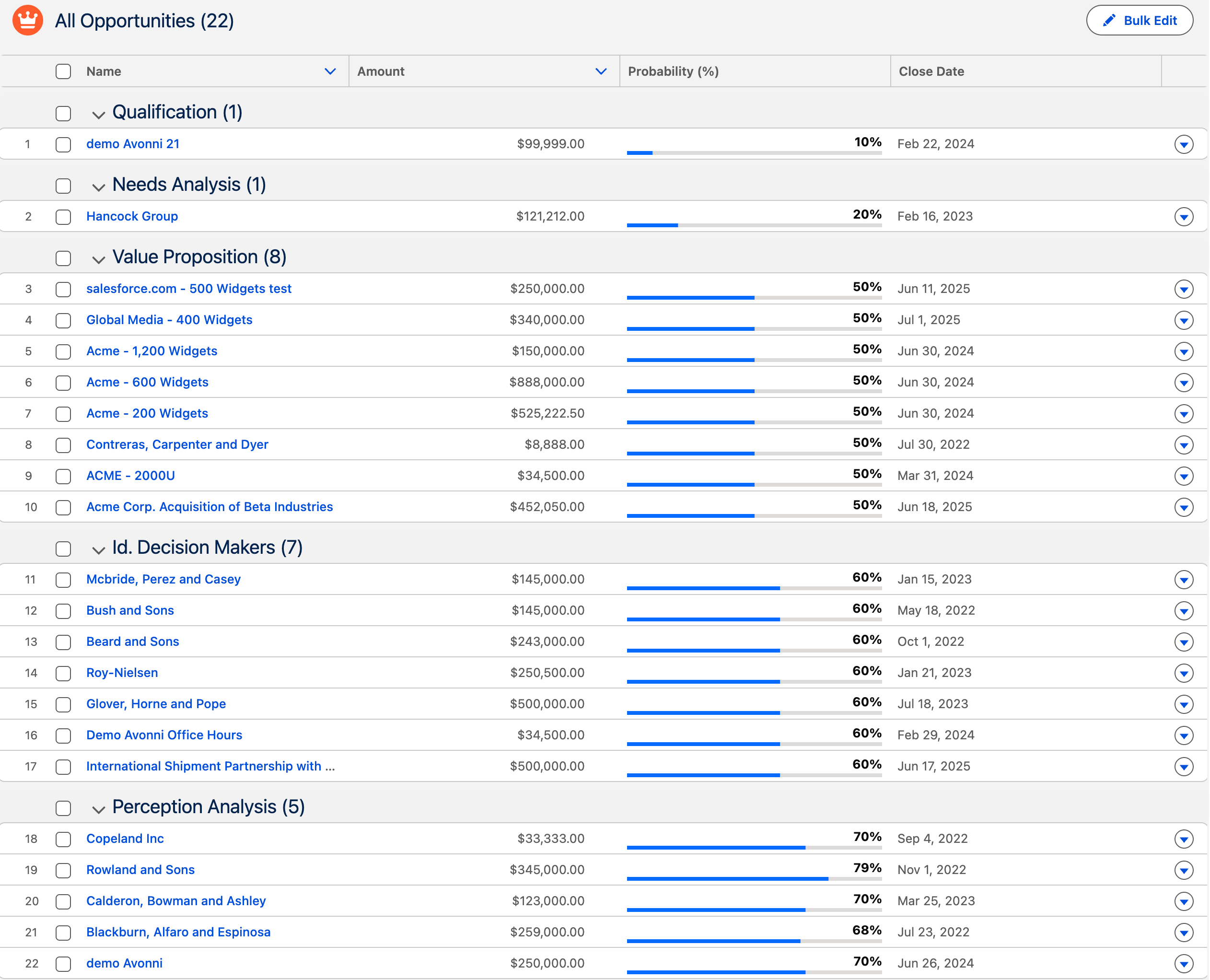
Grouping aggregates similar records under a single, expandable header based on a specific field (like **Stage**, **Region**, or **Owner**). By the end of this tutorial, you’ll be able to create a clean, organized table that users can navigate with ease.
***
## Step-by-Step Configuration
{% stepper %}
{% step %}
#### Select Your "Anchor" Field
The first step is to specify the Data Table field to use for record organization.
* Navigate to the **Data Mappings** section in the Properties Panel.
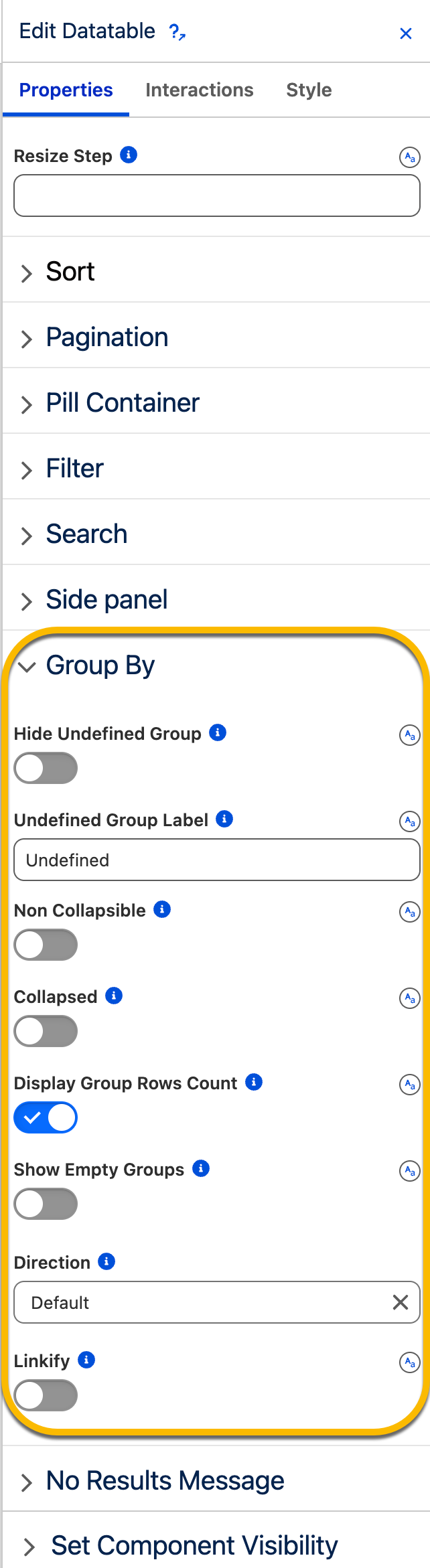
* Locate the **Group By** attribute.
* From the dropdown or search list, **select the field** you wish to use as your grouping anchor (e.g., *Status* or *Account Name*).
{% endstep %}
{% step %}
#### Define the Group Sort Order
Once the field is selected, you can decide how the headers themselves are ordered.
* In the **Group By** section, find the Direction setting.
* Choose Ascending (A-Z) or Descending (Z-A).
* *Example:* If grouping by "Priority," use Descending to ensure "High" appears at the top of the list
{% endstep %}
{% endstepper %}
***
## Fine-Tuning the Group Display
After the basic setup, use the advanced settings on the Grouping Options tab to refine these settings and polish the user experience.
#### Visual State & Visibility
* **Collapsed** (Initial State): Set this to True if you want the table to load with all groups closed. This provides a clean "high-level" overview, which is highly recommended for large datasets.
* **Non-Collapsible**: Enable this to "lock" groups in an open state, preventing users from accidentally hiding rows.
* **Display Group Row Counts**: Adds a numeric count next to the header—e.g., *In Progress (12)*. This gives users instant context on the volume of work in each category.
#### Handling Data Gaps
* **Hide Undefined Groups**: If some records have a blank value in your grouping field, enable this to hide those "Undefined" groups from the view entirely.
* **Undefined Group Label**: If you choose to show blank values, provide a professional name like "Unassigned" or "N/A" instead of leaving the header empty.
* **Show Empty Groups**: Forces the table to show headers for every possible picklist value, even if there are currently zero records for that category.
#### Navigation Shortcuts
* **Linkify**: If you are grouping by a Lookup field, enable this to turn the group header into a clickable link. Users can jump directly to the corresponding Salesforce record without first expanding the group.
***
{% hint style="success" %}
#### Pro-Tip
**Grouping vs. Sorting**: Think of **Grouping** as the "buckets" and **Sorting** as the "internal order." For the best experience, group your table by a category (Status) and then sort the internal rows by a value (Amount) or date (Close Date).
{% endhint %}
---
# Agent Instructions
This documentation is published with GitBook. GitBook is the documentation platform designed so that both humans and AI agents can read, navigate, and reason over technical content effectively. Learn more at gitbook.com.
## Querying This Documentation
If you need additional information that is not directly available in this page, you can query the documentation dynamically by asking a question.
Perform an HTTP GET request on the current page URL with the `ask` query parameter, and the optional `goal` query parameter:
```
GET https://docs.avonnicomponents.com/dynamic-components/tutorials/components/data-table/configuring-data-grouping.md?ask=&goal=
```
`ask` is the immediate question: it should be specific, self-contained, and written in natural language.
`goal` is optional and describes the broader end goal you are ultimately trying to accomplish on behalf of the user. GitBook uses it to tailor the answer towards what is most useful for that goal.
The response will contain a direct answer to the question and relevant excerpts and sources from the documentation.
Use this mechanism when the answer is not explicitly present in the current page, you need clarification or additional context, or you want to retrieve related documentation sections.