> For the complete documentation index, see [llms.txt](https://docs.avonnicomponents.com/llms.txt). Markdown versions of documentation pages are available by appending `.md` to page URLs; this page is available as [Markdown](https://docs.avonnicomponents.com/dynamic-components/tutorials/components/data-table/add-custom-buttons.md).
# Add Custom Buttons
## Overview
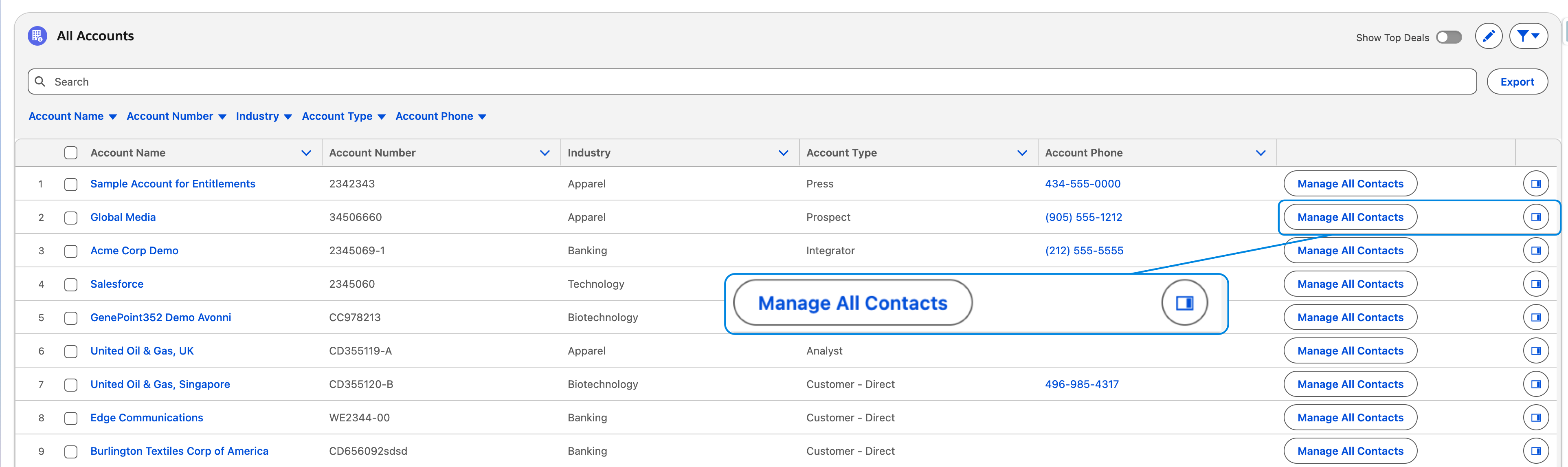
This tutorial guides you step-by-step through adding row-level action buttons to an [**Avonni Data Table**](/dynamic-components/components/data-table.md) within a Dynamic Component. You'll learn how to create buttons in each table row and trigger actions related to that specific record. Examples include buttons for Edit, Delete, View Details, or launching a custom process (such as a Screen Flow).
***
## Guided Tutorial
Follow these steps to add a column of action buttons and configure what happens when users click them.
### **Phase 1: Setup and Configuration**
{% stepper %}
{% step %}
#### **Open the Dynamic Component Builder**
* Click the **App Launcher** (waffle icon) in Salesforce.
* Search for and select **Avonni Experiences**.
* Navigate to the **Dynamic Components** tab.
* Create a **New** component or click the name of an **existing** component to open the builder.
{% endstep %}
{% step %}
#### **Add or Select the Data Table**
* If your canvas is empty, drag the Data Table component from the components panel onto it.
* If you already have a Data Table, simply click on it to open the properties panel on the right.
{% endstep %}
{% step %}
#### **Add a New Column**
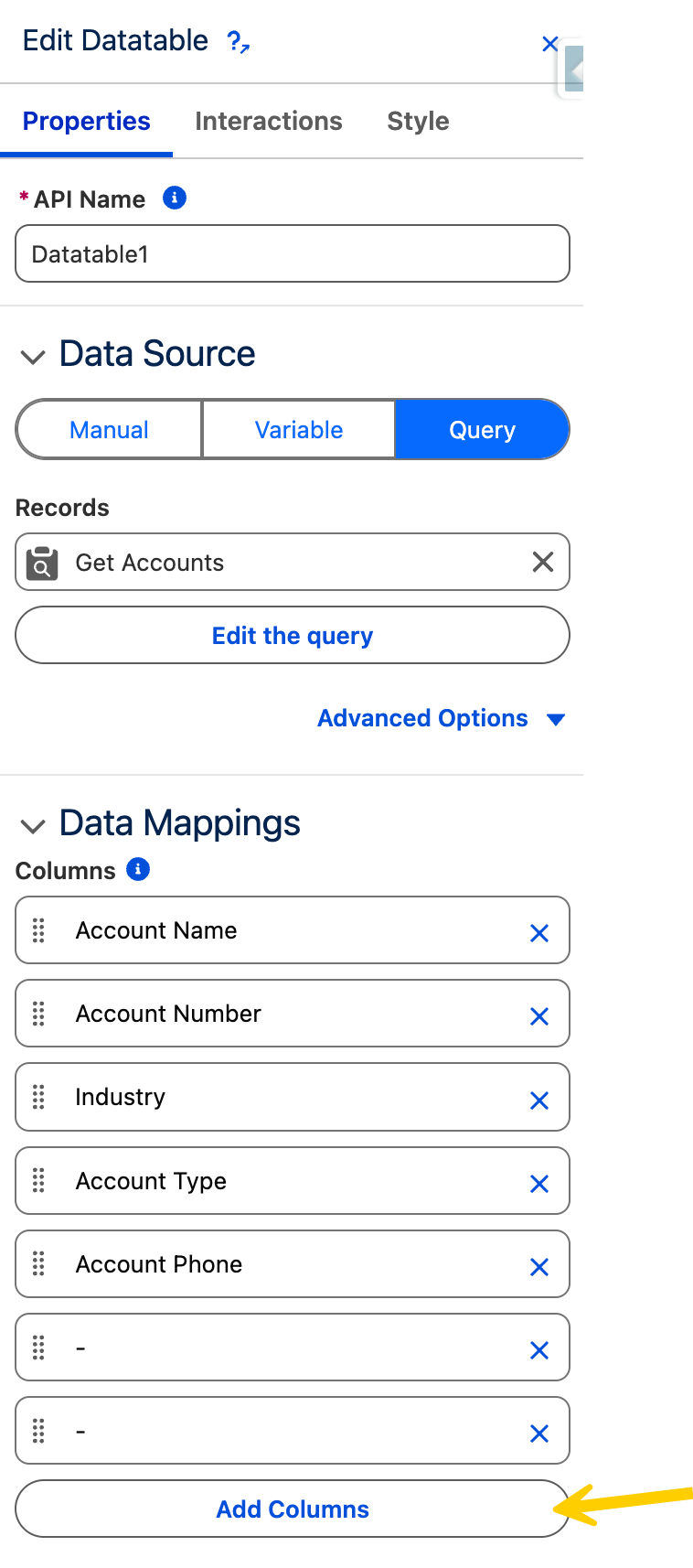
* In the properties panel, locate the **Data Mappings** section.
* Click Add Column
{% endstep %}
{% step %}
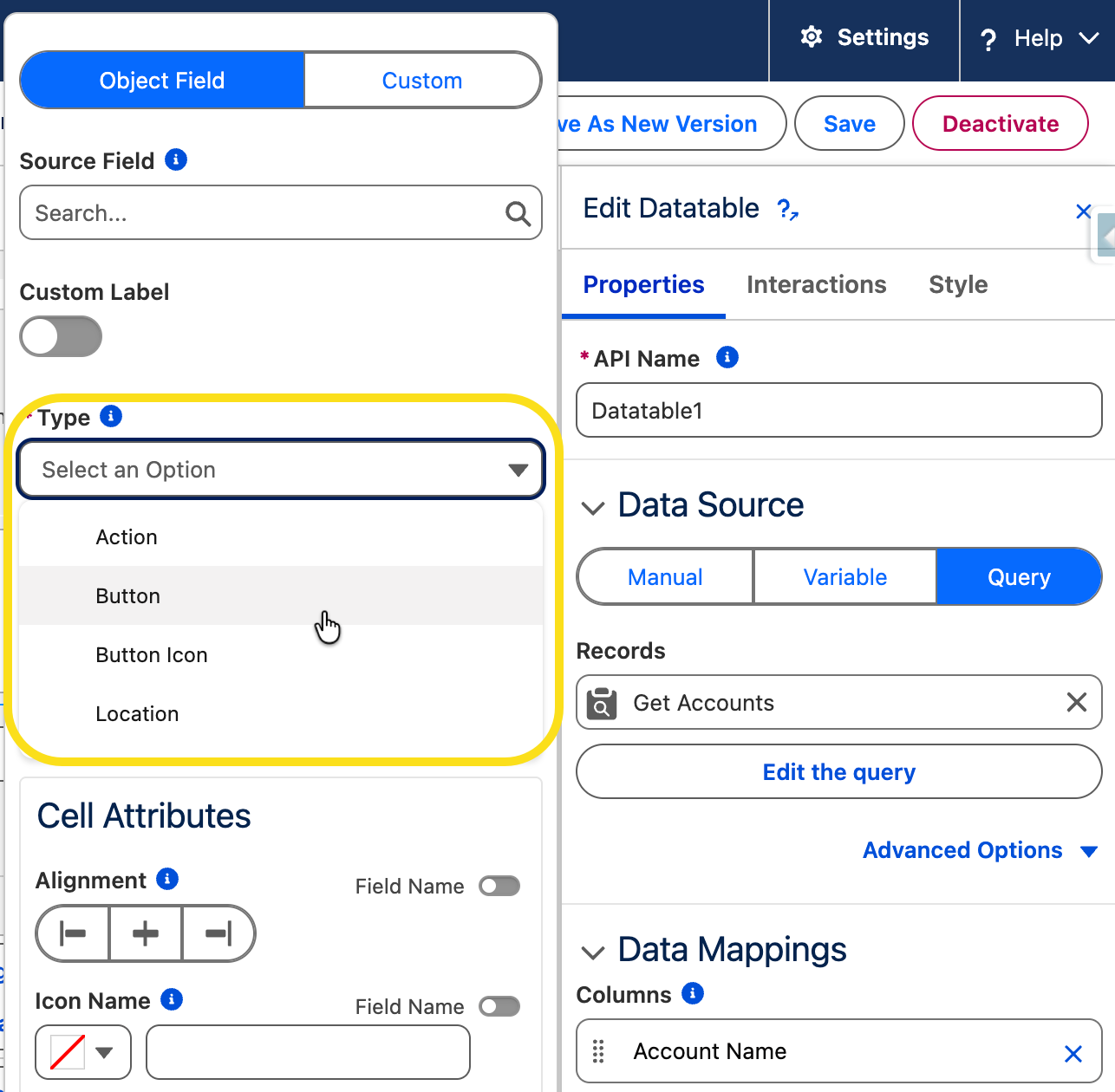
#### **Configure Column Type**
* In the column settings, change the Type to Action, Buttons or Button Icon.
* *Optional:* Give the column a label (e.g., "Actions") or leave it blank for an icon-only column.
{% endstep %}
{% step %}
#### **Define the Buttons (Row Actions)**
* Scroll down to the Type Attributes or Row Actions section within the column settings.
* Click Add Item for each button you want to appear (e.g., create one item named "Edit" and another named "Delete").
* Important: Assign a unique Name (ID) for each item (e.g., `edit_action`, `delete_action`). You will need these names in Phase 2.
* *Optional*: You can set icons (like `utility:edit`) or variants (like `destructive`) to style the buttons
{% endstep %}
{% endstepper %}
### **Phase 2: Add Logic with Interactions**
By default, the buttons you created in Phase 1 are just visual elements. To make them functional, you must create an Interaction. This tells the component: *"When this specific button is clicked, perform this specific task using data from this row"*.
{% stepper %}
{% step %}
#### Create the Connection
* **Switch to the Interactions Tab**: At the top of the properties panel (next to the 'Properties' tab), click Interactions.
* **Add a New Interaction**: Click the Add Interaction button to start a new logic flow
{% endstep %}
{% step %}
#### **Set the Trigger (The "When")**
This step connects the interaction to the specific button you created earlier.
* **Target**: Select the unique Name (ID) you defined in Phase 1 (e.g., `edit_action` or `view_details`). This ensures the action only fires for that specific button.
* **Trigger**: Set this to On Row Action. This tells the system to listen for a click event happening within the data table rows.
{% endstep %}
{% step %}
#### **Choose the Action Type (The "What")**
Now, decide what should happen when the user clicks. Under the Type dropdown, you have several powerful options:
* [**Navigate**](/dynamic-components/component-builder/interactions/navigate.md): Best for moving users to a different page, such as a Salesforce Record Page, a Web Page, or a related list.
* [**Open Flow Dialog**](/dynamic-components/component-builder/interactions/open-flow-dialog.md): Best for complex logic, such as launching a Screen Flow to gather user input without leaving the page.
Learn more about Interactions
{% endstep %}
{% step %}
#### **Configure the Details (The "How")**
Once you have chosen an action type, you must configure its parameters. This is the most critical step because it connects the "Generic Action" to the "Specific Record" the user clicked on.
**The Core Concept: Data Mapping**
Regardless of the action you choose, you will usually see a list of input fields or parameters. To make the action dynamic, you must map these parameters to the data in your table row.
* **Static Values**: If you type text directly into a field, every button click will send the exact same value.
* **Dynamic Values**: If you use the mapping icon to select a field (like Record: Id), the system will automatically pull the data from the specific row where the button was clicked.
**Global Examples of Action Configuration**
* **For Feedback Actions** (e.g., Toast/Alerts): Map the "Message" or "Title" to a field in your row (like Account Name) to show a personalized confirmation like *"You clicked on \[Account Name]"*.
* **For Navigation Actions**: Map the "Target ID" or "URL" to a field in your row. This ensures that if you click "View" on Row 5, you are taken to Row 5's specific page.
* **For Logic/Process Actions** (e.g., Updates or Flows): Map your input variables to the corresponding table columns. This passes the necessary data context (like a `Price` or `Status`) from the UI into your backend logic.
{% hint style="info" %}
#### Pro Tip
If you don't see the specific data field you need in the mapping dropdown, ensure that the field is included in your Data Source or Data Mappings configuration from Phase 1.
{% endhint %}
{% endstep %}
{% step %}
#### Finalize
Save: Click the Save button at the bottom of the panel to apply your logic
{% endstep %}
{% endstepper %}
{% hint style="warning" %}
#### Troubleshooting: Missing Flow Input Variables?
To see a variable in the **Name** dropdown menu, you must first ensure that the variable is marked as **Available for input** inside your Salesforce Flow Builder settings. If you do not see your variable listed, check your Flow configuration to confirm this setting is enabled
{% endhint %}
### **Phase 3: Test Your Component**
1. Save the Component and exit the Builder.
2. View the page in Salesforce.
3. Click the button in one of the table rows and verify that the correct action (e.g., the Edit modal opens for *that specific record*) triggers
***
---
# Agent Instructions
This documentation is published with GitBook. GitBook is the documentation platform designed so that both humans and AI agents can read, navigate, and reason over technical content effectively. Learn more at gitbook.com.
## Querying This Documentation
If you need additional information that is not directly available in this page, you can query the documentation dynamically by asking a question.
Perform an HTTP GET request on the current page URL with the `ask` query parameter, and the optional `goal` query parameter:
```
GET https://docs.avonnicomponents.com/dynamic-components/tutorials/components/data-table/add-custom-buttons.md?ask=&goal=
```
`ask` is the immediate question: it should be specific, self-contained, and written in natural language.
`goal` is optional and describes the broader end goal you are ultimately trying to accomplish on behalf of the user. GitBook uses it to tailor the answer towards what is most useful for that goal.
The response will contain a direct answer to the question and relevant excerpts and sources from the documentation.
Use this mechanism when the answer is not explicitly present in the current page, you need clarification or additional context, or you want to retrieve related documentation sections.