# Date Range

## Overview

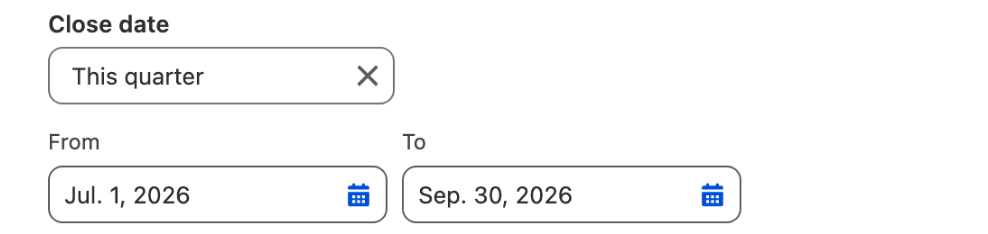
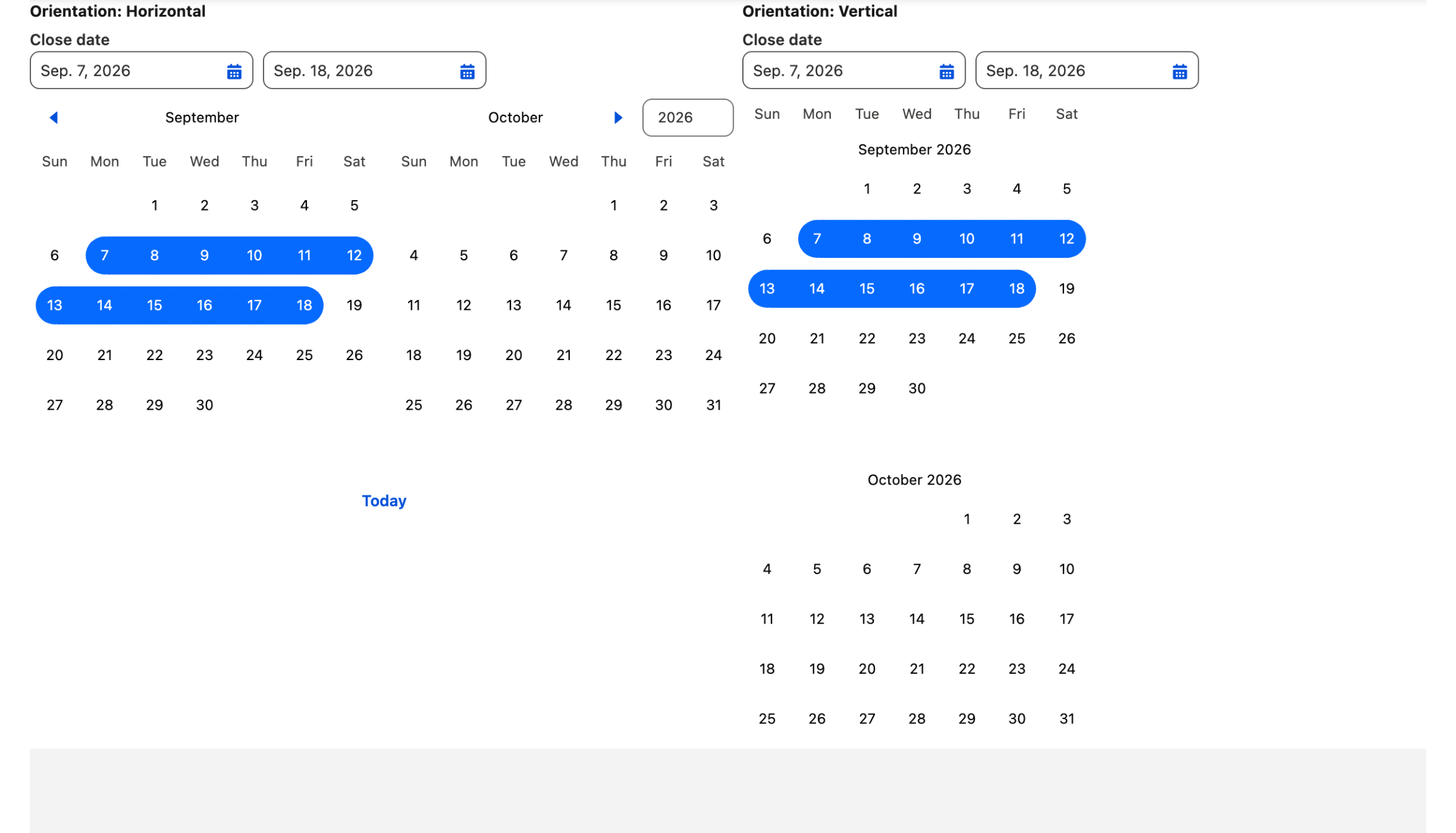
The Avonni Date Range component offers an intuitive interface that allows users to select a start and end date or a start and end date and time, thereby defining a specific period. This is commonly used for filtering data, setting parameters for reports, scheduling, or any scenario requiring a specified time window.

This component presents two input fields: one for the start of the desired range and one for the end. Key features include:

* **Date and Date/Time Selection:** Supports selection of full dates or specific date and time values.
* **Clear Range Definition:** Users can easily see and modify the start and end of their selected period.
* **Customizable Formatting:** Control the display style of dates and times.
* **Customizable Input Labels:** Tailor the labels for the start and end input fields.

### Use Cases

* Filtering Data Tables, Lists, or Charts to show records within a selected period (e.g., "Opportunities Closed This Quarter," "Cases Created Last Week").
* Setting date parameters for generating reports.
* Defining start and end times for scheduling events or tasks.
* Logging periods for activities or projects.
* Setting validity periods for promotions or offers.

***

## Configuration

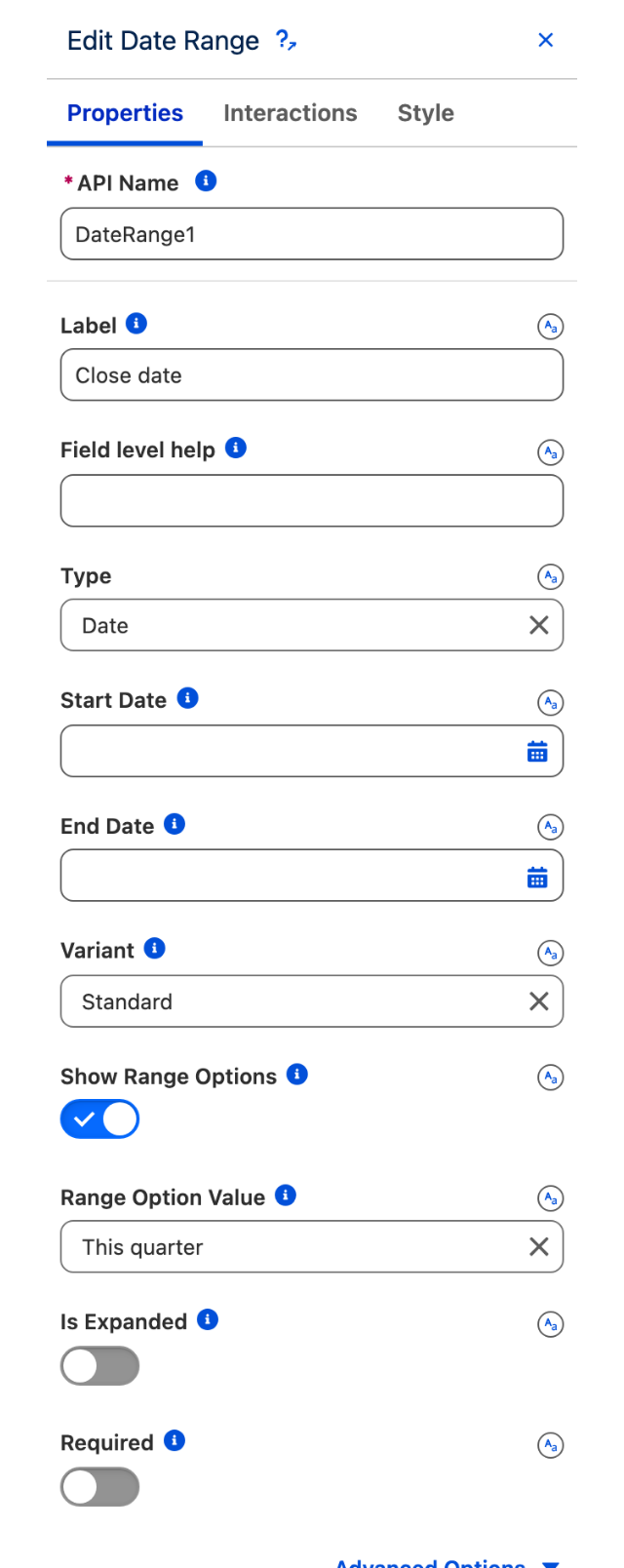
Select the Date Range component on the canvas to view its properties in the right-hand Properties Panel.

### **Basic Properties**

These handle labeling and identification.

| Property         | Type            | Description                                         | Example                          |
| ---------------- | --------------- | --------------------------------------------------- | -------------------------------- |
| API Name         | Text            | Unique identifier for the component instance.       | `ReportDateRange`                |
| Label            | Text            | Main label displayed above or beside the component. | "Select Date Range:"             |
| Field Level Help | Text (Optional) | Additional help text next to the label.             | "Choose a period for filtering." |

### Core Functionality & Data Binding

These settings define the type of range and how data is captured.

| Property              | Type/Condition                            | Description                                                                                                                       |
| --------------------- | ----------------------------------------- | --------------------------------------------------------------------------------------------------------------------------------- |
| Type                  | Select                                    | `date`: Select start/end dates. `datetime`: Select start/end dates and times. *Note:* This affects active Value properties below. |
| Start Date Value      | Date Variable (Active for `date`)         | Initial start date; bind to a Date Variable to capture user selections.                                                           |
| End Date Value        | Date Variable (Active for `date`)         | Initial end date; bind to a Date Variable to capture user selections.                                                             |
| Start Date Time Value | Datetime Variable (Active for `datetime`) | Initial start date/time; bind to a Date/Time Variable.                                                                            |
| End Date Time Value   | Datetime Variable (Active for `datetime`) | Initial end date/time; bind to a Date/Time Variable.                                                                              |

### Appearance & Formatting

These properties control the visual presentation.

| Property               | Type/Condition                 | Description                     | Options/Examples                                                               |
| ---------------------- | ------------------------------ | ------------------------------- | ------------------------------------------------------------------------------ |
| Variant                | Select                         | Label positioning.              | `standard` (above), `label-hidden`.                                            |
| Date Style             | Select                         | Date display format.            | `short` (5/29/2025), `medium` (May 29, 2025), `long` (Thursday, May 29, 2025). |
| Time Style             | Select (Active for `datetime`) | Time display format.            | `short` (9:43 AM), `medium` (9:43:00 AM), `long` (9:43:00 AM EDT).             |
| Date/Time Input Labels | Text (Separate for Start/End)  | Custom labels for input fields. | Start: "From:", End: "To:".                                                    |

### Behavior Properties

These settings affect user interaction and component state.

| Property  | Type    | Description                                                         |
| --------- | ------- | ------------------------------------------------------------------- |
| Disabled  | Boolean | Disables the component (no interactions).                           |
| Read Only | Boolean | Displays values but prevents changes.                               |
| Required  | Boolean | Mandates start/end selections; pairs with form validation.          |
| Visible   | Boolean | Toggles visibility; bind to a Boolean Variable for dynamic control. |

## Example

### Filtering a Data Table by Opportunity Close Date

Follow these steps to filter Opportunities by close date:

{% stepper %}
{% step %}

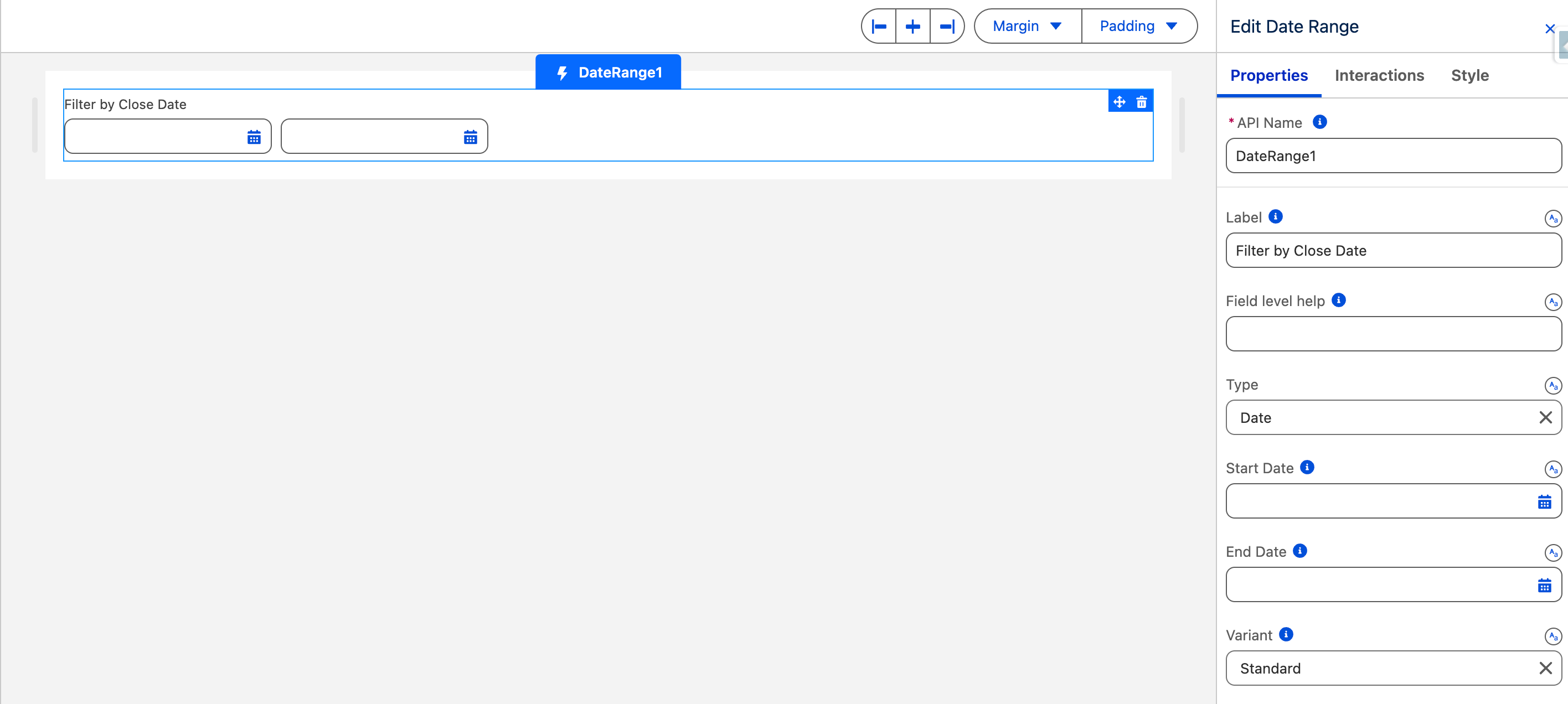
#### **Add Date Range Component**

* API Name: OpportunityDateFilter
* Label: "Filter Opportunities by Close Date:"
* Type: date

<figure><img src="https://2532358799-files.gitbook.io/~/files/v0/b/gitbook-x-prod.appspot.com/o/spaces%2FODPvvv7Cx9Z9RECLn3oV%2Fuploads%2FpvdwKQQRZKllpJtplleq%2F2025-07-14_13-53-43.png?alt=media&#x26;token=e2a2a13b-57f5-4231-9f16-33cda650deba" alt=""><figcaption></figcaption></figure>
{% endstep %}

{% step %}

#### **Add Data Table Component**

Follow these steps to integrate a Data Table below the Date Range component, displaying filtered Opportunities based on the selected dates.

* **Drag the Component:** From the Component Library (left panel), drag the "Data Table" onto the canvas and position it below the Date Range component.
* **Create a Query:** In the Data Table's Properties Panel, set up an Avonni Query Data Source to fetch Opportunity records (e.g., select "Opportunity" as the object).
* **Add Query Filters:** Configure filters on the query to use the dates from the Date Range:
  * Filter 1: CloseDate >= {!DateRange1.startDate}
  * Filter 2: CloseDate <= {!DateRange1.endDate}
  * *Tip:* Use AND logic to ensure both filters apply only when dates are set.

<figure><img src="https://2532358799-files.gitbook.io/~/files/v0/b/gitbook-x-prod.appspot.com/o/spaces%2FODPvvv7Cx9Z9RECLn3oV%2Fuploads%2FnCuNx1GHmCVTI9U3FJf4%2F2025-07-14_13-58-48%20(1).gif?alt=media&#x26;token=c097ef2f-bee5-471e-9059-e479d9d5fc91" alt=""><figcaption></figcaption></figure>

* **Add Columns:** In the Columns section of the Properties Panel, select and add fields from the Opportunity query (e.g., Name, Amount, Stage, Close Date) to display in the table.

*Result:* The Data Table will show Opportunities filtered by the user's date selections, updating dynamically on changes
{% endstep %}

{% step %}

#### Set Data Table visibility rule

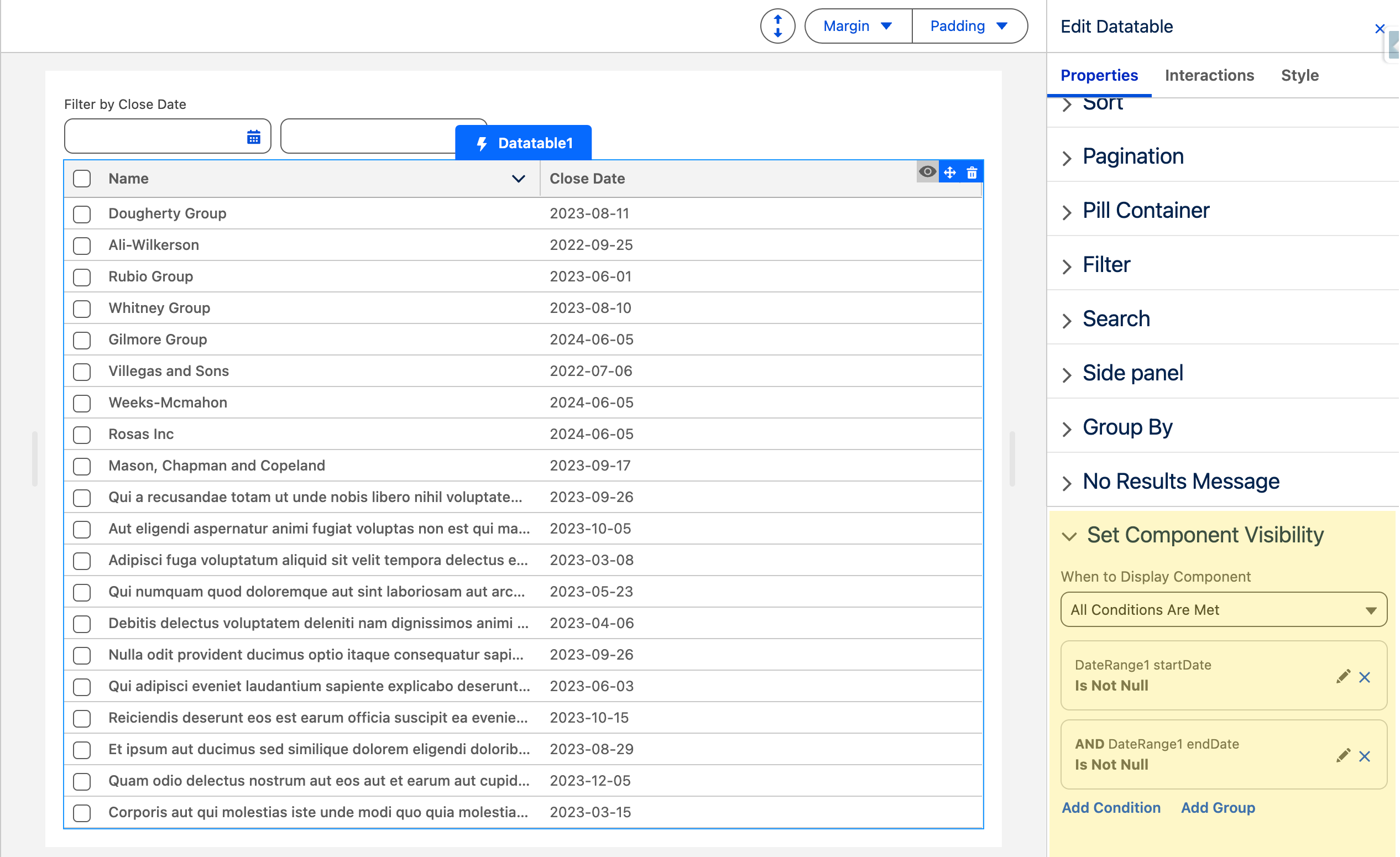
To prevent displaying the Data Table with query errors (e.g., when filters are incomplete due to missing start or end dates), configure a [visibility rule](https://docs.avonnicomponents.com/dynamic-components/getting-started/understanding-the-essentials/component-visibility). This ensures the table only appears once both dates are selected in the Date Range component.&#x20;

<figure><img src="https://2532358799-files.gitbook.io/~/files/v0/b/gitbook-x-prod.appspot.com/o/spaces%2FODPvvv7Cx9Z9RECLn3oV%2Fuploads%2Fdv4oMwzjGDR9NxRxzrZU%2F2025-07-14_14-00-32.png?alt=media&#x26;token=403700c4-a618-474c-b34d-d7c88e45433c" alt=""><figcaption></figcaption></figure>
{% endstep %}
{% endstepper %}

**Result:** User selections update variables, refreshing the table to show filtered Opportunities.

**Result:** When the user selects a new start or end date in the Date Range component, the values will trigger the Data Table's query to re-filter and display only Opportunities within the selected close date range.

***

## Key Considerations

* **Type Matching:** Ensure the `Type` property (date or datetime) matches the data type of the variables you bind to the value properties.
* **Time Zones:** When using `datetime`, be mindful of how Salesforce handles time zones. The selected values will typically be in the user's local time zone.
* **Clear Labels:** Use the main `Label` and the custom `Date/Time Input Labels` effectively to guide users.

***

## **In Summary**

The Avonni Date Range component offers a user-friendly way to select date or date/time periods. By binding its start and end value properties to variables, you can easily use the range chosen to filter data, trigger actions, or control other dynamic aspects of your Salesforce UI.