> For the complete documentation index, see [llms.txt](https://docs.avonnicomponents.com/llms.txt). Markdown versions of documentation pages are available by appending `.md` to page URLs; this page is available as [Markdown](https://docs.avonnicomponents.com/dynamic-components/components/repeater.md).
# Repeater
The Avonni Repeater creates dynamic, repeating sections from your data source. It works like a loop — you design a template once using Avonni components, and the Repeater generates that template for each record returned by your query or variable.
## Overview
To start with the Avonni Repeater, connect it to your data and design the template that will be repeated for each record. The sections below follow the configuration panel from top to bottom.
### **Key capabilities**
* **Complete layout control**: Unlike standard list views with fixed columns, you define exactly how each item displays — combine **Text**, **Metrics**, **Avatars**, **Buttons**, **Progress Bars**, and more in any arrangement
* **Data binding**: Access the current record data with `{!Repeater1.CurrentRecord.FieldName}` or related objects via `{!Repeater1.CurrentRecord.Account.Name}`
* **Built-in controls**: Includes pagination, search, filtering, and responsive layouts out of the box
### **Common applications**
Card-based record displays, product galleries, searchable directories, dashboard sections, aggregated data views, approval queues, and resource libraries.
**Restriction****:** Data Display components cannot be added to the Repeater to improve performance.
***
{% hint style="info" %}
**See it in a real project**
[Shipment Tracking Wall](https://docs.avonnicomponents.com/projects/use-cases/boards-and-pipelines/shipment-tracking-wall): A parcel wall that redraws as the carrier reports.
{% endhint %}
## Quick Start: Display High-Value Opportunities in a Visual Grid
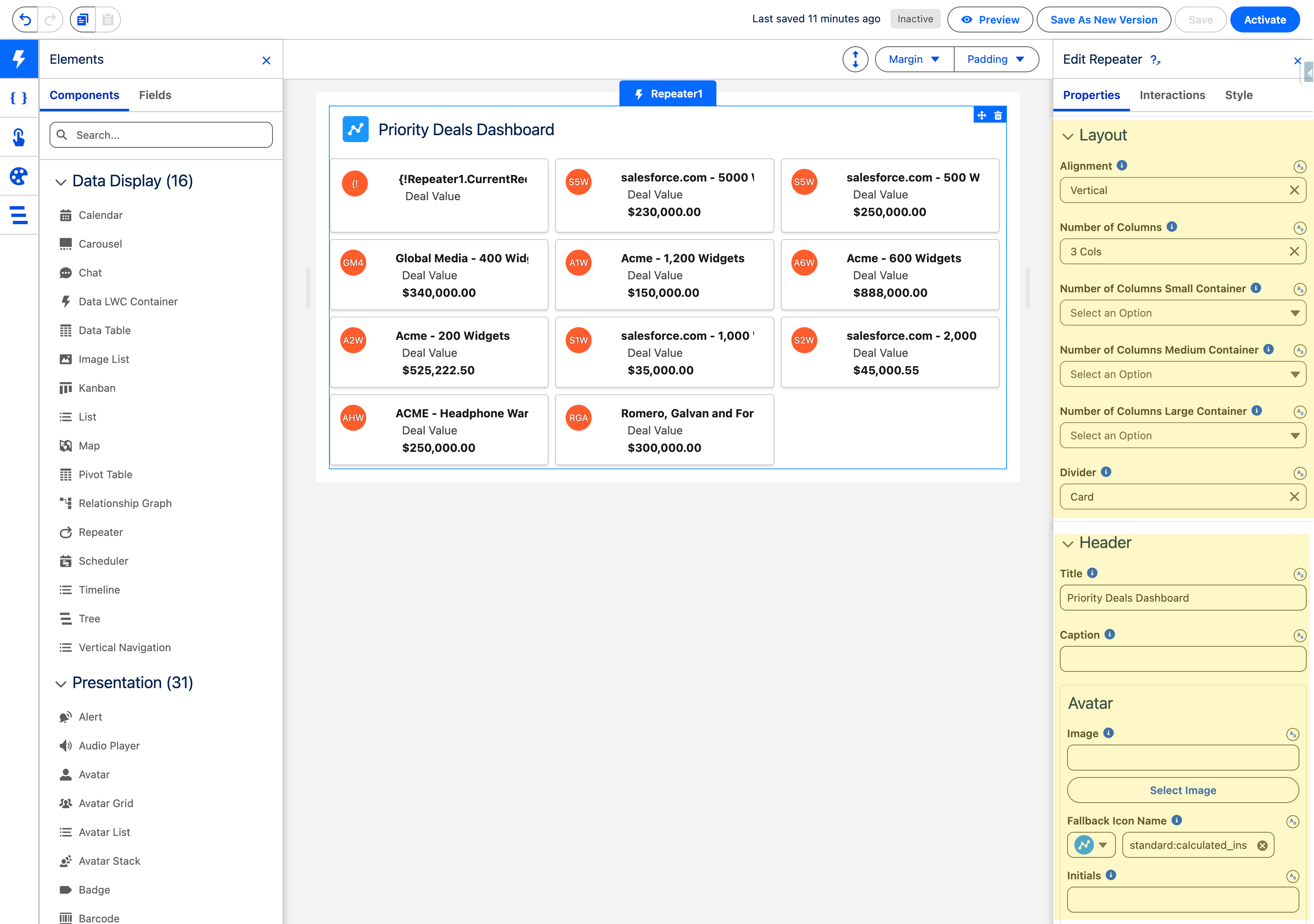
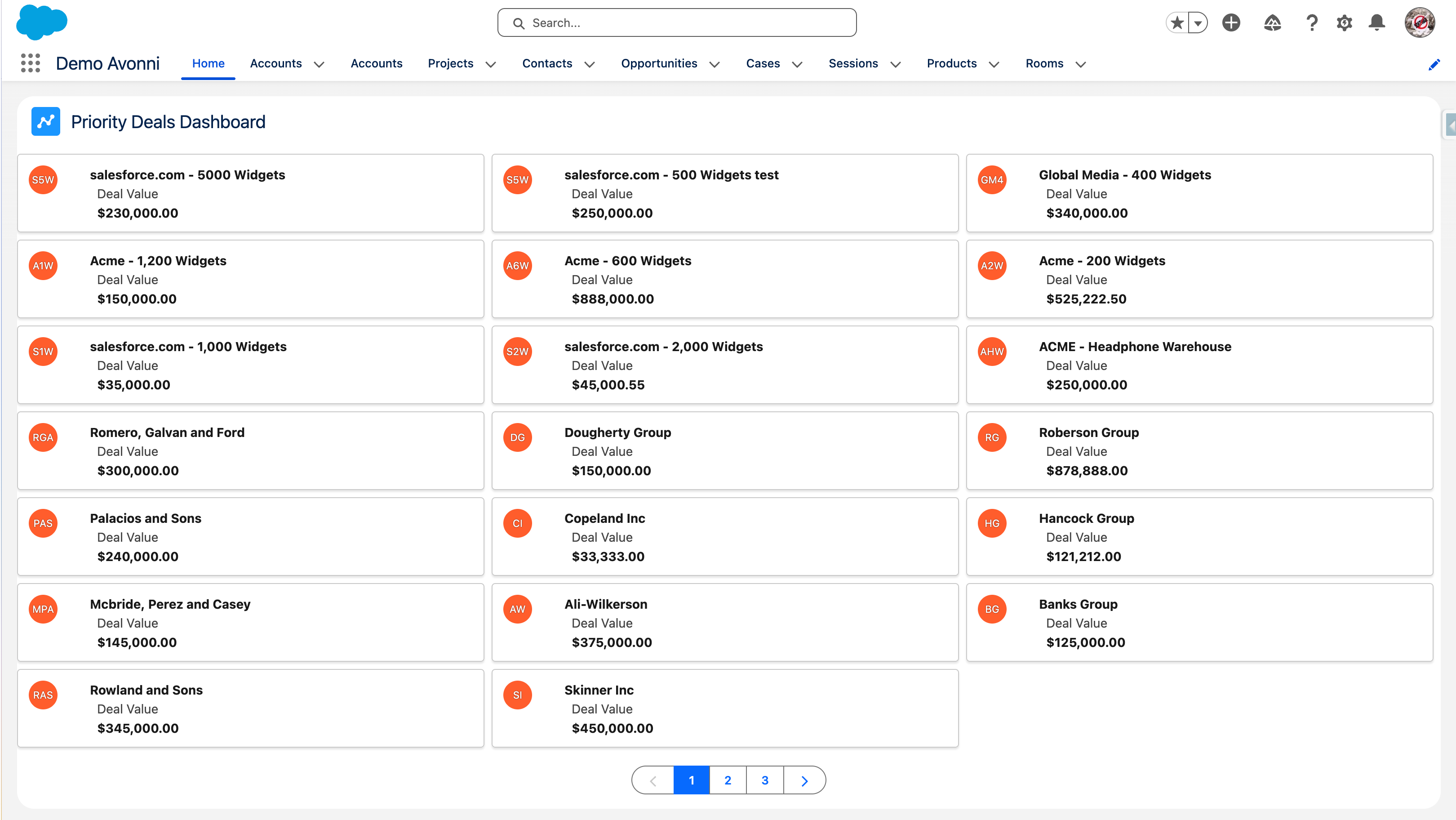
**Scenario**: Your sales team needs to quickly identify which prospects are worth pursuing. Instead of scrolling through a plain list view, you'll build a visual dashboard that displays high-value opportunities ($10K+) in the Prospecting stage as scannable cards.
**What you'll build**: A 3-column card grid where each card shows an opportunity's icon, name, and deal value—automatically filtered to Prospecting stage deals over $10K.
**Build time**: 5 minutes.
{% stepper %}
{% step %}
#### **Add the Repeater to Your Dynamic Component**
Open the Avonni Dynamic Components App and create a new Dynamic Component (or open an existing one). From the component library, **drag the Repeater onto your canvas**.
{% endstep %}
{% step %}
#### **Connect Your Data**
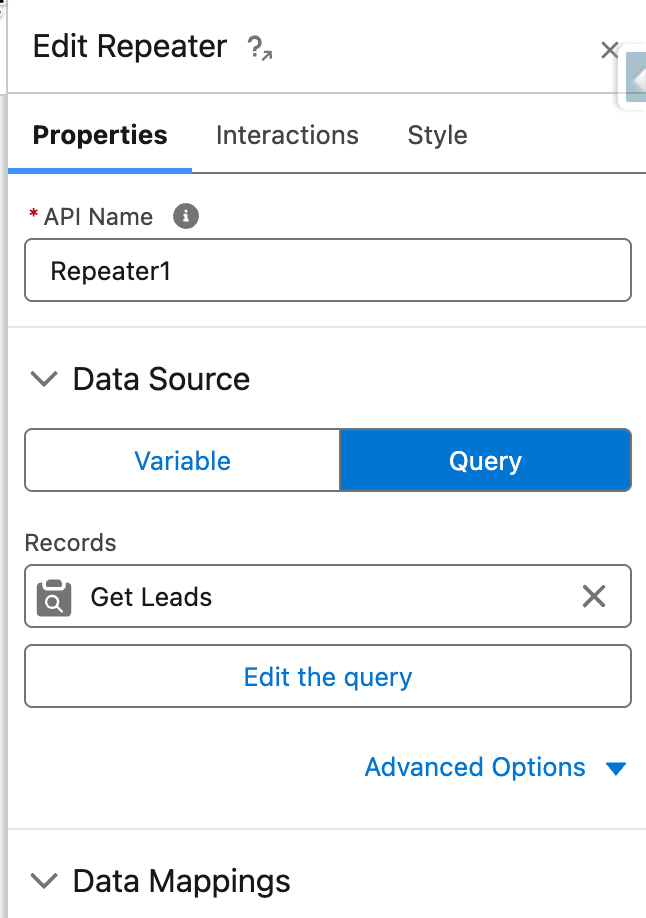
* Set Data Source to **Query**
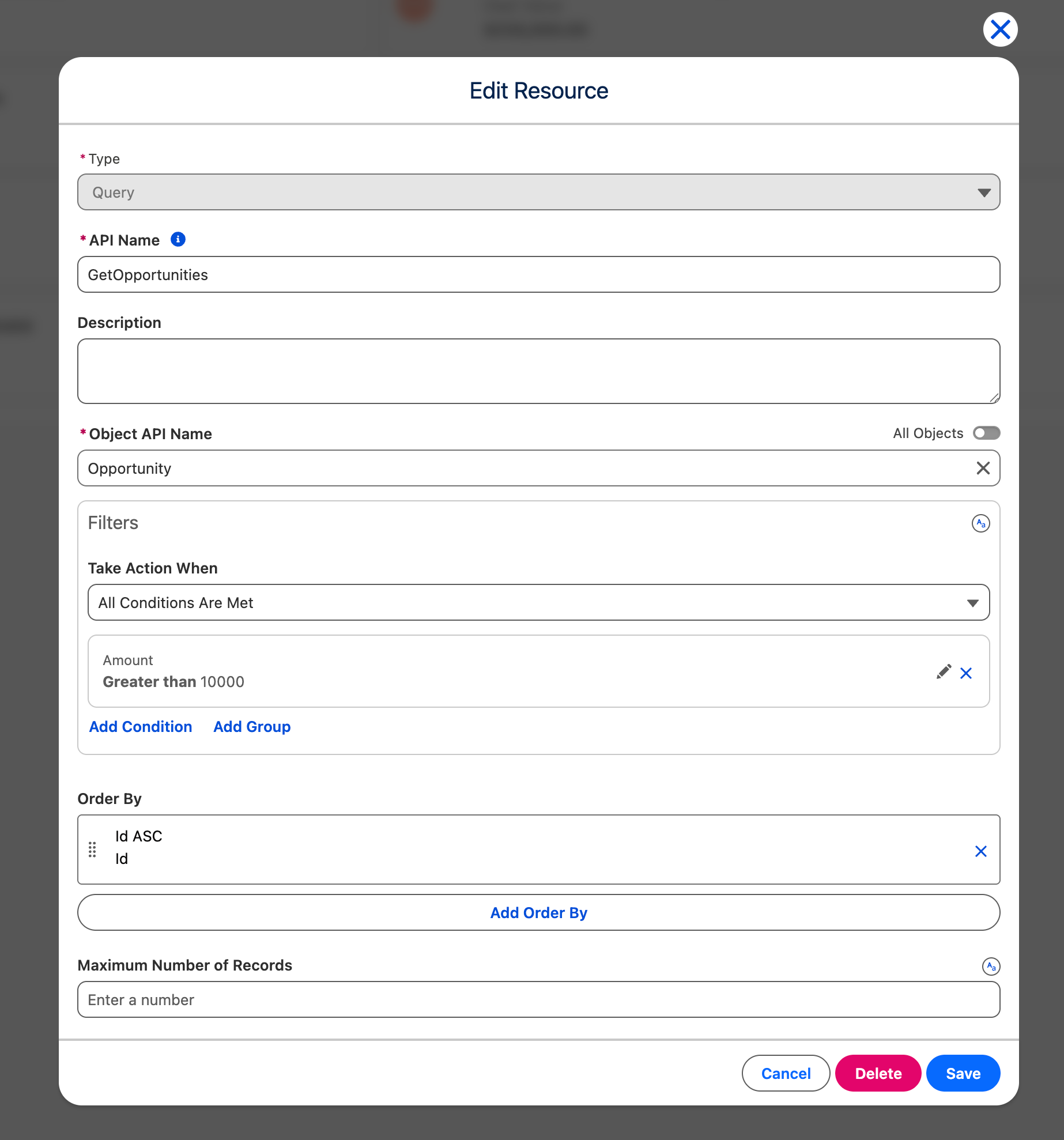
* Click the query builder to create a new query on the **Opportunity** object
* Add your filters to narrow down the data:
* **Amount** greater than 10000
* (Optional) Sort by **Amount** descending to show the largest deals first
* Click **Done** to save your query
{% endstep %}
{% step %}
#### **Build Your Opportunity Card**
Now for the fun part—let's create a polished card for each opportunity:
* Drag a **Media Object** component into the Repeater's slot
* In the Media Object's left slot, add an **Avatar** component:
* Set Fallback Icon Name to `standard:opportunity`
* Set Initials to `{!Repeater1.CurrentRecord.Name}` (this will show the first letters of the opportunity name) and set it to "Initial Auto Formatted"
* In the Media Object's main content area, add a **Text** component:
* Set the value to `{!Repeater1.CurrentRecord.Name}`
* Make it bold using the formatting options
* Below that text, add a **Metric** component:
* Set Label to "Deal Value"
* Set Value to `{!Repeater1.CurrentRecord.Amount}`
* Enable currency formatting
* Add an icon like `utility:moneybag` for visual appeal
{% endstep %}
{% step %}
#### Customize the Repeater layout
Make your dashboard visually organized and professional:
**Configure the grid layout**\
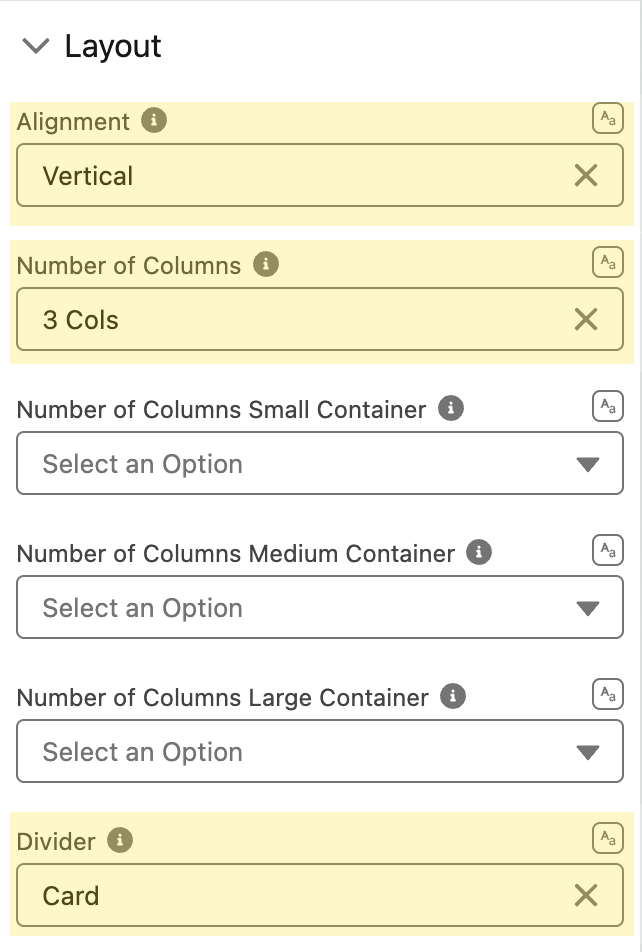
In the Repeater's **Layout Section**:
* Set **Number of Columns** to **3** (arranges opportunities in a 3-column grid)
* Set **Divider** to **Card** style (adds visual separation between each opportunity card)
**Add a dashboard title**\
In the Repeater's **Header Section**:
* Set **Title** to something descriptive like "High-Value Prospects" or "Priority Pipeline"
* (Optional) Add a **Caption** like "Prospecting stage • $10K+"
This creates a polished, scannable dashboard instead of a plain stacked list
{% endstep %}
{% step %}
#### Save and Add it to a Lightning Page
Now that your Dynamic Component is built and saved, you need to place it on a Lightning page so users can actually see it. Lightning App Builder uses a generic **AX - Dynamic Component** wrapper that you'll drag onto the page, then configure to display your specific component
1. Click **Save** in the Dynamic Component builder, then **Activate** your component
2. Open **Lightning App Builder** and navigate to the page where you want the dashboard (Home page, Opportunities page, etc.)
3. From the component list on the left, drag the **AX - Dynamic Component** onto your page
4. In the **Properties Panel** on the right, use the dropdown to **select your newly created Dynamic Component** from the list of available components
5. **Save** and **Activate** the page
**Your high-value prospecting dashboard is now live!** Sales reps can now quickly scan which deals to prioritize without scrolling through list views.
{% endstep %}
{% endstepper %}
**That's it!** You've just created a professional opportunity dashboard showing opportunity names, avatars, and deal values in an attractive card layout—one card for each record returned by your query. Once you save your Dynamic Component, you can place it on any Lightning page (Account pages, Home page, custom app pages) and it will automatically display your opportunities.
From here, you can enhance your cards further by adding buttons (to navigate to records), additional metrics (close date, probability), or status badges (stage indicators with colors).
***
## How the Repeater Works: Core Concepts
Before diving into detailed configuration, understanding these three core concepts will help you configure the Repeater efficiently.
1. Data Source → Template → Output
The Repeater follows a simple flow:
* **Data Source**: You define what data to repeat (a Salesforce query or variable)
* **Template**: You design how one item should look (by placing components in the Repeater's slot)
* **Output**: The Repeater automatically generates your template for each record
**Example**: Query 50 Contacts → Design one contact card → Get 50 contact cards automatically generated
2. Data Binding Connects Template to Records
Components inside the Repeater access the current record's data using this syntax:
```
{!RepeaterAPIName.CurrentRecord.FieldName}
```
**Breaking it down**:
* `RepeaterAPIName` - Your Repeater's API Name (found in Properties Panel, e.g., "Repeater1")
* `CurrentRecord` - Always use this exact text—it references whichever record is currently being displayed
* `FieldName` - The Salesforce field API name you want to display (e.g., `Name`, `Amount`, `Account.Name`)
**Common binding examples**:
* `{!Repeater1.CurrentRecord.Name}` - Display record name
* `{!Repeater1.CurrentRecord.Amount}` - Display opportunity amount
* `{!Repeater1.CurrentRecord.Account.Name}` - Display related account name
* `{!Repeater1.CurrentRecord.Owner.Email}` - Display owner's email
3. Components Within Components (Nested Queries)
Here's where the Repeater becomes powerful: components you place inside the Repeater slot can have their own data sources. This enables aggregation and parent-child relationships.
**Example scenario**: Show each Account Executive with their total pipeline
* **Outer Repeater**: Queries User object → one section per user
* **Inner Metric**: Queries Opportunity object with filter `OwnerId = {!Repeater1.CurrentRecord.Id}` → shows sum for that specific user
This pattern works because each component inside the Repeater can "see" the current record and filter its own query accordingly.
***
## Configuration Workflow
Follow this workflow to configure any Repeater component:
**Step 1: Add and Name the Component**\
Drag the Repeater onto your Dynamic Component canvas. In the Properties Panel, set a clear API Name (e.g., "ContactRepeater", "OppCards") since you'll reference this in bindings.
Step 2: Connect Your Data Source
In the Properties Panel, configure the Data Source:
* Choose **Query** for Salesforce objects or **Variable** for pre-defined data
* If using Query: Select object, add filters, set sort order
* Preview your query results to verify data is returning correctly
Step 3: Design Your Template
Drag components into the Repeater's slot to design how one item should appear:
* Start with a structure component (Card and Media Object are common for cards layout style)
* Add display components (Text, Metric, Avatar, etc.)
* Add interaction components (Buttons for actions)
* Bind each component to current record data using `{!RepeaterAPIName.CurrentRecord.FieldName}`
Step 4: Configure Layout
In the Layout Section, set how repeated items are arranged:
* **Alignment**: Horizontal (grid) or Vertical (stacked)
* **Columns**: Set default and responsive breakpoints (Small/Medium/Large)
* **Dividers**: Add visual separation between items (Card, Solid, Space, etc.)
Step 5: Add Optional Controls
Enhance usability with these optional features:
* **Header**: Add title, subtitle, item count, action buttons
* **Pagination**: Enable for large datasets, set items per page
* **Search**: Map searchable fields so users can filter results
* **Filters**: Add reactive filters users can toggle
* **Side Panel**: Create expandable detail view for each item
Step 6: Test Responsively
Preview your Repeater across different screen sizes:
* Verify columns adjust appropriately (especially on mobile)
* Check that bindings display correct data
* Test pagination, search, and filters if enabled
* Ensure nested queries return expected aggregations
**Key principle**: The Repeater is a multiplication tool. Whatever you build in the slot gets multiplied by the number of records in your data source. Design one item well, and the Repeater handles the rest.
***
## Configuration
To configure the Repeater, select it on the canvas. The **Edit Repeater** panel opens on the right. The sections below mirror the Properties tab.
### Data Source
Before you build your repeating layout, tell the Repeater where to get the data. You have two options:
| Source | Description |
| ------------ | --------------------------------------------------------------------- |
| **Query** | Fetches records from a Salesforce object using a query you configure. |
| **Variable** | Uses a collection variable already defined in your component. |
{% hint style="info" %}
**Additional fields (advanced)**
When the data source is **Query**, the Repeater only requests the fields it detects in its own template, data mappings, and [interactions](/dynamic-components/component-builder/interactions.md). If a component outside the Repeater needs a field (for example, a detail panel bound to the **Clicked Item sObject** output), add that field's API name to the **Additional fields** advanced property in the query configuration. Fields listed there are returned with every query.
{% endhint %}
### Data Mappings
When using a dynamic data source, configure the **Data Mappings** section to control how the Repeater filters and searches its data.
* **Filters** — Select object fields to expose as user-facing filter controls. Requires the data source to be **Query** or **Variable**.
* **Search Fields** — Select which SObject field API names the search bar scans across. Requires **Show Search** to be enabled and data source to be **Query** or **Variable**.
* **No Results Message** — The message shown when no records match the current filters or search.
### Content
#### Items Clickable
Enable **Items Clickable** to make every repeated item respond to clicks. Use this together with an **On Item Click** interaction to navigate, open a panel, or trigger a flow when users click a card or row.
#### Highlight On Click
When **Highlight On Click** is enabled, the last clicked item is visually highlighted. If an interaction opens a side panel on item click, the item is highlighted automatically regardless of this setting.
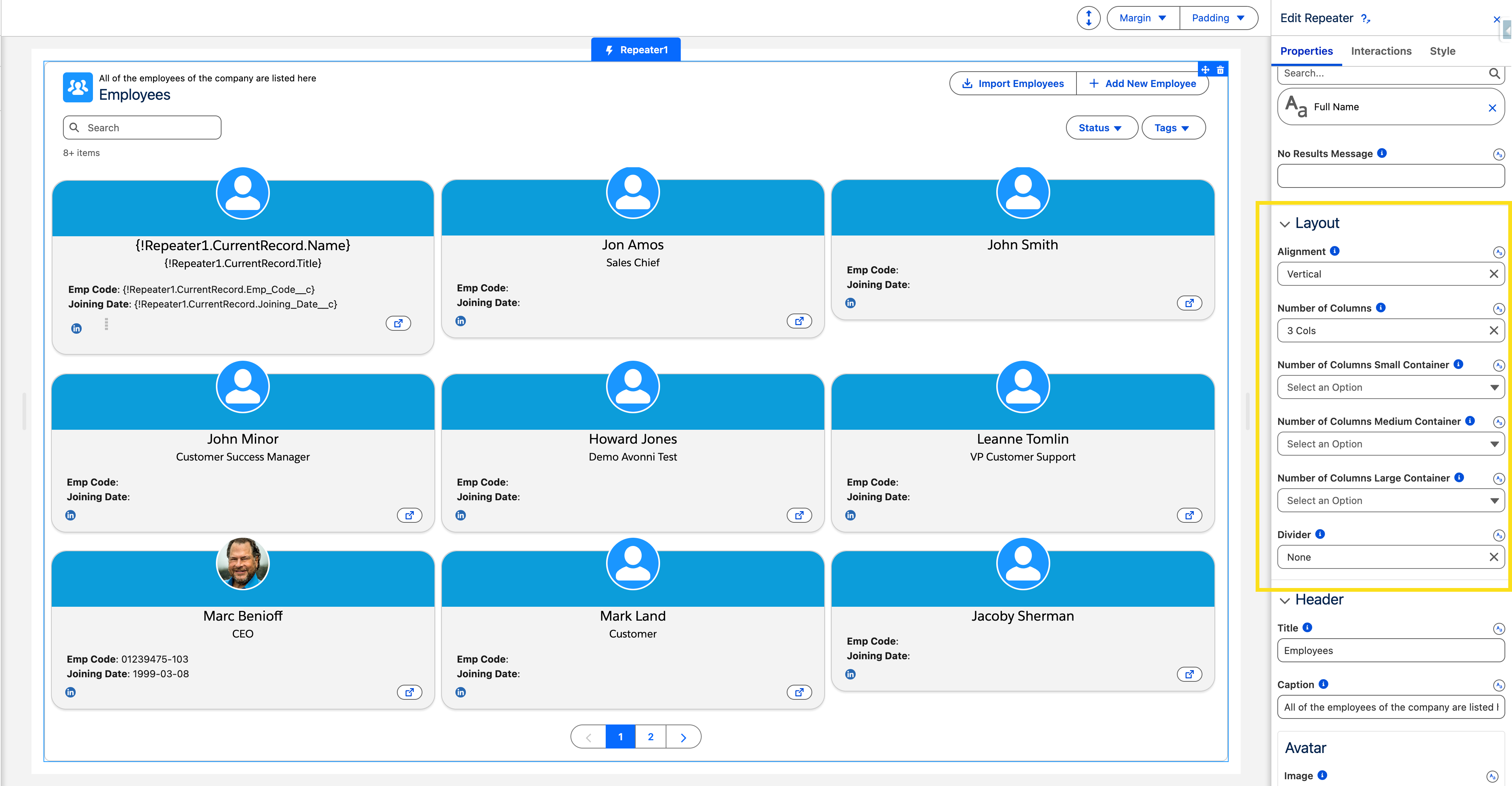
### Layout
The Layout section controls how repeated items are arranged within the component. All column settings use container-based breakpoints, so the layout adapts to the width of the Repeater's container rather than the browser window.
* **Alignment** — Choose **Vertical** (stacked, default) or **Horizontal** (grid).
* **Number of Columns** — The base column count used for the smallest container (below 480 px) and as the fallback for all sizes. Options: 1 (default), 2, 3, 4, 6, 12.
* **Number of Columns Small Container** — Columns when the container is 480 px or wider.
* **Number of Columns Medium Container** — Columns when the container is 768 px or wider.
* **Number of Columns Large Container** — Columns when the container is 1024 px or wider.
* **Divider** — Visual separator between items. Options: None (default), Top, Bottom, Around, Card.
* **Equal Heights** — When enabled, all items in a row share the same height for a uniform grid appearance.
{% hint style="success" %}
**Tip**
Adjust columns for responsiveness; use horizontal alignment for card grids.
{% endhint %}
### Header
The Header section lets you add a title, subtitle, avatar, help text, and action buttons above the repeated items.
* **Title** — Main header text displayed at the top of the component.
* **Caption** — Secondary text displayed above the title for additional context.
* **Avatar** — Display an image or icon in the header. Set an **Image** (URL), a **Fallback Icon Name** (SLDS icon), or **Initials**. Advanced options include **Size** and **Variant** (Circle or Square, default Square).
* **Help Text** — A hoverable icon in the header that displays guidance content.
* **Is Joined** — When enabled, the header's bottom border becomes square and shadowless so it sits flush against the component below.
* **Show Number of Items** — Displays the total item count next to the header title.
* **Actions** — Add interactive buttons to the header. Configure labels, names, icons, and disabled/hidden states. Use **Visible Actions Buttons** to set how many actions appear as inline buttons before the rest overflow into a dropdown menu.
* **Hide Actions** — Hides all header action buttons.
* **Disable Actions** — Disables all header action buttons.
### Pagination
* **Show Pagination** — Enable to display pagination controls at the bottom of the Repeater. When disabled, items load progressively (infinite scroll or lazy loading).
* **Number of Items per Page** — Number of records per page when pagination is visible, or the batch size for lazy loading. Range: 1–500, default 100.
### Filter
The **Filter** section controls how the filter menu is presented to end-users. Filter fields are enabled in the Data Mappings section.
* **Type** — Sets the filter display style. Options: **Horizontal** (filters displayed inline above the content, default), **Popover** (filters in a floating popover), **Panel** (filters in a collapsible side panel).
* **Use Record Picklist Values** — When enabled for a picklist field filter, derives filter options from the values actually present in the records rather than the full defined picklist.
* **Use Cascading Filter Values** — When enabled, applying one filter dynamically narrows the available options in other filters to only reflect matching records. Overrides **Use Record Picklist Values**.
### Search
* **Show Search** — Enable to display a search bar above the repeated items.
* **Placeholder** — Placeholder text shown inside the search bar (default: "Search"). Requires **Show Search** to be enabled.
* **Position** — Position of the search bar. Options: Left (default), Right, Center, Fill, Panel. Requires **Show Search** to be enabled.
### Side Panel
The Side Panel settings apply when the **Filter Type** is set to **Panel** or the **Search Position** is set to **Panel**. They control the appearance and default state of the collapsible sidebar.
* **Position** — Which side the panel slides out from. Options: Left (default), Right.
* **Is Closed** — When enabled, the panel starts collapsed. When disabled, the panel starts open.
* **Hide Toggle Button** — Hides the button that opens and closes the panel. Use this when you want to control the panel programmatically via interactions.
* **Reset Button Label** — Label for the reset/clear button inside the panel.
#### **When to use Side Panel**
* You have multiple filter options and want to keep your main content area clean
* Users need access to filters but don't need them visible at all times
* You're building a searchable directory or catalog where filters are secondary to browsing
#### **How it works**
1. In the **Filter** section, set **Type** to **Panel** (or set **Search Position** to **Panel**)
2. Configure the Side Panel **Position** (left or right)
3. Set **Is Closed** to On if you want the panel collapsed by default
4. Users click the toggle button to open/close the filter panel
**Tip**: Use the panel position on the opposite side of your main actions. For example, if you have action buttons on the right side of cards, place the filter panel on the left to avoid visual crowding
### Set Component Visibility
All components support conditional visibility — see Component Visibility.
***
## Use Cases
### **Example 1:** List Account Executives by Total Opportunity Amount
Display a list of account executives and their total opportunity amounts closed this year. This example uses the Avonni Repeater to iterate through a query and the Avonni Metric component to display results for each executive.
{% stepper %}
{% step %}
#### Add the Avonni Repeater
Start by dragging the **Avonni Repeatable** onto your page. This component allows you to display repeated content—one instance per account executive.
{% endstep %}
{% step %}
#### Configure the Data Source
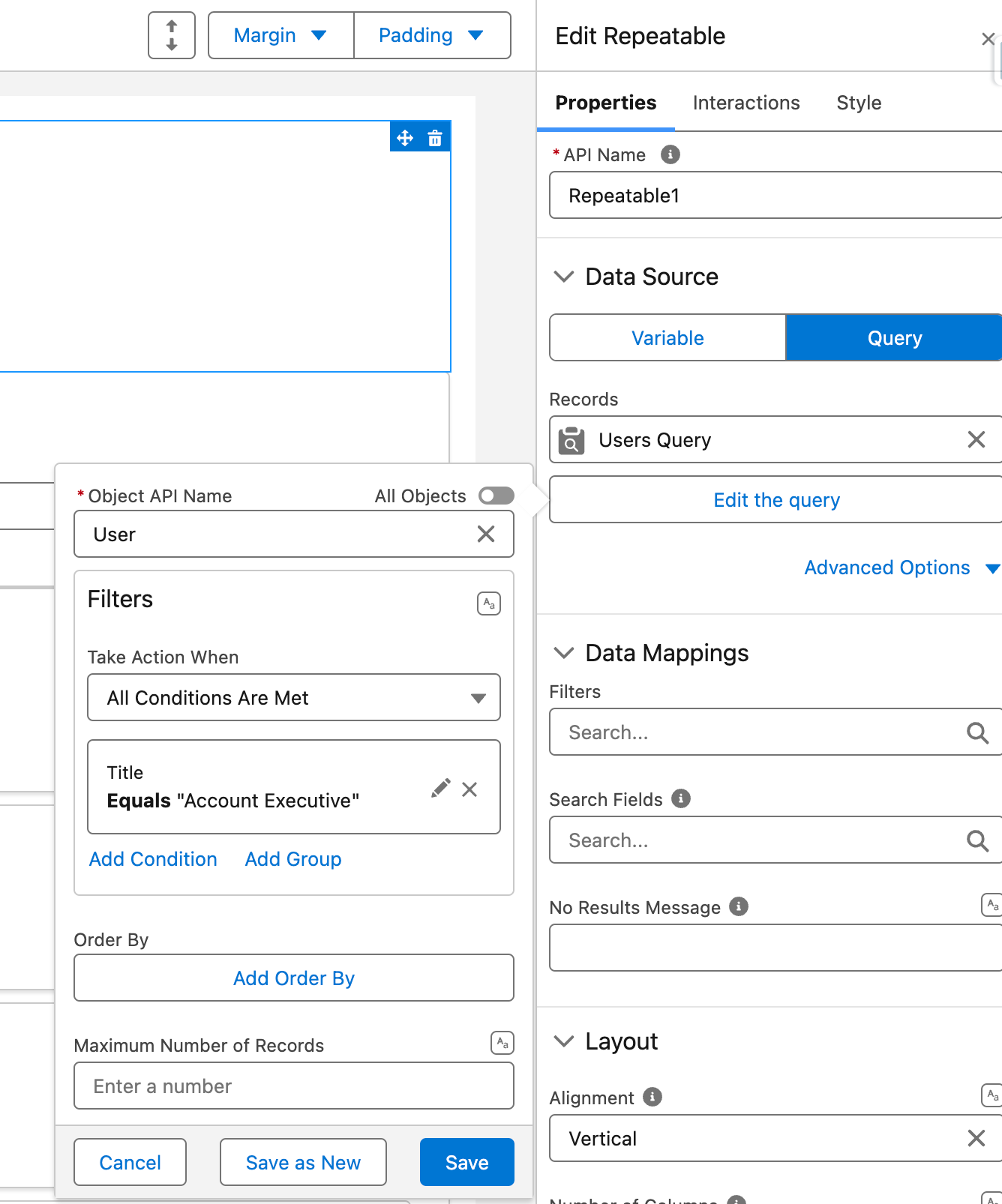
In the Repeater's Properties Panel, locate the Basic Properties section and set the Data Source to "Query". Click the configuration button to open the query builder. In the query builder:
* Select the **User** object from the object dropdown
* Add a filter to narrow down to Account Executives: Click "Add Filter" and set **UserRole.Name** equals "Account Executive" (or use **Profile.Name** if your org structures roles differently)
* Optionally add another filter like **IsActive** equals "True" to show only active users
* Click "Done" to save your query
The Repeater will now fetch all active Account Executives in your org.
{% endstep %}
{% step %}
#### Insert a Metric Inside the Repeatable
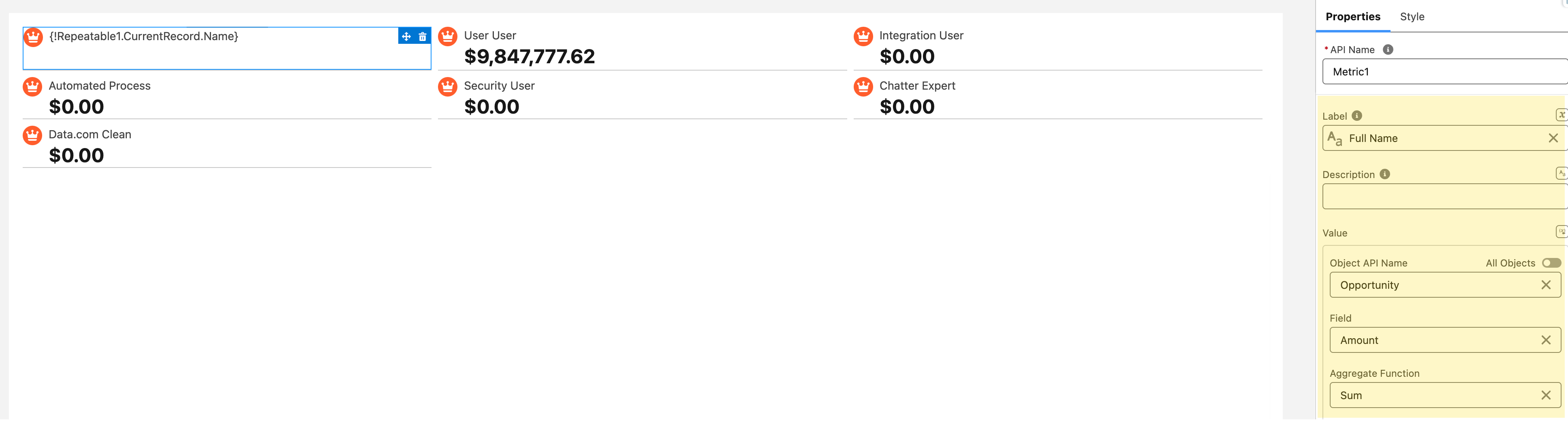
From the component library, drag the **Avonni Metric** component into the **Repeater's slot area** (the empty section labeled "Drop components here"). Once placed, click on the Metric component to open its Properties Panel. In the Basic Properties section:
* Set the Data Source to "Query"
* Click the query configuration button
* Select the **Opportunity** object
* In the Field section, choose **Amount** from the dropdown
* Set the Aggregate Function to **SUM** (this will calculate the total of all opportunity amounts)
* Leave any filters empty for now—we'll add the critical filter in the next step
* Click "Done" to save
At this point, the Metric is querying all opportunities in your org, but we need to filter it to show only opportunities for each specific user.
{% endstep %}
{% step %}
#### **Filter by User**
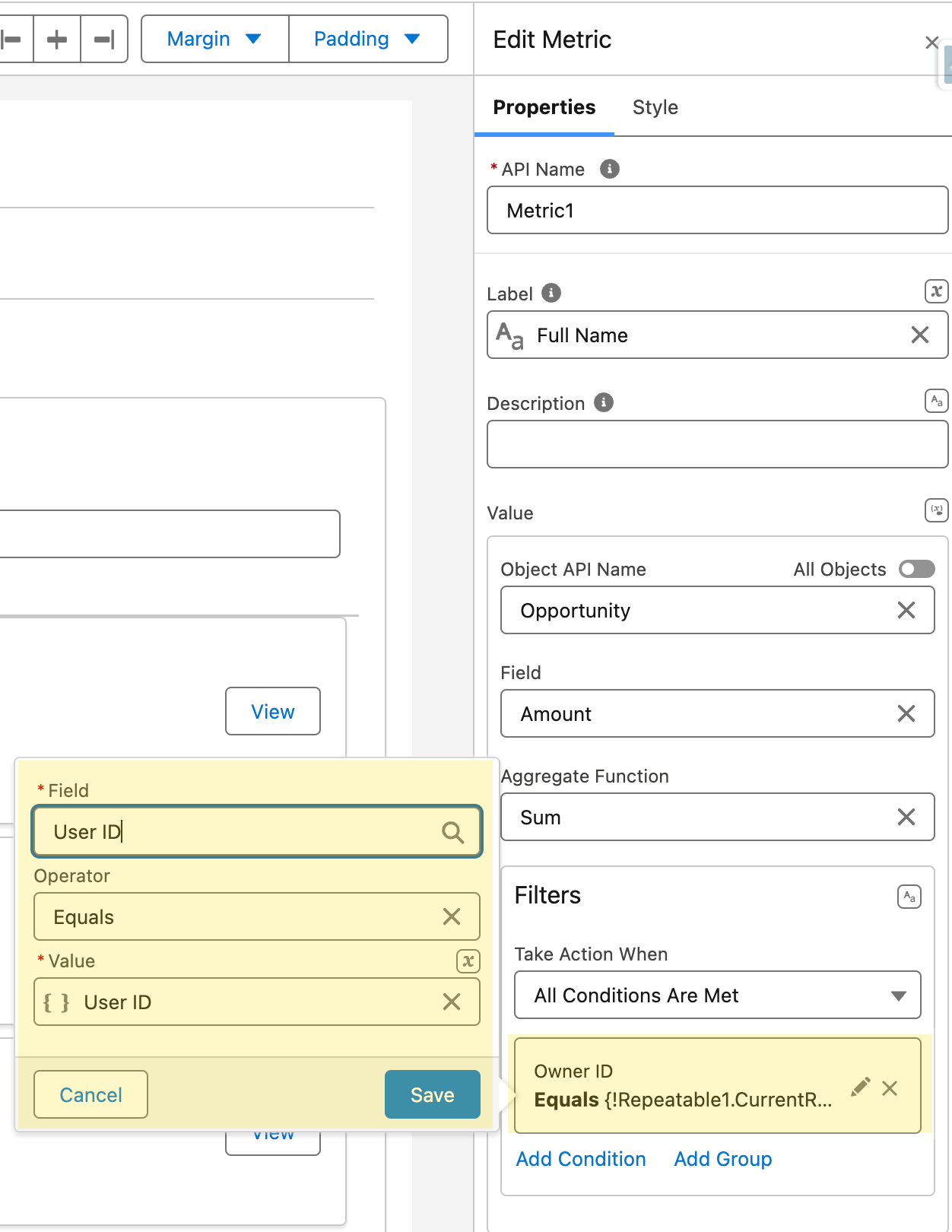
This is the crucial step that connects each Metric to its corresponding Account Executive. With the Metric component still selected, go back to its query configuration:
* Click "Add Filter" in the query builder
* Set the filter field to **OwnerId** (this is the field that tracks who owns each opportunity)
* Set the operator to "Equals"
* For the value, click the formula/variable icon and enter: `{!Repeater1.CurrentRecord.Id}` (if your Repeater's API Name is different from "Repeater1", use that name instead)
* Click "Done"
This binding ensures that as the Repeater loops through each Account Executive, the Metric only counts opportunities owned by that specific user. The `{!Repeater1.CurrentRecord.Id}` dynamically references the current User's ID in each iteration..
{% endstep %}
{% step %}
#### Adjust metric settings
Now that the data is flowing correctly, polish the Metric's appearance for better readability:
* **Enable the Avatar** (optional):
* In the Metric's Properties Panel, scroll to the Avatar section
* Toggle "Show Avatar" to On
* Set the Avatar Type to "Initials"
* Set the Initials value to `{!Repeater1.CurrentRecord.Name}` to show the user's initials
* This creates a visual identifier for each Account Executive
* **Update Labels**:
* Set the Label to something descriptive like "Total Pipeline" or "Closed Won Amount"
* Optionally add a sublabel with `{!Repeater1.CurrentRecord.Name}` to display the executive's name
* **Format the Value**:
* In the Value Formatting section, set Format Type to "Currency"
* Choose your currency symbol ($ for USD, € for EUR, etc.)
* Set decimal places (typically 0 for whole dollar amounts)
* **Add Visual Elements**:
* In the Icon section, add an icon like `utility:moneybag` or `utility:trending`
* Choose an icon color that matches your branding
* Consider adding a background color or variant style (success, warning) based on performance thresholds
{% endstep %}
{% step %}
#### Final Result
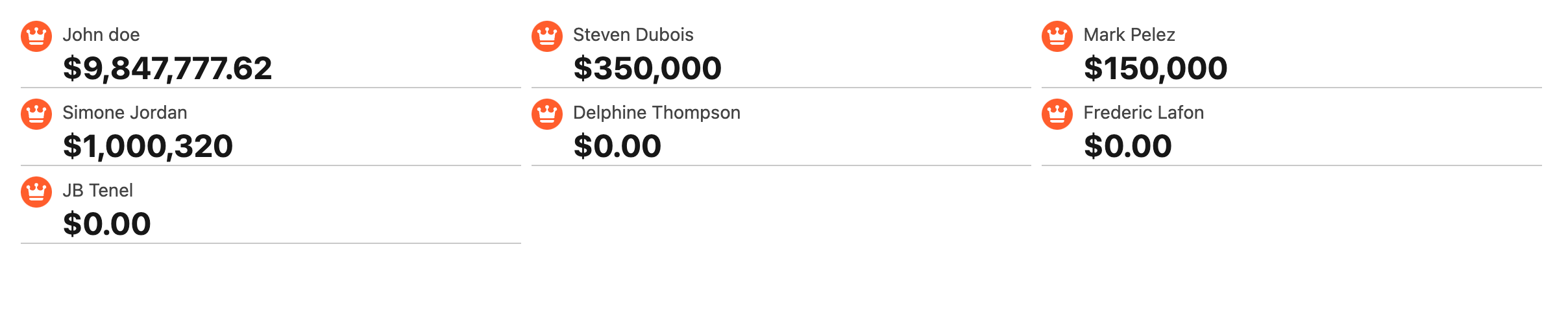
Once everything is set up, you'll have a clean, repeatable list of Metric components—each one showing the **total closed opportunity amount** for a different Account Executive. The layout updates dynamically based on your **User query**, making this a powerful way to visualize team performance in real time.
{% endstep %}
{% endstepper %}
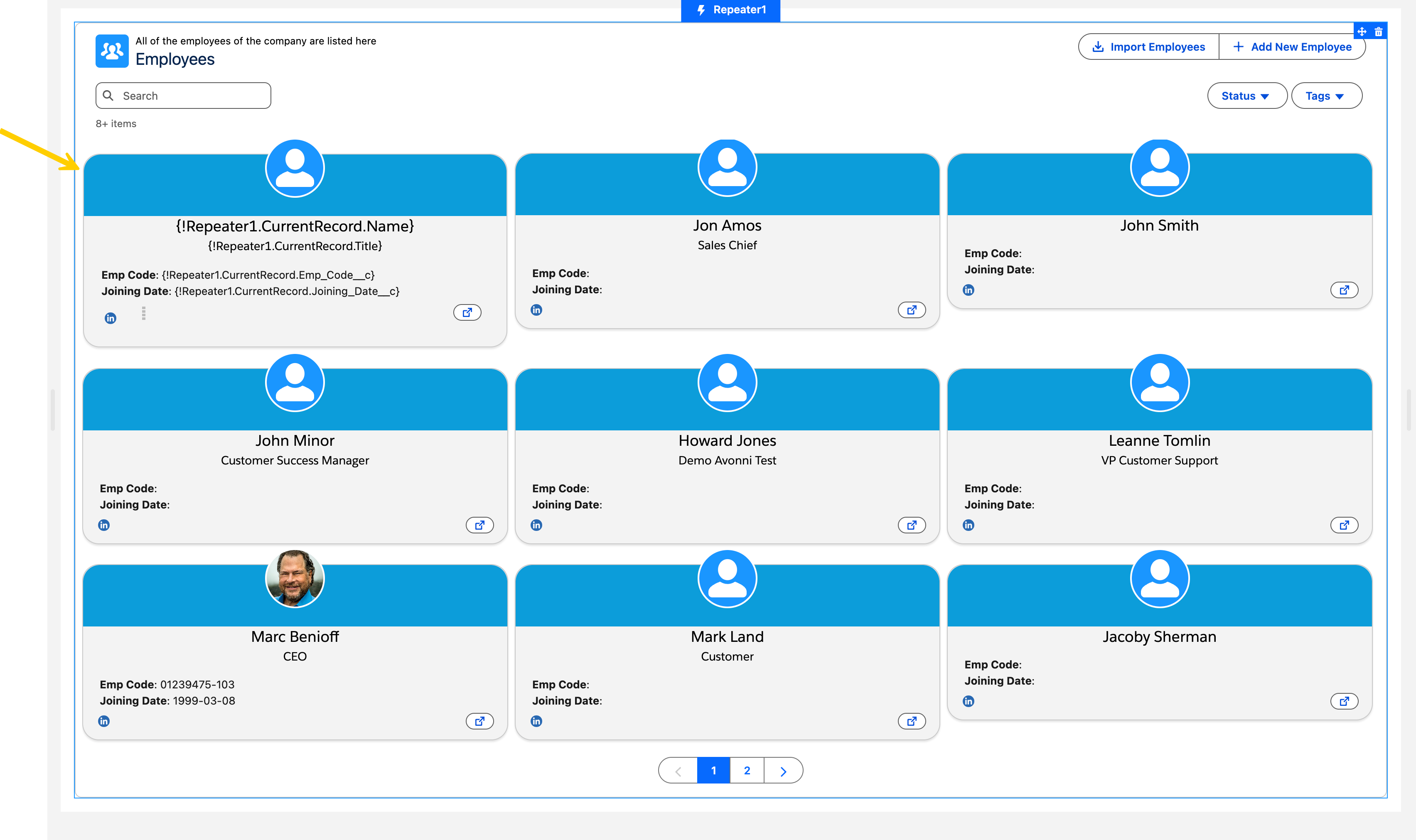
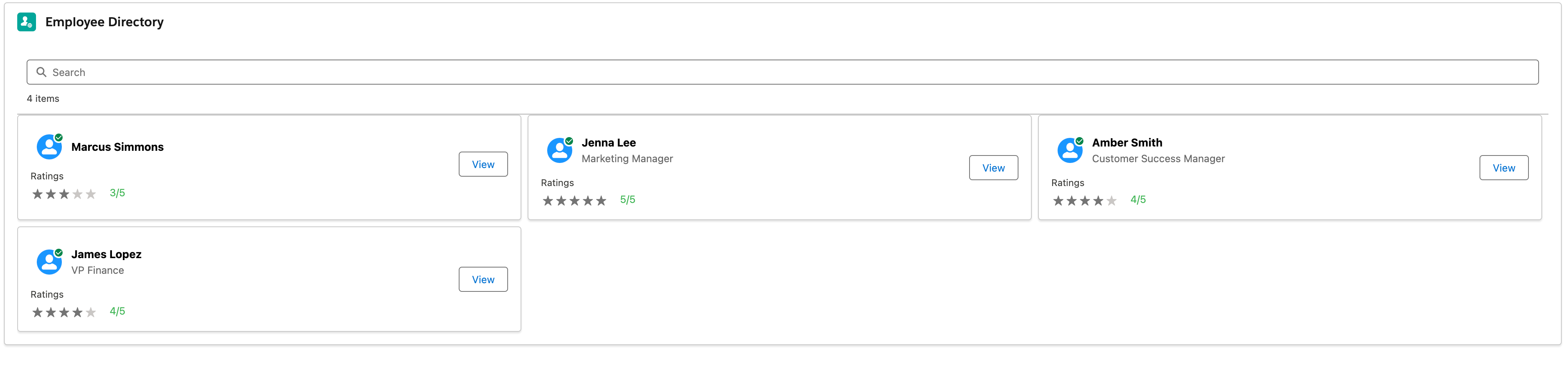
### **Example 2: Employee Directory**
This example displays a list of Contacts tied to the current Account page's record ID, using the Avonni Repeatable Component to show a Media Object, Avatar, and Button for each contact.
{% stepper %}
{% step %}
#### Add the Avonni Repeatable
Drag the **Avonni Repeatable** component onto the page where you want the employee directory to appear.
{% endstep %}
{% step %}
#### Set the Data Source to a Query
* Choose **Query** as the data source.
* Select the **Contact** object
{% endstep %}
{% step %}
#### Apply a Filter by Current Account ID
* Add a filter that shows only contacts linked to the **current Account**.
* Use the **record ID** from the Account page context to do this
{% hint style="info" %}
**Note**
* Make sure the **target page name** is set to the **Account** object.
* This allows the component to access the correct record ID when used in a dynamic context
{% endhint %}
{% endstep %}
{% step %}
#### Adjust repeatable layout settings
To control how the employee directory appears, the **Repeatable Layout Settings** are configured to provide a clean, structured presentation. The layout uses vertical alignment, meaning each contact's information is stacked vertically within its section. The display is arranged in a **3-column grid**, allowing multiple contacts to appear side by side across the page. Additionally, a **Card-style divider** is applied between items to visually separate and organize content for improved readability.
{% endstep %}
{% step %}
#### Place the media object component inside the repeatable
Inside the repeatable slot, drag the media object componnet to have access to other slots on the left and right side to place other components inside
{% endstep %}
{% step %}
#### Add the Avatar component to the first slot
Drag the Avatar Component on the left slot of the Media Object component.
{% endstep %}
{% step %}
#### Add the Avonni Button to the right slot of the media object
Inside the **Media Object**, place an **Avonni Button** in the **right slot** to act as a call-to-action for each contact. Label the button **"View"**, and configure its **click interaction** to navigate users to the selected contact's record page. To do this, set the interaction to:\
**Navigate → Record Page → Contact Object → View**
{% endstep %}
{% endstepper %}
***
## Interactions
[Interactions](/dynamic-components/component-builder/interactions.md) define what happens when users interact with the Repeater. Configure them from the **Interactions** tab of the Edit Repeater panel.
### Item Click
Fires when a user clicks a repeated item. Requires **Items Clickable** to be enabled. Use this to navigate to a record detail page, open a side panel, or trigger any flow logic tied to the selected record. The **clickedItemSObject** output is set to the record associated with the clicked item.
### Header Action Click
Fires when a user clicks one of the header action buttons. Use the **targetName** output to identify which action was clicked and branch your flow logic accordingly.
***
## Output Variables
The Repeater exposes these output variables you can reference elsewhere on the page after the user interacts with it.
### Item Click
When a user clicks a repeated item, this variable updates with the selected record's data. Requires **Items Clickable** to be enabled.
| Output variable | Type | What it returns |
| ------------------------ | ---------------- | --------------------------------------------------------------------- |
| **Clicked Item sObject** | Record (SObject) | The full Salesforce record associated with the item the user clicked. |
> **Example:** When a user clicks a contact card in an employee directory Repeater, use **Clicked Item sObject** to populate a record-detail panel beside the list.
{% hint style="warning" %}
**Clicked Item sObject only contains queried fields**
This output returns the record from the data the Repeater has already loaded. It does not run a new query when an item is clicked. Fields used only outside the Repeater (for example in a record detail panel) are not automatically part of the Repeater's query, so they come back empty. Add those field API names to the **Additional fields** advanced property in the Repeater's query configuration. See [Interactions](/dynamic-components/component-builder/interactions.md) for how the Item Click interaction sets this output.
{% endhint %}
### Header Actions
| Output variable | Type | What it returns |
| ------------------------------ | ------------- | -------------------------------------------------------------------------------------------------------------------------- |
| **Clicked Header Action Name** | Text (String) | The name of the header action button the user clicked. Use it to branch logic when multiple header actions are configured. |
### Others
| Output variable | Type | What it returns |
| ------------------- | ------ | ------------------------------------------------------------ |
| **Number of Items** | Number | The total count of records currently loaded in the Repeater. |
## Styling
Configure the Repeater's appearance from the **Style** tab of the Edit Repeater panel.
{% tabs %}
{% tab title="Margin" %}
Controls the *outer* spacing around the component.
* **Top / Right / Bottom / Left:** Adjust the space on each side.
{% endtab %}
{% tab title="Padding" %}
Controls the *inner* spacing between the component's content and its border.
* **Top / Right / Bottom / Left:** Adjust the inner spacing on each side.
{% endtab %}
{% tab title="Size" %}
Controls the component's dimensions.
* **Width / Height:** Set fixed dimensions.
* **Min Width / Max Width / Min Height / Max Height:** Constrain the size within bounds.
* **Overflow:** Control how content that exceeds the bounds is handled.
{% endtab %}
{% tab title="Border" %}
Customizes the border surrounding the component.
* **Color / Size / Style / Radius:** Set the border color, thickness, style, and corner rounding.
{% endtab %}
{% tab title="Header" %}
Styles the header background and spacing.
* **Background Color:** Set the header background color.
* **Padding Top / Right / Bottom / Left:** Adjust the inner spacing of the header.
* **Margin Bottom:** Set the space below the header.
{% endtab %}
{% tab title="Item" %}
Styles each repeated item's spacing, background, and border.
* **Spacing:** Block Between / Inline Between to set the vertical and horizontal spacing between items.
* **Background:** Color / Color Hover / Color Highlight.
* **Border:** Color / Size / Style / Radius.
{% endtab %}
{% tab title="Pagination Buttons" %}
Customizes the pagination buttons.
* **Background Color / Text/Icon Color / Color Border:** Set the colors for the default, active, hover, and disabled states.
* **Border Size / Border Style:** Control the button border.
* **Active Button** variants: set the same colors for the currently active page button.
{% endtab %}
{% tab title="Show More Button" %}
Customizes the "Show More" button (when load-more is used).
* **Background Color / Text Color / Border Color:** Set the colors for the default, active, and hover states.
* **Border Size / Border Radius:** Control the button border.
* **Block Start / Block End / Inline Start / Inline End:** Set the spacing around the button.
{% endtab %}
{% endtabs %}
## Key Considerations
* **Data Access:** In slots, use {!API\_Name.CurrentRecord.Field} for current item; query child records for aggregates.
* **Performance:** Limit queries for large datasets; use pagination to avoid load issues.
* **Responsive Design:** Test column settings across device sizes.
* **Actions and Interactions:** Header actions can trigger flows, and side panels are available for per-item edits.
* **No Results Handling:** Customize empty-state messages to guide users.
***
## Troubleshooting Common Issues
* **No items are repeating / The Repeater appears empty** — Check your Data Source query in the Properties Panel and click "Preview Results" to verify records match your criteria. If using a Variable, confirm it is populated and in scope. If filtering by the current record ID, ensure you are on a record page with a valid record ID and that the Target Page Name is set correctly. Also confirm the current user has read access to the object and fields — test with a System Administrator profile to rule out permission issues.
* **Binding attributes show {!Repeater1.CurrentRecord.FieldName} as literal text** — The API Name in your binding must exactly match the Repeater's API Name (case-sensitive). Verify the field API name is correct, including `__c` for custom fields and dot notation for relationships (e.g. `Account.Name`). Double-check your binding syntax `{!ComponentAPIName.CurrentRecord.FieldAPIName}` for extra spaces or typos, and confirm the target component property supports dynamic binding.
* **Fields bound to Clicked Item sObject are blank on the first click**: the **Clicked Item sObject** output returns the record from the data the Repeater has already loaded. It does not run a new query when an item is clicked. A field used only outside the Repeater (for example in a record detail panel) is not automatically included in the Repeater's query, so it comes back empty. Add each of those field API names to the **Additional fields** advanced property in the query configuration. The fields are then returned with every query and the panel fills on the first click.
***
---
# Agent Instructions
This documentation is published with GitBook. GitBook is the documentation platform designed so that both humans and AI agents can read, navigate, and reason over technical content effectively. Learn more at gitbook.com.
## Querying This Documentation
If you need additional information that is not directly available in this page, you can query the documentation dynamically by asking a question.
Perform an HTTP GET request on the current page URL with the `ask` query parameter, and the optional `goal` query parameter:
```
GET https://docs.avonnicomponents.com/dynamic-components/components/repeater.md?ask=&goal=
```
`ask` is the immediate question: it should be specific, self-contained, and written in natural language.
`goal` is optional and describes the broader end goal you are ultimately trying to accomplish on behalf of the user. GitBook uses it to tailor the answer towards what is most useful for that goal.
The response will contain a direct answer to the question and relevant excerpts and sources from the documentation.
Use this mechanism when the answer is not explicitly present in the current page, you need clarification or additional context, or you want to retrieve related documentation sections.
.gif?alt=media)
.gif?alt=media)
.gif?alt=media)
.gif?alt=media)