> For the complete documentation index, see [llms.txt](https://docs.avonnicomponents.com/llms.txt). Markdown versions of documentation pages are available by appending `.md` to page URLs; this page is available as [Markdown](https://docs.avonnicomponents.com/dynamic-components/tutorials/components/data-table/configure-header-actions.md).
# Configure Header Actions
## Overview
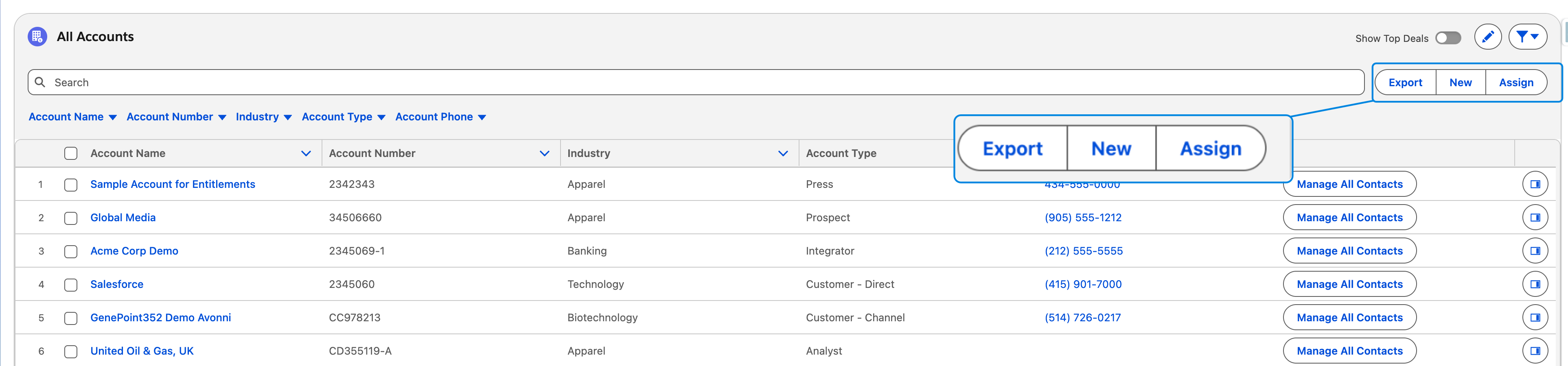
**Header actions** let you run global actions directly from the data table header, based on the rows your users have selected. Instead of placing buttons inside each row, you can add actions like “Export selected rows,” “Delete selected records,” or “Run approval on selected items” to the header.
This keeps the table clean while still giving users one-click access to powerful operations on the data they’ve chosen.
***
## Step-By-Step instructions
#### Step 1: Create the Header Button
First, let's add the button to the table's user interface.
1. Select the Data Table component in the builder.
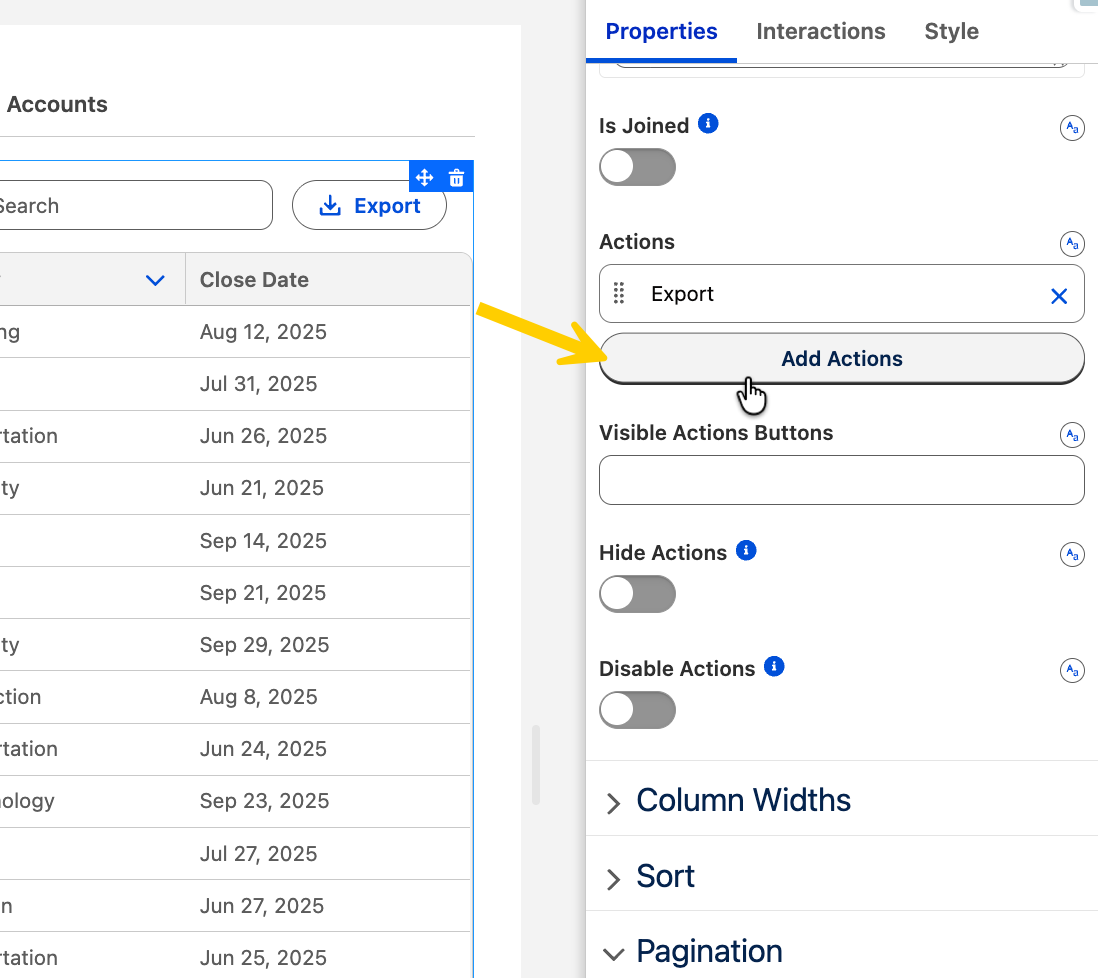
2. In the **Properties panel** on the right, locate the Header Actions section.
3. Click **Add Action**.
4. Configure the button's appearance:
* **Label**: Enter the text users will see (e.g., "Export Data").
* **Name**: Give the button a unique ID (e.g., `export_button`). Important: You will need this name in the next phase to link the logic.
* **Icon Name**: (Optional) Add a Salesforce utility icon (e.g., `utility:download`) to make the button more recognizable.
* **Variant**: Choose a style, such as Brand (blue) or Neutral (white/gray).
***
#### Step 2: Make the Button Functional (Interactions)
Now that the button exists, you need to define what happens when users click it.
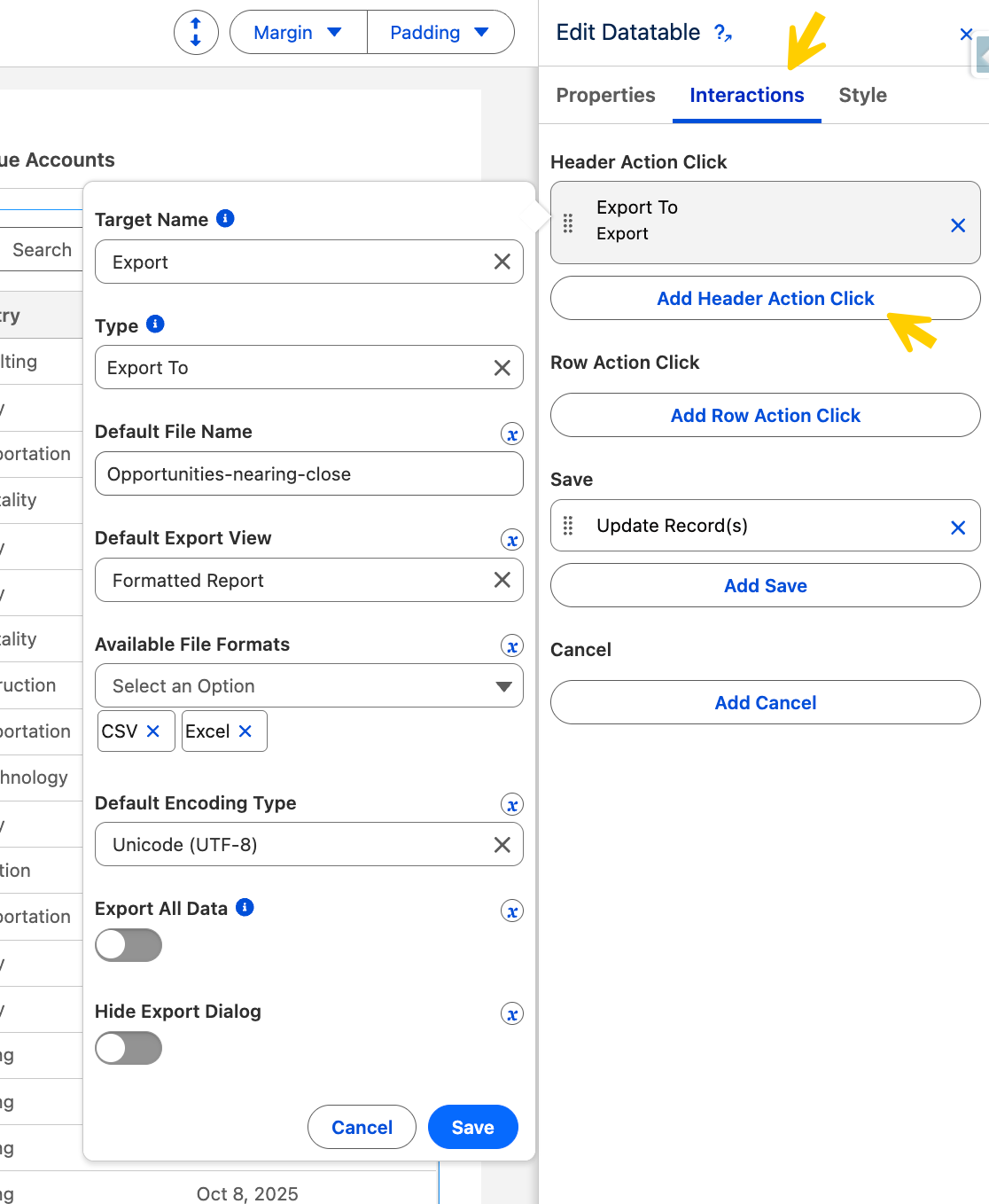
1. At the top of the properties panel, switch from the Properties tab to the [**Interactions tab**](/dynamic-components/component-builder/interactions.md).
2. Click on the "**Add Header Action Click**" button
3. Set the Trigger (The "When"):
* **Target**: Select the Name of the button you created in Step 1 (for example, \``export_button`\`)
* **Type**: Choose the interaction that should run when users click the button. For instance, select [**Export To**](/dynamic-components/component-builder/interactions/export-to.md) to let users download the table data as a CSV file, or [**Navigate**](/dynamic-components/component-builder/interactions/navigate.md) to send them to a specific page in Salesforce.
Learn more about the available Interactions
***
#### Step 3: Save and Test
1. Click Save in the builder.
2. Preview your page in Salesforce.
3. Click your new header button to verify it triggers the correct behavior (e.g., CSV downloads or the Flow modal openingensure it triggers the correct behavior (e.g., the CSV downloads or the Flow modal opens).
---
# Agent Instructions
This documentation is published with GitBook. GitBook is the documentation platform designed so that both humans and AI agents can read, navigate, and reason over technical content effectively. Learn more at gitbook.com.
## Querying This Documentation
If you need additional information that is not directly available in this page, you can query the documentation dynamically by asking a question.
Perform an HTTP GET request on the current page URL with the `ask` query parameter, and the optional `goal` query parameter:
```
GET https://docs.avonnicomponents.com/dynamic-components/tutorials/components/data-table/configure-header-actions.md?ask=&goal=
```
`ask` is the immediate question: it should be specific, self-contained, and written in natural language.
`goal` is optional and describes the broader end goal you are ultimately trying to accomplish on behalf of the user. GitBook uses it to tailor the answer towards what is most useful for that goal.
The response will contain a direct answer to the question and relevant excerpts and sources from the documentation.
Use this mechanism when the answer is not explicitly present in the current page, you need clarification or additional context, or you want to retrieve related documentation sections.