> For the complete documentation index, see [llms.txt](https://docs.avonnicomponents.com/llms.txt). Markdown versions of documentation pages are available by appending `.md` to page URLs; this page is available as [Markdown](https://docs.avonnicomponents.com/dynamic-components/components/checkbox-group.md).

# Checkbox Group

The Avonni Checkbox Group component displays a set of selectable choices — rendered as a default list, a button group, or a toggle group — with support for single or multi-select, dynamic data sources, and configurable layout.

## Overview

The component ships as three builder presets that share the same underlying configuration: **Checkbox Group** (standard checkboxes or radio buttons), **Radio Group** (single-select radio style), and **Toggle Group** (toggle switches). All three presets use the same properties panel; the presets simply set different defaults for **Type** and **Is Multi Select**.

{% hint style="info" %}
In the Dynamic Components Builder, this component is referred to as "Input Choice Set" when you use it in bindings (for example, `$Component.InputChoiceSet.Value`).
{% endhint %}

<figure><img src="/files/QoThmrYp4vQdwZZeqYdh" alt=""><figcaption></figcaption></figure>

Use this component to:

* Filter records in a Data Table (for example, select multiple Opportunity stages to narrow results).
* Capture user preferences (for example, newsletter topics or interests in a lead form).
* Collect multi-selections in a form or conditional UI.
* Drive component visibility rules based on the selected value.

## Configuration

To configure the Checkbox Group, select it on the canvas. The **Edit Input Choice Set** panel opens on the right. The sections below mirror the **Content** group in the Properties tab.

### Data Source

Before you build your choice set, tell the component where to get its options. You have several options depending on the source and nature of your data:

<table data-view="cards"><thead><tr><th></th><th></th><th data-hidden data-card-target data-type="content-ref"></th></tr></thead><tbody><tr><td><strong>Manual</strong></td><td>Enter data directly into the component configuration.</td><td></td></tr><tr><td><strong>Variable</strong></td><td>This is useful for data that changes based on user interactions or other component logic.</td><td></td></tr><tr><td><strong>Query</strong></td><td>This is the most common option for displaying Salesforce records.</td><td></td></tr><tr><td><strong>Picklist</strong></td><td>Retrieve data dynamically from a standard or custom picklist field within Salesforce.</td><td><a href="/pages/NMTcHeq9UuKYUmBedI8t">/pages/NMTcHeq9UuKYUmBedI8t</a></td></tr></tbody></table>

When using a **Query** or **Variable** data source, configure the **Data Mappings** section to tell the component how to map record fields to option labels and values.

### Content

#### Label

The main text label displayed above the choice set. You can bind it to a Salesforce field, formula, or a static string.

#### Value

The default selected option, expressed as a semicolon-separated string. Bind this to a variable or formula to pre-populate the selection. Requires: **Is Multi Select** = off.

#### Value Collection

The default selected options as a list. Bind this to a collection variable when multi-select is on. Requires: **Is Multi Select** = on.

#### Field Level Help

Help text displayed next to the label to guide users on the purpose of the choice set.

#### Variant

Controls how the label is positioned relative to the choice set.

| Option                 | Description                                        |
| ---------------------- | -------------------------------------------------- |
| **Standard** (default) | Label appears above the choices.                   |
| **Label Hidden**       | Label is hidden visually but remains accessible.   |
| **Label Inline**       | Label appears to the left of the choices.          |
| **Label Stacked**      | Label floats above the choices in a compact style. |

#### Type

Controls how the choices are rendered. The three builder presets correspond to the three type values.

| Option                | Description                                                                     |
| --------------------- | ------------------------------------------------------------------------------- |
| **Default** (default) | Renders as standard checkboxes (multi-select) or radio buttons (single-select). |
| **Button**            | Renders choices as a button group.                                              |
| **Toggle**            | Renders choices as toggle switches.                                             |

#### Type Attributes

Additional settings available when **Type** is **Button** or **Toggle**.

* **Stretch** — If enabled, the buttons or toggles expand to fill the full available width. Available for both Button and Toggle types.
* **Display as Row** — If enabled, buttons are separated and laid out in a row instead of grouped. Available for Button type only.
* **Show Checkmark** — If enabled, a checkmark appears on the selected option. Available for Button and Toggle types.
* **Checkmark Position** — Sets the checkmark to the left or right of the option label. Defaults to Left. Requires: **Show Checkmark** = on.
* **Size** — Sets the size of toggle controls: X-small, Small, **Medium** (default), or Large. Available for Toggle type only.
* **Message Toggle Active** — Label text shown for the active (on) state of a toggle. Available for Toggle type only.
* **Message Toggle Inactive** — Label text shown for the inactive (off) state of a toggle. Available for Toggle type only.

#### Orientation

Arranges options vertically (stacked) or horizontally (side by side). Defaults to **Vertical**.

#### Layout

Layout settings available when **Orientation** is **Horizontal**.

* **Scrollable** — If enabled and options overflow the container, a horizontal scroll bar appears. Requires: **Multiple Rows** = off.
* **Show Scroll Buttons** — If enabled, arrow buttons appear to scroll through options. Requires: **Scrollable** = on.
* **Multiple Rows** — If enabled, options wrap to the next line when they exceed the container width.
* **Number of Columns** — Number of columns per row for the smallest container (under 480 px). Defaults to 1. Requires: **Multiple Rows** = on.
* **Number of Columns Small Container** — Columns per row for containers 480 px and wider. Defaults to 12. Requires: **Multiple Rows** = on.
* **Number of Columns Medium Container** — Columns per row for containers 768 px and wider. Defaults to 6. Requires: **Multiple Rows** = on.
* **Number of Columns Large Container** — Columns per row for containers 1024 px and wider. Defaults to 4. Requires: **Multiple Rows** = on.

{% hint style="success" %}
For horizontal layouts, set columns to match the container width for responsive design.
{% endhint %}

#### Check Position

Position of the checkbox, radio button, or toggle indicator relative to its label — **Left** (default) or **Right**. Requires: **Type** = Default or Toggle.

#### Is Multi Select

If enabled, users can select more than one option. When off, only one option can be selected at a time (radio-button behavior for the Default type).

#### Required

If enabled, the user must select at least one option before submitting. Use with **Message When Value Missing** to show a clear error.

#### Message When Value Missing

The validation error message displayed when the field is required but no option is selected. Requires: **Required** = on.

#### Read Only

If enabled, the choices are displayed but cannot be changed by the user.

#### Disabled

If enabled, the entire choice set is disabled and users cannot interact with it.

### Set Component Visibility

All components support conditional visibility — see [Component Visibility](/dynamic-components/core-concepts/component-visibility.md).

## Examples

### Example 1: Single-Select Stage Filter

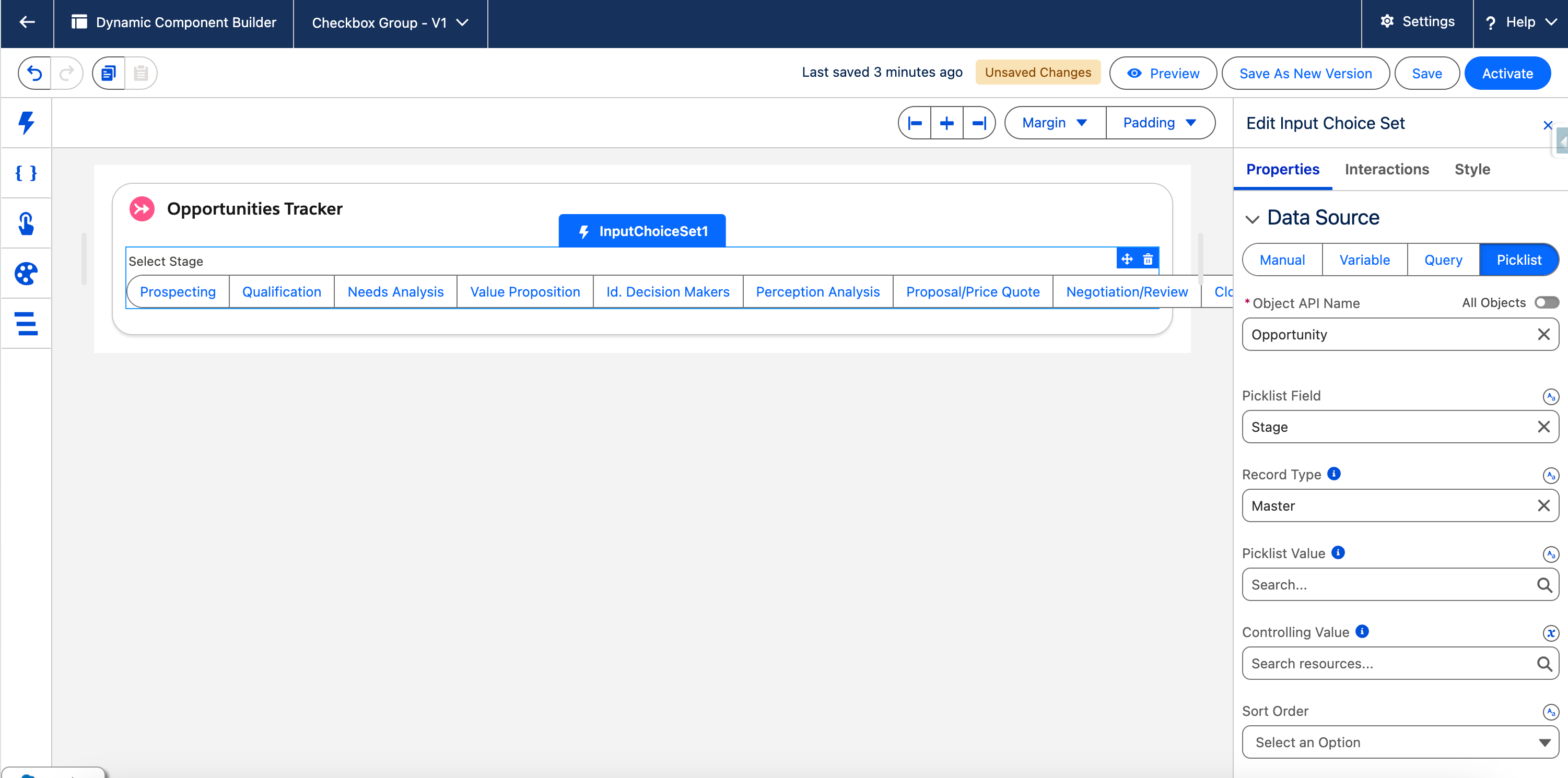
This example creates a single-select checkbox group for Opportunity stages, bound to a picklist.

{% stepper %}
{% step %}

#### Configure Properties

* **Label**: "Select Stage"
* **Data Source**: picklist (Opportunity > StageName)
* **Is Multi Select**: Off
* **Variant**: standard
* **Type**: button
* **Orientation**: vertical

<figure><img src="/files/QYle2MIpnxX3uNmChnBD" alt=""><figcaption></figcaption></figure>
{% endstep %}

{% step %}

#### Integrate with Data Table for Dynamic Filtering

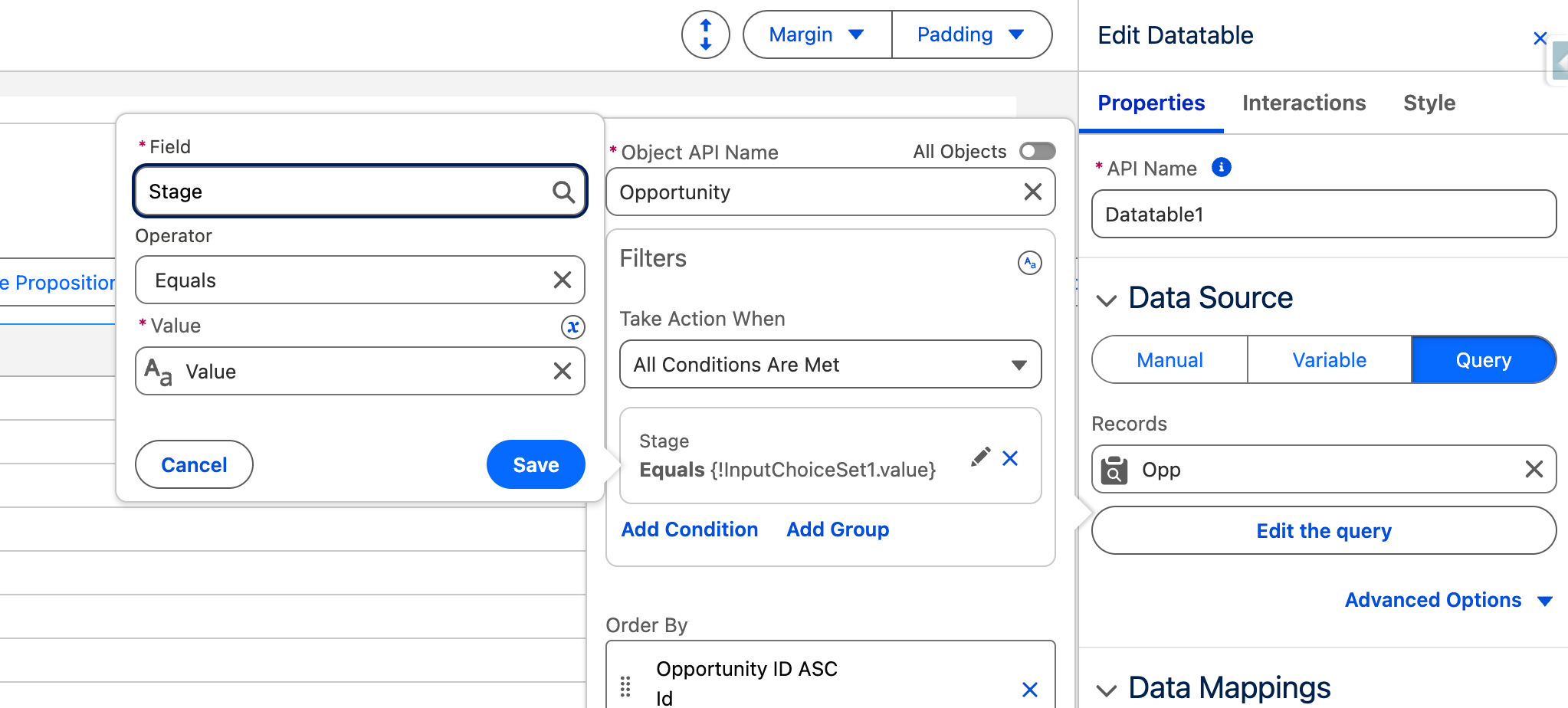
Connect the Checkbox Group to an Avonni Data Table. This filters Opportunity records based on the selected stage(s), showing only matching data. The table's query retrieves data from Salesforce and responds to user selections.

1. **Add Data Table Component:** Drag the "Data Table" from the Component Library onto the canvas, below the Checkbox Group.
2. **Configure Query Data Source:** In the Data Table's Properties Panel:
   * Set Data Source to "Query" mode.
   * Choose Object: "Opportunity".
   * Add a reactive filter: StageName equals {!selectedStage} (bind to the Value or Value Collection from the Checkbox Group; for multi-select, use "in" operator and the collection).
3. **Add Columns:** Select Opportunity fields to display (e.g., Name, Amount, Close Date).

<figure><img src="/files/baAH5f9lfMWxWfCR8YPy" alt=""><figcaption></figcaption></figure>
{% endstep %}
{% endstepper %}

**Result:** Users select one stage, updating the variable for filtering.

<figure><img src="/files/PgKezs49SkOBsAGD94W5" alt=""><figcaption></figcaption></figure>

***

### Example 2: Controlling the Visibility of Other Components

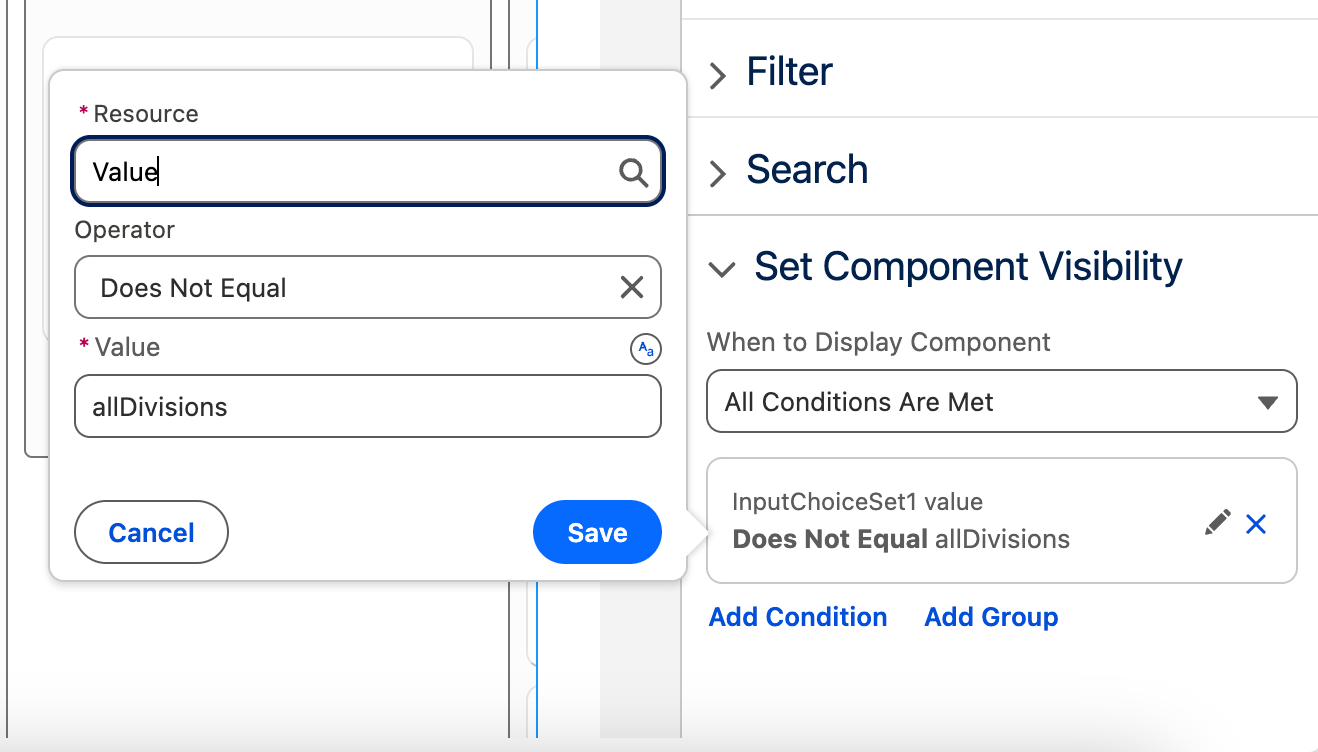
Combine the Checkbox Group with the "[Set Component Visibility](/dynamic-components/core-concepts/component-visibility.md)" feature to show/hide other components dynamically based on user selections. This is useful for conditional UIs, such as revealing a Kanban board only when specific filters are selected.

{% stepper %}
{% step %}

#### Configure Checkbox Group

* API Name: statusFilter
* Label: "Select Status"
* Data Source: manual (options: "Active", "Inactive", "Pending")
* Is Multi Select: Off (for single select; adjust for multi)
* Value: Bind to {!selectedStatus} (create a Text Variable)
* Variant: standard
* Type: default
* Orientation: vertical
  {% endstep %}

{% step %}

#### Add Target Component (e.g., Kanban)

Drag a Kanban component onto the canvas
{% endstep %}

{% step %}

#### Set Visibility Rule on Kanban

* Select the Kanban.
* In Properties Panel > Set Components Visibility, add a visibility condition like Input Choice Set value equal to a specific name.

<figure><img src="/files/pVvAmkPdPWhRsHo2VvS7" alt="" width="375"><figcaption></figcaption></figure>
{% endstep %}
{% endstepper %}

**Result:** The Kanban appears only when "All Divisions" is selected (or contains the value in multi-select), hiding otherwise for a cleaner, context-aware interface.

## Interactions

[Interactions](/dynamic-components/component-builder/interactions.md) define what happens when users interact with the Choice Set. Configure them from the **Interactions** tab of the Edit Choice Set panel.

### Change

Fires when the user changes their selection. Use this to update a variable, trigger a query refresh on another component, or navigate to a new screen.

## Output Variables

The Checkbox Group exposes these output variables you can reference elsewhere on the page after the user interacts with it.

### Item Selection

When a user changes their selection, these variables update with the current selection data.

| Output variable            | Type                           | What it returns                                                                                                                 |
| -------------------------- | ------------------------------ | ------------------------------------------------------------------------------------------------------------------------------- |
| **Selected Item**          | Object                         | The currently selected option — its label and value. Available for all data source types.                                       |
| **Selected Item sObject**  | Record (SObject)               | The full Salesforce record associated with the selected option. Requires a **Query** or **Variable** data source.               |
| **Selected Items**         | Object Collection              | All currently selected options, each with its label and value. Available for all data source types.                             |
| **Selected Items sObject** | Record Collection (SObject\[]) | The Salesforce records for all selected options when multi-select is enabled. Requires a **Query** or **Variable** data source. |
| **Value Comma Separated**  | Text (String)                  | The selected option values joined by commas — useful for feeding into a filter or formula that expects a flat string.           |

> **Example:** When a user picks one or more stages from a Checkbox Group bound to an Opportunity picklist, use **Value Comma Separated** to pass the selection directly into a Data Table filter expression.

### Others

| Output variable              | Type    | What it returns                                                 |
| ---------------------------- | ------- | --------------------------------------------------------------- |
| **Number of Items**          | Integer | The total number of options currently loaded in the choice set. |
| **Number of Items Selected** | Integer | The number of options the user has currently selected.          |


---

# Agent Instructions
This documentation is published with GitBook. GitBook is the documentation platform designed so that both humans and AI agents can read, navigate, and reason over technical content effectively. Learn more at gitbook.com.

## Querying This Documentation
If you need additional information that is not directly available in this page, you can query the documentation dynamically by asking a question.

Perform an HTTP GET request on the current page URL with the `ask` query parameter:

```
GET https://docs.avonnicomponents.com/dynamic-components/components/checkbox-group.md?ask=<question>
```

The question should be specific, self-contained, and written in natural language.
The response will contain a direct answer to the question and relevant excerpts and sources from the documentation.

Use this mechanism when the answer is not explicitly present in the current page, you need clarification or additional context, or you want to retrieve related documentation sections.