> For the complete documentation index, see [llms.txt](https://docs.avonnicomponents.com/llms.txt). Markdown versions of documentation pages are available by appending `.md` to page URLs; this page is available as [Markdown](https://docs.avonnicomponents.com/dynamic-components/tutorials/components/data-table/apply-badge-color-coding.md).
# Apply Badge Color-Coding
## Overview
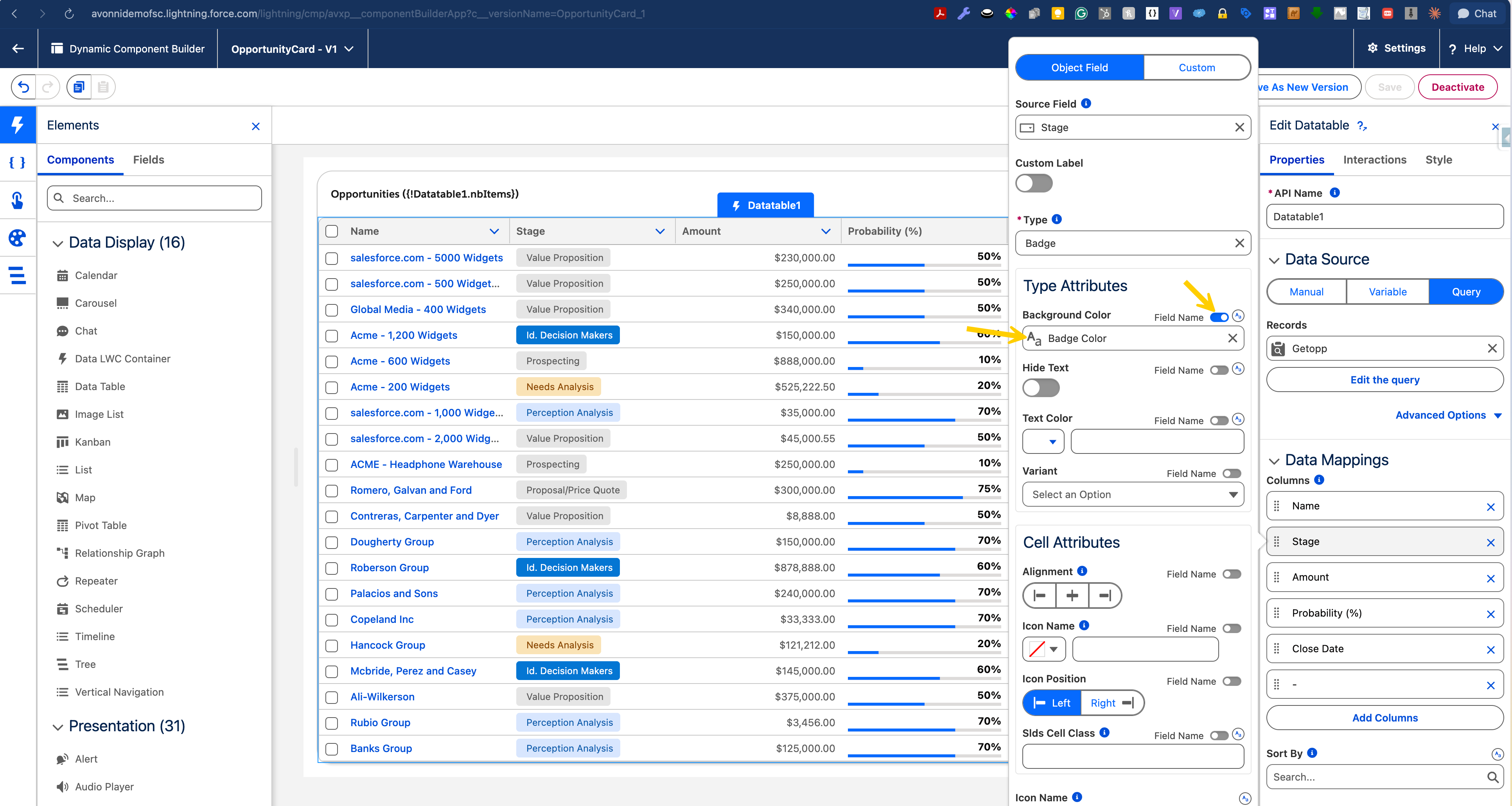
Color-coding badges within the [**Data Table component**](/dynamic-components/components/data-table.md) is a nice way to provide immediate visual context to your records. By dynamically changing badge colors based on specific criteria—such as "Stage," "Status," or "Priority"—users can identify key information at a glance and interpret data trends without having to read through every individual row in the table.
***
## Guided tutorial
Setting up dynamic badge colors involves a simple three-part workflow: Define, Connect, and Style. First, you will create a "logic field" in Salesforce that determines which color to use for each value. Next, you will pull that data into your component. Finally, you will map that logic to your table's badge settings so the colors update automatically based on your record's data.
{% hint style="info" %}
#### Note
The guided steps in this tutorial use a specific example that dynamically sets badge background colors from the Stage field. Feel free to adjust the formula, fields, and colors to match your own objects, statuses, and business rules.
{% endhint %}
{% stepper %}
{% step %}
#### Create the "Color Logic" in Salesforce
Before configuring the table, you need an **object formula field** in Salesforce that specifies the color for each record.
1. Navigate to **Setup** > **Object Manager** and select your object (e.g., Opportunity).
2. Go to **Fields & Relationships** and click **New**.
3. Select **Formula** as the **Data Type**.
4. Give it a label (e.g., "Stage Color") and choose **Text** as the Formula Return Type.
5. Enter a formula that assigns specific keywords (success, error, warning, or base) to your data values:
```
CASE(StageName,
"Prospecting", "#90A4AE",
"Qualification", "#90A4AE",
"Needs Analysis", "#4DB6AC",
"Value Proposition", "#4DB6AC",
"Id. Decision Makers", "#4DB6AC",
"Proposal/Price Quote", "#FFB74D",
"Negotiation/Review", "#FFB74D",
"Closed Won", "#4BCA81",
"Closed Lost", "#FF5D5D",
"#E0E0E0") /* Default Gray for any other values */
```
What these colors represent
| Stage Group | Hex Code | Color Preview |
| ------------------------------------ | -------- | ---------------------- |
| **Early Stage (Prospecting, Qual.)** | #90A4AE | Slate Gray (Neutral) |
| **Middle Stage (Analysis, Prop.)** | #4DB6AC | Teal (In Progress) |
| **Late Stage (Negotiation)** | #FFB74D | Orange (High Priority) |
| {% endstep %} | | |
{% step %}
#### **Add the Avonni Data Table Component**
Drag the Avonni **Data Table** into your Dynamic Component. Select it, then configure its **Data Source** using an **Avonni Query** to fetch the necessary Salesforce records and fields. After setting up the query, go to the **Columns** section in the Properties Panel to add columns, map them to the correct **Source Fields** from your query, and adjust their settings.
{% endstep %}
{% step %}
#### Configure the Badge Column
Now that you have your Salesforce formula ready, you need to tell the table to use those specific Hex codes to color the badges dynamically.
1. **Open Data Mappings**: In the Properties panel of the Data Table, navigate to the Data Mappings section.
2. **Select the Field**: Click on the column you wish to display as a badge (for example, Stage Name).
3. **Set Type to Badge**: In the Type dropdown menu for that column, select Badge.
4. **Configure Type Attributes**: Scroll down to the Type Attributes section to find the badge-specific styling options.
5. Map the **Background Color**:
* Locate the Background attribute.
* **Toggle the Field Name** option (this allows you to link the color to a data field rather than picking a single static color).
* Select your **Formula Field** (the one containing your Hex color codes) from the list.
#### Why this works
By toggling the Field Name option, you are creating a dynamic link between the UI and your data. The table will look at the Hex code value for each specific record (e.g., `#4BCA81`) and apply it directly as the background color for that row's badge. This ensures that as a record's stage changes in Salesforce, the color in your table updates automatically without any manual styling.
{% endstep %}
{% endstepper %}
View the related tutorial on conditional cell coloring
***
### Wrapping Up
Now, your Avonni Data Table should display the **`StageName`** status with a colored badge based on the condition specified in the formula field. ‘Closed Won’ stages will show a green badge, ‘Closed Lost’ stages will show a red badge, and all other stages will show a neutral badge. This customization allows for a more visually intuitive representation of your data.
---
# Agent Instructions
This documentation is published with GitBook. GitBook is the documentation platform designed so that both humans and AI agents can read, navigate, and reason over technical content effectively. Learn more at gitbook.com.
## Querying This Documentation
If you need additional information that is not directly available in this page, you can query the documentation dynamically by asking a question.
Perform an HTTP GET request on the current page URL with the `ask` query parameter, and the optional `goal` query parameter:
```
GET https://docs.avonnicomponents.com/dynamic-components/tutorials/components/data-table/apply-badge-color-coding.md?ask=&goal=
```
`ask` is the immediate question: it should be specific, self-contained, and written in natural language.
`goal` is optional and describes the broader end goal you are ultimately trying to accomplish on behalf of the user. GitBook uses it to tailor the answer towards what is most useful for that goal.
The response will contain a direct answer to the question and relevant excerpts and sources from the documentation.
Use this mechanism when the answer is not explicitly present in the current page, you need clarification or additional context, or you want to retrieve related documentation sections.