> For the complete documentation index, see [llms.txt](https://docs.avonnicomponents.com/llms.txt). Markdown versions of documentation pages are available by appending `.md` to page URLs; this page is available as [Markdown](https://docs.avonnicomponents.com/dynamic-components/components/barcode-scanner.md).
# Barcode Scanner
The Avonni Barcode Scanner component enables users to scan barcodes using a device's camera within a Salesforce mobile experience. It supports two display modes — a standalone button that launches the scanner, or an input-style field that captures results inline — making it suitable for inventory tracking, asset management, and any mobile data-capture workflow.
{% hint style="warning" %}
The Barcode Scanner component is functional only when used within the Salesforce mobile app. While you can configure it in the Dynamic Components Builder App, use it exclusively in the mobile app.
{% endhint %}
## Overview
The component comes in two presets that drive which properties are available:
* **Barcode Scanner** — displays a button that opens the scanner. Best for dedicated scan actions where users tap a button to start.
* **Input Barcode** — displays an inline input field with an embedded scan trigger. Best for forms where the scanned value should appear as a field value.
Use cases include:
* Inventory management (scan product barcodes to update stock).
* Asset tracking (log equipment IDs in Salesforce).
* Event check-ins (scan attendee tickets).
* Point-of-sale systems (capture multiple items in bulk).
* Field service (scan serial numbers to log maintenance).
## Configuration
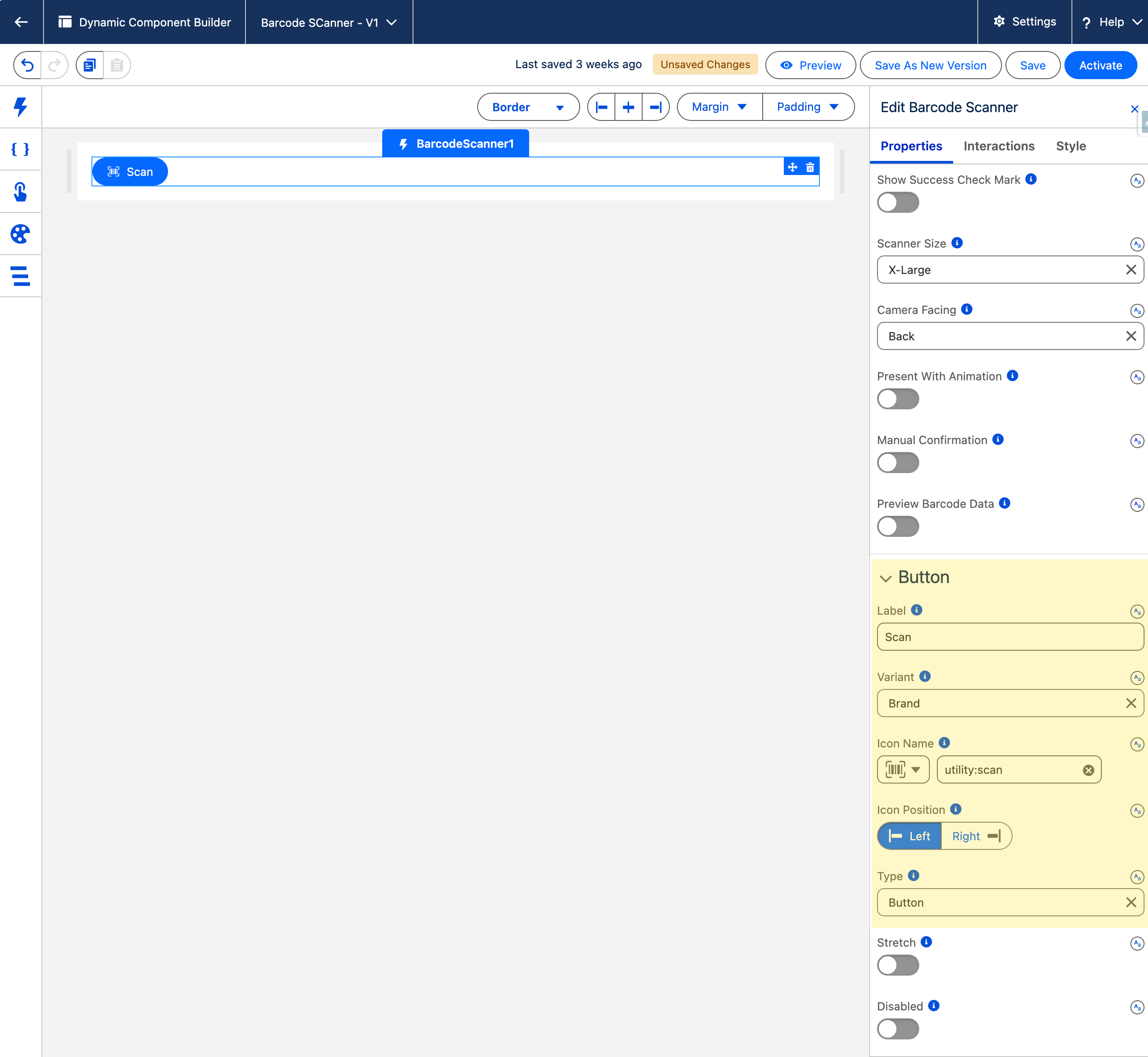
To configure the Barcode Scanner, select it on the canvas. The **Edit Barcode Scanner** panel opens on the right with three tabs: **Properties**, **Interactions**, and **Style**. The sections below mirror the Properties tab.
### Button
These settings control the scan trigger — the button users tap to open the scanner (both presets share **Label** and **Barcode Types**; the remaining settings apply to the **Barcode Scanner** preset).
**Label** — the text shown on the scan button. Defaults to `Label`.
**Barcode Types** — the barcode formats the scanner will accept. Leave empty to accept all supported formats. Supported types: Code 128, Code 39, Code 93, Data Matrix, EAN-13 / GTIN-13, EAN-8 / GTIN-8, Interleaved 2 of 5, PDF-417, QR Code, UPC-A / GTIN-12, UPC-E / GTIN-12.
**Icon Name** — a Lightning Design System icon displayed on the button. Defaults to `utility:scan`.
**Icon Position** — places the icon to the **Left** (default) or **Right** of the label. Requires: **Icon Name** to be set.
**Variant** — changes the visual style of the button. Options: Bare, Bare Inverse, Base, Border, Border Filled, Border Inverse, Brand, Brand Outline, Container, Destructive, Destructive Text, Inverse, Neutral (default), Success.
**Stretch** — if enabled, the button expands to fill the full width of its container.
**Disabled** — if enabled, the button is inactive and cannot be clicked.
### Input Barcode settings
These settings apply only when using the **Input Barcode** preset.
**Hide Barcodes List** — if enabled, the list of scanned barcodes below the field is hidden.
**Placeholder** — text shown inside the input when it is empty.
**Field Level Help** — help text displayed in a tooltip next to the field label.
**Variant** — changes the appearance of the input field. Options: Standard (default), Label Hidden, Label Inline, Label Stacked.
**Required** — if enabled, the field must contain a scanned value before the form can be submitted.
**Disabled** — if enabled, the input and its scan trigger are inactive.
**Button Icon Name** — a Lightning Design System icon displayed on the inline scan trigger button. Defaults to `utility:scan`.
### Barcode Scanner
These settings control how the scanner behaves once it opens. They are available in both presets.
**Open Onload** — if enabled, the scanner opens automatically when the component loads (Barcode Scanner preset only).
**Instruction Text** — guidance text displayed inside the scanning interface to direct the user.
**Success Text** — text shown after a barcode is successfully scanned.
**Enable Bulk Scan** — if enabled, the scanner stays open after each scan so users can continue scanning multiple barcodes until they cancel or exit.
**Enable Multi Scan** — if enabled, the scanner can detect multiple barcodes in a single frame simultaneously. Enabling this also activates bulk scanning. Requires: **Enable Bulk Scan** to be enabled.
**Remove Duplicates** — if enabled, a barcode that has already been scanned is not added to the list a second time.
**Show Success Check Mark** — if enabled, a check mark is displayed after each successful scan.
**Scanner Size** — controls the size of the camera view as a percentage of the device screen. Options: Small, Medium, Large, X-Large (default).
**Camera Facing** — selects whether the **Back** (default) or **Front** camera is used.
**Present With Animation** — if enabled, the scanner animates in and out when it opens and closes.
**Manual Confirmation** — if enabled, the user must manually confirm each detected barcode before it is recorded.
**Preview Barcode Data** — if enabled, the scanner displays the decoded barcode data on screen while scanning.
### Set Component Visibility
All components support conditional visibility — see [Component Visibility](/dynamic-components/core-concepts/component-visibility.md).
## Interactions
[Interactions](/dynamic-components/component-builder/interactions.md) define what happens when users interact with the Barcode Scanner. Configure them from the **Interactions** tab of the Edit Barcode Scanner panel.
### Change
Fires when the scanned value changes. Use this to react to value updates in real time. The updated value is available through the **value** and **valueCollection** output attributes.
### Successful Scan
Fires each time a barcode is successfully captured. Use this to process the scanned result — for example, update a record, navigate to a detail page, or pass data to a flow. The scanned value is available through the **value** and **valueCollection** output attributes.
## Output Variables
The Barcode Scanner exposes these output variables you can reference elsewhere on the page after the user interacts with it.
### Scan Result
Updates each time a barcode is successfully captured or the scanned value changes.
| Output variable | Type | What it returns |
| -------------------- | --------------- | ----------------------------------------------------------------------------------------------------------------------------- |
| **Value** | Text (String) | The most recently scanned barcode value as a single string. |
| **Value Collection** | Text Collection | All scanned barcode values as a collection. Useful when bulk scanning is enabled and you need to process every captured code. |
## Styling
Configure the Barcode Scanner's appearance from the **Style** tab of the Edit Barcode Scanner panel. The button color sections adapt to the trigger button's **Variant**; the **Label** tab applies to the Input Barcode preset.
{% tabs %}
{% tab title="Margin" %}
Controls the *outer* spacing around the component.
* **Top / Right / Bottom / Left:** Adjust the space on each side.
{% endtab %}
{% tab title="Padding" %}
Controls the *inner* spacing between the component's content and its border.
* **Top / Right / Bottom / Left:** Adjust the inner spacing on each side.
{% endtab %}
{% tab title="Border" %}
Customizes the border surrounding the component.
* **Color:** Set the border color.
* **Size:** Set the border thickness.
* **Style:** Set the border style (solid, dashed, dotted, etc.).
* **Radius:** Round the corners of the border.
{% endtab %}
{% tab title="Button" %}
Styles the scanner trigger button (colors set per variant).
* **Background:** Color / Color Active / Color Hover.
* **Border:** Size, Style, Radius, and Color / Color Active / Color Hover.
* **Text:** Font Size / Font Style / Font Weight / Font Family, Line Height, and Color / Color Active / Color Hover.
* **Shadow:** Shadow, Shadow Focus.
{% endtab %}
{% tab title="Label" %}
Styles the field label (Input Barcode preset).
* **Color:** Set the label color.
* **Font Size / Font Style / Font Weight:** Adjust the label typography.
{% endtab %}
{% endtabs %}
> **Example:** After a user scans a product barcode, use **Value** to look up the matching inventory record and display its details in a record-detail component beside the scanner.
---
# Agent Instructions
This documentation is published with GitBook. GitBook is the documentation platform designed so that both humans and AI agents can read, navigate, and reason over technical content effectively. Learn more at gitbook.com.
## Querying This Documentation
If you need additional information that is not directly available in this page, you can query the documentation dynamically by asking a question.
Perform an HTTP GET request on the current page URL with the `ask` query parameter, and the optional `goal` query parameter:
```
GET https://docs.avonnicomponents.com/dynamic-components/components/barcode-scanner.md?ask=&goal=
```
`ask` is the immediate question: it should be specific, self-contained, and written in natural language.
`goal` is optional and describes the broader end goal you are ultimately trying to accomplish on behalf of the user. GitBook uses it to tailor the answer towards what is most useful for that goal.
The response will contain a direct answer to the question and relevant excerpts and sources from the documentation.
Use this mechanism when the answer is not explicitly present in the current page, you need clarification or additional context, or you want to retrieve related documentation sections.