Microphone

Overview

The Avonni Microphone component enables users to record audio using a device's microphone within Salesforce Dynamic Components or Flows. It's designed for capturing voice notes, meeting recordings, or audio feedback, with options to save recordings as Salesforce ContentDocument objects (files).

  • Capture voice notes for customer interactions on Account/Contact pages.

  • Record meeting summaries for project records.

  • Collect audio feedback in support cases or surveys.

  • Log verbal instructions for field service tasks.

  • Store training session recordings linked to custom objects.

Configuration

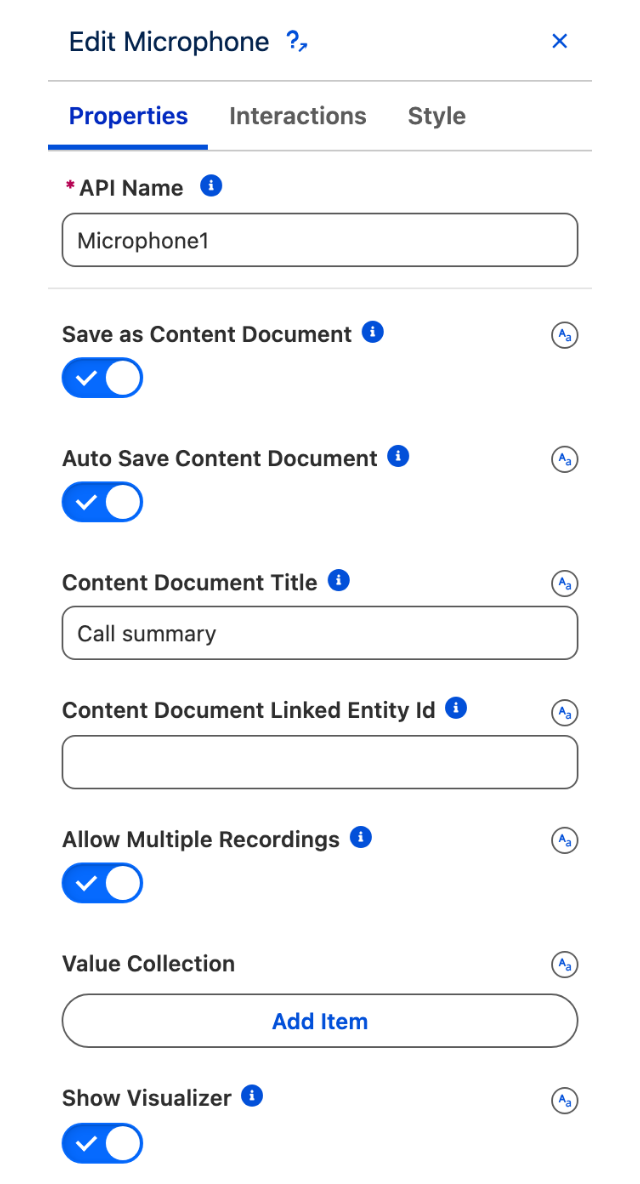
Select the Microphone component on the canvas to access properties in the right-hand Properties Panel.

Basic Properties

These control recording behavior and data handling.

Property
Type
Description
Example

API Name

Text

Unique identifier for the instance.

MicRecorder

Save as Content Document

Boolean

If On, saves recording as a ContentDocument (file) in Salesforce.

On

Allow Multiple Recordings

Boolean

If On, enables multiple recordings in one session, saved as ContentDocuments.

Off

Value

Binding

Stores the recorded audio data (accessible via $Component.MicRecorder.Value).

Bind to variable for processing

Show Visualizer

Boolean

Displays a real-time audio waveform during recording.

On

Best Practice: Enable Save as Content Document for persistent storage; use Show Visualizer for user feedback during recording.

Content Document Settings (Active if Save as Content Document is On)

These configure how recordings are saved as files.

Property
Type
Description
Example

Content Document Title

Text

Title for the saved ContentDocument file.

"Meeting_Note_{!Record.Id}"

Content Document Linked Entity Id

Text/Binding

Record ID to link the file (e.g., Account, Case).

{!Record.Id}

Label Section

Customize text for UI elements.

Property
Type
Description
Example

Ready Label

Text

Text when ready to record.

"Start Recording"

Recording Label

Text

Text during active recording.

"Recording..."

Pause Button Label

Text

Text for pause button.

"Pause"

Cancel Button Label

Text

Text for cancel button.

"Cancel"

Interactions Tab

Define actions on recording completion.

Property
Type
Description

On Save As Button Click

Settings

Trigger on save: Use $Component.MicRecorder.Value for audio data (e.g., Show Toast, Navigate, Update Record).

Examples

Example 1: Single Voice Note for Case

This example records a voice note for a Case and saves it as a file.

  1. Configure Microphone:

    • API Name: CaseNoteRecorder

    • Save as Content Document: On

    • Content Document Title: "Case_Note_{!Record.Id}"

    • Content Document Linked Entity Id: {!Record.Id} (links to Case)

    • Show Visualizer: On

    • Ready Label: "Record Note"

    • Recording Label: "Recording Note..."

    • Pause Button Label: "Pause"

    • Cancel Button Label: "Stop"

  2. Add Interaction:

    • On Save As Button Click: Show Toast with message "Voice note saved for Case."

Result: Users record a note, see a waveform, and save it as a ContentDocument linked to the Case, with a confirmation toast.

Example 2: Multiple Feedback Recordings

This example allows multiple audio feedback recordings for a survey.

  1. Configure Microphone:

    • API Name: FeedbackRecorder

    • Save as Content Document: On

    • Allow Multiple Recordings: On

    • Content Document Title: "Feedback_{!Record.Id}_{$System.Timestamp}"

    • Content Document Linked Entity Id: {!Record.Id}

    • Show Visualizer: On

    • Ready Label: "Start Feedback"

    • Cancel Button Label: "Finish"

  2. Add Interaction:

    • On Save As Button Click: Add $Component.FeedbackRecorder.Value to a Collection Variable; refresh a List component to show saved files.

Result: Users record multiple feedback clips, each saved as a ContentDocument, with a list updating to show all recordings.

Key Considerations

  • Data Storage: Enable Save as Content Document to persist audio as files; bind Linked Entity Id to relevant records.

  • Multiple Recordings: Use Allow Multiple Recordings for bulk scenarios; ensure titles are unique (e.g., include timestamps).

  • Visualizer: Enable for real-time feedback, especially on mobile devices.

  • Interactions: Use $Component.API_Name.Value for audio data in flows or updates; test file storage limits.

  • Labels: Customize for clarity; ensure Pause/Cancel are intuitive for users.

  • Accessibility: Provide clear label text; test visualizer compatibility with screen readers.

Troubleshooting Common Issues

  • Recorder Not Opening: Check device microphone permissions; ensure not Disabled.

  • No Audio Saved: Verify Save as Content Document is On; check Content Document Title/Linked Entity Id bindings.

  • Multiple Recordings Fail: Ensure Allow Multiple Recordings is On; test storage quotas.

  • Visualizer Missing: Toggle Show Visualizer; check browser compatibility.

  • Interaction Errors: Confirm $Component.API_Name.Value binding; test with static data.

  • UI Clutter: Adjust Label text for brevity; test on mobile for button visibility.

Summary

The Avonni Microphone component simplifies audio capture in Salesforce, with options for single or multiple recordings, file storage, and dynamic interactions. It's perfect for voice notes, feedback, or documentation.

Last updated

Was this helpful?