> For the complete documentation index, see [llms.txt](https://docs.avonnicomponents.com/llms.txt). Markdown versions of documentation pages are available by appending `.md` to page URLs; this page is available as [Markdown](https://docs.avonnicomponents.com/flow/tutorials/components/expandable-section/create-dynamic-expandable-sections.md).
# Create Dynamic Expandable Sections
## Overview
This tutorial shows you how to use the Avonni Expandable Section component to create cleaner, more organized screen flows. You'll learn how to dynamically hide and reveal content based on user interactions, creating a better user experience by displaying information only when needed.
**What You'll Build:** A screen flow where content appears only when users expand a section, and automatically hides when they collapse it. This creates a progressive disclosure pattern that reduces clutter and guides users through complex processes in a step-by-step manner.
**Example Scenario:** Imagine a customer service form where basic information is always visible, but additional optional fields (like "Shipping Address" or "Special Instructions") only appear when users expand the relevant section. This keeps the form simple while still providing access to all necessary options
## Prerequisites
Before starting this tutorial, you should have:
* Basic familiarity with Salesforce Flow Builder
* Understanding of how to add components to a screen
* The [**Avonni Components for Screen Flows package**](https://appexchange.salesforce.com/appxListingDetail?listingId=a0N4V00000IDsfbUAD\&tab=e) is installed in your Salesforce org
### Understanding How Expandable Sections Work
The [Avonni Expandable Section](/flow/flow-components/expandable-section.md) has two states:
* **Collapsed (Closed):** The section header is visible, but the content inside is hidden
* **Expanded (Open):** Both the header and content are visible
The section has a property called `closed` that tracks its current state:
* `closed = TRUE` means the section is collapsed
* `closed = FALSE` means the section is expanded
**The key concept:** You can use this `closed` property to control the visibility of other components on your screen. When the section expands (`closed` becomes `FALSE`), you can make other components appear. When it collapses (`closed` becomes `TRUE`), those components hide again.
## Step-by-Step Instructions
{% stepper %}
{% step %}
#### Create a Screen Flow
1. Go to Setup → Flows → New Flow
2. Select **Screen Flow** → Click **Create**
3. Add a **Screen** element to the canvas
{% endstep %}
{% step %}
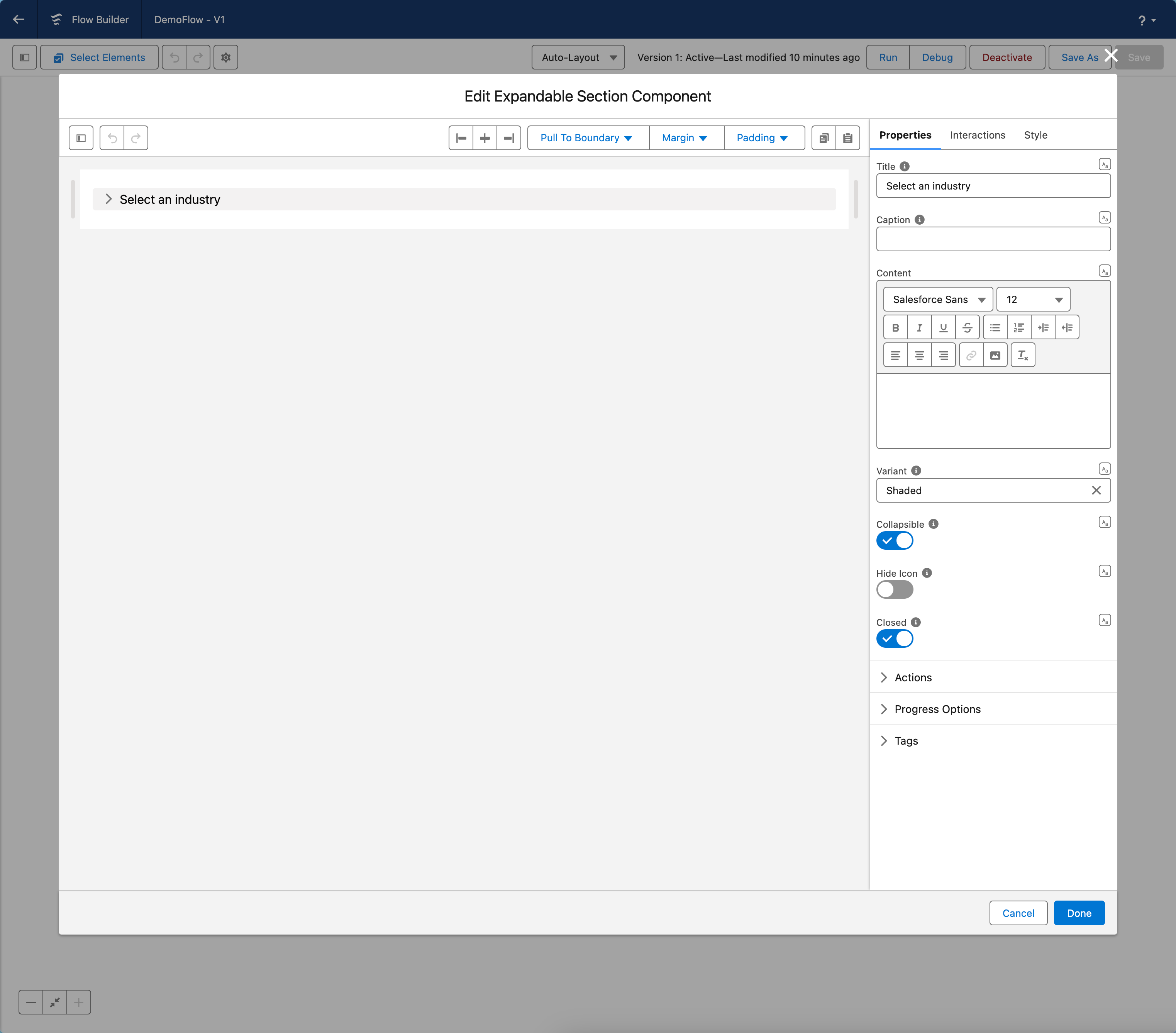
#### Add and Configure the Expandable Section
1. **Add the Component**
* Drag **Avonni Expandable Section** onto your screen
2. **Configure Properties**
* **Title:** Enter your section header (e.g., "Additional Information")
* **API Name:** Note this name (e.g., `expsection1`) - you'll need it for Step 4
* **Collapsible:** Enable this toggle
* **Closed:** Enable this toggle (section starts collapsed)
{% endstep %}
{% step %}
#### Add Components to Show/Hide
* Drag any components you want to display onto your screen conditionally
* Place them below the Expandable Section.
{% hint style="info" %}
**Note:** These components will be visible by default. The next step makes them dynamic.
{% endhint %}
{% endstep %}
{% step %}
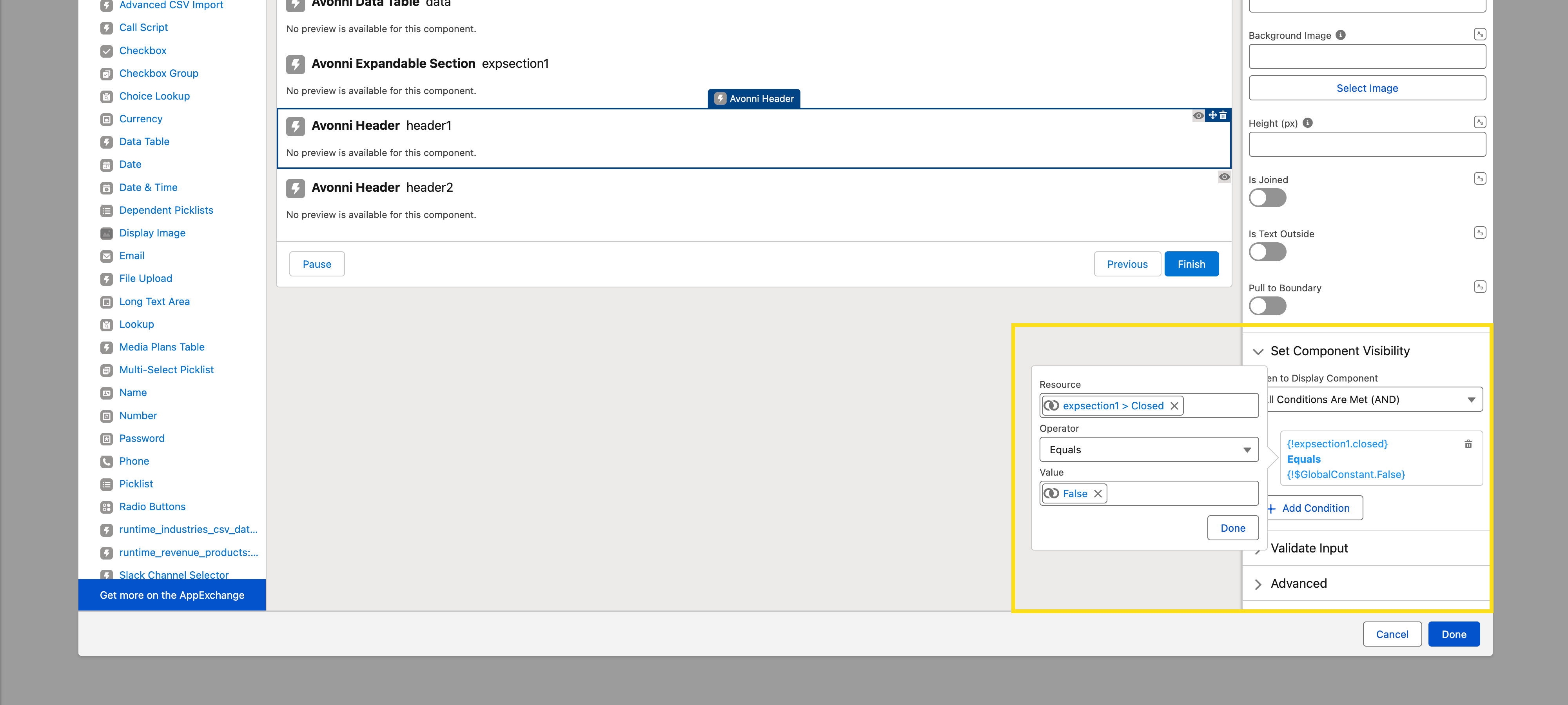
#### Link Component Visibility (The Key Step)
This is where the magic happens. You'll create a visibility rule that ties your components to the state of the expandable section.
**For each component you want to show/hide:**
1. Select the component
2. Find **Set Component Visibility** in the properties panel
3. Create this condition:
```
{!expsection1.closed} EQUALS FALSE
```
**Replace `expsection1` with your Expandable Section's API Name**
**What this does:**
* When the section is expanded (`closed = FALSE`), components appear
* When the section is collapsed (`closed = TRUE`), components hide
* Updates happen automatically as users interact with the section
{% endstep %}
{% step %}
#### Save and Test
1. Click **Save** and name your flow
2. Click **Debug** or **Run**
3. Expand and collapse the section to verify components show/hide correctly
{% endstep %}
{% endstepper %}
***
### Key Takeaway
**The essential concept:** Set component visibility to `{!YourExpandableSectionAPIName.closed} EQUALS FALSE` to make components appear only when the section is expanded. That's it!
***
### Common Misconception Clarified
**Misconception:** "I should use `{!expsection1.closed} EQUALS TRUE` to show components when the section is open"
**Reality:** No! This is backward. The property is called "closed" (not "open"):
* When the section is **open** (expanded), `closed = FALSE`
* When the section is **closed** (collapsed), `closed = TRUE`
* To show components when open, check if `closed EQUALS FALSE`
Think of it this way: "Show this component when the section is NOT closed" = `closed EQUALS FALSE`
***
Following these steps, you've successfully created a dynamic and reactive screen using Avonni's Expandable Section within Salesforce's Flow Builder. This not only enhances the user experience by providing a cleaner, more focused interface but also empowers users to navigate complex data sets or processes in a more digestible manner. Happy building
---
# Agent Instructions
This documentation is published with GitBook. GitBook is the documentation platform designed so that both humans and AI agents can read, navigate, and reason over technical content effectively. Learn more at gitbook.com.
## Querying This Documentation
If you need additional information that is not directly available in this page, you can query the documentation dynamically by asking a question.
Perform an HTTP GET request on the current page URL with the `ask` query parameter, and the optional `goal` query parameter:
```
GET https://docs.avonnicomponents.com/flow/tutorials/components/expandable-section/create-dynamic-expandable-sections.md?ask=&goal=
```
`ask` is the immediate question: it should be specific, self-contained, and written in natural language.
`goal` is optional and describes the broader end goal you are ultimately trying to accomplish on behalf of the user. GitBook uses it to tailor the answer towards what is most useful for that goal.
The response will contain a direct answer to the question and relevant excerpts and sources from the documentation.
Use this mechanism when the answer is not explicitly present in the current page, you need clarification or additional context, or you want to retrieve related documentation sections.
.gif?alt=media)