> For the complete documentation index, see [llms.txt](https://docs.avonnicomponents.com/llms.txt). Markdown versions of documentation pages are available by appending `.md` to page URLs; this page is available as [Markdown](https://docs.avonnicomponents.com/flow/component-builder/overview.md).
# Overview
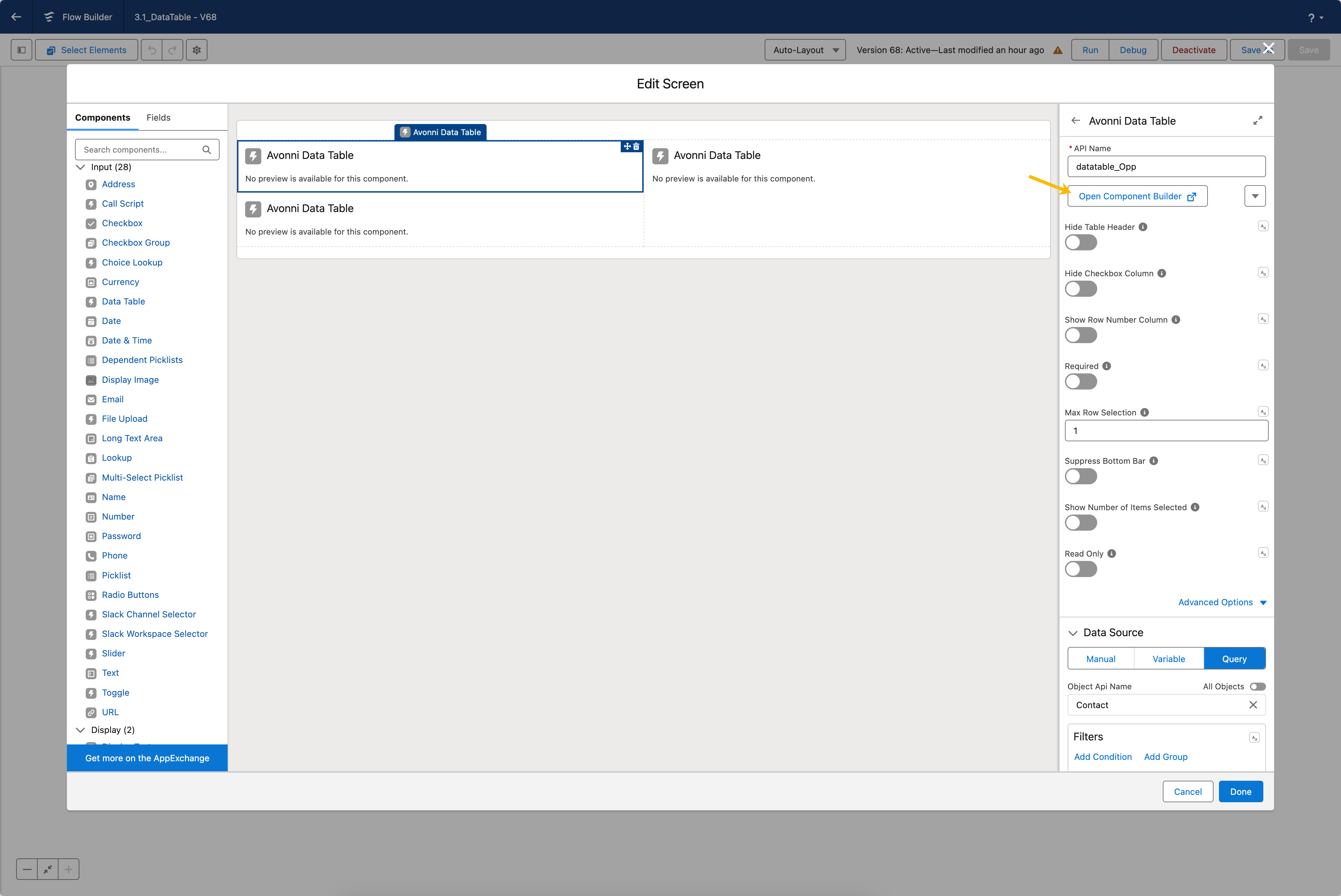
The Component Builder is a custom property editor designed to edit and preview all Avonni Components used in Flows.
{% hint style="danger" %}
#### Lightning Web Security: Recommended for Best Performance
The performance and behavior of Avonni Components can be impacted if Lightning Web Security is disabled in your Salesforce Org.
* We **strongly recommend** enabling [**Lightning Web Security**](https://developer.salesforce.com/docs/platform/lightning-components-security/guide/lws-enable.html) to ensure optimal functionality.
{% endhint %}
Access the Component Builder
With the Component Builder, you can:
1. **See a Preview**: It offers a canvas for a live preview of the Avonni Component you're creating.
2. **Adjust Settings**: On the right side, various tabs are available to adjust settings.
* [**Properties Pane**](/flow/component-builder/properties-panel.md): This shows all customization options for Avonni Flow Screen Components. Here, you can tweak the primary settings of the component.
* [**Interactions Pane**](/flow/component-builder/interactions-panel.md): This feature helps you set up user interactions, such as navigating in Salesforce or displaying a message, without requiring coding. For instance, you can decide what happens when someone clicks on an action.
* [**Style Pane**](/flow/component-builder/style-panel.md): Here, you can modify the appearance of the Avonni Component to match your desired style
---
# Agent Instructions
This documentation is published with GitBook. GitBook is the documentation platform designed so that both humans and AI agents can read, navigate, and reason over technical content effectively. Learn more at gitbook.com.
## Querying This Documentation
If you need additional information that is not directly available in this page, you can query the documentation dynamically by asking a question.
Perform an HTTP GET request on the current page URL with the `ask` query parameter, and the optional `goal` query parameter:
```
GET https://docs.avonnicomponents.com/flow/component-builder/overview.md?ask=&goal=
```
`ask` is the immediate question: it should be specific, self-contained, and written in natural language.
`goal` is optional and describes the broader end goal you are ultimately trying to accomplish on behalf of the user. GitBook uses it to tailor the answer towards what is most useful for that goal.
The response will contain a direct answer to the question and relevant excerpts and sources from the documentation.
Use this mechanism when the answer is not explicitly present in the current page, you need clarification or additional context, or you want to retrieve related documentation sections.