# Dual Listbox

***

## Tutorials

#### Getting Started

<figure><img src="https://27923732-files.gitbook.io/~/files/v0/b/gitbook-x-prod.appspot.com/o/spaces%2F1FUd4apB9YHgCEMUFbVb%2Fuploads%2Fnmm5ghmDEpWg7vwjbv6N%2Fimage.jpeg?alt=media&#x26;token=74d12b30-bdc0-430d-b7ad-2f3287daae9d" alt=""><figcaption></figcaption></figure>

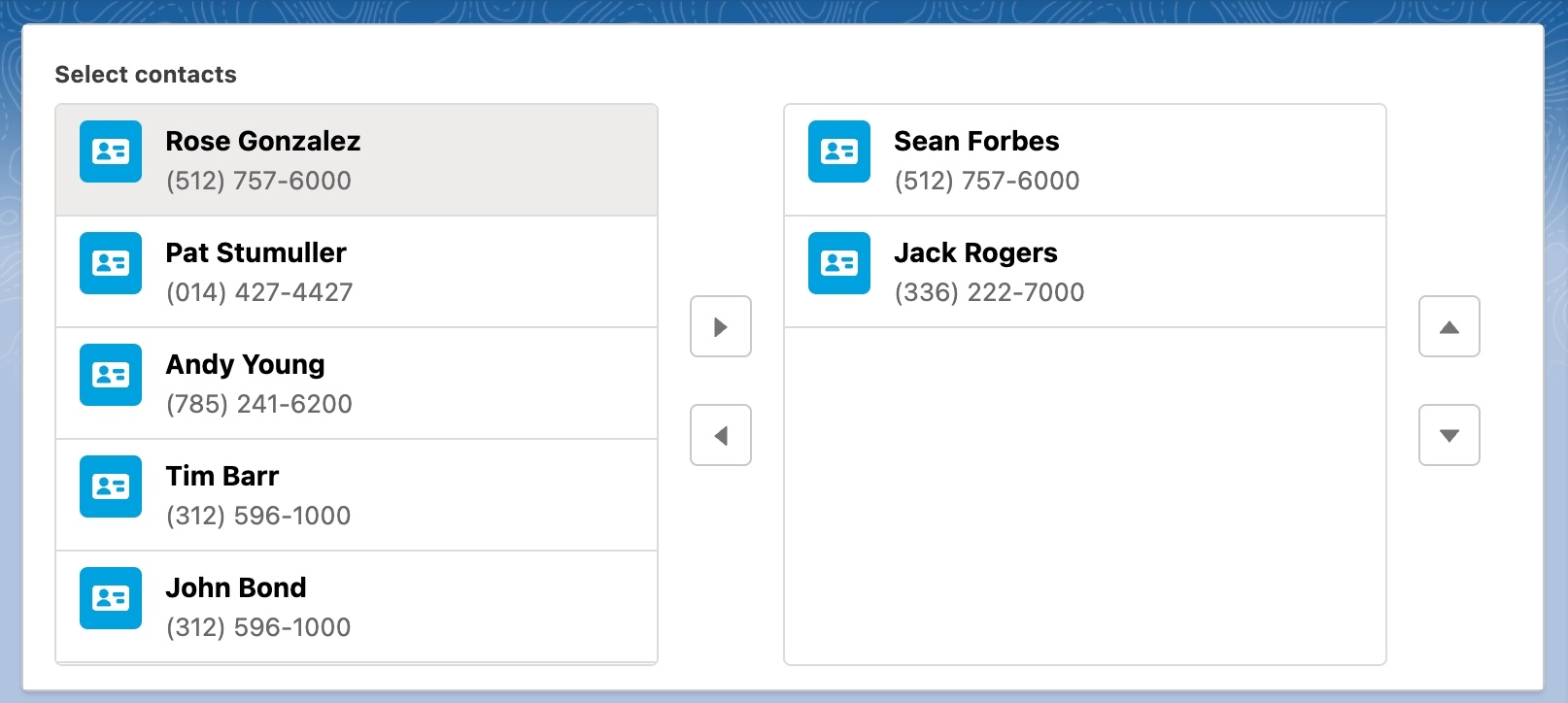
[**Display Contacts with Custom Icons**](https://docs.avonnicomponents.com/flow/tutorials/components/dual-listbox/display-contacts-with-custom-icons)

***

<figure><img src="https://27923732-files.gitbook.io/~/files/v0/b/gitbook-x-prod.appspot.com/o/spaces%2F1FUd4apB9YHgCEMUFbVb%2Fuploads%2FiI9ky1sAsQGWE6Eizqgm%2Fimage%20-%202026-03-19T145830.692.avif?alt=media&#x26;token=b2187545-4af2-455d-a1e9-ec42b5ce1225" alt=""><figcaption></figcaption></figure>

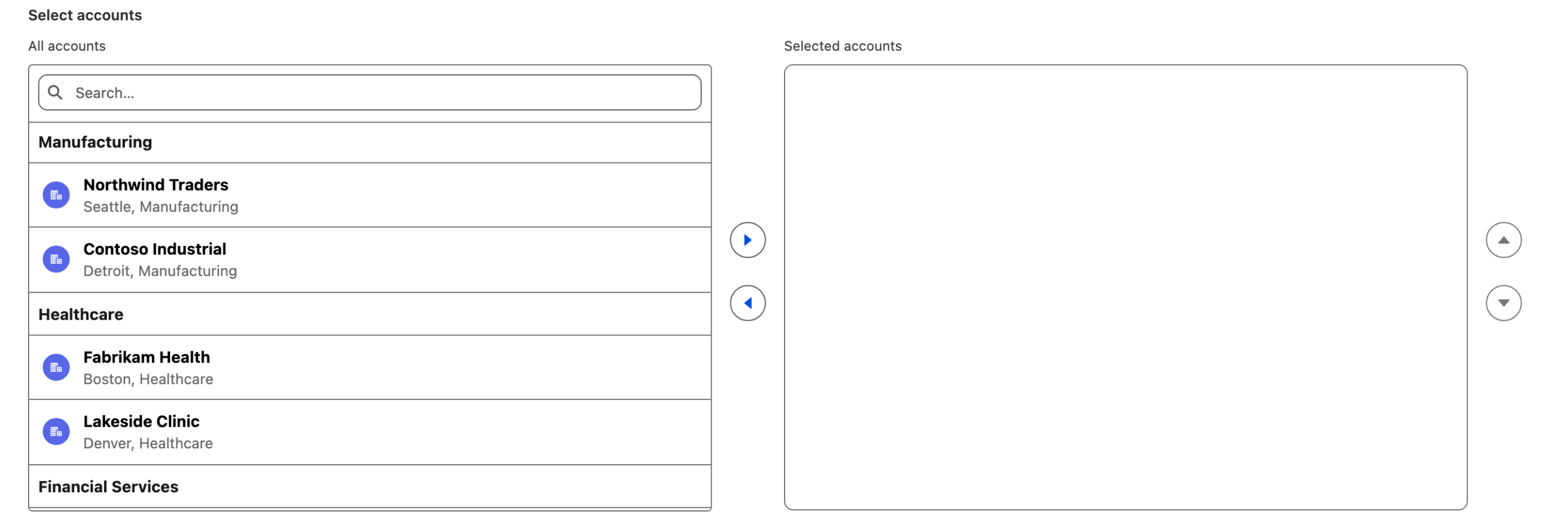
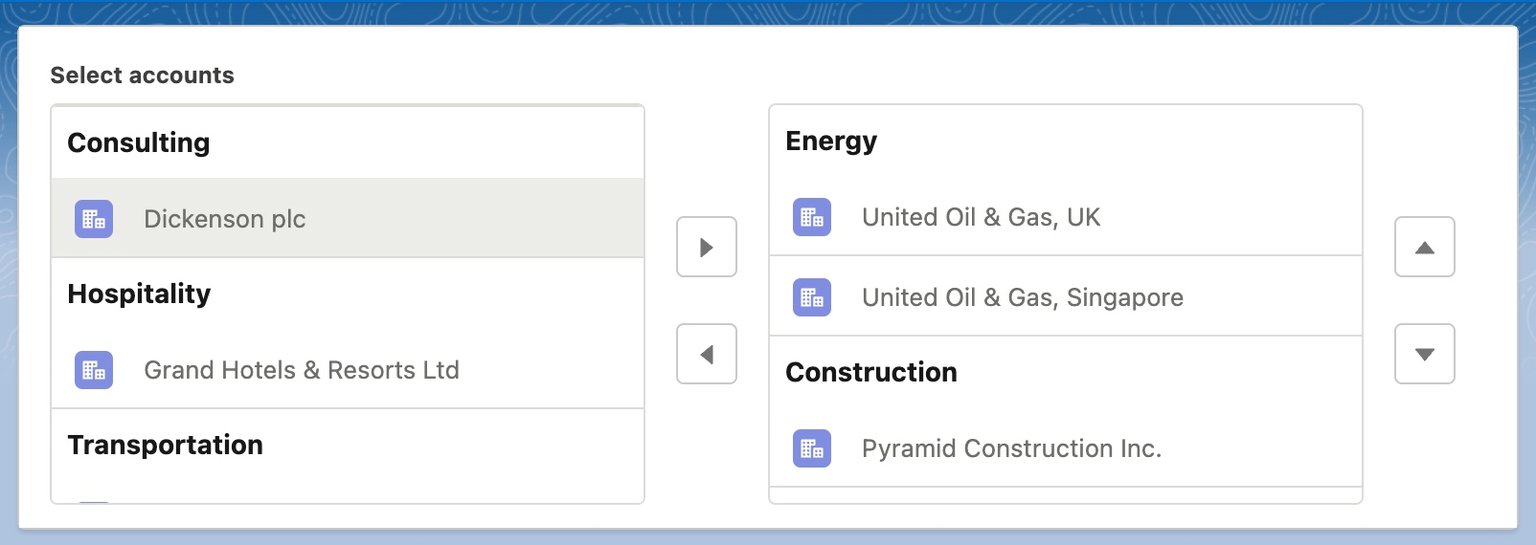
[**Accounts List Grouped by Industry**](https://docs.avonnicomponents.com/flow/tutorials/components/dual-listbox/accounts-list-group-by-industry)

***

## Step 1 — Choose Your Data Source

The data source controls where the Dual Listbox gets its items. Open the **Component Builder** and look at the **Data Source** section in the **Properties** tab.

<table><thead><tr><th width="129.625">Data Source</th><th>Best for</th><th>How it works</th></tr></thead><tbody><tr><td><a href="../component-builder/data-sources/manual"><strong>Manual</strong></a></td><td>Static lists that rarely change</td><td>You type each value directly in the Component Builder</td></tr><tr><td><a href="../component-builder/data-sources/variable"><strong>Variable</strong></a></td><td>Dynamic data from Salesforce records</td><td>Connect a flow collection variable from a <strong>Get Records</strong> element</td></tr><tr><td><a href="../component-builder/data-sources/picklist"><strong>Picklist</strong></a></td><td>Salesforce picklist fields</td><td>Pull options from an existing picklist field on any object</td></tr><tr><td><a href="../component-builder/data-sources/query"><strong>Query</strong></a></td><td>Large or complex datasets</td><td>Fetch records directly from a Salesforce object — no Get Records element needed</td></tr></tbody></table>

### Manual — Use When…

You have a short, fixed list of options that won't change between flow runs.

{% hint style="info" %}

#### Example

A preference form where users pick communication channels from a fixed set: Email, Phone, SMS, Mail.
{% endhint %}

In the Component Builder, click **Add Item** to enter each value one by one. Set a **Label** (what the user sees) and a **Value** (what the flow stores).

### Variable — Use When…

Your list items come from Salesforce records and may change over time.

{% hint style="info" %}

#### Example

A case reassignment flow where the source list shows all active support agents from a **Get Records** element, and the user selects which agents to assign.
{% endhint %}

1. In your flow, add a **Get Records** element to fetch the records you need (e.g., all active Users where `Profile.Name = "Support Agent"`)
2. In the Component Builder, set the data source to **Variable**
3. Map the flow collection variable to the Dual Listbox

### Picklist — Use When…

You want to display the values of an existing Salesforce picklist field.

{% hint style="info" %}

#### Example

An opportunity qualification flow where users select relevant industries from the `Industry` picklist on Account.
{% endhint %}

1. In the Component Builder, set the data source to **Picklist**
2. Choose the Salesforce object and picklist field

### Query — Use When…

You need records from Salesforce, but don't want to add a separate Get Records element to your flow.

{% hint style="info" %}

#### Example

A territory assignment flow where the source list shows all Accounts in a specific region. The query pulls `Account` records where `BillingState = "California"` directly.
{% endhint %}

1. In the Component Builder, set the data source to **Query**
2. Select the Salesforce object (e.g., `Account`)
3. Add filters to narrow the results (click **Add Condition** or **Add Scope**)
4. Set **Order By** to control the sort order of items in the source list
5. Set the maximum number of Records to limit the number of items loaded. Don't put anything if you want to load all the data.
6. Map the fields to display (see Step 2)

{% hint style="success" %}

#### Tip

Query simplifies your flow by removing the need for a separate Get Records element. For most "pick from a list of records" use cases, start here
{% endhint %}

***

## Step 2 — Map Your Data Fields

Once your data source is set up, map Salesforce fields to the Dual Listbox attributes so that items display correctly. In the **Properties** tab, open **Data Mappings**.

### Core Mappings

<table><thead><tr><th width="238.0390625">Mapping</th><th>What it controls</th></tr></thead><tbody><tr><td><strong>Label</strong></td><td>The primary text users see for each item (e.g., <code>Name</code>, <code>Subject</code>)</td></tr><tr><td><strong>Value</strong></td><td>The unique identifier stored when an item is selected (e.g., <code>Id</code>)</td></tr><tr><td><strong>Description</strong></td><td>Secondary text shown below the label — supports merge field syntax (e.g., <code>{{{BillingCity}}} - {{{Industry}}}</code>)</td></tr><tr><td><strong>Group Name</strong></td><td>Groups items under a shared heading in the source list (e.g., map to <code>Industry</code> to group accounts by industry)</td></tr></tbody></table>

{% hint style="info" %}

#### Example

For a list of Accounts, map **Label** to `Name`, **Value** to `Id`, **Description** to `{{{BillingCity}}}`, and **Group Name** to `Industry`. Users see accounts organized by industry, each showing the city underneath the name
{% endhint %}

### Avatar Mappings

Each item can display an avatar (icon or image) next to its label. Configure these in the **Avatar** sub-section of Data Mappings.

<table><thead><tr><th width="215.8408203125">Mapping</th><th>What it controls</th></tr></thead><tbody><tr><td><strong>Avatar</strong></td><td>Shape of the avatar container — <code>Square</code> or <code>Circle</code></td></tr><tr><td><strong>Icon Name</strong></td><td>A Salesforce Lightning icon to display (e.g., <code>standard:account</code>, <code>utility:user</code>)</td></tr><tr><td><strong>Icon Source</strong></td><td>Field to pull the icon name from dynamically</td></tr><tr><td><strong>Icon Size</strong></td><td>Size of the icon — <code>Small</code>, <code>Medium</code>, or <code>Large</code></td></tr><tr><td><strong>Image Source</strong></td><td>Field containing an image URL to use as the avatar (e.g., a Contact photo URL)</td></tr><tr><td><strong>Title</strong></td><td>Tooltip text shown on hover over the avatar</td></tr><tr><td><strong>Position</strong></td><td>Where the avatar appears relative to the option text — <code>Options Left</code> or <code>Options Right</code></td></tr></tbody></table>

{% hint style="info" %}

#### Example

In a contact selection list, map **Image Source** to `SmallPhotoUrl` and set **Avatar** to `Circle` to show each contact's profile photo next to their name
{% endhint %}

### Level Mapping

| Mapping   | What it controls                                                                                   |
| --------- | -------------------------------------------------------------------------------------------------- |
| **Level** | Indentation level for hierarchical display — use a numeric field to create a visual tree structure |

{% hint style="info" %}

#### Example

Map **Level** to a custom `Hierarchy_Level__c` field to display a department org chart where sub-departments are indented under their parent
{% endhint %}

***

## Step 3 — Set Default Selected Values

If you need items to appear in the "Selected" list when the flow screen loads, use the **Initial Selected Values** field at the top of the **Properties** tab. How you set defaults depends on your data source type.

#### With a Manual Data Source

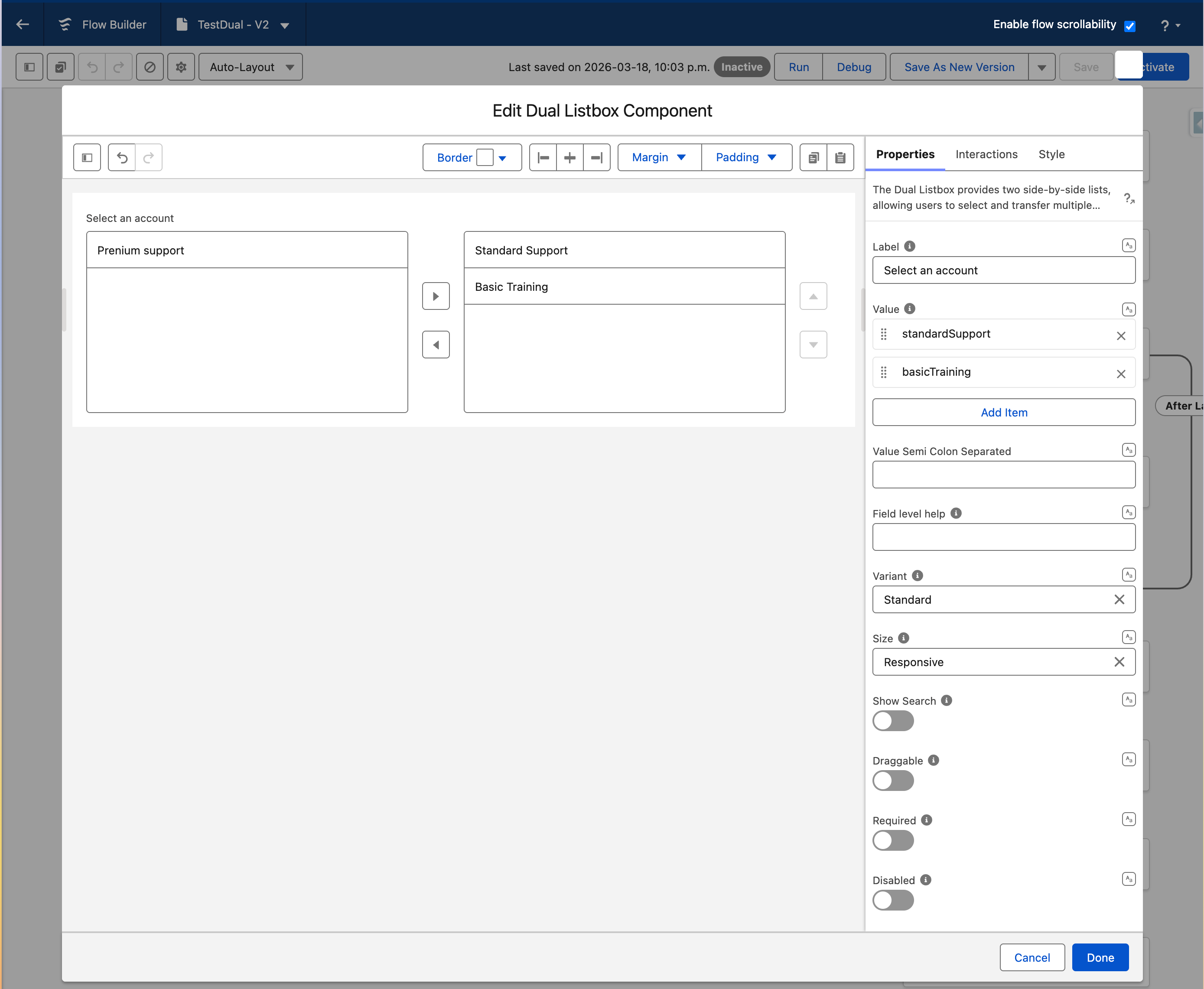
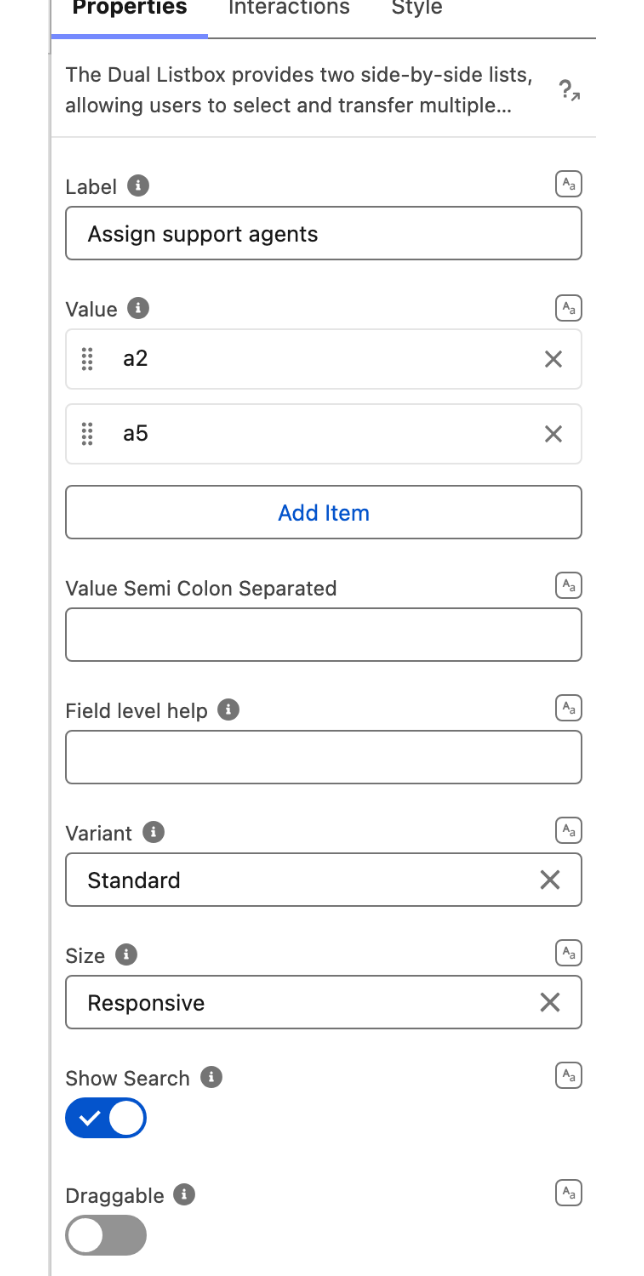
Click the **Add Item** button next to the **Initial Selected Values** field. Each click adds one item. Repeat for every item you want pre-selected.

Enter the **Value** attribute of the item — not the Label the user sees. This is the exact text you typed in the **Value** field when you created each item in the Component Builder.

> **Example:** You created three manual items:

| Label            | Value             |
| ---------------- | ----------------- |
| Standard Support | `standardSupport` |
| Premium Support  | `preniumSupport`  |
| Basic Training   | `basicTraining`   |

> To pre-select "Standard Support" and "Basic Training":
>
> 1. Click **Add Item** and enter `standardSupport`
> 2. Click **Add Item** again and enter `basicTraining`

<figure><img src="https://27923732-files.gitbook.io/~/files/v0/b/gitbook-x-prod.appspot.com/o/spaces%2F1FUd4apB9YHgCEMUFbVb%2Fuploads%2FOajdK94xRED8Ms3F74JH%2F2026-03-19_14-54-11.png?alt=media&#x26;token=0bf2314c-90a5-4722-8d6d-b0203d9ec8ca" alt=""><figcaption></figcaption></figure>

#### With a Variable, Query, or Picklist Data Source

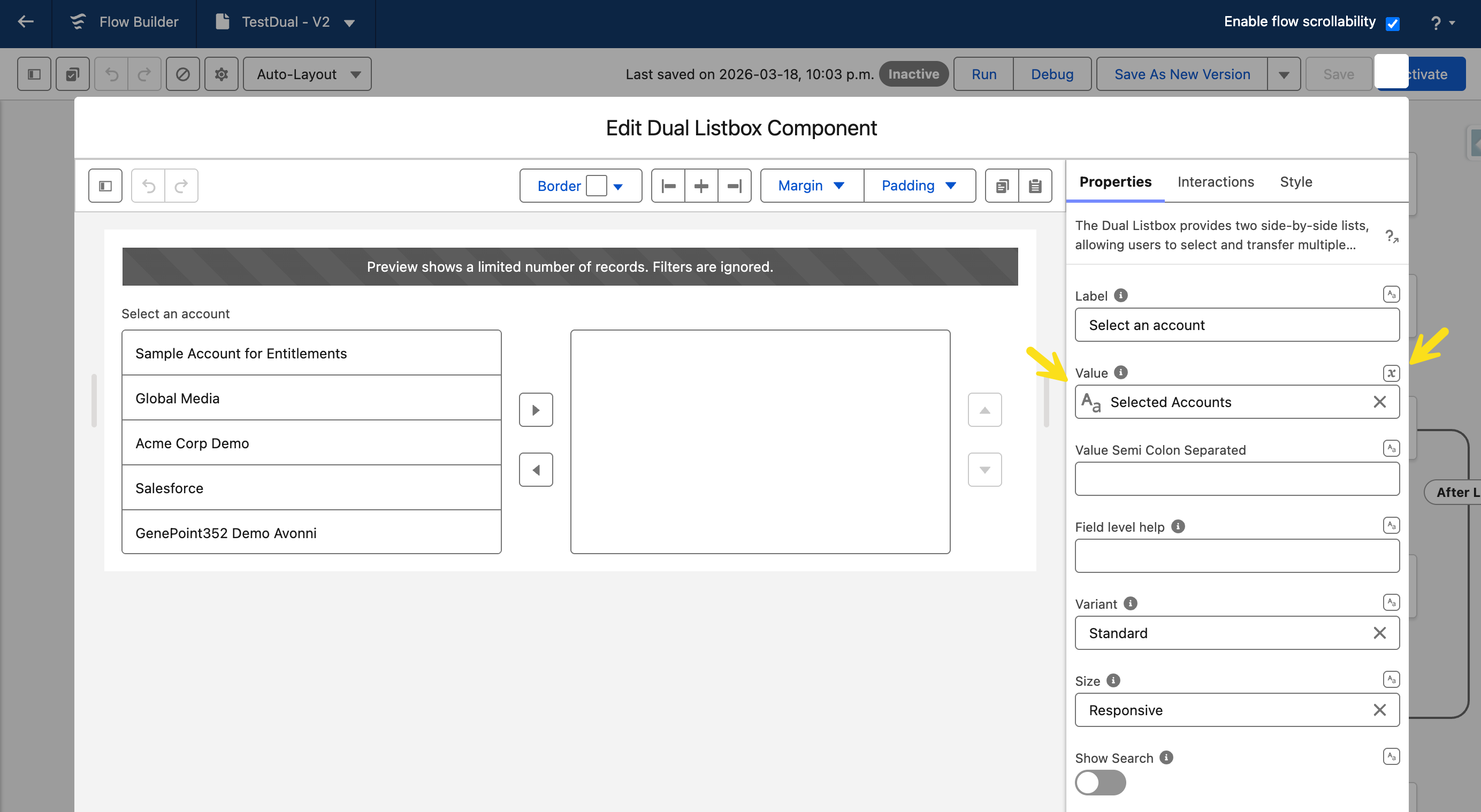
Map the **Initial Selected Values** field to a flow **collection variable** that contains the values you want pre-selected. To do this, click the small icon on the right side of the field and select **Mapped**, then choose your collection variable.

{% hint style="warning" %}

#### Important

The variable must be a **collection variable** (not a single-value text variable). Only collection variables appear in the list of available mappings
{% endhint %}

The collection should contain the values that match the **Value** field in your Data Mappings (typically the record `Id`).

> **Example:** A renewal flow needs to pre-select the customer's current subscriptions. Before the screen element:
>
> 1. Add a **Get Records** element to fetch the customer's active Subscription records
> 2. Use an **Assignment** element to store their `Id` values in a text collection variable `{!currentSubscriptionIds}`
> 3. On the Dual Listbox, click the icon next to **Initial Selected Values**, select **Mapped**, and choose `{!currentSubscriptionIds}`
>
> When the screen loads, those subscriptions appear in the "Selected" list automatically.

{% hint style="warning" %}

#### Important

Each value in the collection must exactly match what's in the **Value** attribute of your data source items. A mismatch (extra space, wrong casing, wrong field) means the item won't appear as pre-selected — it stays in the source list with no error.
{% endhint %}

<figure><img src="https://27923732-files.gitbook.io/~/files/v0/b/gitbook-x-prod.appspot.com/o/spaces%2F1FUd4apB9YHgCEMUFbVb%2Fuploads%2FjYsVFQ5FFMX5Dl5oG9Dw%2F2026-03-19_14-55-09.png?alt=media&#x26;token=d595de0c-c92a-444e-96c1-a51e8930edc9" alt=""><figcaption></figcaption></figure>

***

## Step 4 — Configure Properties

The **Properties** tab in the Component Builder has settings that control the Dual Listbox behavior and appearance.

### General Settings

<table><thead><tr><th width="198.984375">Setting</th><th>What it does</th></tr></thead><tbody><tr><td><strong>Label</strong></td><td>Component label displayed above the Dual Listbox (visible when variant is set to show it)</td></tr><tr><td><strong>Name</strong></td><td>API name used to reference this component in the flow</td></tr><tr><td><strong>Field Hint Text</strong></td><td>Helper text displayed below the component to guide the user</td></tr><tr><td><strong>Variant</strong></td><td>Controls the layout — <code>Standard</code> (listboxes only) or with a visible label</td></tr><tr><td><strong>Size</strong></td><td>Width of the listboxes — see size options below</td></tr><tr><td><strong>Show Search</strong></td><td>Adds a search box above the source list to filter items</td></tr><tr><td><strong>Sortable</strong></td><td>Lets users reorder items within the selected list by dragging</td></tr><tr><td><strong>Required</strong></td><td>Makes the component required — the flow won't advance until at least one item is selected</td></tr><tr><td><strong>Disabled</strong></td><td>Grays out the component so users can see options but can't move items</td></tr><tr><td><strong>Enable Rendering</strong></td><td>Controls whether the component renders on the screen — toggle off to hide it conditionally</td></tr></tbody></table>

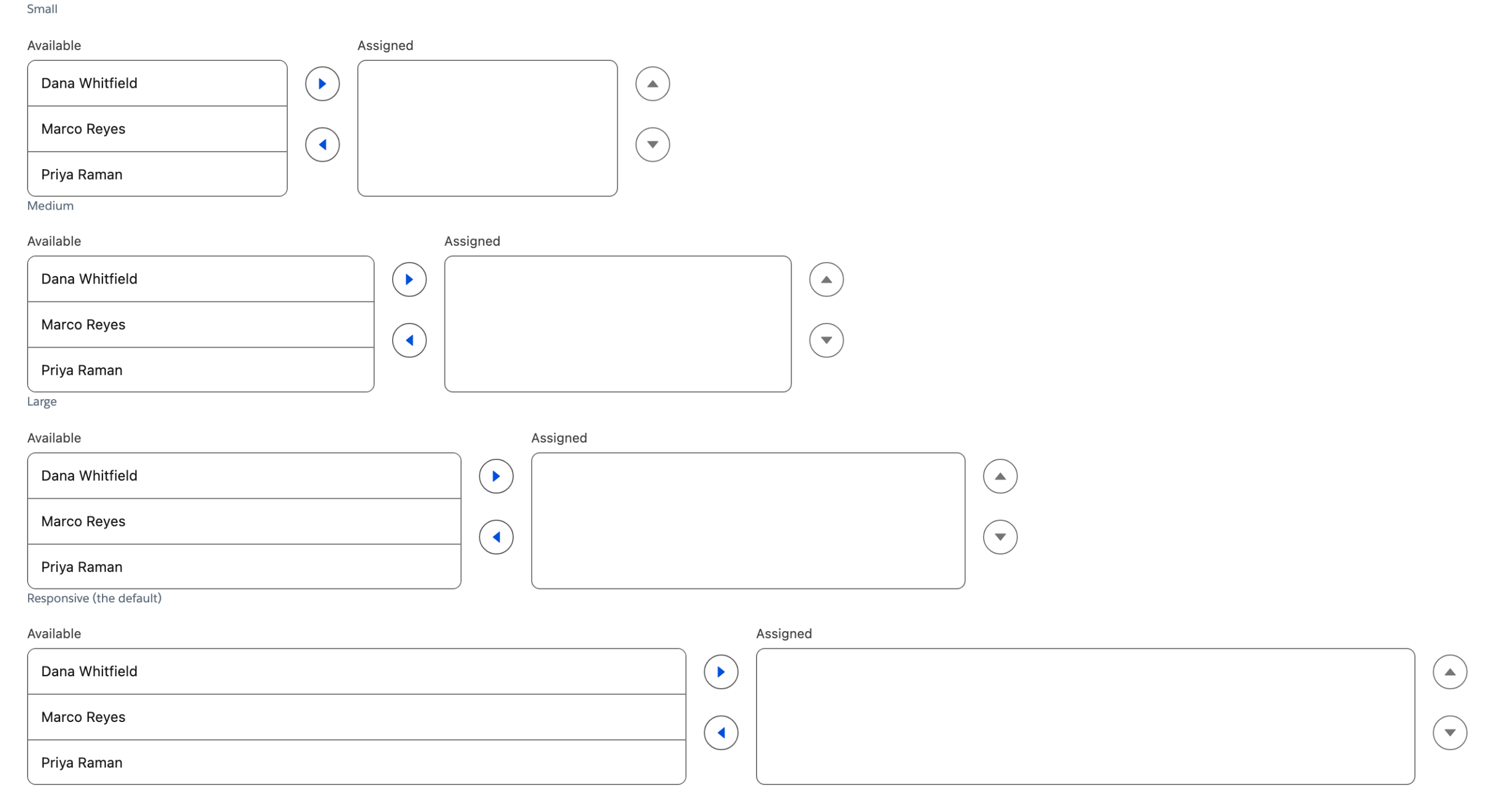
### Size Options

<table><thead><tr><th width="109.53125">Size</th><th>When to use</th></tr></thead><tbody><tr><td><strong>Small</strong></td><td>Short item labels, tight layouts</td></tr><tr><td><strong>Medium</strong></td><td>Most use cases — default</td></tr><tr><td><strong>Large</strong></td><td>Long item labels or when the Dual Listbox is the main component on the screen</td></tr></tbody></table>

### Buttons

The Buttons section lets you customize the transfer controls between the two lists. You can change titles and icons for each button.

<table><thead><tr><th width="253.4921875">Setting</th><th>What it controls</th></tr></thead><tbody><tr><td><strong>Source</strong></td><td>Direction of the transfer buttons — controls the button layout between lists</td></tr><tr><td><strong>Size</strong></td><td>Size of the transfer buttons (<code>Small</code>, <code>Medium</code>, <code>Large</code>)</td></tr><tr><td><strong>Add Button Title</strong></td><td>Tooltip for the "move right" button (default: "Add")</td></tr><tr><td><strong>Add Button Icon Name</strong></td><td>Icon for the add button (e.g., <code>utility:right</code>)</td></tr><tr><td><strong>Remove Button Title</strong></td><td>Tooltip for the "move left" button (default: "Remove")</td></tr><tr><td><strong>Remove Button Icon Name</strong></td><td>Icon for the remove button</td></tr><tr><td><strong>Arrow Title</strong></td><td>Tooltip for the up-arrow reorder button</td></tr><tr><td><strong>Arrow Icon Name</strong></td><td>Icon for the up-arrow button</td></tr><tr><td><strong>Down Button Title</strong></td><td>Tooltip for the down-arrow reorder button</td></tr><tr><td><strong>Down Button Icon Name</strong></td><td>Icon for the down-arrow button</td></tr><tr><td><strong>Erase Button Title</strong></td><td>Tooltip for the clear/erase button</td></tr><tr><td><strong>Erase Button Icon Name</strong></td><td>Icon for the erase button</td></tr></tbody></table>

> **Example:** In a French-language flow, change **Add Button Title** to "Ajouter" and **Remove Button Title** to "Retirer" to localize the interface.

### Labels

<table><thead><tr><th width="196.19921875">Setting</th><th>What it controls</th></tr></thead><tbody><tr><td><strong>Source Label</strong></td><td>Header text above the source (left) list — default is "Source"</td></tr><tr><td><strong>Selected Label</strong></td><td>Header text above the selected (right) list — default is "Selected"</td></tr><tr><td><strong>Selected Placeholder</strong></td><td>Text shown in the selected list when it's empty (e.g., "Drag items here")</td></tr></tbody></table>

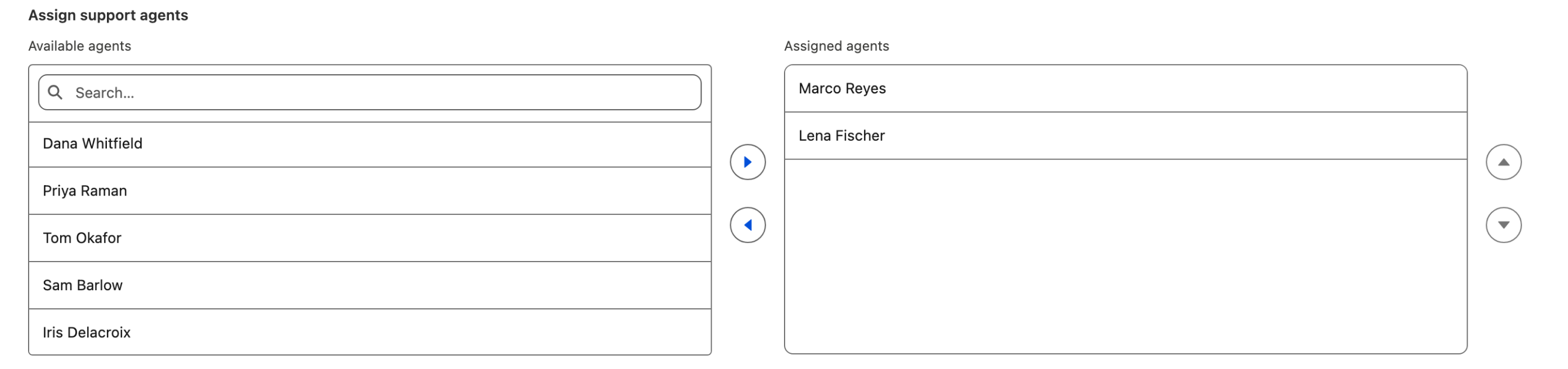
> **Example:** For a team assignment flow, set **Source Label** to "Available Agents" and **Selected Label** to "Assigned Agents" so users immediately understand the context.

***

## Display & Layout Settings

### Styling

Open the [**Style** tab](https://docs.avonnicomponents.com/flow/component-builder/style-panel) in the Component Builder to customize the visual appearance of the Dual Listbox.

<table><thead><tr><th width="143.29296875">Style area</th><th>What it controls</th></tr></thead><tbody><tr><td><strong>Margin</strong></td><td>Spacing around the entire component</td></tr><tr><td><strong>Header</strong></td><td>Font, color, and spacing for the list headers (Source / Selected labels)</td></tr><tr><td><strong>Option</strong></td><td>Font, color, and spacing for individual items in the lists</td></tr><tr><td><strong>Boxes Label</strong></td><td>Styling for the labels above each listbox</td></tr><tr><td><strong>Boxes</strong></td><td>Border, background, and sizing for the listbox containers</td></tr></tbody></table>

***

## Interactions

The Dual Listbox supports one interaction event: **On Change**. It fires every time a user moves items between the source and selected lists — whether adding, removing, or reordering.

Open the **Interactions** tab in the Component Builder to configure what happens when the selection changes.

<figure><img src="https://27923732-files.gitbook.io/~/files/v0/b/gitbook-x-prod.appspot.com/o/spaces%2F1FUd4apB9YHgCEMUFbVb%2Fuploads%2FRVOfhxf7VJ94nZpSaxhD%2F2026-03-19_14-56-56.png?alt=media&#x26;token=ac54dbc3-acd5-4335-9c7a-c3e2e8ab5efc" alt=""><figcaption></figcaption></figure>

#### On Change

This event fires when items are added to or removed from the selected list. Here are common ways to use it:

| Action               | What it does                                    | When to use                                                                                   |
| -------------------- | ----------------------------------------------- | --------------------------------------------------------------------------------------------- |
| **Flow Navigation**  | Automatically moves the user to the next screen | When the Dual Listbox is the only input on the screen and you want a one-click experience     |
| **Show Toast**       | Displays a confirmation message                 | To give immediate feedback like "3 agents selected" when the user moves items                 |
| **Open Flow Dialog** | Opens a sub-flow in a modal                     | To show a confirmation or detail screen based on the current selection                        |
| **Update Records**   | Saves data to Salesforce immediately            | To persist the selection without waiting for the user to click "Next"                         |
| **Refresh Query**    | Refreshes another component's data              | To update a dependent component (e.g., a Data Table that filters based on the selected items) |

{% hint style="info" %}

#### **Accessing the selection in your flow**

After the screen, use the **Selected Option** (single record) or **Selected Options** (record collection) output variables to retrieve what the user selected. These are available directly on the Dual Listbox component in Flow Builder — no interaction is needed to capture them
{% endhint %}

***

## Troubleshooting

| Problem                                 | Cause                                                               | Fix                                                                                                                                 |
| --------------------------------------- | ------------------------------------------------------------------- | ----------------------------------------------------------------------------------------------------------------------------------- |
| Items don't appear in the source list   | Data source not configured or query/Get Records returns no results  | Check your data source type. If using Variable, verify the Get Records element returns records. If using Query, check your filters. |
| Selected items aren't saved to the flow | No **On Change** interaction configured                             | Add an On Change interaction to store selected values in a flow variable                                                            |
| Duplicate items appear                  | The **Value** mapping points to a non-unique field                  | Map **Value** to a unique field like `Id`                                                                                           |
| Search box doesn't appear               | **Show Search** is toggled off                                      | Open the Properties tab and toggle on **Show Search**                                                                               |
| Default selections don't appear         | Values in **Initial Selected Values** don't match the Value mapping | Make sure the comma-separated values exactly match the values from your data source — check for extra spaces or mismatched casing   |
| Items can't be reordered                | **Sortable** is toggled off                                         | Toggle on **Sortable** in the Properties tab                                                                                        |
| Component appears but is grayed out     | **Disabled** is toggled on                                          | Check the **Disabled** toggle — it may be mapped to a flow variable that evaluates to `true`                                        |