> For the complete documentation index, see [llms.txt](https://docs.avonnicomponents.com/llms.txt). Markdown versions of documentation pages are available by appending `.md` to page URLs; this page is available as [Markdown](https://docs.avonnicomponents.com/flow/flow-components/expandable-section.md).
# Expandable Section
The Expandable Section (Accordion) provides a collapsible section with a title that expands to reveal hidden content.
## Tutorials
| Name | Description |
| ------------------------------------------------------------------------------------------------------------------------------------------- | --------------------------------------------------------------------------------- |
| [**How to add components into an expandable section**](/flow/tutorials/components/expandable-section/create-dynamic-expandable-sections.md) | Learn to configure the expandable section to add other components into a section. |
## Overview
The Expandable Section wraps any content in a collapsible accordion-style panel. It renders a header with a title and optional caption, and can expand or collapse on user interaction. Use it to hide secondary information until it's needed, keep long screens manageable, or build a step-by-step reveal experience.
## Configuration
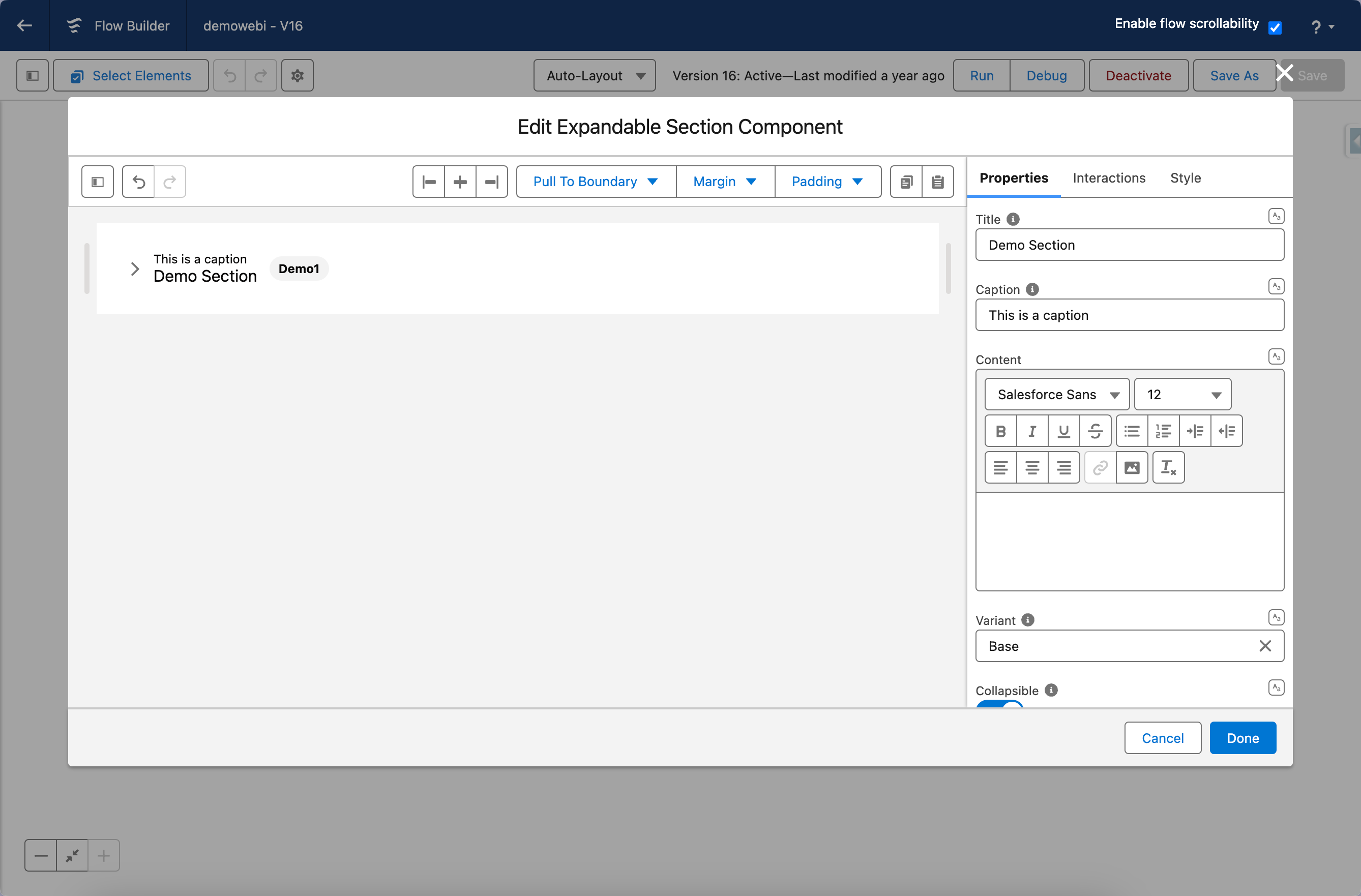
To configure it, click the component on the Flow screen. The Edit Expandable Section Component panel opens on the right with three tabs: Properties, Interactions, and Style. The sections below mirror the Properties tab.
### Properties
**Title** — the main label displayed in the section header. Users see this whether the section is open or closed.
**Caption** — optional text displayed above the title in the header.
**Content** — the rich text body that appears when the section is expanded. Supports text, images, and expression merge fields.
Title and Content can be filled manually or by selecting any available flow resources.
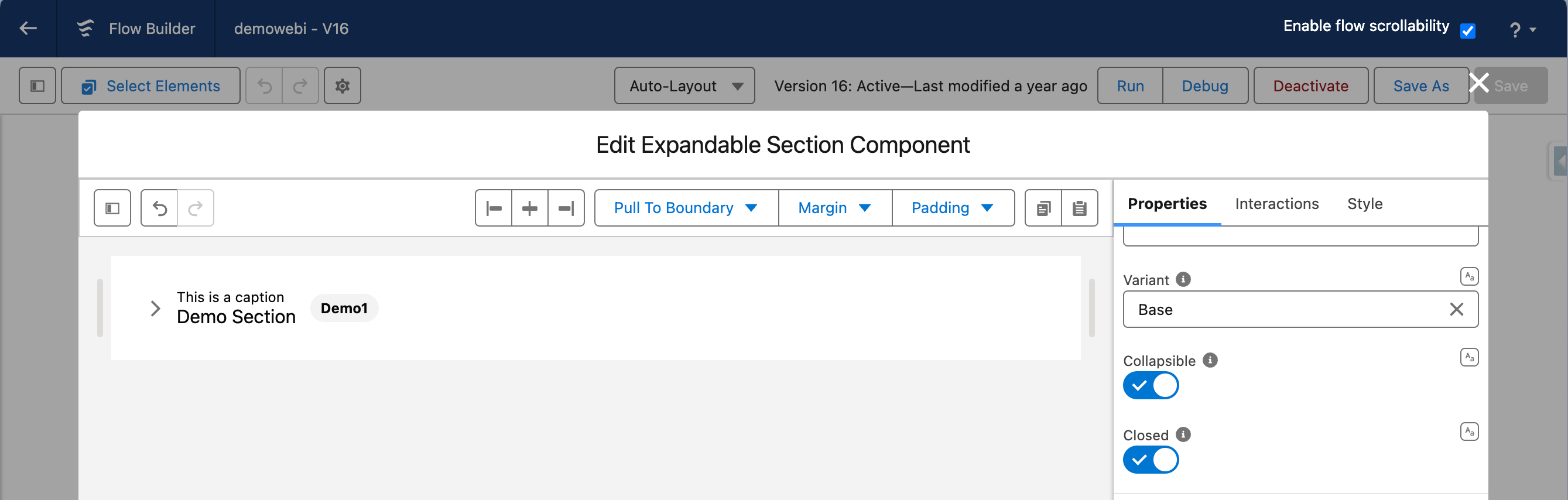
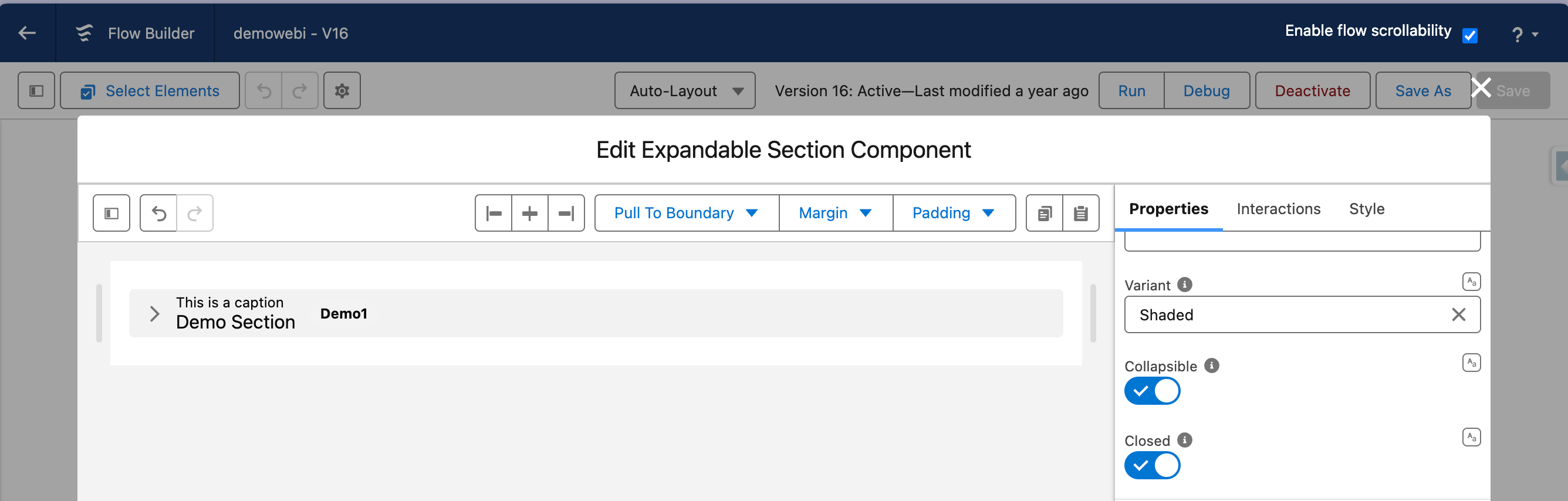
**Variant** — controls the header background style:
| Variant | What It Looks Like |
| ---------- | ----------------------------------------------------------- |
| **Base** | Standard header with no background fill |
| **Shaded** | Subtle background shade on the header for visual separation |
Base variant
Shaded Variant
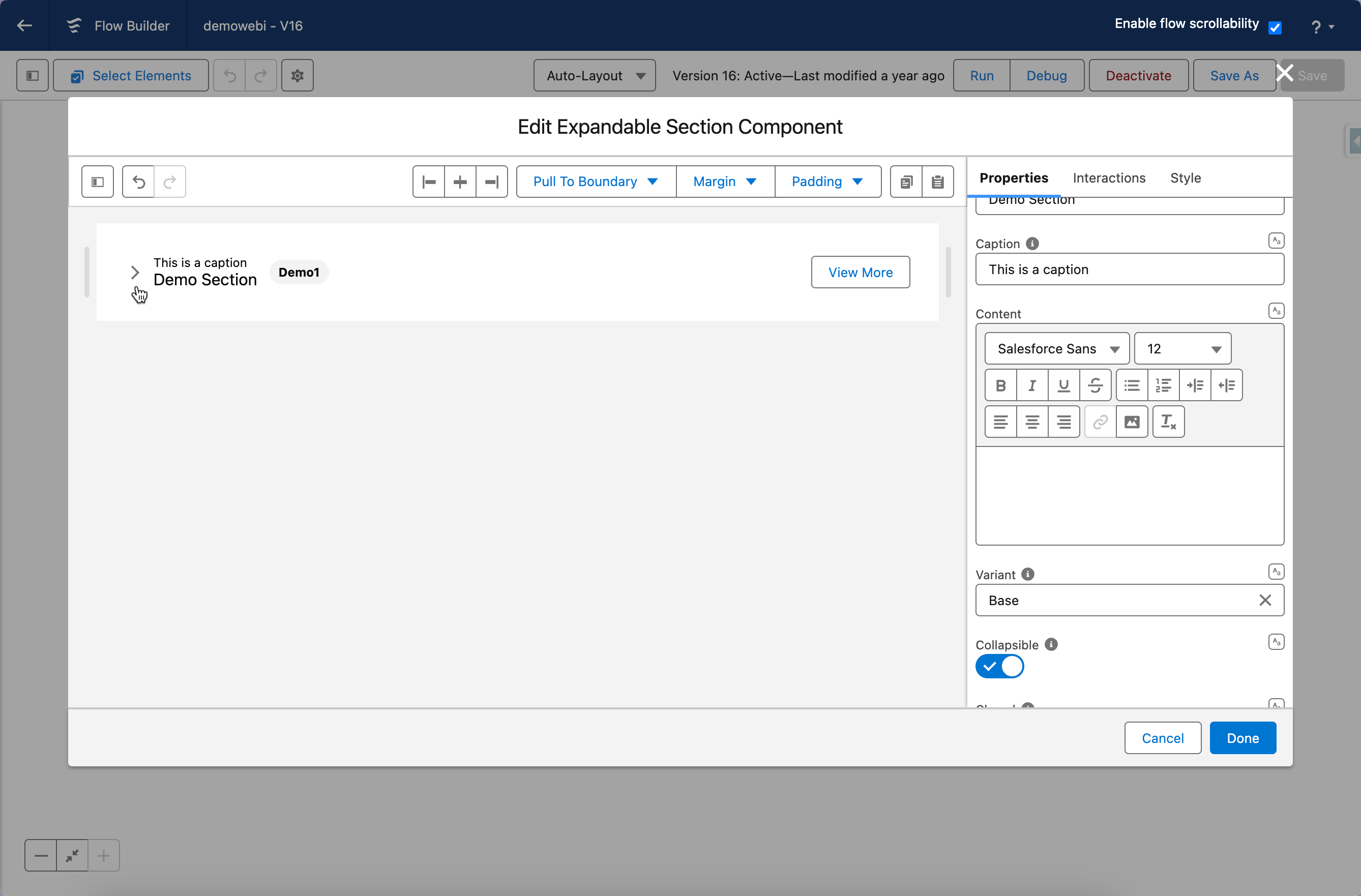
**Collapsible** — when enabled, a chevron toggle icon appears in the header so users can expand or collapse the section. Without this, the section is always open.
**Closed** — when enabled, the section starts in a collapsed state. Only relevant when **Collapsible** is also enabled.
### Collapsible Icon
Shown only when **Collapsible** is enabled. Customize the expand/collapse toggle icon.
**Hide** — hides the toggle icon entirely (useful when you control expand/collapse programmatically).
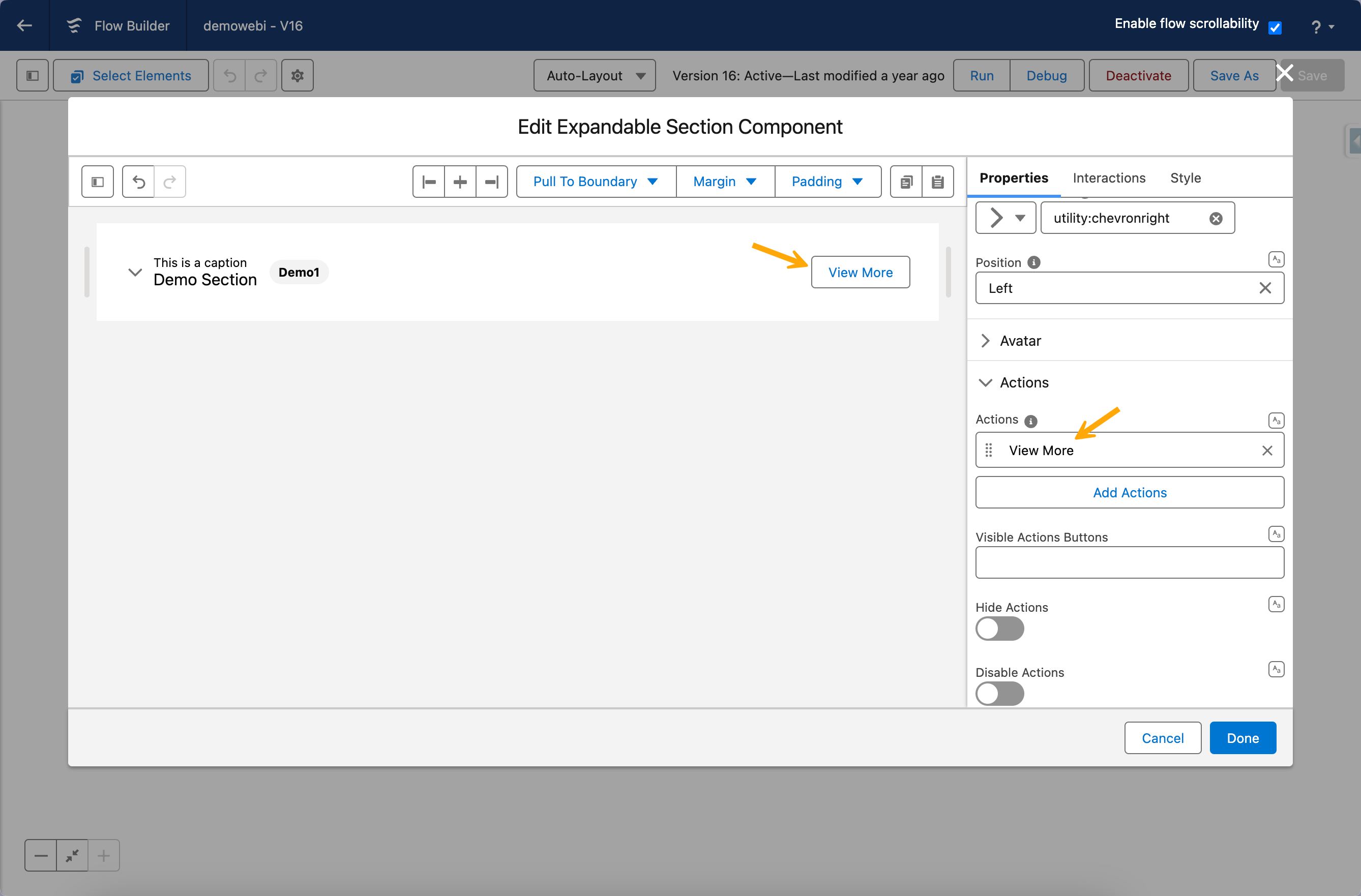
**Open Icon Name** / **Close Icon Name** — customize the Lightning icons shown when the section is open (default `utility:chevrondown`) or closed (default `utility:chevronright`) respectively.
**Position** — controls whether the toggle icon appears on the Left or Right side of the header.
### Avatar
Display an avatar in the section header alongside the title. Configure the image source, icon fallback, shape, size, and presence indicator.
### Actions
Add action buttons to the section header. Users can click these to trigger flow interactions.
**Visible Actions Buttons** — controls how many buttons appear before additional actions overflow into a menu.
**Hide Actions** — hides all header actions.
**Disable Actions** — renders the header actions in a disabled (non-clickable) state.
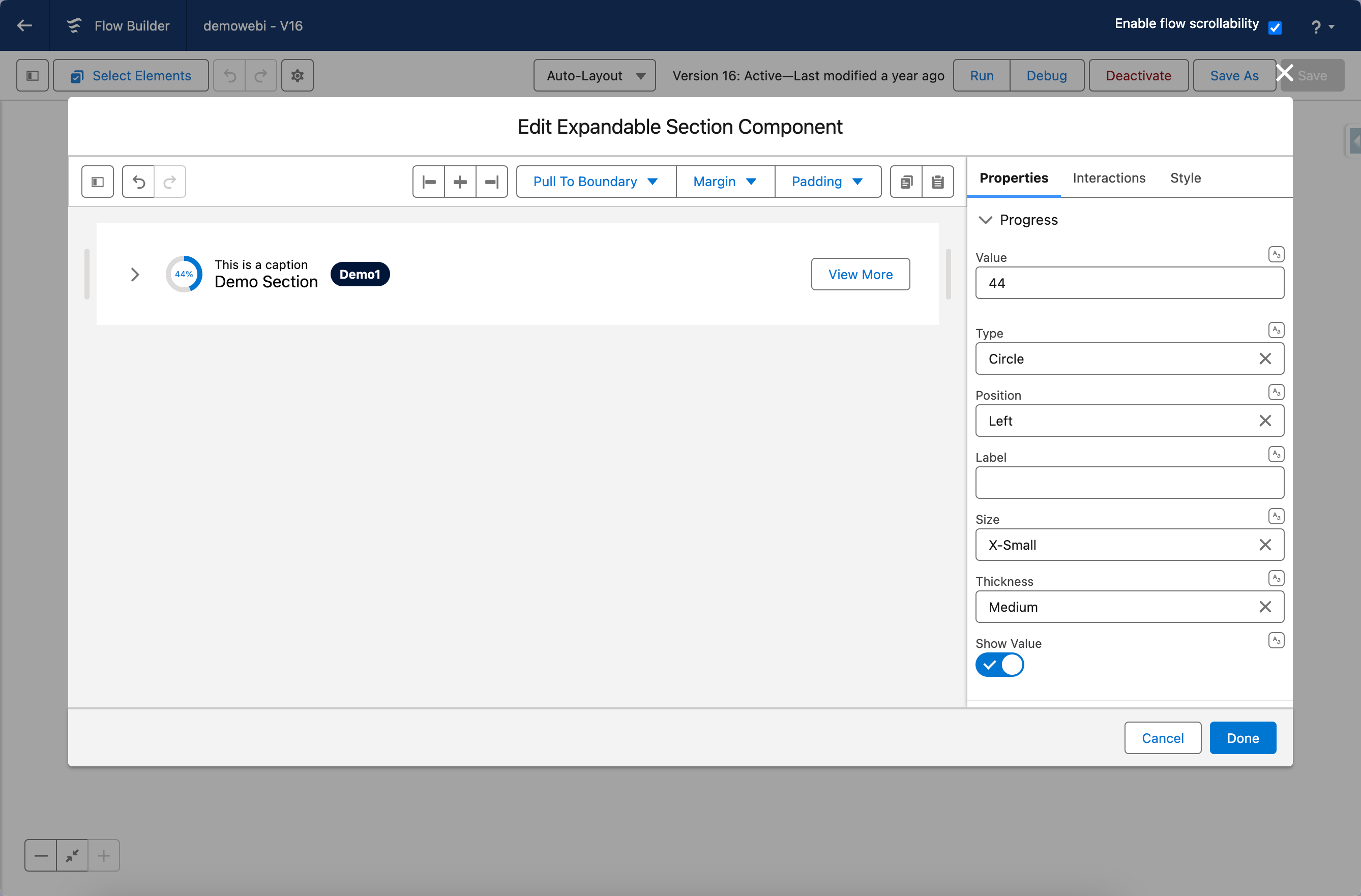
### Progress
Visually display progress using either a circle or bar format directly in the header. Enter the progress value manually or map it to a flow variable for dynamic updates. Customize the appearance with the progress type, position, size, thickness, and label settings.
### Tags
Add badge-like tags to the section header to highlight metadata or status. Tags appear next to the title and support different visual styles (variants). Add tags manually or populate them from a flow variable.
## Interactions
[Interactions](/flow/component-builder/interactions-panel.md) define what happens when users interact with the Expandable Section. Configure them from the **Interactions** tab of the Edit Expandable Section panel.
### Action Click
Fires when a user clicks an action button in the section header. The name of the clicked action is available as the `targetName` output variable, so you can branch or act on which specific action was triggered.
## Styling
The **Style** tab gives you fine-grained control over the Expandable Section's appearance. The available sections are set per variant (Base, Shaded). Configure it from the **Style** tab of the Edit Expandable Section panel.
{% tabs %}
{% tab title="Margin" %}
Controls the *outer* spacing around the component, creating space between it and other elements on the screen.
* **Top / Right / Bottom / Left:** Adjust the space on each side of the component.
{% endtab %}
{% tab title="Padding" %}
Controls the *inner* spacing between the component's content and its border.
* **Top / Right / Bottom / Left:** Adjust the inner spacing on each side.
{% endtab %}
{% tab title="Flow Dialog" %}
Adjusts display when the component is opened as a modal dialog inside a Flow screen.
* **Width:** Sets the dialog width.
* **Height:** Sets the dialog height.
* **Background Color:** Sets the dialog background color.
{% endtab %}
{% tab title="Spacing" %}
Controls the vertical spacing around the section header. Set per variant (Base, Shaded).
* **Block Start / Block End:** Adjust the space above and below the header.
{% endtab %}
{% tab title="Main Container" %}
Styles the shaded container surrounding the section (Shaded variant only).
* **Background Color:** Set the container background.
* **Border Color / Border Size / Border Style / Border Radius:** Customize the container borders.
{% endtab %}
{% tab title="Title" %}
Styles the section title. Set per variant (Base, Shaded).
* **Color:** Set the title text color.
* **Font Size / Font Style / Font Weight:** Control the title typography.
{% endtab %}
{% tab title="Caption" %}
Styles the section caption. Set per variant (Base, Shaded).
* **Color:** Set the caption text color.
* **Font Size / Font Style / Font Weight:** Control the caption typography.
{% endtab %}
{% tab title="Icon" %}
Styles the expand/collapse icon. Set per variant (Base, Shaded).
* **Background Color:** Set the icon background.
* **Color / Color Hover:** Set the icon foreground color in each state.
{% endtab %}
{% tab title="Icon Border" %}
Customizes the border around the expand/collapse icon. Set per variant (Base, Shaded).
* **Color:** Set the border color.
* **Size:** Adjust the border thickness.
* **Style:** Choose a border style (e.g. solid, dashed, dotted).
* **Radius:** Control the roundness of the corners.
{% endtab %}
{% tab title="Progress Bar" %}
Styles a progress bar shown in the section header. Set per variant (Base, Shaded).
* **Color / Completed Color:** Set the bar track and fill colors.
* **Label Font Color / Label Font Size / Label Font Style / Label Font Weight:** Control the label typography.
* **Value Color / Value Font Size / Value Font Style / Value Font Weight:** Control the value typography.
{% endtab %}
{% tab title="Progress Circle" %}
Styles a progress circle shown in the section header. Set per variant (Base, Shaded).
* **Background Color / Color / Completed Color:** Set the circle background, track, and fill colors.
* **Label Font Color / Label Font Style / Label Font Weight:** Control the label typography.
* **Value Color / Value Font Style / Value Font Weight:** Control the value typography.
{% endtab %}
{% endtabs %}
## Output Variables
### Flow Interaction Output Variables
Like all interactive Flow components, the Expandable Section exposes generic output slots (Variable 1–10) that an [Open Flow Dialog](/flow/component-builder/interactions-panel/open-flow-dialog.md) or [Open Flow Panel](/flow/component-builder/interactions-panel/open-flow-panel.md) interaction can fill with values from a launched flow. See [Flow Interaction Output Variables](/flow/component-builder/interactions-panel/flow-interaction-output-variables.md).
---
# Agent Instructions
This documentation is published with GitBook. GitBook is the documentation platform designed so that both humans and AI agents can read, navigate, and reason over technical content effectively. Learn more at gitbook.com.
## Querying This Documentation
If you need additional information that is not directly available in this page, you can query the documentation dynamically by asking a question.
Perform an HTTP GET request on the current page URL with the `ask` query parameter, and the optional `goal` query parameter:
```
GET https://docs.avonnicomponents.com/flow/flow-components/expandable-section.md?ask=&goal=
```
`ask` is the immediate question: it should be specific, self-contained, and written in natural language.
`goal` is optional and describes the broader end goal you are ultimately trying to accomplish on behalf of the user. GitBook uses it to tailor the answer towards what is most useful for that goal.
The response will contain a direct answer to the question and relevant excerpts and sources from the documentation.
Use this mechanism when the answer is not explicitly present in the current page, you need clarification or additional context, or you want to retrieve related documentation sections.
.avif?alt=media)