> For the complete documentation index, see [llms.txt](https://docs.avonnicomponents.com/llms.txt). Markdown versions of documentation pages are available by appending `.md` to page URLs; this page is available as [Markdown](https://docs.avonnicomponents.com/flow/flow-components/tabs.md).
# Tabs
The Avonni Tabs Component helps you organize and display information on a single page. It allows you to separate information into different tabs, making it easier for users to find what they want.
Tabs organizes flow screen content into selectable sections. Use it to switch between logical states, control which components are visible, or filter query results — all without navigating away from the screen.
***
## Overview
Tabs displays a set of labelled tabs. Only one tab is active at a time; the active tab drives flow logic through its output value. Use Flow Builder's standard **Set Component Visibility** feature to show and hide components that belong to each tab.
{% @arcade/embed url="" flowId="9SJ11dmkFalwW5kDZO9U" %}
***
## Configuration
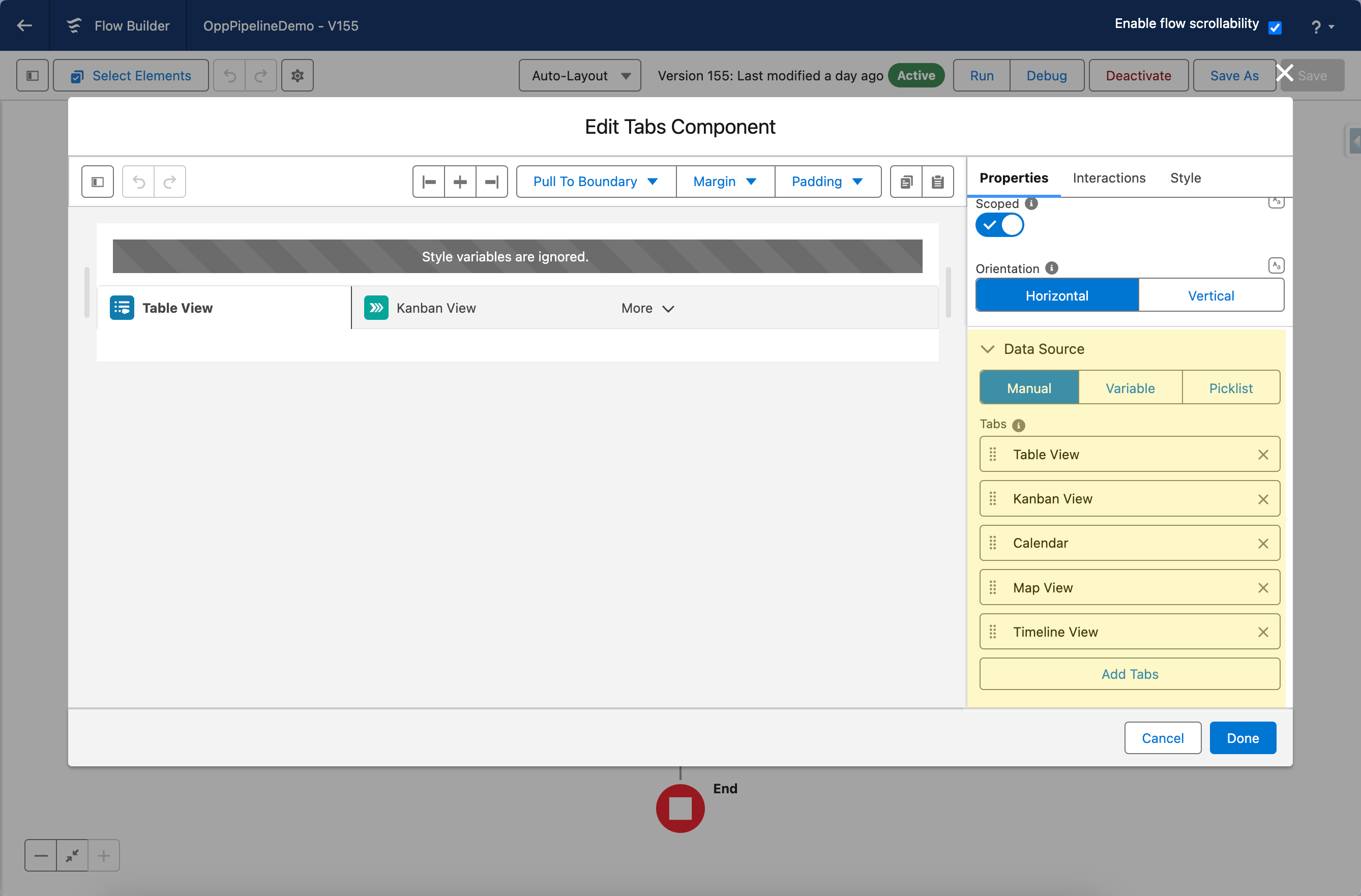
To configure it, click the component on the Flow screen. The **Edit Tabs Component** panel opens on the right with three tabs: Properties, Interactions, and Style. The sections below mirror the Properties tab.
### Data Source
The **Data Source** setting determines where the tab names come from.
| Data Source | Best For | When to Use |
| ---------------------------------------------------------------- | ----------------------------------------- | ------------------------------------------------------------ |
| [**Manual**](/flow/component-builder/data-sources/manual.md) | Fixed, pre-defined tab names | Static tabs that never change |
| [**Variable**](/flow/component-builder/data-sources/variable.md) | Tab names from a Flow collection variable | Tabs driven by prior flow steps |
| [**Picklist**](/flow/component-builder/data-sources/picklist.md) | A Salesforce picklist field's values | Letting data define the tab set |
| [**Query**](/flow/component-builder/data-sources/query.md) | Live Salesforce records | Dynamic tab sets fetched without a separate Get Records step |
### Data Mapping
When using Variable, Query, or Picklist, configure **Data Mappings** in the Properties tab to tell the component how to build each tab from your data:
* **Label** — The tab title.
* **Value** — Unique identifier for the tab; must match **Active Item Value** to pre-select a tab on load.
* **Tooltip** — Tooltip text shown on hover.
* **Subtitle** — Secondary text displayed below the tab label.
* **Left/Right/Top Icon Name** — Icons displayed on the tab alongside the label.
* **Left/Right/Top Icon Size** — Size of the corresponding icon.
### Properties
**Active Item Value** sets which tab is open by default when the screen loads. Enter the exact value associated with the tab you want to display — spelling and capitalization must match.
**Scrollable** makes the tab bar horizontally scrollable when the tabs exceed the available width, instead of collapsing extras into an overflow menu.
**Show Scroll Buttons** adds navigation arrows on either side of the tab bar so users can step through hidden tabs. Requires **Scrollable** to be enabled.
**Show Scroll Buttons Mobile** keeps the scroll buttons visible on mobile devices. Without this, the buttons are hidden on mobile to allow native touch scrolling. Requires **Show Scroll Buttons** to be enabled.
> **Which scroll option is right for you?** Scrollable without buttons gives a cleaner look and suits a small number of overflow tabs. Scrollable with buttons helps when there are many tabs and users need to know how many there are.
**Scoped** wraps the tabs in a bordered container, giving them a closed, card-like visual appearance.
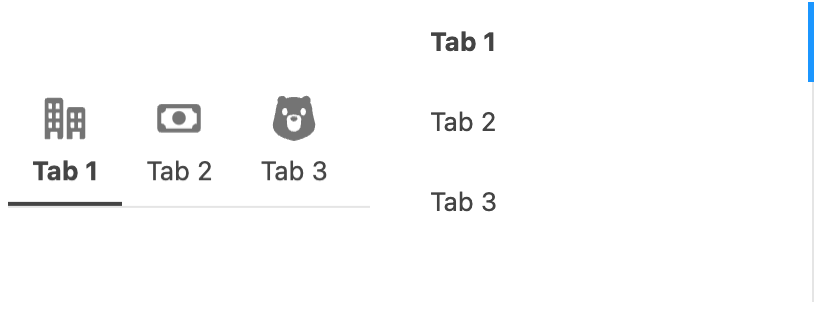
**Orientation** controls the layout of the tab bar.
| Orientation | What it looks like | Best For |
| -------------------------- | ------------------------------------- | ---------------------------------------------- |
| **Horizontal** *(default)* | Tabs appear at the top of the content | Standard tab navigation |
| **Vertical** | Tabs appear as a side list | Many tabs, or when horizontal space is limited |
Horizontal vs Vertical Tabs
## Interactions
[Interactions](/flow/component-builder/interactions-panel.md) define what happens when users interact with the Tabs. Configure them from the **Interactions** tab of the Edit Tabs panel.
### Active
Fires when the user selects a tab. Use this to navigate to another screen, update a flow variable, or filter query results based on the selected tab.
***
## Styling
The Avonni Tabs component offers a wide range of styling options to integrate with your design and provide a user-friendly experience.
{% tabs %}
{% tab title="Margin" %}
Controls the outer spacing around the Tabs component.
* **Top / Right / Bottom / Left:** Adjust the space on each side.
{% endtab %}
{% tab title="Padding" %}
Controls the inner spacing within the tab container.
* **Top / Right / Bottom / Left:** Adjust the inner spacing on each side.
{% endtab %}
{% tab title="Size" %}
Controls the component's dimensions.
* **Width / Height / Min Width / Max Width / Min Height / Max Height:** Set or constrain the size.
{% endtab %}
{% tab title="Background" %}
Sets the container and per-tab background colors.
* **Tabs:** The tab-container background.
* **Tab Active / Tab Hover:** Tab background in the active and hover states.
{% endtab %}
{% tab title="Flow Dialog" %}
Adjusts display when opened as a modal dialog inside a Flow screen.
* **Width:** Dialog width.
* **Height:** Dialog height.
* **Background Color:** Dialog background color.
{% endtab %}
{% tab title="Border" %}
Customizes the tab border across states.
* **Color / Size:** Default border color and thickness.
* **Color Active / Size Active:** Border in the active state.
* **Color Hover / Size Hover:** Border in the hover state.
{% endtab %}
{% tab title="Item" %}
Controls each tab's layout and spacing.
* **Vertical Alignment:** Align tab content vertically.
* **Width / Min Width / Max Width / Height / Line Height:** Size each tab.
* **Spacing Left / Spacing Right:** Inner spacing on each side of a tab.
{% endtab %}
{% tab title="Item Label" %}
Styles the tab label text, with separate values for the active and hover states.
* **Color / Font Size / Font Weight / Font Family / Text Shadow** — each with **Active** and **Hover** variants.
{% endtab %}
{% tab title="Item Subtitle" %}
Styles the optional subtitle beneath a tab label, with separate values for the active and hover states.
* **Color / Font Size / Font Weight / Font Family / Text Shadow** — each with **Active** and **Hover** variants.
{% endtab %}
{% tab title="Overflow Buttons" %}
Styles the scroll/overflow controls shown when tabs exceed the available width.
* **Overflow Button Text Color:** Color of the overflow button.
* **Scroll Button Start Background / Scroll Button End Background:** Background of the start and end scroll buttons.
{% endtab %}
{% endtabs %}
***
## Output Variables
The Tabs component exposes these output variables you can reference in your flow after the screen. To use them, select the screen element in Flow Builder, then the Tabs component, and pick the output variable you need.
### Active Tab
| Output variable | Type | What it returns |
| ---------------------- | ---------------- | -------------------------------------------------------------------------------------------------- |
| **Active Tab Value** | Text (String) | The value of the tab the user has selected. |
| **Active Tab SObject** | Record (SObject) | The Salesforce record associated with the active tab, when the data source is a record collection. |
> **Example:** After a Tabs component whose tabs are populated from an Account query, store **Active Tab Value** in a flow variable and use it in a decision element to branch the flow based on which account tab the user opened.
### Others
| Output variable | Type | What it returns |
| ------------------- | ------- | ----------------------------------------------------------- |
| **Number of items** | Integer | The total number of tabs currently loaded in the component. |
### Flow Interaction Output Variables
Like all interactive Flow components, the Tabs component exposes generic output slots (Variable 1–10) that an [Open Flow Dialog](/flow/component-builder/interactions-panel/open-flow-dialog.md) or [Open Flow Panel](/flow/component-builder/interactions-panel/open-flow-panel.md) interaction can fill with values from a launched flow. See [Flow Interaction Output Variables](/flow/component-builder/interactions-panel/flow-interaction-output-variables.md).
---
# Agent Instructions
This documentation is published with GitBook. GitBook is the documentation platform designed so that both humans and AI agents can read, navigate, and reason over technical content effectively. Learn more at gitbook.com.
## Querying This Documentation
If you need additional information that is not directly available in this page, you can query the documentation by asking a question.
Perform an HTTP GET request on the following URL with the `ask` and `goal` query parameters:
```
GET https://docs.avonnicomponents.com/flow/flow-components/tabs.md?ask=&goal=
```
`ask` is the immediate question: it should be specific, self-contained, and written in natural language.
`goal` is what the user is ultimately trying to achieve, the reason they need the answer. Sharing it helps GitBook give you a better, more relevant answer. A goal is most helpful when it describes the outcome the user wants rather than restating the question. For example, with `ask=how do I create an API token`, a goal like `automate deployments from our CI pipeline` lets GitBook tailor the answer to that use case.
The response will contain a direct answer to the question and relevant excerpts and sources from the documentation.
Use this mechanism when the answer is not explicitly present in the current page, you need clarification or additional context, or you want to retrieve related documentation sections.
.avif?alt=media)
.png?alt=media)
.gif?alt=media)