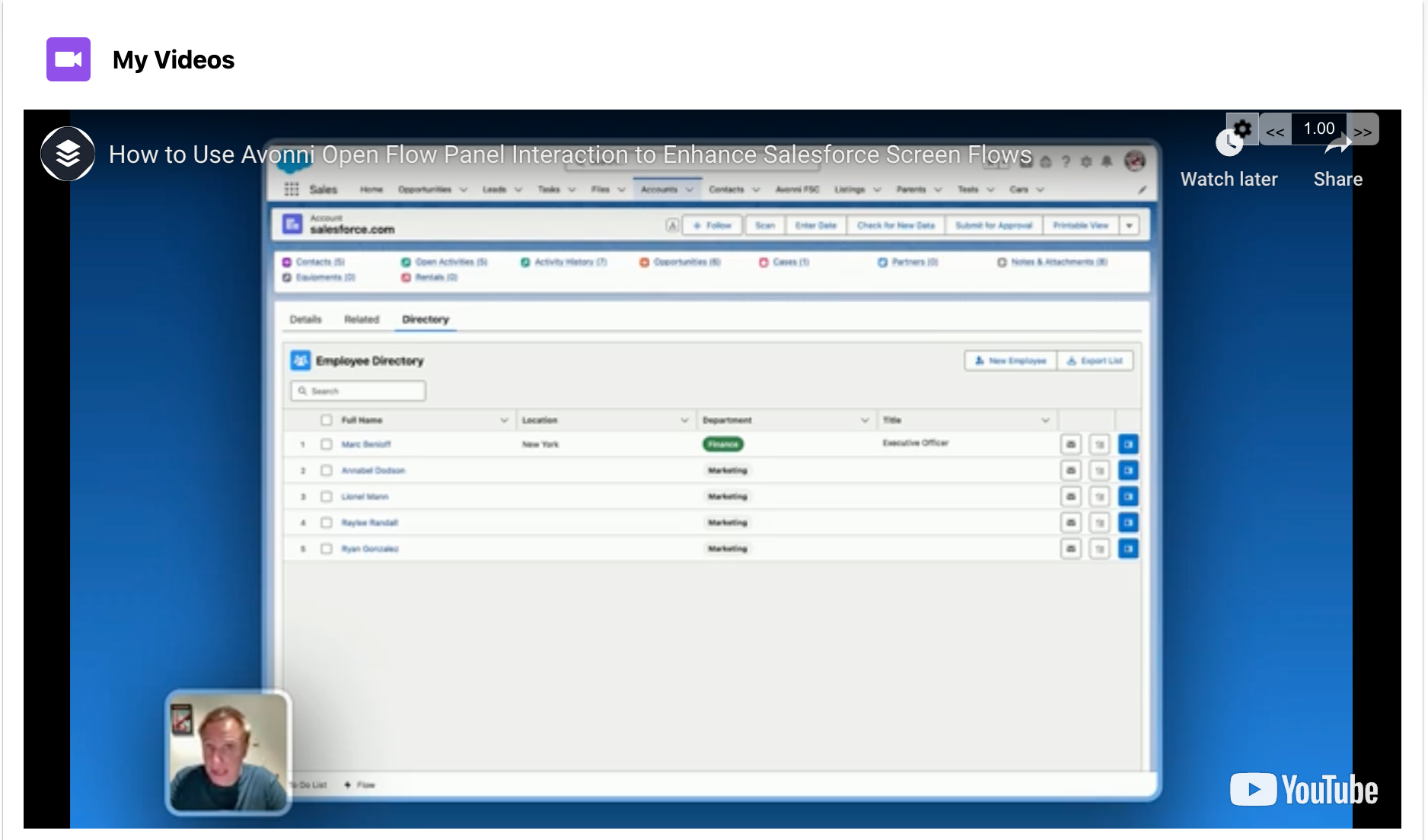
> For the complete documentation index, see [llms.txt](https://docs.avonnicomponents.com/llms.txt). Markdown versions of documentation pages are available by appending `.md` to page URLs; this page is available as [Markdown](https://docs.avonnicomponents.com/flow/flow-components/video-player.md).
# Video Player
The Avonni Video Player provides configurable video playback options for controlling the source, playback behavior, volume, and visual styling.
## Overview
The Video Player embeds and plays video content directly in a flow screen. It supports hosted video files, Content Document IDs, YouTube video IDs, and Vimeo URLs — with controls for autoplay, volume, looping, and playback speed.
***
## Configuration
To configure it, click the component on the Flow screen. The **Edit Video Player Component** panel opens on the right with three tabs: Properties, Interactions, and Style. The sections below mirror the Properties tab.
### Properties
**Source** specifies what video to display. You can provide:
* A direct URL to a video file (including Vimeo URLs)
* A Salesforce Content Document ID
* A YouTube video ID
**Autoplay** starts the video automatically when the player loads. Autoplayed videos are initially muted due to browser limitations.
**Volume** controls the initial audio level of the player (0 = mute, 100 = maximum). This setting is only available when **Autoplay** is disabled.
**Hide Controls** hides the player controls from view. Useful for videos designed to autoplay and loop as background content.
**Loop** replays the video from the beginning when it finishes. Useful for short clips, demos, or background videos.
**Playback Rate** sets the speed at which the video plays. For example, 0.5 for half speed, 1 for normal speed *(default)*, or 2 for double speed.
### Advanced Options
**Title** provides assistive text that describes the video for accessibility purposes. This text is not visible to sighted users but is read by screen readers.
***
### Vimeo Source Configuration
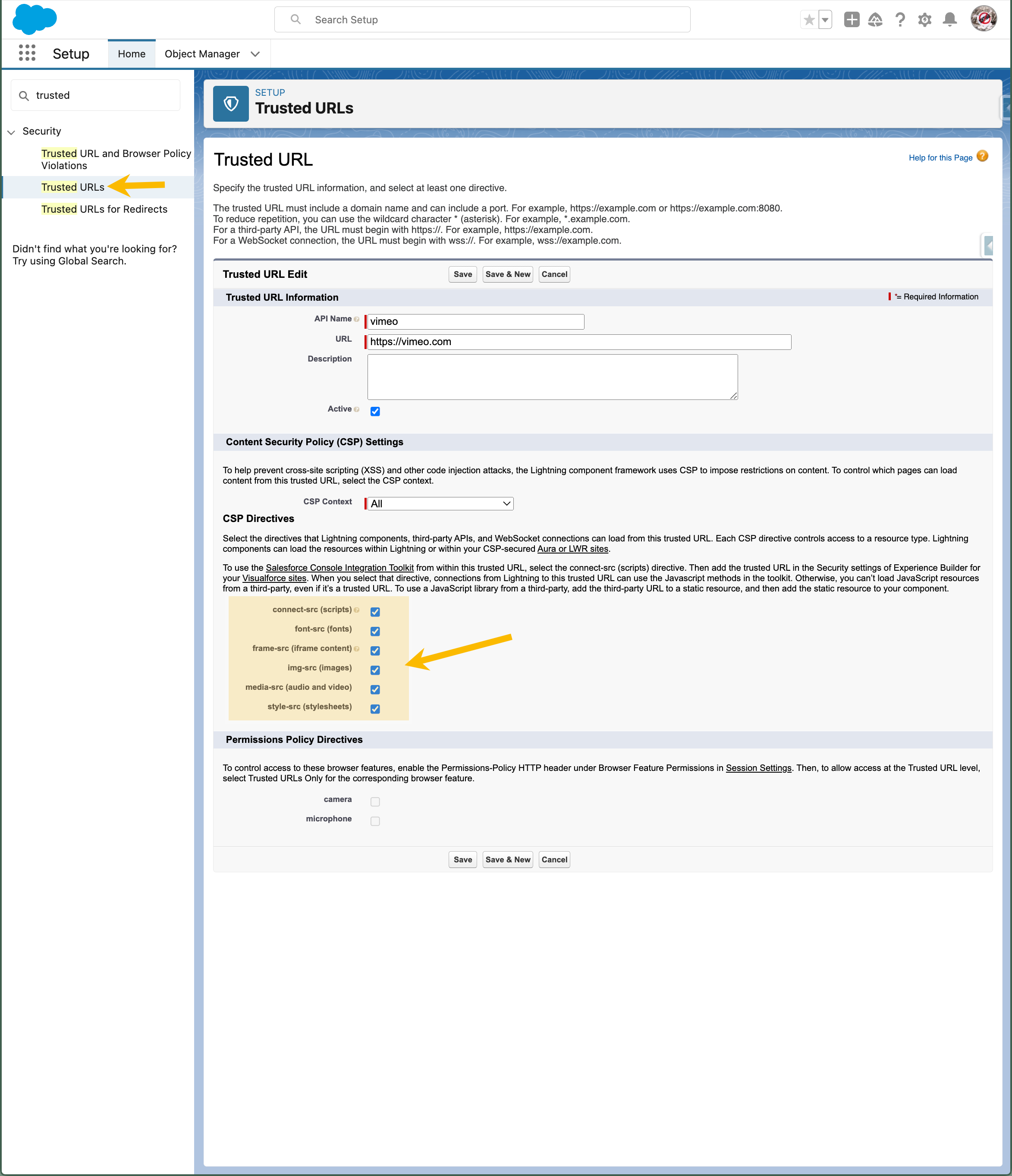
To use Vimeo URLs as video sources, you must configure Salesforce to trust Vimeo's domains:
1. In Salesforce Setup, navigate to **Security → Trusted URLs**.
2. Add the following URLs as trusted sites:
* `https://vimeo.com`
* `https://*.vimeo.com`
3. Enable **all** CSP directives for these sites.
***
## Styling
The **Style** tab lets you customize how the Video Player looks on your page. Configure it from the **Style** tab of the Edit panel.
{% tabs %}
{% tab title="Margin" %}
Controls the *outer* spacing around the video player.
* **Top / Right / Bottom / Left:** Adjust the space on each side.
{% endtab %}
{% tab title="Padding" %}
Controls the *inner* spacing between the video player's content and its border.
* **Top / Right / Bottom / Left:** Adjust the inner spacing on each side.
{% endtab %}
{% tab title="Border" %}
Customizes the border surrounding the video player.
* **Color:** Set the border color.
* **Size:** Adjust the border thickness.
* **Style:** Choose a border style (e.g. solid, dashed, dotted).
* **Radius:** Control the roundness of the corners.
{% endtab %}
{% tab title="Size" %}
Controls the video player's dimensions.
* **Width / Height:** Set fixed dimensions.
* **Min Width / Max Width / Min Height / Max Height:** Constrain the size within bounds.
{% endtab %}
{% endtabs %}
***
## Output Variables
The Video Player exposes these output variables you can reference in your flow after the screen. To use them, select the screen element in Flow Builder, then the Video Player component, and pick the output variable you need.
### Playback State
| Output variable | Type | What it returns |
| ---------------------- | ------- | ----------------------------------------------------------------------------------------- |
| **Current Time Stamp** | Integer | The playback position (in seconds) at the moment the user navigated away from the screen. |
| **Duration** | Integer | The total length of the video in seconds. |
> **Example:** After a training video screen, store **Current Time Stamp** in a flow variable and compare it to **Duration** to determine whether the user watched the video to completion before proceeding.
---
# Agent Instructions
This documentation is published with GitBook. GitBook is the documentation platform designed so that both humans and AI agents can read, navigate, and reason over technical content effectively. Learn more at gitbook.com.
## Querying This Documentation
If you need additional information that is not directly available in this page, you can query the documentation dynamically by asking a question.
Perform an HTTP GET request on the current page URL with the `ask` query parameter, and the optional `goal` query parameter:
```
GET https://docs.avonnicomponents.com/flow/flow-components/video-player.md?ask=&goal=
```
`ask` is the immediate question: it should be specific, self-contained, and written in natural language.
`goal` is optional and describes the broader end goal you are ultimately trying to accomplish on behalf of the user. GitBook uses it to tailor the answer towards what is most useful for that goal.
The response will contain a direct answer to the question and relevant excerpts and sources from the documentation.
Use this mechanism when the answer is not explicitly present in the current page, you need clarification or additional context, or you want to retrieve related documentation sections.