> For the complete documentation index, see [llms.txt](https://docs.avonnicomponents.com/llms.txt). Markdown versions of documentation pages are available by appending `.md` to page URLs; this page is available as [Markdown](https://docs.avonnicomponents.com/flow/flow-components/icon-picker.md).
# Icon Picker
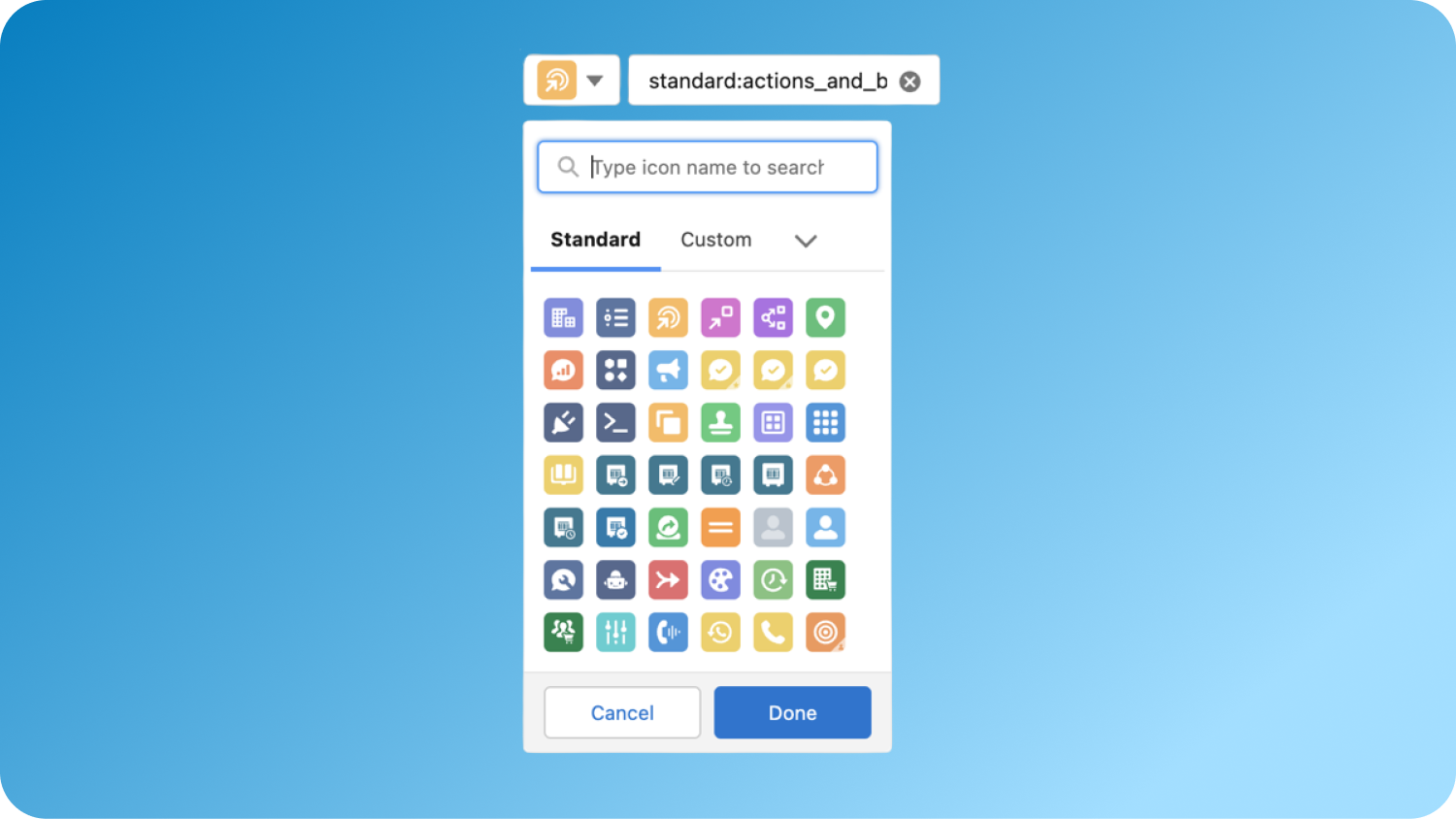
The Icon Picker provides a searchable and filterable interface for selecting icons from the Lightning Design System Library.
***
## Overview
The Icon Picker lets flow users browse and select a Lightning Design System icon from a searchable dropdown. The selected icon name is stored as an output variable you can use to configure other components or save to a record field. Use it whenever an admin or end-user needs to pick an icon as part of a configuration or customization flow.
## Configuration
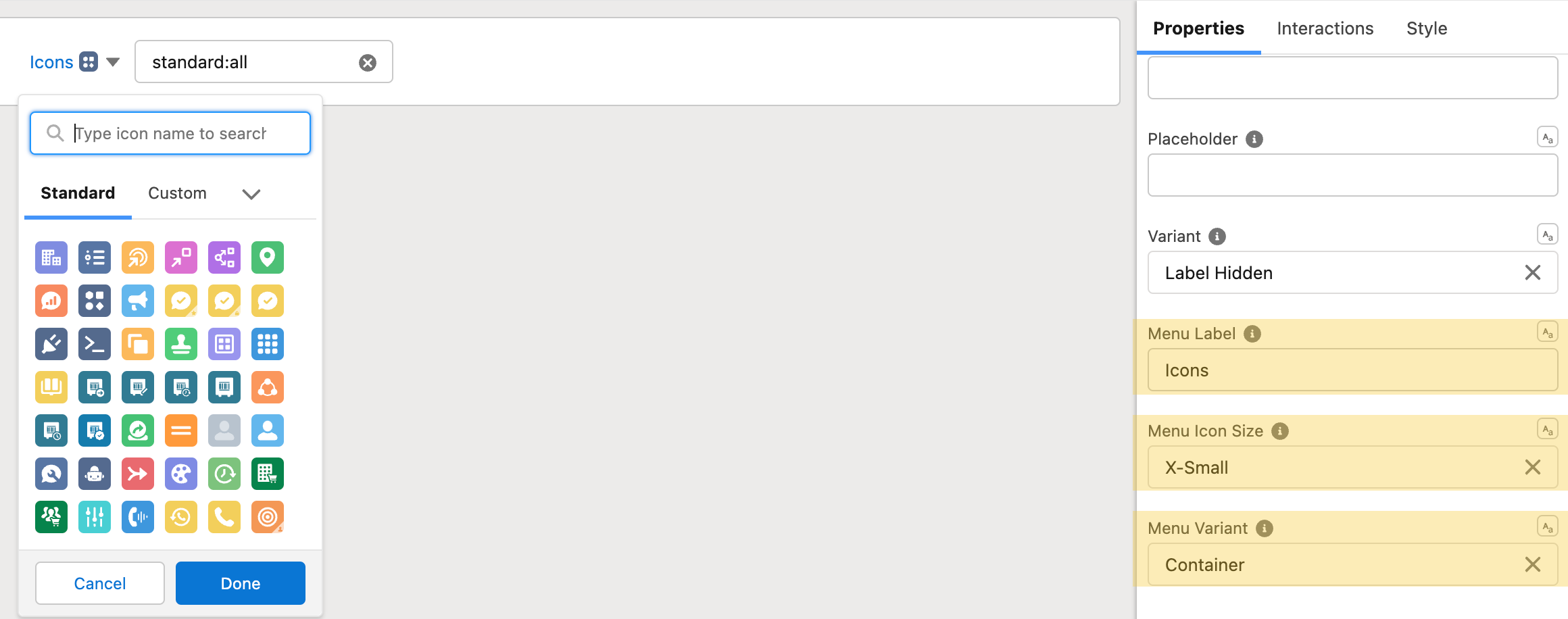
To configure it, click the component on the Flow screen. The Edit Icon Picker Component panel opens on the right with three tabs: Properties, Interactions, and Style. The sections below mirror the Properties tab.
### Properties
**Label** — text label for the input, displayed above the Icon Picker. The label position is controlled by the **Variant** setting.
**Value** — specifies the value of the input, pre-populating the picker with a default icon selection (e.g., `standard:account`).
**Field level help** — help text detailing the purpose and function of the input, shown in a tooltip.
**Placeholder** — text displayed when the field is empty, to prompt the user for a valid entry.
**Variant** — changes the appearance of the input field, controlling how the label is positioned: Standard, Label Hidden, Label Inline, or Label Stacked (default: Standard).
**Hide Input Text** — if present, the input text next to the icon button is hidden, leaving only the icon.
**Required** — if present, an input is required by the user; the flow won't advance until an icon is picked.
### Menu
Customize the appearance of the icon dropdown button.
| Setting | What It Controls |
| --------------------- | ----------------------------------------------------------------------------------------------------------------------------- |
| **Button Label** | The text to be displayed inside the button |
| **Button Icon Size** | Size of the icon on the button — Xxs, Xs, Small, Medium, or Large (default: Medium). Requires **Value** to be set |
| **Button Variant** | Visual style of the button — Bare, Container, Brand, Border, Border Filled, Bare Inverse, or Border Inverse (default: Border) |
| **Hide Footer** | Hides the footer bar at the bottom of the dropdown menu |
| **Disabled** | If present, the input is disabled and users cannot interact with it |
| **Hidden Categories** | Icon categories that will be hidden from the menu — Standard, Custom, Utility, Doctype, and Action |
How to hide specific icon categories
### Advanced Options
**Read Only** — if present, the input is read-only and cannot be edited by users; the current icon is displayed without allowing changes.
**Access Key** — specifies a keyboard shortcut key to activate or focus the input. See the MDN Web Docs HTML "accesskey" global attribute for details.
## Interactions
[Interactions](/flow/component-builder/interactions-panel.md) define what happens when users interact with the Icon Picker. Configure them from the **Interactions** tab of the Edit Icon Picker panel.
### Change
Fires when the user selects a different icon. Use this to store the selection in a flow variable or trigger downstream logic such as navigating to the next screen.
## Styling
The **Style** tab lets you fine-tune the Icon Picker's spacing and label appearance. Configure it from the **Style** tab of the Edit panel.
{% tabs %}
{% tab title="Margin" %}
Controls the *outer* spacing around the component, creating space between it and other elements on the screen.
* **Top / Right / Bottom / Left:** Adjust the space on each side.
{% endtab %}
{% tab title="Padding" %}
Controls the *inner* spacing between the component's content and its border.
* **Top / Right / Bottom / Left:** Adjust the inner spacing on each side.
{% endtab %}
{% tab title="Flow Dialog" %}
Adjusts display when opened as a modal dialog inside a Flow screen.
* **Width:** Dialog width.
* **Height:** Dialog height.
* **Background Color:** Dialog background color.
{% endtab %}
{% tab title="Label" %}
Styles the field label above the icon picker.
* **Color:** Set the label text color.
* **Font Size / Font Style / Font Weight:** Control the label typography.
{% endtab %}
{% endtabs %}
## Examples
## Output Variables
### Flow Interaction Output Variables
Like all interactive Flow components, the Icon Picker exposes generic output slots (Variable 1–10) that an [Open Flow Dialog](/flow/component-builder/interactions-panel/open-flow-dialog.md) or [Open Flow Panel](/flow/component-builder/interactions-panel/open-flow-panel.md) interaction can fill with values from a launched flow. See [Flow Interaction Output Variables](/flow/component-builder/interactions-panel/flow-interaction-output-variables.md).
---
# Agent Instructions
This documentation is published with GitBook. GitBook is the documentation platform designed so that both humans and AI agents can read, navigate, and reason over technical content effectively. Learn more at gitbook.com.
## Querying This Documentation
If you need additional information that is not directly available in this page, you can query the documentation dynamically by asking a question.
Perform an HTTP GET request on the current page URL with the `ask` query parameter, and the optional `goal` query parameter:
```
GET https://docs.avonnicomponents.com/flow/flow-components/icon-picker.md?ask=&goal=
```
`ask` is the immediate question: it should be specific, self-contained, and written in natural language.
`goal` is optional and describes the broader end goal you are ultimately trying to accomplish on behalf of the user. GitBook uses it to tailor the answer towards what is most useful for that goal.
The response will contain a direct answer to the question and relevant excerpts and sources from the documentation.
Use this mechanism when the answer is not explicitly present in the current page, you need clarification or additional context, or you want to retrieve related documentation sections.
.png?alt=media)
