> For the complete documentation index, see [llms.txt](https://docs.avonnicomponents.com/llms.txt). Markdown versions of documentation pages are available by appending `.md` to page URLs; this page is available as [Markdown](https://docs.avonnicomponents.com/flow/component-builder/component-templates.md).
# Component Templates
## Overview
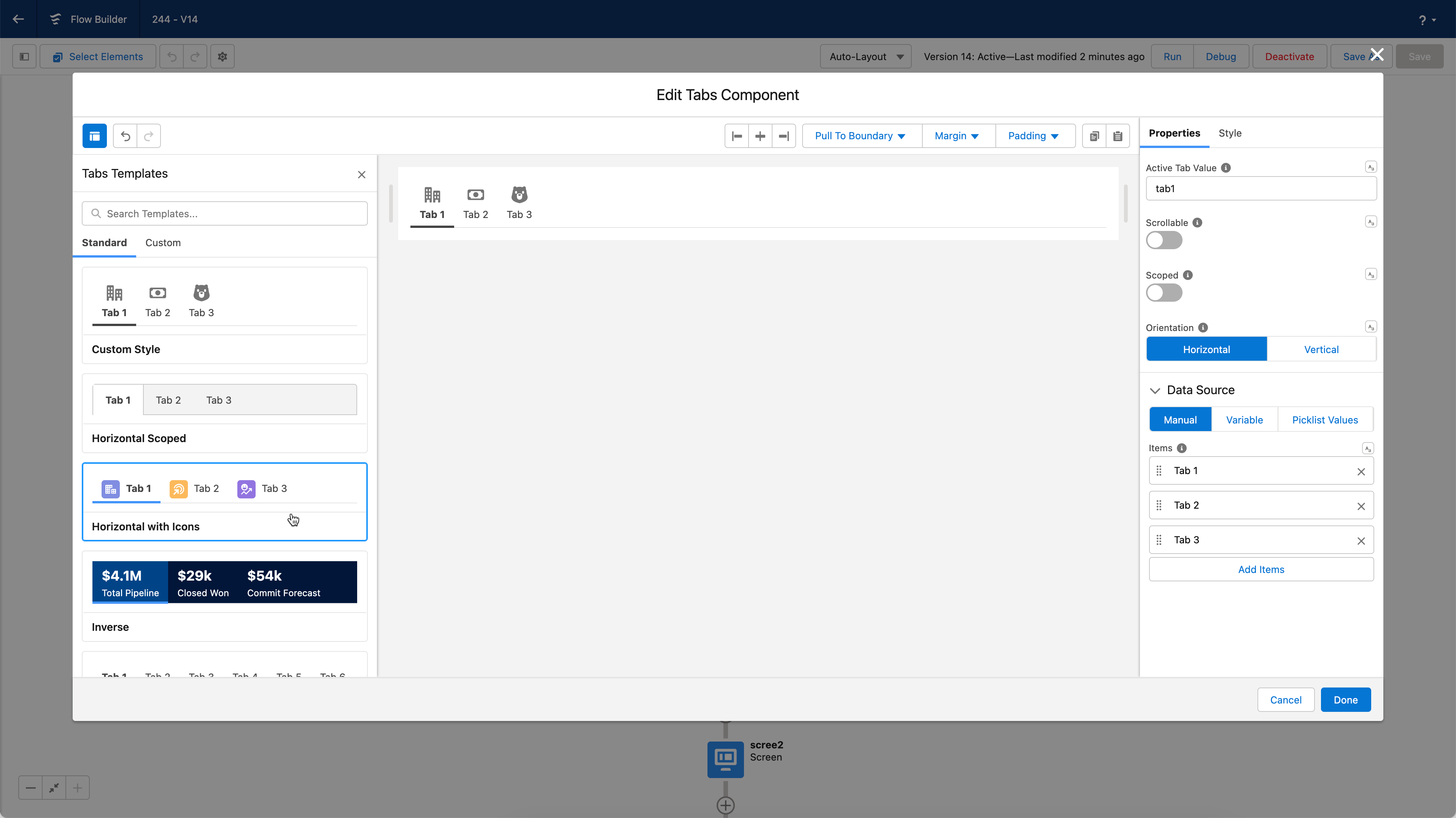
Component templates are pre-designed configurations for Avonni Flow Screen Components that help you build flows faster and more consistently. They offer a starting point, inspire you, and allow you to quickly apply your preferred settings to components without manually configuring each one.
**Benefits of Component Templates:**
* **Save Time:** Quickly apply pre-defined configurations to multiple components, reducing manual setup.
* **Consistent Design:** Maintain a unified look and feel across your flows.
* **Inspiration:** Explore various template options to spark new ideas for your flow designs.
* **Customization:** Create and save your custom templates for reuse across different flows.
With component templates, you can streamline your flow development process, ensuring a cohesive user experience while saving valuable time and effort
## Using existing templates
To use a Component Template, drag and drop it onto your canvas. The template will come pre-configured, saving you time and effort in setting up the component. So as you know, some templates require an association with a source collection to work correctly. If a source collection isn't available, a message will appear to let you know about this requirement. In such cases, you must create or select the appropriate source collection before using the template effectively.
## Creating your templates
Creating custom templates with the Avonni Flow Screen Components library is simple and efficient. Follow these steps to design and save your custom templates:
1. Drag an Avonni Flow Screen Component onto your canvas.
2. Open the Component Builder to access the customization options.
3. Start customizing your component according to your preferences and requirements.
4. Once your component is configured as desired, click on the template icon in the Component Builder's top-left corner.
5. Navigate to the "Custom" tab and click the "**`Create Template`**" button.
Following these steps, you can create and save custom templates tailored to your needs, allowing for a more streamlined and personalized development process.
{% @arcade/embed url="" flowId="iHWs8SckFhbyZR7BA24D" %}
---
# Agent Instructions
This documentation is published with GitBook. GitBook is the documentation platform designed so that both humans and AI agents can read, navigate, and reason over technical content effectively. Learn more at gitbook.com.
## Querying This Documentation
If you need additional information that is not directly available in this page, you can query the documentation dynamically by asking a question.
Perform an HTTP GET request on the current page URL with the `ask` query parameter, and the optional `goal` query parameter:
```
GET https://docs.avonnicomponents.com/flow/component-builder/component-templates.md?ask=&goal=
```
`ask` is the immediate question: it should be specific, self-contained, and written in natural language.
`goal` is optional and describes the broader end goal you are ultimately trying to accomplish on behalf of the user. GitBook uses it to tailor the answer towards what is most useful for that goal.
The response will contain a direct answer to the question and relevant excerpts and sources from the documentation.
Use this mechanism when the answer is not explicitly present in the current page, you need clarification or additional context, or you want to retrieve related documentation sections.