> For the complete documentation index, see [llms.txt](https://docs.avonnicomponents.com/llms.txt). Markdown versions of documentation pages are available by appending `.md` to page URLs; this page is available as [Markdown](https://docs.avonnicomponents.com/flow/flow-components/input-date-range.md).
# Input Date Range
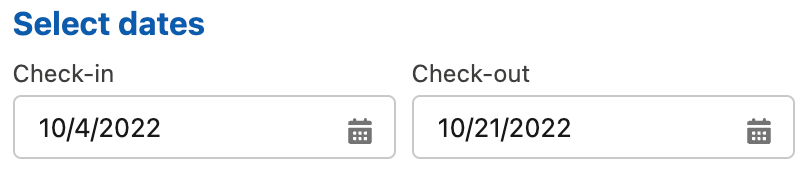
The Input Date Range component provides an intuitive interface for selecting and displaying a range of dates, often used for filtering, booking, or scheduling
The Input Date Range lets users select a start and end date (or datetime) in a single input. Use it for date filtering, booking windows, scheduling flows, or any scenario where you need a range of two dates.
***
## Overview
Property
Value
Label
Select Dates
Type
Date
Variant
Standard
Format / Date Style
Short
Label / Start Date
Check-in
Label / End Date
Check-out
Style / Header Color
#0b5cab
Style / Header Font Size
16px
Style / Header Font Weight
700 - Bold
***
## Configuration
To configure it, click the component on the Flow screen. The Edit Date Range Picker Component panel opens on the right with three tabs: Properties, Interactions, and Style. The sections below mirror the Properties tab.
### Properties
* **Label** — the text label shown above the date range input.
* **Type** — choose between **Date** (date only) or **Datetime** (date and time). When Datetime is selected, start and end time fields appear.
* **Start Date** / **End Date** — default start and end date values (shown when **Type** is Date). Connect to a Flow variable or record field to pre-fill.
* **Start Date Time** / **End Date Time** — default start and end datetime values (shown when **Type** is Datetime).
* **Variant** — label placement: **Standard** (above the input) or **Label Hidden**.
* **Week Start Day** — the first day of the week shown in the calendar picker. Options: Default (locale), Sunday through Saturday.
* **Is Expanded** — when enabled, the calendar picker is displayed fully expanded rather than as a popover.
* **Orientation** — layout of the expanded calendars: **Horizontal** (side by side) or **Vertical** (stacked). Requires **Is Expanded** to be enabled.
* **Show Range Options** — when enabled, a combobox of predefined date ranges appears (Today, Yesterday, This Week, Last Week, This Month, Last Month, This Quarter, Last Quarter, This Year, Last Year, Month-to-Date, Quarter-to-Date, Year-to-Date, Custom).
* **Range Option Value** — the default selected range option when **Show Range Options** is on.
* **Required** — marks the field as mandatory.
* **Read Only** — the field is visible but the user cannot change the dates.
* **Disabled** — greys out the component and prevents interaction.
* **Field Level Help** — optional tooltip text shown next to the label.
### Format
Controls how the selected dates are displayed to the user.
* **Date Style** — the format used to display dates: **Short** (e.g., 12/31/2025), **Medium** (e.g., Dec 31, 2025), or **Long** (e.g., December 31, 2025).
* **Time Style** — the format used to display times when **Type** is Datetime: **Short**, **Medium**, or **Long**. Only appears in Datetime mode.
* **Time Step (in Minutes)** — the step increment of the time inputs, in minutes (default 15, minimum 5). Requires **Type** to be Datetime.
### Date/Time Labels
Customize the labels displayed next to the start and end date/time inputs.
* **Start Date** — custom label text for the start date input (e.g., "Check-in", "From").
* **End Date** — custom label text for the end date input (e.g., "Check-out", "To").
* **Start Time** — custom label text for the start time input (Datetime mode only).
* **End Time** — custom label text for the end time input (Datetime mode only).
### Range Options Labels
When **Show Range Options** is enabled, you can customize the label text for each predefined range option (Today, Yesterday, This Week, etc.) to match your application's language or terminology.
***
## Interactions
[Interactions](/flow/component-builder/interactions-panel.md) define what happens when users interact with the Date Range Picker. Configure them from the **Interactions** tab of the Edit Date Range Picker panel.
### Change
Fires when the user selects both a start and an end date (or datetime). Use this to filter a list, refresh data on the same screen, or navigate to another screen based on the selected range.
***
## Styling
The **Style** tab gives you fine-grained control over the Input Date Range's appearance. Configure it from the **Style** tab of the Edit Input Date Range panel.
{% tabs %}
{% tab title="Margin" %}
Controls the *outer* spacing around the component, creating space between it and other elements on the screen.
* **Top / Right / Bottom / Left:** Adjust the space on each side.
{% endtab %}
{% tab title="Padding" %}
Controls the *inner* spacing between the component's content and its edges.
* **Top / Right / Bottom / Left:** Adjust the inner spacing on each side.
{% endtab %}
{% tab title="Label" %}
Styles the main field label displayed above the inputs.
* **Color:** Set the label text color.
* **Font Size / Font Style / Font Weight:** Control the label typography.
{% endtab %}
{% tab title="Date/Time Labels" %}
Styles the Start Date / End Date (and time) sub-labels.
* **Color:** Set the sub-label text color.
* **Font Size / Font Style / Font Weight:** Control the sub-label typography.
{% endtab %}
{% tab title="Calendar Text" %}
Styles the text inside the calendar dropdown.
* **Dates / Disabled Dates / Today / Weekdays / Month:** Set the color of each kind of calendar text.
* **Selected Date / Focused Selected Date / Hovered Selected Date:** Set the text color of the selected date in each state.
{% endtab %}
{% tab title="Calendar Background" %}
Styles the background of the calendar dropdown.
* **Container / Date Picker:** Set the calendar background colors.
* **Today / Hovered Date:** Set the background color for today and hovered dates.
* **Selected Date / Focused Selected Date / Hovered Selected Date:** Set the background color of the selected date in each state.
{% endtab %}
{% tab title="Calendar Multi Selected Border" %}
Styles the border shown across a multi-day selection range on hover.
* **Color:** Set the border color.
* **Style:** Choose a border style (e.g. solid, dashed, dotted).
{% endtab %}
{% endtabs %}
## Output Variables
The Input Date Range exposes the selected range as output variables you can reference in your flow after the screen. To use them, select the screen element in Flow Builder, then the Input Date Range component, and pick the output variable you need.
### Selected Range
Which variables are populated depends on the **Type** setting.
| Output variable | Type | What it returns |
| ------------------- | --------- | -------------------------------------------------------------------------- |
| **Start Date** | Date | The selected start date. Populated when **Type** is **Date**. |
| **End Date** | Date | The selected end date. Populated when **Type** is **Date**. |
| **Start Date Time** | Date/Time | The selected start date and time. Populated when **Type** is **Datetime**. |
| **End Date Time** | Date/Time | The selected end date and time. Populated when **Type** is **Datetime**. |
> **Example:** In a booking flow, read **Start Date** and **End Date** after the screen to calculate the number of nights and populate a reservation record's check-in and check-out fields.
### Flow Interaction Output Variables
Like all interactive Flow components, the Input Date Range exposes generic output slots (Variable 1–10) that an [Open Flow Dialog](/flow/component-builder/interactions-panel/open-flow-dialog.md) or [Open Flow Panel](/flow/component-builder/interactions-panel/open-flow-panel.md) interaction can fill with values from a launched flow. See [Flow Interaction Output Variables](/flow/component-builder/interactions-panel/flow-interaction-output-variables.md).
---
# Agent Instructions
This documentation is published with GitBook. GitBook is the documentation platform designed so that both humans and AI agents can read, navigate, and reason over technical content effectively. Learn more at gitbook.com.
## Querying This Documentation
If you need additional information that is not directly available in this page, you can query the documentation dynamically by asking a question.
Perform an HTTP GET request on the current page URL with the `ask` query parameter, and the optional `goal` query parameter:
```
GET https://docs.avonnicomponents.com/flow/flow-components/input-date-range.md?ask=&goal=
```
`ask` is the immediate question: it should be specific, self-contained, and written in natural language.
`goal` is optional and describes the broader end goal you are ultimately trying to accomplish on behalf of the user. GitBook uses it to tailor the answer towards what is most useful for that goal.
The response will contain a direct answer to the question and relevant excerpts and sources from the documentation.
Use this mechanism when the answer is not explicitly present in the current page, you need clarification or additional context, or you want to retrieve related documentation sections.
.avif?alt=media)