# Text Area

The Text Area captures multi-line text input from users in a flow screen, with optional rich text formatting, toolbar customization, and input validation.

***

## Tutorials

*No tutorials available yet.*

***

## Step 1 — Choose Your Editor Mode

The Text Area has two modes that change how users enter text. Set the **Mode** in the **Properties** tab.

| Mode               | What the user sees                                                                      | When to use                                                                                  |
| ------------------ | --------------------------------------------------------------------------------------- | -------------------------------------------------------------------------------------------- |
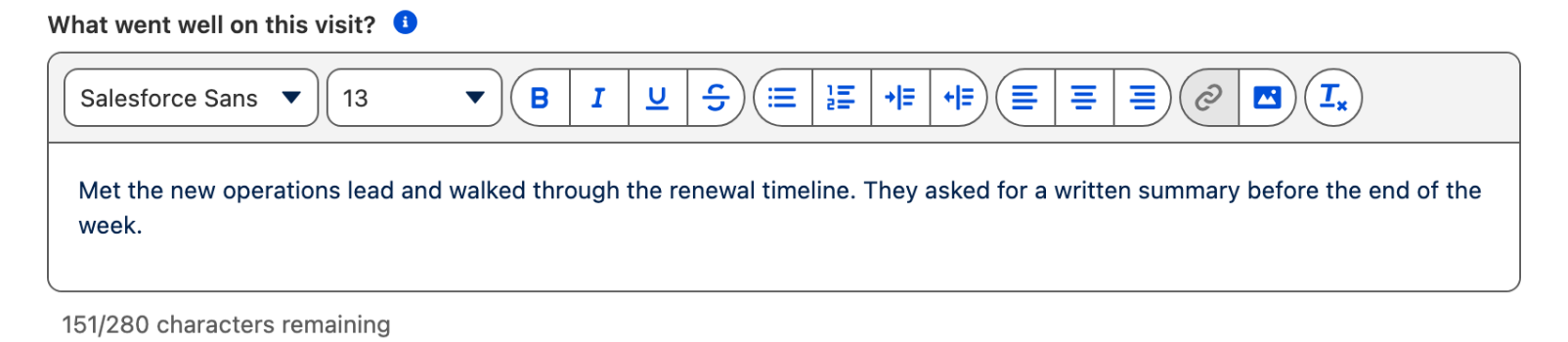
| **Rich** (default) | A rich text editor with a formatting toolbar (bold, italic, lists, links, images, etc.) | When users need formatted text — case notes, email drafts, descriptions with links or images |
| **Plain**          | A simple textarea with no formatting options                                            | When you only need raw text — comments, short answers, search queries                        |

> **Example:** A case management flow uses **Rich** mode so support agents can format their case notes with bullet points, bold text, and links to related articles.

> **Tip:** In **Rich** mode, the component stores the content as HTML. In **Plain** mode, it stores plain text. Keep this in mind if you plan to display the value later — HTML content will render with formatting, plain text will not.

***

## Step 2 — Configure the Toolbar

The toolbar controls which formatting options the user sees. This section only applies when **Mode** is set to **Rich**.

### Toolbar Position

Set the **Toolbar Variant** to control where the toolbar appears:

| Variant                   | What it looks like                            |
| ------------------------- | --------------------------------------------- |
| **Top Toolbar** (default) | Formatting buttons appear above the text area |
| **Bottom Toolbar**        | Formatting buttons appear below the text area |

### Toolbar Categories

Use the **Categories** setting to choose which groups of buttons appear in the toolbar. Select one or more from the list:

| Category              | What it adds to the toolbar                             |
| --------------------- | ------------------------------------------------------- |
| **Font**              | Font family and font size selectors                     |
| **Text**              | Bold, italic, underline, strikethrough                  |
| **Body**              | Ordered lists, unordered lists, indentation, blockquote |
| **Align Text**        | Left, center, right, justify alignment                  |
| **Insert Content**    | Links, images, tables                                   |
| **Remove Formatting** | A button to clear all formatting from selected text     |
| **Header**            | Heading levels (H1 through H6)                          |
| **Color**             | Text color picker with Salesforce Design System colors  |
| **Highlight Color**   | Background highlight color picker                       |
| **Code**              | Inline code formatting                                  |
| **Code Block**        | Multi-line code block formatting                        |

By default, the toolbar includes: **Font**, **Text**, **Body**, **Align Text**, **Insert Content**, and **Remove Formatting**. The other categories (**Header**, **Color**, **Highlight Color**, **Code**, **Code Block**) are available but not enabled by default — add them from the **Categories** multi-select.

> **Example:** A developer knowledge base flow enables **Code** and **Code Block** categories so users can paste formatted code snippets into their documentation entries.

***

## Step 3 — Set Up Validation

The Text Area supports several validation options to control what users can submit.

### Length Validation

| Setting                  | What it does                                                                                                                                                                                                          |
| ------------------------ | --------------------------------------------------------------------------------------------------------------------------------------------------------------------------------------------------------------------- |
| **Min Length**           | The minimum number of characters required. If the user enters fewer characters, a "Your entry is too short" error appears on submit.                                                                                  |
| **Max Length**           | The maximum number of characters allowed. If exceeded, a "Your entry is too long" error appears on submit.                                                                                                            |
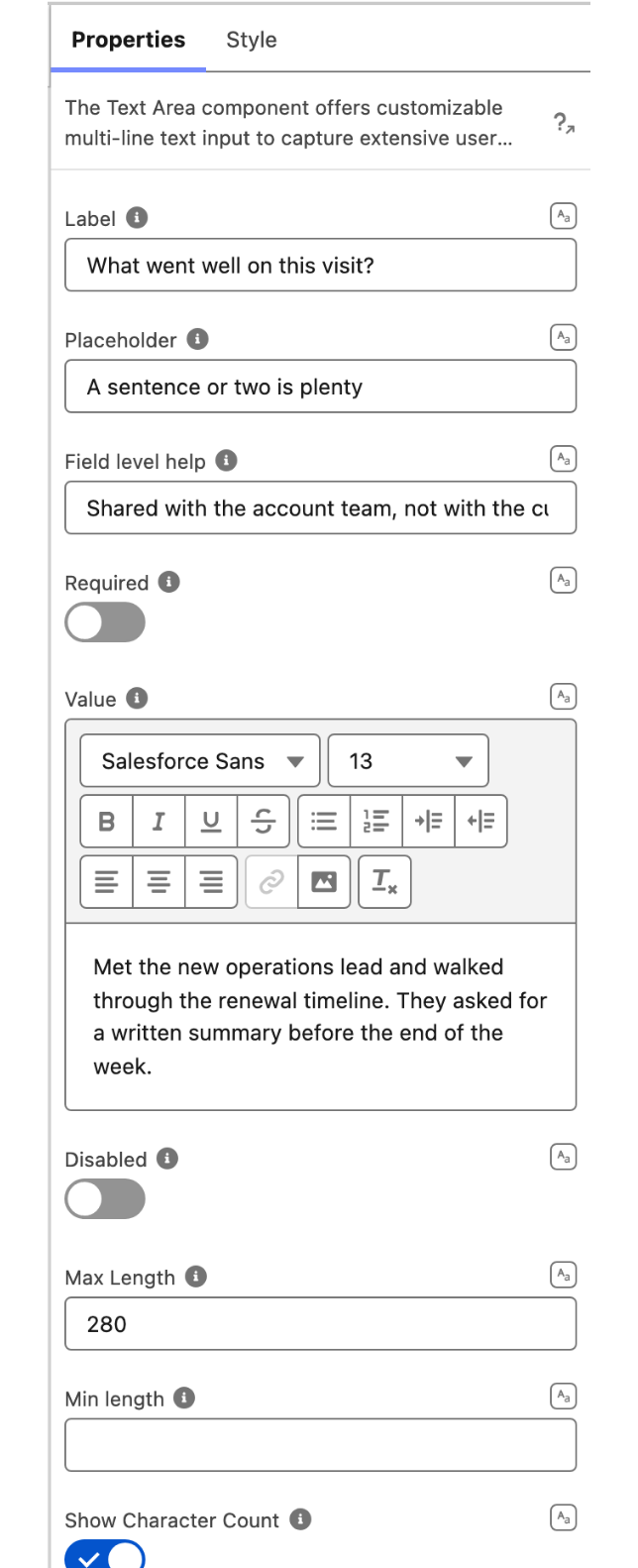
| **Show Character Count** | Displays a character counter below the text area. When **Max Length** is set, it shows remaining characters (e.g., "150/500 characters remaining"). Without a max, it shows the total count (e.g., "150 characters"). |

> **Tip:** The character count strips HTML tags in **Rich** mode — it counts the visible text, not the underlying HTML markup.

### Required Field

Toggle **Required** on to prevent users from moving to the next screen without entering a value. A "Complete this field" error appears if they try to proceed with an empty field.

### Blocked Words

In the **Properties** tab under advanced settings, the **Blocked Words** setting lets you define a list of words that users cannot include in their input. If a blocked word is detected when the user submits, an error message appears: "Input contains blocked words: \[word1, word2]".

This feature is only available in **Rich** mode. The check is case-insensitive.

> **Example:** A customer-facing feedback form blocks profanity and competitor names to keep submissions clean and on-topic.

***

## Step 4 — Set a Default Value and Label

| Setting              | What it does                                                                                                                                                                                                                            |
| -------------------- | --------------------------------------------------------------------------------------------------------------------------------------------------------------------------------------------------------------------------------------- |
| **Label**            | The label displayed above the text area. Visible to the user unless the variant is set to label-hidden.                                                                                                                                 |
| **Placeholder**      | Gray hint text shown inside the text area when it's empty. Disappears when the user starts typing.                                                                                                                                      |
| **Value**            | Pre-populate the text area with default content. Supports **Mapped** values — use a flow variable to load existing data (e.g., `{!caseDescription}` to pre-fill a case's description for editing). In **Rich** mode, this accepts HTML. |
| **Field Level Help** | A help tooltip (?) that appears next to the label. Use it to explain what the user should enter.                                                                                                                                        |
| **Disabled**         | Grays out the text area and prevents user input. Useful for displaying read-only text in a flow screen.                                                                                                                                 |

> **Example:** An account update flow pre-fills the Text Area with the existing `{!Account.Description}` value so users can review and edit it rather than starting from scratch.

***

## Output Variables

The Text Area exposes one output variable you can reference in your flow after the screen.

| Output variable | Type   | What it returns                                                                                         |
| --------------- | ------ | ------------------------------------------------------------------------------------------------------- |
| **Value**       | String | The content entered by the user. In **Rich** mode, this is HTML. In **Plain** mode, this is plain text. |

To use the value, select the screen element in Flow Builder, then the Text Area component, and pick the **Value** output.

> **Example:** After the text entry screen, use an **Assignment** element to save the Text Area's **Value** output into a record field — e.g., assign it to `{!Case.Description}` before an **Update Records** element.

***

## Styling

Open the **Style** tab in the Component Builder to adjust the visual layout.

| Setting                                | What it controls                                                                                                                                                   |
| -------------------------------------- | ------------------------------------------------------------------------------------------------------------------------------------------------------------------ |
| **Width**                              | The horizontal size of the component. Set to `100%` to fill the available space, or a fixed value like `500px`.                                                    |
| **Height**                             | The overall height of the component including label and toolbar.                                                                                                   |
| **Margin** (Top, Right, Bottom, Left)  | Space between the text area and surrounding components.                                                                                                            |
| **Padding** (Top, Right, Bottom, Left) | Space between the component border and its content.                                                                                                                |
| **Border**                             | Customize the border style around the component.                                                                                                                   |
| **Min Height** (Text Area Sizing)      | The minimum height of the text input box itself (not the whole component). Use this to make the editable area taller — e.g., `200px` for a larger writing surface. |
| **Max Height** (Text Area Sizing)      | The maximum height of the text input box. The content area will scroll if the text exceeds this height. Set to `none` for unlimited growth.                        |

> **Tip:** The **Text Area Sizing** settings (Min Height / Max Height) control only the editable content area — not the label or toolbar. Use them to give users more or less writing space depending on the use case.

***

## Troubleshooting

| Problem                                  | Cause                                                | Fix                                                                                           |
| ---------------------------------------- | ---------------------------------------------------- | --------------------------------------------------------------------------------------------- |
| "Complete this field" error on submit    | **Required** is on and the user left the field empty | Enter a value, or turn off **Required** if the field is optional                              |
| "Your entry is too long" error           | The text exceeds the **Max Length** setting          | Increase **Max Length** or ask the user to shorten their input                                |
| "Your entry is too short" error          | The text is below the **Min Length** setting         | Lower **Min Length** or guide the user to write more                                          |
| "Input contains blocked words" error     | A word from the **Blocked Words** list was detected  | Remove the word from the input, or update the **Blocked Words** list if it's a false positive |
| Toolbar not visible                      | **Mode** is set to **Plain**                         | Switch to **Rich** mode to see the formatting toolbar                                         |
| Character count seems wrong in Rich mode | Count shows more/fewer characters than expected      | The counter strips HTML tags and counts visible text only — this is expected behavior         |
| Categories setting has no effect         | **Mode** is set to **Plain**                         | **Categories** and **Toolbar Variant** only apply in **Rich** mode                            |
| Blocked Words setting has no effect      | **Mode** is set to **Plain**                         | **Blocked Words** validation only works in **Rich** mode                                      |