> For the complete documentation index, see [llms.txt](https://docs.avonnicomponents.com/llms.txt). Markdown versions of documentation pages are available by appending `.md` to page URLs; this page is available as [Markdown](https://docs.avonnicomponents.com/dynamic-components/component-builder/interactions/create-record.md).
# Create Record
The Create Record interaction inserts a new Salesforce record directly from your Dynamic Component.
## Overview
The Create Record interaction allows you to create new Salesforce records directly from your Dynamic Component. It offers two distinct methods for defining the data to be created, giving you flexibility depending on your use case:
1. **Using a Record Variable**: Best for forms where input fields are directly bound to a record object (Fastest setup).
2. **Enter Records Data Manually**: Best when you need to map disparate component variables, global variables, or static values to specific fields on a new record (Highest flexibility).
***
## Configuration
The Create Record interaction can build the new record from an existing Record Variable, from the record currently displayed on the page (Target Page Record), or from field values you map manually. Whichever source you choose, you can add or override individual fields with the field-value mapping described below.
### Method 1: Create from Record Variable
This method is ideal for building custom forms that benefit from the simplicity of automatic data binding. You create a "container" (the Record Variable), bind your inputs to it using the Fields Tab, and the interaction saves the entire container in a single step.
#### 1. Define the Record Variable
* Open the Variables panel (Database icon).
* Create a New Variable.
* Set the Data Type to Record.
* Select the Object you want to create (e.g., `Lead`, `Case`, `My_Custom_Object__c`).
* Give it a clear API Name (e.g., `newLeadData`).
#### 2. Populate the Variable
The fastest way to build your form is using the Fields Tab in the Component Library.
* Select your Record Variable (e.g., `newLeadData`) from the variables list.
* Open the Fields Tab and drag fields (e.g., *Name, Email, Industry*) onto the canvas.
* Result: These input components are automatically bound to your variable. As the user types, the `{!newLeadData}` variable is updated in real-time.
#### 3. Configure the Interaction
* Add an Avonni Button component (e.g., "Create Lead").
* In the Properties Panel, add an On Click interaction.
* Action Type: Select `Create Record`.
* Record Variable: Select the variable you created in Step 1 (e.g., `{!newLeadData}`).
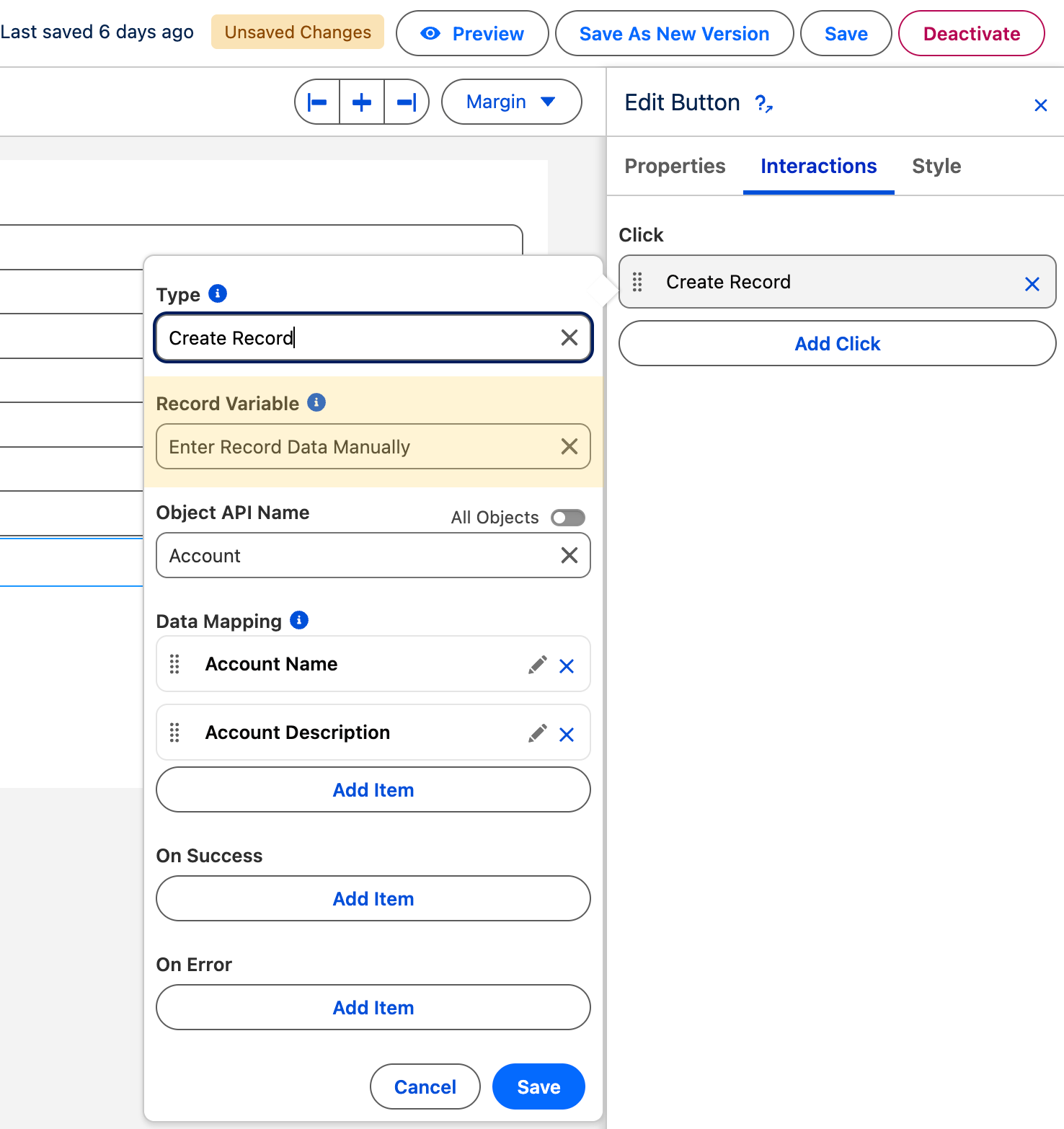
### Method 2: Enter Records Data Manually
This method gives you granular control over field mapping. It is useful if your inputs are not bound to a single Record Variable, or if you need to combine data from various sources (e.g., a Global Variable, a static value, and a separate component input).
#### 1. Configure the Interaction
You do not strictly need a pre-defined Record Variable for this method. You can proceed directly to the button configuration.
* Add a [**Button component**](/dynamic-components/components/button.md).
* Add an On Click interaction.
* Action Type: Select `Create Record`.
#### 2. Select Manual Entry
* In the Record Variable dropdown list, select Enter records data manually.
* Object: Select the Salesforce Object you want to create (e.g., `Account`).
#### 3. Map Your Fields
Once the object is selected, a mapping interface will appear, allowing you to link Salesforce fields to your component's data.
* Field: Choose the target Salesforce field (e.g., `Account Name`).
* Value: Select the source value. This can be:
* Component Variable: A value from a specific input component (e.g., `{!myTextInput.value}`).
* Global Variable: System values like `{!$User.Id}` or `{!$Global.CurrentDate}`.
* Constant: A hardcoded string or number.
* Repeat this process for every field you need to populate on the new record.
### Post-Action Feedback (On Success / On Error)
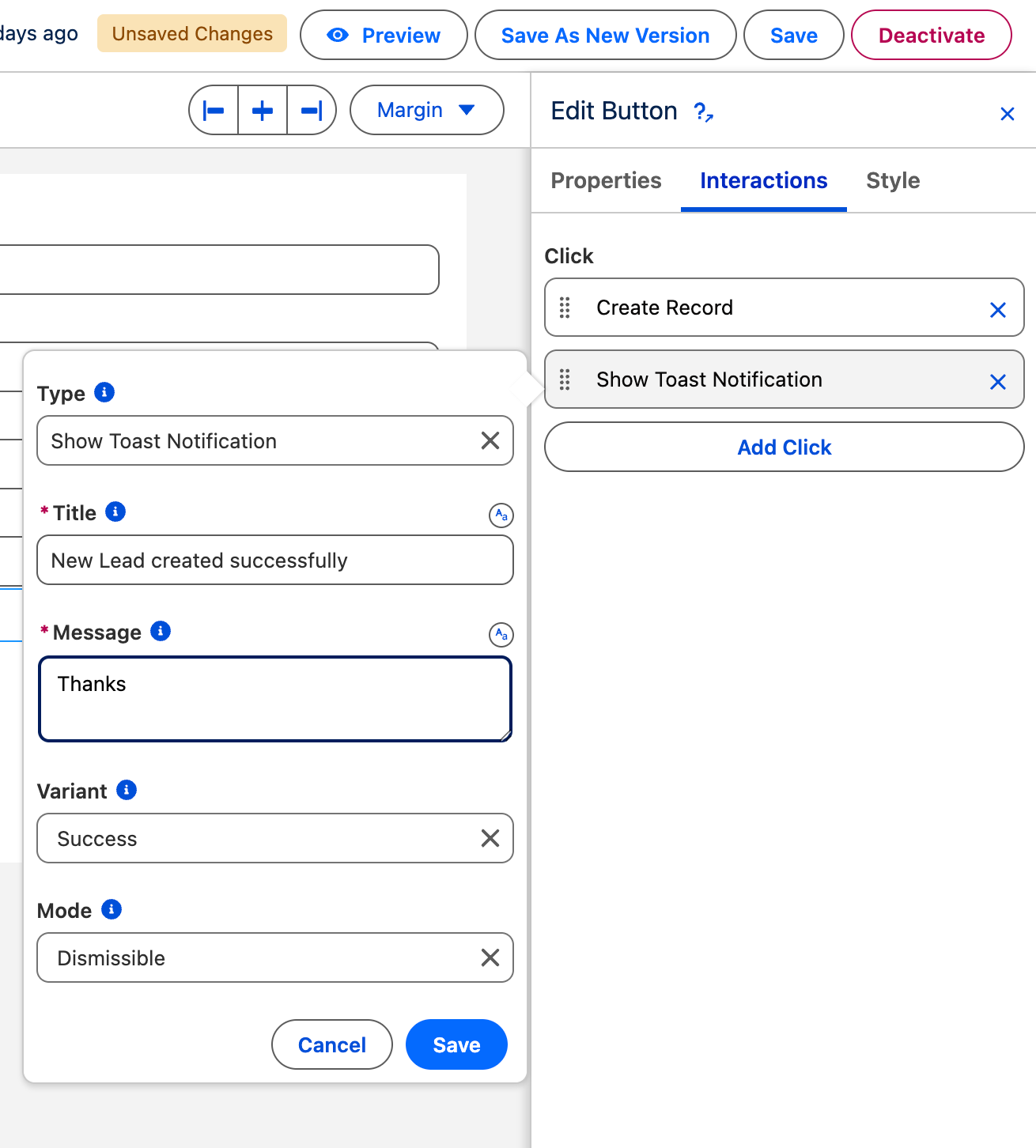
Regardless of the method used, it is best practice to provide feedback to the user after the creation. The interaction lets you chain follow-up interactions for both outcomes — accepted follow-ups are [Show Toast](/dynamic-components/component-builder/interactions/show-toast.md), Refresh All Queries, Refresh Query, [Get Record](/dynamic-components/component-builder/interactions/get-record.md), and [Assignment](/dynamic-components/component-builder/interactions/assignment.md).
1. In the interaction editor, click Add Action (after the Create Record action).
2. Action Type: [`Show Toast`](/dynamic-components/component-builder/interactions/show-toast.md).
3. Title: "Success".
4. Message: "New Lead created successfully!"
5. Variant: `Success`.
***
## Example
Goal: Create a customized Lead form on a Home Page.
#### Approach A: The Record Variable Way (Fastest Setup)
1. Create a variable `newLead` (Type: Record, Object: Lead).
2. Drag fields from the Fields Tab onto the canvas.
3. On the "Submit" button, choose Create Record and select `{!newLead}`.
4. *The system automatically handles mapping all fields bound to that variable.*
#### Approach B: The Manual Mapping Way (Specific Control)
1. Add loose input components (e.g., two Text Inputs for First/Last Name) and name them `inputFirst` and `inputLast`.
2. On the "Submit" button, choose Create Record.
3. Select Enter records data manually -> Object: Lead.
4. Manually map the fields:
* `FirstName` -> `{!inputFirst.value}`
* `LastName` -> `{!inputLast.value}`
* `LeadSource` -> `Web` (Static value)
* `OwnerId` -> `{!$User.Id}` (Global variable)
---
# Agent Instructions
This documentation is published with GitBook. GitBook is the documentation platform designed so that both humans and AI agents can read, navigate, and reason over technical content effectively. Learn more at gitbook.com.
## Querying This Documentation
If you need additional information that is not directly available in this page, you can query the documentation by asking a question.
Perform an HTTP GET request on the following URL with the `ask` and `goal` query parameters:
```
GET https://docs.avonnicomponents.com/dynamic-components/component-builder/interactions/create-record.md?ask=&goal=
```
`ask` is the immediate question: it should be specific, self-contained, and written in natural language.
`goal` is what the user is ultimately trying to achieve, the reason they need the answer. Sharing it helps GitBook give you a better, more relevant answer. A goal is most helpful when it describes the outcome the user wants rather than restating the question. For example, with `ask=how do I create an API token`, a goal like `automate deployments from our CI pipeline` lets GitBook tailor the answer to that use case.
The response will contain a direct answer to the question and relevant excerpts and sources from the documentation.
Use this mechanism when the answer is not explicitly present in the current page, you need clarification or additional context, or you want to retrieve related documentation sections.
.avif?alt=media)
.png?alt=media)