> For the complete documentation index, see [llms.txt](https://docs.avonnicomponents.com/llms.txt). Markdown versions of documentation pages are available by appending `.md` to page URLs; this page is available as [Markdown](https://docs.avonnicomponents.com/flow/tutorials/components/combobox/how-to-dynamically-enable-disable-dependent-comboboxes.md).
# How to Dynamically Enable/Disable Dependent Comboboxes
## Overview
This tutorial shows you how to keep a dropdown menu (combobox) disabled until a user makes a selection in another related combobox. This creates a more intuitive user experience by ensuring users complete fields in the correct order.
**Example Scenario****:** We'll use car selection to illustrate this concept. First, a user chooses a car brand (like Ford or Toyota). The car model dropdown (like Mustang or Camry) remains disabled and grayed out until a brand is selected. Once the user picks a brand, the model dropdown becomes active and clickable.
**Note****:** This car brand/model example is for illustration purposes only. You can apply this same technique to any pair of related fields in your flows, such as Country/State, Department/Team, Product Category/Product Type, or any custom fields where one depends on another.
## What You'll Learn
By the end of this tutorial, you'll know how to:
* Create a formula that checks whether a combobox has a value selected
* Use that formula to dynamically enable or disable another combobox
* Provide a logical, step-by-step user experience that prevents errors
## Prerequisites
Before starting this tutorial, you should have:
* The [**Avonni Components for Flows**](https://appexchange.salesforce.com/appxListingDetail?listingId=a0N4V00000IDsfbUAD\&channel=recommended) package installed.
* Two Avonni Combobox components already added to your flow screen
* A basic understanding of how to add components to a Salesforce flow
* Familiarity with the relationship between your controlling and dependent fields
If you haven't created your comboboxes yet, refer to the "[**Create Dynamic Dependent Picklists with Comboboxes**](/flow/tutorials/components/combobox/implement-dependent-picklists-in-comboboxes.md)" tutorial first.
## Step-by-Step Instructions
{% stepper %}
{% step %}
#### Create a Formula to Check if the Controlling Field Has a Value
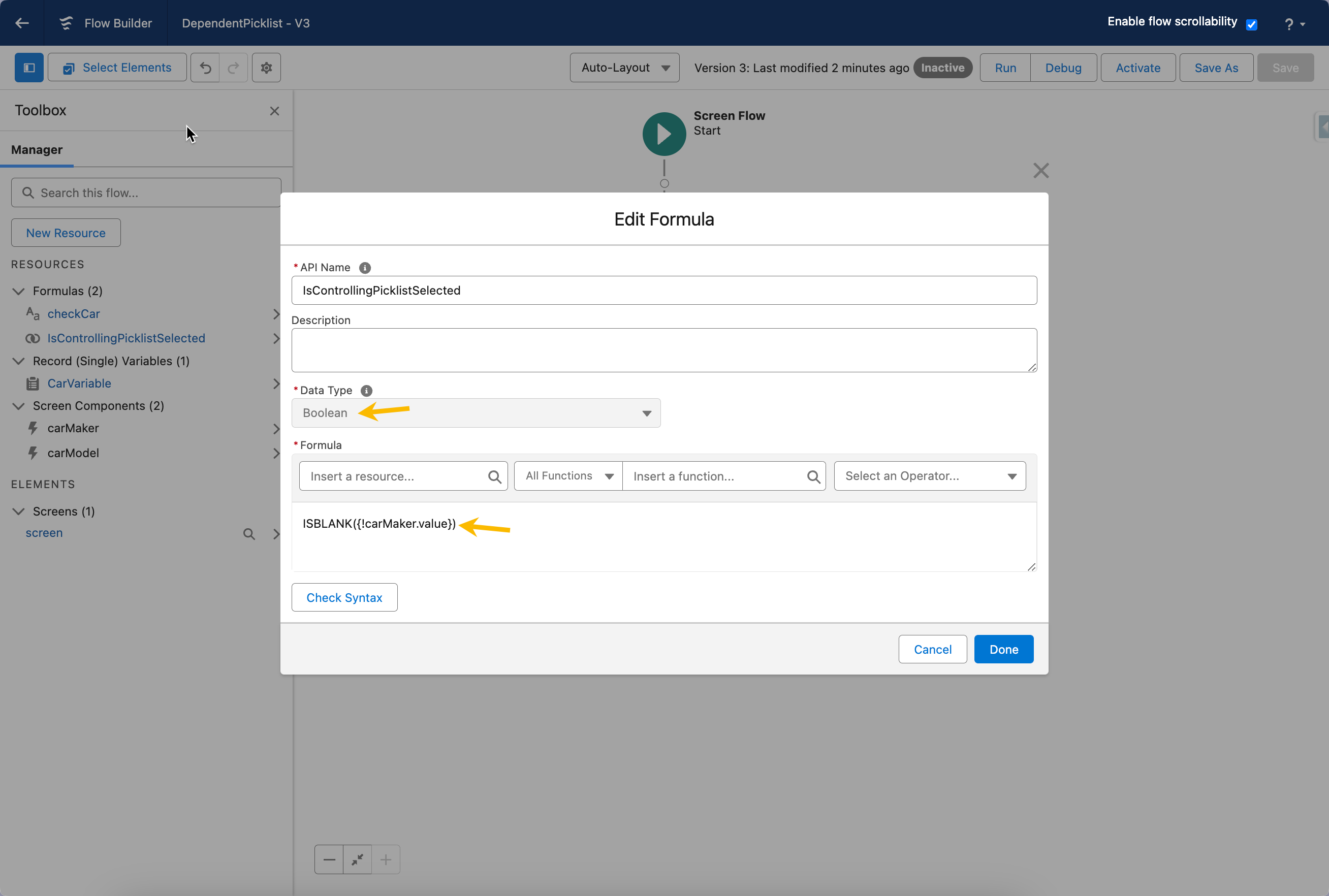
This formula will determine whether the first combobox (the controlling field) has been filled out. We'll create a formula that returns "True" if the field is empty and "False" if a value has been selected.
**Why we need this:** The formula acts as a smart checker that constantly monitors whether the user has made a selection in the first combobox.
* **Create the Formula Resource**
* In Flow Builder, click the **Manager** tab (or look for the toolbox icon in the left panel)
* Click **New Resource**
* Fill in the following details:
* **Resource Type**: Select "Formula"
* **API Name**: Enter a descriptive name like "IsCarBrandEmpty" (or use your field names, like "IsCountryEmpty" or "IsCategoryEmpty")
* **Description** (Optional): Add a note like "Checks if car brand combobox is empty"
* **Data Type**: Select "Boolean"
* **Formula**: We'll write this in the next step
* **Write the Formula** Enter the following formula in the formula editor:
```
ISBLANK({!carMaker.value})
```
**Important:** Replace `carMaker` with the actual API name of your first combobox. To find this:
* Click on your first combobox component in the flow
* Look at the properties panel for the "API Name" field (e.g., it might be "combobox1", "carMaker", "countrySelector", etc.)
* **Understanding the Formula** Let's break down what this formula does:
* **{!carMaker.value}**: This references the actual value selected in your first combobox. The `{! }` syntax tells Salesforce this is a dynamic reference to a flow resource. The `.value` part gets the currently selected value.
* **ISBLANK()**: This function checks if something is empty (blank/null).
* **Result**:
* Returns **True** when the combobox is empty (no selection made yet)
* Returns **False** when the combobox has a value (user made a selection)
* **Save the Formula**
* Click **Done** to save your formula resource
**What you've accomplished:** You now have a smart formula that automatically tracks whether your first combobox has a value. This formula updates in real-time as users interact with your flow.
{% endstep %}
{% step %}
#### Connect the Formula to Disable the Dependent Combobox
Now we'll use the formula we just created to control whether the second combobox (the dependent field) is enabled or disabled.
* **Select the Dependent Combobox**
* In your Flow Builder canvas, click on the second Avonni Combobox (in our example, the "Car Model" combobox)
* The properties panel will appear on the right side
* **Locate the Disabled Property**
* In the properties panel, scroll down to find the **"Disabled"** attribute
* **Map the Formula to the Disabled Property**
* Look for a button with **{x}** or text that says **"Mapped"** - click it to switch from a fixed value to a formula reference
* A dropdown or resource picker will appear
* Select your formula resource (e.g., "IsCarBrandEmpty")
* **Understanding What This Does** Here's the logic you've just created:
* **When the formula is True** (first combobox is empty):
* The second combobox's "Disabled" property is set to True
* The field appears grayed out and users cannot click it
* **When the formula is False** (first combobox has a selection):
* The second combobox's "Disabled" property is set to False
* The field becomes active and users can make a selection
**What you've accomplished:** The second combobox now automatically enables when the first combobox has a value, and disables when the first combobox is cleared. This happens dynamically without any additional configuration.
{% endstep %}
{% step %}
#### Test Your Dynamic Behavior
* **Save Your Flow**
* Click **Save** in the top right corner
* If you haven't already, give your flow a descriptive name
* **Run the Flow**
* Click **Run** to test your flow in action
* **Test the Behavior**
* **Initial State**: When the flow loads, the second combobox (Car Model) should be grayed out and unclickable
* **Make a Selection**: Select a value in the first combobox (Car Brand)
* **Observe**: The second combobox should immediately become active and clickable
* **Clear the Selection**: Remove your selection from the first combobox (if your combobox allows this)
* **Observe**: The second combobox should become disabled again
* **Verify Complete Flow**
* Test the entire selection process from start to finish
* Ensure the disabled state doesn't interfere with your dependent picklist filtering
* Try different combinations to ensure everything works smoothly
{% endstep %}
{% endstepper %}
## Troubleshooting
### **The second combobox is always enabled, even when the first is empty**
* Verify you selected the correct formula in the Disabled property
* Check that you switched to "Mapped" mode rather than setting a fixed True/False value
* Ensure your formula references the correct combobox API name
### **The second combobox is always disabled, even after making a selection**
* Double-check your formula syntax - it should use `ISBLANK()`, not `NOT(ISBLANK())`
* Verify the formula data type is set to "Boolean"
* Make sure you're referencing `.value` in your formula (e.g., `{!carMaker.value}`)
### **The formula shows an error**
* Confirm the API name of your first combobox matches exactly what's in the formula
* Check that you're using curly braces and exclamation mark: `{!comboboxName.value}`
* Ensure there are no typos or extra spaces
### **I can't find the Disabled property**
* Make sure you've selected the Avonni Combobox component (not a standard Salesforce component)
* Scroll through the entire properties panel - it may be in a different section
* Verify you're using a compatible version of the Avonni components
## Advanced Variations
Once you understand the basic concept, you can create more sophisticated logic:
**Enable Only When Multiple Fields Are Complete:**
```
AND(
NOT(ISBLANK({!field1.value})),
NOT(ISBLANK({!field2.value})),
NOT(ISBLANK({!field3.value}))
)
```
**Enable Based on Specific Values:**
```
AND(
NOT(ISBLANK({!carMaker.value})),
{!carMaker.value} = "Toyota"
)
```
**Chain Multiple Dependencies:**
* Use multiple formulas to create a three-level or four-level dependency chain
* Each formula checks the previous field in the sequence
## Key Takeaways
* Use formulas with `ISBLANK()` to check if a combobox has a value
* The formula should return True when you want the field **disabled**
* Map the formula to the "Disabled" property of the dependent combobox
* This technique works with any field types, not just the car example shown
* Test thoroughly to ensure the enable/disable behavior works smoothly
* Combine this with dependent picklist filtering for a complete user experience
## Combining with Dependent Picklists
For the best user experience, use both techniques together:
1. **Dependent Picklist Filtering** ([from the previous tutorial](/flow/tutorials/components/combobox/implement-dependent-picklists-in-comboboxes.md)): Controls which options appear in the second combobox
2. **Dynamic Enable/Disable** (this tutorial): Controls when the second combobox becomes active
Together, these create an intuitive, error-free data entry process that guides users through related field selections in the correct order.
### Need More Help?
If you have questions about implementing dynamic enable/disable behavior with your specific fields, or if you encounter any issues, [**don't hesitate to reach out**](/flow/help/support-and-troubleshooting.md). We're here to help you create better user experiences with Avonni components.
---
# Agent Instructions
This documentation is published with GitBook. GitBook is the documentation platform designed so that both humans and AI agents can read, navigate, and reason over technical content effectively. Learn more at gitbook.com.
## Querying This Documentation
If you need additional information that is not directly available in this page, you can query the documentation dynamically by asking a question.
Perform an HTTP GET request on the current page URL with the `ask` query parameter, and the optional `goal` query parameter:
```
GET https://docs.avonnicomponents.com/flow/tutorials/components/combobox/how-to-dynamically-enable-disable-dependent-comboboxes.md?ask=&goal=
```
`ask` is the immediate question: it should be specific, self-contained, and written in natural language.
`goal` is optional and describes the broader end goal you are ultimately trying to accomplish on behalf of the user. GitBook uses it to tailor the answer towards what is most useful for that goal.
The response will contain a direct answer to the question and relevant excerpts and sources from the documentation.
Use this mechanism when the answer is not explicitly present in the current page, you need clarification or additional context, or you want to retrieve related documentation sections.
.gif?alt=media)
.gif?alt=media)