> For the complete documentation index, see [llms.txt](https://docs.avonnicomponents.com/llms.txt). Markdown versions of documentation pages are available by appending `.md` to page URLs; this page is available as [Markdown](https://docs.avonnicomponents.com/flow/flow-components/combobox.md).

# Combobox

A dropdown for picking one or several options on a flow screen, from a manual list, a collection, a picklist field, or a query, with search and actions.

The Avonni Combobox is a dropdown that lets users pick one or several options on a screen flow. Use it when a standard picklist is not enough: options with secondary text and avatars, a search over thousands of records, or a "Create new" action inside the list.

***

## Tutorials

Step-by-step guides built on one support case scenario. The [Combobox tutorials](/flow/tutorials/components/combobox.md) page groups them by goal.

<table data-view="cards"><thead><tr><th></th><th></th><th data-hidden data-card-cover data-type="files"></th><th data-hidden data-card-target data-type="content-ref"></th></tr></thead><tbody><tr><td><strong>Build Combobox Options</strong></td><td>Typed options, a converted Text Collection, or an option collection built by an action.</td><td><a href="https://27923732-files.gitbook.io/~/files/v0/b/gitbook-x-prod.appspot.com/o/spaces%2F1FUd4apB9YHgCEMUFbVb%2Fuploads%2F3oxJFq2zSpYUmxcCEwa7%2Fflow-hub-cover-combobox.png?alt=media">flow-hub-cover-combobox.png</a></td><td><a href="/flow/tutorials/components/combobox/build-combobox-options.md">Build Combobox Options</a></td></tr><tr><td><strong>Search Large Lists in a Combobox</strong></td><td>Find one account among thousands by typing a few letters.</td><td><a href="https://27923732-files.gitbook.io/~/files/v0/b/gitbook-x-prod.appspot.com/o/spaces%2F1FUd4apB9YHgCEMUFbVb%2Fuploads%2FttvMv6d0TDhN3YZ473u5%2Fcombobox-cover-search-large-lists-in-a-combobox.png?alt=media">combobox-cover-search-large-lists-in-a-combobox.png</a></td><td><a href="/flow/tutorials/components/combobox/search-large-lists-in-a-combobox.md">Search Large Lists in a Combobox</a></td></tr><tr><td><strong>Add a Create New Action to a Combobox</strong></td><td>Create a missing contact from the dropdown without leaving the screen.</td><td><a href="https://27923732-files.gitbook.io/~/files/v0/b/gitbook-x-prod.appspot.com/o/spaces%2F1FUd4apB9YHgCEMUFbVb%2Fuploads%2F6nr7V6y2Px16ALPfbOJb%2Fcombobox-cover-add-a-create-new-action-to-a-combobox.png?alt=media">combobox-cover-add-a-create-new-action-to-a-combobox.png</a></td><td><a href="/flow/tutorials/components/combobox/add-a-create-new-action-to-a-combobox.md">Add a Create New Action to a Combobox</a></td></tr><tr><td><strong>Implement Dependent Picklists in Comboboxes</strong></td><td>Show only the details that fit the chosen reason, and lock the detail until a reason is picked.</td><td><a href="https://27923732-files.gitbook.io/~/files/v0/b/gitbook-x-prod.appspot.com/o/spaces%2F1FUd4apB9YHgCEMUFbVb%2Fuploads%2FLl0UCJW8MQEtqURV9Bhx%2Fcombobox-cover-implement-dependent-picklists-in-comboboxes.png?alt=media">combobox-cover-implement-dependent-picklists-in-comboboxes.png</a></td><td><a href="/flow/tutorials/components/combobox/implement-dependent-picklists-in-comboboxes.md">Implement Dependent Picklists in Comboboxes</a></td></tr><tr><td><strong>Filter Data Tables with Multi-Select Comboboxes</strong></td><td>Pick several priorities and see only the matching open cases.</td><td><a href="https://27923732-files.gitbook.io/~/files/v0/b/gitbook-x-prod.appspot.com/o/spaces%2F1FUd4apB9YHgCEMUFbVb%2Fuploads%2FER4kjDthtfLXARpBVTQp%2Fcombobox-cover-filter-data-tables-with-multi-select-comboboxes.png?alt=media">combobox-cover-filter-data-tables-with-multi-select-comboboxes.png</a></td><td><a href="/flow/tutorials/components/combobox/filter-data-tables-with-multi-select-comboboxes.md">Filter Data Tables with Multi-Select Comboboxes</a></td></tr><tr><td><strong>Use a Combobox Selection in a Query or Flow</strong></td><td>Pass the pick to Get Records, another component, a flow dialog or a record update.</td><td><a href="https://27923732-files.gitbook.io/~/files/v0/b/gitbook-x-prod.appspot.com/o/spaces%2F1FUd4apB9YHgCEMUFbVb%2Fuploads%2FRnxuJqkqLCr0DtEFXo87%2Fcombobox-cover-use-a-combobox-selection-in-a-query-or-flow.png?alt=media">combobox-cover-use-a-combobox-selection-in-a-query-or-flow.png</a></td><td><a href="/flow/tutorials/components/combobox/use-a-combobox-selection-in-a-query-or-flow.md">Use a Combobox Selection in a Query or Flow</a></td></tr><tr><td><strong>Keep Combobox Selections When Users Go Back</strong></td><td>Keep the agent's picks when they click Previous or return to the screen.</td><td><a href="https://27923732-files.gitbook.io/~/files/v0/b/gitbook-x-prod.appspot.com/o/spaces%2F1FUd4apB9YHgCEMUFbVb%2Fuploads%2FbdtOp3PATresYJFvn0RF%2Fcombobox-cover-keep-combobox-selections-when-users-go-back.png?alt=media">combobox-cover-keep-combobox-selections-when-users-go-back.png</a></td><td><a href="/flow/tutorials/components/combobox/keep-combobox-selections-when-users-go-back.md">Keep Combobox Selections When Users Go Back</a></td></tr></tbody></table>

***

## Overview

<figure><img src="https://27923732-files.gitbook.io/~/files/v0/b/gitbook-x-prod.appspot.com/o/spaces%2F1FUd4apB9YHgCEMUFbVb%2Fuploads%2Fe06aSdMEIdTG1xnoWizF%2Fcombobox-combobox-result-v2.png?alt=media" alt="Combobox labelled Case Reason with New problem and Instructions not clear selected as pills" width="540"><figcaption><p>A multi-select Combobox on the Case Reason picklist.</p></figcaption></figure>

A support agent logging a case picks the reasons that apply from a searchable list, sees each choice as a pill, and moves on. The selection is then available to the rest of the flow as a single value, a list, or a filter-ready string.

## Configuration

To configure it, click the component on the Flow screen. The **Edit Combobox Component** panel opens on the right with three tabs: **Properties**, **Interactions**, and **Style**. The sections below follow the **Properties** tab.

<figure><img src="https://27923732-files.gitbook.io/~/files/v0/b/gitbook-x-prod.appspot.com/o/spaces%2F1FUd4apB9YHgCEMUFbVb%2Fuploads%2FeZTccedpkvCLSjHX8deh%2Fcombobox-combobox-panel-data-source.png?alt=media" alt="Data Source group of the Combobox properties with Manual selected and four options listed" width="320"><figcaption><p>The Data Source switch and the Options list.</p></figcaption></figure>

### Data Source

The data source decides where the options come from.

| Data Source                                                  | Where the options come from                                                                                              | Use it for                                                       |
| ------------------------------------------------------------ | ------------------------------------------------------------------------------------------------------------------------ | ---------------------------------------------------------------- |
| [Manual](/flow/component-builder/data-sources/manual.md)     | Options you type in the **Options** list.                                                                                | A short, fixed list, such as routing a case to a team.           |
| [Variable](/flow/component-builder/data-sources/variable.md) | A record collection (for example from Get Records), or a collection of combobox options built by an action.              | Options that the flow computes before the screen.                |
| [Picklist](/flow/component-builder/data-sources/picklist.md) | The values of a picklist field, set with **Picklist Field**, **Record Type**, **Sort Order**, and **Controlling Value**. | Standard values such as Case **Reason** or Account **Industry**. |
| [Query](/flow/component-builder/data-sources/query.md)       | Records the component queries itself, up to **Maximum Number of Records**.                                               | Picking a record, such as an account among thousands.            |

A Text Collection cannot be selected directly as a **Variable** source. Convert it first with [Text Collection to Combobox Options](/flow/actions/data-conversion-and-formatting/text-collection-to-combobox-options.md). [Build Combobox Options](/flow/tutorials/components/combobox/build-combobox-options.md) compares the four routes.

### Data Mappings

With **Variable** (record collection) or **Query**, map record fields to each option.

| Property           | What it does                                                                                   |
| ------------------ | ---------------------------------------------------------------------------------------------- |
| **Label**          | The text shown for the option.                                                                 |
| **Value**          | Required. The stored selection. Map the record Id, or another value that is unique per record. |
| **Secondary Text** | A second line under the label, such as a city or an email.                                     |
| **Disabled**       | Shows the option but blocks its selection.                                                     |
| **Avatar**         | An icon, image, or initials beside the option, with an optional presence indicator.            |

With **Query**, the search box matches the text fields you mapped here, so map **Secondary Text** to a field users may type (a city, an account number).

### Properties

**Label** sets the text shown above the input.

**Value** sets the selection when the screen opens. For several values, separate them with semicolons: `New problem;Existing problem`. Use either **Value** or **Value Collection**, not both.

**Value Collection** sets the selection from a Text Collection variable. Requires **Is Multi Select** to be enabled.

**Field level help** adds a help icon next to the label with a tooltip.

**Variant** controls the label placement: **Standard**, **Label Hidden**, **Label Inline**, or **Label Stacked** (default: **Standard**).

**Placeholder** sets the hint text shown while the input is empty.

**Dropdown Alignment** sets where the dropdown is anchored to the input: **Auto**, **Left**, **Center**, **Right**, **Bottom Left**, **Bottom Center**, or **Bottom Right** (default: **Auto**).

**Dropdown Length** sets how many options show before the list scrolls: **5 Items**, **7 Items**, or **10 Items** (default: **7 Items**).

**Is Multi Select** lets users pick several options. Each selection shows as a pill.

**Maximum Selected Items** and **Minimum Selected Items** set how many options users can or must pick. Requires **Is Multi Select** to be enabled.

**Message When Range Overflow** and **Message When Range Underflow** set the error messages shown when the selection is above the maximum or below the minimum. Requires **Is Multi Select** to be enabled.

**Keep Open on Select** keeps the dropdown open after each pick. Requires **Is Multi Select** to be enabled.

**Show Search** adds a search box to the dropdown.

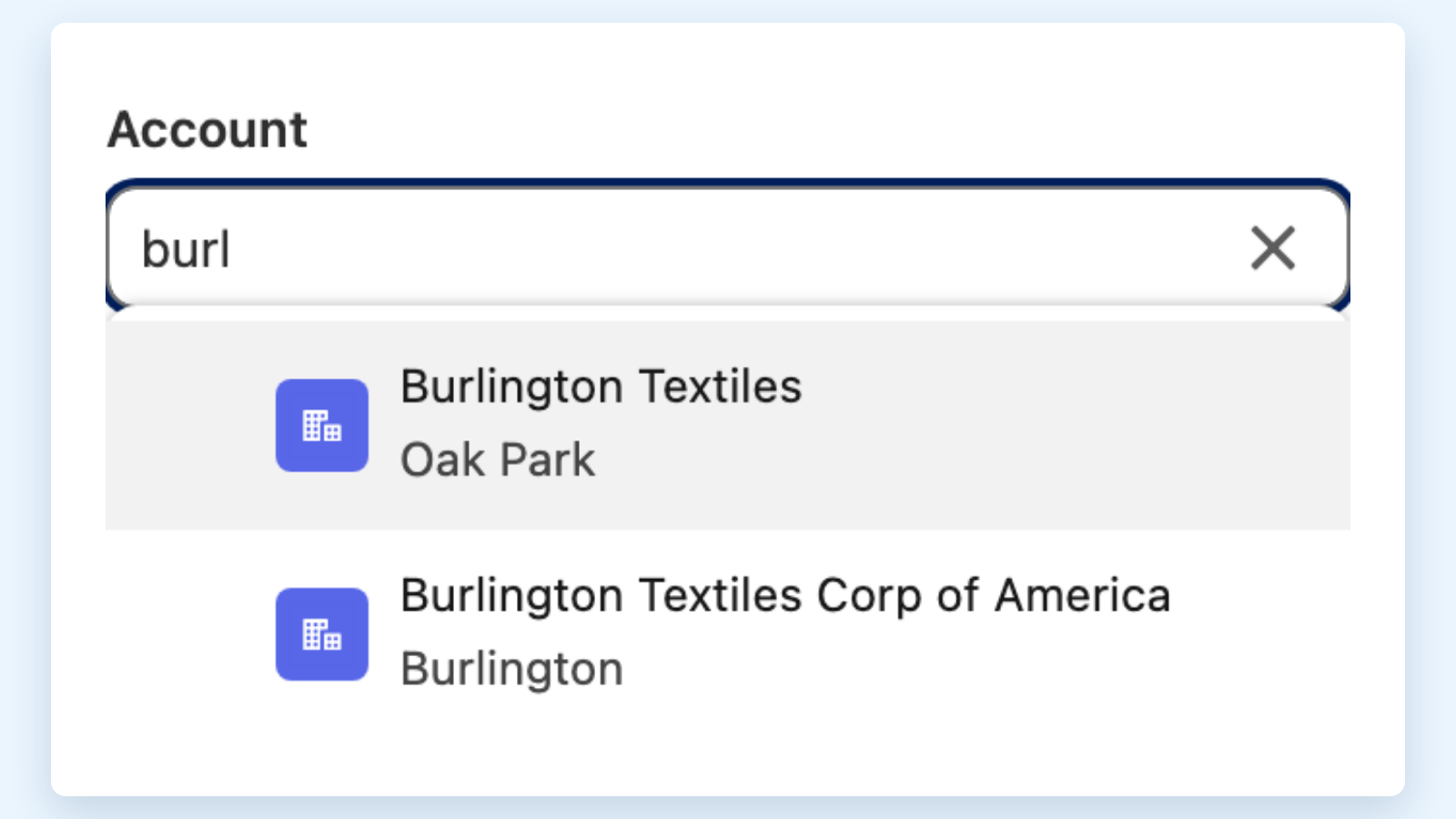
**Hide Options Until Search** shows no option until the user types. Requires **Show Search** to be enabled. With **Query**, the component then queries only on search and returns as many matches as **Dropdown Length**. See [Search Large Lists in a Combobox](/flow/tutorials/components/combobox/search-large-lists-in-a-combobox.md).

**Required** blocks the screen until a selection is made.

**Disabled** greys out the input so users cannot change it.

**Hide Clear Icon** removes the clear icon, so users cannot empty the field from the input.

**Hide Selected Options** hides the selection pills.

### Actions

Actions are buttons inside the dropdown, such as "Create a new account". What a click does is set in the **Interactions** tab with **Action Click**. [Add a Create New Action to a Combobox](/flow/tutorials/components/combobox/add-a-create-new-action-to-a-combobox.md) walks through it.

| Setting                     | What it does                                                                                                                     |
| --------------------------- | -------------------------------------------------------------------------------------------------------------------------------- |
| **Label**                   | Required. The text of the action.                                                                                                |
| **Name**                    | Required. A unique name. **Action Click** and the **Clicked Action Name** output use it.                                         |
| **Icon Name**               | A Lightning Design System icon shown before the label.                                                                           |
| **Position**                | **Top** or **Bottom** of the dropdown (default: **Top**). Hidden when **Display on Search** is on.                               |
| **Display on Search**       | Shows the action only while the user is searching.                                                                               |
| **Display When No Results** | Shows the action only when a search finds nothing, and adds the search term to it. Requires **Display on Search** to be enabled. |
| **Fixed**                   | Keeps the action visible while the list scrolls. Hidden when **Display on Search** is on.                                        |
| **Disabled**                | Shows the action but blocks it.                                                                                                  |

## Interactions

[Interactions](/flow/component-builder/interactions-panel.md) define what happens when users interact with the Combobox. Configure them from the **Interactions** tab of the Edit Combobox Component panel.

### Change

Fires when the user picks or removes an option. The outputs below (**Value**, **Selected Option**, and the others) are updated before the interaction runs, so an action such as [Open Flow Dialog](/flow/component-builder/interactions-panel/open-flow-dialog.md) can pass the selection on. With **Query**, a **Refresh Query** action is also available.

### Action Click

Fires when the user clicks an action in the dropdown. Set **Target Name** to the **Name** of the action the interaction belongs to. After the click, the **Clicked Action Name** output holds that name. In the inputs of an Open Flow Dialog, **Search Term** passes what the user typed.

## Styling

The **Style** tab controls the look of the Combobox.

{% tabs %}
{% tab title="Margin" %}
Controls the *outer* spacing around the combobox, creating space between it and other elements on the screen.

* **Top / Right / Bottom / Left:** Adjust the space on each side.
  {% endtab %}

{% tab title="Padding" %}
Controls the *inner* spacing between the combobox content and its border.

* **Top / Right / Bottom / Left:** Adjust the inner spacing on each side.
  {% endtab %}

{% tab title="Flow Dialog" %}
Adjusts the dialog opened by an Open Flow Dialog interaction from this combobox.

* **Width / Height:** Dialog dimensions.
* **Background Color:** Dialog background color.
  {% endtab %}

{% tab title="Label" %}
Styles the combobox label.

* **Color:** Set the label text color.
* **Font Size / Font Style / Font Weight:** Control the label typography.
  {% endtab %}

{% tab title="Border" %}
Customizes the border surrounding the combobox input.

* **Color:** Set the border color.
* **Size:** Adjust the border thickness.
* **Style:** Choose a border style (e.g. solid, dashed, dotted).
* **Radius:** Control the roundness of the corners.
  {% endtab %}

{% tab title="Options" %}
Styles the dropdown options. Colors are set per state (default, hover, disabled).

* **Background Color:** Set the option background in each state.
  {% endtab %}

{% tab title="Options Label" %}
Styles the option label text. Colors are set per state (default, hover, disabled).

* **Color:** Set the label color in each state.
* **Font Size / Font Style / Font Weight:** Control the label typography.
  {% endtab %}

{% tab title="Options Secondary Text" %}
Styles the secondary text shown under each option. Colors are set per state (default, hover, disabled).

* **Color:** Set the secondary text color in each state.
* **Font Size / Font Style / Font Weight:** Control the secondary text typography.
  {% endtab %}

{% tab title="Options Avatar" %}
Styles the avatar shown beside an option. Icon and initials colors are set per state (default, hover, disabled).

* **Border Color / Size / Style / Radius:** Style the avatar border.
* **Icon Background / Foreground Color:** Set the fallback icon colors.
* **Image Object Fit:** Control how the avatar image fits.
* **Initials Color / Font Style / Font Weight:** Style the avatar initials.
  {% endtab %}

{% tab title="Options Avatar Presence" %}
Styles the presence indicator on option avatars. Background color is set per presence status.

* **Border Color / Radius:** Style the presence indicator border.
* **Background Color:** Set the indicator color for each status (Away, Blocked, Busy, Focus, Offline, Online).
  {% endtab %}

{% tab title="Actions" %}
Styles the action items in the dropdown. Colors are set per state (default, hover, disabled).

* **Background Color:** Set the action background in each state.
  {% endtab %}

{% tab title="Actions Label" %}
Styles the action label text. Colors are set per state (default, hover, disabled).

* **Color:** Set the label color in each state.
* **Font Size / Font Style / Font Weight:** Control the label typography.
  {% endtab %}

{% tab title="Actions Icon" %}
Styles the action icons. Colors are set per state (default, hover, disabled).

* **Background / Foreground Color:** Set the icon colors in each state.
* **Radius:** Control the roundness of the icon corners.
  {% endtab %}

{% tab title="Pill" %}
Styles the selection pills shown for chosen values. Colors are set per state (default, hover).

* **Background Color / Text Color:** Set the pill colors in each state.
* **Border Color / Size / Style / Radius:** Style the pill border.
  {% endtab %}
  {% endtabs %}

## Output Variables

After the screen, select the screen element in Flow Builder, then the Combobox, and pick the output you need.

### Item Selection

Updated each time the user picks or removes an option. The same selection is offered in four shapes, so pick the one the next element expects.

| Output variable                 | Type              | What it returns                                                                                                                                                                             |
| ------------------------------- | ----------------- | ------------------------------------------------------------------------------------------------------------------------------------------------------------------------------------------- |
| **Value**                       | Text              | The selected values separated by semicolons, for example `New problem;Existing problem`. With a single selection, just that value. This is the format a multi-select picklist field stores. |
| **Value Collection**            | Text Collection   | The selected values as a list, for a Loop or a collection filter such as `Id` In.                                                                                                           |
| **Value Collection Serialized** | Text              | The same list written as text, for example `["New problem","Existing problem"]`.                                                                                                            |
| **Value Comma Separated**       | Text              | Each value in single quotes, separated by commas, for example `'New problem','Existing problem'`. Built for a SOQL `IN` filter.                                                             |
| **Selected Option**             | Record            | With **Query** or a record collection in **Variable**: the record behind the first selected option.                                                                                         |
| **Selected Options**            | Record Collection | The records behind all selected options.                                                                                                                                                    |
| **Search Term**                 | Text              | What the user last typed in the search box.                                                                                                                                                 |

> **Example:** A support agent picks an account with a **Query** combobox mapped to `Id`. A Get Records element after the screen finds that account's open cases with `AccountId` Equals **Value**.

[Use a Combobox Selection in a Query or Flow](/flow/tutorials/components/combobox/use-a-combobox-selection-in-a-query-or-flow.md) shows when to use each shape.

**Selected Option** holds only the fields the component queried or mapped. Add fields under **Additional fields** in the query if the flow needs more.

### Action Click

| Output variable         | Type | What it returns                              |
| ----------------------- | ---- | -------------------------------------------- |
| **Clicked Action Name** | Text | The **Name** of the action the user clicked. |

> **Example:** A "Create a new contact" action has the Name `newContact`. A Decision element after the screen checks whether **Clicked Action Name** equals `newContact`.

### Others

| Output variable     | Type    | What it returns                                         |
| ------------------- | ------- | ------------------------------------------------------- |
| **Number of Items** | Integer | The number of options currently loaded in the dropdown. |

### Flow Interaction Output Variables

Like other interactive Flow components, the Combobox exposes generic output slots that an [Open Flow Dialog](/flow/component-builder/interactions-panel/open-flow-dialog.md) or [Open Flow Panel](/flow/component-builder/interactions-panel/open-flow-panel.md) interaction can fill with values returned by the launched flow. See [Flow Interaction Output Variables](/flow/component-builder/interactions-panel/flow-interaction-output-variables.md).

## Troubleshooting Common Issues

* **The dropdown is empty:** no data source is set, or with **Variable** the collection is empty when the screen opens. Check that the Get Records or the action runs before the screen.
* **The search finds nothing with Query:** the search only looks in the fields mapped in **Data Mappings**, on text fields. Map the field users type into, for example **Secondary Text** to `BillingCity`.
* **The search does not filter in the Component Builder preview:** the preview of a **Query** combobox ignores filters and shows at most 20 records. Test the search in a debug run of the flow.
* **A multi-select picklist field saves only one value, or a strange string:** write **Value** (semicolon-separated) to the field. **Value Collection Serialized** is a bracketed list and **Value Comma Separated** is a filter string; neither is a picklist value.
* **A preset record shows as a raw Id instead of its name:** this happens with **Query** when an action has **Display When No Results** on. Turn **Display When No Results** off and keep **Display on Search** on: the name shows again, and the action still appears during a search.
* **An action does not appear:** with **Display on Search** on, the action shows only while the user types; with **Display When No Results** also on, only when nothing matches.

***


---

# Agent Instructions
This documentation is published with GitBook. GitBook is the documentation platform designed so that both humans and AI agents can read, navigate, and reason over technical content effectively. Learn more at gitbook.com.

## Querying This Documentation
If you need additional information that is not directly available in this page, you can query the documentation by asking a question.

Perform an HTTP GET request on the following URL with the `ask` and `goal` query parameters:

```
GET https://docs.avonnicomponents.com/flow/flow-components/combobox.md?ask=<question>&goal=<user_goal>
```

`ask` is the immediate question: it should be specific, self-contained, and written in natural language.
`goal` is what the user is ultimately trying to achieve, the reason they need the answer. Sharing it helps GitBook give you a better, more relevant answer. A goal is most helpful when it describes the outcome the user wants rather than restating the question. For example, with `ask=how do I create an API token`, a goal like `automate deployments from our CI pipeline` lets GitBook tailor the answer to that use case.

The response will contain a direct answer to the question and relevant excerpts and sources from the documentation.

Use this mechanism when the answer is not explicitly present in the current page, you need clarification or additional context, or you want to retrieve related documentation sections.
