> For the complete documentation index, see [llms.txt](https://docs.avonnicomponents.com/llms.txt). Markdown versions of documentation pages are available by appending `.md` to page URLs; this page is available as [Markdown](https://docs.avonnicomponents.com/flow/getting-started/using-the-avonni-flow-screen-components-in-experience-cloud.md).
# Flow Components in Experience Sites
## Overview
This documentation provides the technical requirements and configuration steps for deploying Avonni Components for Flows within a Salesforce Experience Cloud site. By following this guide, you can ensure that both authenticated and unauthenticated (guest) users can interact seamlessly with advanced flow screens and data-driven components.
#### What this guide covers:
* **Implementation**: How to embed Avonni-enhanced flows into the Digital Experience Builder.
* **Access Control**: Managing Permission Sets, Licenses, and Flow Access for internal and external users.
* **Guest User Configuration**: Specific security settings and API permissions required for unauthenticated access.
* **Data Visibility**: Enabling System Mode for components using the Query Data Source to ensure data displays correctly in public environments
{% hint style="success" %}
#### Did you know?
You aren’t limited to using Avonni strictly within a Flow. We offer a library of **native Avonni Experience Site components** designed specifically for the Salesforce Experience Builder.
Instead of embedding a Flow, you can drag and drop these components **directly onto your site pages** for a faster, more integrated user experience.
> **Go Native**: Want to skip the Flow builder? [Explore our dedicated resource center](https://docs.avonnicomponents.com/experience-cloud/) to learn how to use our **standalone Experience Cloud components**
> {% endhint %}
***
## How to use it in Experience Cloud
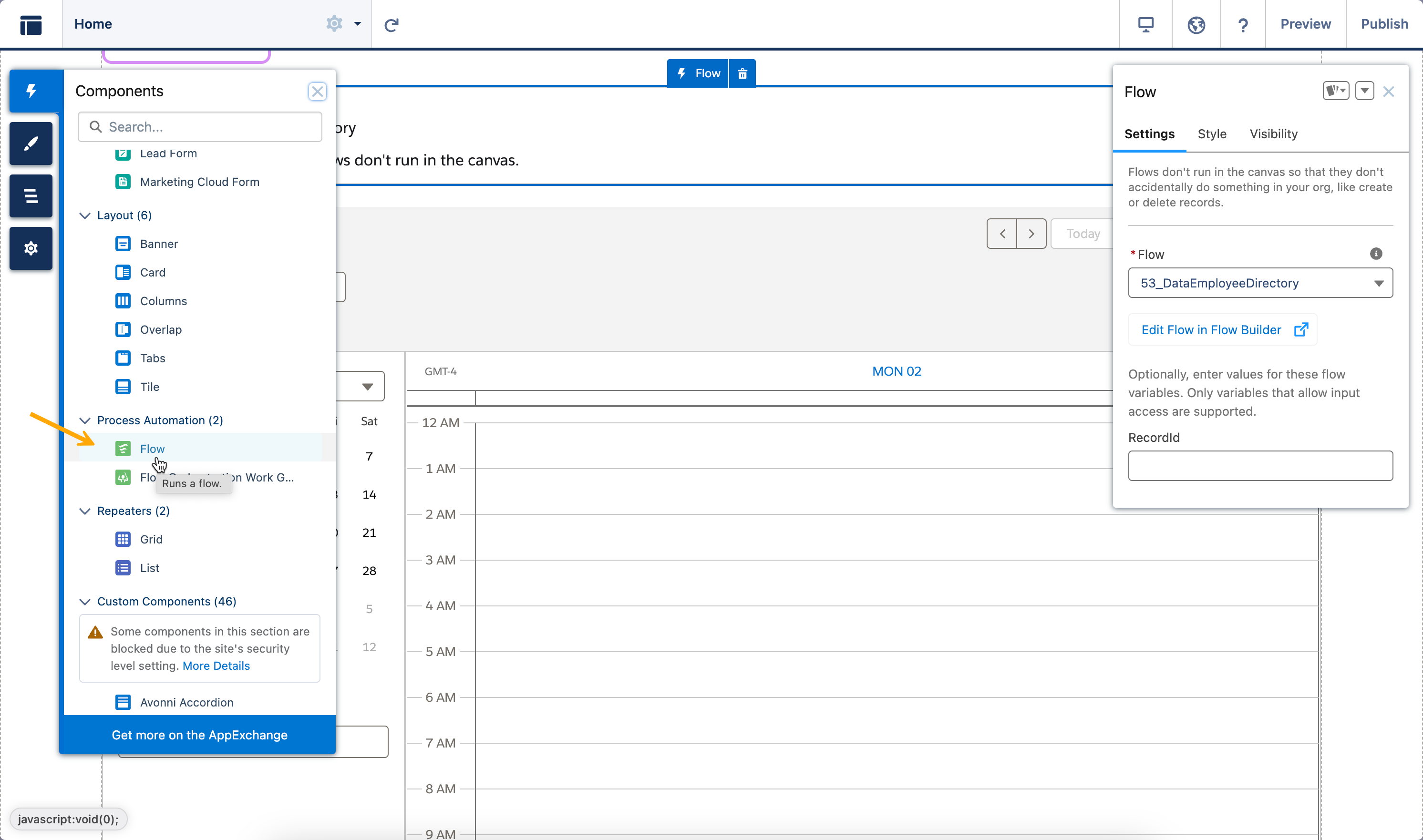
Using Avonni Components, you can easily integrate the flows you've created into Salesforce. Using the Digital Experience Cloud Builder, you can add these wherever you can insert a flow on your Experience Cloud Sites.
***
## User And Permission Management
Before adding a flow with Avonni Components to your Experience Cloud site, ensure you set up the correct user permissions to ensure everything works smoothly. Here's a quick checklist:
### **Permission Set**
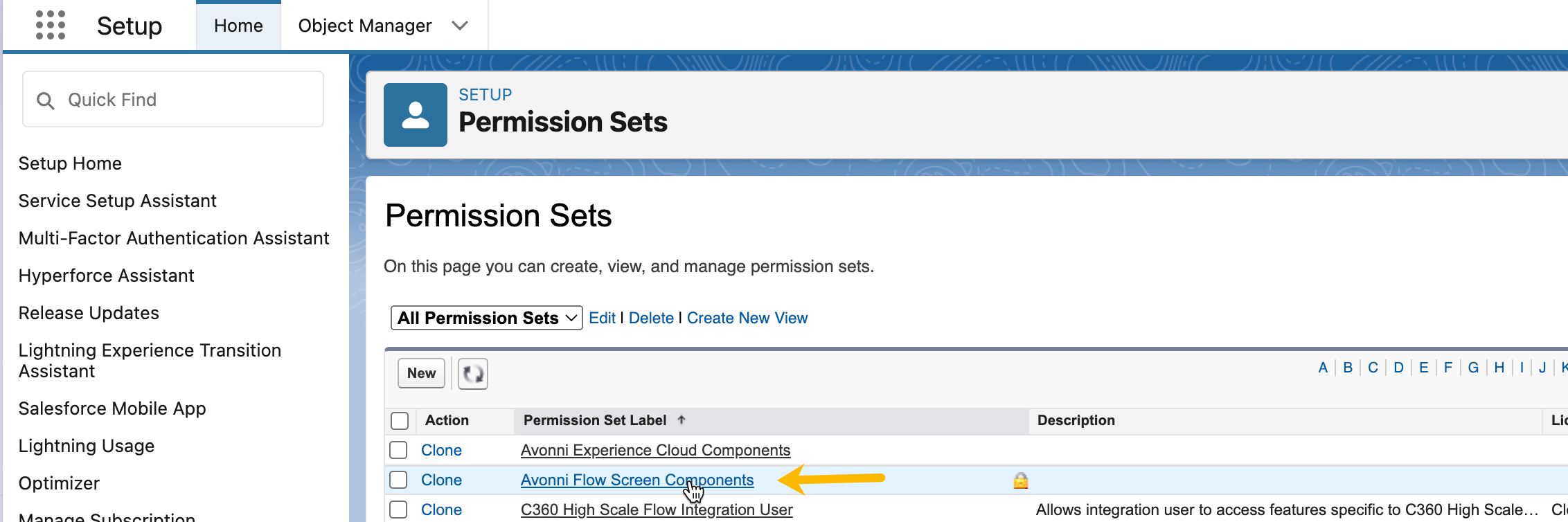
1. Go to the **Permission Sets** page in Salesforce Setup.
2. Find the **Avonni Flow Screen Components** permission set and click on it.
3. Assign this permission set to the user profiles or permission sets that need access to Avonni Components in Flows
To give your users access to Avonni Components in Flows, ensure the "Avonni Flow Screen Components" permission set is assigned.
### **License**
Every user who needs to interact with Avonni Components within your flows must have an Avonni Components license assigned to them.
* **With a license:** The user can use and interact with all the Avonni Components in your flows.
* **Without a license:** The user will see an error message asking them to contact their Salesforce Administrator to request access to the Avonni Components
### **Flow Access**
Ensure your users can access the flow that contains Avonni Components. You have two options to manage access:
1. **Default Flow Permissions:**
* Go to the user's profile or permission set.
* Make sure the "Run Flows" or "Manage Flow" permission is enabled. This will give them general access to run flows in your org.
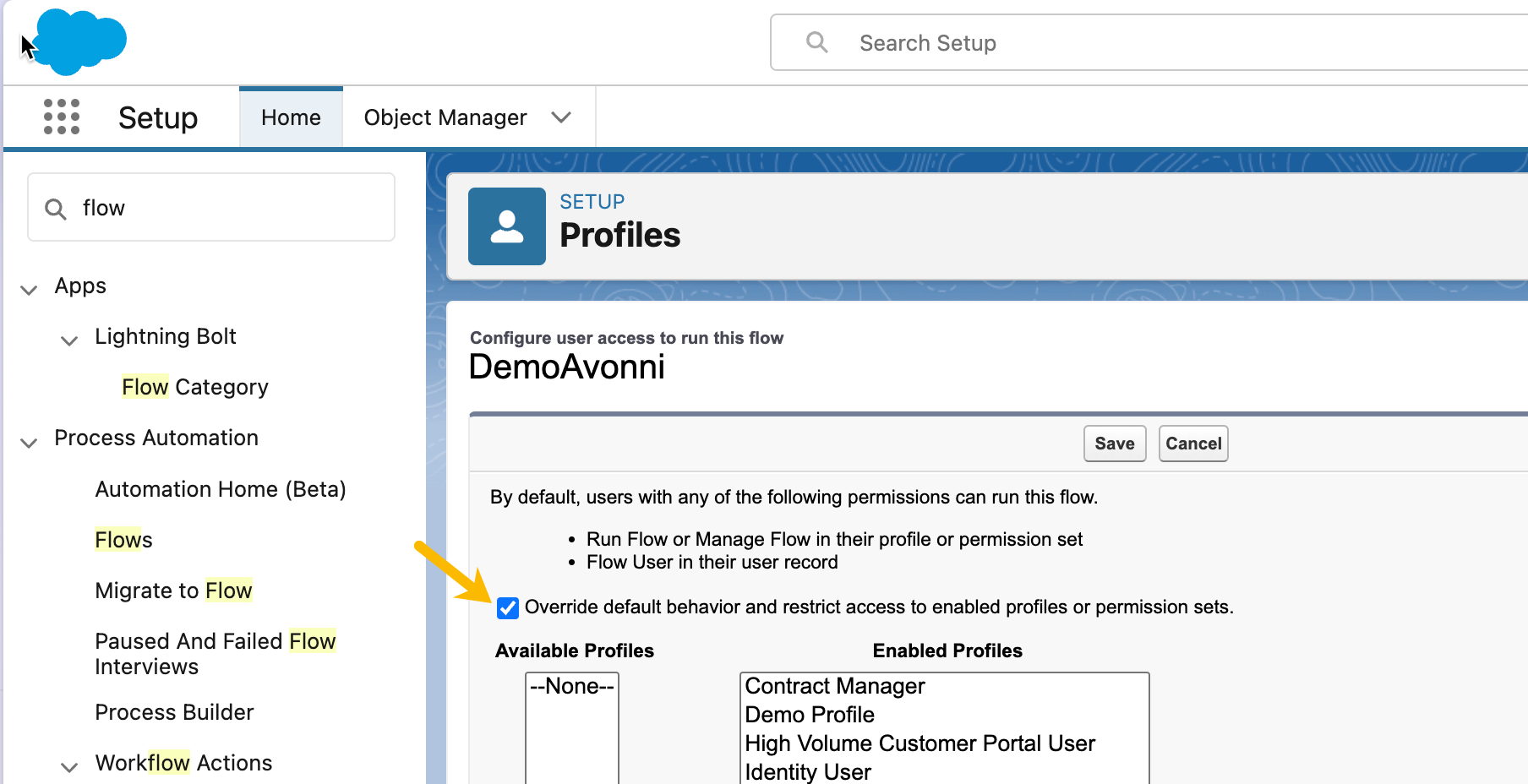
2. **Override Flow Access:**
* When you create or edit your flow, go to the "Settings" section.
* Under "How to Run the Flow", choose "Run the flow only in these profiles or permission sets".
* Select the specific profiles or permission sets you want to grant access to this particular flow.
By using either of these methods, you can control which users can run the flow and interact with the Avonni Components within it.
### **Object and Field Access**
Finally, it's crucial to verify that your users have the appropriate permissions to view and modify the specific objects and fields your flow uses.
* Check the user's profile or permission set to ensure they have the necessary object-level and field-level permissions.
By following these steps, you can ensure your users have the appropriate access to interact with Avonni Components within your Experience Cloud site, providing a seamless, error-free experience.
***
## Guest users
To allow guest users to access Avonni Components in flows used on your Experience Cloud Site, you need to follow a few configuration steps. Here's what you need to consider:
{% hint style="warning" %}
**Guest users** can also use Avonni Components on Experience Cloud Sites without requiring a login, which is available as an additional feature for production orgs. For more details, please feel free to [contact us](mailto:experiencecomponents@avonni.app).
{% endhint %}
### Make your Site accessible for Guest Users
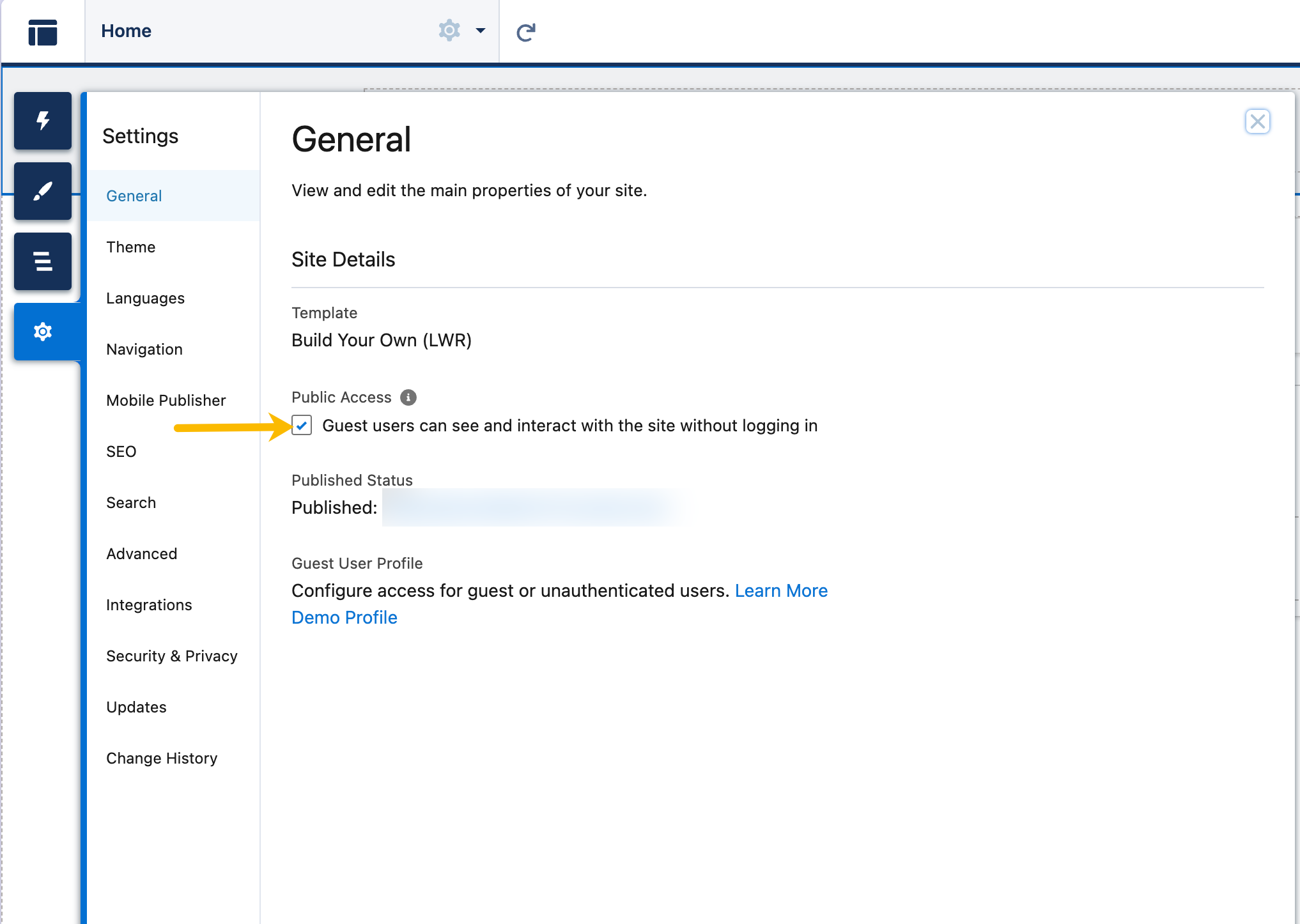
* **Enable Public Access:** Ensure your Experience Cloud site is configured for public access.
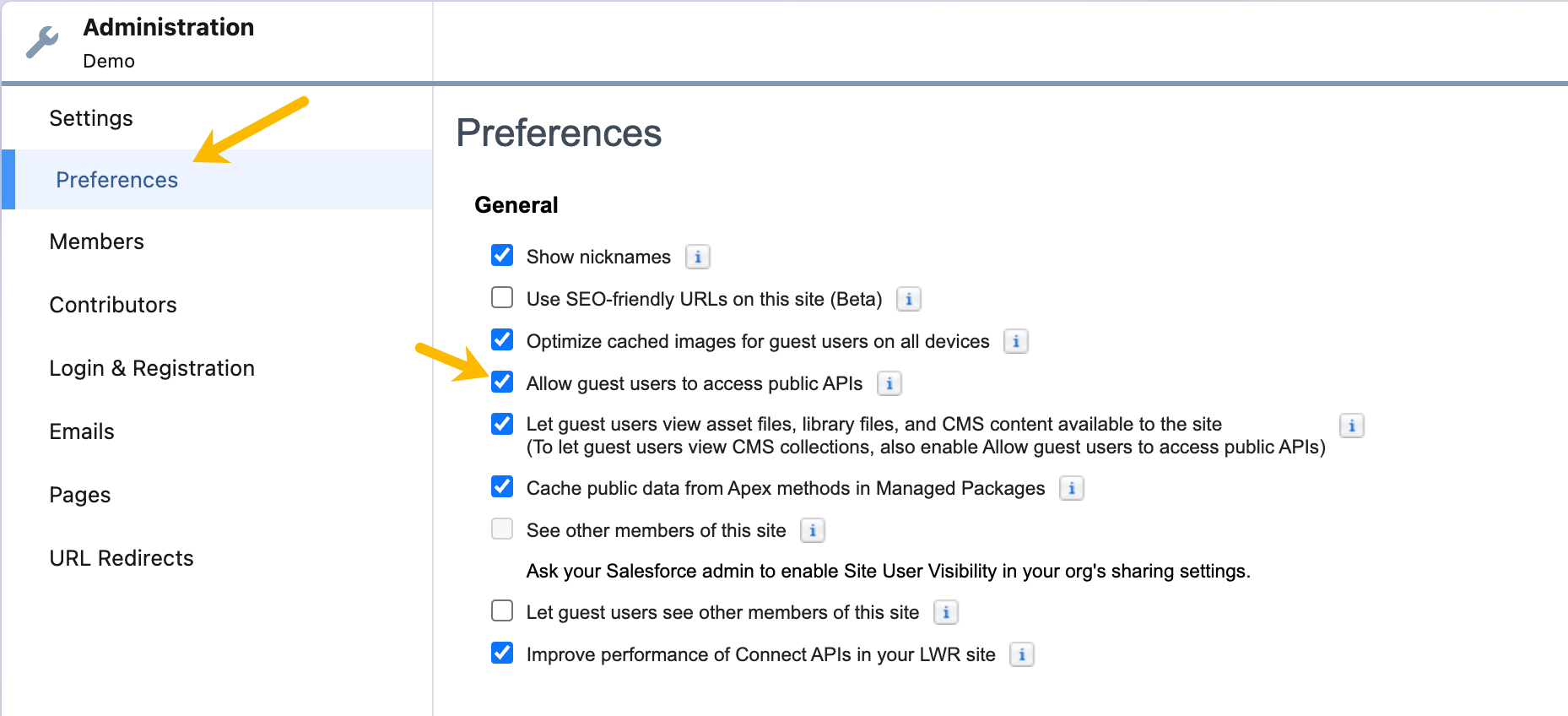
* **Allow API Access:** In the site's Administration area, navigate to the Preferences page and enable the "Allow guest users to access public APIs" setting.
### **Configure Flow Access**
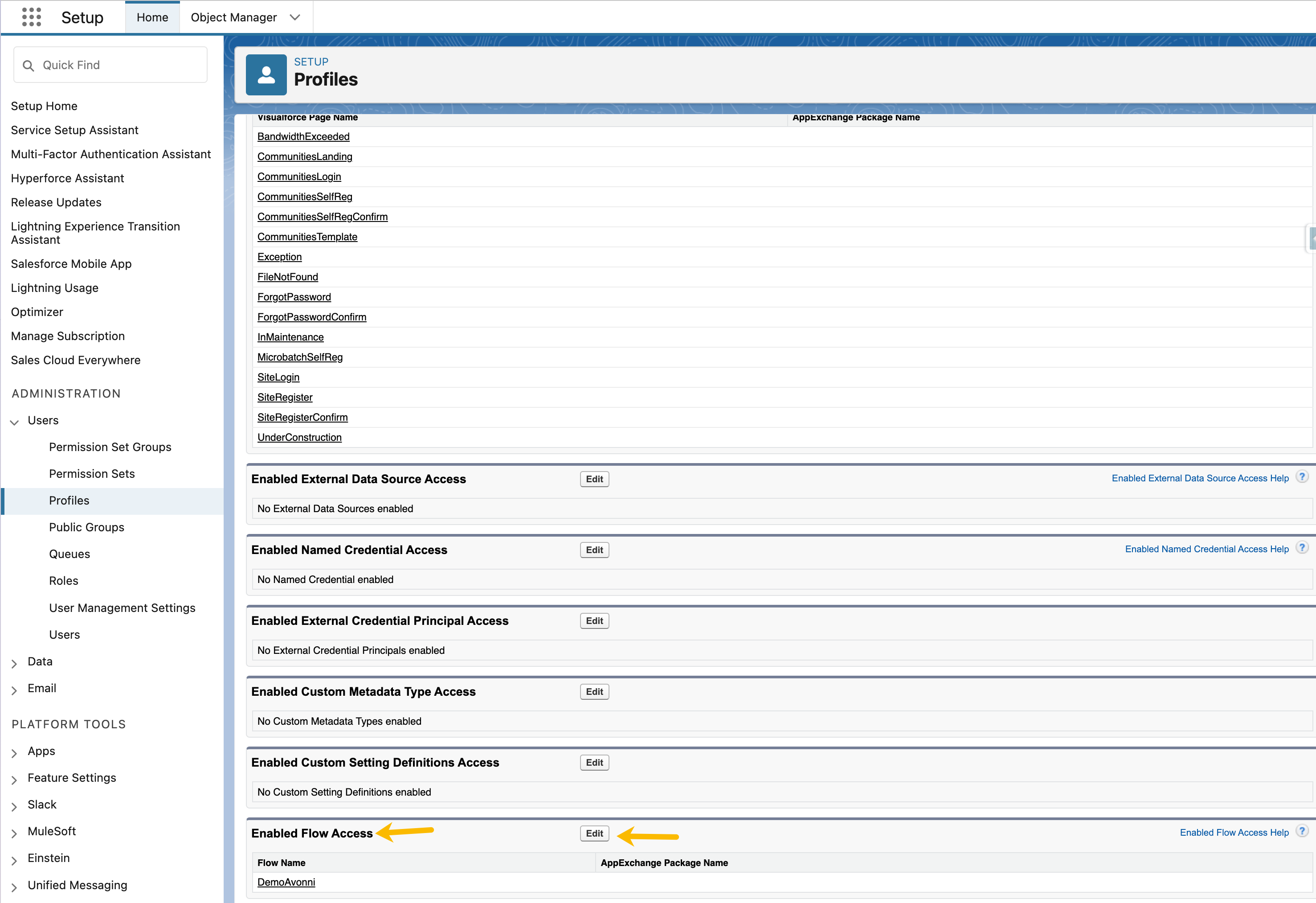
Ensure that your flow is accessible to the guest user profile on your Experience Cloud site. Here's how to check and adjust those settings,
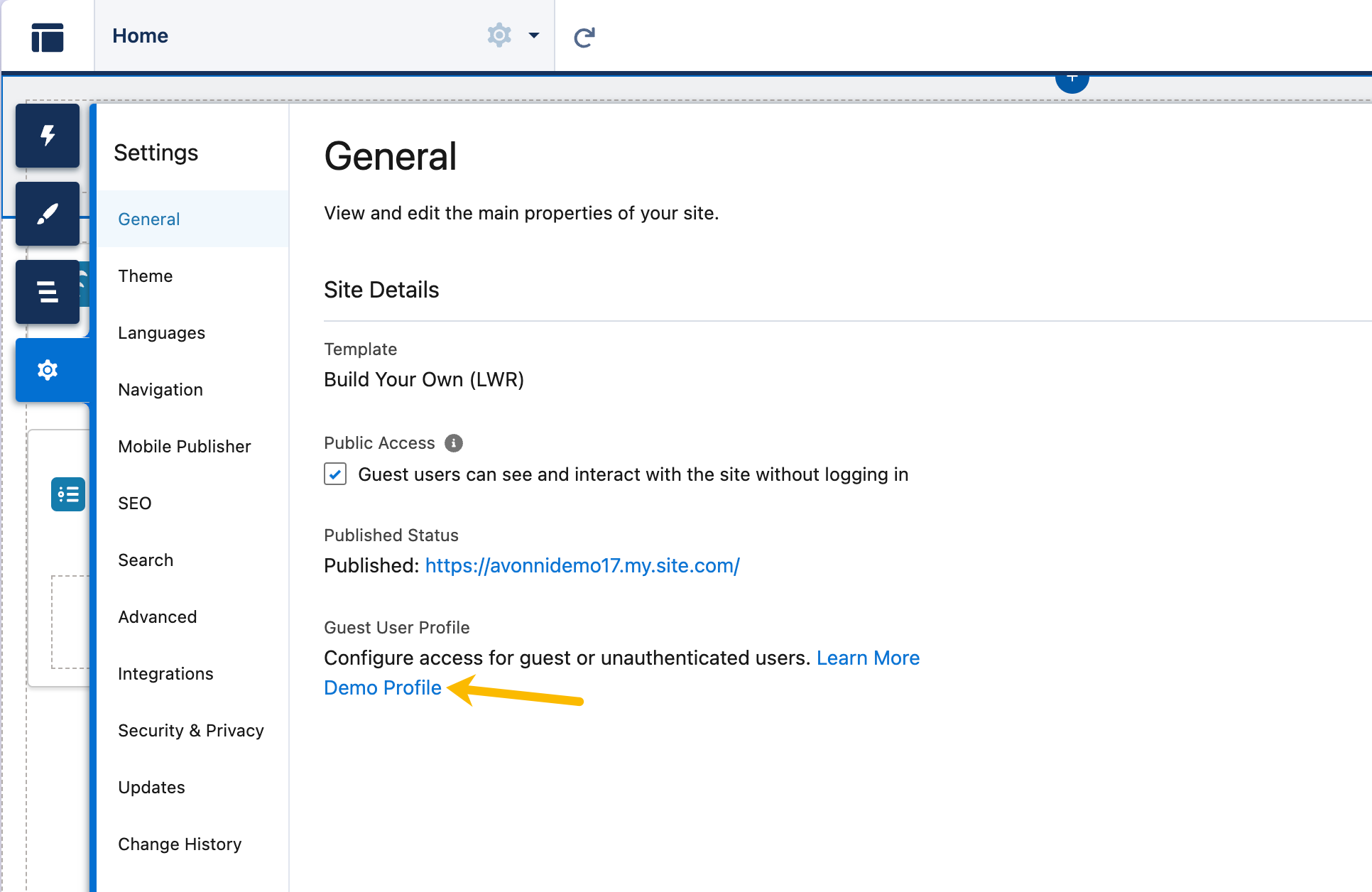
* Navigate to the Guest User profile page.
* Add the desired flow to the "Enabled Flow Access" section to grant guest users access.
### **Assign Permission to Guest Users**
The final step in allowing guest users to access Avonni Components in your flows is to assign the necessary permissions:
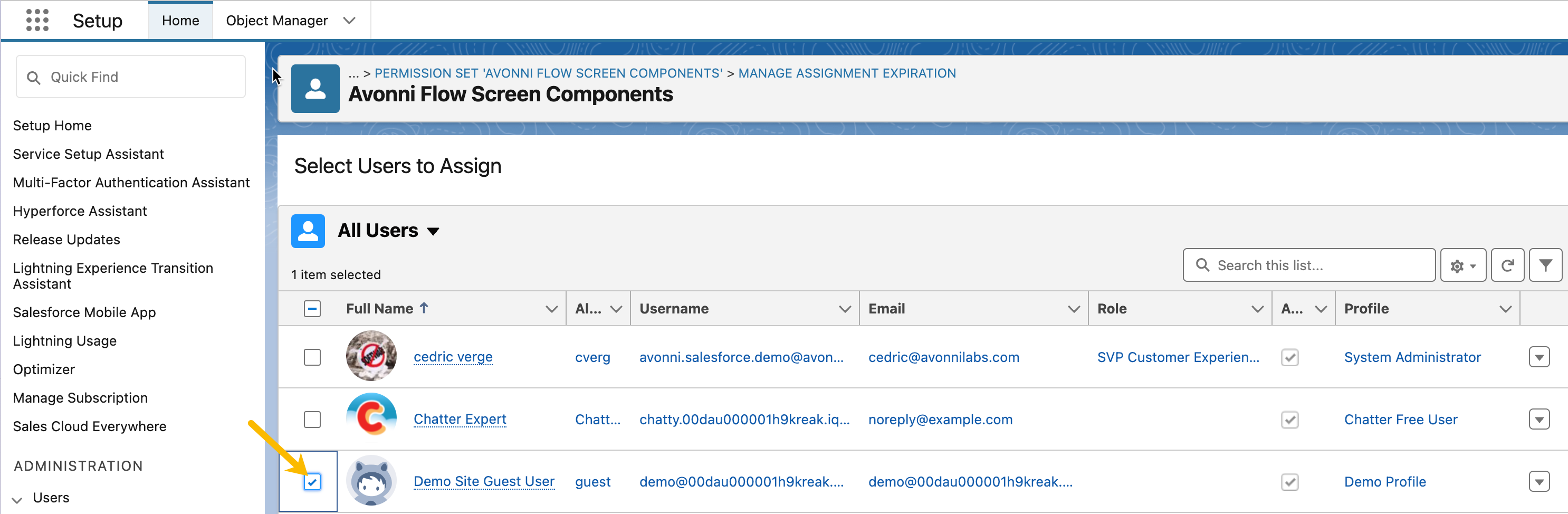
1. **Permission Sets Page:** Navigate to the Permission Sets section within Salesforce Setup.
2. **Avonni Flow Screen Components:** Locate the "Avonni Flow Screen Components" permission set.
3. **Manage Assignments:** Click on "Manage Assignments" for the permission set.
4. **Assign to Guest User:** Select the Guest User profile and add it to the list of assigned users.
By completing this process, guest users will have the required permissions to interact with and utilize the Avonni Components embedded in your flows
### **Publish Changes**
Publish your site to make the changes live.
By following these steps, guest users can interact with the Avonni Components embedded in your flows, enhancing the functionality and accessibility of your Experience Cloud site.
{% hint style="danger" %}
#### IMPORTANT! System Mode
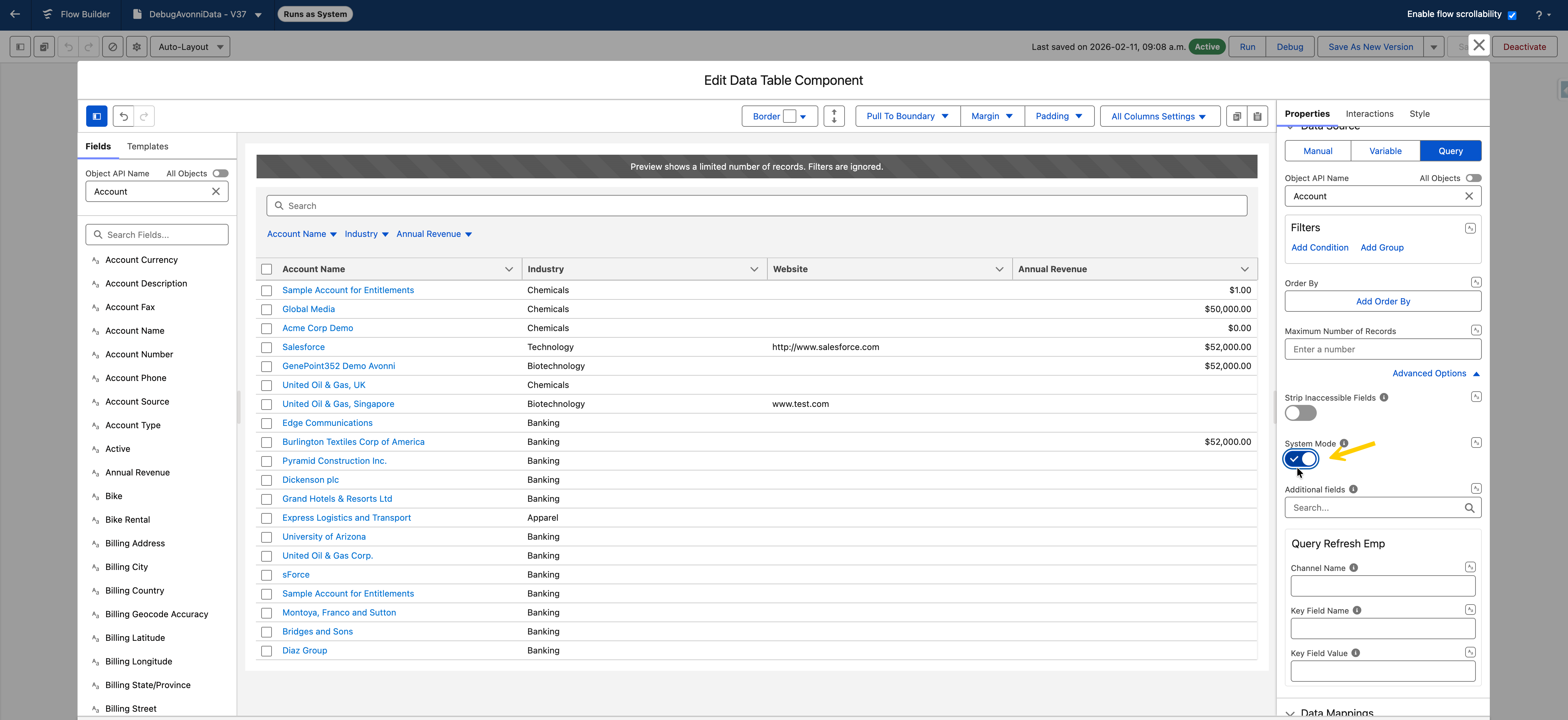
When using Avonni Data Components (such as the Data Table, List, or Card) powered by the Query Data Source, guest users will see an empty component by default due to Salesforce's restrictive security model.
To ensure data is visible to unauthenticated users, it is imperative to:
1. Open the component configuration in the Flow Builder.
2. Navigate to the **Query Data Source section**.
3. Open **Advanced Options**.
4. Set **System Mode** to **ON**.
> Without System Mode enabled, the component will fail to fetch records for guest users, even if the user has the correct Permission Sets assigned. This bypasses the guest user profile's object-level restrictions to display the necessary data.
> {% endhint %}
***
## Troubleshooting
Here are the most common errors when trying to add a flow to your Experience Cloud Site with Avonni Components inside.
### You do not have the level of access necessary error
You'll see this error message on a flow in Experience Cloud if the logged-in user doesn't have permission to run it. Ensure that users with the selected profile either have general flow permissions or are explicitly listed as able to access this flow.
### You don't have access to this Avonni Component error
This error happens when either:
* The affected user doesn't have the required permission set assigned.
* The selected user doesn't have a license assigned.
To fix this, you can [add a license](#license) to the user by going to the **Installed Packages** page in Salesforce Setup and then clicking on **Manage Licenses.**
### Flow and Avonni Components are Visible, but No Data
If the flow and the Avonni Components appear on the page but are empty (no records or information displayed), it is almost always a permissions or data access issue.
Check these three things:
1. **System Mode (Crucial for Guest Users)**: If the issue is occurring for guest users and you are using a **Query Data Source**, check the component's advanced settings. You must enable **System Mode** under the **Advanced Options** of the Query Data Source section. Without this, Salesforce’s security model will prevent guest users from fetching data, resulting in an empty component.
2. **Object and Field Permissions**: For logged-in users, ensure their profile or permission set has at least "**Read**" access to the specific objects and fields the flow is trying to display.
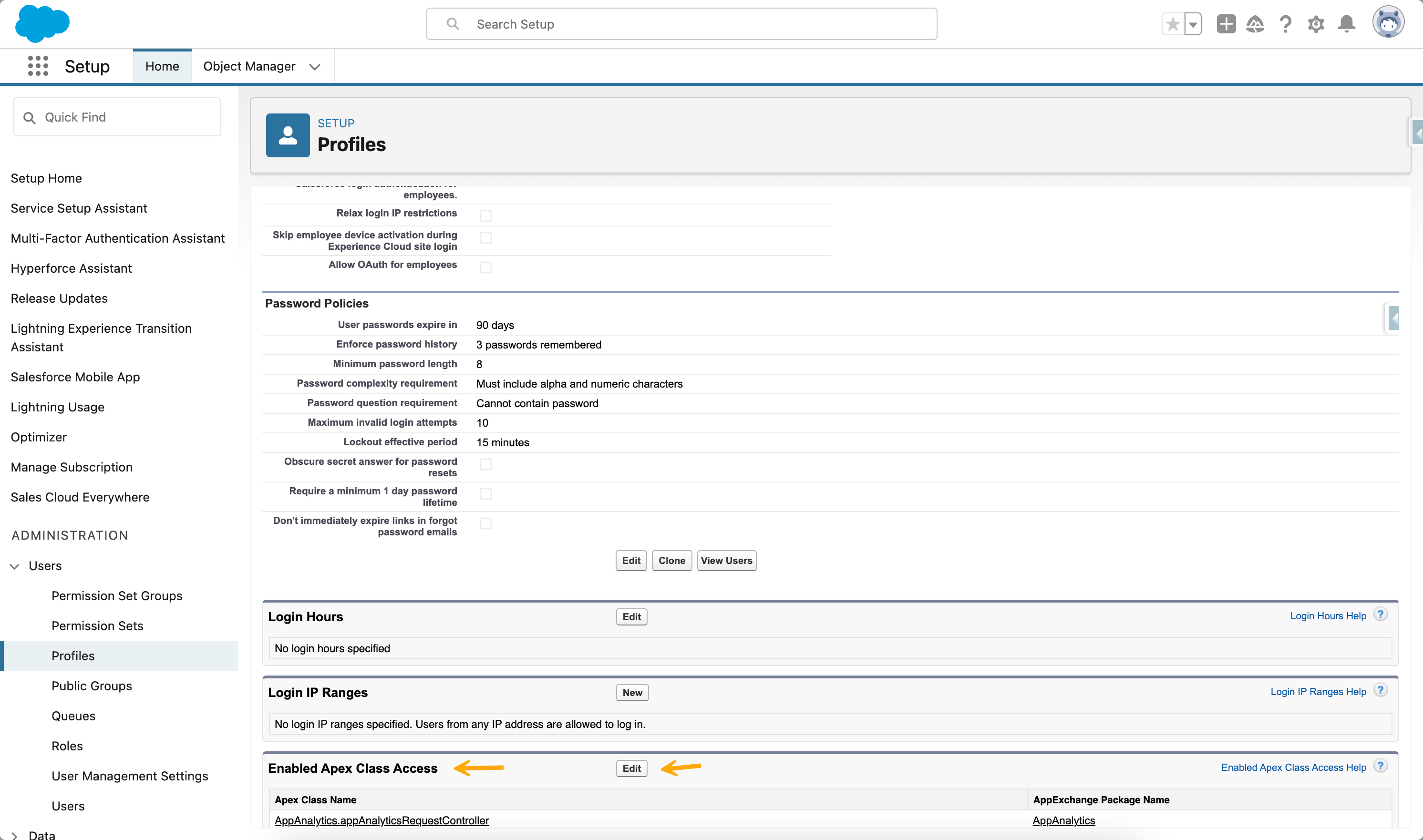
3. **Apex Class Access**: Ensure the guest user's profile has access to the necessary Avonni Apex classes:
* Go to **Profile Settings**.
* Search for "**Avonni Components (avcmpbuilder)**" Apex classes.
* Add those classes to the profile.
---
# Agent Instructions
This documentation is published with GitBook. GitBook is the documentation platform designed so that both humans and AI agents can read, navigate, and reason over technical content effectively. Learn more at gitbook.com.
## Querying This Documentation
If you need additional information that is not directly available in this page, you can query the documentation dynamically by asking a question.
Perform an HTTP GET request on the current page URL with the `ask` query parameter, and the optional `goal` query parameter:
```
GET https://docs.avonnicomponents.com/flow/getting-started/using-the-avonni-flow-screen-components-in-experience-cloud.md?ask=&goal=
```
`ask` is the immediate question: it should be specific, self-contained, and written in natural language.
`goal` is optional and describes the broader end goal you are ultimately trying to accomplish on behalf of the user. GitBook uses it to tailor the answer towards what is most useful for that goal.
The response will contain a direct answer to the question and relevant excerpts and sources from the documentation.
Use this mechanism when the answer is not explicitly present in the current page, you need clarification or additional context, or you want to retrieve related documentation sections.
.png?alt=media)
 > Without System Mode enabled, the component will fail to fetch records for guest users, even if the user has the correct Permission Sets assigned. This bypasses the guest user profile's object-level restrictions to display the necessary data.
> {% endhint %}
***
## Troubleshooting
Here are the most common errors when trying to add a flow to your Experience Cloud Site with Avonni Components inside.
### You do not have the level of access necessary error
> Without System Mode enabled, the component will fail to fetch records for guest users, even if the user has the correct Permission Sets assigned. This bypasses the guest user profile's object-level restrictions to display the necessary data.
> {% endhint %}
***
## Troubleshooting
Here are the most common errors when trying to add a flow to your Experience Cloud Site with Avonni Components inside.
### You do not have the level of access necessary error