> For the complete documentation index, see [llms.txt](https://docs.avonnicomponents.com/llms.txt). Markdown versions of documentation pages are available by appending `.md` to page URLs; this page is available as [Markdown](https://docs.avonnicomponents.com/experience-cloud/properties-panel/interactions/download.md).
# Download
Let users download a file directly from an Avonni component — from a direct URL or a Salesforce file (Content Document) — without leaving the page.
## Overview
The **Download Interaction** allows users to retrieve files directly from Avonni components (like [**Data Tables**](/experience-cloud/experience-components/ax-data-table.md) or [**Lists**](/experience-cloud/experience-components/ax-list.md)) within an Experience Site. This streamlines the user journey by eliminating the need to navigate to or visit record pages or file libraries to access important documents.
***
## Configuration
To enable file downloads within your Experience Site, follow these steps:
{% stepper %}
{% step %}
#### **Prepare Your Component**
Add an Avonni Data Table or List to your Experience Cloud page and map it to the records you wish to display. Ensure your data source includes the Content Document ID or a File URL
{% endstep %}
{% step %}
#### **Add the Interaction**
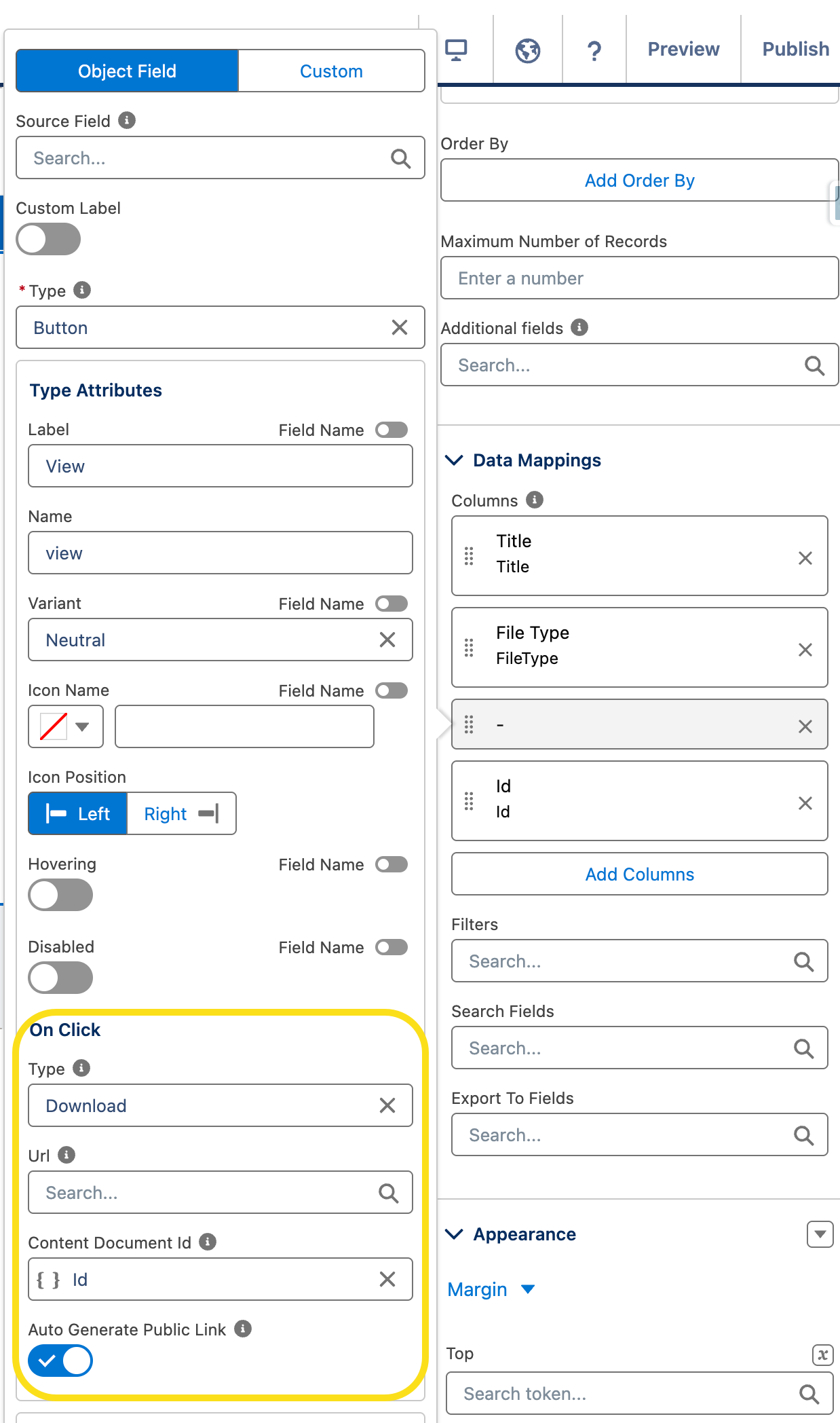
Navigate to the Interactions tab in your component settings and select Download as the interaction type. In a Data Table, you can trigger this in two ways:
* **As a Row Action**: Add the download command to the action menu (the dropdown at the end of a row). This is best for keeping the table clean.
* **As a Button Column**: Create a dedicated column with a "Download" button or icon for every record. This is best for high visibility and quick access
{% endstep %}
{% step %}
#### **Define the Source**
* **URL**: Use this to reference a specific external link or a custom URL field.
* **Content** Document ID: Use this to reference Salesforce files directly.
> **Note**: If both are provided, the URL attribute takes precedence.
> {% endstep %}
{% step %}
#### **Enable Public Access (Crucial)**
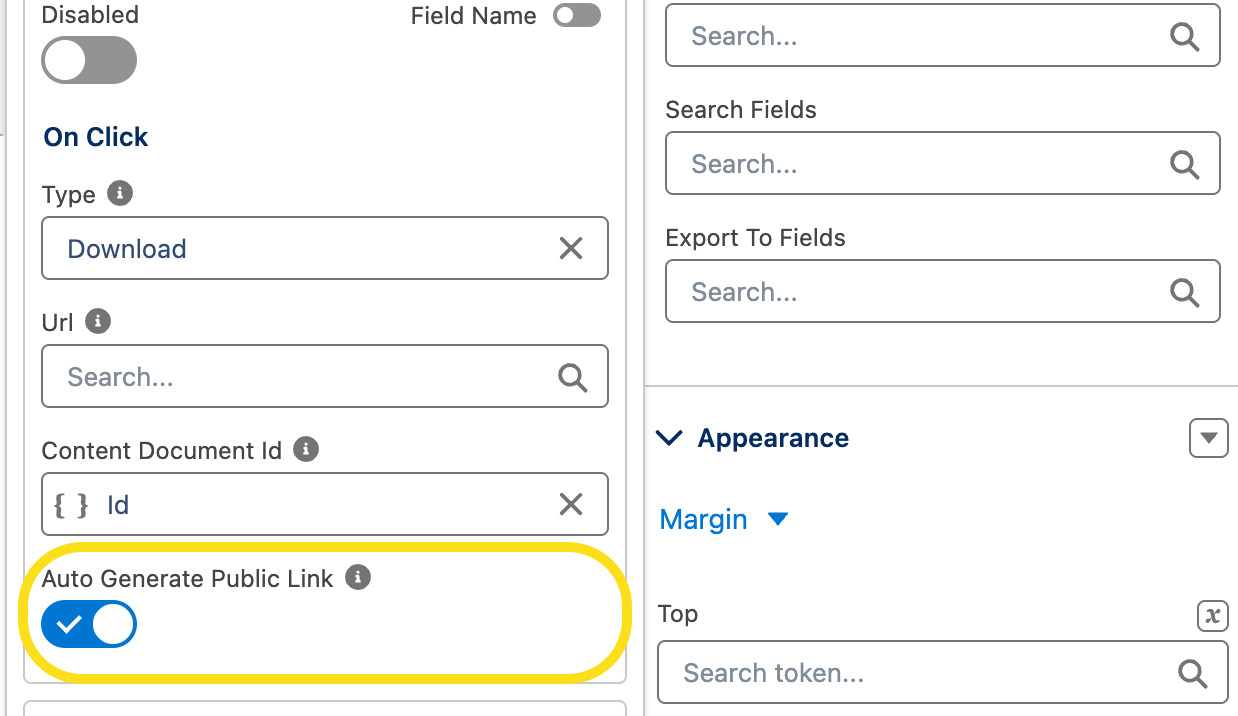
When using the Content Document ID, you will see a toggle for Auto-Generate Public Link.
* Always enable this for Experience Sites if you want external users (customers or partners) to download files without encountering permission roadblocks.
{% endstep %}
{% endstepper %}
***
## Example
Imagine a Partner Portal where partners view a list of "Available Marketing Assets." By adding the Download interaction to a Data Table:
* Partners see a "Download" icon next to each asset.
* By enabling Auto-Generate Public Link, the partner can instantly download the PDF or image, even if the file was originally uploaded to an internal-only library.
***
## Important Considerations
* **Permissions**: While the "Auto Generate Public Link" helps with visibility, ensure your Experience Cloud profile has basic access to the objects being displayed.
* **URL Accuracy**: If using the URL method, ensure the link is a "Direct Download" link rather than a preview page to ensure a smooth user experience
---
# Agent Instructions
This documentation is published with GitBook. GitBook is the documentation platform designed so that both humans and AI agents can read, navigate, and reason over technical content effectively. Learn more at gitbook.com.
## Querying This Documentation
If you need additional information that is not directly available in this page, you can query the documentation dynamically by asking a question.
Perform an HTTP GET request on the current page URL with the `ask` query parameter, and the optional `goal` query parameter:
```
GET https://docs.avonnicomponents.com/experience-cloud/properties-panel/interactions/download.md?ask=&goal=
```
`ask` is the immediate question: it should be specific, self-contained, and written in natural language.
`goal` is optional and describes the broader end goal you are ultimately trying to accomplish on behalf of the user. GitBook uses it to tailor the answer towards what is most useful for that goal.
The response will contain a direct answer to the question and relevant excerpts and sources from the documentation.
Use this mechanism when the answer is not explicitly present in the current page, you need clarification or additional context, or you want to retrieve related documentation sections.