> For the complete documentation index, see [llms.txt](https://docs.avonnicomponents.com/llms.txt). Markdown versions of documentation pages are available by appending `.md` to page URLs; this page is available as [Markdown](https://docs.avonnicomponents.com/experience-cloud/experience-components/ax-profile-card.md).
# AX - Profile Card
## Overview
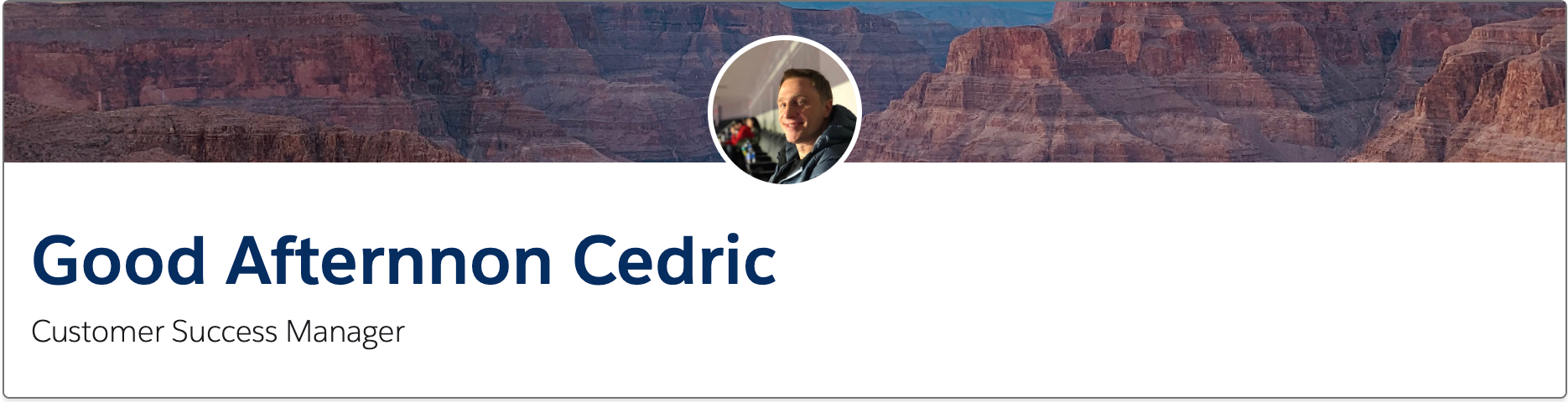
**AX - Profile Card** is an Experience Cloud component that displays user or contact information in a styled card format with profile pictures, names, details, and optional background images on Experience Sites pages.
Use it to showcase team members, customer contacts, partner representatives, or community contributors with consistent visual formatting. Configure which fields appear, add profile images, customize styling, and include action buttons in Experience Builder.
Perfect for team directories, contact lists, community member profiles, "Meet Your Representative" sections, or anywhere your portal needs professional profile displays.
{% hint style="danger" %}
This component [leverages slots](/experience-cloud/getting-started/learning-the-basics.md#understanding-slots) for advanced customization, making it ideal for LWR sites. Aura sites do not support this level of customization.
{% endhint %}
## Getting Started
Use this simple tutorial to learn the basics of the Profile Card component and start building your use cases.
{% @arcade/embed url="" flowId="5SMa268wZsjsteVlpI8B" %}
## Configuration
### Slots
The Avonni Profile Card component offers a flexible, dynamic way to present a wide range of information via slots. These slots are designated areas within the component where other components can be inserted, enabling extensive customization and functionality.
#### Types of Slots
1. **Content Slot:**
* The primary area for detailed information.
* Ideal for adding diverse elements like text, lists, images, or custom components.
* Can be used to display comprehensive data or interactive elements.
2. **Header Slot:**
* Dedicated to titles, headings, or introductory content.
* Suitable for text labels, avatars, icons, or any component that provides context.
* Enhances the immediate understanding of the Profile Card's purpose.
3. **Actions Slot:**
* Reserved for interactive elements such as buttons or hyperlinks.
* Facilitates user interaction, offering actions such as editing profiles and navigation.
* Increases the card's interactivity and user engagement.
### Properties
**Title** and **Subtitle** set the card's heading and supporting line — use the subtitle for extra context like a position or department. Their text styles (H1–H4, P1–P2) are set on the Style tab.
**CMS Background** and **Background Src** set a background image for the card — choose an image from the CMS or provide a URL for a visually enriched backdrop that adds depth and context.
**Show Footer** displays a footer area on the card, and **Content Pull Padding** removes the padding around the content so it sits flush to the card edges.
**CMS Avatar Image** and **Avatar Image URL or Expression** define the avatar image, and **Avatar Fallback Icon Name** sets the icon shown when no image is available.
**Avatar Variant** sets the avatar's shape (`circle` or `square`) and **Avatar Size** its size (x-small to x-large).
**Avatar Position** places the avatar on the card (top-left, top-center, bottom-right, and so on), with **Avatar Position on Small / Medium / Large Container** overriding the position per breakpoint.
## Styling
{% tabs %}
{% tab title="Header" %}
| Name | Description | Usage |
| ----------------------------- | ------------------------------------------------------------------------------------------------------------------------------------ | -------------------------------------------------------------------------------------------------------- |
| **Header Styling Attributes** | Extensively style the header with options for background color, text color, font size, style, weight, and even border customization. | Fine-tune the header's appearance to create a visually striking and easily readable profile card header. |
| {% endtab %} | | |
{% tab title="Background & Border" %}
| Name | Description | Usage |
| ------------------------------- | ---------------------------------------------------------------------------------------------------------------- | ----------------------------------------------------------------------------------------------------------------------------------------------------- |
| **Background Color and Border** | Customize the overall background color of the card and define border properties such as size, radius, and color. | These features allow for further visual distinction and refinement of the profile card's appearance, ensuring it aligns with your design preferences. |
| {% endtab %} | | |
| {% endtabs %} | | |
## Use Cases
| Name | Description |
| ------------------------------------------------------------------------------------------------------------------------------------------------------------------------------------------ | ------------------------------------------------------------------------------------------------- |
| [**Configuring the Profile Card to display current user information**](/experience-cloud/tutorials/components/profile-card/set-up-the-profile-card-to-display-current-user-information.md) | Set up an Avonni Card to display user information on Experience Cloud, enhancing personalization. |
### Example 1: Account Highlight Panel (container)
{% @arcade/embed url="" flowId="SM5nEWQrD61sIelW6FK0" %}
Transform your partner experience site with a polished, information-rich account profile card that puts key account details, branding, and actions front and center.
***
#### **What You'll Achieve**
* **Branded header:** Display the account name and industry with a company logo for instant visual recognition
* **Contextual actions:** Launch a New Opportunity flow directly from the card with a single click
* **Compact record detail:** Surface the most relevant account fields without overwhelming the page
***
#### **Before You Begin**
* **Custom logo field:** A custom field on the Account object to store the company logo URL
* **Screen flow:** A New Opportunity screen flow, ready to launch
* **Button component:** Available in your component library
* **Record Detail component:** Available in your component library
***
#### **How to Set It Up**
{% stepper %}
{% step %}
#### **Add the Profile Card to your page**
* Drag the AX – Profile Card component onto the Experience Account record page
{% endstep %}
{% step %}
#### **Configure the card header**
* Set Header to `{!Item.Name}`
* Set Style to `Heading 2`
* Set Subtitle to `{!Item.Industry}`
{% endstep %}
{% step %}
#### **Add the company logo**
* Set Avatar Image URL to `{!Item.LogoURL__c}`
* Set Variant to `Circle`
* Set Size to `Medium`
{% endstep %}
{% step %}
#### **Add a custom action button**
* Drag the Button component into the Actions slot
{% endstep %}
{% step %}
#### **Add a compact record layout**
* Drag the Record Detail component into the Content slot
{% endstep %}
{% step %}
#### **Preview your page**
* Review the card in preview mode to confirm the layout, logo, and action button appear as expected
{% endstep %}
{% endstepper %}
***
#### **Links**
{% content-ref url="/pages/tZIFwakLsMzdOlpBGQ4X" %}
[AX - Record Detail](/experience-cloud/experience-components/ax-record-detail.md)
{% endcontent-ref %}
{% content-ref url="/pages/j1JyJYG5H6DlpqCXo8O0" %}
[AX - Button](/experience-cloud/experience-components/ax-button.md)
{% endcontent-ref %}
***
### Example 2: Current User profile information
{% @arcade/embed url="" flowId="BS4DEpYpnaHdh1ted1hR" %}
Give your users a warm, personalized welcome the moment they land on your experience site, building connection and encouraging platform adoption from the very first visit.
***
#### **What You'll Achieve**
* **Personalized greeting:** Address each user by name with a dynamic welcome message that feels human, not generic
* **Role context:** Display the user's title beneath their name so teammates and customers can immediately understand who they're interacting with
* **Profile photo:** Pull the user's profile picture automatically for a polished, familiar feel
***
#### **How to Set It Up**
{% stepper %}
{% step %}
### **Add the Profile Card to your page**
* Drag the AX – Profile Card component onto the Experience site page
{% endstep %}
{% step %}
### **Configure the card header**
* Set Header to `Welcome, {!User.Record.Name}`
* Set Style to `Heading 2`
* Set Subtitle to `{!User.Record.Title}`
{% endstep %}
{% step %}
### **Set up the profile image**
* Set Avatar Image URL to `{!User.Record.SmallPhotoUrl}`
* Set Avatar Position to `Top Center`
{% endstep %}
{% step %}
### **Preview your page**
{% endstep %}
{% endstepper %}
***
**Links**
{% content-ref url="/pages/rEo9kwM4K4RnR8cHQvMc" %}
[AX - Avatar](/experience-cloud/experience-components/ax-avatar.md)
{% endcontent-ref %}
{% content-ref url="/pages/khL2X6mO1qSgAje83w7N" %}
[AX - Accordion Section](/experience-cloud/experience-components/ax-accordion-section.md)
{% endcontent-ref %}
---
# Agent Instructions
This documentation is published with GitBook. GitBook is the documentation platform designed so that both humans and AI agents can read, navigate, and reason over technical content effectively. Learn more at gitbook.com.
## Querying This Documentation
If you need additional information that is not directly available in this page, you can query the documentation dynamically by asking a question.
Perform an HTTP GET request on the current page URL with the `ask` query parameter, and the optional `goal` query parameter:
```
GET https://docs.avonnicomponents.com/experience-cloud/experience-components/ax-profile-card.md?ask=&goal=
```
`ask` is the immediate question: it should be specific, self-contained, and written in natural language.
`goal` is optional and describes the broader end goal you are ultimately trying to accomplish on behalf of the user. GitBook uses it to tailor the answer towards what is most useful for that goal.
The response will contain a direct answer to the question and relevant excerpts and sources from the documentation.
Use this mechanism when the answer is not explicitly present in the current page, you need clarification or additional context, or you want to retrieve related documentation sections.