# AX - Kanban

## Overview

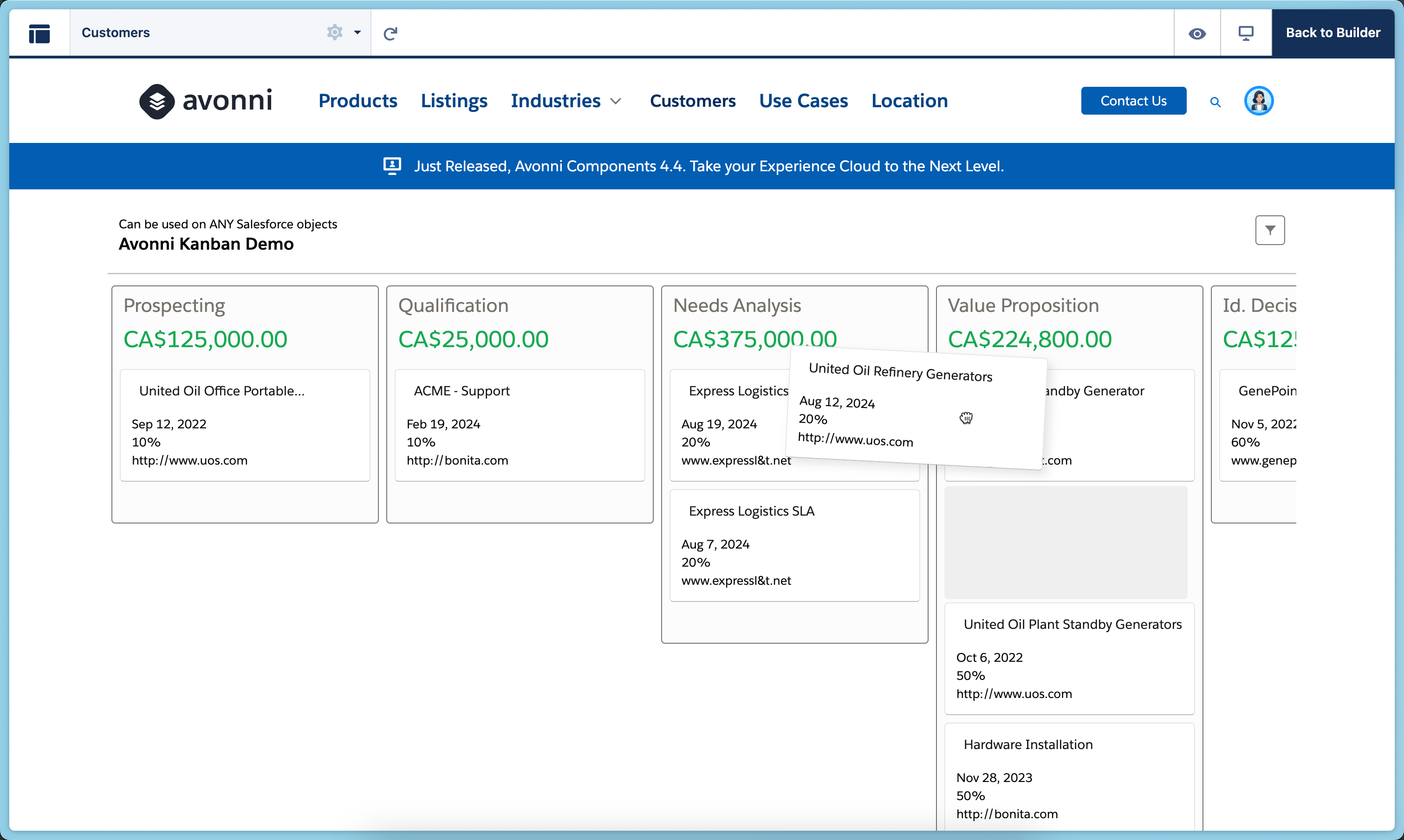
**AX - Kanban** is an Experience Cloud component that displays Salesforce records as draggable cards organized into workflow columns on Experience Sites pages.

Use it to let portal users visualize and manage workflows—like support case statuses, project phases, or approval stages. Users drag cards between columns to update record values, while you control which fields appear on cards and which picklist values define the columns. Configure everything in Experience Builder without code.

Perfect for customer support portals showing case progress, partner portals managing deal stages, project collaboration spaces, or anywhere portal users need visual workflow management.

<figure><img src="https://2929066058-files.gitbook.io/~/files/v0/b/gitbook-x-prod.appspot.com/o/spaces%2FDL6JQuZArjJeQvX2ot4y%2Fuploads%2FUTzhoKQdk4TpwMrX10vt%2F2024-04-22_20-46-23.png?alt=media&#x26;token=21e0f18e-eb2b-426b-b646-901755482f9c" alt=""><figcaption></figcaption></figure>

***

## Getting Started

Use this simple tutorial to learn the basics of the Kanban component and start building your use cases.

{% @arcade/embed flowId="SKeLCf1CoTnJZHTYhLOF" url="<https://app.arcade.software/share/SKeLCf1CoTnJZHTYhLOF>" %}

***

## Connect to Salesforce Data

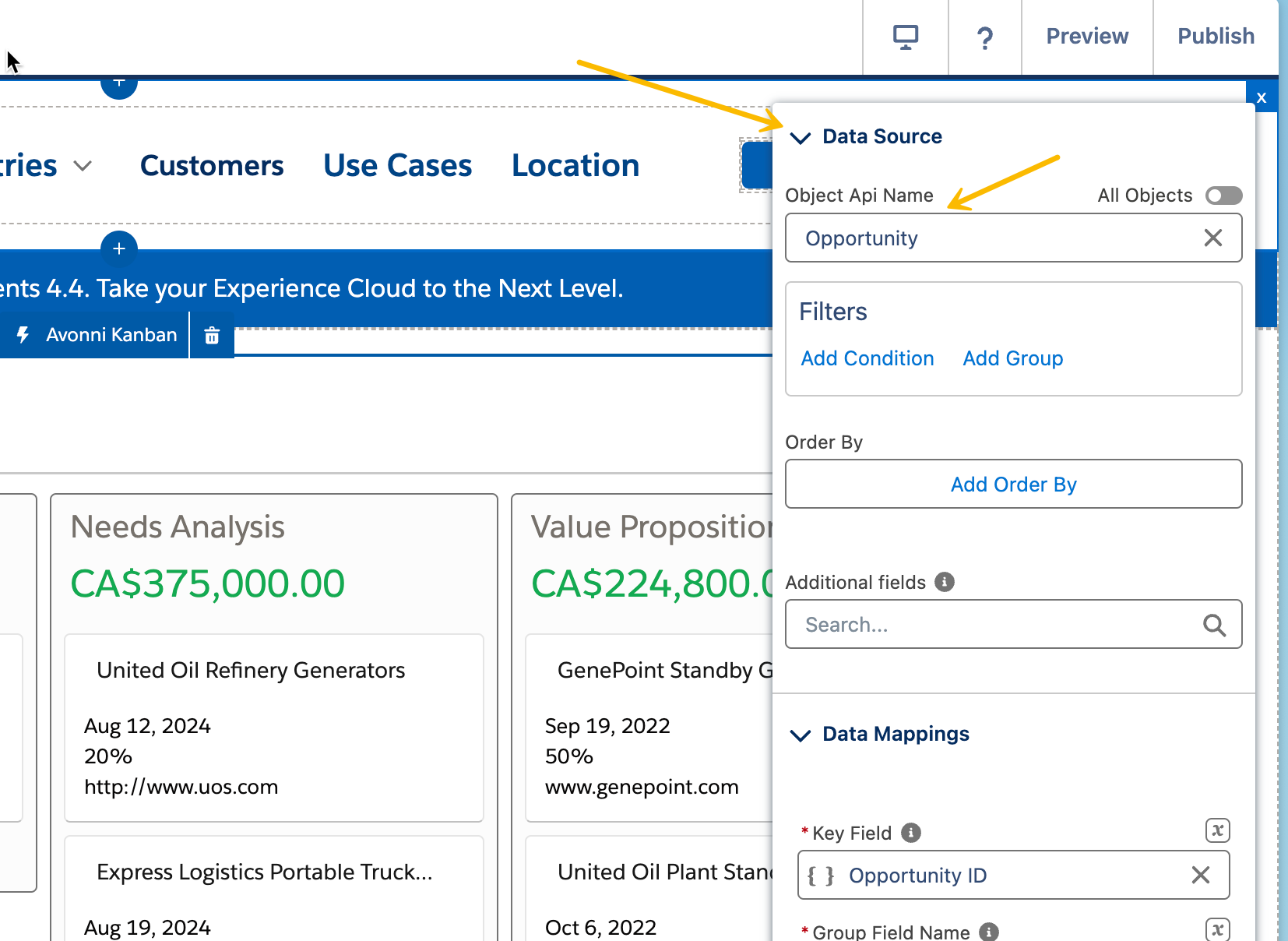
This essential step in configuring your Avonni Kanban component establishes the connection between your Kanban board and the relevant data within your Salesforce environment.&#x20;

<figure><img src="https://2929066058-files.gitbook.io/~/files/v0/b/gitbook-x-prod.appspot.com/o/spaces%2FDL6JQuZArjJeQvX2ot4y%2Fuploads%2FYBXNVnP2WbYWrsJCqbpK%2F2024-04-22_20-35-17.png?alt=media&#x26;token=ed325976-c447-48c4-b2b6-73cabf0e4199" alt=""><figcaption></figcaption></figure>

Here's how it works:

* **Object Selection:** Begin by choosing the specific Salesforce object (e.g., Accounts, Opportunities, custom objects, etc.) that contains the data you want your Kanban board to display.
* **Optional Filtering:** If you wish to display only a subset of data from the selected object, use the filtering feature to set specific conditions. For instance, you might filter to show only "Open" opportunities or accounts within a certain region.
* **Grouping (Optional):** Group your data to effectively organize your Kanban board. For example, grouping opportunities by "Stage" can create columns for "Prospecting," "Negotiation," etc.
* **Sorting:** Select an "Order By" field and direction (ascending or descending) to determine the order in which the Kanban cards should appear.
* **Additional Fields:** If you need to include fields in your Kanban that aren't directly used for display or interactions, add them in the "Additional Fields" section. This is particularly useful for fields you want to be searchable within Kanban's search bar.

### **Key Points**

* Choosing the right data source ensures your Kanban displays the information most relevant to your users.
* Filtering and grouping streamline the board, making it easier to visualize and manage specific work items.

***

## Data Mappings configuration <a href="#data-mappings-configuration" id="data-mappings-configuration"></a>

The "Data Mappings" section establishes a precise connection between your Salesforce data and the visual elements of your Kanban board. Here's why this is crucial:

* **Accurate Display:** Data mappings ensure that information pulled from Salesforce fields is displayed correctly on Kanban cards and within the board's columns. For example, you might map the Salesforce "Opportunity Name" field to the title of each Kanban card.
* **Functionality:** Mappings also control how users interact with the Kanban board. For instance, mapping a "Status" field to the Kanban columns allows users to drag and drop cards to update the status directly within the board.

### **How it Works**

1. **Select a Salesforce field** from your configured data source.
2. **Map it to a Kanban attribute** such as card title, description, column name, etc.
3. **Repeat this process** for all the essential fields you want to include on the Kanban board

***

## Items Actions & Interactions

This section lets you customize how users interact with your Kanban cards, making the board more dynamic and responsive.

### **Link to**

* Define what happens when a user clicks on a specific link within a Kanban card.
* **Common Uses:** Navigate to a record detail page, open an external website, or trigger a Salesforce Flow.

### **On Click**

* Determine actions that occur when a user clicks anywhere on a Kanban card.
* **Common Uses:** Expand the card for more details, open a modal window, or initiate a process.

<table><thead><tr><th width="228">Interaction Type</th><th>Description</th></tr></thead><tbody><tr><td><a href="../properties-panel/interactions/show-toast"><strong>Show Toast</strong></a></td><td>Displays a brief pop-up notification on the screen, providing quick feedback or information after clicking a map marker.</td></tr><tr><td><a href="../properties-panel/interactions/navigate"><strong>Navigate</strong></a></td><td>Redirects the user to a different page in your site or URL, guiding them to more detailed information about the clicked location.</td></tr><tr><td><a href="../properties-panel/interactions/open-alert-modal"><strong>Open Alert Modal</strong></a></td><td>Opens a modal window with an alert message, presenting important information or warnings about the selected location.</td></tr><tr><td><a href="../properties-panel/interactions/open-confirm"><strong>Open Confirm</strong></a></td><td>Triggers a confirmation dialog box, used for actions that require additional user confirmation, like event attendance.</td></tr><tr><td><a href="../properties-panel/interactions/open-flow-dialog"><strong>Open Flow Dialog</strong></a></td><td>Opens a dialog that runs a Salesforce Flow, initiating workflows or processes related to the clicked location.</td></tr></tbody></table>

***

## Styling Appearance

### **Size**

* **Width:** Controls the overall horizontal width of the Kanban board.
* **Height:** Controls the overall vertical height of the Kanban board.
* **Overflow:** Dictates how content is handled if it exceeds the board's dimensions (options might include 'visible', 'hidden', or 'scroll').

### **Border**

* **Size:** Thickness of the border around the entire Kanban board.
* **Style:** Appearance of the border (e.g., solid, dashed).
* **Color:** Color of the border.
* **Radius:** How rounded the corners of the board are.

### **Header**

* **Background Color:** Sets the background color of the Kanban's header section.
* **Padding (top, bottom, left):** Controls internal spacing within the header.
* **Margin Bottom:** Creates space between the header and the columns below.

### **Header Border**

* **Border Color, Size, Style, Radius:** Customize the appearance of a border within the header (likely to separate it visually).
* **Bottom Border (Is Joined):** These attributes likely control whether the bottom border merges visually with the column headers.

### **Header Title/Caption**

* **Color, Font Size, Font Weight, Font Style:** Control the appearance of the header's title and any caption text.

### **Header Avatar**

* **Background/Foreground Color:** Set the colors of the avatar element.
* **Foreground Color Utility:** Likely allows you to use pre-defined color utility classes.
* **Border Radius:** Controls how rounded the avatar element is.

### **Column Header**

* **Path Background Color:** Color of the background area where the column progress path is displayed.
* **Summary Text/Font Attributes:** Control the appearance of any summary text within the column header.

### **Column Sizing**

* **Min/Max Width:** Set the minimum and maximum width allowed for columns, affecting how they resize.

### **Card**

* **Background Colors:** Colors for normal, hover, and focus states.
* **Border Colors:** Colors for normal and focus states.
* **Title/Description/Info Text & Font Attributes:** Control the appearance of various text elements within a card.
* **Line Clamp:** Limits the number of lines displayed for titles/descriptions to prevent overflow.

### **Important Notes**

* **Specificity:** The exact styling attributes may vary slightly based on Avonni's implementation.
* **Visual Hierarchy:** Use these attributes strategically to create a clear visual hierarchy and guide the user's eye

***

## Use Case Examples

### Example 1: Partner Opportunity Kanban

{% @arcade/embed flowId="JQJEWO5OUQQf4fSb0GfD" url="<https://app.arcade.software/share/JQJEWO5OUQQf4fSb0GfD>" %}

Give your partners a clear, interactive view of their sales pipeline, right inside your Experience Cloud portal. With a drag-and-drop Kanban board, partner users can visualize, manage, and advance their opportunities without ever leaving the portal.

***

#### **What You'll Achieve**

* **Empowered partner visibility:** Give partner users a real-time, visual overview of their opportunity pipeline organized by stage
* **Intuitive pipeline management:** Enable drag-and-drop functionality so partners can update opportunity stages effortlessly
* **At-a-glance deal insight:** Surface key details like account name, deal amount, and close date directly on each card

***

#### **How to Set It Up**

{% stepper %}
{% step %}

#### **Add the Kanban component**

* Drag the AX Kanban component into your Experience Cloud Builder canvas
  {% endstep %}

{% step %}

#### **Configure the data source**

* Set the Object API Name to `Opportunity`
  {% endstep %}

{% step %}

#### **Set up data mappings**

* Set the Key Field to `Id`
* Set the Group Field Name to `StageName`
* Set the Record Type to `Master`
* Set the Summarize Field Name to `Amount`
  {% endstep %}

{% step %}

#### **Customize the cards**

* Set the Title to `Name`
* Set the Description to `Account.Name`
* Set the Start Date to `CreatedDate`
* Set the Due Date to `CloseDate`
* Add `Amount` as a displayed field
  {% endstep %}

{% step %}

#### **Customize the header**

* Set the Header Title to `Opportunity Kanban`
* Set the Header Icon to `standard:opportunity`
  {% endstep %}

{% step %}

#### **Preview your board**

* Review the layout in Experience Cloud Builder to confirm your configuration looks and behaves as expected
  {% endstep %}
  {% endstepper %}

***

#### **Links**

{% content-ref url="ax-tabs" %}
[ax-tabs](https://docs.avonnicomponents.com/experience-cloud/experience-components/ax-tabs)
{% endcontent-ref %}

### Example 2: Case Status Kanban

{% @arcade/embed flowId="XXPy9vrTjP5P3hbCqwTg" url="<https://app.arcade.software/share/XXPy9vrTjP5P3hbCqwTg>" %}

Give your customers visibility into their support journey with a dedicated Kanban board inside your support portal. By displaying cases organized by status, customers can track progress at a glance, reducing the need to follow up for updates and creating a smoother, more transparent support experience.

***

#### **What You'll Achieve**

* **Customer-facing transparency:** Let customers monitor the status of every submitted case in a clear, organized board view
* **Reduced inbound status calls:** Proactively show progress so customers spend less time chasing updates
* **Improved support satisfaction:** Deliver a polished, intuitive experience that builds trust and confidence in your support team

***

#### **How to Set It Up**

{% stepper %}
{% step %}

#### **Add the Kanban component**

* Drag the AX Kanban component into your Experience Cloud Builder canvas
  {% endstep %}

{% step %}

#### **Configure the data source**

* Set the Object API Name to `Case`
  {% endstep %}

{% step %}

#### **Set up data mappings**

* Set the Key Field to `Id`
* Set the Group Field Name to `Status`
  {% endstep %}

{% step %}

#### **Customize the cards**

* Set the Title to `Number`
* Set the Description to `Contact.Name`
* Set the Start Date to `CreatedDate`
  {% endstep %}

{% step %}

#### **Customize the header**

* Set the Variant to `Path`
* Set the Header Title to `Cases Kanban`
* Set the Header Icon to `standard:case`
  {% endstep %}

{% step %}

#### **Preview your board**

* Review the layout in Experience Cloud Builder to confirm your configuration looks and behaves as expected
  {% endstep %}
  {% endstepper %}