> For the complete documentation index, see [llms.txt](https://docs.avonnicomponents.com/llms.txt). Markdown versions of documentation pages are available by appending `.md` to page URLs; this page is available as [Markdown](https://docs.avonnicomponents.com/experience-cloud/experience-components/ax-gallery.md).
# AX - Gallery
## Overview
**AX - Gallery** is an Experience Cloud component that displays images and content in four layout styles on Experience Sites pages: carousel (slideshow), tabs (organized sections), grid (multi-column), or gallery (image showcase).
Use it to display product photos, project portfolios, case study images, resource collections, or any visual content that portal users need to browse. Configure the layout style, navigation, and image sources in Experience Builder without code.
{% hint style="info" %}
**See it in a real project**
[Fall course catalog](https://docs.avonnicomponents.com/projects/use-cases/portals-and-partner-sites/fall-course-catalog): A course catalog on a portal, six photos with price and seats left.
{% endhint %}
## Getting Started
Use this simple tutorial to learn the basics of the Gallery component and start building your use cases.
{% @arcade/embed url="" flowId="QrGyk84126ycSIM6P0oX" %}
## Configuration
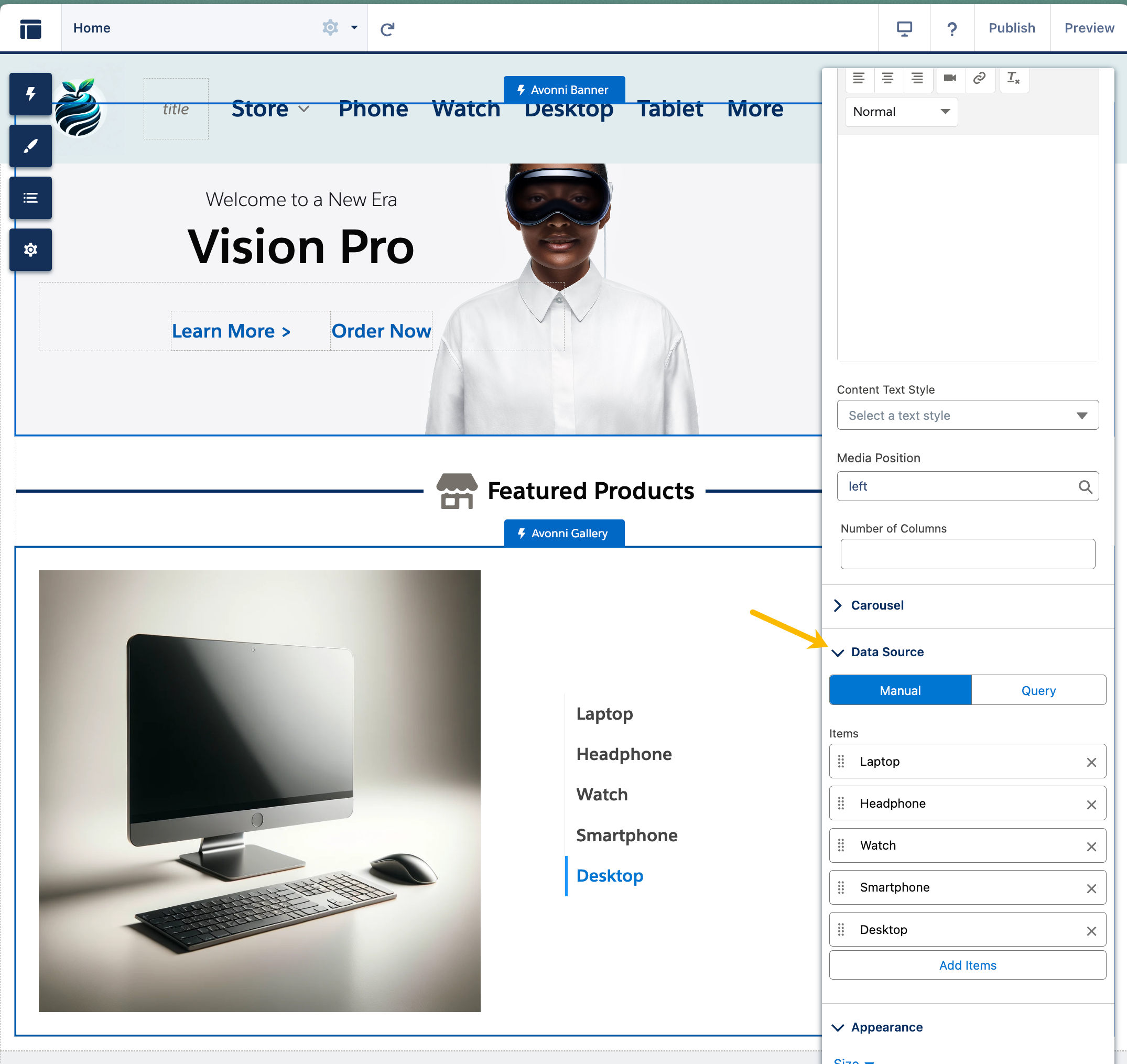
### Data Source
The **Data Source** is where you define your gallery's content. AX - Gallery supports two data source types: **Manual** and **Query**. (Set an **Api Name** to give the component a unique identifier, and **Media Position** to place each item's media relative to its content.)
| Data Source Type | Description | When to Use |
| ---------------- | ----------------------------------------------------------------------------------------------------------------------------------------------------------------------- | ------------------------------------------------------------------------------------------------------------------------------------------------ |
| **Manual** | Upload or enter each gallery item directly in the component. Every image added through the Media Source picker creates a **new** file in your Salesforce Files library. | One-off galleries with static content that rarely changes (landing page hero, fixed product showcase, demos). |
| **Query** | Pull items dynamically from a Salesforce object (Product, Knowledge, ContentVersion, custom object…). The gallery auto-updates when the underlying records change. | Any content that needs to stay in sync with Salesforce data, rotate regularly, or be managed by a non-technical team outside Experience Builder. |
{% hint style="info" %}
#### **Choosing between Manual and Query**
Manual mode creates a **brand new file** in the library every time you upload an image. It does not reference files that already exist in Salesforce Files. If you need to reuse or update your gallery content without reopening the Properties Panel, use **Query** instead.
{% endhint %}
#### Model Sharing with Avonni AX - Gallery
**Adherence to Salesforce Data Sharing Rules:**
* **Respecting Org Settings:** Avonni Components fully comply with your Salesforce organization's existing data-sharing configurations and access settings.
* **No Interference Policy:** These components do not alter or affect your pre-established data-sharing rules in any way.
* **Controlled Visibility and Access:** The ability to view and interact with records through Avonni Components is governed by your organization's defined sharing settings and user permissions
### Using existing Salesforce Files as your Media Source
The **Media Source** field in AX - Gallery is flexible about what you feed it. You can map it to a URL, a ContentDocumentId, or a full Salesforce Files download path. The component automatically detects ContentDocumentIds and resolves them to the correct preview URL at render time.
This is how you keep a gallery pointing at files in the **Salesforce Files library** without ever re-uploading through the component.
| What you put in Media Source | What the gallery renders |
| ------------------------------------------------------------------------------------------------------- | ------------------------------------------------------------------------------------------------ |
| A field containing a **ContentDocumentId** (starts with `069…`) | The latest version of the file is resolved and displayed. The component auto-detects `069…` IDs. |
| The standard **VersionDataURL** field when querying `ContentVersion` | The file is downloaded and displayed. Recommended when your source object is ContentVersion. |
| A **Shepherd URL** built with an expression like `/sfc/servlet.shepherd/version/download/{{Record.Id}}` | The exact version referenced in the URL is displayed. Useful for custom URL construction. |
| A **Public URL** (external image hosted elsewhere) | The image is loaded from the external source. |
#### **How to set it up in Query mode**
1. In the **Data Source**, select **Query** and choose your source object (`ContentVersion`, a custom object holding file references, or any object with an image field).
2. Apply a filter that identifies which records should appear (by title convention, tag, custom field, picklist value, etc.).
3. In **Data Mappings**, map **Media Source** based on your source object :
* **Querying ContentVersion :** map Media Source to the standard `Version Data URL` field.
* **Querying a custom object with a ContentDocumentId field :** map Media Source directly to that field (the component auto-detects `069…` IDs and resolves them).
* **Querying any object with a full image URL field :** map Media Source directly to that field.
Once configured, updating your gallery's content is as simple as replacing the files in the Salesforce Files library or updating the reference field on your records.
{% hint style="info" %}
#### Experience Builder Preview
Images pointing to Salesforce Files may not render in the Experience Builder preview because the builder does not authenticate as a portal user. They will render correctly once logged in to the published site as a community user
{% endhint %}
### Variant
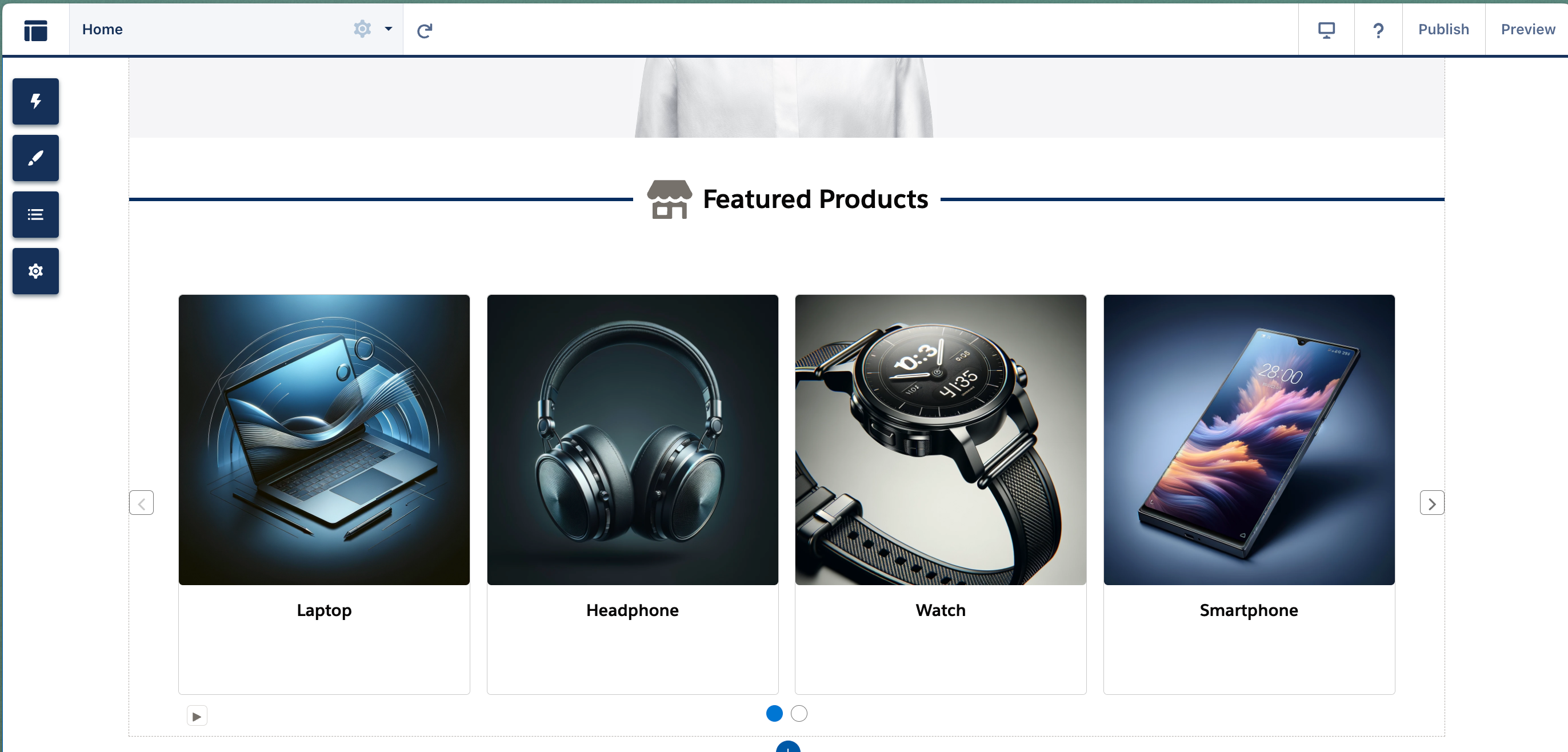
#### **Carousel**
The Carousel variant offers a dynamic, engaging way to showcase your content, images, or cards. It's designed to display items sequentially in a slideshow format, making it an excellent choice for highlighting featured content, product images, or important announcements.
**When to Use:** Utilize the Carousel variant when you want to:
* Capture user attention with a visually appealing presentation.
* Display multiple items or images in a space-efficient manner.
* Create rotating banners or featured content sections on your site.
**Features:**
* **Navigation Controls:** Navigate the carousel with intuitive controls such as arrow buttons or pagination dots.
* **Auto-Play Option:** Set the carousel to cycle through items automatically, with the ability to pause and resume.
* **Customizable Appearance:** Tailor the carousel's look and feel to match your site's design by adjusting elements such as transition effects and display duration.
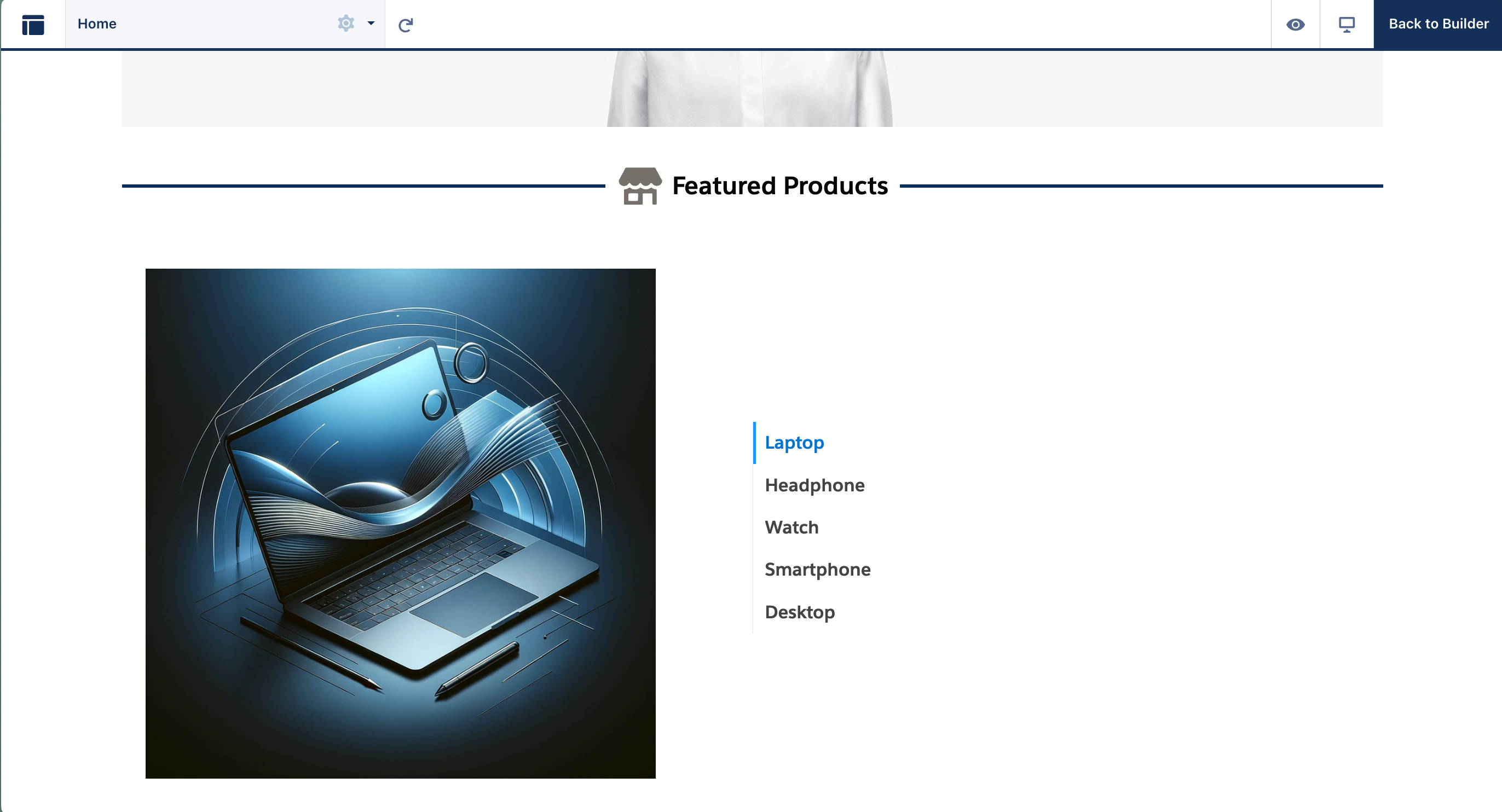
#### **Tabs**
The Tabs variant introduces an organized, tabulated approach to content presentation. This variant is ideal for categorizing information, offering a clean, structured layout that allows users to quickly navigate and access different content sections.
**When to Use:** Consider the Tabs variant when you need to:
* Present categorized information in a clear, segmented format.
* Allow users to easily switch between different content sections without leaving the page.
* Organize content such as product specifications, service categories, or informational tabs in a user-friendly manner.
**Features:**
* **Segmented Content:** Organize your content into clearly defined tabs, making it straightforward for users to find and view different sections.
* **User-Friendly Navigation:** Enable users to switch between tabs seamlessly, ensuring a smooth, intuitive experience.
* **Customizable Design:** Adapt the appearance of the tabs to align with your branding and site aesthetics by modifying elements such as tab labels, layout, and color schemes.
#### **Grid**
Presents content in a structured, multi-column layout. Each item occupies a cell within the grid.
**When to use:** Ideal for displaying a collection of items where equal emphasis is desired, such as:
* Product listings
* Team member profiles
* Blog post previews
**Features**
* Customizable number of columns
* Ability to define the spacing (gap) between items
* Options for images, titles, descriptions, and call-to-action buttons within each grid cell
#### **Gallery**
A visually-driven layout that prominently showcases images.
**When to use:** Best for highlighting image-based content, such as:
* Photography portfolios
* Product galleries
* Image-centric featured content
**Features**
* Focus on large, high-quality images
* Options to include captions or lightbox functionality for zooming in on images
* Potential for creative layouts and hover effects
## Interactions
The "Link to" section determines what happens when a user clicks on an item in your Avonni Gallery. Use this to direct users to detailed pages, open new content, or trigger other actions.
**Example:**
* For example, showcase featured houses in a gallery and allow users to click on each image to view more details on a separate page.
## Styling
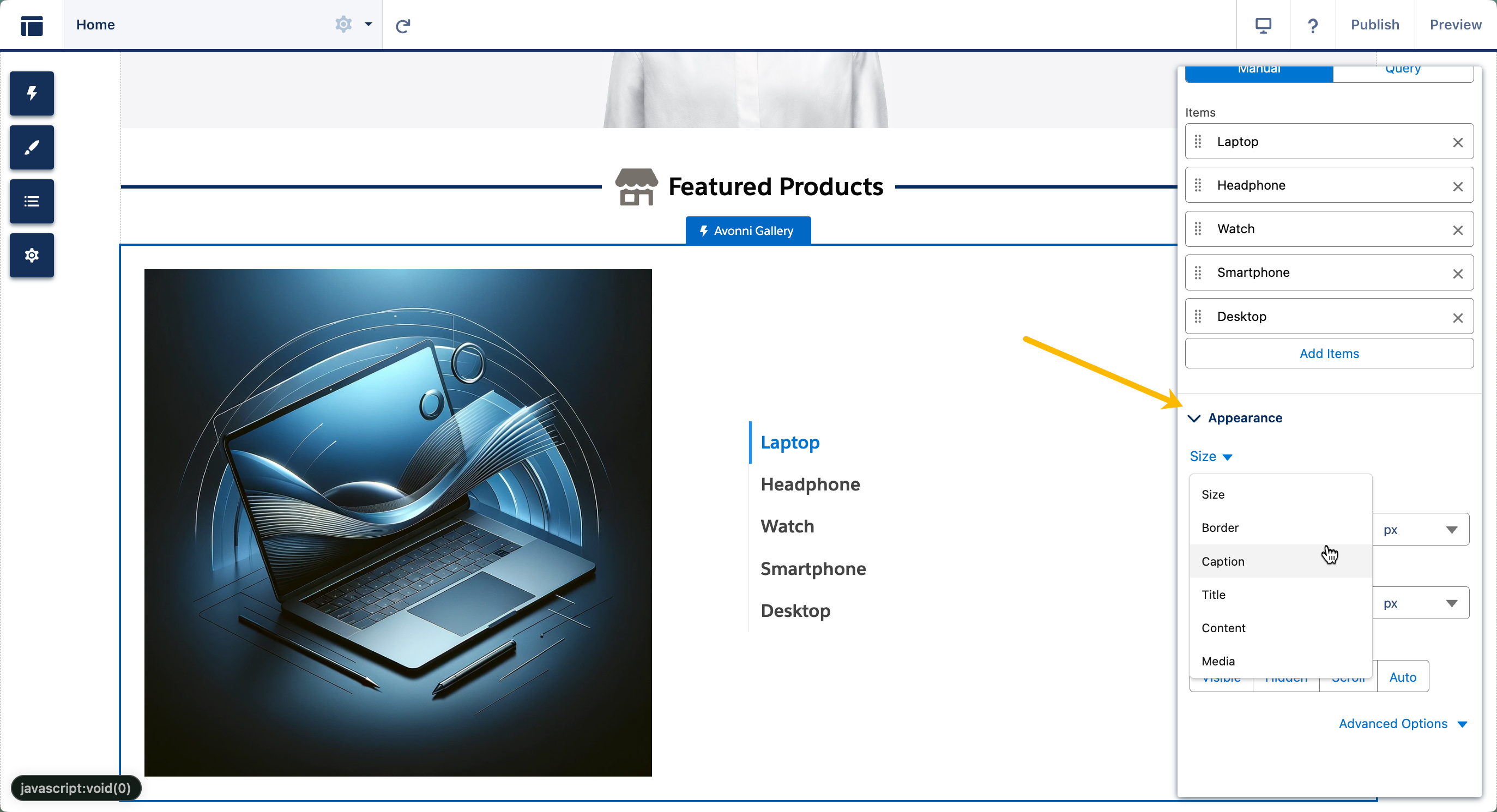
The styling attributes let you control the visual appearance of every element in the gallery. Settings are grouped by what they affect.
{% tabs %}
{% tab title="General" %}
Apply to all variants (Carousel, Tabs, Grid, Gallery).
| Setting | What it controls |
| ------------ | ------------------------------------------------------------- |
| **Size** | Overall width and height of the gallery. |
| **Border** | Border style, width, and color around the gallery. |
| **Caption** | Styling of the caption text shown on each item. |
| **Title** | Styling of the title text on each item. |
| **Content** | Styling of the main content area inside each item. |
| **Media** | How images and videos are displayed (fit, alignment, sizing). |
| {% endtab %} | |
{% tab title="Carousel variant" %}
Only applies when **Variant** is set to `Carousel`.
| Setting | What it controls |
| -------------------------------- | --------------------------------------------------------- |
| **Slideshow Item** | Background, alignment, and spacing of each carousel item. |
| **Slideshow Item Title** | Font, size, and color of item titles. |
| **Slideshow Item Description** | Font, size, and color of item descriptions. |
| **Slideshow Image** | Size and border of images inside each item. |
| **Slideshow Active Indicator** | Styling of the indicator for the currently viewed item. |
| **Slideshow Inactive Indicator** | Styling of the indicators for non-active items. |
| **Slideshow Navigation Button** | Styling of the previous/next navigation buttons. |
| {% endtab %} | |
{% tab title="Tabs variant" %}
Only applies when **Variant** is set to `Tabs`.
| Setting | What it controls |
| --------------------------- | ------------------------------------------ |
| **Tab** | Styling of each individual tab. |
| **Tab Border** | Border around each tab. |
| **Active/Hover Tab Border** | Border for the active tab and hover state. |
| **Tab Background** | Background color or image for tabs. |
| **Tab Label** | Font, size, and color of tab labels. |
| **Tab Subtitle** | Font, size, and color of tab subtitles. |
| {% endtab %} | |
| {% endtabs %} | |
## Troubleshooting
| Problem | Cause | Fix |
| ------------------------------------------------------------------------------------------- | ----------------------------------------------------------------------------------------------------------------------------------------------------------------------------------------------- | ------------------------------------------------------------------------------------------------------------------------------------------------------------------------------------------------------------------------------------------ |
| **Images do not preview in Experience Builder but display correctly on the published site** | Experience Builder does not authenticate as a portal user, so it cannot fetch images from Salesforce Files during preview. | Expected behavior. Log in to the published site as a community user to verify images render correctly. |
| **"No preview available" appears in Manual mode** | The uploaded image was not flagged as a public link, so portal users cannot load it. | Re-upload the image and check **Public link** at upload time, or switch to Query mode where standard sharing rules apply. |
| **Manual mode forces you to re-upload every time you want to change an image** | Manual mode is a direct uploader — it does not reference existing Salesforce Files. | Use **Query** mode with ContentVersion or a custom object holding file references. See *Using existing Salesforce Files as your Media Source* above. |
| **Gallery is empty for portal users but works in Experience Builder preview** | The portal user's profile lacks access to the queried object or to the referenced files. | Check profile object permissions, field-level security, and Library/sharing access on `ContentVersion` or the source object. |
| **Images do not render at all (neither in preview nor on the published site)** | Media Source is mapped to a field that does not contain a valid file reference (ContentDocumentId starting with `069…`, the `Version Data URL` field on ContentVersion, or a public image URL). | Verify what the mapped field actually contains. When querying ContentVersion, use the standard `Version Data URL` field. For custom objects, store a ContentDocumentId (starting with `069…`) and map Media Source directly to that field. |
| **Gallery shows correct titles but all images are broken** | Media Source is mapped to a field that does not contain a ContentDocumentId or a valid URL. | In Data Mappings, confirm Media Source points to a ContentDocumentId field, a shepherd URL, or a valid public image URL. |
## Use Cases
### Example 1: Customer News Carousel
{% @arcade/embed url="" flowId="pOjxSsq8rQ3YgZFvjMgr" %}
Keep your customers informed and engaged by showcasing your latest articles directly on your Experience Cloud home page. The AX Gallery component makes it easy to display a dynamic, image-rich news carousel that updates automatically as new content is published.
***
#### **What You'll Achieve**
* **Fresh content at a glance:** Surface your most recent Knowledge articles on the home page, complete with images, so visitors never miss an update.
* **Effortless browsing:** Let customers scroll through company news in a clean, structured carousel layout.
* **Targeted filtering:** Display only News articles by leveraging a custom picklist field, keeping the carousel focused and relevant.
***
#### **Before You Begin**
* **`ImageId__c` field:** Create a Text field on the Knowledge object to store the Content Document ID of each article's image.
* **`Type__c` field:** Create a Picklist field on the Knowledge object to categorize articles, making sure the **News** value exists and is applied to your articles.
***
#### **How to Set It Up**
{% stepper %}
{% step %}
#### **Add the component to your page**
* Drag the **AX Gallery** component onto your desired page in Experience Builder.
{% endstep %}
{% step %}
#### **Customize the component display**
* Set the **Title** to `News Carousel`.
* Set the **Caption** to `Browse our weekly articles`.
* Set the **Number of Columns** to `3`.
{% endstep %}
{% step %}
#### **Set up your data source**
* Create a new query in the data source configuration.
* Select **Knowledge** as the object (make sure to select the second Knowledge option in the list).
* Add a filter: **Type\_\_c equals** `News`.
* Set the sort order to **Created Date, Descending** so your newest articles always appear first.
{% endstep %}
{% step %}
#### **Configure the data mapping**
* Map **Title** to the Knowledge `Title` field.
* Map **Media Source** to `ImageId__c` to pull in article images.
* Set the **Playback Rate** to `5`.
{% endstep %}
{% step %}
#### **Preview your work**
* Use the Experience Builder preview to confirm that your carousel displays the correct articles, images, and layout before publishing.
{% endstep %}
{% endstepper %}
***
### Example 2: Customer Products gallery
{% @arcade/embed url="" flowId="aIu9ZNuteXdewe19LJL0" %}
Give your customers a visually compelling way to discover your product catalog, right from your home page. By combining the AX Gallery component with your Product data, you can create an eye-catching carousel that highlights featured products and guides visitors straight to product detail pages.
***
#### **What You'll Achieve**
* **A visual product showcase:** Display featured headphones in a rich, image-forward carousel that encourages browsing.
* **Seamless navigation:** Allow customers to move from the carousel directly to individual product detail pages with ease.
* **A curated homepage experience:** Highlight the products that matter most by surfacing only your featured catalog on the home page.
***
#### **Before You Begin**
* **`Type__c` field:** Create a Picklist field on the Product2 object and ensure the **Headphone** value exists, so you can filter the carousel to the right products.
* **`ContentDocumentId__c` field:** Create a Text field on the Product2 object to store the image URL for each product.
***
#### **How to Set It Up**
{% stepper %}
{% step %}
#### **Add the component to your page**
* Drag the **AX Gallery** component onto your desired page in Experience Builder.
{% endstep %}
{% step %}
#### **Customize the component display**
* Set the **Title** to `Products Carousel`.
* Set the **Caption** to `Browse our featured products!`
* Set the **Number of Columns** to `3`.
{% endstep %}
{% step %}
#### **Set up your data source**
* Create a new query in the data source configuration.
* Select **Product** as the object.
{% endstep %}
{% step %}
#### **Configure the data mapping**
* Map **Title** to the `Product Name` field.
* Map **Media Source** to `ContentDocumentId__c` to display each product's image.
* Set the **Playback Rate** to `5`.
{% endstep %}
{% step %}
#### **Preview your work**
* Use the Experience Builder preview to confirm that your products, images, and carousel layout appear as expected before publishing.
{% endstep %}
{% endstepper %}
---
# Agent Instructions
This documentation is published with GitBook. GitBook is the documentation platform designed so that both humans and AI agents can read, navigate, and reason over technical content effectively. Learn more at gitbook.com.
## Querying This Documentation
If you need additional information that is not directly available in this page, you can query the documentation dynamically by asking a question.
Perform an HTTP GET request on the current page URL with the `ask` query parameter, and the optional `goal` query parameter:
```
GET https://docs.avonnicomponents.com/experience-cloud/experience-components/ax-gallery.md?ask=&goal=
```
`ask` is the immediate question: it should be specific, self-contained, and written in natural language.
`goal` is optional and describes the broader end goal you are ultimately trying to accomplish on behalf of the user. GitBook uses it to tailor the answer towards what is most useful for that goal.
The response will contain a direct answer to the question and relevant excerpts and sources from the documentation.
Use this mechanism when the answer is not explicitly present in the current page, you need clarification or additional context, or you want to retrieve related documentation sections.
.gif?alt=media)