> For the complete documentation index, see [llms.txt](https://docs.avonnicomponents.com/llms.txt). Markdown versions of documentation pages are available by appending `.md` to page URLs; this page is available as [Markdown](https://docs.avonnicomponents.com/projects/dynamic-components/working-with-data/how-to-build-a-record-edit-form-for-modals-and-panels.md).
# How to Build a Record Edit Form for modals & panels
## Overview
Learn to build a no-code record edit form designed to be launched in a modal or side panel. This tutorial focuses on the essential pattern of using the **"On Load" interaction** to pre-load a specific record's data based on a passed-in Record ID. This technique is crucial for any component that needs to fetch its data when opened in response to an interaction.
**Key Concepts You'll Use:**
* **Input Variable:** To receive the ID of the record that needs to be edited.
* **"On Load" with "Get Records":** To fetch the record's data *before* the form is shown.
* **Record Variable:** To hold the fetched record's data for editing.
* **Fields Tab:** To quickly build the form with pre-bound input fields.
* **"Update Record" Interaction:** The action that saves the changes to Salesforce.
## Guided Steps
{% stepper %}
{% step %}
### Create Your Input and Record Variables
First, we need two key variables: one to receive the incoming Record ID and another to hold the complete record data for editing.
* **Open/Create Dynamic Component:** Start with a new Dynamic Component.
* **Go to Resources:** In the Component Builder, click the **Resources** icon.
* **Add Input Variable:** Create a new **Variable** resource.
* **API Name:** `inputRecordId`
* **Data Type:** `Text`
* **Available for Input:** ☑️ **Checked**. This is essential so another component can pass a Record ID *into* this one.
* **Add Record Variable:** Create a second **Variable** resource.
* **API Name:** `recordToEdit`
* **Data Type:** `Record`
* **Object API Name:** Choose the Salesforce **Object** you intend to edit (e.g., `Contact`).
{% endstep %}
{% step %}
### Add an "On Load" Interaction to Fetch Record Data
{% hint style="warning" %}
## **Important Context: Why This Method is Used**
It's crucial to understand why we use the **"On Load"** interaction here. When a component is opened in a modal, it doesn't automatically know which record to edit. We must *pass* it the Record ID. The **"On Load"** interaction then uses this passed-in ID to fetch the record's data *before* the form appears.
This is different from placing a component directly on a record page. In that scenario, setting the [**Target Page Name**](/dynamic-components/core-concepts/target-page-object.md) is often enough to access the current record's data automatically via `$Component.record`, making this specific "On Load" step unnecessary. This tutorial focuses on the powerful and common modal/panel use case.
{% endhint %}
This crucial step fetches the correct record's data *before* the edit form is displayed to the user.
1. **Access Interactions:** In the Properties Panel for your *top-level* Dynamic Component, find the **Interactions** section.
2. **Add "On Load" Action:** Click "Add Action" under the **On Load** event.
3. **Choose "Get Records":** Set the **Action Type** to `Get Records`.
4. **Configure the Action:**
* **Record Variable:** Select your `{!recordToEdit}` variable.
* **Object API Name:** Select the same object you chose for your Record Variable (e.g., `Contact`).
* **Record ID:** Bind this to your input variable: `{!inputRecordId}`.
{% endstep %}
{% step %}
### Build the Edit Form Layout
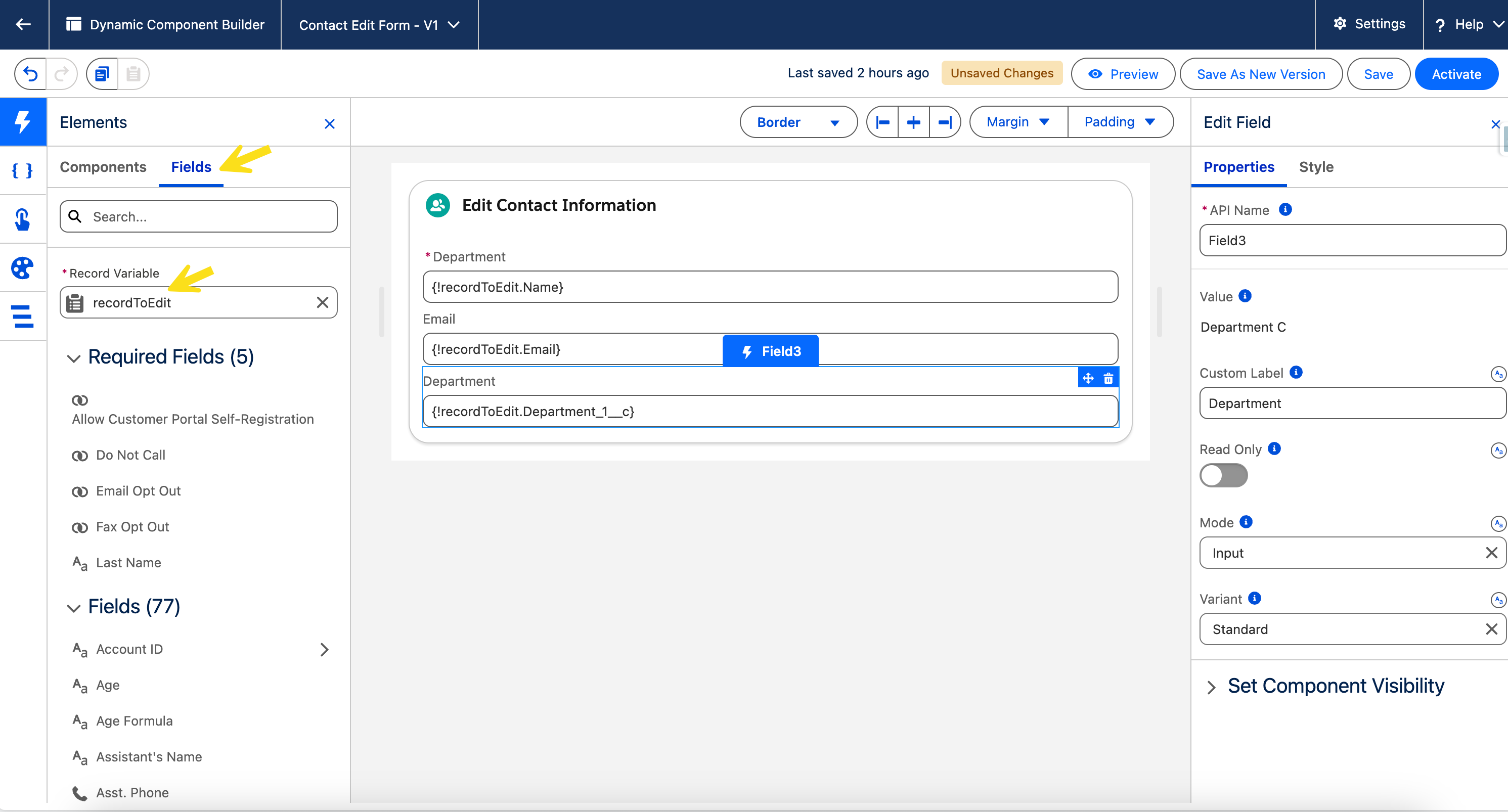
Now we'll visually create the form using a Card and the Fields Tab, which is now aware of your Record Variable.
1. **Add the Card Container:** From the Component Library, drag a **Card** component onto your canvas and give it a **Title** (e.g., "Edit Contact").
2. **Populate the Form Using the Fields Tab:**
* Go to the **Component Library** (left panel) and click on the **Fields** tab.
* From the dropdown, select your **Record Variable** (`recordToEdit`).
* The Fields tab will now show the fields from your chosen Salesforce object. Drag the desired fields one by one *directly into the Card*.
* Avonni automatically creates the correct pre-bound input component for each field (e.g., a Text Input for `FirstName`, an Email Input for `Email`).
{% hint style="success" %}
## Pro Tip: Displaying Fields from Related Records
You can also display fields from related parent records. In the **Fields Tab**, any lookup relationship field (like `AccountId` or a custom lookup) will have an arrow next to it. Clicking this arrow expands the relationship, allowing you to see and drag fields from the related object directly onto your component.
{% endhint %}
{% endstep %}
{% step %}
### Add and Configure the "Save" Button
Finally, we need a button for users to save their changes.
* **Add and Style the Button:** Drag an Avonni **Button** into your Card in the footer section, below the input fields. In its Properties Panel, set the **Label** to "Save Changes" and the **Variant** to `brand`.
* **Configure the "Update Record" Interaction:**
* With the Button selected, go to the **Interactions** section.
* Add a new interaction for the **On Click** event.
* **Action Type:** Choose **Record Variable Operations > `Update Record`**.
* **Record Variable:** In the action's settings, select your `{!recordToEdit}` variable. This tells the interaction which variable holds the updated data to save back to Salesforce.
{% endstep %}
{% endstepper %}
## How This Component is Used
You would typically launch this "Edit Form" Dynamic Component from another component (like a Data Table) using the **"Open Dynamic Component Dialog"** interaction. In that interaction, you would pass the `Id` of the selected row from the Data Table into the `inputRecordId` variable of this component, triggering the entire process
---
# Agent Instructions
This documentation is published with GitBook. GitBook is the documentation platform designed so that both humans and AI agents can read, navigate, and reason over technical content effectively. Learn more at gitbook.com.
## Querying This Documentation
If you need additional information that is not directly available in this page, you can query the documentation by asking a question.
Perform an HTTP GET request on the following URL with the `ask` and `goal` query parameters:
```
GET https://docs.avonnicomponents.com/projects/dynamic-components/working-with-data/how-to-build-a-record-edit-form-for-modals-and-panels.md?ask=&goal=
```
`ask` is the immediate question: it should be specific, self-contained, and written in natural language.
`goal` is what the user is ultimately trying to achieve, the reason they need the answer. Sharing it helps GitBook give you a better, more relevant answer. A goal is most helpful when it describes the outcome the user wants rather than restating the question. For example, with `ask=how do I create an API token`, a goal like `automate deployments from our CI pipeline` lets GitBook tailor the answer to that use case.
The response will contain a direct answer to the question and relevant excerpts and sources from the documentation.
Use this mechanism when the answer is not explicitly present in the current page, you need clarification or additional context, or you want to retrieve related documentation sections.


.gif?alt=media&token=ea328f3e-57cd-45da-bd76-78262ce36db3) {% endhint %}
{% endstep %}
{% step %}
### Add and Configure the "Save" Button
Finally, we need a button for users to save their changes.
* **Add and Style the Button:** Drag an Avonni **Button** into your Card in the footer section, below the input fields. In its Properties Panel, set the **Label** to "Save Changes" and the **Variant** to `brand`.
{% endhint %}
{% endstep %}
{% step %}
### Add and Configure the "Save" Button
Finally, we need a button for users to save their changes.
* **Add and Style the Button:** Drag an Avonni **Button** into your Card in the footer section, below the input fields. In its Properties Panel, set the **Label** to "Save Changes" and the **Variant** to `brand`.

