> For the complete documentation index, see [llms.txt](https://docs.avonnicomponents.com/llms.txt). Markdown versions of documentation pages are available by appending `.md` to page URLs; this page is available as [Markdown](https://docs.avonnicomponents.com/projects/use-cases/visual-product-catalog.md).

# Visual product catalog

## Overview

The spring catalog on the account record: six products, one photo each, an Add to order button under every tile. The rep never leaves the account. The catalog is one **Image List** Dynamic Component on the Account record page, reading product records through a Query data source. This tutorial rebuilds the catalog of the Northwind Distribution account page, in the Sales app, in your own org.

## What you build

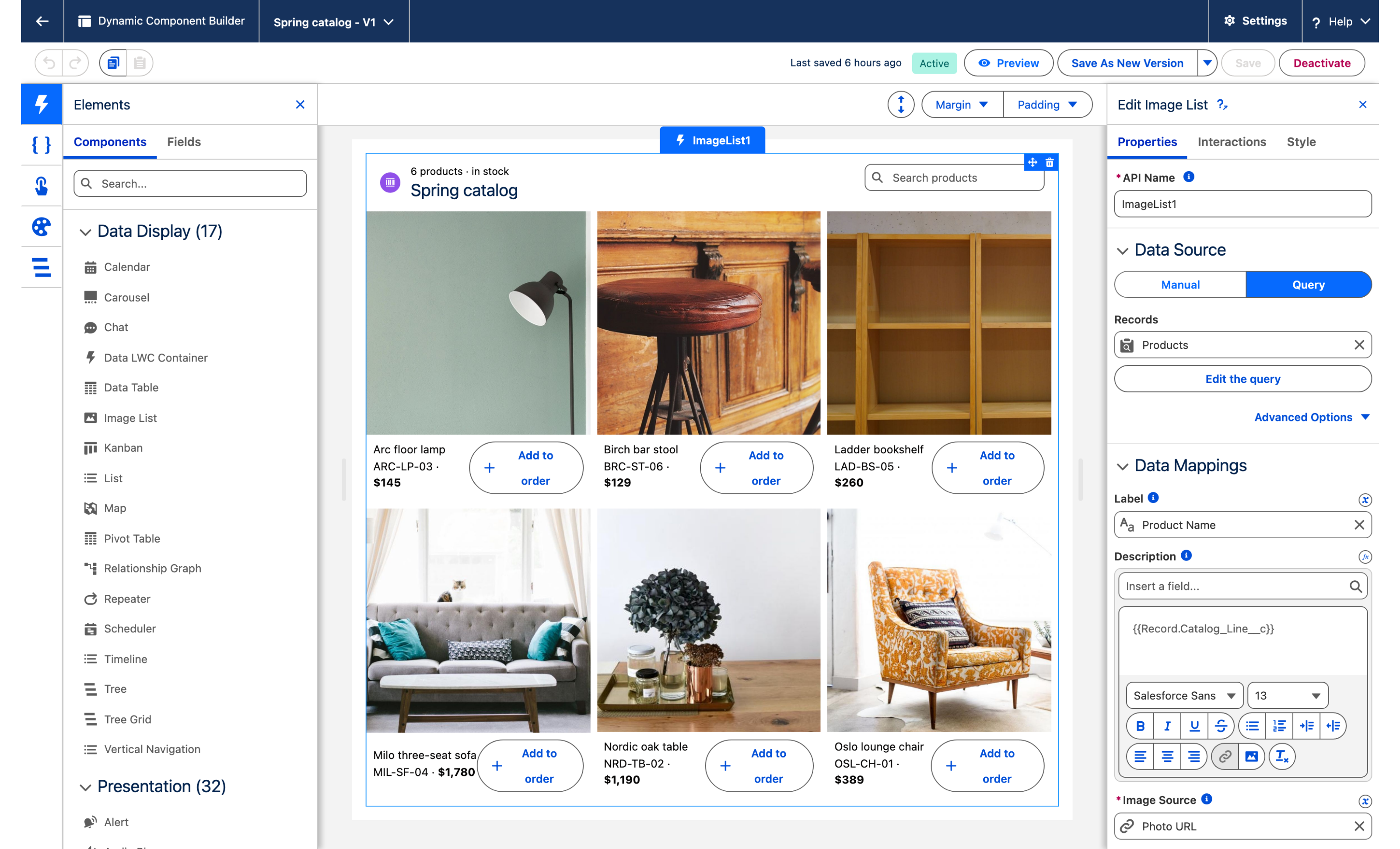
![Avonni Image List on a Salesforce Account record page: six product photos in three columns, each with name, SKU, price and an Add to order button](https://3857391697-files.gitbook.io/~/files/v0/b/gitbook-x-prod.appspot.com/o/spaces%2FdHOej9Pd5IxJNGEJMZKW%2Fuploads%2FlYZGCN17r9JJ3kKn9zO7%2Fuc-06-visual-catalog.png?alt=media)

* Open Northwind Distribution and the catalog sits under the highlights panel, headed `6 products · in stock` above `Spring catalog`.
* Three tiles across, two rows: the product photo, then the name, the SKU and the price under it.
* A search box on the right of the header, for larger catalogs.
* **Add to order** under every tile fires an interaction that creates an order line on this account.

## Before you start

{% hint style="info" %}
**Adapt this to your own org.** Catalog Product and Order Line are objects this tutorial creates, because the org it was captured in had neither. If you already sell from Salesforce, your products are in `Product2` with a price book and your lines in `OrderItem`: point the query at your product object and the Create Record interaction at your line object, and none of the other steps change. The grid itself asks for one thing only, a field holding an image address. Everything else on the tile is optional.
{% endhint %}

* The [Avonni Experience Components](https://appexchange.salesforce.com/appxListingDetail?listingId=2e584bb3-b5e0-415d-9347-d6567158d840) package, which carries Dynamic Components, is installed. Whoever builds the component needs the **Avonni Experiences Admin** permission set; the people who use the page need a license and **Avonni Dynamic Components User**. See [Installation & Licenses Management](https://docs.avonnicomponents.com/dynamic-components/getting-started/installation-and-licenses-management).
* An Account record page you can edit in Lightning App Builder. The examples below use the account **Northwind Distribution** (Type Partner, Industry Furniture retail) in the **Sales** app.
* Two custom objects, one for the catalog and one for the order lines the button creates:

| Object                                 | Field             | Type                                                 | Role                                                   |
| -------------------------------------- | ----------------- | ---------------------------------------------------- | ------------------------------------------------------ |
| Catalog Product (`Catalog_Product__c`) | `Name`            | Text                                                 | The product name, `Oslo lounge chair`. The tile title. |
|                                        | `SKU__c`          | Text                                                 | `OSL-CH-01`. Also the display order of the tiles.      |
|                                        | `Price__c`        | Currency, 0 decimal places                           | The unit price                                         |
|                                        | `Category__c`     | Picklist: `Seating`, `Tables`, `Lighting`, `Storage` | Used by the filter variation in Take it further        |
|                                        | `Photo_URL__c`    | URL                                                  | The photo on the tile                                  |
|                                        | `In_Stock__c`     | Checkbox                                             | The query filter                                       |
|                                        | `Catalog_Line__c` | Formula (Text)                                       | `OSL-CH-01 · $389` under the name, see step 1          |
| Order Line (`Order_Line__c`)           | `Name`            | Auto Number, `OL-{0000}`                             |                                                        |
|                                        | `Account__c`      | Lookup (Account)                                     | The account the rep is looking at                      |
|                                        | `Product__c`      | Lookup (Catalog Product)                             | The tile the rep clicked                               |
|                                        | `Quantity__c`     | Number, 0 decimal places                             | `1` at creation                                        |
|                                        | `Unit_Price__c`   | Currency, 0 decimal places                           | The price at the time of the click                     |

**Sample data.** Six products, all in stock:

| Product              | SKU       | Category | Price |
| -------------------- | --------- | -------- | ----- |
| Oslo lounge chair    | OSL-CH-01 | Seating  | 389   |
| Nordic oak table     | NRD-TB-02 | Tables   | 1,190 |
| Arc floor lamp       | ARC-LP-03 | Lighting | 145   |
| Milo three-seat sofa | MIL-SF-04 | Seating  | 1,780 |
| Ladder bookshelf     | LAD-BS-05 | Storage  | 260   |
| Birch bar stool      | BRC-ST-06 | Seating  | 129   |

Use six product photos you own. Store them where the org can load them and put the address in **Photo URL**: a static resource (`/resource/Catalog_Photos/oslo-lounge-chair.jpg`), a Salesforce File, or an external URL your org's Trusted URLs allow. Landscape photos of similar proportions make the grid even. The photos in the figure are not part of this tutorial.

**Permissions.** Users need Read on Catalog Product and its fields, and Create on Order Line for the button to work. The order line is created as the user who clicks, with that user's access.

## Build it

{% stepper %}
{% step %}

### Create the two objects, the formula and the products

1. In **Setup**, open **Object Manager** and create **Catalog Product** and **Order Line** with the fields listed above.
2. On Catalog Product, add the **Catalog Line** formula field (return type Text):

```
SKU__c & " · <strong>$" &
IF(Price__c >= 1000,
   TEXT(FLOOR(Price__c / 1000)) & "," & RIGHT("00" & TEXT(FLOOR(MOD(Price__c, 1000))), 3),
   TEXT(FLOOR(Price__c))) &
"</strong>"
```

3. Load the six sample products with **In Stock** checked.

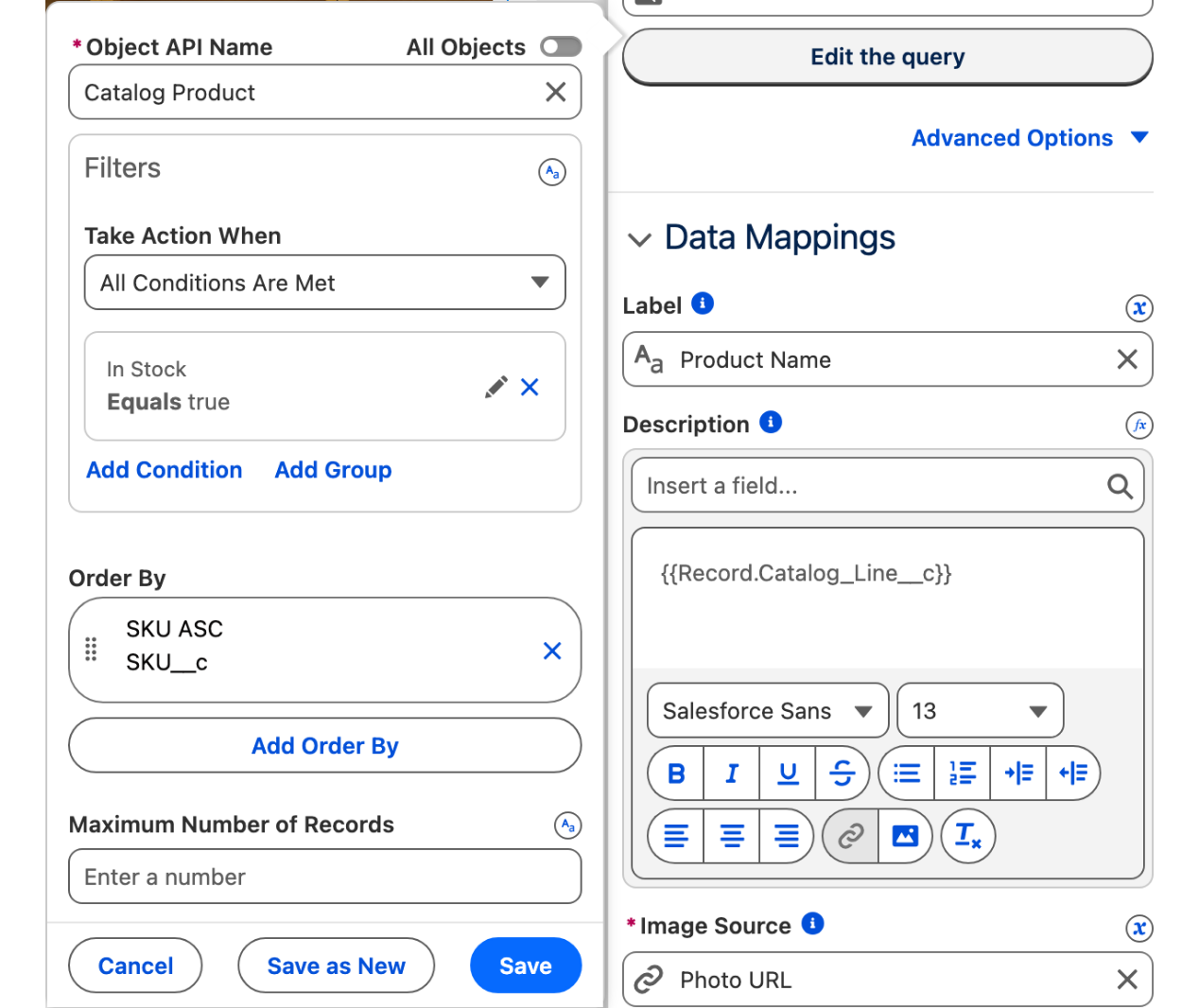
*Why:* the tile's description is rich text, so the `<strong>` tags render the price in bold, as in the figure. Mapped straight to the currency field, the description would print `1190`, with no symbol and no separator: a mapping inserts a field's value as it is stored.
{% endstep %}

{% step %}

### Create the Dynamic Component and add the Image List

1. From the App Launcher, open the **Avonni Components App** and click **New Component**.
2. Name it `Spring catalog` and set [**Target Page Object**](https://docs.avonnicomponents.com/dynamic-components/core-concepts/target-page-object) to **Account**.
3. Drag **Image List** onto the canvas and select it. The **Edit Image List** panel opens on the right with the **Properties**, **Interactions** and **Style** tabs.

*Why:* the catalog itself is the same on every account. The Target Page Object is for the button: it is what gives the interaction the Id of the account the rep is looking at.
{% endstep %}

{% step %}

### Connect the query

1. In the **Data Source** section, select **Query** and click **Create Query**.
2. Choose the **Catalog Product** object.
3. Under **Filters**, add `In_Stock__c` equals `true`.
4. Set **Order By** to `SKU__c`, ascending, and click **Done**.

*Why:* the filter is what "in stock" means on the page. Take a product off the shelf and its tile is gone at the next load. See [Query](https://docs.avonnicomponents.com/dynamic-components/component-builder/data-sources/query) for the filter operators.
{% endstep %}

{% step %}

### Map the tiles

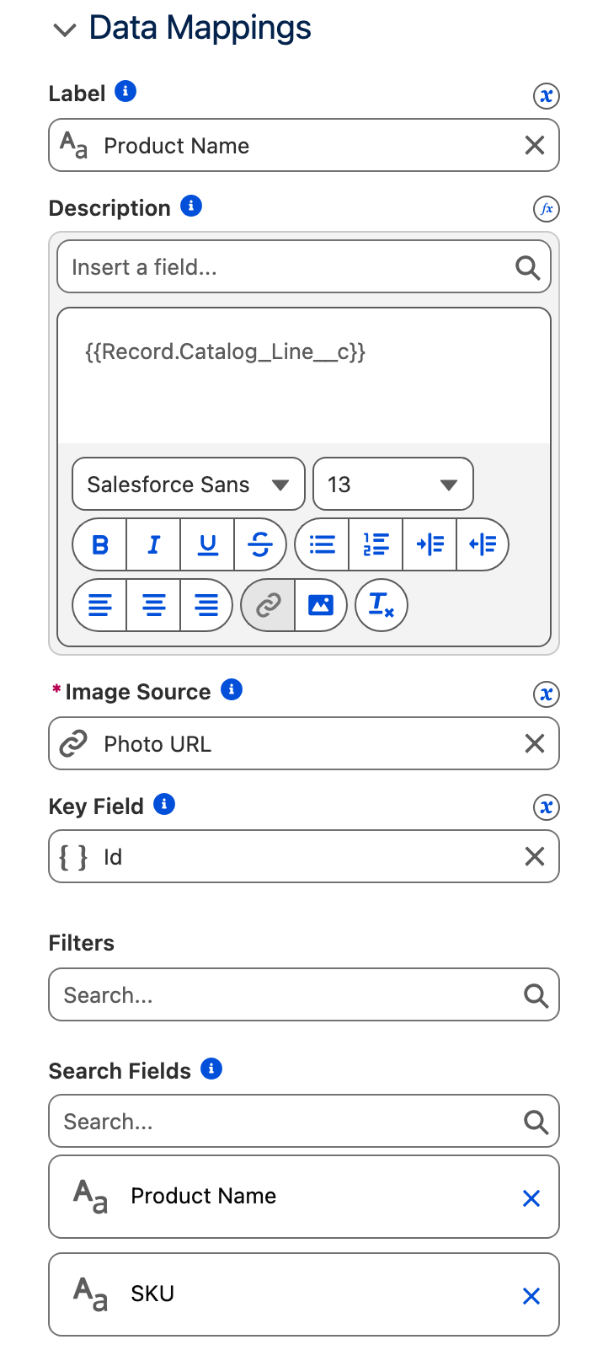
In the **Data Mapping** section:

1. **Label**: `Name`.
2. **Description**: `Catalog_Line__c`.
3. **Image Source**: `Photo_URL__c`.
4. Leave **Key Field** on `{{Record.Id}}`.
5. **Search Fields**: `Name` and `SKU__c`.

*Why:* **Image Source** is the only mapping the list needs to show something; the other two put the name and the SKU and price line under each photo.
{% endstep %}

{% step %}

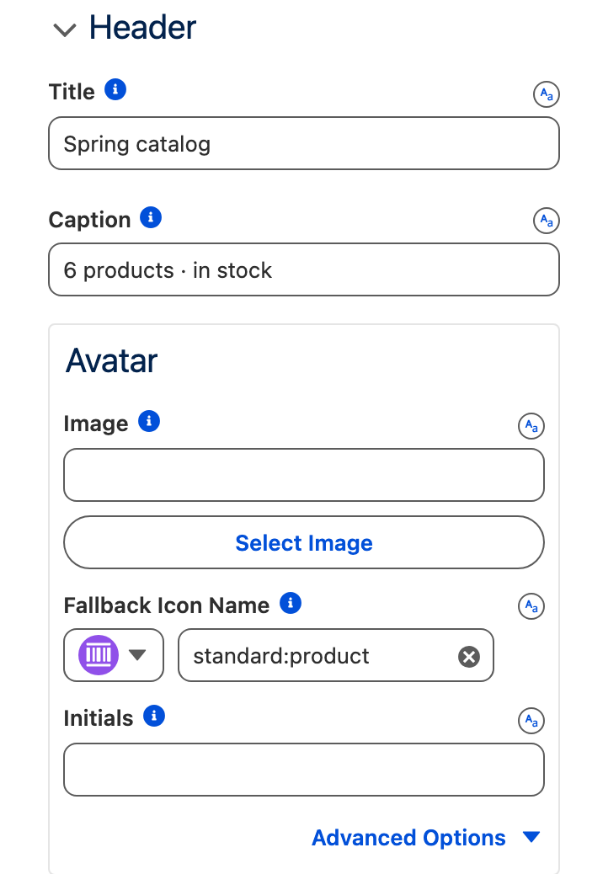
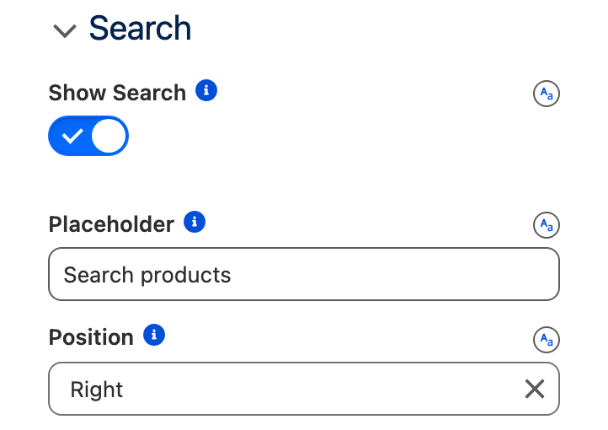
### Set the header and the search

1. In the **Header** section, set **Title** to `Spring catalog` and **Caption** to `6 products · in stock`. Under **Avatar**, set **Fallback Icon Name** to `standard:product`, **Variant** to **Circle** and **Size** to **Small**.
2. In the **Search** section, turn on **Show Search**, set **Placeholder** to `Search products` and **Position** to **Right**.

*Why:* the caption is text you type, not a count the list computes. Update it when the catalog changes, or leave the number out of it.
{% endstep %}

{% step %}

### Set the layout and the image

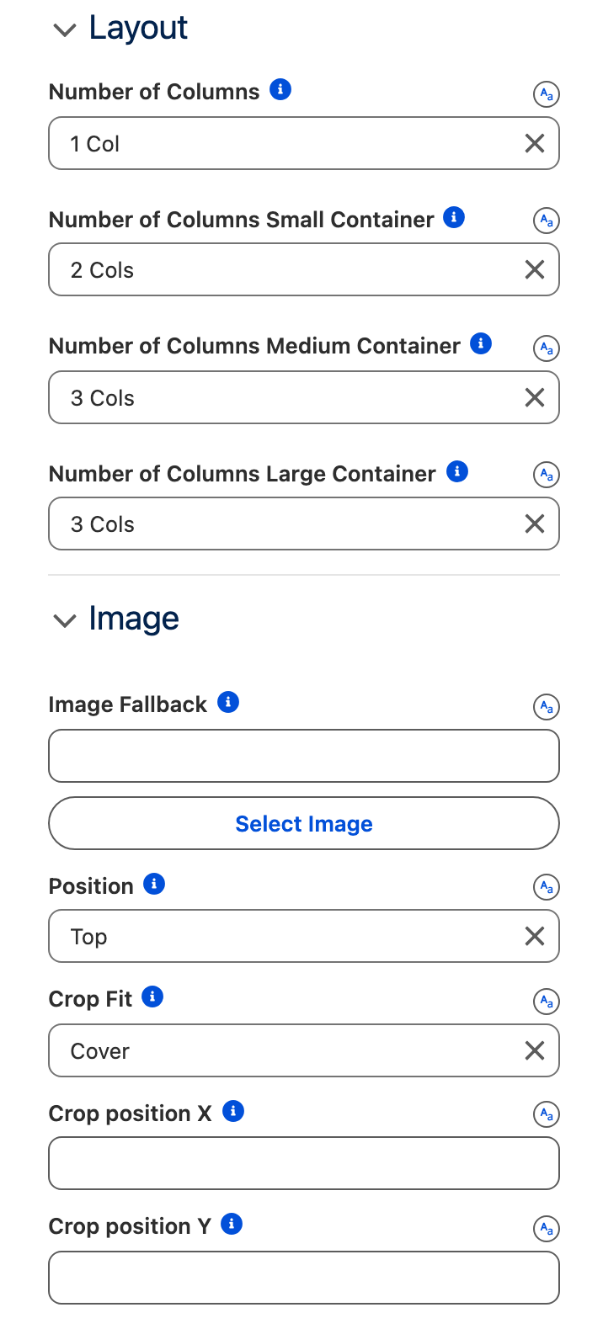
1. In the **Layout** section, set **Number of Columns** to **1 Col**, **Number of Columns Small Container** to **2 Cols**, **Number of Columns Medium Container** to **3 Cols** and **Number of Columns Large Container** to **3 Cols**.
2. In the **Image** section, set **Position** to **Top** and **Crop Fit** to **Cover**.

*Why:* three columns fill the main region of a desktop record page without shrinking the photos; the smaller breakpoints keep the tiles readable on a narrow screen. **Position** decides where the photo goes relative to the text: **Top** puts the photo first and the name, SKU and price under it. The default, **Bottom**, puts the text above the photo.
{% endstep %}

{% step %}

### Add the button

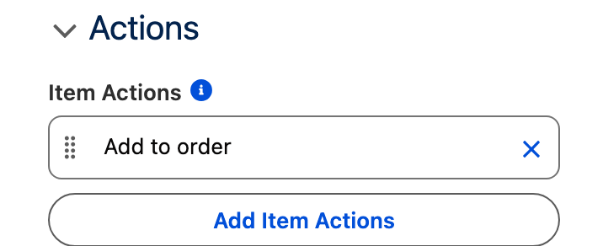
In the **Actions** section, under **Item Actions**, add an action with **Label** `Add to order`, **Name** `addToOrder` and **Icon Name** `utility:add`.

*Why:* the action puts the button under every tile. **Name** is what the interaction in the next step listens for.
{% endstep %}

{% step %}

### Wire Add to order

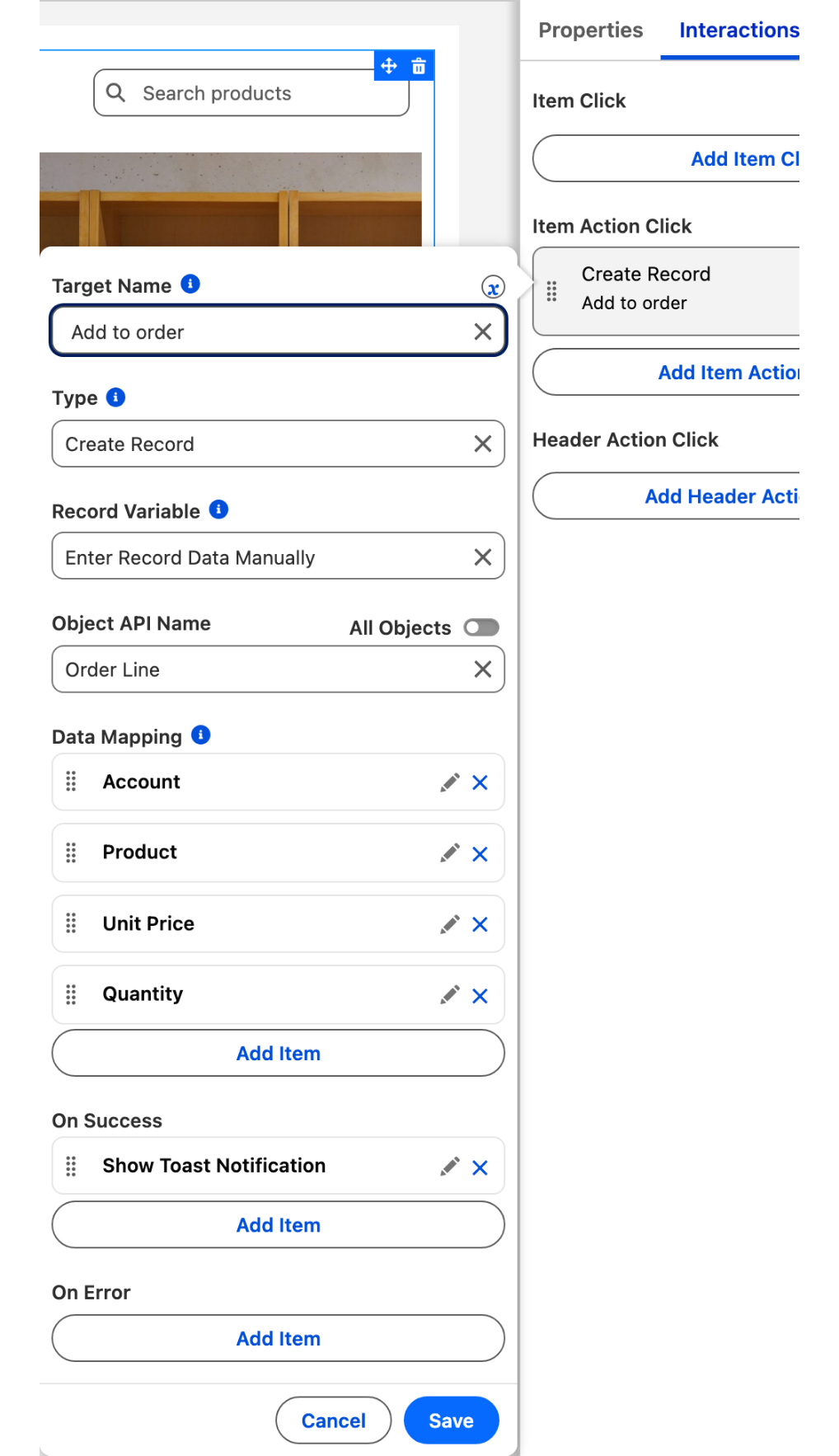
1. Open the **Interactions** tab and, under **Item Action Click**, add an interaction.
2. Set **Target Name** to `addToOrder` and the type to [Create Record](https://docs.avonnicomponents.com/dynamic-components/component-builder/interactions/create-record).
3. In the **Record Variable** list, select **Enter Record Data Manually**, then set **Object** to `Order_Line__c`.
4. Map the fields:
   * `Account__c`: the current record's Id, `{!$Component.RecordId}`
   * `Product__c`: `{{Record.Id}}`
   * `Unit_Price__c`: `{{Record.Price__c}}`
   * `Quantity__c`: `1`
5. Add a [Show Toast](https://docs.avonnicomponents.com/dynamic-components/component-builder/interactions/show-toast) action that runs when the record is created: **Title** `Added to order`, **Message** `The product was added to this account's order`, **Variant** **Success**.

*Why:* `{{Record.…}}` is the product behind the tile the rep clicked, and `{!$Component.RecordId}` is the account the page is on. The two together are what makes one button work for every product on every account. See [Using Variables and Component Data](https://docs.avonnicomponents.com/dynamic-components/core-concepts/using-variables-and-component-data) for the current record variables.
{% endstep %}

{% step %}

### Save, activate, add to the record page

1. Click **Save**, then **Activate**.
2. In **Lightning App Builder**, open the Account record page, drag **AX - Dynamic Component** into the main region under the highlights panel and select `Spring catalog` in its **Properties Panel**.
3. Click **Save**, then **Activate** the page for the Sales app. See [Publishing your Dynamic Components](https://docs.avonnicomponents.com/dynamic-components/core-concepts/publishing-your-dynamic-components).
   {% endstep %}
   {% endstepper %}

## The settings that matter

| Setting                                                                            | Value                             | Why                                                                                    |
| ---------------------------------------------------------------------------------- | --------------------------------- | -------------------------------------------------------------------------------------- |
| **Image Source** (`imageSrc`)                                                      | `Photo_URL__c`                    | The tile is the record: one product, one photo                                         |
| **Number of Columns Large Container** (`largeContainerCols`)                       | **3 Cols**                        | Three clean columns in the main region of a desktop record page                        |
| **Position** (`imageAttributes.position`)                                          | **Top**                           | Photo first, text under it. The default puts the text above the photo                  |
| **Crop Fit** (`imageAttributes.cropFit`)                                           | **Cover**                         | Tiles of the same shape whatever the proportions of the photos                         |
| **Item Actions** (`actions`)                                                       | `Add to order`, name `addToOrder` | One button per tile, the same on every tile                                            |
| **Show Search** and **Position** (`searchable`, `searchEngineAttributes.position`) | on, **Right**                     | The search box on the right of the header, ready for a catalog of two hundred products |

## Interactions

| Trigger                                             | Action                                                                                                                                             | What to set                                                                                                                                                                         |
| --------------------------------------------------- | -------------------------------------------------------------------------------------------------------------------------------------------------- | ----------------------------------------------------------------------------------------------------------------------------------------------------------------------------------- |
| **Item Action Click**, **Target Name** `addToOrder` | [Create Record](https://docs.avonnicomponents.com/dynamic-components/component-builder/interactions/create-record), **Enter Record Data Manually** | **Object** `Order_Line__c`. `Account__c` = `{!$Component.RecordId}`, `Product__c` = `{{Record.Id}}`, `Unit_Price__c` = `{{Record.Price__c}}`, `Quantity__c` = `1`.                  |
| The same, when the record is created                | [Show Toast](https://docs.avonnicomponents.com/dynamic-components/component-builder/interactions/show-toast)                                       | A success toast such as `Added to order`.                                                                                                                                           |
| **Item Click**, optional                            | [Navigate](https://docs.avonnicomponents.com/dynamic-components/component-builder/interactions/navigate)                                           | **Page Reference Type** Record Page, **Object API Name** `Catalog_Product__c`, **Record Id** `{{Record.Id}}`, **Action Name** view. Requires **Items Clickable** on in **Content**. |

## Try it

1. Open Northwind Distribution. Six tiles in three columns, in SKU order, under `6 products · in stock` and `Spring catalog`.
2. Type `oak` in **Search products**: one tile left, Nordic oak table. Clear the search.
3. Click **Add to order** under Arc floor lamp. The toast appears, and an Order Line `OL-0001` now exists with **Account** Northwind Distribution, **Product** Arc floor lamp, **Unit Price** 145 and **Quantity** 1.
4. Uncheck **In Stock** on Birch bar stool and reload the page: five tiles. Check it again.

## Take it further

The same list exists on two other Avonni surfaces:

* [Image List](https://docs.avonnicomponents.com/flow/flow-components/image-list) for Flow Screen Components, inside a screen flow.
* [Image List](https://docs.avonnicomponents.com/lwc-components/data-driven-components/image-list) for LWC Components, as the `avonni-dd-image-list` tag in your own component.

Three variations worth trying:

* Add `Category__c` under **Filters** in **Data Mapping**, and set **Type** to **Horizontal** in the **Filter** section: Seating, Tables, Lighting and Storage become filter chips above the grid. Filters are a Query feature, which this catalog already is.
* For a catalog of a few hundred products, turn on **Show Pagination** in the **Pagination** section and set **Number of Items per Page** to `9`.
* Switch **Variant** to **Masonry** in **Content** when the photos have different proportions and you would rather keep them whole than crop them.

## Troubleshooting

| Problem                                                       | Cause                                                                                                                                                                             | Fix                                                                                                            |
| ------------------------------------------------------------- | --------------------------------------------------------------------------------------------------------------------------------------------------------------------------------- | -------------------------------------------------------------------------------------------------------------- |
| The name and price show above the photo                       | **Position** in the **Image** section is on its default, **Bottom**.                                                                                                              | Set **Position** to **Top**.                                                                                   |
| The description prints `1190` instead of `NRD-TB-02 · $1,190` | **Description** is mapped to the currency field. A mapping inserts the stored value, with no formatting.                                                                          | Map **Description** to the `Catalog_Line__c` formula.                                                          |
| **Add to order** does nothing                                 | No interaction is set under **Item Action Click**, or its **Target Name** does not match the action's **Name**, or you are in the builder preview, where interactions do not run. | Set **Target Name** to `addToOrder`, then test on the activated record page.                                   |
| The order line is created with an empty **Account**           | **Target Page Object** is not set to **Account**, or the component sits on a page that is not an Account record page, so `{!$Component.RecordId}` has no value.                   | Set **Target Page Object** to **Account** and place the component on the Account record page.                  |
| A tile has no photo                                           | The URL in `Photo_URL__c` is not one the org can load: a wrong static resource path, or an external host that is not in your Trusted URLs.                                        | Fix the URL, and set **Image Fallback** in the **Image** section so a missing photo still leaves a clean tile. |
| The **Filter** section has no effect                          | No field is selected under **Filters** in **Data Mapping**, or the data source is **Manual**. Filters are built from the fields of a Query.                                       | Use a Query data source and select `Category__c` under **Filters**.                                            |


---

# Agent Instructions
This documentation is published with GitBook. GitBook is the documentation platform designed so that both humans and AI agents can read, navigate, and reason over technical content effectively. Learn more at gitbook.com.

## Querying This Documentation
If you need additional information that is not directly available in this page, you can query the documentation dynamically by asking a question.

Perform an HTTP GET request on the current page URL with the `ask` query parameter, and the optional `goal` query parameter:

```
GET https://docs.avonnicomponents.com/projects/use-cases/visual-product-catalog.md?ask=<question>&goal=<endgoal>
```

`ask` is the immediate question: it should be specific, self-contained, and written in natural language.
`goal` is optional and describes the broader end goal you are ultimately trying to accomplish on behalf of the user. GitBook uses it to tailor the answer towards what is most useful for that goal.

The response will contain a direct answer to the question and relevant excerpts and sources from the documentation.

Use this mechanism when the answer is not explicitly present in the current page, you need clarification or additional context, or you want to retrieve related documentation sections.