For the complete documentation index, see llms.txt. This page is also available as Markdown.

Revenue cube without a report

Closed won revenue by region and quarter, totals on both axes, computed live from opportunities.

Overview

Closed won revenue by region and quarter, totals on both axes, computed live from opportunities. No report builder, no dashboard. The whole tab is one Pivot Table Dynamic Component on a Lightning app page, aggregating Opportunity records through a Query data source. This tutorial rebuilds the Revenue tab of the Sales app in your own org.

What you build

Avonni Pivot Table on a Lightning page: closed won revenue by region and quarter with row totals, column totals and a grand total
  • The Revenue tab opens on one pivot: five regions down, four quarters across, the sum of the deals in every cell, totals on both axes and a grand total of 3,700,500 in the corner.

  • The header reads FY2026 · by region and quarter above Closed won revenue.

  • Every number is a whole dollar amount, no decimals, under a column labeled Sum Revenue (USD).

  • It reads the opportunities directly, so it is current the second a deal closes.

Before you start

Adapt this to your own org. The pivot reads standard opportunities, but the three fields below are ours and yours are named differently. Group the rows on whatever carries your territory and the columns on your own period, then aggregate your own amount. The two spare fields exist for a reason worth knowing before you drop them: Quarter__c is what makes the column headers read Q1 to Q4, and Revenue__c is a Number rather than a Currency so the cells show whole dollars. Step 1 and Take it further show what the pivot looks like with CloseDate and Amount instead.

  • The Avonni Experience Components package, which carries Dynamic Components, is installed. Whoever builds the component needs the Avonni Experiences Admin permission set; the people who use the page need a license and Avonni Dynamic Components User. See Installation & Licenses Management.

  • A Lightning app with an app page for the pivot. The examples below use the Sales app and its Revenue tab.

  • Three fields on the standard Opportunity object, next to the standard ones the pivot reads:

Object
Field
Type
Role

Opportunity

StageName

Standard picklist

Only Closed Won deals count

CloseDate

Standard date

Scopes the cube to the year

Amount

Standard currency

The deal value, as the rest of the org uses it

Region__c

Picklist: North America, EMEA, APAC, LATAM, Nordics

The rows

Quarter__c

Picklist: Q1, Q2, Q3, Q4

The columns, see step 1

Revenue__c

Number, 18 digits, 0 decimal places

The measure: a whole-dollar copy of Amount, see step 1

Sample data. Forty closed won opportunities, two per region and quarter, all closed in 2026. Revenue equals Amount on every one, and Quarter follows the close date:

Opportunity name
Region
Close date
Amount

Meridian Foods platform rollout

APAC

Jan 28, 2026

65,500

Copperline Energy annual renewal

APAC

Mar 5, 2026

125,500

Northwind Distribution pilot conversion

APAC

May 13, 2026

168,500

Lantern Financial platform rollout

APAC

Jun 4, 2026

89,000

Northwind Distribution seat expansion

APAC

Aug 12, 2026

38,000

Copperline Energy pilot conversion

APAC

Sep 2, 2026

97,000

Vantage Analytics pilot conversion

APAC

Oct 7, 2026

32,500

Vantage Analytics platform rollout

APAC

Dec 3, 2026

64,500

Northwind Distribution platform rollout

EMEA

Feb 11, 2026

62,500

Trailhead Outfitters platform rollout

EMEA

Mar 5, 2026

145,500

Orchard Health seat expansion

EMEA

Apr 9, 2026

47,500

Blue Harbor Group seat expansion

EMEA

Jun 4, 2026

149,500

Northwind Distribution annual renewal

EMEA

Aug 12, 2026

26,000

Meridian Foods annual renewal

EMEA

Sep 2, 2026

115,500

Blue Harbor Group annual renewal

EMEA

Nov 10, 2026

53,500

Trailhead Outfitters platform rollout

EMEA

Dec 3, 2026

157,500

Orchard Health platform rollout

LATAM

Feb 11, 2026

103,500

Trailhead Outfitters pilot conversion

LATAM

Mar 5, 2026

179,500

Trailhead Outfitters seat expansion

LATAM

Apr 22, 2026

89,500

Blue Harbor Group annual renewal

LATAM

Jun 4, 2026

115,500

Sable & Finch pilot conversion

LATAM

Aug 12, 2026

67,000

Lantern Financial pilot conversion

LATAM

Sep 2, 2026

131,000

Trailhead Outfitters seat expansion

LATAM

Nov 10, 2026

89,000

Copperline Energy seat expansion

LATAM

Dec 3, 2026

36,000

Lantern Financial platform rollout

Nordics

Feb 11, 2026

146,000

Orchard Health platform rollout

Nordics

Mar 5, 2026

96,000

Cascade Logistics annual renewal

Nordics

May 13, 2026

175,500

Meridian Foods seat expansion

Nordics

Jun 4, 2026

132,000

Copperline Energy seat expansion

Nordics

Jul 21, 2026

46,000

Copperline Energy pilot conversion

Nordics

Sep 2, 2026

53,000

Vantage Analytics seat expansion

Nordics

Oct 20, 2026

72,000

Orchard Health seat expansion

Nordics

Dec 3, 2026

41,000

Sable & Finch pilot conversion

North America

Jan 15, 2026

116,000

Cascade Logistics annual renewal

North America

Mar 5, 2026

127,000

Copperline Energy pilot conversion

North America

May 13, 2026

63,500

Meridian Foods pilot conversion

North America

Jun 4, 2026

95,500

Blue Harbor Group platform rollout

North America

Jul 8, 2026

139,500

Copperline Energy annual renewal

North America

Sep 2, 2026

100,000

Sable & Finch pilot conversion

North America

Nov 10, 2026

20,500

Trailhead Outfitters platform rollout

North America

Dec 3, 2026

28,000

If your org already holds closed won opportunities for the year, the pivot adds them in. Read the totals in the figure as what the forty deals above produce on their own.

Permissions. Users need Read on Opportunity and on the three custom fields. The pivot only aggregates the records Salesforce lets each user see.

Build it

1

Create the three fields and load the deals

  1. In Setup, open Object Manager, then Opportunity, and add the Region picklist, the Quarter picklist and the Revenue number field listed above.

  2. Load the forty sample opportunities, with Stage Closed Won, Revenue equal to Amount, and Quarter set from the close date (Q1 for January to March, and so on).

Why two extra fields when the data is already there:

  • Quarter is a picklist rather than a date grouping so that the column headers read Q1 to Q4. The pivot can also group Close Date by quarter directly (see Take it further), but the header then shows the quarter number, 1 to 4.

  • Revenue is a Number field rather than Amount because a currency measure renders with the currency symbol and two decimals, $191,000.00, and no setting of the pivot changes that. A Number field with 0 decimal places renders 191,000. The unit moves into the column label instead.

2

Create the Dynamic Component and add the Pivot Table

  1. From the App Launcher, open the Avonni Components App and click New Component.

  2. Name it Revenue cube and leave Target Page Object empty: the pivot lives on an app page.

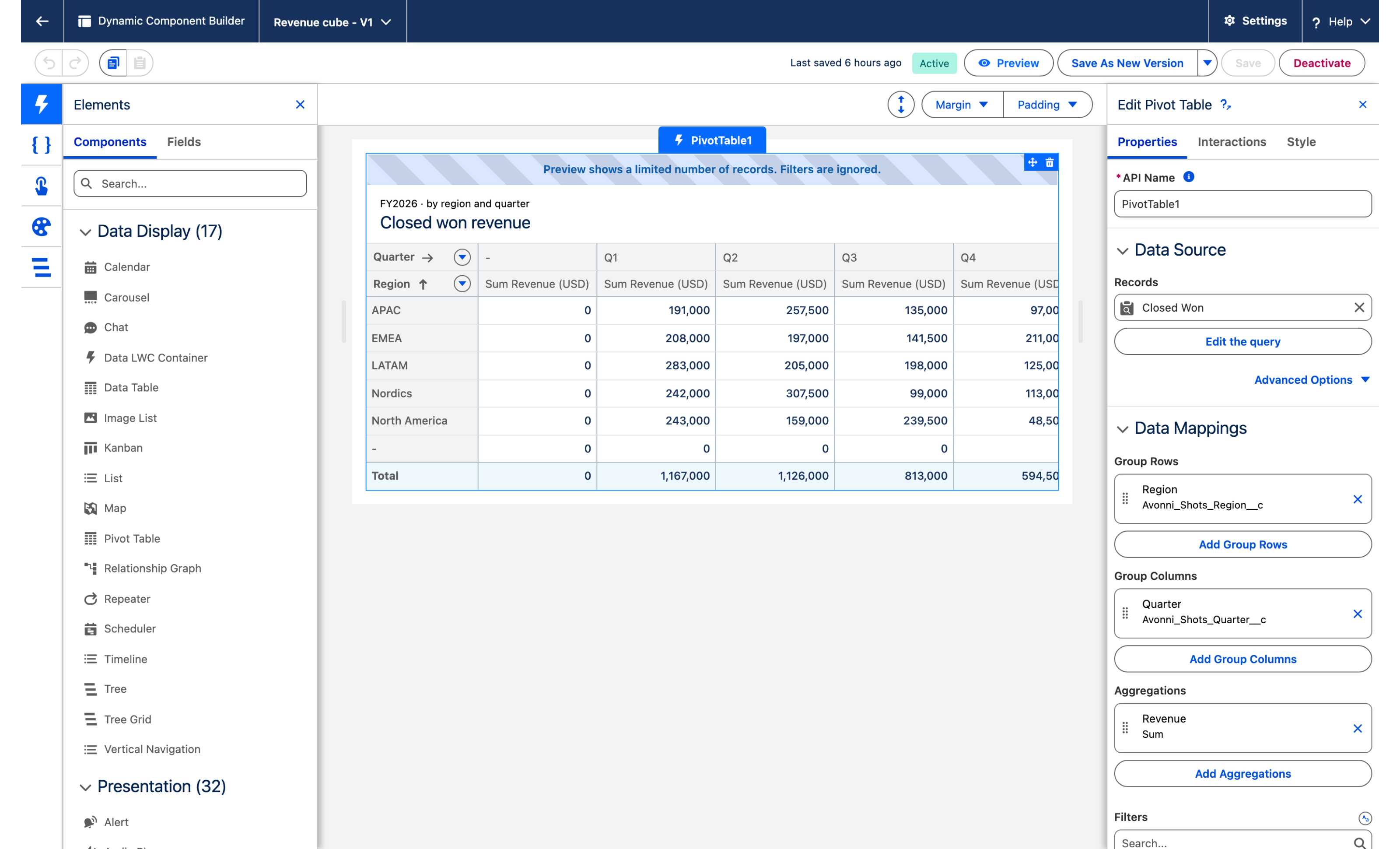
  3. Drag Pivot Table onto the canvas and select it. The Edit Pivot Table panel opens on the right with the Properties and Interactions tabs.

The Dynamic Component builder with the Pivot Table selected on the canvas and its Edit Pivot Table panel on the right
The Pivot Table on the canvas. The builder preview shows a limited number of records and ignores the query filters, so its numbers are not the ones of the finished tab.
3

Connect the query

  1. In the Data Source section, click Create Query.

  2. Choose the Opportunity object.

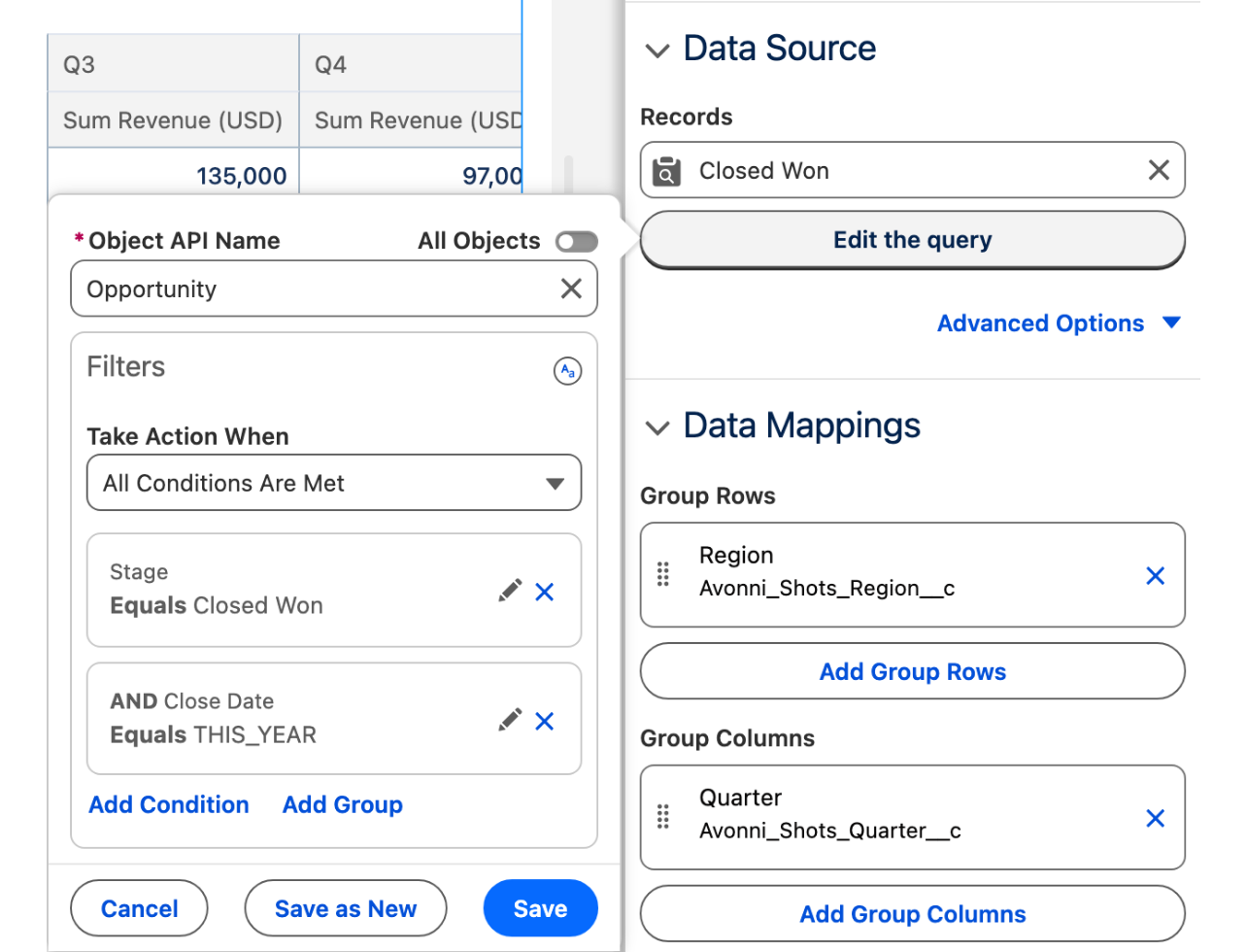
  3. Under Filters, add StageName equals Closed Won and CloseDate = THIS_YEAR, combined with AND.

  4. Click Done.

Why: the pivot only ever sees what the query returns, so the filter is where "closed won, this year" lives. The Pivot Table's query has no Order By and no limit to set: it aggregates on the server and sorts the result itself. The sample deals close in 2026; in a later year, filter on the year they closed. See Query for the filter operators.

The query editor popover for the Opportunity object with the two filter conditions, Stage equals Closed Won and Close Date equals THIS_YEAR
The query editor with the two conditions.
4

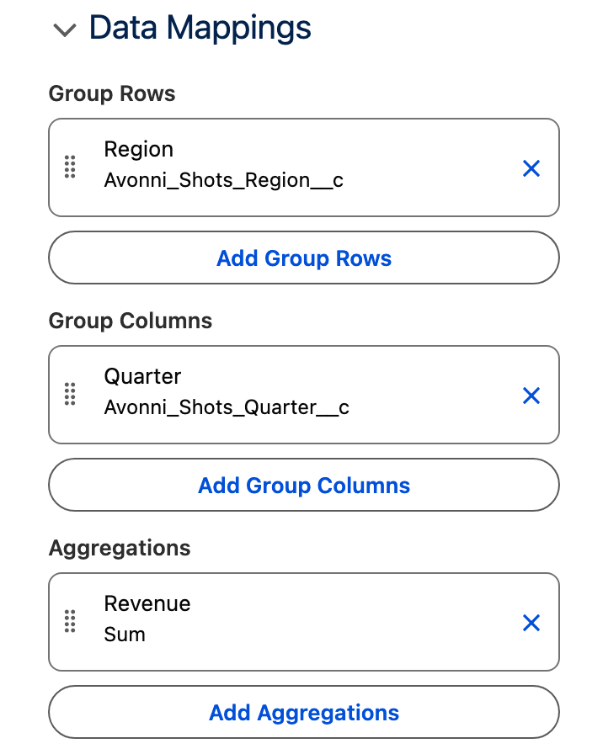
Map the rows, the columns and the measure

In the Data Mappings section:

  1. Under Group Rows, add an entry with Field Region__c.

  2. Under Group Columns, add an entry with Field Quarter__c.

  3. Under Aggregations, add an entry with Field Revenue__c and Measure Sum. Turn on Custom Label and enter Revenue (USD).

Why: the column header is the measure followed by the field label, so the custom label makes it read Sum Revenue (USD): the unit the currency symbol would have carried. Rows and columns combined are limited to three grouping fields; this cube uses two.

The Data Mappings section: Group Rows Region, Group Columns Quarter, Aggregations Revenue Sum with the custom label Revenue (USD)
Rows, columns and the measure.
5

Turn on the totals

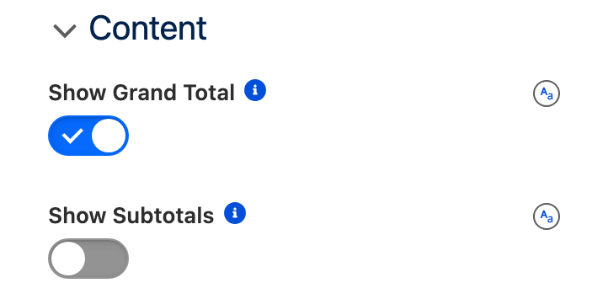
In the Content section, turn on Show Grand Total. Leave Show Subtotals off.

Why: Show Grand Total adds the Total column, the Total row and the corner. Subtotals only exist with more than one row group or more than one column group, so on this cube the switch has no effect.

The Content section with Show Grand Total on and Show Subtotals off
Show Grand Total on.
6

Set the header

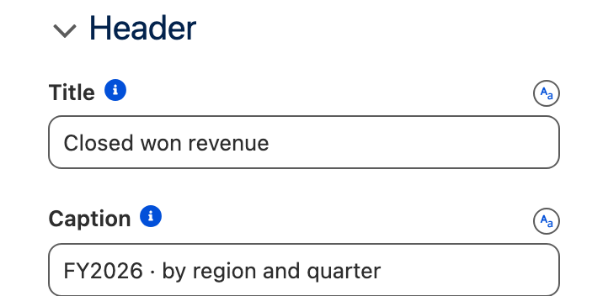
In the Header section, set Title to Closed won revenue and Caption to FY2026 · by region and quarter. The caption displays above the title.

The Header section: Title Closed won revenue, Caption FY2026 · by region and quarter
The Header section.
7

Save, activate, add to the page

  1. Click Save, then Activate.

  2. In Lightning App Builder, open the app page, drag AX - Dynamic Component onto it and select Revenue cube in its Properties Panel.

  3. Click Save, then Activate the page for the app. See Publishing your Dynamic Components.

The settings that matter

Setting
Value
Why

Group Rows Field (groupRows[].field)

Region__c

The vertical axis, one row per region, sorted by value

Group Columns Field (groupColumns[].field)

Quarter__c

The horizontal axis, Q1 to Q4

Aggregations Field and Measure (aggregations[].field, aggregations[].measure)

Revenue__c, Sum, labeled Revenue (USD)

The value in every cell. A Number field renders whole numbers where a Currency field renders $191,000.00

Show Grand Total (showGrandTotal)

on

The Total column, the Total row and the grand total in the corner

Try it

  1. Open the Revenue tab. Five rows, APAC to North America, four columns, Q1 to Q4, a Total column and a Total row. The column totals read 1,167,000, 1,126,000, 813,000 and 594,500, and the corner 3,700,500.

  2. Click the arrow next to Region in the top left corner: the rows sort the other way, North America first. Click it again.

  3. Open the APAC deal Copperline Energy pilot conversion (Sep 2, 2026), change Revenue from 97,000 to 100,000 and save. Back on the tab, APAC Q3 reads 138,000, the APAC total 683,500 and the corner 3,703,500. No report was refreshed. Put the value back.

Take it further

The same pivot exists on two other Avonni surfaces:

  • Pivot Table for Flow Screen Components, inside a screen flow.

  • Pivot Table for LWC Components, as the avonni-dd-pivot-table tag in your own component.

Four variations worth trying:

  • Group the columns on the date instead of the picklist: under Group Columns, set Field to CloseDate and Group to Quarter. No Quarter field to maintain, and the headers read 1 to 4.

  • Add a second row group, for instance Account.Industry under Region__c, then turn on Show Subtotals: each region gets a subtotal row.

  • Turn on Detail Rows in Content: clicking a cell lists the deals behind it, with their Revenue in a column.

  • Add Region__c under Filters in Data Mappings: a filter appears above the pivot, and the cube narrows to the regions the end user picks.

Troubleshooting

Problem
Cause
Fix

The pivot is empty although the query returns records

No row group, column group or aggregation is set.

In Data Mappings, add at least one Group Rows entry and one Aggregations entry with a numeric field and a measure.

Every cell shows a currency symbol and two decimals

The aggregated field is a Currency field. The pivot renders a currency measure in the org's currency format, two decimals included, and has no decimals setting.

Aggregate a Number field with 0 decimal places, such as Revenue__c, and name the unit in the custom label.

The columns read 1, 2, 3, 4 instead of Q1 to Q4

The column group is Close Date with Group set to Quarter. A date group labels its columns with the calendar quarter number.

Group on the Quarter__c picklist, or keep the date group and read the numbers as quarters.

A quarter is missing from the columns

No closed won deal in that quarter matched the query. The pivot only shows the values present in the records it aggregates.

Nothing to fix on the pivot: the column appears with the first deal. Check the query filter if deals exist.

Show Subtotals is on and nothing changes

Subtotals need more than one row group or more than one column group. With one group per axis, the only total is the grand total.

Add a second group on one axis, or rely on Show Grand Total.

Was this helpful?