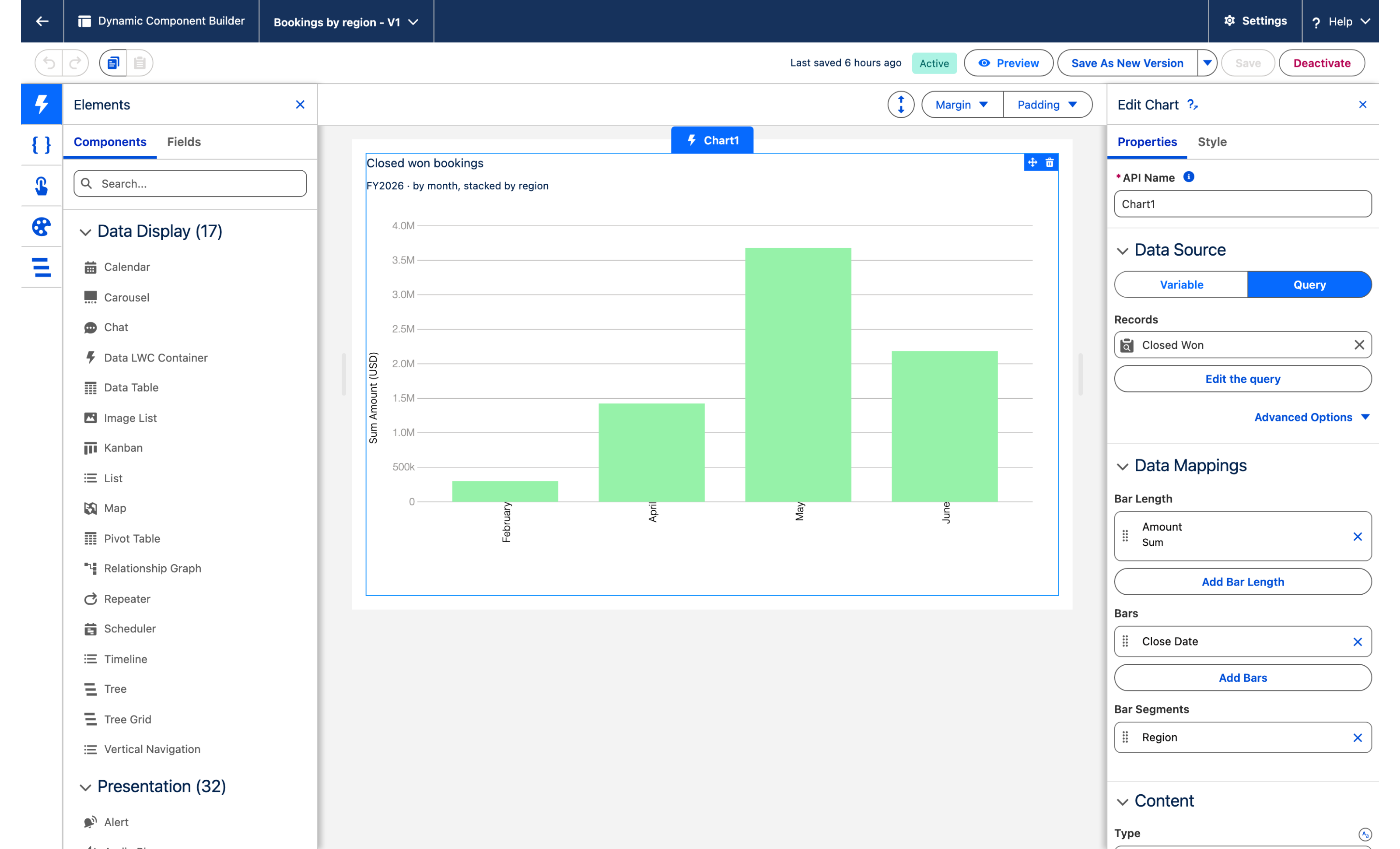
Bookings stacked by region
Twelve months of closed won bookings, every column stacked by region, drawn live from the opportunities on one tab of the Sales app.
Overview
Twelve months of closed won bookings, every column stacked by region, drawn live from the opportunities on one tab of the Sales app. Same data as the revenue pivot, so the two always agree. The whole tab is one Chart Dynamic Component, a stacked column chart reading Opportunity through a Query data source, deployed on a Lightning app page. This tutorial rebuilds the Bookings tab of the Northwind Distribution Sales app in your own org.
What you build

The Bookings tab of the Sales app opens on one chart: twelve columns, January to December, one per month of the fiscal year.
Each column is stacked by region, five regions in the Ocean palette, the sum of Amount on the Y axis.
Hover a segment and the tooltip gives the month, the region and the amount in dollars, no decimals. In the figure: May, North America, $63,500.
No legend: the region is read on hover (see Troubleshooting for why).
It reads the opportunities directly, like the revenue cube next door, so a deal closed this morning is in this morning's chart.
Before you start
The Avonni Experience Components package, which carries Dynamic Components, is installed. Whoever builds the component needs the Avonni Experiences Admin permission set; the people who use the page need a license and Avonni Dynamic Components User. See Installation & Licenses Management.
A Lightning app to host the chart. The examples use the Sales app of Northwind Distribution, where the chart is the Bookings tab, next to Revenue.
The chart reads standard Opportunity fields plus one custom picklist:
Opportunity
Name
Text (standard)
The deal, Sable & Finch pilot conversion
StageName
Picklist (standard)
The filter keeps Closed Won only
CloseDate
Date (standard)
The month of each column
Amount
Currency (standard)
The height of each segment
Region__c
Picklist: North America, EMEA, APAC, LATAM, Nordics
The stacking, one color per value
Sample data. Forty closed won opportunities, two per region and quarter, spread so that every month of 2026 holds at least two. All have Stage Closed Won; the account is yours to pick (the customer is in the name). Amounts are multiples of 500 so the totals read cleanly.
Sable & Finch pilot conversion
Jan 15, 2026
116,000
North America
Meridian Foods platform rollout
Jan 28, 2026
65,500
APAC
Northwind Distribution platform rollout
Feb 11, 2026
62,500
EMEA
Orchard Health platform rollout
Feb 11, 2026
103,500
LATAM
Lantern Financial platform rollout
Feb 11, 2026
146,000
Nordics
Copperline Energy annual renewal
Mar 5, 2026
125,500
APAC
Trailhead Outfitters platform rollout
Mar 5, 2026
145,500
EMEA
Trailhead Outfitters pilot conversion
Mar 5, 2026
179,500
LATAM
Orchard Health platform rollout
Mar 5, 2026
96,000
Nordics
Cascade Logistics annual renewal
Mar 5, 2026
127,000
North America
Orchard Health seat expansion
Apr 9, 2026
47,500
EMEA
Trailhead Outfitters seat expansion
Apr 22, 2026
89,500
LATAM
Northwind Distribution pilot conversion
May 13, 2026
168,500
APAC
Cascade Logistics annual renewal
May 13, 2026
175,500
Nordics
Copperline Energy pilot conversion
May 13, 2026
63,500
North America
Lantern Financial platform rollout
Jun 4, 2026
89,000
APAC
Blue Harbor Group seat expansion
Jun 4, 2026
149,500
EMEA
Blue Harbor Group annual renewal
Jun 4, 2026
115,500
LATAM
Meridian Foods seat expansion
Jun 4, 2026
132,000
Nordics
Meridian Foods pilot conversion
Jun 4, 2026
95,500
North America
Blue Harbor Group platform rollout
Jul 8, 2026
139,500
North America
Copperline Energy seat expansion
Jul 21, 2026
46,000
Nordics
Northwind Distribution seat expansion
Aug 12, 2026
38,000
APAC
Northwind Distribution annual renewal
Aug 12, 2026
26,000
EMEA
Sable & Finch pilot conversion
Aug 12, 2026
67,000
LATAM
Copperline Energy pilot conversion
Sep 2, 2026
97,000
APAC
Meridian Foods annual renewal
Sep 2, 2026
115,500
EMEA
Lantern Financial pilot conversion
Sep 2, 2026
131,000
LATAM
Copperline Energy pilot conversion
Sep 2, 2026
53,000
Nordics
Copperline Energy annual renewal
Sep 2, 2026
100,000
North America
Vantage Analytics pilot conversion
Oct 7, 2026
32,500
APAC
Vantage Analytics seat expansion
Oct 20, 2026
72,000
Nordics
Blue Harbor Group annual renewal
Nov 10, 2026
53,500
EMEA
Trailhead Outfitters seat expansion
Nov 10, 2026
89,000
LATAM
Sable & Finch pilot conversion
Nov 10, 2026
20,500
North America
Vantage Analytics platform rollout
Dec 3, 2026
64,500
APAC
Trailhead Outfitters platform rollout
Dec 3, 2026
157,500
EMEA
Copperline Energy seat expansion
Dec 3, 2026
36,000
LATAM
Orchard Health seat expansion
Dec 3, 2026
41,000
Nordics
Trailhead Outfitters platform rollout
Dec 3, 2026
28,000
North America
The filter in step 3 uses the fiscal year. The figure assumes a fiscal year that follows the calendar year, the Salesforce default. If yours starts in another month, shift the close dates into your fiscal year or filter on THIS_YEAR instead.
Permissions. Users who open the tab need Read on Opportunity, Read field-level security on Region, and the Avonni Dynamic Components User permission set. The query runs with the user's own permissions and sharing, so a rep with private opportunities sees the chart of what they can see.
Build it
Create the Region field and load the opportunities
In Setup, open Object Manager, then Opportunity, then Fields & Relationships, and create the Region picklist (
Region__c) with the five values above.Create or import the forty opportunities, all with Stage
Closed Wonand a Region.
Why: the chart aggregates records when the page loads. Nothing is precomputed, so the deals must exist as opportunities with a region on each.
Create the Dynamic Component and add the Chart
Open the Avonni Components app and click New Component. Name the component
Bookings by regionand leave the Target Page Object empty.From the Component Library, drag Chart onto the Canvas and pick Stacked Column Chart in the preset list.
Select the chart. The Edit Chart panel opens on the right, with its Properties and Interactions tabs.
Why: the chart lives on an app page and reads org-wide data, so it needs no record context (see Target Page Object). Every preset is the same Chart component: Type can be changed later in the Content group.

Connect the query
In Data Source, select Query.
Object:
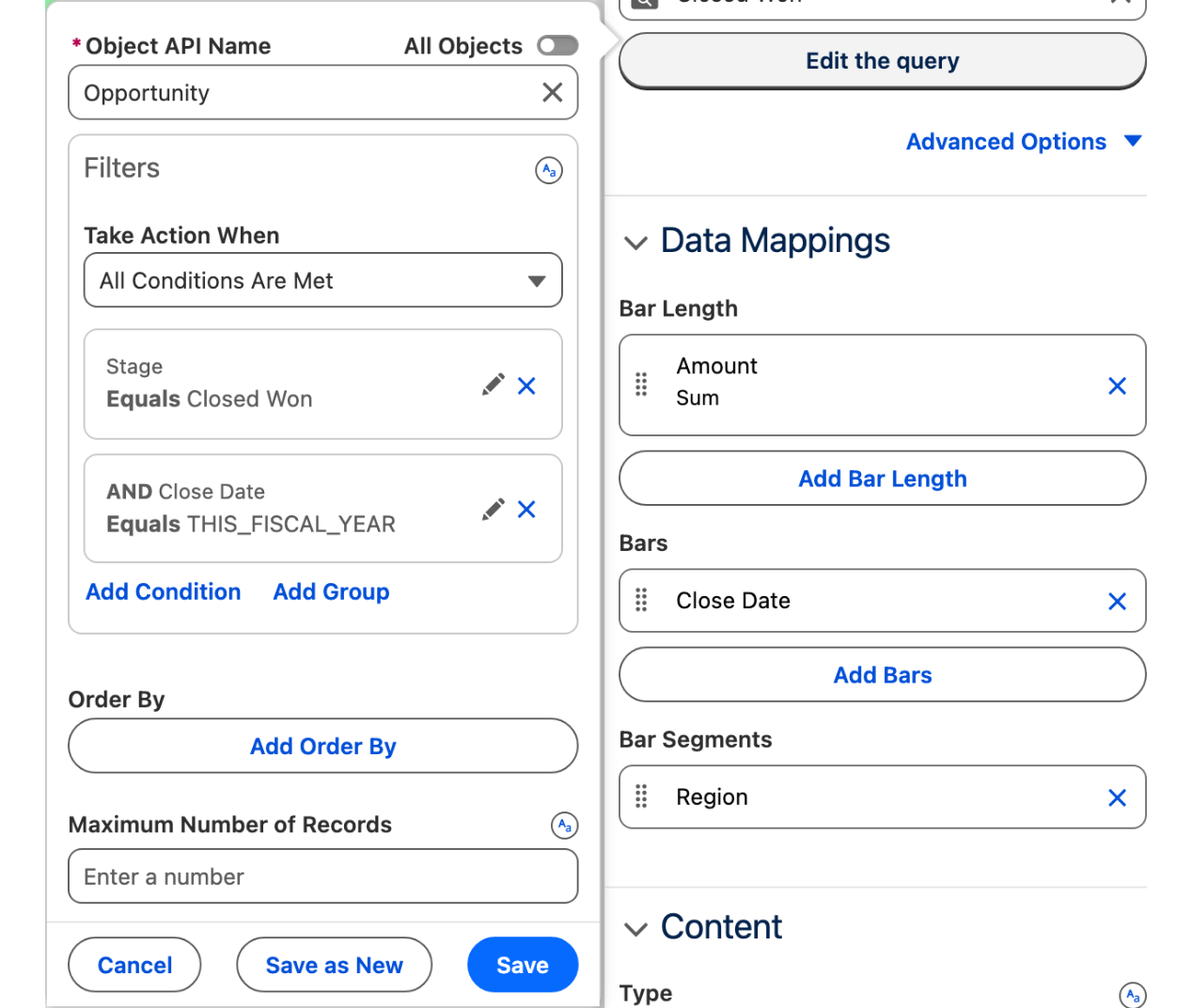
Opportunity.Add two filter conditions:
Field
StageName, Operator equals, ValueClosed Won.Field
CloseDate, Operator equals, Value the date literal This Fiscal Year (THIS_FISCAL_YEAR).
Both conditions are combined with AND. See Query for filters and grouping.
Why: the chart sums whatever the query returns. Filtering on the stage keeps open and lost deals out of the bookings; filtering on the fiscal year keeps the chart to twelve columns and makes it roll over on its own next year.

Map the months, the amounts and the regions
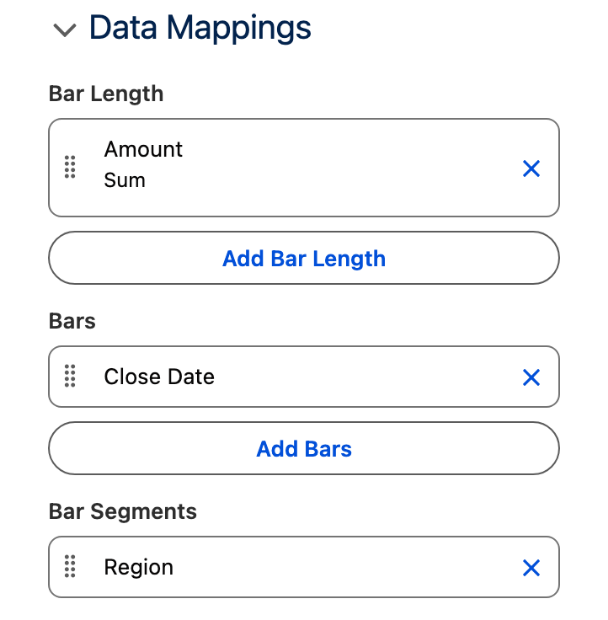
In Data Mappings:
Under Bars, click Add: Field
CloseDate, Group Month, and turn on Display Full Month Label.Under Bar Length, click Add: Field
Amount, Measures Sum, Format Style Currency Rounded, Multiplier1.Under Bar Segments, click Add: Field
Region__c.
Why: Bars decide the columns (one per month), Bar Length their height (the sum of Amount), Bar Segments the split inside each column (one region per color). Month rather than Year-Month: the latter labels the columns 2026-January. Currency Rounded prints $63,500, not $63,500.00.

Title the chart
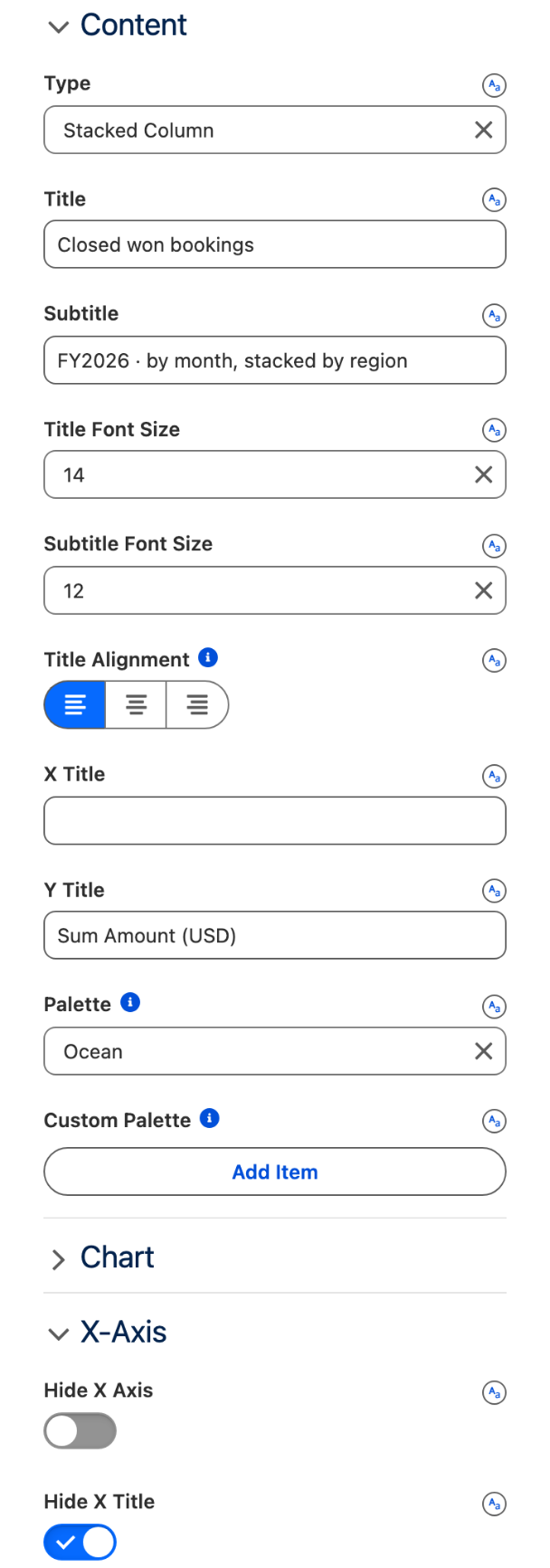
In the Content group:
Type reads Stacked Column. Leave it.
Title
Closed won bookings, SubtitleFY2026 · by month, stacked by region, Title Alignment Left.Y Title
Sum Amount (USD), X Title empty.Palette Ocean.
In the X-Axis group, turn on Hide X Title.
Why: the month names under the columns need no axis title. The Y title tells the reader what the height is, and in which currency.

Turn on the tooltip, leave the legend and the values off
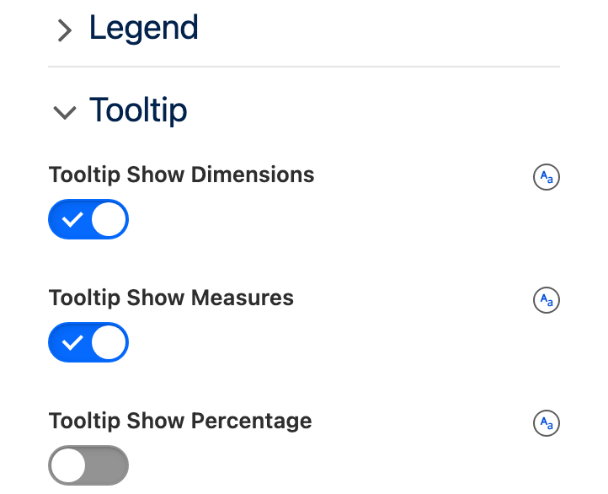
In the Tooltip group, turn on Tooltip Show Dimensions and Tooltip Show Measures.
In the Legend group, leave Show Legend off.
In the Chart group, leave Show Values off.
Why: the tooltip is where the reader gets the region and the amount, so both toggles are on; the tooltip renders only when at least one is. The legend stays off because of a product limitation on stacked charts (see Troubleshooting), and forty amounts printed inside the segments would be unreadable.

Preview, save, activate, add to an app page
Click Preview and check the twelve columns, then Save.
Click Activate and follow Publishing your Dynamic Components: in Lightning App Builder, create an App Page with one region, drag AX - Dynamic Component into it (under Custom - Managed) and select
Bookings by regionin its properties.Save and Activate the page, and add it to the Sales app as a tab named Bookings, next to Revenue.
Why: the component is built once in the Avonni Components app and placed on as many pages as you like. If you installed the legacy standalone Dynamic Components package, the component to drag is named Avonni Dynamic Component.
The settings that matter
Type (chartType)
Stacked Column
One column per month, split by region.
Bars (itemsSObjectMapping.bars)
Field CloseDate, Group Month, Display Full Month Label on
Twelve columns labeled January to December, in calendar order. Year-Month would label them 2026-January.
Bar Length (itemsSObjectMapping.barLength)
Field Amount, Measures Sum, Format Style Currency Rounded (formatStylePreset $#,###)
The height of each column and the amount in the tooltip, in whole dollars.
Bar Segments (itemsSObjectMapping.barSegments)
Field Region__c
The stacking. Offered on the stacked chart types only.
Show Legend (showLegend) off, Tooltip Show Dimensions and Tooltip Show Measures (tooltipShowDimensions, tooltipShowMeasures) on
The region is read on hover, not in a legend: product limitation dated September 5, 2026, see Troubleshooting.
Try it
Hover the top segment of the May column. The tooltip reads Close Date (month) May, Region North America, Sum of Amount $63,500.
Compare with the data: March is the tallest column at $673,500, the twelve columns add up to $3,700,500, and the four quarters read $1,167,000, $1,126,000, $813,000 and $594,500. These are the totals of the revenue pivot built from the same opportunities.
Close one more opportunity in any region this month and reload the tab: its segment grows by the amount. No report to rerun.
Take it further
The same Chart exists for Flow Screen Components: Chart, inside a screen flow, with the same Bars, Bar Length and Bar Segments mapping. Experience Sites and LWC Components have no Chart component today.
Three variations worth trying:
Turn on Normalize Values in the Chart group: every column becomes 100% and the chart compares regional shares month by month.
Set Group to Quarter under Bars: four columns, the same numbers as the Total row of the revenue pivot.
Switch Type to Stacked Bar for a horizontal version, when the chart sits in a narrow region.
Troubleshooting
Turning on Show Legend lists dozens of entries, one per month and region pair, instead of the five regions
On a stacked chart the legend is built per month and region combination. Product limitation as of September 5, 2026, reported to the Avonni team.
Leave Show Legend off and let the tooltip name the region. This page will be updated when the product is.
The tooltip names the region twice
On a stacked chart the tooltip lists the segment dimension in its header, then again next to the color swatch of the hovered segment. Product behavior as of September 5, 2026.
Nothing to configure. The month, the region and the amount are correct; read the region once.
Hovering a segment shows no tooltip
Tooltip Show Dimensions and Tooltip Show Measures are both off. The tooltip renders only when at least one is on.
Turn both on, as the figure does.
The month labels read 2026-January
Group under Bars is set to Year-Month.
Set Group to Month and keep Display Full Month Label on.
Amounts are printed inside every segment
Show Values is on in the Chart group.
Turn it off. The tooltip carries the amount.
The chart is blank or reads No Data
The filter returns nothing: no opportunity is Closed Won in the current fiscal year, the org's fiscal year does not follow the calendar, or the running user cannot see the records.
Check the two conditions in a report with the same filter. If your fiscal year is offset, filter on THIS_YEAR or on an explicit date range. Sharing and field-level security apply to the query as they do everywhere else.
Was this helpful?