Visual product catalog
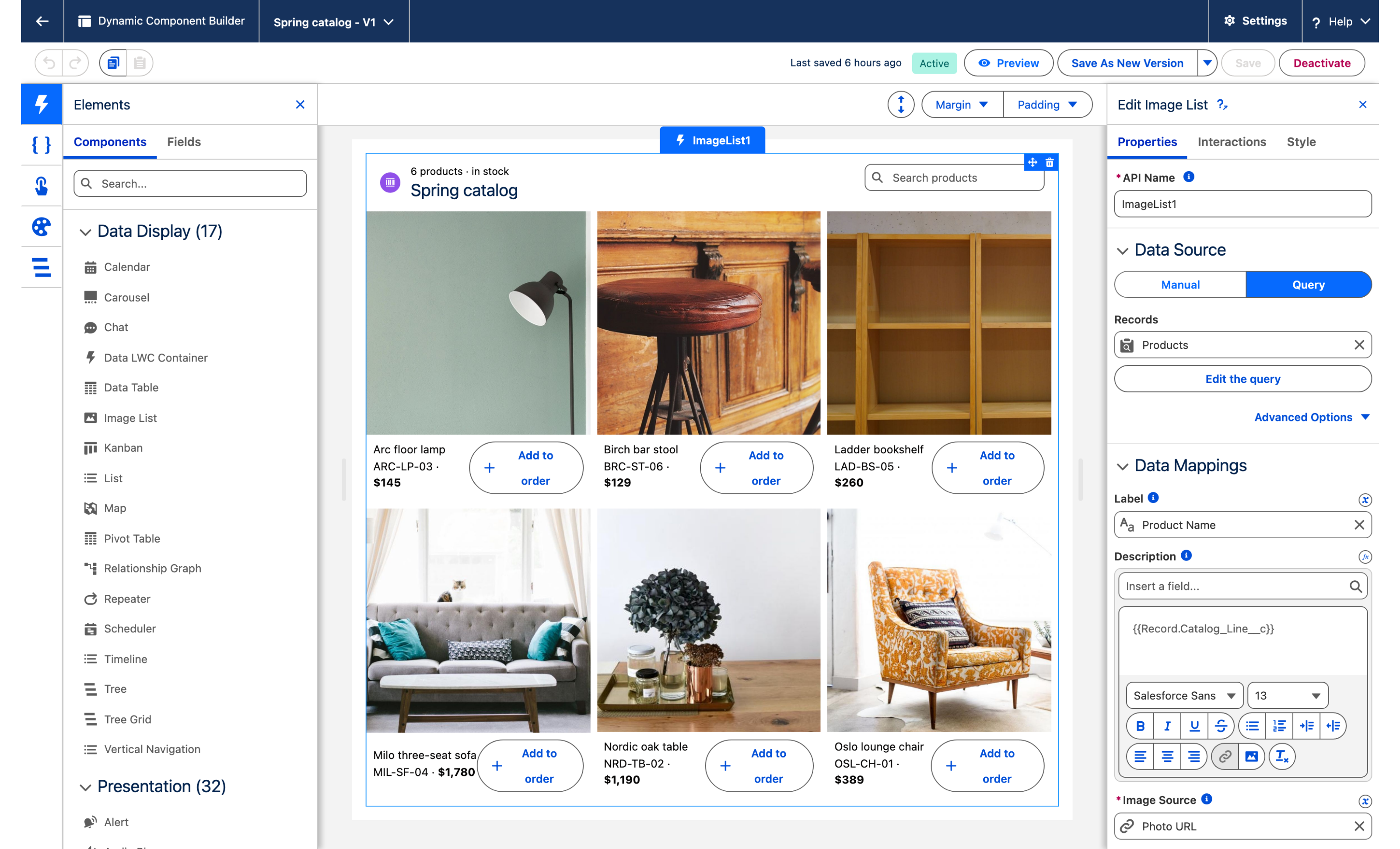
The spring catalog on the account record: six products, one photo each, an Add to order button under every tile.
Overview
The spring catalog on the account record: six products, one photo each, an Add to order button under every tile. The rep never leaves the account. The catalog is one Image List Dynamic Component on the Account record page, reading product records through a Query data source. This tutorial rebuilds the catalog of the Northwind Distribution account page, in the Sales app, in your own org.
What you build

Open Northwind Distribution and the catalog sits under the highlights panel, headed
6 products · in stockaboveSpring catalog.Three tiles across, two rows: the product photo, then the name, the SKU and the price under it.
A search box on the right of the header, for larger catalogs.
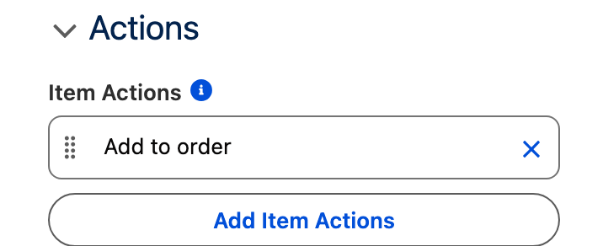
Add to order under every tile fires an interaction that creates an order line on this account.
Before you start
The Avonni Experience Components package, which carries Dynamic Components, is installed. Whoever builds the component needs the Avonni Experiences Admin permission set; the people who use the page need a license and Avonni Dynamic Components User. See Installation & Licenses Management.
An Account record page you can edit in Lightning App Builder. The examples below use the account Northwind Distribution (Type Partner, Industry Furniture retail) in the Sales app.
Two custom objects, one for the catalog and one for the order lines the button creates:
Catalog Product (Catalog_Product__c)
Name
Text
The product name, Oslo lounge chair. The tile title.
SKU__c
Text
OSL-CH-01. Also the display order of the tiles.
Price__c
Currency, 0 decimal places
The unit price
Category__c
Picklist: Seating, Tables, Lighting, Storage
Used by the filter variation in Take it further
Photo_URL__c
URL
The photo on the tile
In_Stock__c
Checkbox
The query filter
Catalog_Line__c
Formula (Text)
OSL-CH-01 · $389 under the name, see step 1
Order Line (Order_Line__c)
Name
Auto Number, OL-{0000}
Account__c
Lookup (Account)
The account the rep is looking at
Product__c
Lookup (Catalog Product)
The tile the rep clicked
Quantity__c
Number, 0 decimal places
1 at creation
Unit_Price__c
Currency, 0 decimal places
The price at the time of the click
Sample data. Six products, all in stock:
Oslo lounge chair
OSL-CH-01
Seating
389
Nordic oak table
NRD-TB-02
Tables
1,190
Arc floor lamp
ARC-LP-03
Lighting
145
Milo three-seat sofa
MIL-SF-04
Seating
1,780
Ladder bookshelf
LAD-BS-05
Storage
260
Birch bar stool
BRC-ST-06
Seating
129
Use six product photos you own. Store them where the org can load them and put the address in Photo URL: a static resource (/resource/Catalog_Photos/oslo-lounge-chair.jpg), a Salesforce File, or an external URL your org's Trusted URLs allow. Landscape photos of similar proportions make the grid even. The photos in the figure are not part of this tutorial.
Permissions. Users need Read on Catalog Product and its fields, and Create on Order Line for the button to work. The order line is created as the user who clicks, with that user's access.
Build it
Create the two objects, the formula and the products
In Setup, open Object Manager and create Catalog Product and Order Line with the fields listed above.
On Catalog Product, add the Catalog Line formula field (return type Text):
Load the six sample products with In Stock checked.
Why: the tile's description is rich text, so the <strong> tags render the price in bold, as in the figure. Mapped straight to the currency field, the description would print 1190, with no symbol and no separator: a mapping inserts a field's value as it is stored.
Create the Dynamic Component and add the Image List
From the App Launcher, open the Avonni Components App and click New Component.
Name it
Spring catalogand set Target Page Object to Account.Drag Image List onto the canvas and select it. The Edit Image List panel opens on the right with the Properties, Interactions and Style tabs.
Why: the catalog itself is the same on every account. The Target Page Object is for the button: it is what gives the interaction the Id of the account the rep is looking at.

Connect the query
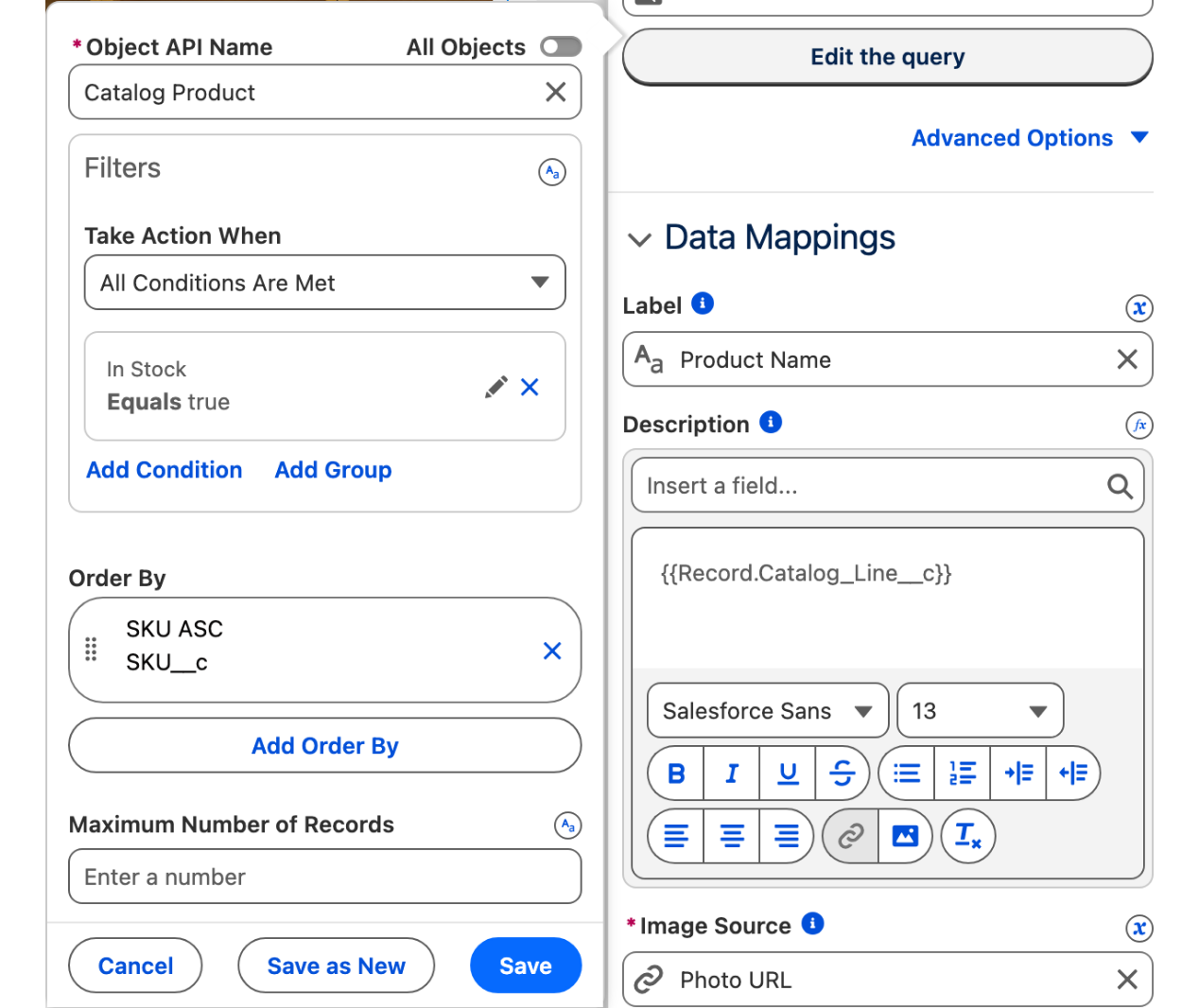
In the Data Source section, select Query and click Create Query.
Choose the Catalog Product object.
Under Filters, add
In_Stock__cequalstrue.Set Order By to
SKU__c, ascending, and click Done.
Why: the filter is what "in stock" means on the page. Take a product off the shelf and its tile is gone at the next load. See Query for the filter operators.

Map the tiles
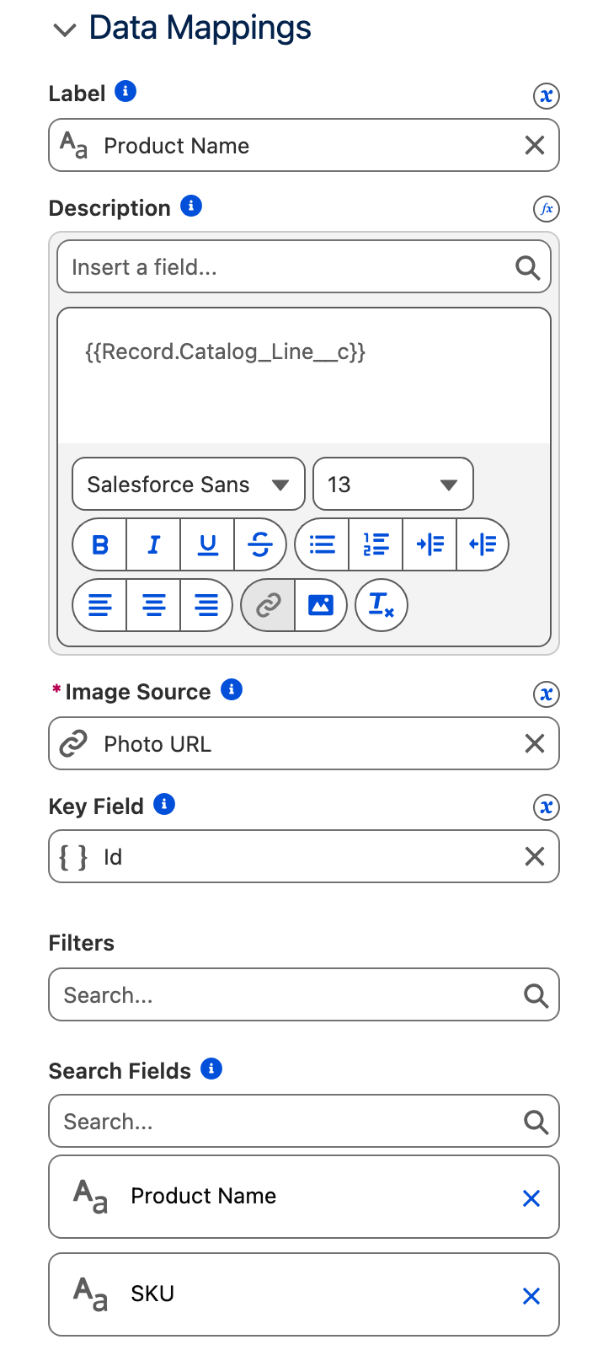
In the Data Mappings section:
Label:
Name.Description:
Catalog_Line__c.Image Source:
Photo_URL__c.Leave Key Field on
{{Record.Id}}.Search Fields:
NameandSKU__c.
Why: Image Source is the only mapping the list needs to show something; the other two put the name and the SKU and price line under each photo.

Set the header and the search
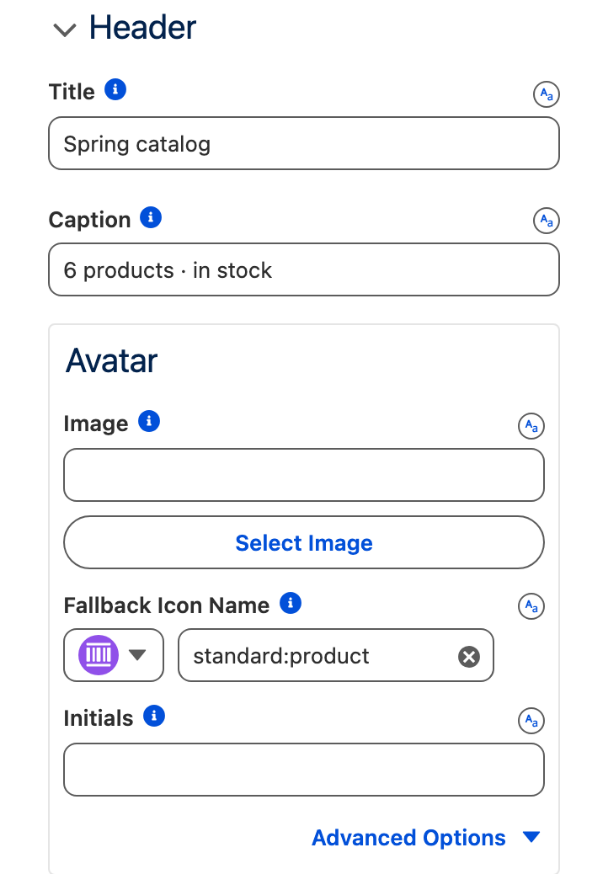
In the Header section, set Title to
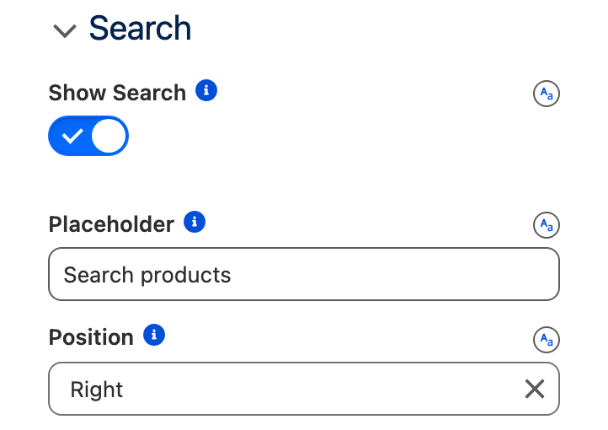
Spring catalogand Caption to6 products · in stock. Under Avatar, set Fallback Icon Name tostandard:product, Variant to Circle and Size to Small.In the Search section, turn on Show Search, set Placeholder to
Search productsand Position to Right.
Why: the caption is text you type, not a count the list computes. Update it when the catalog changes, or leave the number out of it.


Set the layout and the image
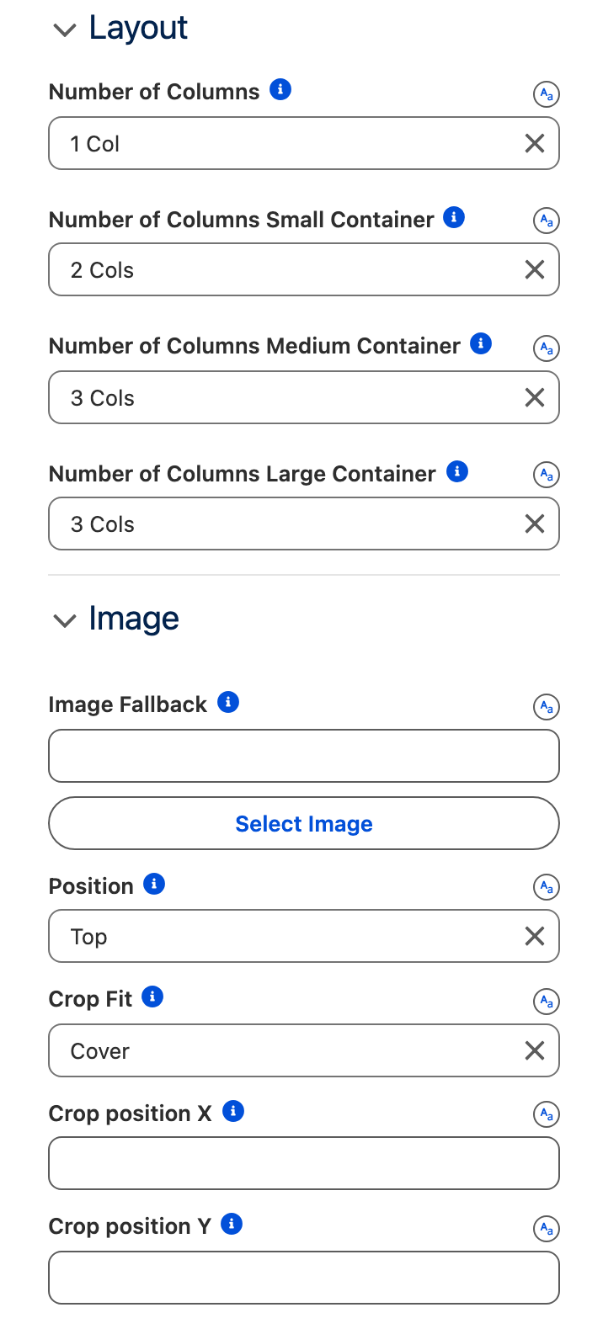
In the Layout section, set Number of Columns to 1 Col, Number of Columns Small Container to 2 Cols, Number of Columns Medium Container to 3 Cols and Number of Columns Large Container to 3 Cols.
In the Image section, set Position to Top and Crop Fit to Cover.
Why: three columns fill the main region of a desktop record page without shrinking the photos; the smaller breakpoints keep the tiles readable on a narrow screen. Position decides where the photo goes relative to the text: Top puts the photo first and the name, SKU and price under it. The default, Bottom, puts the text above the photo.

Wire Add to order
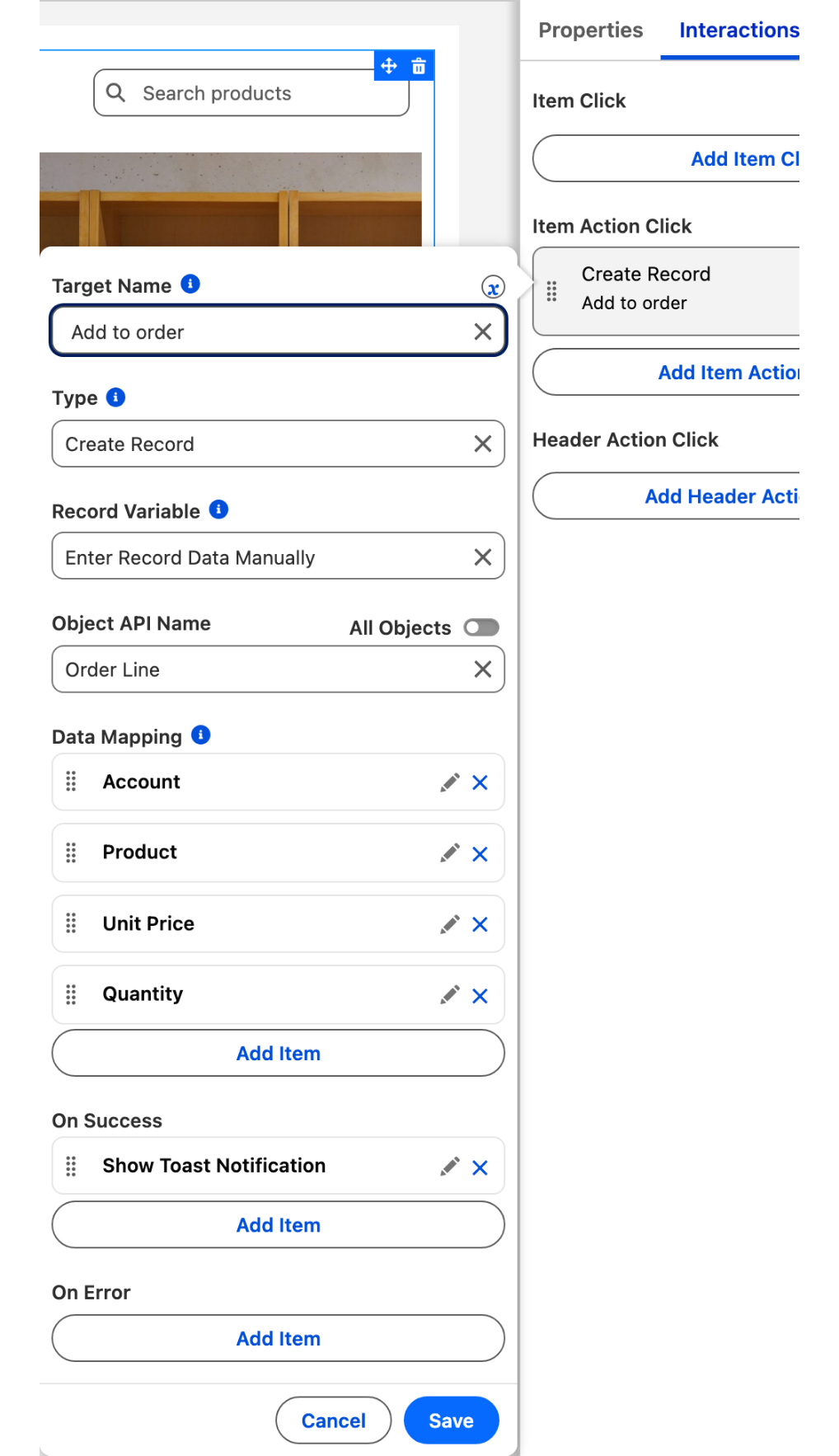
Open the Interactions tab and, under Item Action Click, add an interaction.
Set Target Name to
addToOrderand the type to Create Record.In the Record Variable list, select Enter Record Data Manually, then set Object to
Order_Line__c.Map the fields:
Account__c: the current record's Id,{!$Component.RecordId}Product__c:{{Record.Id}}Unit_Price__c:{{Record.Price__c}}Quantity__c:1
Add a Show Toast action that runs when the record is created: Title
Added to order, MessageThe product was added to this account's order, Variant Success.
Why: {{Record.…}} is the product behind the tile the rep clicked, and {!$Component.RecordId} is the account the page is on. The two together are what makes one button work for every product on every account. See Using Variables and Component Data for the current record variables.

Save, activate, add to the record page
Click Save, then Activate.
In Lightning App Builder, open the Account record page, drag AX - Dynamic Component into the main region under the highlights panel and select
Spring catalogin its Properties Panel.Click Save, then Activate the page for the Sales app. See Publishing your Dynamic Components.
The settings that matter
Image Source (imageSrc)
Photo_URL__c
The tile is the record: one product, one photo
Number of Columns Large Container (largeContainerCols)
3 Cols
Three clean columns in the main region of a desktop record page
Position (imageAttributes.position)
Top
Photo first, text under it. The default puts the text above the photo
Crop Fit (imageAttributes.cropFit)
Cover
Tiles of the same shape whatever the proportions of the photos
Item Actions (actions)
Add to order, name addToOrder
One button per tile, the same on every tile
Show Search and Position (searchable, searchEngineAttributes.position)
on, Right
The search box on the right of the header, ready for a catalog of two hundred products
Interactions
Item Action Click, Target Name addToOrder
Create Record, Enter Record Data Manually
Object Order_Line__c. Account__c = {!$Component.RecordId}, Product__c = {{Record.Id}}, Unit_Price__c = {{Record.Price__c}}, Quantity__c = 1.
Item Click, optional
Page Reference Type Record Page, Object API Name Catalog_Product__c, Record Id {{Record.Id}}, Action Name view. Requires Items Clickable on in Content.
Try it
Open Northwind Distribution. Six tiles in three columns, in SKU order, under
6 products · in stockandSpring catalog.Type
oakin Search products: one tile left, Nordic oak table. Clear the search.Click Add to order under Arc floor lamp. The toast appears, and an Order Line
OL-0001now exists with Account Northwind Distribution, Product Arc floor lamp, Unit Price 145 and Quantity 1.Uncheck In Stock on Birch bar stool and reload the page: five tiles. Check it again.
Take it further
The same list exists on two other Avonni surfaces:
Image List for Flow Screen Components, inside a screen flow.
Image List for LWC Components, as the
avonni-dd-image-listtag in your own component.
Three variations worth trying:
Add
Category__cunder Filters in Data Mappings, and set Type to Horizontal in the Filter section: Seating, Tables, Lighting and Storage become filter chips above the grid. Filters are a Query feature, which this catalog already is.For a catalog of a few hundred products, turn on Show Pagination in the Pagination section and set Number of Items per Page to
9.Switch Variant to Masonry in Content when the photos have different proportions and you would rather keep them whole than crop them.
Troubleshooting
The name and price show above the photo
Position in the Image section is on its default, Bottom.
Set Position to Top.
The description prints 1190 instead of NRD-TB-02 · $1,190
Description is mapped to the currency field. A mapping inserts the stored value, with no formatting.
Map Description to the Catalog_Line__c formula.
Add to order does nothing
No interaction is set under Item Action Click, or its Target Name does not match the action's Name, or you are in the builder preview, where interactions do not run.
Set Target Name to addToOrder, then test on the activated record page.
The order line is created with an empty Account
Target Page Object is not set to Account, or the component sits on a page that is not an Account record page, so {!$Component.RecordId} has no value.
Set Target Page Object to Account and place the component on the Account record page.
A tile has no photo
The URL in Photo_URL__c is not one the org can load: a wrong static resource path, or an external host that is not in your Trusted URLs.
Fix the URL, and set Image Fallback in the Image section so a missing photo still leaves a clean tile.
The Filter section has no effect
No field is selected under Filters in Data Mappings, or the data source is Manual. Filters are built from the fields of a Query.
Use a Query data source and select Category__c under Filters.
Was this helpful?