> For the complete documentation index, see [llms.txt](https://docs.avonnicomponents.com/llms.txt). Markdown versions of documentation pages are available by appending `.md` to page URLs; this page is available as [Markdown](https://docs.avonnicomponents.com/projects/use-cases/record-pages/case-thread-with-a-pinned-workaround.md).

# Build a Salesforce Case Chat with a Pinned Workaround

Add Avonni Chat to a Salesforce Case record page to show a support conversation, pin a workaround and optionally connect replies to Case Message records.

<figure><img src="https://3857391697-files.gitbook.io/~/files/v0/b/gitbook-x-prod.appspot.com/o/spaces%2FdHOej9Pd5IxJNGEJMZKW%2Fuploads%2FpnIqMELymYwLtJ6fg3Ye%2Fcase-thread-with-a-pinned-workaround-overview.png?alt=media" alt="Avonni Chat on a Salesforce Case record page: a support thread with received and sent bubbles, a pinned workaround banner, a day break, a mention and a reply box"><figcaption></figcaption></figure>

## Build the project

Choose how you want to build:

✨ **Build with AI** — Give your AI assistant a ready-to-use prompt.

🛠️ **Build it** — Follow the steps yourself.

{% tabs %}
{% tab title="Build with AI" icon="wand-magic-sparkles" slug="case-thread-with-a-pinned-workaround-build-with-ai" %}
The Avonni skill prepares the Chat thread and composer, while Salesforce supplies Case context and permissions for any record-backed messages.

{% stepper %}
{% step %}

### Set up your assistant and sandbox

Follow [Build with AI](https://docs.avonnicomponents.com/build-with-ai) to install the Avonni Skills, connect the Avonni MCP server and sign in to your sandbox through Salesforce CLI.

Choose a test Case and decide whether the thread uses sample messages or existing Case Message records.
{% endstep %}

{% step %}

### Copy the prompt and review the plan

Paste the prompt into your configured assistant. Confirm the target org, field mappings and existing dependencies before approving the plan.

{% prompt description="Prompt for this project" icon="wand-magic-sparkles" openInAIProviders="false" defaultExpanded="partial" %}
{% code overflow="wrap" collapsedlinecount="10" %}

```
Build Case thread as an Avonni Chat Dynamic Component for a Lightning Case record page. Use the avonni-dynamic-components skill and verify Chat, its publisher and any needed interactions against the Avonni MCP server.

Inspect my sandbox Case page and any existing Chat configuration. Plan the tutorial's Manual data source first. Use fictional participants Rafael Duarte, Lena Okafor and Jonas Lindqvist, with Lena as the current resource. Set up eight sample messages over September 3 and 4, 2026, with Rafael inbound, Lena and Jonas outbound, and a workaround from Lena that a test user can pin. Configure the rich reply box with mentions and the Send button. Include the Escalate and Close case header actions as placeholders until I identify the automation they should run.

If I ask for persistent replies, first confirm my Case Message schema. For the tutorial schema, query Case_Message__c for the current Case, sort by CreatedDate, and map Body__c and Direction__c to the message and side. On Publish a New Message, plan Create Record using the current Case and the last publication value, then Refresh Query after a successful save. Flag any pinning or display setting that needs to be completed or checked in the builder.

Show me the plan and wait for approval before generating local metadata. Report the file path and what to verify in the builder. Stop before deploying, activating or changing Case records.
```

{% endcode %}
{% endprompt %}
{% endstep %}

{% step %}

### Deploy to the sandbox and check the result

Review what the assistant generated and what it left for you to configure. Deploy approved files only to your sandbox and use the **Build it** tab to finish any setup or wiring. Then run [Try it](#try-it) with test data before activating or publishing to your users.

On a test Case, check the date dividers and message sides, pin and unpin Lena's workaround, and check that a new reply appears after refresh if you chose the Query path.
{% endstep %}
{% endstepper %}
{% endtab %}

{% tab title="Build it" icon="screwdriver-wrench" slug="case-thread-with-a-pinned-workaround-build-it" %}
{% stepper %}
{% step %}

### Create the Dynamic Component on Case

Install the [Avonni Experience Components](https://appexchange.salesforce.com/appxListingDetail?listingId=2e584bb3-b5e0-415d-9347-d6567158d840) package. Whoever builds the component needs the **Avonni Experiences Admin** permission set; the people who use the page need a license and **Avonni Dynamic Components User**. See [Installation & Licenses Management](https://docs.avonnicomponents.com/dynamic-components/getting-started/installation-and-licenses-management).

A Case record page in a Lightning app. The examples use the **Support** app and a case with **Subject** `Sync fails after update 4.1`, **Status** `Working`, **Priority** `High`, **Contact** Rafael Duarte and **Account** Halden Robotics. The figure shows a page with the highlights panel and the chat alone below it, at a tighter spacing than the default: on a standard record page the thread is taller, and the last message may sit below the fold.

Read access to the Case is required for everyone who opens the page.

1. Open the **Avonni Components** app and click **New Component**. Name the component `Case thread` and set the **Target Page Object** to **Case**.
2. From the **Component Library**, drag **Chat** onto the **Canvas**.
3. Select it. The **Edit Chat** panel opens on the right, with its **Properties**, **Interactions** and **Style** tabs.

*Why:* the [Target Page Object](https://docs.avonnicomponents.com/dynamic-components/core-concepts/target-page-object) gives the component the Id of the case it sits on. The Manual build does not need it yet; the Query path filters on it.

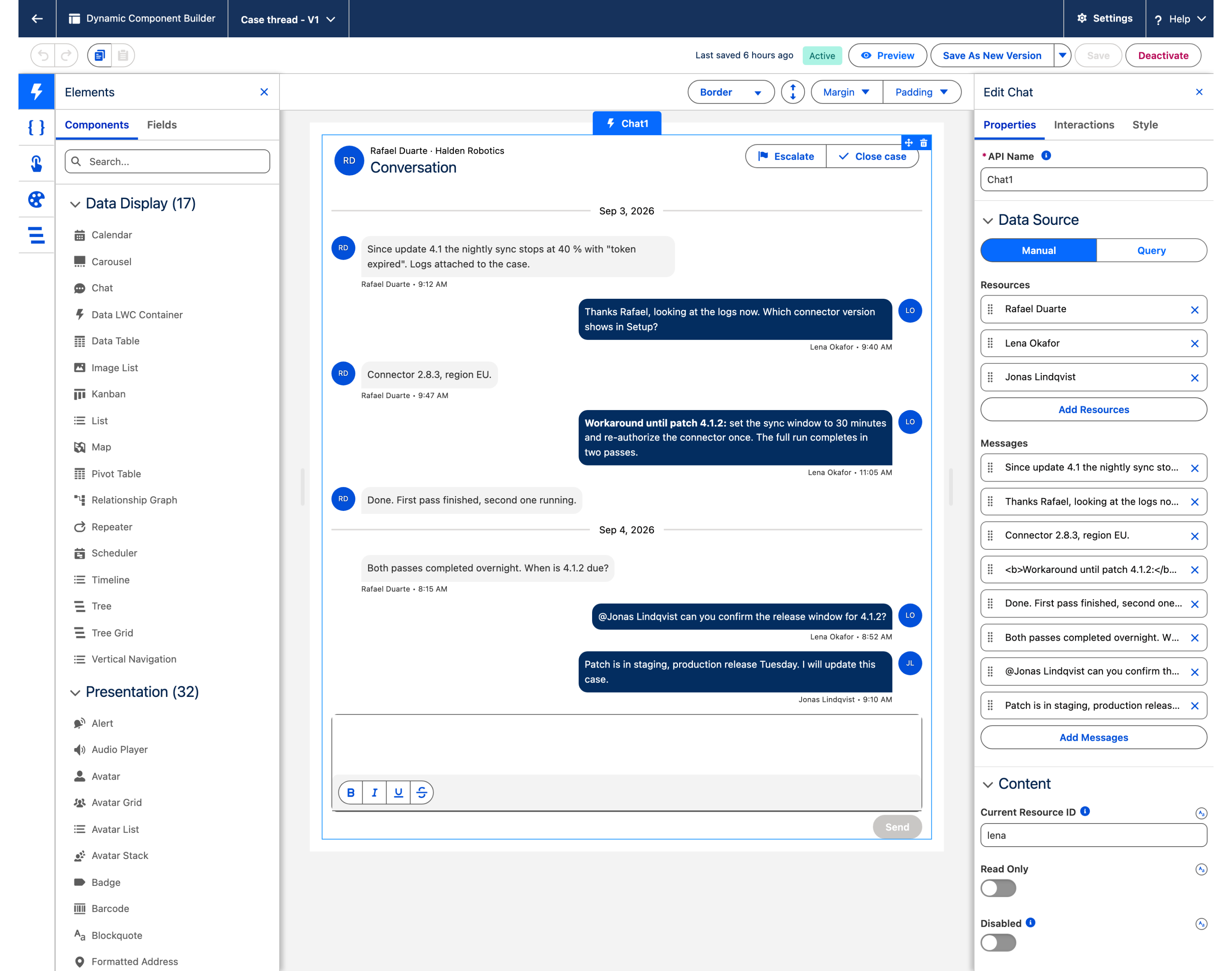
<figure><img src="https://3857391697-files.gitbook.io/~/files/v0/b/gitbook-x-prod.appspot.com/o/spaces%2FdHOej9Pd5IxJNGEJMZKW%2Fuploads%2FacJlrKIsVTlPIANVDzJA%2Fcase-thread-step1-builder.png?alt=media" alt="The Dynamic Component builder with the Chat selected on the canvas, the eight messages rendered, and its Edit Chat panel on the right"><figcaption><p>The Chat on the canvas, once the participants and messages of steps 2 and 3 are entered.</p></figcaption></figure>
{% endstep %}

{% step %}

### Enter the participants

<details>

<summary>Sample data</summary>

Three participants and eight messages over two days. The times are the ones the figure shows; the chat displays every time in the viewer's time zone, so enter them in yours.

| Participant                                    | Name     | Initials |
| ---------------------------------------------- | -------- | -------- |
| Rafael Duarte, the customer at Halden Robotics | `rafael` | RD       |
| Lena Okafor, the support agent                 | `lena`   | LO       |
| Jonas Lindqvist, the colleague Lena mentions   | `jonas`  | JL       |

| # | From            | Type     | Date and time         | Content                                                                                                                                        |
| - | --------------- | -------- | --------------------- | ---------------------------------------------------------------------------------------------------------------------------------------------- |
| 1 | Rafael Duarte   | Inbound  | Sep 3, 2026, 9:12 AM  | Since update 4.1 the nightly sync stops at 40 % with "token expired". Logs attached to the case.                                               |
| 2 | Lena Okafor     | Outbound | Sep 3, 2026, 9:40 AM  | Thanks Rafael, looking at the logs now. Which connector version shows in Setup?                                                                |
| 3 | Rafael Duarte   | Inbound  | Sep 3, 2026, 9:47 AM  | Connector 2.8.3, region EU.                                                                                                                    |
| 4 | Lena Okafor     | Outbound | Sep 3, 2026, 11:05 AM | **Workaround until patch 4.1.2:** set the sync window to 30 minutes and re-authorize the connector once. The full run completes in two passes. |
| 5 | Rafael Duarte   | Inbound  | Sep 3, 2026, 11:30 AM | Done. First pass finished, second one running.                                                                                                 |
| 6 | Rafael Duarte   | Inbound  | Sep 4, 2026, 8:15 AM  | Both passes completed overnight. When is 4.1.2 due?                                                                                            |
| 7 | Lena Okafor     | Outbound | Sep 4, 2026, 8:52 AM  | @Jonas Lindqvist can you confirm the release window for 4.1.2?                                                                                 |
| 8 | Jonas Lindqvist | Outbound | Sep 4, 2026, 9:10 AM  | Patch is in staging, production release Tuesday. I will update this case.                                                                      |

</details>

1. In **Data Source**, select **Manual**.
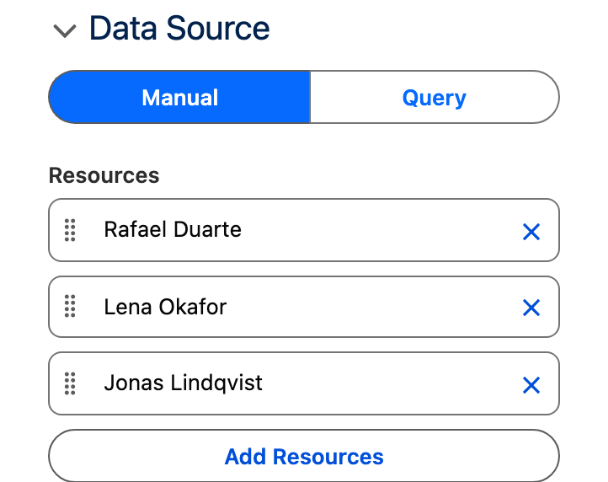
2. Under **Resources**, add three entries. For each one set **Label** and **Avatar Initials** from the participants table, then expand the advanced options of the entry and set **Name** to `rafael`, `lena` and `jonas`.

*Why:* **Name** is the key each message points to, and the value **Current Resource ID** is compared against. **Avatar Initials** draw the RD, LO and JL circles; **Avatar Source** takes a photo instead when you have one.

<figure><img src="https://3857391697-files.gitbook.io/~/files/v0/b/gitbook-x-prod.appspot.com/o/spaces%2FdHOej9Pd5IxJNGEJMZKW%2Fuploads%2FW05wd3yVnupQoFEhRgTh%2Fcase-thread-step2-participants.png?alt=media" alt="The Data Source section on Manual with the Resources list: Rafael Duarte, Lena Okafor, Jonas Lindqvist" width="320"><figcaption><p>The three participants.</p></figcaption></figure>
{% endstep %}

{% step %}

### Enter the eight messages

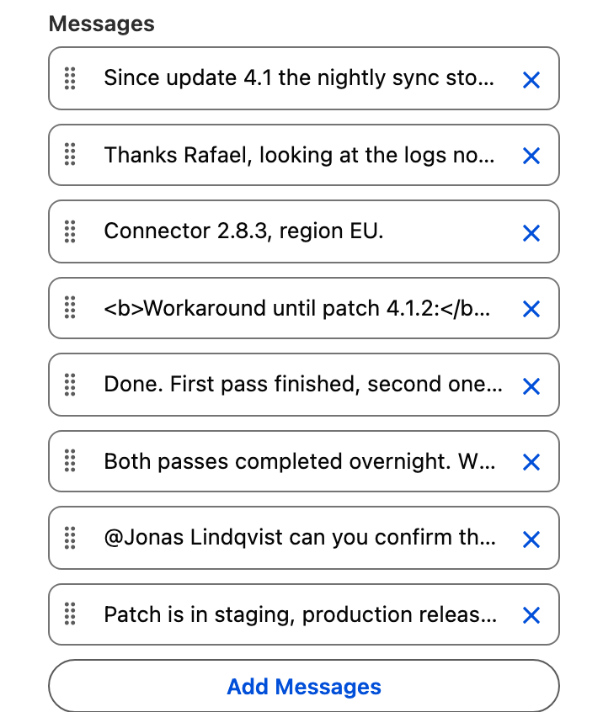
Under **Messages**, add the eight rows of the sample table, oldest first. For each one: **Participant Name** (pick the participant), **Type** **Inbound** or **Outbound**, **Date**, **Content**.

* Message 4 starts in bold: format the first words in the **Content** editor.
* Message 7 carries the mention: type `@Jonas Lindqvist` and turn those words into a link to Jonas's user record. That is what the reply box writes when the end user picks a mention, and it renders in blue.

*Why:* **Type** decides the side of the bubble. Rafael is **Inbound**, so he sits on the left whoever is looking; Lena and Jonas are **Outbound**, on the right. With a type on every message, **Current Resource ID** no longer decides sides, only who authors new messages.

<figure><img src="https://3857391697-files.gitbook.io/~/files/v0/b/gitbook-x-prod.appspot.com/o/spaces%2FdHOej9Pd5IxJNGEJMZKW%2Fuploads%2Fid6hyrvOjWkh0Xnx4j2B%2Fcase-thread-step3-messages.png?alt=media" alt="The Messages list with the eight messages, oldest first" width="320"><figcaption><p>The eight messages.</p></figcaption></figure>
{% endstep %}

{% step %}

### Set the general settings

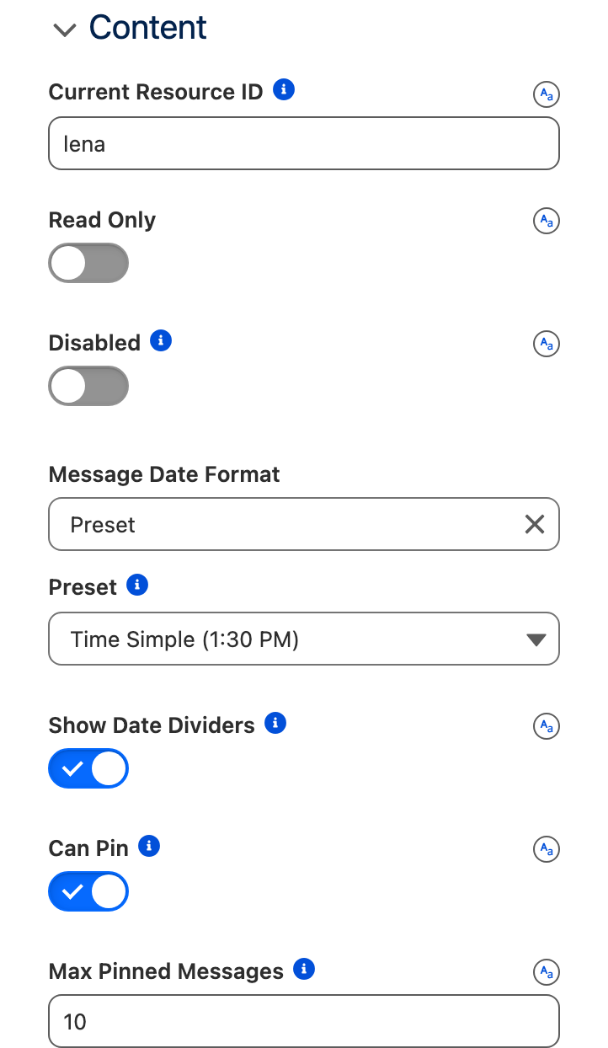
1. **Current Resource ID** `lena`.
2. **Message Date Format** **Preset**, then **Preset** **Time Simple (1:30 PM)**.
3. Turn on **Show Date Dividers**.
4. Turn on **Can Pin**. Leave **Max Pinned Messages** at `10`.

*Why:* the default date format is **Relative** (`2 hours ago`), which ages badly on a thread you come back to; **Time Simple** prints `11:05 AM` under each block of messages. **Show Date Dividers** inserts `Sep 3, 2026` and `Sep 4, 2026`. **Can Pin** adds the message menu and the pinned banner.

<figure><img src="https://3857391697-files.gitbook.io/~/files/v0/b/gitbook-x-prod.appspot.com/o/spaces%2FdHOej9Pd5IxJNGEJMZKW%2Fuploads%2FIxLhm8JjGWkdlo8wRood%2Fcase-thread-step4-content.png?alt=media" alt="The Content section: Current Resource ID lena, Message Date Format Preset, Preset Time Simple (1:30 PM), Show Date Dividers on, Can Pin on, Max Pinned Messages 10" width="320"><figcaption><p>The general settings, in the Content section.</p></figcaption></figure>
{% endstep %}

{% step %}

### Build the header

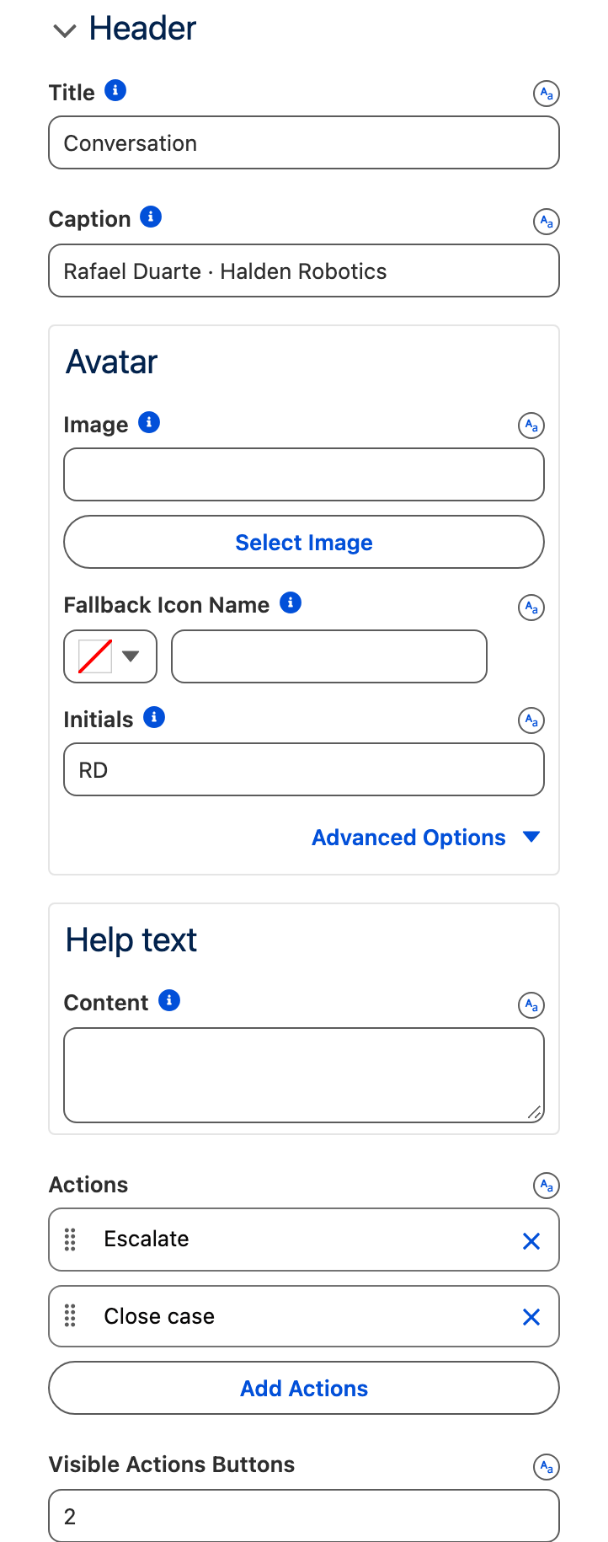
1. **Title** `Conversation`, **Caption** `Rafael Duarte · Halden Robotics`.
2. Under **Avatar**, **Initials** `RD`; in its advanced options, **Size** **Medium** and **Variant** **Circle**.
3. Under **Actions**, add two actions:
   * **Label** `Escalate`, **Name** `escalate`, **Icon Name** `utility:priority`
   * **Label** `Close case`, **Name** `close`, **Icon Name** `utility:check`
4. **Visible Actions Buttons** `2`.

*Why:* with as many visible buttons as actions, both gestures stay one click away. Fewer, and the rest collapse into an overflow menu.

<figure><img src="https://3857391697-files.gitbook.io/~/files/v0/b/gitbook-x-prod.appspot.com/o/spaces%2FdHOej9Pd5IxJNGEJMZKW%2Fuploads%2FWrEAluxFqlkkwrQ6YXdA%2Fcase-thread-step5-header.png?alt=media" alt="The Header section: Title Conversation, Caption Rafael Duarte · Halden Robotics, Avatar Initials RD, the Escalate and Close case actions, Visible Actions Buttons 2" width="320"><figcaption><p>The header, its avatar and the two actions.</p></figcaption></figure>
{% endstep %}

{% step %}

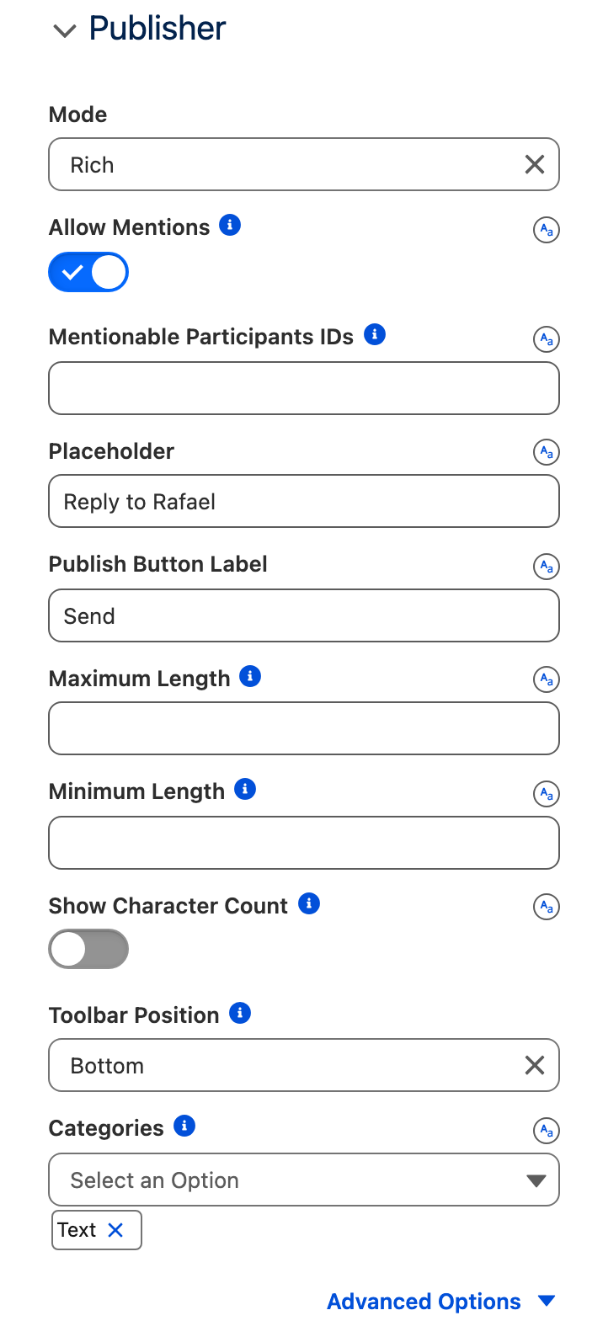
### Configure the reply box

In the **Publisher** group:

1. **Mode** **Rich**.
2. Turn on **Allow Mentions**.
3. **Placeholder** `Reply to Rafael`, **Publish Button Label** `Send`.
4. **Toolbar Position** **Bottom**.
5. **Categories**: keep **Text** only.

*Why:* mentions need the rich editor, so **Mode** stays **Rich**. **Text** gives bold, italic, underline and strikethrough and nothing else, which is what a support reply needs. The bottom toolbar keeps the typing area at the top of the box.

<figure><img src="https://3857391697-files.gitbook.io/~/files/v0/b/gitbook-x-prod.appspot.com/o/spaces%2FdHOej9Pd5IxJNGEJMZKW%2Fuploads%2FVmajoqg6ajxCAHWyF04Y%2Fcase-thread-step6-publisher.png?alt=media" alt="The Publisher section: Mode Rich, Allow Mentions on, Placeholder Reply to Rafael, Publish Button Label Send, Toolbar Position Bottom, Categories Text" width="320"><figcaption><p>The reply box settings.</p></figcaption></figure>
{% endstep %}

{% step %}

### Preview, save, activate, add to the Case record page

1. Click **Preview**: eight bubbles, two day dividers, the header with its two buttons, the reply box.
2. Click **Save**, then **Activate**, and follow [Publishing your Dynamic Components](https://docs.avonnicomponents.com/dynamic-components/core-concepts/publishing-your-dynamic-components): in **Lightning App Builder**, edit the Case record page, drag **AX - Dynamic Component** under the highlights panel, select `Case thread` in its properties, then **Save** and **Activate** the page.
3. Open the case. Pin the workaround from the thread, as described in **Try it**.

*Why:* pinning is a gesture of the end user, not a setting. With a Manual data source the pin lasts until the page reloads; the Query path below stores it in a field.
{% endstep %}

{% step %}

### Production: switch to a Query data source

On the Query path, Read on Case Message to see the thread and Create on it to post from the reply box: the query and the Create Record interaction both run with the user's own permissions.

Start with a test Case and sample messages. When you switch to records, use a message object with a case lookup, an `inbound` or `outbound` direction, and a pin checkbox.

* For the Manual build (steps 1 to 7), no object beyond the Case. For the Query path (steps 8 and 9), a message object linked to the case:

| Object                           | Field                                                     | Type                            | Role                                                               |
| -------------------------------- | --------------------------------------------------------- | ------------------------------- | ------------------------------------------------------------------ |
| Case (standard)                  | `Subject`, `Status`, `Priority`, `ContactId`, `AccountId` | Standard                        | The record the chat lives on                                       |
| Case Message (`Case_Message__c`) | `Case__c`                                                 | Lookup (Case)                   | Links the message to its case; the query filters on it             |
|                                  | `Body__c`                                                 | Rich Text Area                  | The message content                                                |
|                                  | `Direction__c`                                            | Picklist: `inbound`, `outbound` | Which side the bubble sits on. Lowercase, exactly these two values |
|                                  | `Pinned__c`                                               | Checkbox                        | Keeps a message pinned from one visit to the next                  |
|                                  | `CreatedById`, `CreatedDate`                              | Standard                        | The author and the time, used by default                           |

The Manual list is frozen. For a live case, the messages are records.

1. Create the **Case Message** object with the fields listed above, and a few records on a test case. `Direction__c` holds `inbound` or `outbound`, in lowercase.
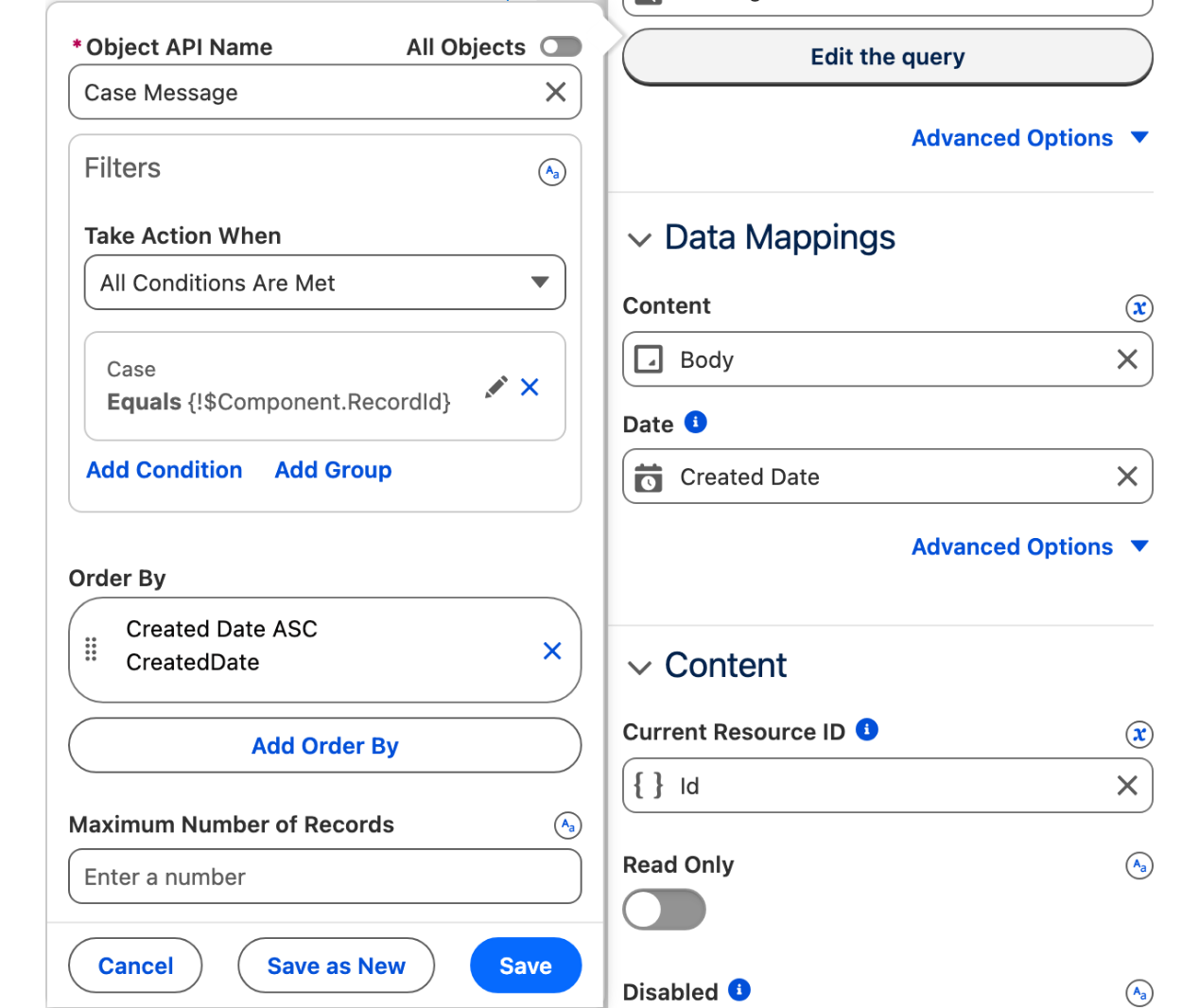
2. In **Data Source**, select **Query**. **Object** `Case_Message__c`. Add a filter: **Field** `Case__c`, **Operator** equals, **Value** `{!$Component.RecordId}`. **Order By** `CreatedDate ASC`.
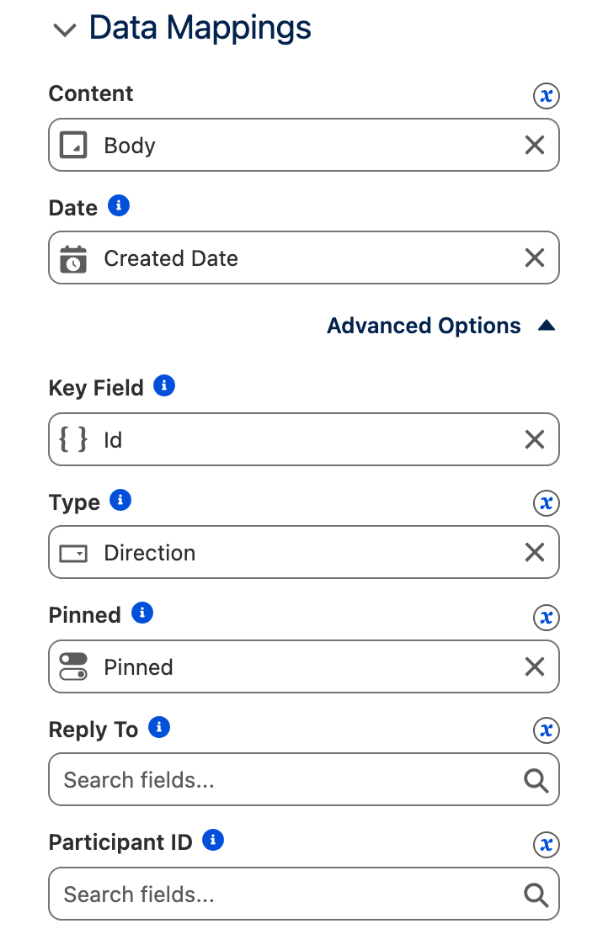
3. In **Data Mappings**, set **Content** to `Body__c`. **Date** stays on `CreatedDate`. In the advanced options, set **Type** to `Direction__c` and **Pinned** to `Pinned__c`. Leave **Participant ID** empty: the author of each message defaults to the user who created the record, and **Participant** lets you map that user's label and avatar if the defaults are not what you want.
4. Clear **Current Resource ID**: it defaults to the running user, who then authors what is sent from the reply box. The sides still come from `Direction__c`.

*Why:* a customer writing through your Experience site is a user too, so a thread built this way reads like the figure. `Pinned__c` is what makes a pin outlive the page: records where it is true show as pinned when the thread loads.

<figure><img src="https://3857391697-files.gitbook.io/~/files/v0/b/gitbook-x-prod.appspot.com/o/spaces%2FdHOej9Pd5IxJNGEJMZKW%2Fuploads%2FmYoZJeho6lnLdloQD5N7%2Fcase-thread-step8-query.png?alt=media" alt="The query editor popover for the Case Message object: Case equals {!$Component.RecordId}, Order By Created Date ascending"><figcaption><p>The query on Case Message, filtered on the record the page is on.</p></figcaption></figure>

<figure><img src="https://3857391697-files.gitbook.io/~/files/v0/b/gitbook-x-prod.appspot.com/o/spaces%2FdHOej9Pd5IxJNGEJMZKW%2Fuploads%2F7GkJY7AXUH4UZU5hp1di%2Fcase-thread-step8-mappings.png?alt=media" alt="The Data Mappings section with Advanced Options expanded: Content Body, Date Created Date, Key Field Id, Type Direction, Pinned mapped to the Pinned field, Reply To and Participant ID empty" width="320"><figcaption><p>The mappings on the Query path. Type and Pinned are under Advanced Options.</p></figcaption></figure>
{% endstep %}

{% step %}

### Wire the reply box to create the message

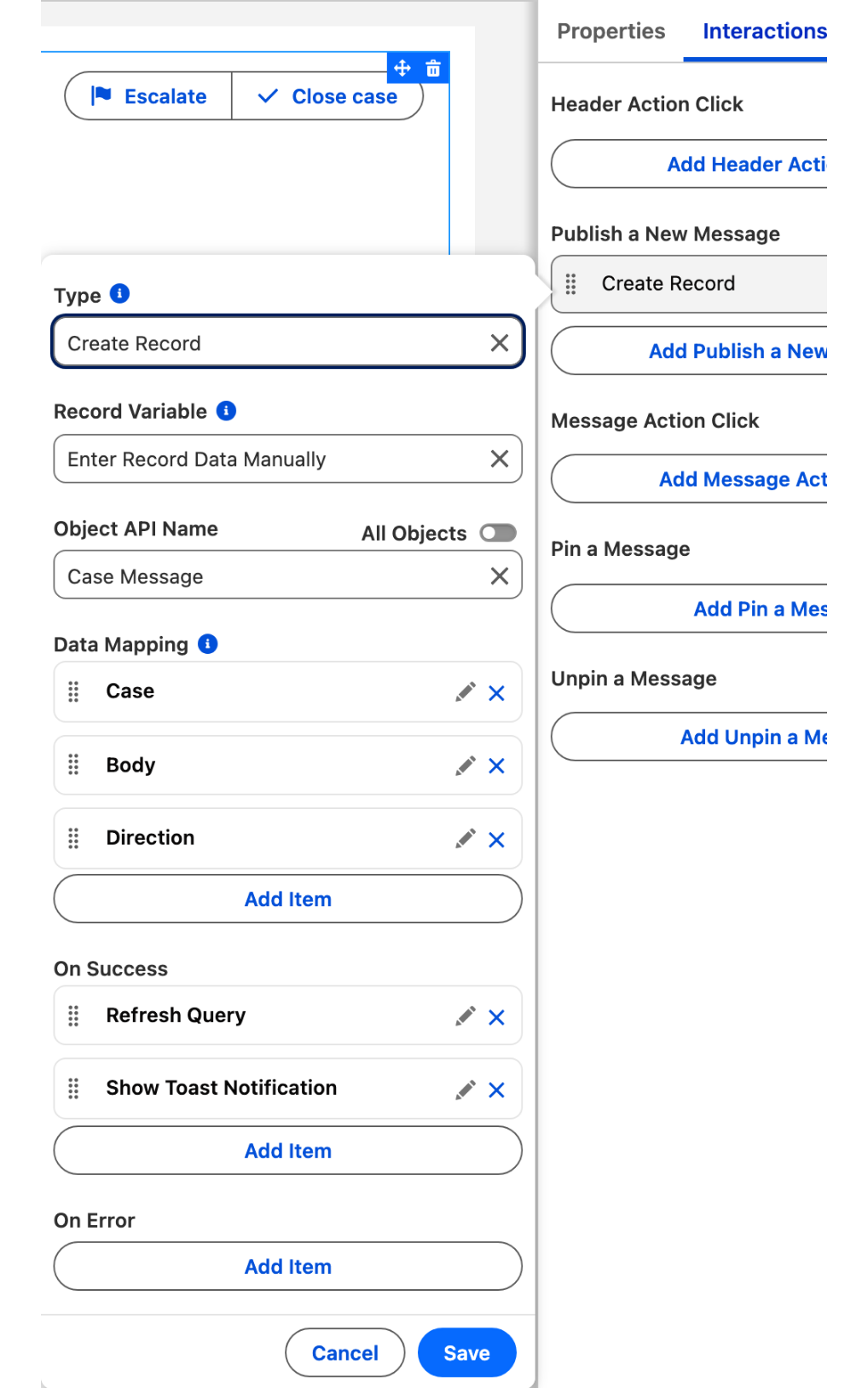
1. Open the **Interactions** tab. On **Publish a New Message**, add a [Create Record](https://docs.avonnicomponents.com/dynamic-components/component-builder/interactions/variable-operations/create-record) action.
2. In **Record Variable**, select **Enter Record Data Manually**, then **Object** `Case_Message__c`.
3. Map the fields: `Case__c` to `{!$Component.RecordId}`, `Body__c` to the content of the message the end user sent (the chat's **Last Publication Value** output), `Direction__c` to `outbound`.
4. On success, add **Refresh Query** so the new bubble appears, and a [Show Toast](https://docs.avonnicomponents.com/dynamic-components/component-builder/interactions/navigation-and-notifications/show-toast) if you want a confirmation.

*Why:* without an action on **Publish a New Message**, **Send** clears the box and stores nothing. The chat exposes the sent text and the mentioned participants as outputs; the interaction turns them into a record, and the query redraws the thread.

<figure><img src="https://3857391697-files.gitbook.io/~/files/v0/b/gitbook-x-prod.appspot.com/o/spaces%2FdHOej9Pd5IxJNGEJMZKW%2Fuploads%2FBwbSMWWWEDgmICTcPN35%2Fcase-thread-step9-interaction.png?alt=media" alt="The Interactions tab with the Create Record interaction open on Publish a New Message: Object Case Message, the Case, Body and Direction mappings, and Refresh Query then Show Toast Notification on success"><figcaption><p>The Create Record interaction on Publish a New Message, with Refresh Query and the toast on success.</p></figcaption></figure>
{% endstep %}
{% endstepper %}
{% endtab %}
{% endtabs %}

## The settings that matter

| Setting                                                                                           | Value                                                                                                                                 | Why                                                                                                               |
| ------------------------------------------------------------------------------------------------- | ------------------------------------------------------------------------------------------------------------------------------------- | ----------------------------------------------------------------------------------------------------------------- |
| **Can Pin** (`canPin`)                                                                            | on                                                                                                                                    | The workaround stays visible in a banner above the thread, and the end user pins or unpins from the message menu. |
| **Type** on each message (`items[].type`, or `Direction__c` mapped to **Type** on the Query path) | **Inbound** for Rafael, **Outbound** for Lena and Jonas                                                                               | Who sits left and who sits right, whoever is looking at the page.                                                 |
| **Current Resource ID** (`currentResourceId`)                                                     | `lena` in the Manual build, empty on the Query path                                                                                   | The author of new messages. With a type on every message it does not move any bubble.                             |
| **Show Date Dividers** (`showTimeBreaks`) and **Message Date Format** (`itemDateFormat`)          | on, **Preset** **Time Simple**                                                                                                        | The day change is a divider, the time sits under each block of messages.                                          |
| **Publisher** (`publisher`)                                                                       | **Mode** **Rich**, **Allow Mentions** on, **Placeholder** `Reply to Rafael`, **Publish Button Label** `Send`, **Categories** **Text** | Mentions need the rich editor; the button and the placeholder speak the agent's language.                         |

## Interactions

| Trigger                                             | Action                                                                                                                                                                 | What to set                                                                                                                                                                                                        |
| --------------------------------------------------- | ---------------------------------------------------------------------------------------------------------------------------------------------------------------------- | ------------------------------------------------------------------------------------------------------------------------------------------------------------------------------------------------------------------ |
| **Publish a New Message**                           | [Create Record](https://docs.avonnicomponents.com/dynamic-components/component-builder/interactions/variable-operations/create-record), **Enter Record Data Manually** | Object `Case_Message__c`; `Case__c` = `{!$Component.RecordId}`, `Body__c` = the published message (**Last Publication Value**), `Direction__c` = `outbound`. Then **Refresh Query**. Query path only.              |
| **Publish a New Message**                           | [Execute Flow](https://docs.avonnicomponents.com/dynamic-components/component-builder/interactions/flow-builder-integration/execute-flow), optional                    | An escalation flow that takes **Last Publication Mentions**, the Ids of the participants mentioned with `@`, as input. Works with either data source.                                                              |
| **Header Action Click**, **Target Name** `escalate` | [Open Flow Dialog](https://docs.avonnicomponents.com/dynamic-components/component-builder/interactions/flow-builder-integration/open-flow-dialog)                      | The escalation screen flow, with `{!$Component.RecordId}` as its case input.                                                                                                                                       |
| **Header Action Click**, **Target Name** `close`    | [Update Record](https://docs.avonnicomponents.com/dynamic-components/component-builder/interactions/variable-operations/update-record)                                 | The current page record, `Status` = `Closed`. Add a **Show Toast** on success.                                                                                                                                     |
| **Pin a Message** and **Unpin a Message**           | [Update Record](https://docs.avonnicomponents.com/dynamic-components/component-builder/interactions/variable-operations/update-record)                                 | Query path only: set `Pinned__c` to true or false on the message the trigger exposes as **Item**, so the pin is shared by everyone who opens the case. Without it, the pin is kept for the current page view only. |

## Try it

1. Open the case. Eight bubbles: RD on the left in gray, LO and JL on the right in blue, `Sep 3, 2026` above the thread and `Sep 4, 2026` between the 11:30 AM and 8:15 AM messages.
2. Hover Lena's 11:05 AM message, click the menu that appears beside the bubble and select **Pin Message**. The banner **Most recent pinned messages (1/10)** appears above the thread with her name, the time and the text, and the message reads **Pinned** under its time. Open the menu again: it now offers **Unpin Message**.
3. Click in the reply box: the placeholder `Reply to Rafael` and the bold, italic, underline and strikethrough toolbar appear under it, and **Send** stays gray until you type. Type `@Jon`: the dropdown offers Jonas Lindqvist.
4. If you wired the Query path, send a test reply and verify that exactly one new Case Message is linked to the current Case and appears in the refreshed thread.

## Take it further

The same Chat exists for LWC Components: [Chat](https://docs.avonnicomponents.com/lwc-components/data-driven-components/chat), as the `avonni-dd-chat` tag in your own component, with the same messages and participants or a query and a mapping. Flow Screen Components and Experience Sites have no Chat component today.

Three variations worth trying:

* Turn on **Read Only** for closed cases: the thread stays, the reply box goes.
* Restrict who can be mentioned with **Mentionable Participants IDs**, and block words with **Blocked Words**.
* Add [Real-Time Data](https://docs.avonnicomponents.com/dynamic-components/component-builder/real-time-data) on the Query path, so a message the customer posts appears without a reload.

## Troubleshooting

| Problem                                                                       | Cause                                                                                                                                                                                                                                                             | Fix                                                                                                                                                                                                                                                                     |
| ----------------------------------------------------------------------------- | ----------------------------------------------------------------------------------------------------------------------------------------------------------------------------------------------------------------------------------------------------------------- | ----------------------------------------------------------------------------------------------------------------------------------------------------------------------------------------------------------------------------------------------------------------------- |
| All messages sit on the same side                                             | With no **Type** on the messages, the side comes from **Current Resource ID**, compared to the participant **Name** exactly, case included: `Lena` and `lena` are two people. On the Query path, `Direction__c` holds a value other than `inbound` or `outbound`. | Set **Type** on each message, or map **Type** to a field that holds exactly those two values; or make **Current Resource ID** match the participant **Name**.                                                                                                           |
| No menu appears beside the messages                                           | **Can Pin** is off. The message menu exists only when it is on, and it shows on hover.                                                                                                                                                                            | Turn on **Can Pin** in the general settings, then hover a bubble.                                                                                                                                                                                                       |
| The pinned banner is gone after a reload                                      | With a Manual data source, a pin lives in the page, not in a record.                                                                                                                                                                                              | Use the Query path: map **Pinned** to a checkbox field and wire **Pin a Message** and **Unpin a Message** to an Update Record on that field.                                                                                                                            |
| Some messages show no name or time, or no avatar                              | Consecutive messages from the same author form a block: the avatar is drawn on the first one, the name and time under the last one. Message 5 has neither, because message 6 follows from Rafael.                                                                 | Nothing to configure. This is how the thread groups a run of messages.                                                                                                                                                                                                  |
| Typing `@` opens no dropdown, or the dropdown does not find a name            | **Mode** is **Plain** or **Allow Mentions** is off. Or the text typed after `@` contains a character other than letters, spaces and hyphens (`O'Brien`), which the mention search does not accept.                                                                | Set **Mode** to **Rich** and turn on **Allow Mentions**. Search on the part of the name made of letters, `@Brien`.                                                                                                                                                      |
| The thread reads No messages yet on the Query path, even though records exist | The query returns nothing: the filter does not match, or in **Preview** no record context is set.                                                                                                                                                                 | Check that the filter reads `Case__c` equals `{!$Component.RecordId}`, then in Preview open the [Debug Panel](https://docs.avonnicomponents.com/dynamic-components/component-builder/advanced-features/debug-panel) and set a Preview Context record that has messages. |


---

# Agent Instructions
This documentation is published with GitBook. GitBook is the documentation platform designed so that both humans and AI agents can read, navigate, and reason over technical content effectively. Learn more at gitbook.com.

## Querying This Documentation
If you need additional information that is not directly available in this page, you can query the documentation by asking a question.

Perform an HTTP GET request on the following URL with the `ask` and `goal` query parameters:

```
GET https://docs.avonnicomponents.com/projects/use-cases/record-pages/case-thread-with-a-pinned-workaround.md?ask=<question>&goal=<user_goal>
```

`ask` is the immediate question: it should be specific, self-contained, and written in natural language.
`goal` is what the user is ultimately trying to achieve, the reason they need the answer. Sharing it helps GitBook give you a better, more relevant answer. A goal is most helpful when it describes the outcome the user wants rather than restating the question. For example, with `ask=how do I create an API token`, a goal like `automate deployments from our CI pipeline` lets GitBook tailor the answer to that use case.

The response will contain a direct answer to the question and relevant excerpts and sources from the documentation.

Use this mechanism when the answer is not explicitly present in the current page, you need clarification or additional context, or you want to retrieve related documentation sections.