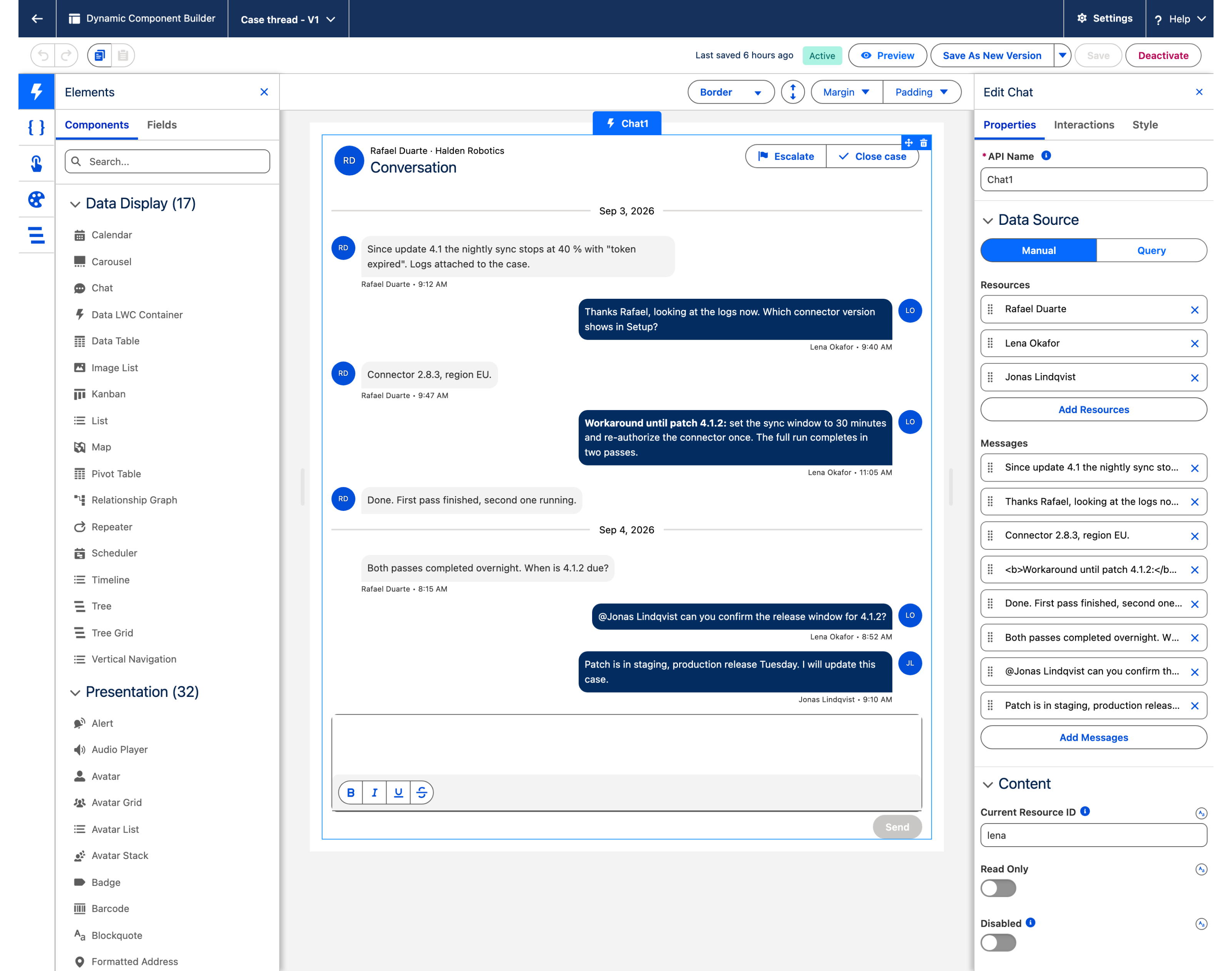
Case thread with a pinned workaround
A support conversation on the Case record: received and sent bubbles, a pinned workaround at the top, a mention to escalate, a reply box.
Overview
A support conversation on the Case record: received and sent bubbles, a pinned workaround at the top, a mention to escalate, a reply box. The agent never leaves the case. The whole thing is one Chat Dynamic Component placed under the highlights panel of the Case record page, first with a Manual data source that holds the eight messages of the figure, then with a Query data source on a message object for production. This tutorial rebuilds the case Sync fails after update 4.1 of Halden Robotics in your own org.
What you build

Open the case and the conversation sits under the highlights panel. Rafael Duarte writes from the left, Lena Okafor answers from the right, initials in the avatars.
A day break separates September 3 from September 4.
Lena's workaround is pinned: a banner above the thread repeats it, and the message itself is marked Pinned.
A mention pulls Jonas Lindqvist in, and he answers in the same thread.
Escalate and Close case sit in the header, the reply box at the bottom with a formatting toolbar and a Send button.
Before you start
The Avonni Experience Components package, which carries Dynamic Components, is installed. Whoever builds the component needs the Avonni Experiences Admin permission set; the people who use the page need a license and Avonni Dynamic Components User. See Installation & Licenses Management.
A Case record page in a Lightning app. The examples use the Support app and a case with Subject
Sync fails after update 4.1, StatusWorking, PriorityHigh, Contact Rafael Duarte and Account Halden Robotics. The figure shows a page with the highlights panel and the chat alone below it, at a tighter spacing than the default: on a standard record page the thread is taller, and the last message may sit below the fold.For the Manual build (steps 1 to 7), no object beyond the Case. For the Query path (steps 8 and 9), a message object linked to the case:
Case (standard)
Subject, Status, Priority, ContactId, AccountId
Standard
The record the chat lives on
Case Message (Case_Message__c)
Case__c
Lookup (Case)
Links the message to its case; the query filters on it
Body__c
Rich Text Area
The message content
Direction__c
Picklist: inbound, outbound
Which side the bubble sits on. Lowercase, exactly these two values
Pinned__c
Checkbox
Keeps a message pinned from one visit to the next
CreatedById, CreatedDate
Standard
The author and the time, used by default
Sample data. Three participants and eight messages over two days. The times are the ones the figure shows; the chat displays every time in the viewer's time zone, so enter them in yours.
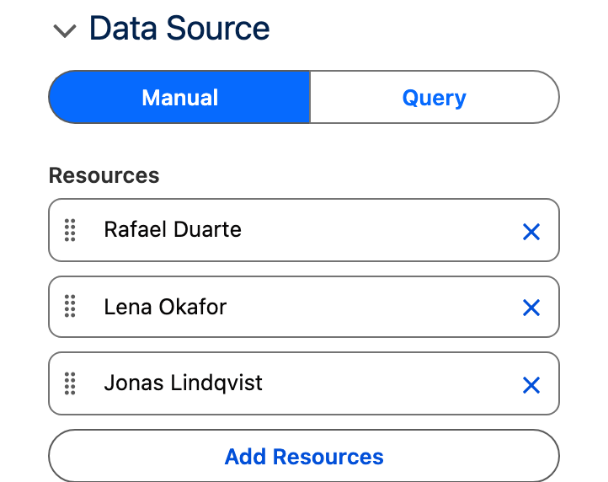
Rafael Duarte, the customer at Halden Robotics
rafael
RD
Lena Okafor, the support agent
lena
LO
Jonas Lindqvist, the colleague Lena mentions
jonas
JL
1
Rafael Duarte
Inbound
Sep 3, 2026, 9:12 AM
Since update 4.1 the nightly sync stops at 40 % with "token expired". Logs attached to the case.
2
Lena Okafor
Outbound
Sep 3, 2026, 9:40 AM
Thanks Rafael, looking at the logs now. Which connector version shows in Setup?
3
Rafael Duarte
Inbound
Sep 3, 2026, 9:47 AM
Connector 2.8.3, region EU.
4
Lena Okafor
Outbound
Sep 3, 2026, 11:05 AM
Workaround until patch 4.1.2: set the sync window to 30 minutes and re-authorize the connector once. The full run completes in two passes.
5
Rafael Duarte
Inbound
Sep 3, 2026, 11:30 AM
Done. First pass finished, second one running.
6
Rafael Duarte
Inbound
Sep 4, 2026, 8:15 AM
Both passes completed overnight. When is 4.1.2 due?
7
Lena Okafor
Outbound
Sep 4, 2026, 8:52 AM
@Jonas Lindqvist can you confirm the release window for 4.1.2?
8
Jonas Lindqvist
Outbound
Sep 4, 2026, 9:10 AM
Patch is in staging, production release Tuesday. I will update this case.
Permissions. Read on Case for everyone who opens the page, plus the Avonni Dynamic Components User permission set. On the Query path, Read on Case Message to see the thread and Create on it to post from the reply box: the query and the Create Record interaction both run with the user's own permissions.
Build it
Create the Dynamic Component on Case
Open the Avonni Components app and click New Component. Name the component
Case threadand set the Target Page Object to Case.From the Component Library, drag Chat onto the Canvas.
Select it. The Edit Chat panel opens on the right, with its Properties, Interactions and Style tabs.
Why: the Target Page Object gives the component the Id of the case it sits on. The Manual build does not need it yet; the Query path filters on it.

Enter the participants
In Data Source, select Manual.
Under Resources, add three entries. For each one set Label and Avatar Initials from the participants table, then expand the advanced options of the entry and set Name to
rafael,lenaandjonas.
Why: Name is the key each message points to, and the value Current Resource ID is compared against. Avatar Initials draw the RD, LO and JL circles; Avatar Source takes a photo instead when you have one.

Enter the eight messages
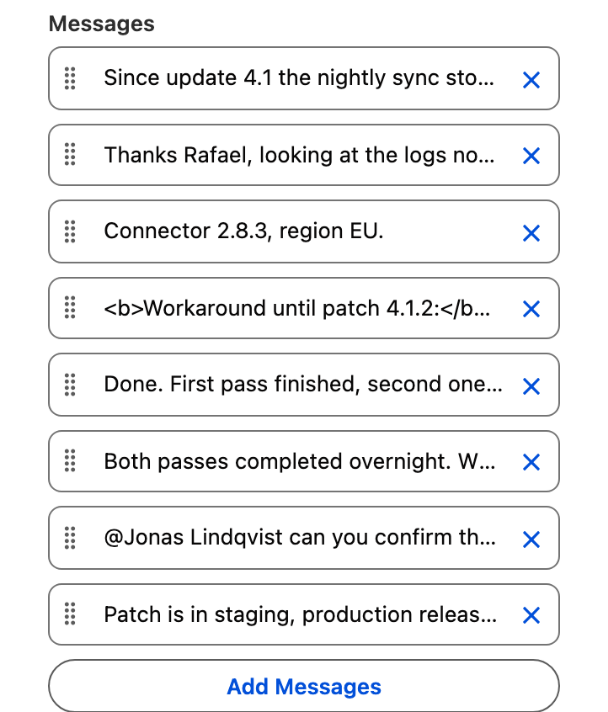
Under Messages, add the eight rows of the sample table, oldest first. For each one: Participant Name (pick the participant), Type Inbound or Outbound, Date, Content.
Message 4 starts in bold: format the first words in the Content editor.
Message 7 carries the mention: type
@Jonas Lindqvistand turn those words into a link to Jonas's user record. That is what the reply box writes when the end user picks a mention, and it renders in blue.
Why: Type decides the side of the bubble. Rafael is Inbound, so he sits on the left whoever is looking; Lena and Jonas are Outbound, on the right. With a type on every message, Current Resource ID no longer decides sides, only who authors new messages.

Set the general settings
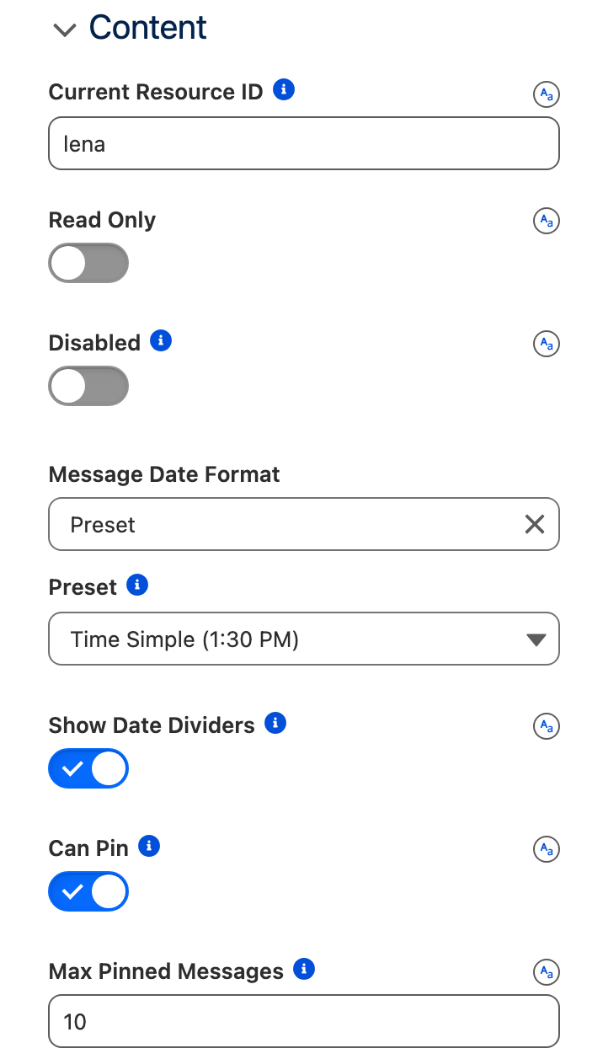
Current Resource ID
lena.Message Date Format Preset, then Preset Time Simple (1:30 PM).
Turn on Show Date Dividers.
Turn on Can Pin. Leave Max Pinned Messages at
10.
Why: the default date format is Relative (2 hours ago), which ages badly on a thread you come back to; Time Simple prints 11:05 AM under each block of messages. Show Date Dividers inserts Sep 3, 2026 and Sep 4, 2026. Can Pin adds the message menu and the pinned banner.

Build the header
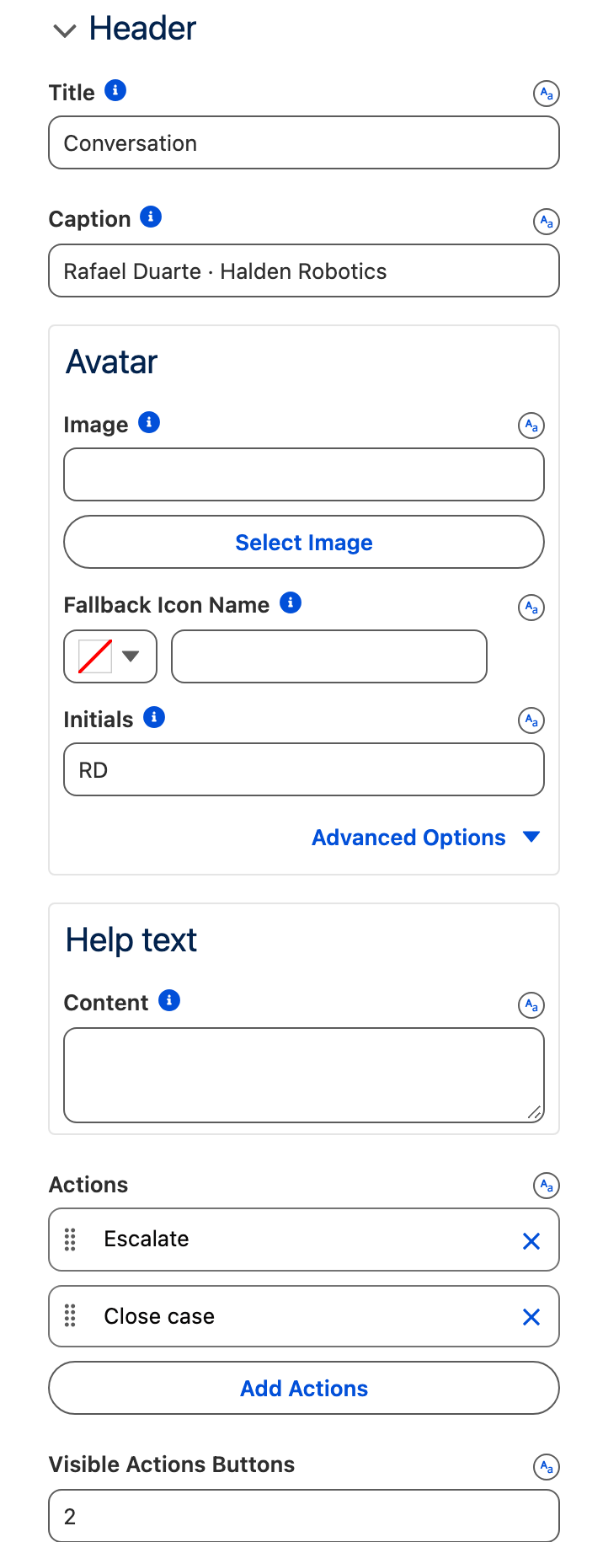
Title
Conversation, CaptionRafael Duarte · Halden Robotics.Under Avatar, Initials
RD; in its advanced options, Size Medium and Variant Circle.Under Actions, add two actions:
Label
Escalate, Nameescalate, Icon Nameutility:priorityLabel
Close case, Nameclose, Icon Nameutility:check
Visible Actions Buttons
2.
Why: with as many visible buttons as actions, both gestures stay one click away. Fewer, and the rest collapse into an overflow menu.

Configure the reply box
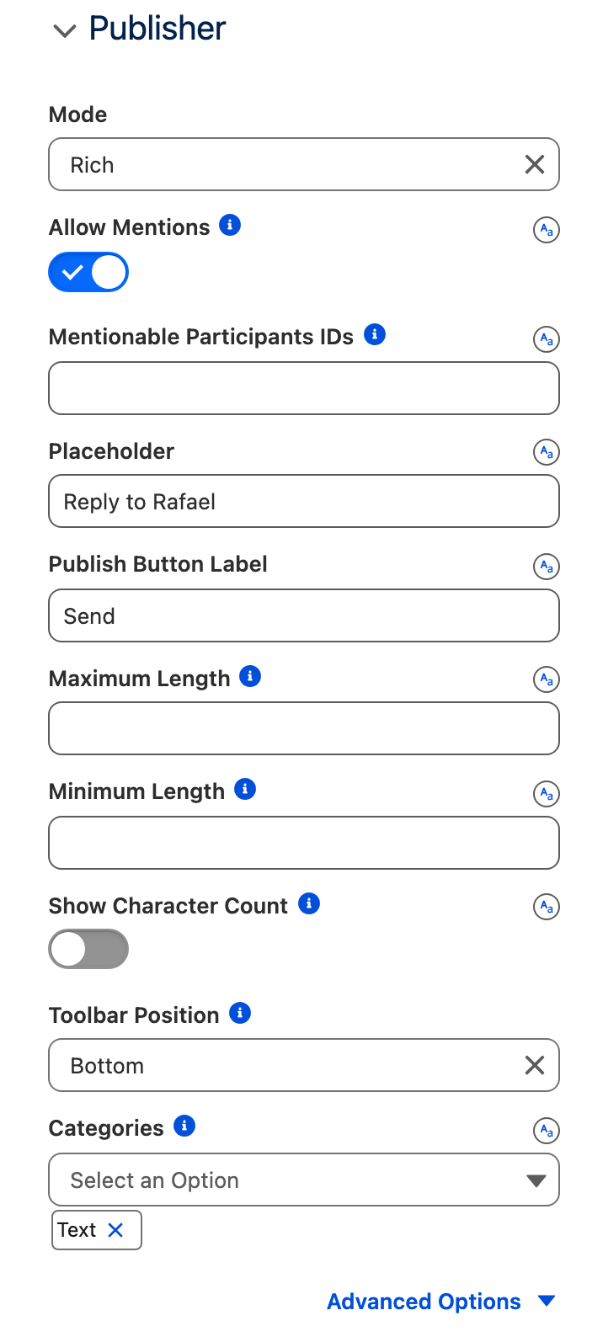
In the Publisher group:
Mode Rich.
Turn on Allow Mentions.
Placeholder
Reply to Rafael, Publish Button LabelSend.Toolbar Position Bottom.
Categories: keep Text only.
Why: mentions need the rich editor, so Mode stays Rich. Text gives bold, italic, underline and strikethrough and nothing else, which is what a support reply needs. The bottom toolbar keeps the typing area at the top of the box.

Preview, save, activate, add to the Case record page
Click Preview: eight bubbles, two day dividers, the header with its two buttons, the reply box.
Click Save, then Activate, and follow Publishing your Dynamic Components: in Lightning App Builder, edit the Case record page, drag AX - Dynamic Component under the highlights panel, select
Case threadin its properties, then Save and Activate the page.Open the case. Pin the workaround from the thread, as described in Try it.
Why: pinning is a gesture of the end user, not a setting. With a Manual data source the pin lasts until the page reloads; the Query path below stores it in a field.
Production: switch to a Query data source
The Manual list is frozen. For a live case, the messages are records.
Create the Case Message object with the fields listed above, and a few records on a test case.
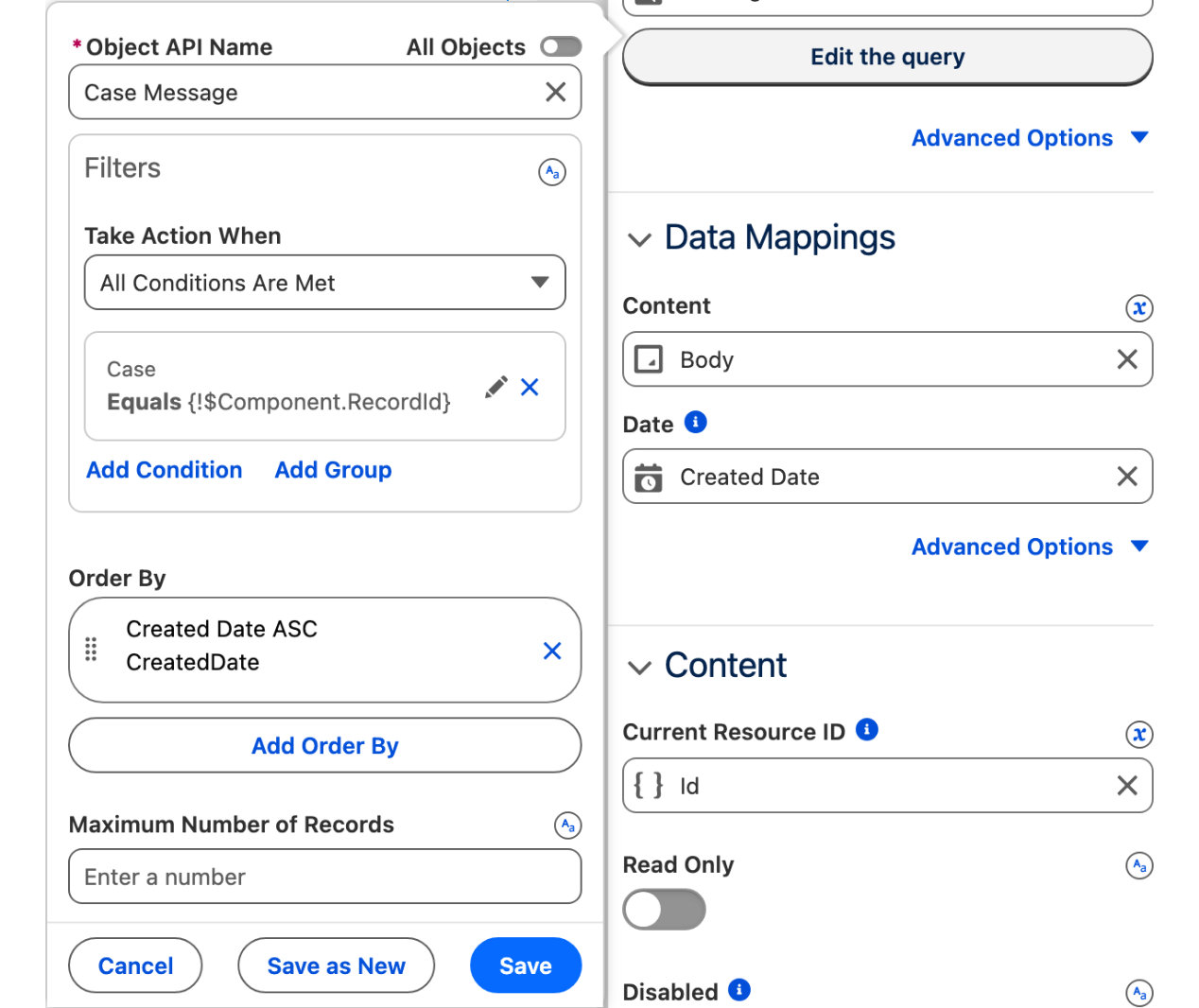
Direction__choldsinboundoroutbound, in lowercase.In Data Source, select Query. Object
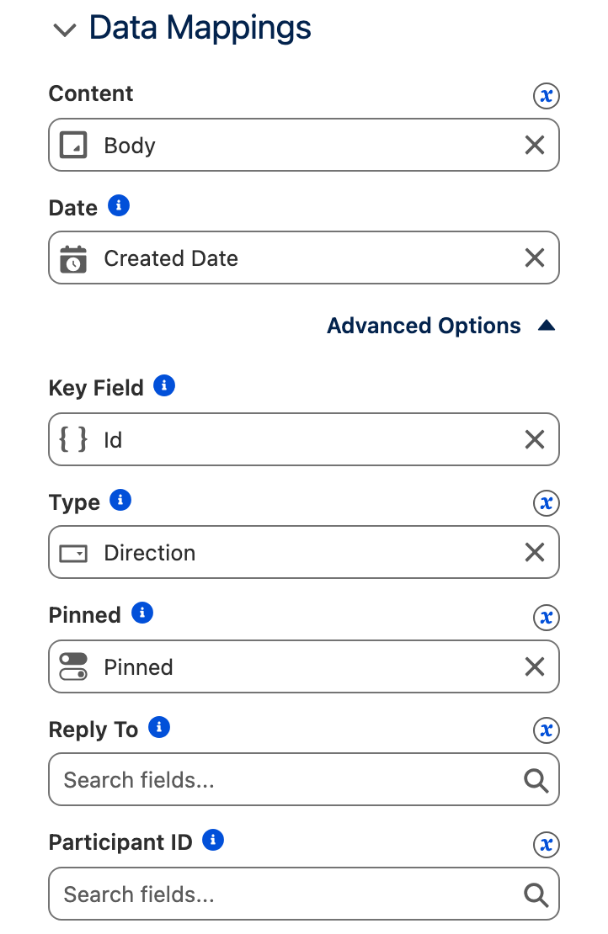
Case_Message__c. Add a filter: FieldCase__c, Operator equals, Value{!$Component.RecordId}. Order ByCreatedDate ASC.In Data Mappings, set Content to
Body__c. Date stays onCreatedDate. In the advanced options, set Type toDirection__cand Pinned toPinned__c. Leave Participant ID empty: the author of each message defaults to the user who created the record, and Participant lets you map that user's label and avatar if the defaults are not what you want.Clear Current Resource ID: it defaults to the running user, who then authors what is sent from the reply box. The sides still come from
Direction__c.
Why: a customer writing through your Experience site is a user too, so a thread built this way reads like the figure. Pinned__c is what makes a pin outlive the page: records where it is true show as pinned when the thread loads.


Wire the reply box to create the message
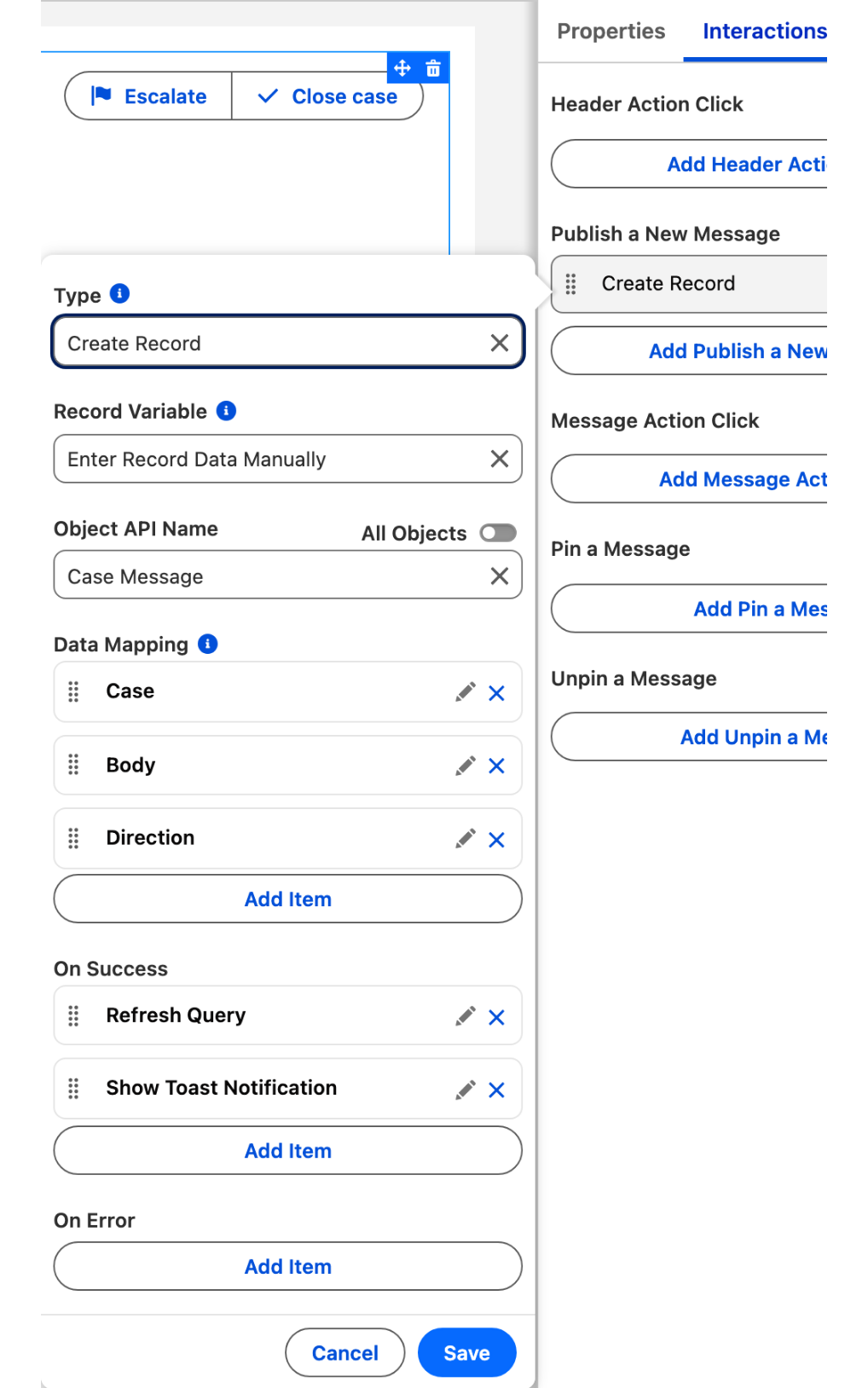
Open the Interactions tab. On Publish a New Message, add a Create Record action.
In Record Variable, select Enter Record Data Manually, then Object
Case_Message__c.Map the fields:
Case__cto{!$Component.RecordId},Body__cto the content of the message the end user sent (the chat's Last Publication Value output),Direction__ctooutbound.On success, add Refresh Query so the new bubble appears, and a Show Toast if you want a confirmation.
Why: without an action on Publish a New Message, Send clears the box and stores nothing. The chat exposes the sent text and the mentioned participants as outputs; the interaction turns them into a record, and the query redraws the thread.

The settings that matter
Can Pin (canPin)
on
The workaround stays visible in a banner above the thread, and the end user pins or unpins from the message menu.
Type on each message (items[].type, or Direction__c mapped to Type on the Query path)
Inbound for Rafael, Outbound for Lena and Jonas
Who sits left and who sits right, whoever is looking at the page.
Current Resource ID (currentResourceId)
lena in the Manual build, empty on the Query path
The author of new messages. With a type on every message it does not move any bubble.
Show Date Dividers (showTimeBreaks) and Message Date Format (itemDateFormat)
on, Preset Time Simple
The day change is a divider, the time sits under each block of messages.
Publisher (publisher)
Mode Rich, Allow Mentions on, Placeholder Reply to Rafael, Publish Button Label Send, Categories Text
Mentions need the rich editor; the button and the placeholder speak the agent's language.
Interactions
Publish a New Message
Create Record, Enter Record Data Manually
Object Case_Message__c; Case__c = {!$Component.RecordId}, Body__c = the published message (Last Publication Value), Direction__c = outbound. Then Refresh Query. Query path only.
Publish a New Message
Execute Flow, optional
An escalation flow that takes Last Publication Mentions, the Ids of the participants mentioned with @, as input. Works with either data source.
Header Action Click, Target Name escalate
The escalation screen flow, with {!$Component.RecordId} as its case input.
Header Action Click, Target Name close
The current page record, Status = Closed. Add a Show Toast on success.
Pin a Message and Unpin a Message
Query path only: set Pinned__c to true or false on the message the trigger exposes as Item, so the pin is shared by everyone who opens the case. Without it, the pin is kept for the current page view only.
Try it
Open the case. Eight bubbles: RD on the left in gray, LO and JL on the right in blue,
Sep 3, 2026above the thread andSep 4, 2026between the 11:30 AM and 8:15 AM messages.Hover Lena's 11:05 AM message, click the menu that appears beside the bubble and select Pin Message. The banner Most recent pinned messages (1/10) appears above the thread with her name, the time and the text, and the message reads Pinned under its time. Open the menu again: it now offers Unpin Message.
Click in the reply box: the placeholder
Reply to Rafaeland the bold, italic, underline and strikethrough toolbar appear under it, and Send stays gray until you type. Type@Jon: the dropdown offers Jonas Lindqvist.
Take it further
The same Chat exists for LWC Components: Chat, as the avonni-dd-chat tag in your own component, with the same messages and participants or a query and a mapping. Flow Screen Components and Experience Sites have no Chat component today.
Three variations worth trying:
Turn on Read Only for closed cases: the thread stays, the reply box goes.
Restrict who can be mentioned with Mentionable Participants IDs, and block words with Blocked Words.
Add Real-Time Data on the Query path, so a message the customer posts appears without a reload.
Troubleshooting
All messages sit on the same side
With no Type on the messages, the side comes from Current Resource ID, compared to the participant Name exactly, case included: Lena and lena are two people. On the Query path, Direction__c holds a value other than inbound or outbound.
Set Type on each message, or map Type to a field that holds exactly those two values; or make Current Resource ID match the participant Name.
No menu appears beside the messages
Can Pin is off. The message menu exists only when it is on, and it shows on hover.
Turn on Can Pin in the general settings, then hover a bubble.
The pinned banner is gone after a reload
With a Manual data source, a pin lives in the page, not in a record.
Use the Query path: map Pinned to a checkbox field and wire Pin a Message and Unpin a Message to an Update Record on that field.
Some messages show no name or time, or no avatar
Consecutive messages from the same author form a block: the avatar is drawn on the first one, the name and time under the last one. Message 5 has neither, because message 6 follows from Rafael.
Nothing to configure. This is how the thread groups a run of messages.
Typing @ opens no dropdown, or the dropdown does not find a name
Mode is Plain or Allow Mentions is off. Or the text typed after @ contains a character other than letters, spaces and hyphens (O'Brien), which the mention search does not accept.
Set Mode to Rich and turn on Allow Mentions. Search on the part of the name made of letters, @Brien.
The thread reads No messages yet on the Query path, even though records exist
The query returns nothing: the filter does not match, or in Preview no record context is set.
Check that the filter reads Case__c equals {!$Component.RecordId}, then in Preview open the Debug Panel and set a Preview Context record that has messages.
Was this helpful?