> For the complete documentation index, see [llms.txt](https://docs.avonnicomponents.com/llms.txt). Markdown versions of documentation pages are available by appending `.md` to page URLs; this page is available as [Markdown](https://docs.avonnicomponents.com/projects/use-cases/record-pages/account-research-panel.md).

# Account Research Panel

Compose an Agentforce agent with live account metrics that refresh as it answers.

{% hint style="danger" %}

#### **Agentforce does the answering**

This project composes an agent you already have with live record data. It does not create the agent and it is not a substitute for Agentforce setup. Bring an agent that is already activated in your org, and this page shows you what to build around it.
{% endhint %}

{% hint style="warning" %}

#### **Before you start**

This use case has configuration prerequisites, including an active Agentforce agent. Make sure you review the [**Set up**](#set-up) section of this page before building!
{% endhint %}

{% hint style="success" %}

#### **Learning focus points**

* Composing an **Agentforce agent** with live Salesforce data in a single panel
* Using an **interaction on the agent's response** to refresh what is on screen
* Building **query-based Metric** tiles that aggregate records without code
  {% endhint %}

## Objective

Give a rep everything they need about an account in the thirty seconds before the call.

A rep opens an Account record just before dialling. The information they need is real, but it is scattered: pipeline is in one related list, renewals in a report, open cases in another tab. So they either call unprepared, or they keep the customer waiting while they look around.

An agent alone does not fix this. Ask a chatbot "how are we doing on renewals" and you get a paragraph. Paragraphs are hard to scan, and a number buried in prose is a number nobody trusts.

***

## Solution

Put the two side by side. The agent answers the question in words, and the same numbers it is talking about sit next to it as tiles, refreshed the moment the answer arrives.

Everything here is built with **Avonni Dynamic Components** and no code.

### How It Works (User Perspective)

1. The rep opens the Account record page.
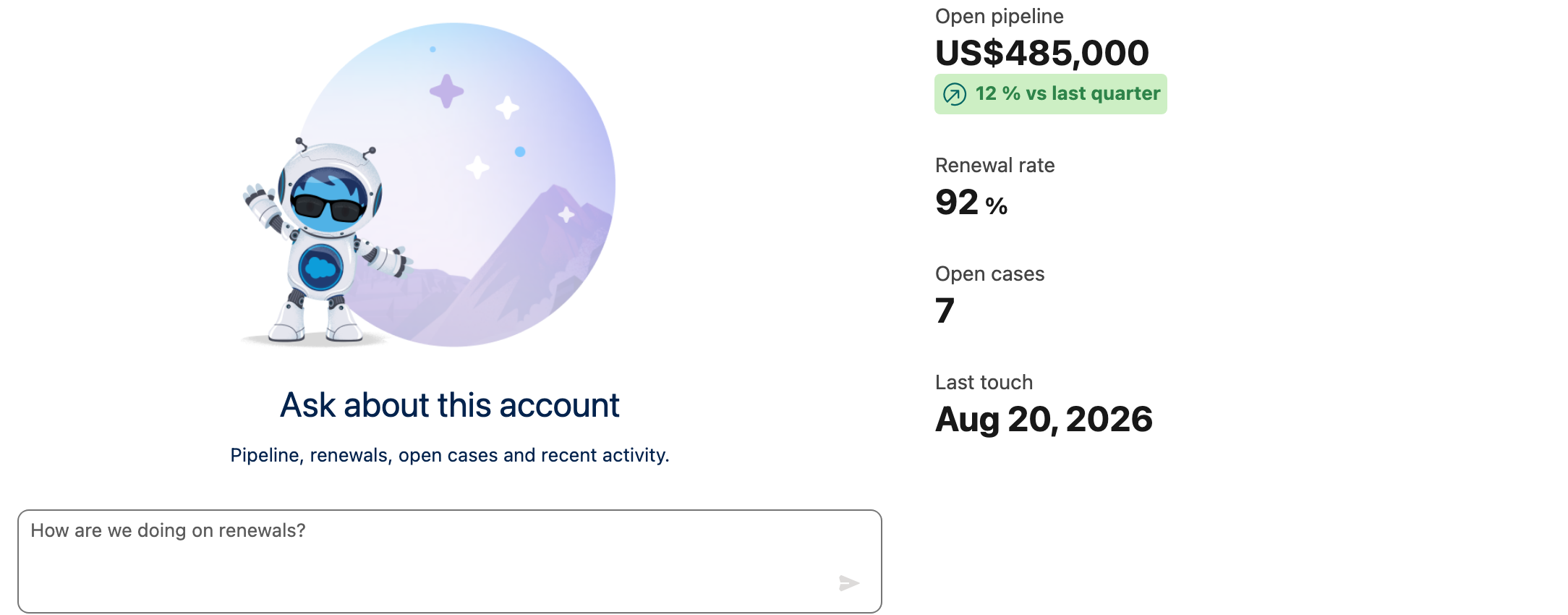
2. The panel is already showing the account's current numbers: open pipeline, renewal rate, open cases, last touch.
3. The rep asks the agent a question in plain language, for example "how are we doing on renewals".
4. The agent answers in the chat.
5. **As the answer lands, the tiles beside it re-query and update**, so the words and the numbers always agree.

<figure><img src="https://3857391697-files.gitbook.io/~/files/v0/b/gitbook-x-prod.appspot.com/o/spaces%2FdHOej9Pd5IxJNGEJMZKW%2Fuploads%2FDBctVEPD1weRz0MoiBLe%2Faccount-research-panel.png?alt=media" alt="An Agent Chat welcome screen on the left, with four metric tiles on the right showing open pipeline, renewal rate, open cases and last touch"><figcaption><p>The panel before the first question: the agent on the left, the account's numbers on the right.</p></figcaption></figure>

### What we'll create

* 1 **Avonni Dynamic Component** holding the whole panel
* 1 **Agent Chat** bound to an existing Agentforce agent
* 4 **Metric** tiles, each aggregating live records with a query
* 1 **Chart** of the account's activity trend
* 1 **interaction** that refreshes those queries every time the agent replies

***

## Set up

### Prerequisites

**An activated Agentforce agent**

* Agentforce must be enabled in your org, with at least one agent activated.
* Note the agent's **API name**. You will paste it into the component, and it is the one value that cannot be guessed.
* Give the agent access to the objects you intend to ask about, otherwise it will answer politely and tell you nothing.

**Sample data on the Account**

* A handful of Opportunities and Cases related to the Account you will test on. Empty related lists produce empty tiles, which makes the panel look broken when it is merely honest.

### Build the panel

{% stepper %}
{% step %}

#### **Create the Dynamic Component**

In **Avonni Dynamic Components**, create a new component named `Account_Research_Panel`. Set its object to **Account**, so the panel receives the record id of the page it sits on.
{% endstep %}

{% step %}

#### **Add the two columns**

Drop a **Columns Container** on the canvas and give it two columns.

* Left column: size **7**. This is the conversation.
* Right column: size **5**. This is the evidence.

Keeping the chat wider matters: a cramped chat gets scrolled, and a rep who has to scroll stops reading.
{% endstep %}

{% step %}

#### **Add the Agent Chat**

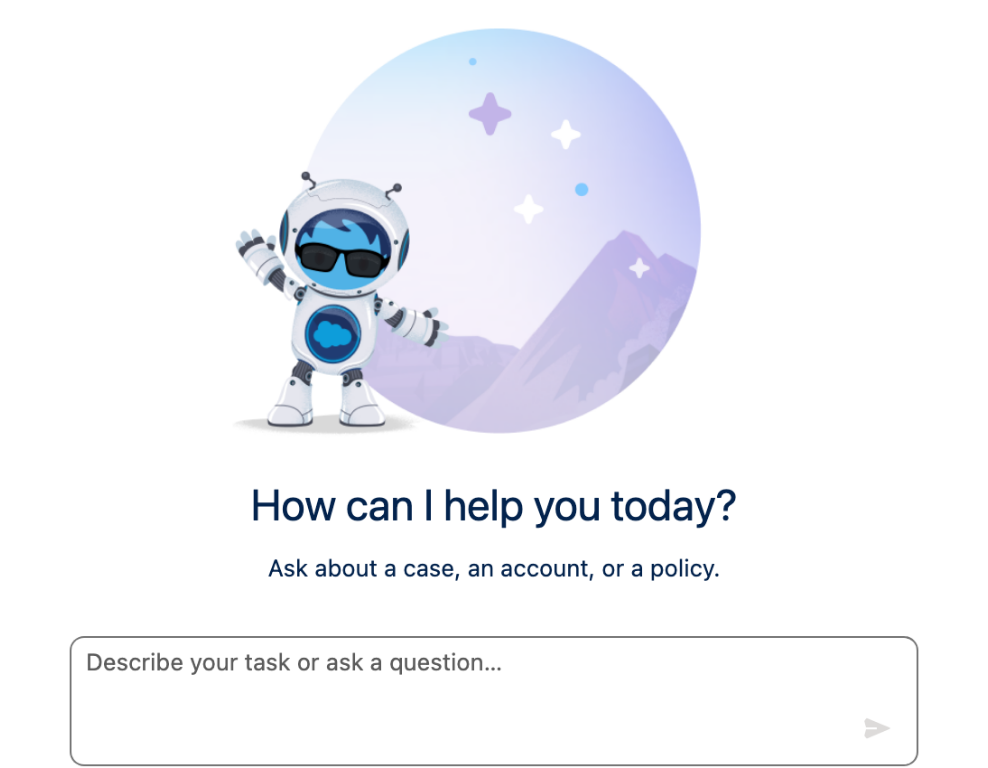
In the left column, add an **Agent Chat**. Before it is bound to an agent it renders its welcome screen, which is what the rep sees when the panel first loads.

<figure><img src="https://3857391697-files.gitbook.io/~/files/v0/b/gitbook-x-prod.appspot.com/o/spaces%2FdHOej9Pd5IxJNGEJMZKW%2Fuploads%2FPxB5ExXnRU50FVkx3J7M%2Fagent-chat-welcome.png?alt=media" alt="The Agent Chat welcome screen with an illustration, a title, a subtitle and an empty message input"><figcaption></figcaption></figure>
{% endstep %}

{% step %}

#### **Point it at your agent**

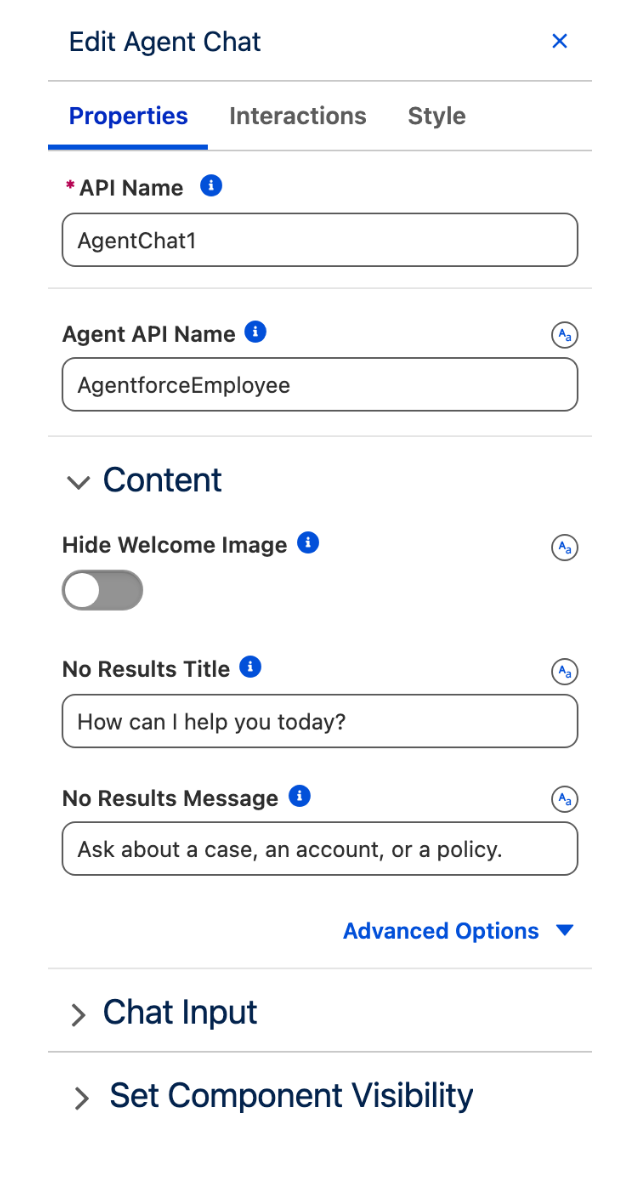
Select the Agent Chat and open its **Properties** tab. Set:

* **Agent API Name**: the API name of your activated agent.
* **No Results Title**: what the panel invites the rep to do, for example `Ask about this account`.
* **No Results Message**: the subtitle, for example `Pipeline, renewals, open cases and recent activity.`
* **Chat Input placeholder**: a real question, for example `How are we doing on renewals?`. A placeholder that shows a good question teaches faster than help text.

<figure><img src="https://3857391697-files.gitbook.io/~/files/v0/b/gitbook-x-prod.appspot.com/o/spaces%2FdHOej9Pd5IxJNGEJMZKW%2Fuploads%2FkOmS0zEilflsIihWjcFn%2Fagent-chat-builder-properties.png?alt=media" alt="The Edit Agent Chat panel showing the Properties tab with API Name, Agent API Name, Hide Welcome Image, No Results Title and No Results Message" width="320"><figcaption><p>Agent API Name is the only value that must match something in your org.</p></figcaption></figure>

{% hint style="info" %}
**Hide Welcome Image** removes the illustration. Turn it on when the panel sits in a narrow column and the artwork pushes the input below the fold.
{% endhint %}
{% endstep %}

{% step %}

#### **Add the metric tiles**

In the right column, add a second **Columns Container** set to wrap onto multiple rows, then add one **Metric** per number you want.

For each tile, set the value to **Query** rather than a static number, and configure the aggregate:

| Tile          | API name       | Object      | Aggregate | Field              |
| ------------- | -------------- | ----------- | --------- | ------------------ |
| Open pipeline | `OpenPipeline` | Opportunity | SUM       | Amount             |
| Renewal rate  | `RenewalRate`  | Opportunity | AVG       | your renewal field |
| Open cases    | `OpenCases`    | Case        | COUNT     | Id                 |
| Last touch    | `LastTouch`    | Task        | MAX       | ActivityDate       |

Give each tile the API name in that table. Those are the names the refresh step picks from, so naming them now saves going back.

Filter each query to the current record with a filter expression on `AccountId`, and add the ones that make the number mean what its label says, for example `IsClosed = false` on open pipeline.

{% hint style="info" %}
Use **Secondary value** with **Show trend colour** on to put a comparison under the main number, like `12% vs last quarter`. The trend arrow and colour come from the breakpoint value, so set it to `0` when any positive movement is good news.
{% endhint %}
{% endstep %}

{% step %}

#### **Add the activity chart**

Below the tiles, add a **Chart**. Set the chart type to **line**, then map the query:

* **Grouping**: `CreatedDate` on Task or Event, grouped by **month**.
* **Measure**: `Id`, with the **count** aggregation.

That gives the trend of how much contact this account has had, which is the context most renewal questions actually turn on.
{% endstep %}
{% endstepper %}

### Wire the refresh

This is the step that makes the panel more than a chat box next to some numbers.

{% stepper %}
{% step %}

#### **Open the agent's interactions**

Select the **Agent Chat** and open its **Interactions** tab.
{% endstep %}

{% step %}

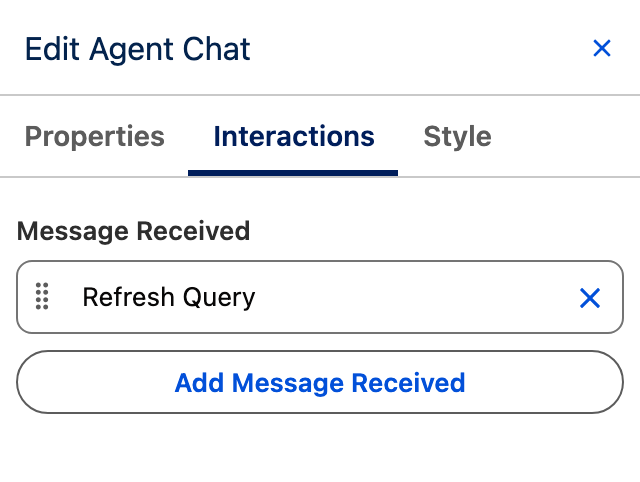
#### **React to the agent's reply**

Add an interaction on **Message Received**. It fires every time the agent sends a response, which is exactly when the underlying records may have been touched and when the rep is looking at the numbers.

<figure><img src="https://3857391697-files.gitbook.io/~/files/v0/b/gitbook-x-prod.appspot.com/o/spaces%2FdHOej9Pd5IxJNGEJMZKW%2Fuploads%2FU4W8MCRkAoHWIc3jSvf5%2Fagent-chat-interactions.png?alt=media" alt="The Edit Agent Chat panel on the Interactions tab, showing a Message Received trigger carrying a Refresh Query action" width="320"><figcaption><p>Once added, the action sits under Message Received.</p></figcaption></figure>
{% endstep %}

{% step %}

#### **Refresh the queries**

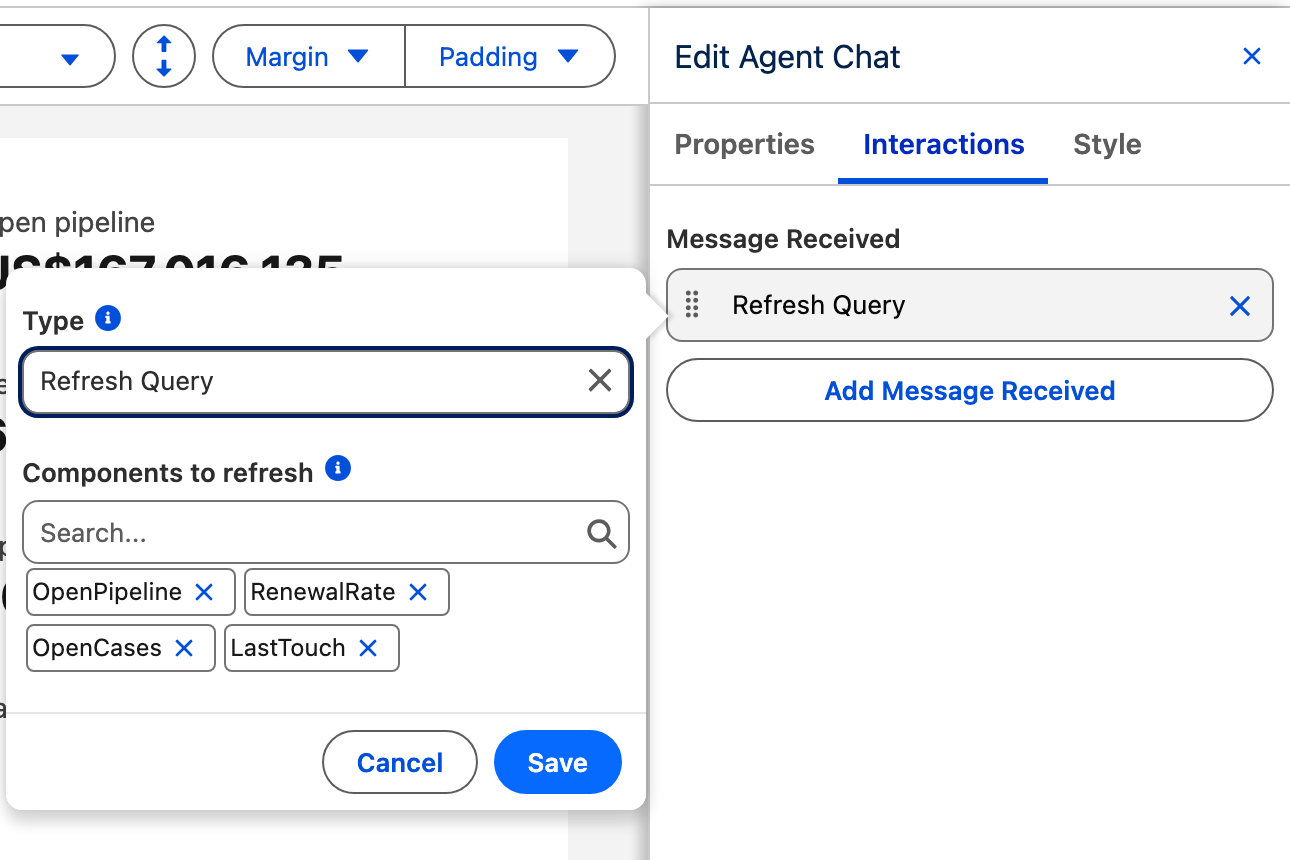
Choose the **Refresh Query** interaction, then pick the components to refresh. Each Metric tile you created appears by its API name.

<figure><img src="https://3857391697-files.gitbook.io/~/files/v0/b/gitbook-x-prod.appspot.com/o/spaces%2FdHOej9Pd5IxJNGEJMZKW%2Fuploads%2FtAebU14OUpS8tDS4yscl%2Frefresh-query-components.png?alt=media" alt="The Refresh Query popover with Type set to Refresh Query and four component pills: OpenPipeline, RenewalRate, OpenCases and LastTouch"><figcaption><p>The four tiles selected as the components to refresh.</p></figcaption></figure>

The tiles now re-run their aggregates as each answer arrives, so the rep never has to wonder whether the number beside the sentence is as fresh as the sentence.

{% hint style="info" %}
**Refresh All Queries** scoped to the current component does the same thing in one click. Prefer **Refresh Query** when the panel also holds something expensive that does not need re-running on every reply.
{% endhint %}
{% endstep %}
{% endstepper %}

### Add it to the Account page

{% stepper %}
{% step %}

#### **Drop it on the record page**

Edit the **Account** Lightning record page, add the **Avonni Dynamic Component** to the layout, and select `Account_Research_Panel`.
{% endstep %}

{% step %}

#### **Test it**

Open an Account with real activity and ask the agent a question you already know the answer to. Watch the tiles as the answer arrives: they should re-run rather than sit still.
{% endstep %}
{% endstepper %}

***

## Going further

**Store what the agent said.** The Agent Chat exposes the text of the latest reply as an output. Bind it to a resource variable and you can show the last answer somewhere else, or write it to the record as a call note.

**Ask without typing.** The **Invoke Agent** interaction sends a message to an agent from anything, so a button on a card can ask a fixed question such as "summarise the last three cases" and put the answer straight into a variable.

**Show the panel only where it helps.** Component visibility rules can hide the whole panel on accounts with no open pipeline, so the rep only sees it when there is something to prepare for.

**Related components**

* Agent Chat
* Metric
* Chart
* Columns Container


---

# Agent Instructions
This documentation is published with GitBook. GitBook is the documentation platform designed so that both humans and AI agents can read, navigate, and reason over technical content effectively. Learn more at gitbook.com.

## Querying This Documentation
If you need additional information that is not directly available in this page, you can query the documentation dynamically by asking a question.

Perform an HTTP GET request on the current page URL with the `ask` query parameter, and the optional `goal` query parameter:

```
GET https://docs.avonnicomponents.com/projects/use-cases/record-pages/account-research-panel.md?ask=<question>&goal=<endgoal>
```

`ask` is the immediate question: it should be specific, self-contained, and written in natural language.
`goal` is optional and describes the broader end goal you are ultimately trying to accomplish on behalf of the user. GitBook uses it to tailor the answer towards what is most useful for that goal.

The response will contain a direct answer to the question and relevant excerpts and sources from the documentation.

Use this mechanism when the answer is not explicitly present in the current page, you need clarification or additional context, or you want to retrieve related documentation sections.