For the complete documentation index, see llms.txt. This page is also available as Markdown.

Track my installation

A homeowner follows the solar installation step by step on the customer portal, from the signed proposal to the grid connection, without a Salesforce login.

Overview

A homeowner follows the solar installation step by step on the customer portal, from the signed proposal to the grid connection, without a Salesforce login. The whole page is one AX - Timeline on an Experience Site, seven steps grouped by month. This tutorial rebuilds the tracking page of SolarOps, a solar installer with a customer site, for the work order WO-2417 at 2417 Wooldridge Drive: first with the seven steps typed into the component, then from records.

What you build

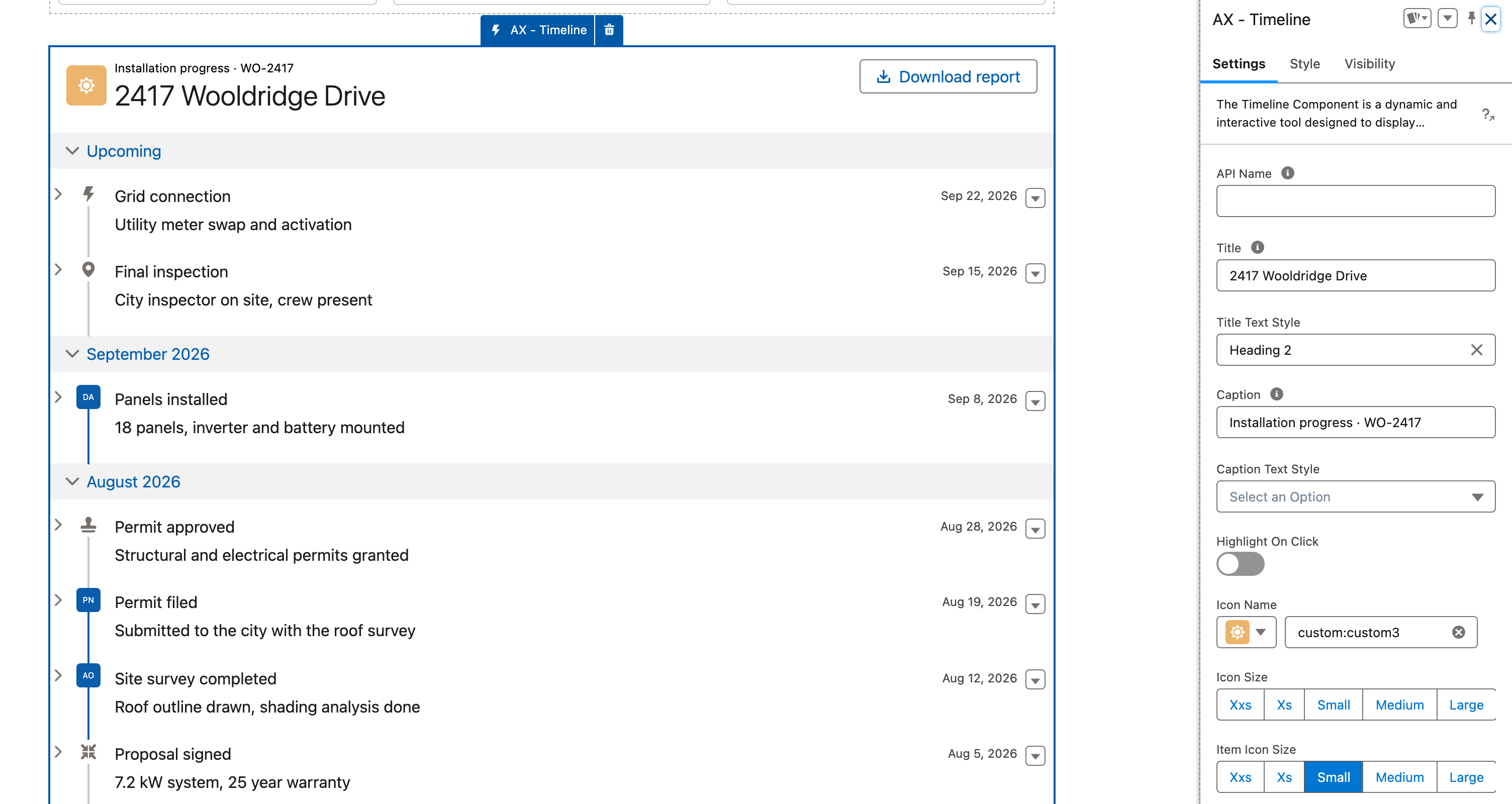
Avonni Timeline on a customer portal page: seven installation steps grouped by month, each with two facts, initials or icons, and a Download report button
  • Nadia Ferreira logs into the SolarOps customer site and lands on her tracking page: Installation progress · WO-2417 over 2417 Wooldridge Drive, a sun icon, and a Download report button in the header.

  • Seven steps on one timeline, grouped by month, the newest at the top. The three steps dated after today (Grid connection, Final inspection, Panels installed) sit under Upcoming, the four completed ones under August 2026.

  • Each step opens on a one-line description and two facts side by side: who did it, how long it took, which permit, which utility.

  • Steps done by a person show initials (DA, PN, AO), the others an icon. A menu on every step offers Upload photos and Contact crew.

Before you start

Adapt this to your own org. The figure is built with the seven steps typed into the component, so it needs no object at all, and every visitor of that page sees the same seven steps. Installation Step, the object behind the Query version in step 8, is one this tutorial creates. If your installations already leave a trail, milestones on an object of your own, tasks, work order line items, point the query there and map your own fields. A step needs a title and a date; the rest is decoration.

  • The Avonni Components for Experience Sites package is installed, and your customer users hold a package license and the Avonni Experience Cloud Components User permission set. Both are required, see License Management.

  • An Experience Site (LWR or Aura) with a page for the tracker, and at least one customer user whose contact belongs to the account that owns the installation. The examples below use Nadia Ferreira, the homeowner at 2417 Wooldridge Drive. She logs in with an Experience Cloud customer license, not a Salesforce user license.

  • Two ways to feed the timeline. Manual, which is what the figure shows, needs no object: the seven steps are typed into the component, and every visitor of that page sees the same seven steps. Query reads one record per step and shows each customer their own installation. Build the Manual version first, then switch to Query as step 8 describes. The Query path needs a custom object:

Object
Field
Type
Role

Installation Step (Installation_Step__c)

Name

Text

The step title, Panels installed

Account__c

Lookup (Account)

The customer's account. It scopes the timeline to the logged-in customer.

Work_Order__c

Lookup (Work Order)

The installation the step belongs to

Step_Date__c

Date/Time

The date shown on the step, and the one that groups it by month

Description__c

Text (255)

The line under the title

Done_By__c

Text

The first fact, Diego Alvarez or Austin Energy

Detail__c

Text

The second fact, 6 h or Scheduled

Avatar_Initials__c

Text (3)

DA on the steps done by a person, empty on the others

Avatar_Icon__c

Text

An icon name such as utility:approval on the steps with no person

With records, every step shows the same two fields, and their labels are the field labels (Done By, Detail). The per-step labels in the figure (Crew, Permit, Utility) are a Manual effect: each Manual item carries its own labels.

Sample data. Seven steps, all on WO-2417. Enter any time of day: the date format set in step 4 shows the date only.

Step
Date
Description
First fact
Second fact
Avatar

Grid connection

Sep 22, 2026

Utility meter swap and activation

Status: Scheduled

Utility: Austin Energy

Icon utility:connected_apps

Final inspection

Sep 15, 2026

City inspector on site, crew present

Status: Scheduled

Inspector: City of Austin

Icon utility:checkin

Panels installed

Sep 8, 2026

18 panels, inverter and battery mounted

Crew: Diego Alvarez

Duration: 6 h

Initials DA

Permit approved

Aug 28, 2026

Structural and electrical permits granted

Permit: 2026-PV-41877

Valid until: Feb 2027

Icon utility:approval

Permit filed

Aug 19, 2026

Submitted to the city with the roof survey

Filed by: Priya Nair

Pages: 14

Initials PN

Site survey completed

Aug 12, 2026

Roof outline drawn, shading analysis done

Surveyor: Amara Osei

Usable roof: 42 m²

Initials AO

Proposal signed

Aug 5, 2026

7.2 kW system, 25 year warranty

Signed by: Nadia Ferreira

System: 7.2 kW

Icon utility:contract

The figure was taken on September 5, 2026, which is why the three September steps sit under Upcoming. On your site, the group holds whichever steps are dated after today.

Permissions. A customer user needs the package license and the permission set named above, or the component does not load. For the Query path, the customer profile also needs Read on Installation Step and on its fields, and a sharing set (customer users) or a sharing rule that gives the account its own steps. The Avonni Query respects all of it: a customer only ever sees the steps Salesforce lets them see. Manual data needs no object access.

Build it

1

Add the Timeline to the tracking page

  1. Open the site in Experience Builder and go to the tracking page.

  2. In the Components panel, under Custom Components, drag AX - Timeline into a full-width section of the page.

  3. Select the component to open its Properties Panel.

Experience Builder with the Timeline selected on the canvas, the Upcoming group and the seven steps, and the AX - Timeline properties panel open
The component selected on the canvas, its panel open on the right with the Settings, Style and Visibility tabs.
2

Write the header

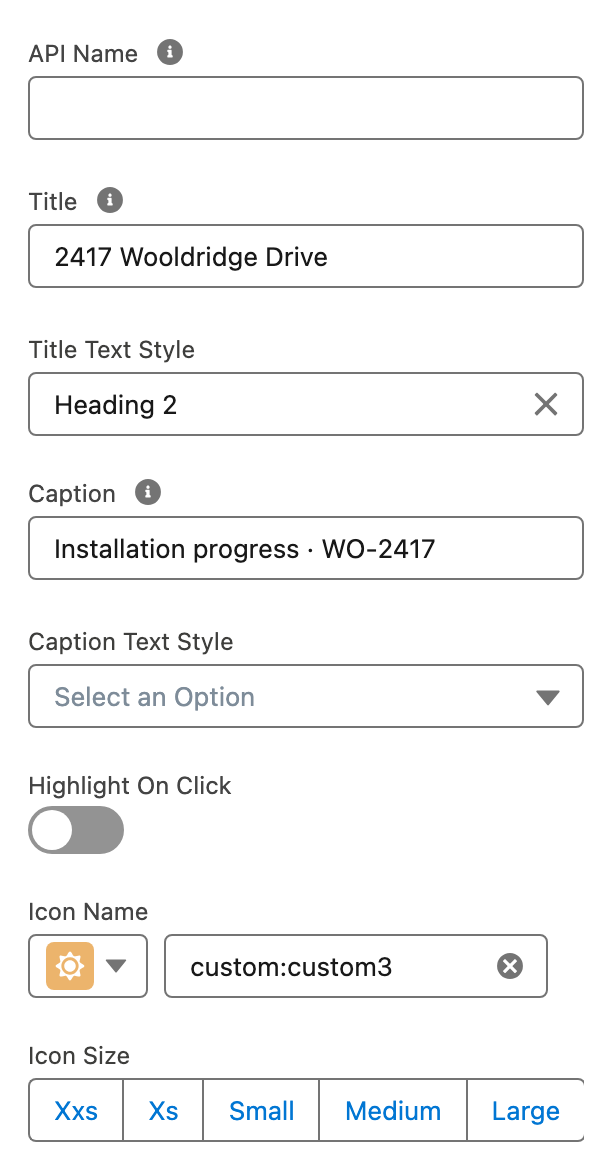
  1. Set Title to 2417 Wooldridge Drive and Title Text Style to Heading 2.

  2. Set Caption to Installation progress · WO-2417.

  3. Set Icon Name to custom:custom3. Leave Icon Size on its default.

Why: custom:custom3 is the sun in the Lightning Design System icon set. The caption carries the work order number, so the title stays the address the customer recognizes.

The top of the Settings tab: Title 2417 Wooldridge Drive, Title Text Style Heading 2, Caption Installation progress WO-2417, Icon Name custom:custom3
The header fields, with Icon Name showing the sun it resolves to.
3

Group and sort the steps

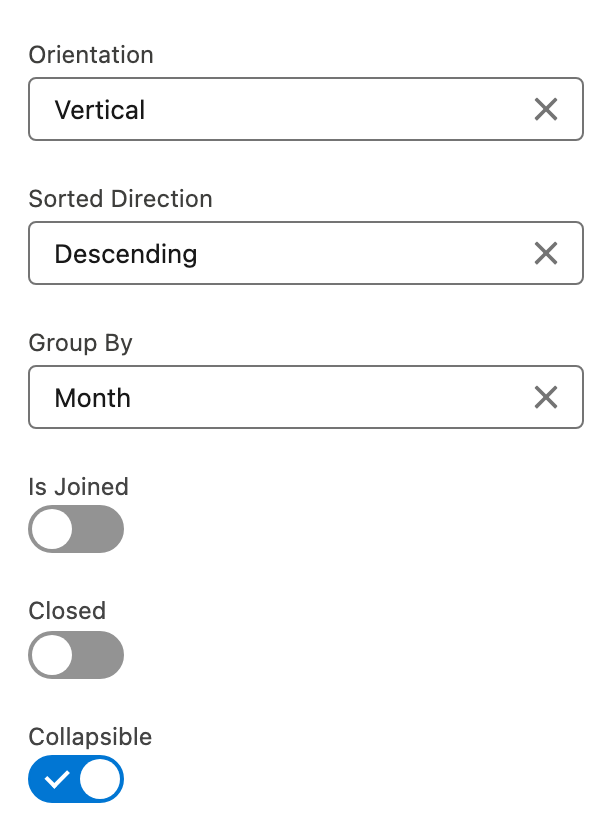
  1. Leave Orientation on vertical.

  2. Set Sorted Direction to desc.

  3. Set Group By to month.

  4. Turn on Collapsible.

Why: newest first puts what happens next at the top. With Group By set, the timeline collects every step dated after today under a group named Upcoming, whatever its month, and files the completed ones under their month. The Experience Builder has no setting to turn the Upcoming group off (as of September 2026). If you want dates with no groups at all, leave Group By empty.

Orientation Vertical, Sorted Direction Descending, Group By Month, Is Joined and Closed off, Collapsible on
The four settings this step sets, with the toggles around them left alone.
4

Format the date and the facts

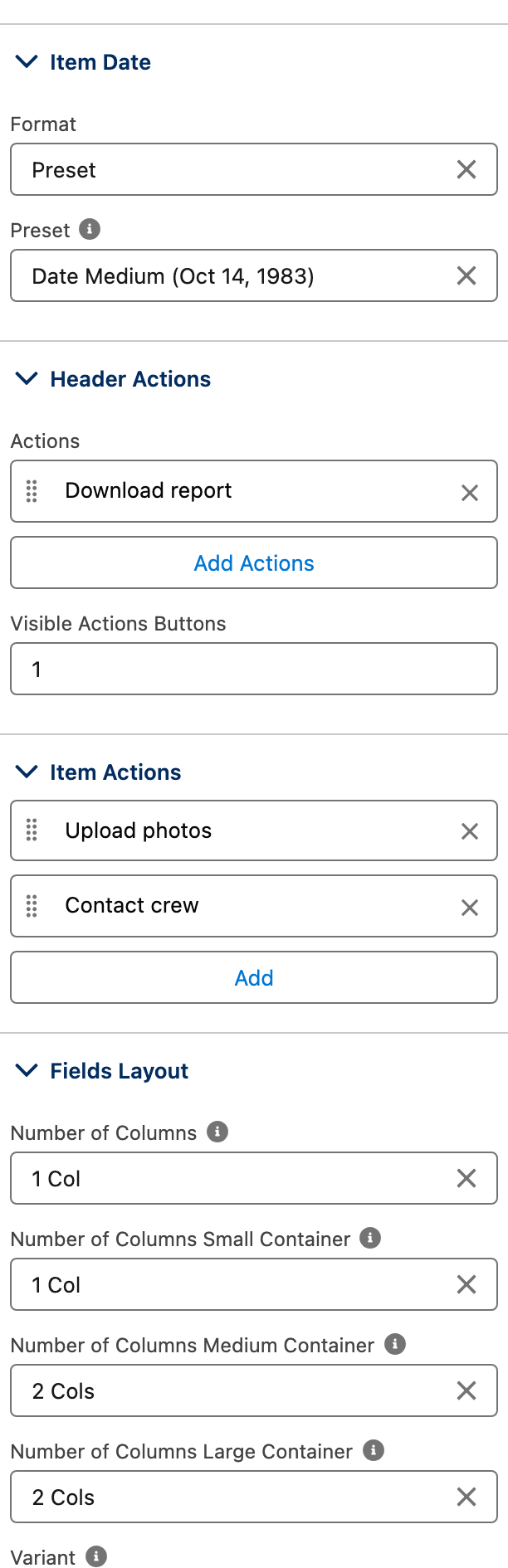
  1. Open Item Date Format. Set Format to Preset and Preset to Date Medium (Oct 14, 1983).

  2. Open Field Attributes. Set Variant to Label Inline and Number of Columns Large Container to 2 Cols.

  3. Leave Item Icon Size on its default.

Why: a customer wants the day, not the hour. Label Inline keeps a label and its value on one line, and two columns put both facts side by side. Number of Columns Large Container applies to containers wider than 1024 px; the other Number of Columns settings cover the smaller ones.

Item Date Format on Preset Date Medium, and Field Attributes with Variant Label Inline and Number of Columns Large Container 2 Cols
The date format and the field layout, the two editors this step opens.
5

Enter the seven steps

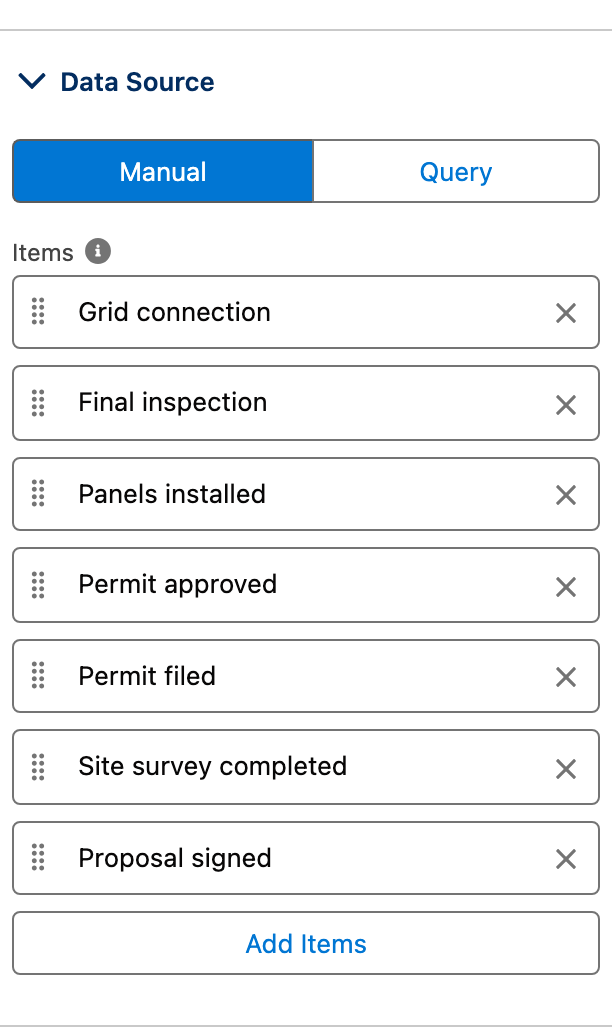
  1. Open Items. Under Data Source, select Manual.

  2. Add one item per row of the sample data. For each item, fill in Title, Date and Description, then add two rows under Fields, each with a Label and a Value.

  3. Under Avatar, enter Initials (DA, PN, AO) on the three steps done by a person, and Icon Name on the other four.

  4. Leave Is Active and Has Checkbox off. Name fills itself from the title.

Why: the fields of a step are visible only once the end user expands it, so the two facts stay out of the way until they are wanted. Is Active replaces the bullet with a blue circle only on an item that has no avatar: on these items it has no visible effect.

The Items editor with Data Source on Manual and the seven installation steps listed, followed by Add Items
The seven steps on the Manual data source. Each row opens on that step's title, date, description, fields and avatar.
6

Add the Download report button

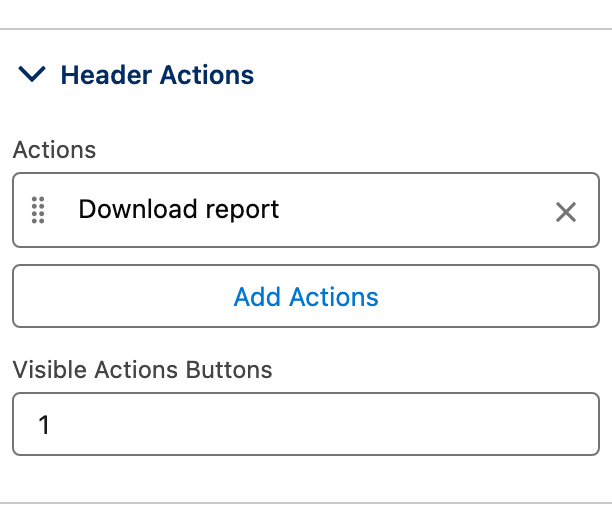
  1. Open Header Actions and add an action: Label Download report, Name report, Icon Name utility:download.

  2. Set Visible Actions Buttons to 1.

  3. On the action, set On Click to Download and point it at the report: a URL, or the Content Document ID of the file with Auto Generate Public Link turned on.

Why: with as many visible buttons as actions, the action shows as a button instead of collapsing into a menu. The public link is what lets a customer user open a file that lives in your org.

The Header Actions editor with one action, Download report
One action and one visible button, which is what keeps it a button rather than a menu.
7

Add the two item actions

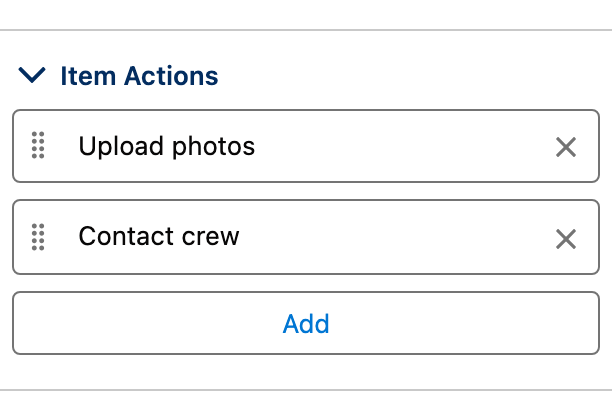
  1. Open Item Actions and add two actions: Label Upload photos, Name photos, Icon Name utility:image, then Label Contact crew, Name contact, Icon Name utility:chat.

  2. On each action, set On Click to Open Flow Dialog and enter the Flow API Name of a screen flow: one that uploads photos to the work order, one that sends a message to the crew.

Why: item actions render as a menu at the right of every step. The customer acts from the step itself and never leaves the page.

The item Actions editor with Upload photos and Contact crew
The two item actions. Each row opens on its label, name, icon and On Click interaction.
8

Switch to records

  1. Open Items again and select Query. Choose the Installation Step object and add the fields you will map: Name, Description__c, Step_Date__c, Done_By__c, Detail__c, Avatar_Initials__c, Avatar_Icon__c.

  2. Add a filter: Account equals the logged-in user's account. On an LWR site use {!User.Record.AccountId}; on an Aura site use {!CurrentUser.accountId}. See Expressions for LWR Sites and Expressions for Aura Sites.

  3. In Data Mappings, map Title to Name, Description to Description, Date to Step Date, and select Done By and Detail under Fields. Under Avatar, map Initials to Avatar Initials and Icon Name to Avatar Icon. Leave Key Field on its default.

Why: the filter is what turns the page into a personal tracker: Nadia sees WO-2417 and nothing else. Sharing already hides other customers' records; the filter makes that scope explicit and keeps the page correct for internal users who can see everything.

9

Preview, then publish

  1. Click Preview, log in as the customer user and check the seven steps and the two groups.

  2. Publish the site.

The settings that matter

Setting
Value
Why

Group By (groupBy) with Sorted Direction (sortedDirection)

month, desc

The steps ahead first, under Upcoming, then the history month by month.

Field Attributes (fieldAttributes)

Variant Label Inline, Number of Columns Large Container 2 Cols

Two facts per step on one line.

Item Date Format (itemDateFormat)

Preset, Date Medium

Sep 22, 2026, no time of day.

Item Actions (actions)

Upload photos, Contact crew

The customer acts from the step, in a menu that every step carries.

Avatar on each item

Initials on the steps done by a person, Icon Name on the others

Who did it, at a glance.

Interactions

Trigger
Action
What to set

Header action Download report, On Click

A URL, or the Content Document ID of the report with Auto Generate Public Link on.

Item action Upload photos, On Click

The Flow API Name of a screen flow with a file upload on the work order. Add the flow to a page of the site and publish, or the dialog cannot find it.

Item action Contact crew, On Click

A screen flow that creates a case or sends an email to the crew.

Try it

  1. Log in as the customer. Seven steps, Upcoming above August 2026, and nothing from another customer's installation.

  2. Click the chevron on Panels installed: the description and the two facts, Crew and Duration, appear. Click the chevron next to August 2026: the whole group folds.

  3. Open the menu at the right of any step: Upload photos and Contact crew. Click Download report in the header.

  4. Move the date of Grid connection to yesterday. It leaves Upcoming and joins the group of the current month.

Take it further

The same timeline exists on the other Avonni surfaces:

  • Timeline for Flow Screen Components, inside a screen flow.

  • Timeline for Dynamic Components, on a Lightning page.

  • Timeline for LWC Components, as the avonni-dd-timeline tag in your own component.

Two variations worth trying:

  • Turn on Searchable once an installation runs to dozens of steps. Search Engine Attributes set the placeholder and the position of the search box.

  • Turn on Show Pagination and set Max Visible Items for long histories, so the page stays short.

Troubleshooting

Problem
Cause
Fix

Steps dated after today show under Upcoming instead of their month

With Group By set, the timeline collects every future item under Upcoming. The component has a setting that disables this group, but the Experience Builder does not expose it (September 2026).

Keep the group: it reads well on a tracker. For dates with no groups at all, clear Group By.

The description and the two facts of a step are not visible

Items start collapsed, and the fields show only once the step is expanded. There is no setting to open them all.

Tell the customer to click the chevron on a step. The title and the date are always visible.

Is Active changes nothing on a step

The blue active bullet replaces the default bullet only on an item that has no avatar. Initials or an icon take its place.

Remove the avatar from that one step if you want the blue circle, or leave Is Active off.

The timeline shows in Preview but the customer sees an error, or nothing

The customer user lacks the package license or the permission set (both are required), has no access to Installation Step, or no sharing set gives the account its steps.

Assign the license and Avonni Experience Cloud Components User, then check object permissions, field-level security and the sharing set.

Download report fails for the customer

The file lives in your org and the customer cannot read it.

On the Download interaction, turn on Auto Generate Public Link, or use a URL the customer can reach.

Upload photos opens an empty dialog or an error

The flow is not part of the site.

Add the flow to any page of the site, visible or not, then publish.

Was this helpful?