> For the complete documentation index, see [llms.txt](https://docs.avonnicomponents.com/llms.txt). Markdown versions of documentation pages are available by appending `.md` to page URLs; this page is available as [Markdown](https://docs.avonnicomponents.com/projects/use-cases/portals-and-partner-sites/portal-case-deflection.md).

# Portal Case Deflection

Ask what the question is about, then answer it, so the case is never opened.

{% hint style="danger" %}

#### **This is not article search, and it is not Einstein**

Nothing here ranks articles by relevance or guesses what the customer meant. The customer picks a topic and sees every published article on it, most helpful first. That is deliberate: a portal that answers four obvious questions well deflects more cases than one that half-answers everything. Add search on top once the topics are earning their keep.
{% endhint %}

{% hint style="warning" %}

#### **Before you start**

This use case has configuration prerequisites, including somewhere to keep help content and an Experience site to put the page on. Make sure you review the [**Set up**](#set-up) section of this page before building!
{% endhint %}

{% hint style="success" %}

#### **Learning focus points**

* Filtering a query with **another component's live value**, with no variable in between
* Making that query re-run with a **Refresh Query** interaction
* Collecting a file **before** the record it belongs to exists
  {% endhint %}

## Objective

Stop answering the same four questions.

Look at a week of inbound cases and a large share of them are not incidents at all. They are questions the help centre already answers: where is my parcel, why was I charged twice, how do I return this, why can I not sign in. Every one of them costs an agent a reply, and the customer waited a day for an answer that was published months ago.

The usual fix is a search box, and it usually disappoints. Customers do not search in the words the articles are written in. They type a sentence, get nine keyword matches, and open a case anyway.

What works better is smaller: ask them what the question is about, then show them the handful of articles on that subject. Four topics, five articles each, and the case form still one click away for the times none of it helps.

***

## Solution

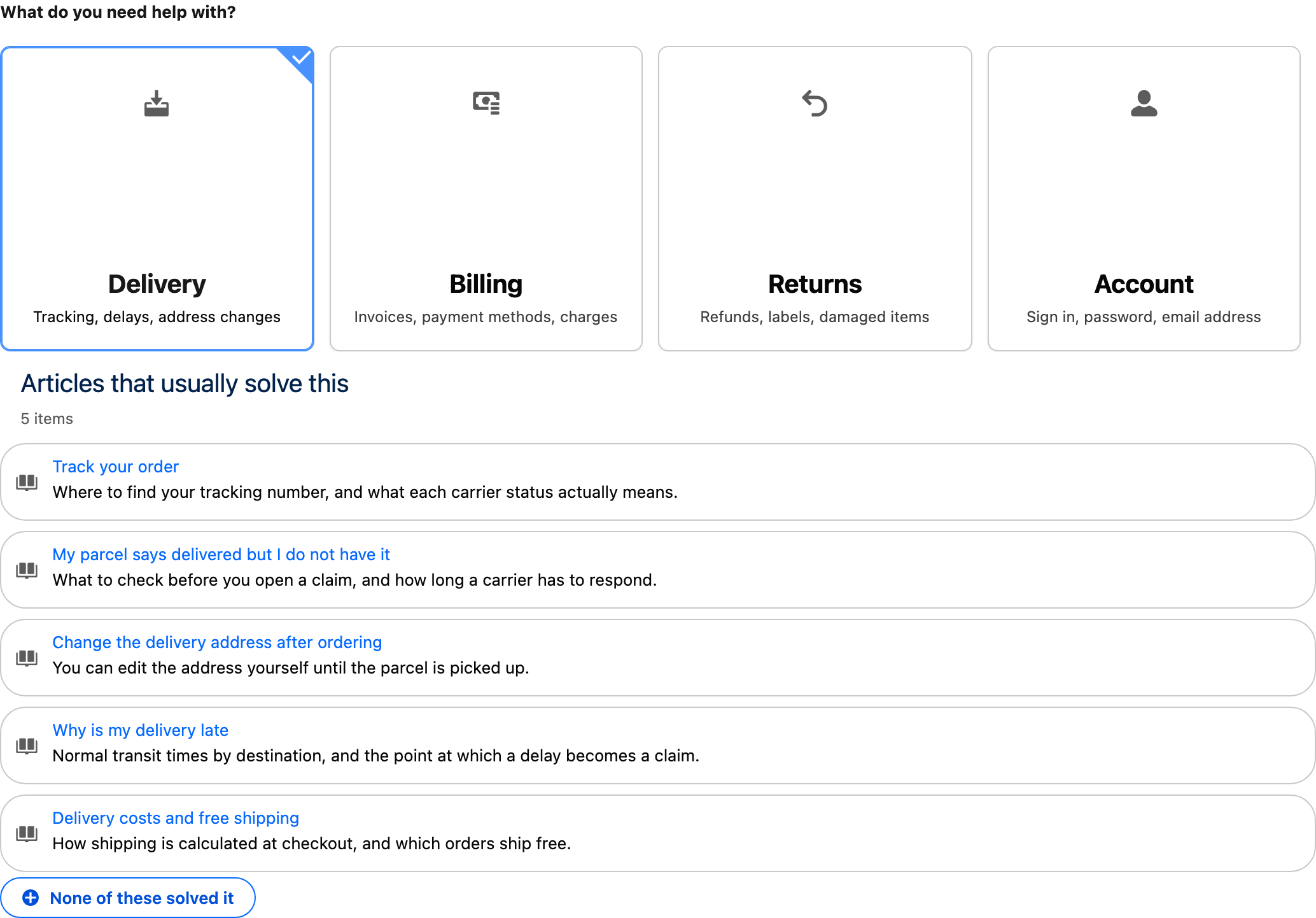
A public page with three things on it, in order: a topic picker, a list of articles that changes when the topic changes, and a way to write in when nothing on the list is the answer.

The whole mechanism is one line of configuration. The article query is filtered on the topic, and the value it filters by is read straight from the picker.

### How It Works (User Perspective)

1. The customer lands on the help page and picks the topic their question is about.
2. The list underneath fills with the published articles on that topic, most helpful first.
3. Picking a different topic changes the list, on the same page, with no reload.
4. If none of them is the answer, one button opens a short form that logs the case, screenshot included.

<figure><img src="https://3857391697-files.gitbook.io/~/files/v0/b/gitbook-x-prod.appspot.com/o/spaces%2FdHOej9Pd5IxJNGEJMZKW%2Fuploads%2F9oxxg1dLUNeNObpBNLOW%2Fdeflect-panel.png?alt=media" alt="A help panel with four topic tiles, Delivery selected, and five delivery articles listed underneath with a button reading None of these solved it"><figcaption><p>The panel with Delivery picked. Captured in Lightning rather than on an Experience site: the same component runs in both, and our capture tooling cannot sign in to a site.</p></figcaption></figure>

### What we'll create

* 1 **Avonni Dynamic Component** holding the whole panel
* 1 **Visual Picker** with one tile per topic
* 1 **List** driven by a query filtered on the picked topic
* 1 **Refresh Query** interaction, which is what makes the list react
* 1 second Dynamic Component holding the case form, with a **File Upload**

***

## Set up

### Prerequisites

**Somewhere to keep help content**

* Salesforce Knowledge, or any object holding your articles. This page was built on a simple custom object with a title, a summary, a topic picklist and a published checkbox, because that is the smallest thing that shows the pattern. If your content is in Knowledge, point the query at `Knowledge__kav` and nothing else on this page changes.
* The topic field matters more than anything else here. It is what the picker sets and what the query filters on, so its values and the picker's values have to be the same strings.

**An Experience site**

* A site with guest access to the object holding your articles, and a page to put the component on. Publishing a Dynamic Component to an Experience site is covered in the Dynamic Components documentation under Experience Sites Integration.
* Guest users need read access to the article object and create access on Case. Get this wrong and the panel renders empty for exactly the people it was built for, while it works perfectly for you.

### Build the deflection panel

{% stepper %}
{% step %}

#### **Create the Dynamic Component**

Create a component named `Portal_Case_Deflection`. It does not sit on a record page, so leave the Target Page Object unset: the panel is about the customer's question, not about a record.
{% endstep %}

{% step %}

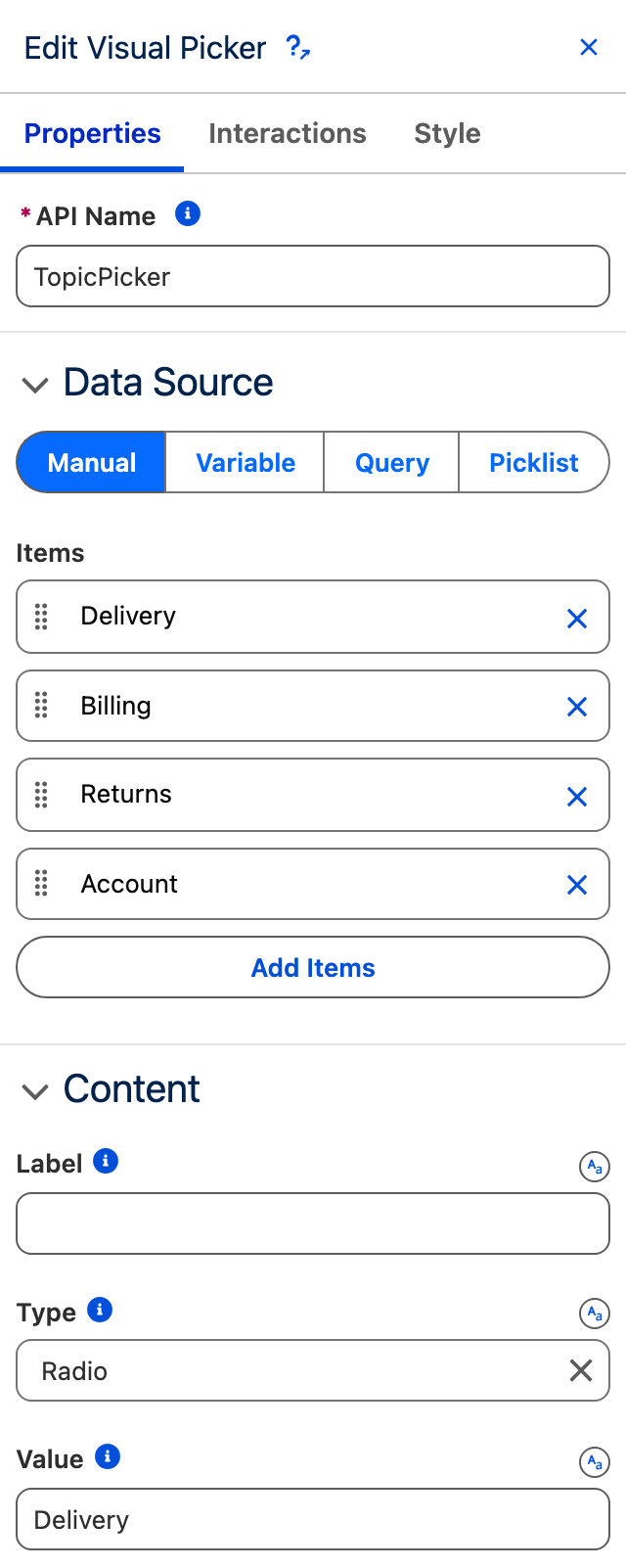
#### **Add the topic picker**

Drop a **Visual Picker** on the canvas and give it the API Name `TopicPicker`. That name is about to appear inside a query filter, so it is worth choosing now.

Leave the data source on **Manual** and add one item per topic. Each item needs a **Value**, which is the string the query will filter on, and it has to match your topic field exactly. Give each one a title, a one-line description and an icon.

Set **Type** to `Radio`, because the customer has one question at a time. Set **Value** to your busiest topic so the panel is never empty on first load: a page that opens showing nothing teaches the customer there is nothing there.

<figure><img src="https://3857391697-files.gitbook.io/~/files/v0/b/gitbook-x-prod.appspot.com/o/spaces%2FdHOej9Pd5IxJNGEJMZKW%2Fuploads%2FjqFdiL9xBdlWsRdChOiC%2Fdeflect-picker.png?alt=media" alt="The Edit Visual Picker panel showing Data Source set to Manual with four items, Type set to Radio and Value set to Delivery" width="320"><figcaption><p>Four topics, typed once. The Value on each item is the string the query filters on.</p></figcaption></figure>

{% hint style="info" %}
Use the **non-coverable** variant. The coverable one replaces the selected tile's contents with a large check mark, so the topic the customer just picked becomes the one tile they can no longer read.
{% endhint %}
{% endstep %}

{% step %}

#### **Write the article query**

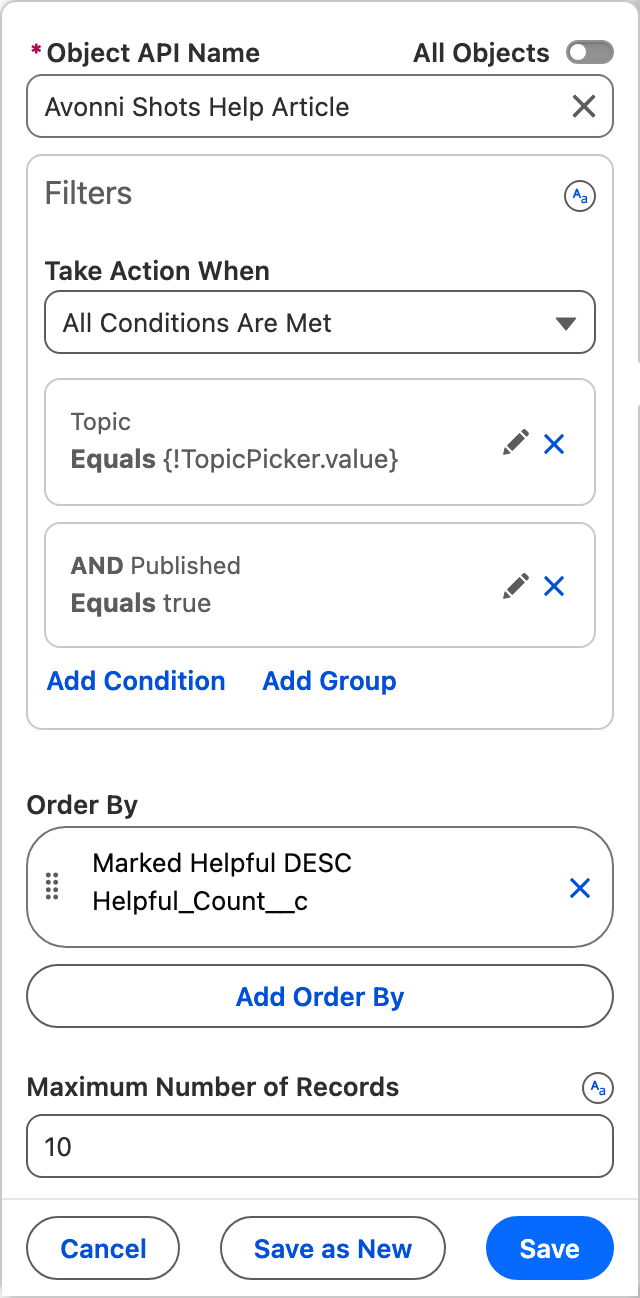
Create a query on your article object and filter it on two things:

`Topic__c = :topic AND Published__c = true`

Then bind the `topic` variable to the picker, with the resource selector, as a **component attribute**: `TopicPicker` and its `value`.

That is the whole mechanism. There is no variable holding the topic and no assignment keeping it in step. The filter reads the picker's live value, so there is only ever one copy of what the customer picked.

The second half of the filter is not decoration. A published flag is what keeps a half-written article off a public page, and a portal is exactly where an unpublished draft does the most damage.

<figure><img src="https://3857391697-files.gitbook.io/~/files/v0/b/gitbook-x-prod.appspot.com/o/spaces%2FdHOej9Pd5IxJNGEJMZKW%2Fuploads%2FdmaXjBGShdrCLXTTiuTs%2Fdeflect-query.png?alt=media" alt="The query editor showing the article object, a filter of Topic Equals TopicPicker.value AND Published Equals true, an order by on the helpful count, and a maximum of 10 records" width="320"><figcaption><p>The filter, and the binding that makes it reactive. Reached through Edit the query on the List's panel. The object here is the demo object this page was built on; yours goes in the same field.</p></figcaption></figure>

{% hint style="warning" %}
Give the query a **row limit** as well as the filter. A query with neither leaves the component spinning forever rather than showing an empty list.
{% endhint %}
{% endstep %}

{% step %}

#### **Add the list**

Add a **List**, name it `ArticleList`, set its data source to **Query** and pick the query you just wrote. Map **Label** to the article title and **Description** to the summary.

Sort by whatever tells you an article works. We ordered by a helpful count descending, so the article that has resolved the most questions sits at the top. Alphabetical order is the one choice carrying no information at all.

Write the **no results message** as a sentence with somewhere to go: an empty topic is a customer about to open a case, and that is the moment to point at the form.
{% endstep %}

{% step %}

#### **Make the list react**

At this point the panel is wired and still does not work. The filter is correct, the binding is correct, and picking a different topic changes nothing on screen.

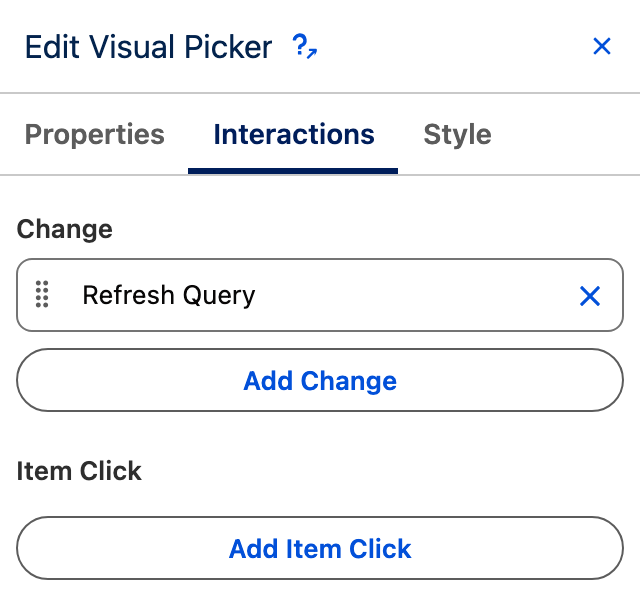
A query reads its filter when it runs. It does not watch the values in it. So select the **Visual Picker**, open its **Interactions** tab, and add a **Refresh Query** on the **Change** event, targeting `ArticleList`.

<figure><img src="https://3857391697-files.gitbook.io/~/files/v0/b/gitbook-x-prod.appspot.com/o/spaces%2FdHOej9Pd5IxJNGEJMZKW%2Fuploads%2FuiQ8ucuY8qKa1M3UmwZ3%2Fdeflect-refresh.png?alt=media" alt="The Visual Picker Interactions tab showing a Refresh Query interaction on the Change event" width="320"><figcaption><p>One interaction on the Change event. Without it the filter is right and the list never moves.</p></figcaption></figure>

{% hint style="info" %}
Refresh Query takes component ids, and the builder fills them in when you pick the component from the list. If you are editing the configuration by hand, note that it wants the component's **id**, not its API Name: with an API Name in there the list renders empty rather than failing.
{% endhint %}
{% endstep %}
{% endstepper %}

### Build the case form

The panel above deflects. This is what it deflects **to**, and it is worth as much care: the customer who reaches this form has already tried to help themselves and failed.

{% stepper %}
{% step %}

#### **Create a second Dynamic Component**

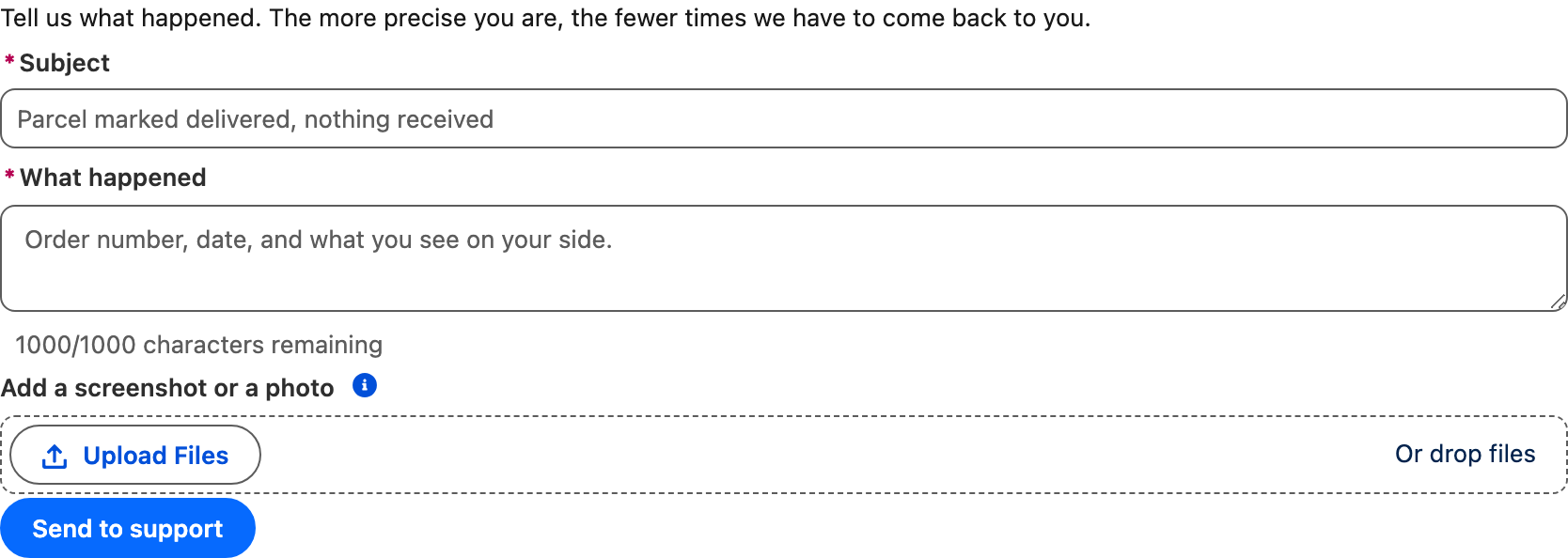
Create a component named `Portal_Case_Form` holding a subject, a description and a file upload. Keeping it separate from the panel is what lets the panel open it in a dialog, and lets the same form be reused anywhere else in the site.

Set the description field's **mode** to `plain`. A Text Area defaults to rich mode, which puts a font picker, an image button and an alignment toolbar in front of a customer trying to report a missing parcel.
{% endstep %}

{% step %}

#### **Add the file upload**

Add a **File Upload**, restrict **accept** to the formats you can actually open, and turn on **multiple**.

Leave **Record Id** empty. The case does not exist yet: the customer is filling in the form that will create it. The component uploads the files anyway and returns their **content document ids**, and the flow that creates the case is what links them to it.

This is the step most people get wrong, because the property is right there and looks required. Filling it in with the wrong thing attaches the customer's screenshot to something else.

<figure><img src="https://3857391697-files.gitbook.io/~/files/v0/b/gitbook-x-prod.appspot.com/o/spaces%2FdHOej9Pd5IxJNGEJMZKW%2Fuploads%2FAJBi62QIKwq204vHONJc%2Fdeflect-case-form.png?alt=media" alt="The case form with a subject field, a plain description field with a character count, a file upload area and a Send to support button"><figcaption><p>The form behind the button, captured in Lightning. The upload area accepts a drop as well as a click.</p></figcaption></figure>
{% endstep %}

{% step %}

#### **Wire the button to the form**

Back on the panel, add a **Button** labelled for what it does rather than for what it is: "None of these solved it" tells the customer you expected the articles to work. On its **Click** event, add an **Open Dynamic Component Dialog** interaction pointing at the case form.

Have the dialog's submit run a flow that creates the Case and attaches the uploaded documents to it. Pass the picked topic in as an input while you are there: a case that arrives already labelled routes itself.
{% endstep %}
{% endstepper %}

***

## Going further

**Measure the deflection.** The point of the panel is the cases nobody opened, which is the hardest number in support to see. Log an article view against its topic, then compare views per topic against cases per topic. Many views and many cases on the same topic means those articles are not answering the question.

**Let the articles say whether they worked.** Add a helpful action on each list item that increments the count the list sorts on. The order of the list then improves itself, and you get the first honest signal about which articles to rewrite.

**Give the topics a second level.** The pattern nests: a second Visual Picker filtered by the first picker's value, with its own Refresh Query. Worth doing only once a topic holds too many articles to read.

**Preselect from where they came.** If the customer clicked through from an order page, the topic is not a mystery. Pass it in and the panel opens on the right articles.

**Related components**

* Visual Picker
* List
* File Upload
* Button


---

# Agent Instructions
This documentation is published with GitBook. GitBook is the documentation platform designed so that both humans and AI agents can read, navigate, and reason over technical content effectively. Learn more at gitbook.com.

## Querying This Documentation
If you need additional information that is not directly available in this page, you can query the documentation dynamically by asking a question.

Perform an HTTP GET request on the current page URL with the `ask` query parameter, and the optional `goal` query parameter:

```
GET https://docs.avonnicomponents.com/projects/use-cases/portals-and-partner-sites/portal-case-deflection.md?ask=<question>&goal=<endgoal>
```

`ask` is the immediate question: it should be specific, self-contained, and written in natural language.
`goal` is optional and describes the broader end goal you are ultimately trying to accomplish on behalf of the user. GitBook uses it to tailor the answer towards what is most useful for that goal.

The response will contain a direct answer to the question and relevant excerpts and sources from the documentation.

Use this mechanism when the answer is not explicitly present in the current page, you need clarification or additional context, or you want to retrieve related documentation sections.