Fall course catalog
An outdoor school lists its fall courses on the portal: six photos, dates, price and seats left under each.
Overview
An outdoor school lists its fall courses on the portal: six photos, dates, price and seats left under each. The whole catalog is one component and six records. The component is AX - Gallery in its grid variant, on an Experience Site page. This tutorial rebuilds the fall catalog of Ridgeline Outdoor Academy, first with the six courses typed into the component, then from a Course object.
What you build

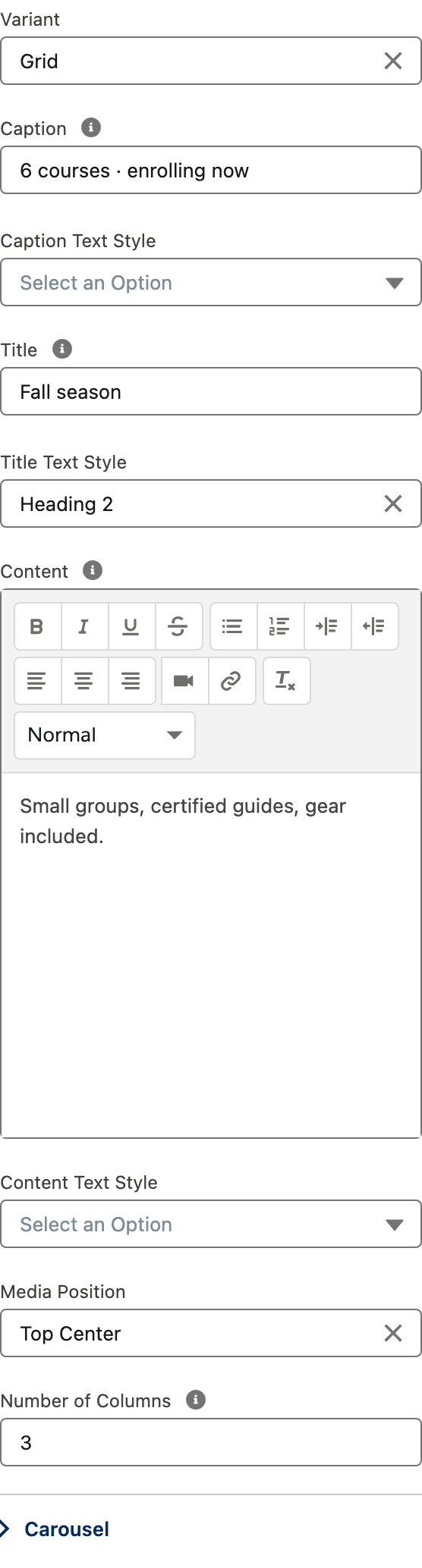
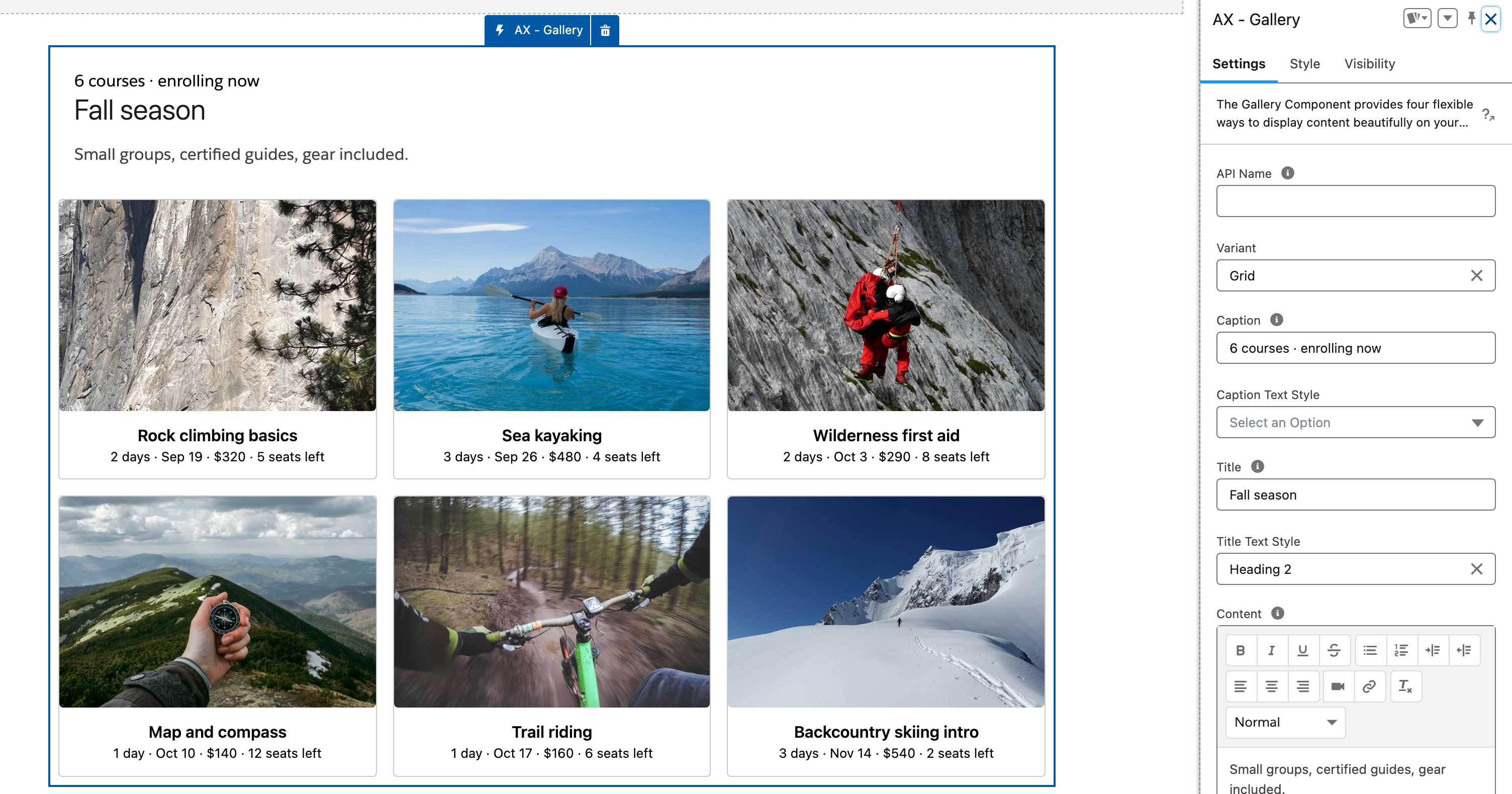
Ridgeline Outdoor Academy opens enrollment on its customer site. The page reads 6 courses · enrolling now, then Fall season, then one line: Small groups, certified guides, gear included.
Six courses in a three by two grid, one photo each, the title and one line of facts underneath: days, start date, price, seats left.
Every tile is the same size, and each photo fills its tile edge to edge.
The page shows nothing else, which is the point.
Before you start
The Avonni Components for Experience Sites package is installed, and the users of your site hold a package license and the Avonni Experience Cloud Components User permission set. See License Management.
An Experience Site (LWR or Aura) with a page for the catalog. The figure shows the component on a bare page; on your site, the theme and the site header surround it.
Six photos you own, one per course, all landscape and in the same proportions (the figure uses 3:2). This page does not provide them. On the Manual path you upload them from the component; on the Query path each Course record points at its file.
Manual, which is what the figure shows, needs no object. Query turns the catalog into records the school edits from Salesforce, and needs a custom object:
Course (Course__c)
Name
Text
The course title, Sea kayaking
Details__c
Text (80)
The line under the title, 3 days · Sep 26 · $480 · 4 seats left. Store the start date, the price and the seats left in their own fields and make this a formula when seats left must update on its own.
Photo__c
Text (255)
The photo: the Content Document ID of a file in Salesforce Files (an ID that starts with 069), or a public image URL
Season__c
Picklist: Fall, Winter, Spring, Summer
The query filter
Sort_Order__c
Number, 0 decimal places
The position in the grid, 1 to 6
Sample data. Six courses. Value is the short unique key the Manual editor asks for; on the Query path the record takes its place.
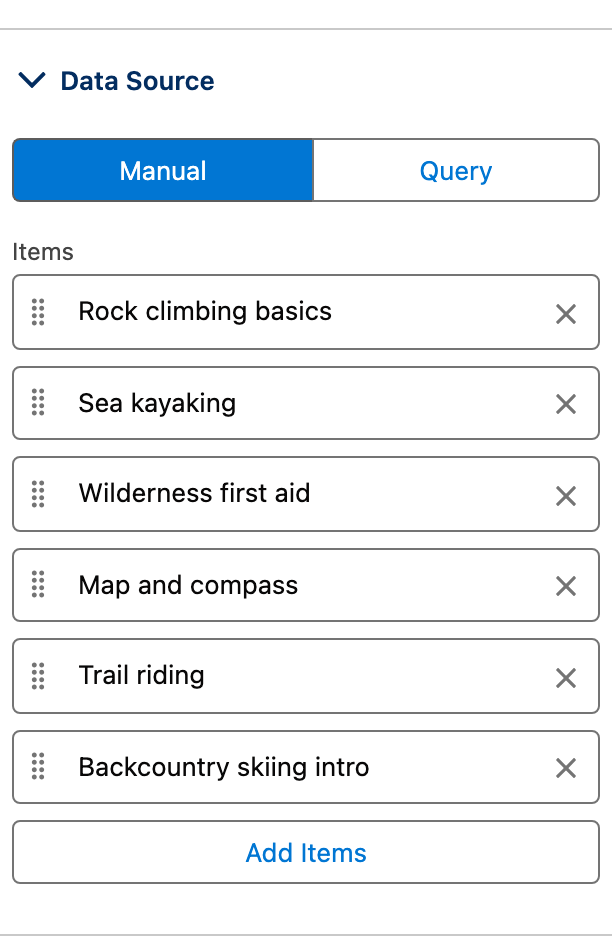
Rock climbing basics
2 days · Sep 19 · $320 · 5 seats left
climb
Sea kayaking
3 days · Sep 26 · $480 · 4 seats left
kayak
Wilderness first aid
2 days · Oct 3 · $290 · 8 seats left
wfa
Map and compass
1 day · Oct 10 · $140 · 12 seats left
nav
Trail riding
1 day · Oct 17 · $160 · 6 seats left
mtb
Backcountry skiing intro
3 days · Nov 14 · $540 · 2 seats left
ski
Permissions. Site users need the package license and the permission set named above. On the Query path, their profile also needs Read on Course and on its fields, and the photo files must be readable by them: shared with the site, or carrying a public link. The Avonni Query respects Salesforce sharing: a user only sees the courses Salesforce lets them see.
Build it
Add the Gallery to the catalog page
Open the site in Experience Builder and go to the catalog page.
In the Components panel, under Custom Components, drag AX - Gallery into a full-width section of the page.
Select the component to open its Properties Panel.

Choose the grid
Set Variant to
grid.Set Number of Columns to
3.Set Media Position to
top-center.
Why: a catalog is browsed, not watched: the carousel shows one panel at a time, the grid shows all six. Top-center puts the photo above the text in every tile. The Carousel settings apply to the carousel variant only, so leave them alone.

Write the header
Set Caption to
6 courses · enrolling now.Set Title to
Fall seasonand Title Text Style to Heading 2.Set Content to
Small groups, certified guides, gear included.
Why: the header is part of the component, so the page needs no separate text component. The caption renders above the title: that is the component's layout, which is why the count goes in Caption and the season in Title.
Enter the six courses
Open Items. Under Data Source, select Manual.
Add one item per course of the sample data. For each item, fill in Title, Value and Description.
Under Media Source, click Select Image/Video, upload the course photo and check Public link.
Leave Media Attributes empty: they apply to videos.
Why: every upload creates a new file in Salesforce Files, and the public link is what lets a site user load it. Replacing a photo later means uploading it again, which is one reason the Query path exists.

Even out the photos (optional)
Open Style in the Properties Panel.
Under Gallery/Grid/Carousel Image, raise Height if the photos look short in their tiles.
Under Media, leave Object Fit on its default, which crops each photo to fill its tile.
Why: six photos taken by six people never share a frame. A fixed height and a cover fit make the grid read as one block.
Switch to records
Open Items again and select Query. Choose the Course object and add the fields you will map:
Name,Details__c,Photo__c.Add a filter: Season equals
Fall. Sort by Sort Order ascending.In Data Mappings, map Title to Name, Description to Details and Media Source to Photo. Leave Value on its default.
Why: the catalog becomes six records. A new course is a new record, a sold-out course is a field change, and next season is a different filter value on the same page.
The settings that matter
Variant (variant)
grid
A catalog, not a slideshow: all six courses in view.
Number of Columns (columns)
3
Three across, two rows for six courses.
Media Position (mediaPosition)
top-center
Photo first, text under it, in every tile.
Caption, Title, Content
6 courses · enrolling now, Fall season, Small groups, certified guides, gear included.
The header is part of the component. The page needs nothing else.
Interactions
The figure has none. To make each course clickable, set Link To: on each item on the Manual path, once in Data Mappings on the Query path.
A course tile, Link To
A Named Page of the site for the course detail, or a Web Page for an enrollment form.
A course tile, Link To
The Flow API Name of an enrollment screen flow. Add the flow to a page of the site and publish first, or the dialog cannot find it.
Try it
Open the published page as a site user: six tiles, three across, every photo loaded.
Set Number of Columns to
2: the same six courses in three rows of two. Set it back to3.On the Query path, change the Details of Sea kayaking to
3 days · Sep 26 · $480 · 3 seats lefton the record and reload the page: the tile follows. Set the Season of one course toWinter: five tiles.
Take it further
The Gallery exists on Experience Sites only. There is no Dynamic Components, Flow Screen Components or LWC Components page to point to: Carousel and Image List are different components. Three variations worth trying:
Switch Variant to
carouseland open the Carousel settings (Is Infinite, Scroll Duration) for a rotating banner on the home page.Switch Variant to
tabsto show one course at a time, each behind its own tab.Add Link To on each course, so a tile opens the enrollment page.
Troubleshooting
Photos do not show in the Experience Builder preview but display on the published site
The builder does not authenticate as a site user, so it cannot fetch files from Salesforce Files.
Expected. Check the page on the published site, logged in as a site user.
A tile reads "No preview available" on the Manual path
The photo was uploaded without Public link, so site users cannot load it.
Upload the photo again and check Public link, or switch to the Query path, where sharing rules apply.
The gallery is empty for site users but works in the Experience Builder preview
Their profile lacks access to the Course object or to the photo files.
Check object permissions, field-level security, and the sharing of the files or the library that holds them.
The titles show but every photo is broken
Media Source is mapped to a field that holds neither a Content Document ID (starting with 069) nor a valid image URL.
Check what the mapped field contains, and map Media Source to a field that holds the ID or a public URL.
The caption sits above the title
That is the component's layout. There is no setting to swap them.
Put the count in Caption and the season in Title, as this page does.
A photo loses its subject at the top or the bottom of its tile
The gallery crops every photo to fill its tile, so a portrait or square photo loses its edges.
Use landscape photos in the same proportions, and adjust Height under Gallery/Grid/Carousel Image in Style if you need more of each photo.
Was this helpful?