> For the complete documentation index, see [llms.txt](https://docs.avonnicomponents.com/llms.txt). Markdown versions of documentation pages are available by appending `.md` to page URLs; this page is available as [Markdown](https://docs.avonnicomponents.com/projects/use-cases/portals-and-partner-sites/appointment-self-booking-portal.md).

# Appointment Self-Booking Portal

Let customers book themselves on a public page that only ever offers the time you are actually free.

{% hint style="danger" %}

#### **This books against one calendar**

The pattern here offers the free time on a single calendar and writes the appointment to it. It is not a scheduling product: there is no round robin across a team, no travel time, no working hours per person, no waiting list. Those are all reachable from here, and none of them is in this page. Read [**Going further**](#going-further) before you promise a customer anything wider.
{% endhint %}

{% hint style="warning" %}

#### **Before you start**

This use case has configuration prerequisites, including an Experience site with a public page and a guest user that is allowed to write the appointment. Make sure you review the [**Set up**](#set-up) section of this page before building!
{% endhint %}

{% hint style="success" %}

#### **Learning focus points**

* Turning booked records into the **disabled intervals** a picker can read
* Running a whole booking journey as a **screen flow on a public page**
* Letting a visitor write an appointment **without showing them the calendar**
  {% endhint %}

## Objective

Stop booking appointments by email.

A customer asks for a call. Someone answers with three times. Two are gone by the time the customer reads the message, so they propose two more, and one of those collides with something that was booked an hour ago. Four messages later there is a meeting, and everybody has spent a day on a decision that takes fifteen seconds.

The information that would end this exists already. It is in the calendar. The customer simply cannot see it, and the only person who can is the one writing the emails.

***

## Solution

A page the customer opens themselves, showing the free time and nothing else. They pick a slot, leave their name, and the appointment is in the calendar before they close the tab.

The free time is not a list anybody maintains. The flow reads what is already booked, turns each booking into an interval the picker treats as dead, and offers everything that is left.

### How It Works (User Perspective)

1. The customer opens the booking page. No login, no account.
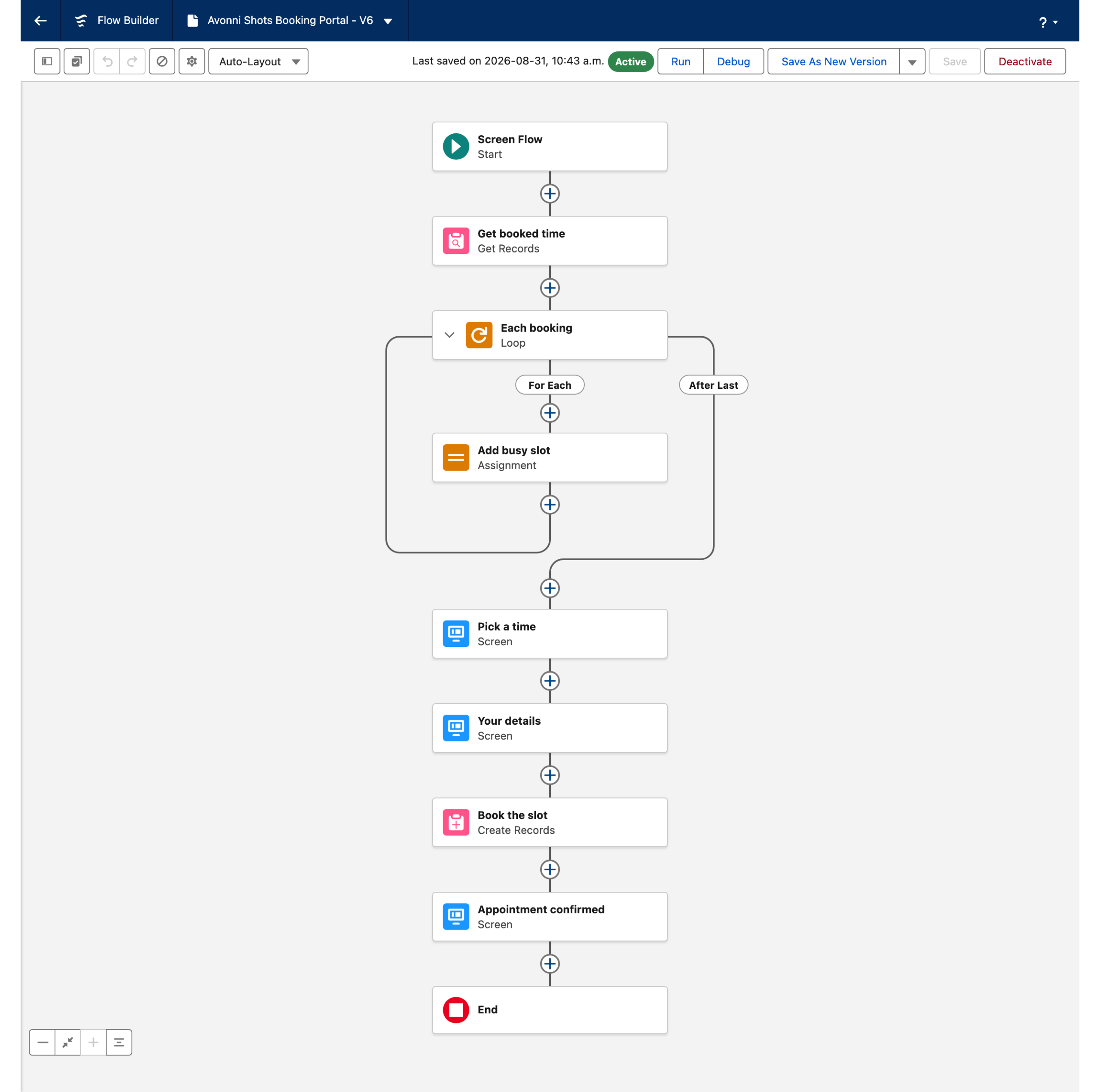
2. They see a week of half hour slots. The ones already taken are visibly there but cannot be clicked, so the page reads as a calendar rather than as a form that rejects them.
3. They pick a free slot and give a name and an email address.
4. The appointment is written to the calendar and confirmed on screen.

<figure><img src="https://3857391697-files.gitbook.io/~/files/v0/b/gitbook-x-prod.appspot.com/o/spaces%2FdHOej9Pd5IxJNGEJMZKW%2Fuploads%2FcShAEn0eLy6z9874Flpo%2Fbooking-portal-slots.png?alt=media" alt="A week of half hour time slots from Sunday 13 to Saturday 19 September, most in blue, with eleven greyed out across Monday to Friday"><figcaption><p>The booking screen at run time. Every greyed slot is an appointment that already exists on the calendar the flow read, and no two of them were typed in by hand. Captured in the demo org rather than on a live site, so this is the screen itself and not the page around it.</p></figcaption></figure>

### What we'll create

* 1 **screen flow** carrying the whole journey
* 1 **query** of what is already booked
* 1 **loop** turning those bookings into disabled intervals
* 1 **Avonni Date Time Picker** offering what is left
* 1 **record create** writing the appointment
* 1 **public page** on an Experience site to run it on

***

## Set up

### Prerequisites

**A calendar to read and write**

* Standard `Event` records work, and so does a custom object. Whatever you use needs a start, an end and something to filter on, so the flow reads one person's bookings rather than the whole org's.
* Decide that filter before you build. It is the difference between a portal that offers a consultant's free time and one that offers the free time of everybody in the company at once.

**An Experience site with a public page**

* A site with guest access, and a page that requires no login.
* The guest user profile needs read access to the calendar object and create access to write the appointment. Grant exactly those two and nothing else.

**The Avonni Flow Screen Components package**

* The Date Time Picker used here is a flow screen component. There is no Experience Builder component that does this on its own, which is why the whole journey is a flow rather than a page of components.

### Build the flow

{% stepper %}
{% step %}

#### **Create the screen flow**

Create a screen flow and name it for the thing it does, for example `Appointment_Booking`. Everything on this page lives inside it, including the parts a visitor never sees.
{% endstep %}

{% step %}

#### **Read what is already booked**

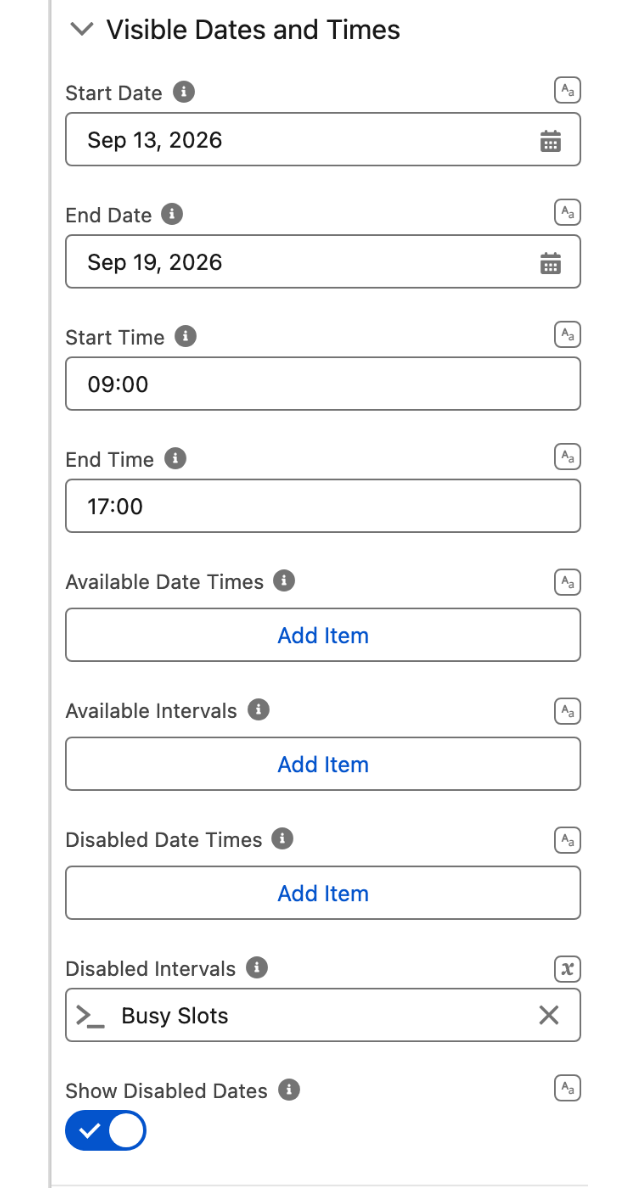
Add a **Get Records** on your calendar object. Filter it to the calendar this page books against, and sort by start time.

Keep this query narrow. A booking page that reads six months of history to draw one week is slow for no reason, and on a public page it is slow for everyone at once.
{% endstep %}

{% step %}

#### **Create the collection the picker will read**

The picker does not accept a list of records. It accepts a collection of intervals, each one a start and an end.

Create two variables of the **Apex-Defined** type `DateTimePickerDisabledInterval`, which ships with the package: one single value, and one collection. The single one is scratch space inside the loop, the collection is what the screen will read.
{% endstep %}

{% step %}

#### **Turn each booking into an interval**

Add a **Loop** over the records from the query, and inside it one **Assignment** with three lines: set the scratch variable's `startDate` from the record's start, set its `endDate` from the record's end, then add the scratch variable to the collection.

That is the whole translation. Nothing else in the flow has to know what a booking is.
{% endstep %}
{% endstepper %}

<figure><img src="https://3857391697-files.gitbook.io/~/files/v0/b/gitbook-x-prod.appspot.com/o/spaces%2FdHOej9Pd5IxJNGEJMZKW%2Fuploads%2F8JCiiU0VNp8SzkvRPthQ%2Fbooking-flow-canvas.png?alt=media" alt="A flow canvas: Start, Get booked time, an Each booking loop containing Add busy slot, then screens Pick a time and Your details, then Book the slot and Appointment confirmed"><figcaption><p>The whole flow. The query and the loop exist for one reason, which is to have the intervals ready before the screen is ever shown.</p></figcaption></figure>

### Build the booking screen

{% stepper %}
{% step %}

#### **Add the Date Time Picker**

Add a screen named `Pick a time` and put an **Avonni Date Time Picker** on it, on its own.

Set **Variant** to `Weekly` so the customer compares days instead of paging through them one at a time, and **Type** to `Radio` so they leave with one slot rather than several.
{% endstep %}

{% step %}

#### **Set the working window**

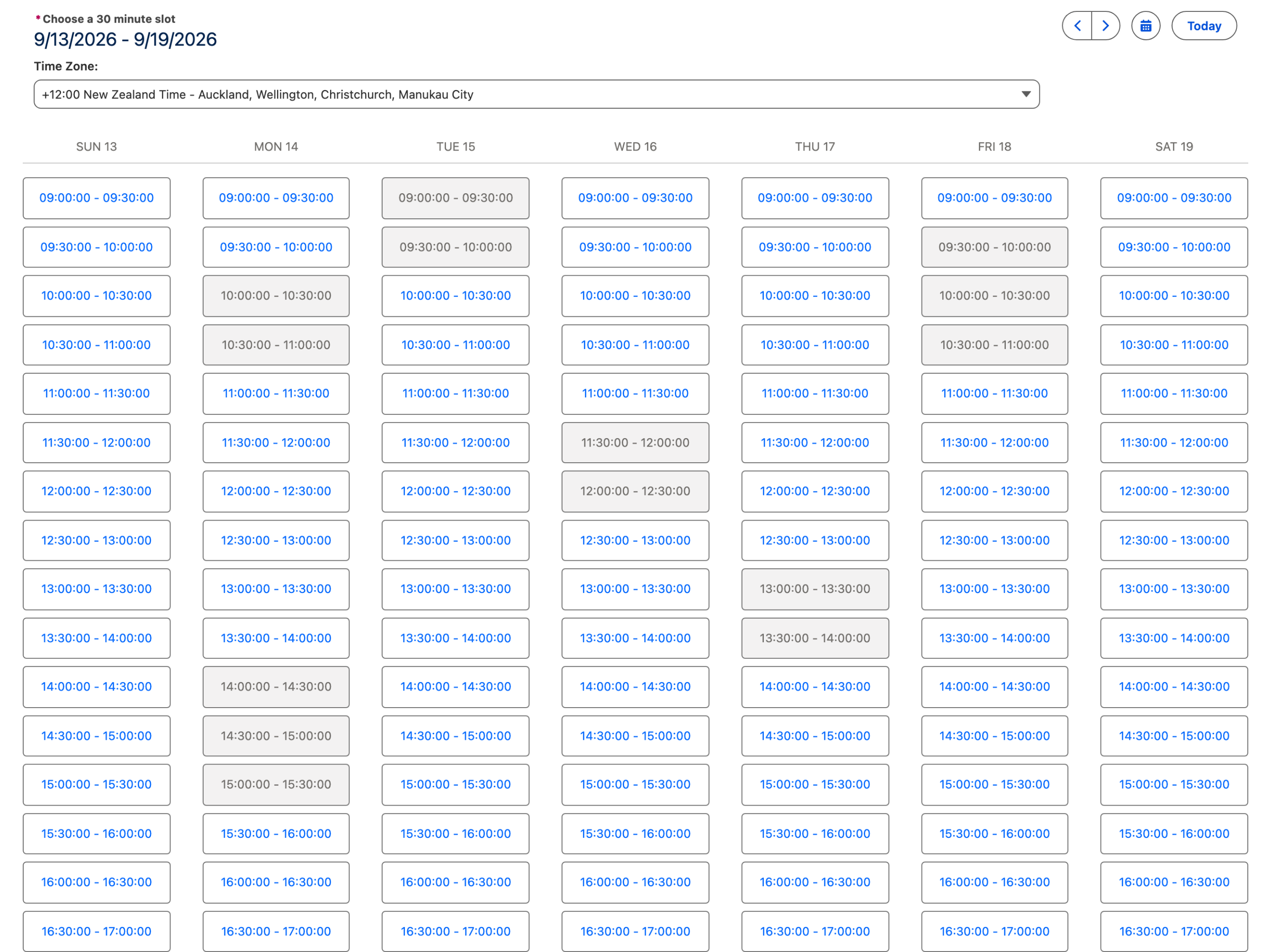
Under **Visible Dates and Times**, set **Start Time** and **End Time** to the hours you actually take appointments, and **Time Slot Duration** to the length of one appointment. Every slot on the page is generated from these three values.

Set **Start Date** and **End Date** to the window you are willing to be booked in, and **Default Visible Date** to a day inside it.

Do not skip that last one. If the picker opens on a week that falls entirely outside the start and end dates, it does not show an empty week, it fails with a component error.
{% endstep %}

{% step %}

#### **Attach the busy intervals**

Set **Disabled Intervals** to the collection the loop built.

This is the step that gets missed. Disabled Intervals looks exactly like the three fields above it, which are lists you fill in by hand, and it is the only one here holding a reference. Everything on this page depends on it being a reference: fill it in by hand and you have published a calendar that was accurate on the day you built it.

Turn on **Show Disabled Dates** so the taken slots stay visible. A booked slot that disappears looks like a slot that never existed, and the customer wonders why Tuesday morning is missing.
{% endstep %}
{% endstepper %}

<figure><img src="https://3857391697-files.gitbook.io/~/files/v0/b/gitbook-x-prod.appspot.com/o/spaces%2FdHOej9Pd5IxJNGEJMZKW%2Fuploads%2FPTO5160Bh4ItChnD3GvQ%2Fbooking-disabled-intervals.png?alt=media" alt="The Visible Dates and Times section of the property panel, with Start and End dates, start and end times, three empty Add Item lists, and Disabled Intervals holding a reference named Busy Slots" width="320"><figcaption><p>Disabled Intervals holds the collection the loop built. The three lists above it are empty on purpose: those are the manual ones.</p></figcaption></figure>

### Write the appointment

{% stepper %}
{% step %}

#### **Collect who is booking**

Add a second screen asking for a name and an email address. Ask for as little as you can defend. Every extra field on a public booking page is a customer who books by email instead.
{% endstep %}

{% step %}

#### **Create the record**

Add a **Create Records** on your calendar object. The start comes from the picker's value, the length is the slot duration you set, and the subject is worth building from the visitor's name so the calendar entry reads as something rather than as `Appointment`.

Set the same field the Get Records filters on, or the booking you just wrote will not be treated as busy the next time somebody opens the page.
{% endstep %}

{% step %}

#### **Confirm on screen**

Finish on a screen that says the appointment exists. A **Scoped Notification** in its success variant is enough, and it costs one component.
{% endstep %}
{% endstepper %}

### Put it on the site

{% stepper %}
{% step %}

#### **Add the flow to a public page**

In Experience Builder, drop the standard **Flow** component on a page that does not require login, and point it at your flow.
{% endstep %}

{% step %}

#### **Check it as a stranger**

Open the page in a private window, signed out. This is the only test that means anything: a guest user missing one permission fails differently from an internal user, and it usually fails silently by showing an empty week rather than an error.
{% endstep %}
{% endstepper %}

***

## Going further

**Close the gap between picking and booking.** Two people can open the page at the same time and pick the same slot, because the intervals were built when each page loaded. Before the Create Records, add a second Get Records on that exact slot and route to an apology screen if anything comes back. It costs one decision and it is the difference between a booking page and a booking page you can leave running.

**Book across a team.** The pattern extends by changing what the first query returns. Read several calendars, build the intervals from all of them, and a slot is offered only when everybody is free. Round robin is the same query with a different rule about who gets written into the record.

**Leave room between appointments.** Widen each interval as you build it, rather than trying to express a gap in the picker. Fifteen minutes on each side of a booking is fifteen minutes nobody can book against.

**Let people change their mind.** A cancel or reschedule link is the same flow with the record in hand, and it removes most of the email that this page was built to end.

**Related components**

* **Date Time Picker**
* **Scoped Notification**


---

# Agent Instructions
This documentation is published with GitBook. GitBook is the documentation platform designed so that both humans and AI agents can read, navigate, and reason over technical content effectively. Learn more at gitbook.com.

## Querying This Documentation
If you need additional information that is not directly available in this page, you can query the documentation dynamically by asking a question.

Perform an HTTP GET request on the current page URL with the `ask` query parameter, and the optional `goal` query parameter:

```
GET https://docs.avonnicomponents.com/projects/use-cases/portals-and-partner-sites/appointment-self-booking-portal.md?ask=<question>&goal=<endgoal>
```

`ask` is the immediate question: it should be specific, self-contained, and written in natural language.
`goal` is optional and describes the broader end goal you are ultimately trying to accomplish on behalf of the user. GitBook uses it to tailor the answer towards what is most useful for that goal.

The response will contain a direct answer to the question and relevant excerpts and sources from the documentation.

Use this mechanism when the answer is not explicitly present in the current page, you need clarification or additional context, or you want to retrieve related documentation sections.