> For the complete documentation index, see [llms.txt](https://docs.avonnicomponents.com/llms.txt). Markdown versions of documentation pages are available by appending `.md` to page URLs; this page is available as [Markdown](https://docs.avonnicomponents.com/projects/use-cases/partner-order-desk.md).

# Partner order desk

## Overview

A distributor edits quantities, drops purchase orders and follows delivery on its own orders, from the partner site, with no Salesforce chrome in sight. The whole page is one **AX - Data Table** on an Experience Site, reading the partner's order records through a Query data source. This tutorial rebuilds the **My orders** page of Northwind Distribution, a furniture retailer with a partner login, in your own site.

## What you build

![Avonni Data Table on an Experience Cloud partner site: orders with an inline edited quantity, uploaded purchase order PDFs, delivery progress rings, status badges, filters and pagination](https://3857391697-files.gitbook.io/~/files/v0/b/gitbook-x-prod.appspot.com/o/spaces%2FdHOej9Pd5IxJNGEJMZKW%2Fuploads%2FMuvzJVcBbKx29tWScccb%2Fuc-03-partner-order-desk.png?alt=media)

* Northwind Distribution logs into the partner site and lands on **My orders**: eight orders, one line each, and nothing from any other account.
* **Qty** is edited in the cell. Every other column is read only.
* The **Purchase order** column takes a PDF drop, and the file is stored on the order record.
* A delivery ring fills as the order moves from Awaiting PO to Delivered, next to a **Status** badge colored by value.
* **Status** and **Product Line** filters sit above the table, **Export CSV** and **New order** in the header, pagination at the bottom.

## Before you start

{% hint style="info" %}
**Adapt this to your own org.** Partner Order is an object this tutorial creates, because the site it was captured on had no order object of its own. If your partners already have orders, in the standard `Order` object or in a custom one, point the query at it and map your own fields at the same steps. Three things the page does depend on: a lookup to the partner's account, to scope the rows to the person logged in; a number from 0 to 100, for the delivery ring; and a text field returning the badge variant.
{% endhint %}

* The [Avonni Components for Experience Sites](https://appexchange.salesforce.com/appxListingDetail?listingId=2e584bb3-b5e0-415d-9347-d6567158d840) package is installed and your partner users hold a license. See [License Management](https://docs.avonnicomponents.com/experience-cloud/getting-started/license-management).
* An Experience Site (LWR or Aura) with a page for orders, and at least one partner or customer user whose contact belongs to the partner account. The examples below use the account **Northwind Distribution**.
* A custom object for the orders. The table needs these fields:

| Object                             | Field               | Type                                                            | Role                                                            |
| ---------------------------------- | ------------------- | --------------------------------------------------------------- | --------------------------------------------------------------- |
| Partner Order (`Partner_Order__c`) | `Name`              | Text                                                            | The order number, `ORD-2611`                                    |
|                                    | `Account__c`        | Lookup (Account)                                                | The partner account. It scopes the table to the logged-in user. |
|                                    | `Product__c`        | Text                                                            | The product name                                                |
|                                    | `Product_Line__c`   | Picklist: `Seating`, `Tables`, `Lighting`, `Storage`            | The second filter                                               |
|                                    | `Quantity__c`       | Number, 0 decimal places                                        | The only cell the partner can edit                              |
|                                    | `Unit_Price__c`     | Currency                                                        |                                                                 |
|                                    | `Delivery__c`       | Number, 0 decimal places, from 0 to 100                         | Drives the progress ring                                        |
|                                    | `Status__c`         | Picklist: `Awaiting PO`, `Preparing`, `In transit`, `Delivered` | The badge text and the first filter                             |
|                                    | `Status_Variant__c` | Formula (Text)                                                  | Turns the status into a badge color, see step 1                 |
|                                    | `Expected_Date__c`  | Date                                                            |                                                                 |

The purchase order itself is a Salesforce File attached to the order record. It needs no field.

**Sample data.** Eight orders, all with **Account** set to Northwind Distribution:

| Order #  | Product              | Product line | Qty | Unit price | Delivery | Status      | Expected     |
| -------- | -------------------- | ------------ | --- | ---------- | -------- | ----------- | ------------ |
| ORD-2611 | Oslo lounge chair    | Seating      | 24  | 389        | 100      | Delivered   | Sep 1, 2026  |
| ORD-2614 | Nordic oak table     | Tables       | 12  | 1,190      | 75       | In transit  | Sep 9, 2026  |
| ORD-2617 | Arc floor lamp       | Lighting     | 48  | 145        | 40       | Preparing   | Sep 15, 2026 |
| ORD-2618 | Milo three-seat sofa | Seating      | 6   | 1,780      | 0        | Awaiting PO | Sep 22, 2026 |
| ORD-2620 | Ladder bookshelf     | Storage      | 30  | 260        | 60       | In transit  | Sep 12, 2026 |
| ORD-2622 | Birch bar stool      | Seating      | 40  | 129        | 0        | Awaiting PO | Sep 26, 2026 |
| ORD-2623 | Nordic oak table     | Tables       | 8   | 1,190      | 20       | Preparing   | Sep 19, 2026 |
| ORD-2625 | Arc floor lamp       | Lighting     | 20  | 145        | 0        | Awaiting PO | Sep 29, 2026 |

In the figure, the five orders that are past Awaiting PO carry a purchase order named after them (`PO-2611.pdf`, `PO-2614.pdf`, and so on). Upload them through the table once it is built, as described in **Try it**: the File Upload column shows the files dropped into it, not files attached to the record beforehand.

**Permissions.** The partner profile or permission set needs Read and Edit on Partner Order, Edit field-level security on **Quantity**, Read on the other fields, and a sharing rule or sharing set that gives the partner account its own orders. Uploading a purchase order requires that the user can add files to the order record. The Avonni Query respects all of it: a partner only ever sees the records Salesforce lets them see.

## Build it

{% stepper %}
{% step %}

### Create the object, the badge formula and the records

1. In **Setup**, open **Object Manager** and create the **Partner Order** object with the fields listed above.
2. Add the **Status Variant** formula field (return type Text):

```
CASE(TEXT(Status__c),
  "Delivered", "success",
  "In transit", "inverse",
  "Preparing", "warning",
  "Awaiting PO", "error",
  "base")
```

3. Load the eight sample orders, with **Account** set to the partner account.

*Why:* the badge column colors itself from a named variant (`success`, `warning`, `error`, `inverse`). A formula that returns the variant name per status lets every row pick its own color, with no styling rule to maintain in the builder.
{% endstep %}

{% step %}

### Add the Data Table to the orders page

1. Open the site in **Experience Builder** and go to the orders page.
2. In the **Components** panel, drag **AX - Data Table** into a full-width section of the page.
3. Select the component to open its **Properties Panel**.
   {% endstep %}

{% step %}

### Connect the query

1. In the **Data Source** section, select **Query**.
2. Choose the **Partner Order** object and add the fields you will display: `Name`, `Product__c`, `Product_Line__c`, `Quantity__c`, `Unit_Price__c`, `Delivery__c`, `Status__c`, `Status_Variant__c`, `Expected_Date__c`.
3. Add a filter: **Account** equals the logged-in user's account. On an LWR site use `{!User.Record.AccountId}`; on an Aura site use `{!CurrentUser.accountId}`. See [Expressions for LWR Sites](https://docs.avonnicomponents.com/experience-cloud/tutorials/general/expressions-for-lwr-sites) and [Expressions for Aura Sites](https://docs.avonnicomponents.com/experience-cloud/tutorials/general/expressions-for-aura-sites).
4. Sort by `Name` ascending.

*Why:* the filter is what makes the page a partner desk rather than an order list. Sharing rules already hide other accounts' records; the filter makes that scope explicit and keeps the table correct for internal users who can see everything.
{% endstep %}

{% step %}

### Add the columns

In **Data Mappings**, open **Columns** and add one column per field. For each one, set **Type** and, where the header should differ from the field label, turn on **Custom Label** and enter the label.

| Column     | Source Field       | Type              | Settings                         |
| ---------- | ------------------ | ----------------- | -------------------------------- |
| Order #    | `Name`             | **Text**          | **Sortable** on                  |
| Product    | `Product__c`       | **Text**          | **Sortable** on                  |
| Qty        | `Quantity__c`      | **Number**        | **Editable** on, **Sortable** on |
| Unit price | `Unit_Price__c`    | **Currency**      | **Sortable** on                  |
| Delivery   | `Delivery__c`      | **Progress Ring** | **Size** Medium                  |
| Status     | `Status__c`        | **Badge**         | see step 5                       |
| Expected   | `Expected_Date__c` | **Date**          | **Sortable** on                  |

Leave **Editable** off on every column except Qty.

*Why:* inline editing is per column. With Qty as the only editable one, the partner changes quantities and nothing else, and the table saves the change to the record itself when they click **Save**.
{% endstep %}

{% step %}

### Color the Status badge from the formula

1. Select the **Status** column.
2. Under **Type Attributes**, find **Variant**.
3. Turn on the **Field Name** toggle next to **Variant** and select `Status_Variant__c`.

*Why:* a fixed variant colors every badge the same. Bound to the formula field, Delivered reads green, Preparing yellow, In transit dark and Awaiting PO red, straight from the data.
{% endstep %}

{% step %}

### Add the Purchase order column

1. In **Columns**, add a column and set **Column Type** to **Custom**.
2. Enter **Name** `purchaseOrder` and **Label** `Purchase order`.
3. Set **Type** to **File Upload**.
4. Under **Type Attributes**, set **Accept** to `.pdf` and turn on **Show File Uploaded**.

*Why:* the File Upload type is available on Query data sources only. The cell uploads against the row's record, so a PDF dropped on ORD-2618 lands in the Files of ORD-2618, with no interaction to configure. **Show File Uploaded** lists the file name under the drop zone once it is in.
{% endstep %}

{% step %}

### Set the filters and the search

1. In **Data Mappings**, under **Filters**, select `Status__c` and `Product_Line__c`.
2. Under **Search Fields**, select `Name` and `Product__c`.
3. In the **Properties Panel**, open **Filter Menu Attributes** and set **Type** to **Horizontal**.

*Why:* Horizontal puts the two filters above the table, where a partner expects them. Each filter is labeled with the field's label, so `Product_Line__c` reads **Product Line**. The search box appears as soon as at least one search field is set.
{% endstep %}

{% step %}

### Configure the header

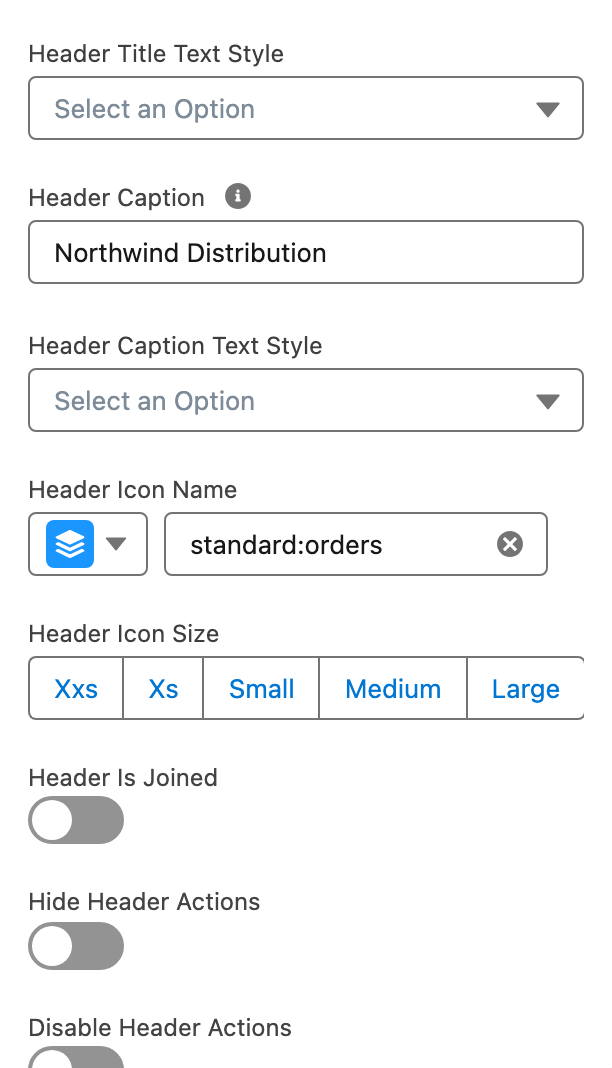
1. Set **Header Title** to `My orders`, **Header Caption** to `Northwind Distribution` and **Header Icon Name** to `standard:orders`.
2. Open **Header Actions** and add two actions:
   * **Label** `Export CSV`, **Name** `exportCsv`, **Icon Name** `utility:download`
   * **Label** `New order`, **Name** `newOrder`, **Icon Name** `utility:add`
3. Set **Visible Header Actions Buttons** to `2`.

*Why:* with fewer visible buttons than actions, the extra actions collapse into a menu. Two visible buttons keep both gestures one click away.
{% endstep %}

{% step %}

### Finish the table settings

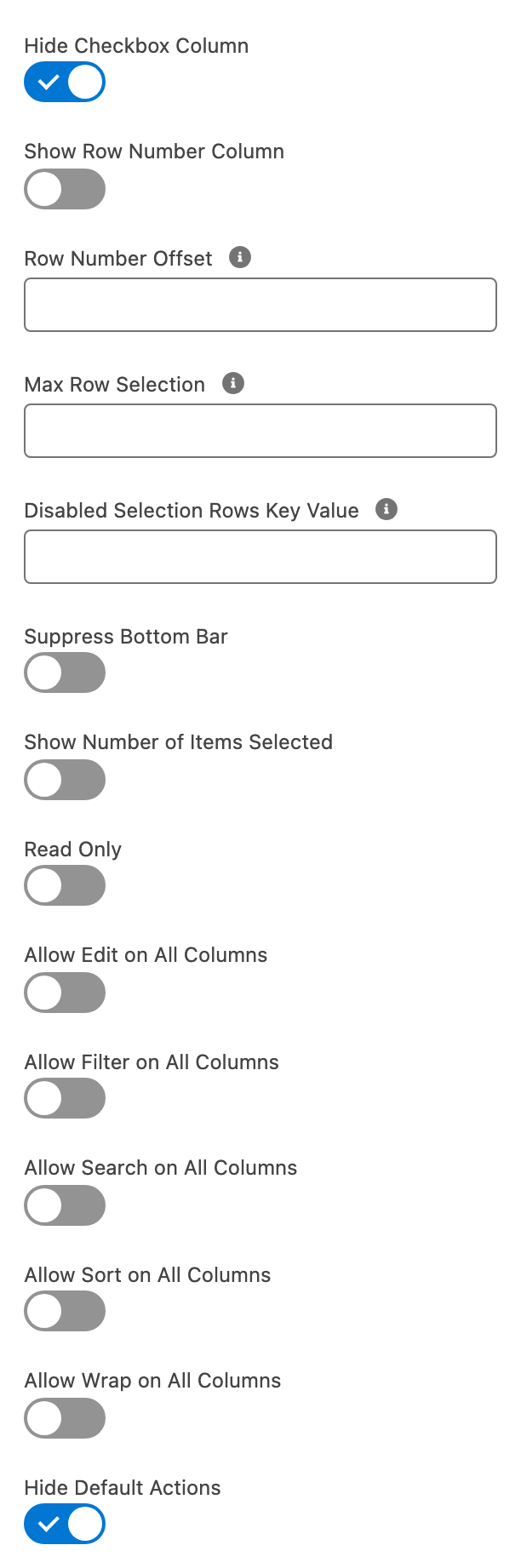
1. Turn on **Hide Checkbox Column**: the partner edits cells, they do not select rows.
2. Turn on **Hide Default Actions** to keep the column headers to their label and sort arrow.
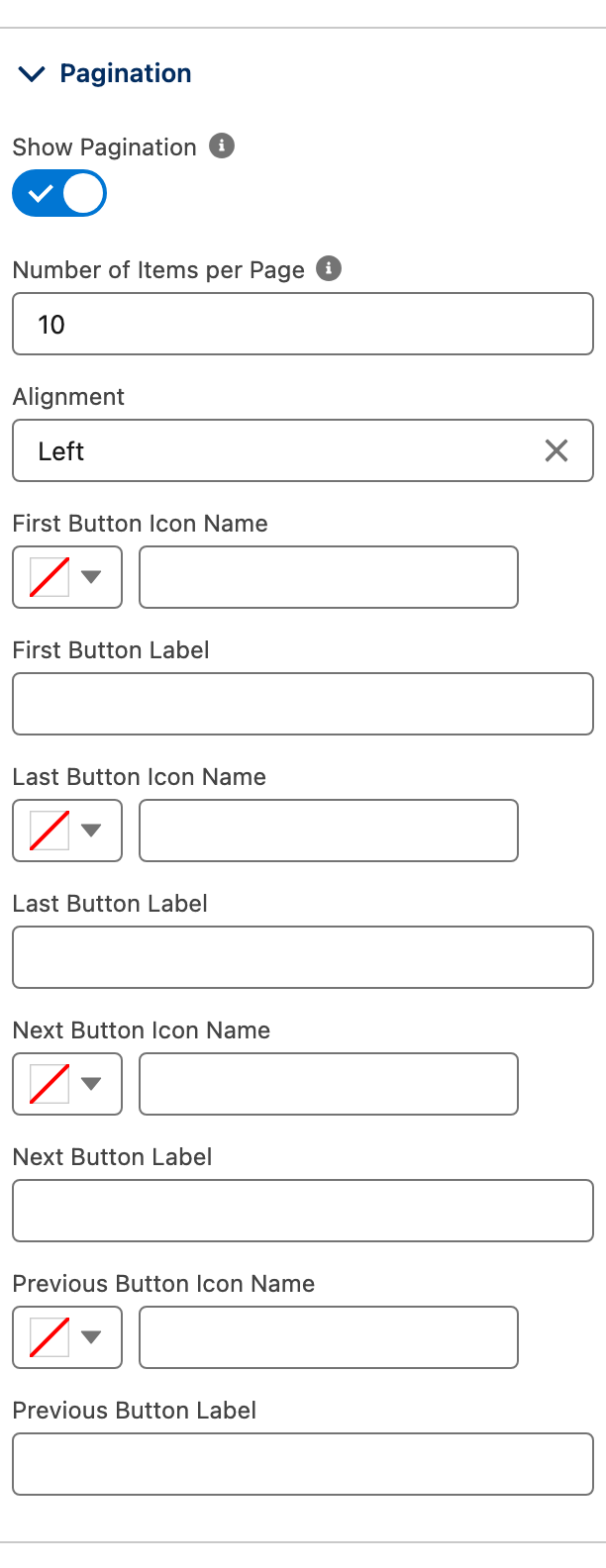
3. Open **Pagination Attributes**, turn on **Show Pagination** and set **Number of Items per Page** to `10`.

*Why:* eight orders fit on one page today. Pagination is set now so the desk still works at eighty.
{% endstep %}

{% step %}

### Wire the header actions, preview, publish

1. On the **New order** action, set **On Click** to [Open Flow Dialog](https://docs.avonnicomponents.com/experience-cloud/properties-panel/interactions/open-flow-dialog) and pick the screen flow that creates a Partner Order.
2. On the **Export CSV** action, set **Export To Fields** in **Data Mappings** to the columns you want in the file, then configure **On Click** as shown in the [Export To button tutorial](https://docs.avonnicomponents.com/projects/experience-cloud-components/create-an-export-to-button-on-the-data-table).
3. Click **Preview**, log in as a partner user and check the table. Then **Publish** the site.
   {% endstep %}
   {% endstepper %}

## The settings that matter

| Setting                                              | Value                              | Why                                                                                                            |
| ---------------------------------------------------- | ---------------------------------- | -------------------------------------------------------------------------------------------------------------- |
| Purchase order column **Type** (`type`)              | **File Upload**, **Accept** `.pdf` | The partner drops the PDF in the row, and it is filed on that order's record. Query data sources only.         |
| Delivery column **Type** (`type`)                    | **Progress Ring**                  | One glance per order. The ring reads a number from 0 to 100.                                                   |
| Status column **Variant** (`typeAttributes.variant`) | bound to `Status_Variant__c`       | A color per status, driven by the record, with no styling rule in the builder.                                 |
| **Editable** (`editable`)                            | on for Qty only                    | The partner changes quantities, nothing else. The table saves the edit to the record when they click **Save**. |

## Interactions

| Trigger                                    | Action                                                                                                                                                           | What to set                                                                                                  |
| ------------------------------------------ | ---------------------------------------------------------------------------------------------------------------------------------------------------------------- | ------------------------------------------------------------------------------------------------------------ |
| The partner edits Qty and clicks **Save**  | Built in: the table updates the record                                                                                                                           | Nothing. Field-level security decides what can be saved.                                                     |
| Header action **New order**, **On Click**  | [Open Flow Dialog](https://docs.avonnicomponents.com/experience-cloud/properties-panel/interactions/open-flow-dialog)                                            | The flow that creates a Partner Order for the partner account.                                               |
| Header action **Export CSV**, **On Click** | Export, see the [Export To button tutorial](https://docs.avonnicomponents.com/projects/experience-cloud-components/create-an-export-to-button-on-the-data-table) | **Export To Fields** in **Data Mappings**.                                                                   |
| Purchase order column, **On File Upload**  | [Show Toast](https://docs.avonnicomponents.com/experience-cloud/properties-panel/interactions/show-toast), optional                                              | A message such as `Purchase order received`. The file is already linked to the order record when this fires. |

## Try it

1. Log in as a partner user. The table shows the eight Northwind orders and nothing from another account.
2. Double-click the **Qty** cell of ORD-2617, change `48` to `50` and click **Save**. Open the record in Salesforce: Quantity is 50.
3. Drop a PDF on the **Purchase order** cell of ORD-2618. Its name appears under the drop zone, and the file is listed in the Files of ORD-2618.
4. Filter **Status** on `In transit`: two rows, ORD-2614 and ORD-2620. Search `lamp`: two rows, ORD-2617 and ORD-2625.

## Take it further

The same table exists on the other Avonni surfaces, with the same column types:

* [Data Table](https://docs.avonnicomponents.com/flow/flow-components/data-table) for Flow Screen Components, inside a screen flow.
* [Data Table](https://docs.avonnicomponents.com/dynamic-components/components/data-table) for Dynamic Components, on a Lightning page.
* [Data Table](https://docs.avonnicomponents.com/lwc-components/data-driven-components/datatable) for LWC Components, as the `avonni-dd-datatable` tag in your own component.

Two variations worth trying:

* Turn on **Use Cascading Filter Values** in **Filter Menu Attributes**, so that picking a status narrows the product lines offered.
* Switch **Filter Menu Attributes** **Type** to **Panel** when the desk grows past three or four filters.

A related project in this space: [External Orders Table](/projects/use-cases/external-orders-table.md) puts an account's orders, stored outside Salesforce, and their line items on the Account record page with two Dynamic Components Data Tables.

## Troubleshooting

| Problem                                                                                                        | Cause                                                                                                                                                    | Fix                                                                                                                                                           |
| -------------------------------------------------------------------------------------------------------------- | -------------------------------------------------------------------------------------------------------------------------------------------------------- | ------------------------------------------------------------------------------------------------------------------------------------------------------------- |
| Purchase orders attached to the records before the page was built do not show in the **Purchase order** column | The File Upload cell lists the files uploaded through it during the session. It does not read the files already attached to the record.                  | Treat the column as the drop zone it is. To show filed documents, add a row action that navigates to the order record, where the Files related list has them. |
| The table shows orders in **Preview** but nothing for the partner user                                         | The partner profile lacks access to the object or the fields, or no sharing rule gives the account its orders. Avonni queries follow Salesforce sharing. | Check object permissions and field-level security on the partner profile, then the sharing set or sharing rule on Partner Order.                              |
| Editing Qty and clicking **Save** shows an error, or the value reverts                                         | The partner user has no Edit access on the object or on the **Quantity** field.                                                                          | Grant Edit on Partner Order and Edit field-level security on `Quantity__c`.                                                                                   |
| Every badge has the same color                                                                                 | **Variant** is set to a fixed value, or the formula returns a name that is not a badge variant.                                                          | Turn on **Field Name** on **Variant**, select `Status_Variant__c`, and make sure the formula returns `success`, `inverse`, `warning`, `error` or `base`.      |
| No filter chips above the table                                                                                | Filters are a Query feature, and none is selected, or the data source is Manual.                                                                         | Use a Query data source and select the fields under **Filters** in **Data Mappings**.                                                                         |
| **File Upload** is not offered as a column **Type**                                                            | The data source is Manual. File Upload, Combobox and Lookup are Query-only column types.                                                                 | Switch the **Data Source** to **Query**.                                                                                                                      |


---

# Agent Instructions
This documentation is published with GitBook. GitBook is the documentation platform designed so that both humans and AI agents can read, navigate, and reason over technical content effectively. Learn more at gitbook.com.

## Querying This Documentation
If you need additional information that is not directly available in this page, you can query the documentation dynamically by asking a question.

Perform an HTTP GET request on the current page URL with the `ask` query parameter, and the optional `goal` query parameter:

```
GET https://docs.avonnicomponents.com/projects/use-cases/partner-order-desk.md?ask=<question>&goal=<endgoal>
```

`ask` is the immediate question: it should be specific, self-contained, and written in natural language.
`goal` is optional and describes the broader end goal you are ultimately trying to accomplish on behalf of the user. GitBook uses it to tailor the answer towards what is most useful for that goal.

The response will contain a direct answer to the question and relevant excerpts and sources from the documentation.

Use this mechanism when the answer is not explicitly present in the current page, you need clarification or additional context, or you want to retrieve related documentation sections.