Customer sign-off inside a flow
The customer signs the handover on the last screen of a flow, and the signature lands on the work order as a file.
Overview
The customer signs the handover on the last screen of a flow, and the signature lands on the work order as a file. Nothing to print, nothing to scan. The whole step is one Pen Input component from Avonni Flow Screen Components, set up as a signature pad with a reduced toolbar and the drawing saved as a Salesforce File. This tutorial rebuilds the last screen of the Handover flow of SolarOps, a solar installer, in your own org.
What you build

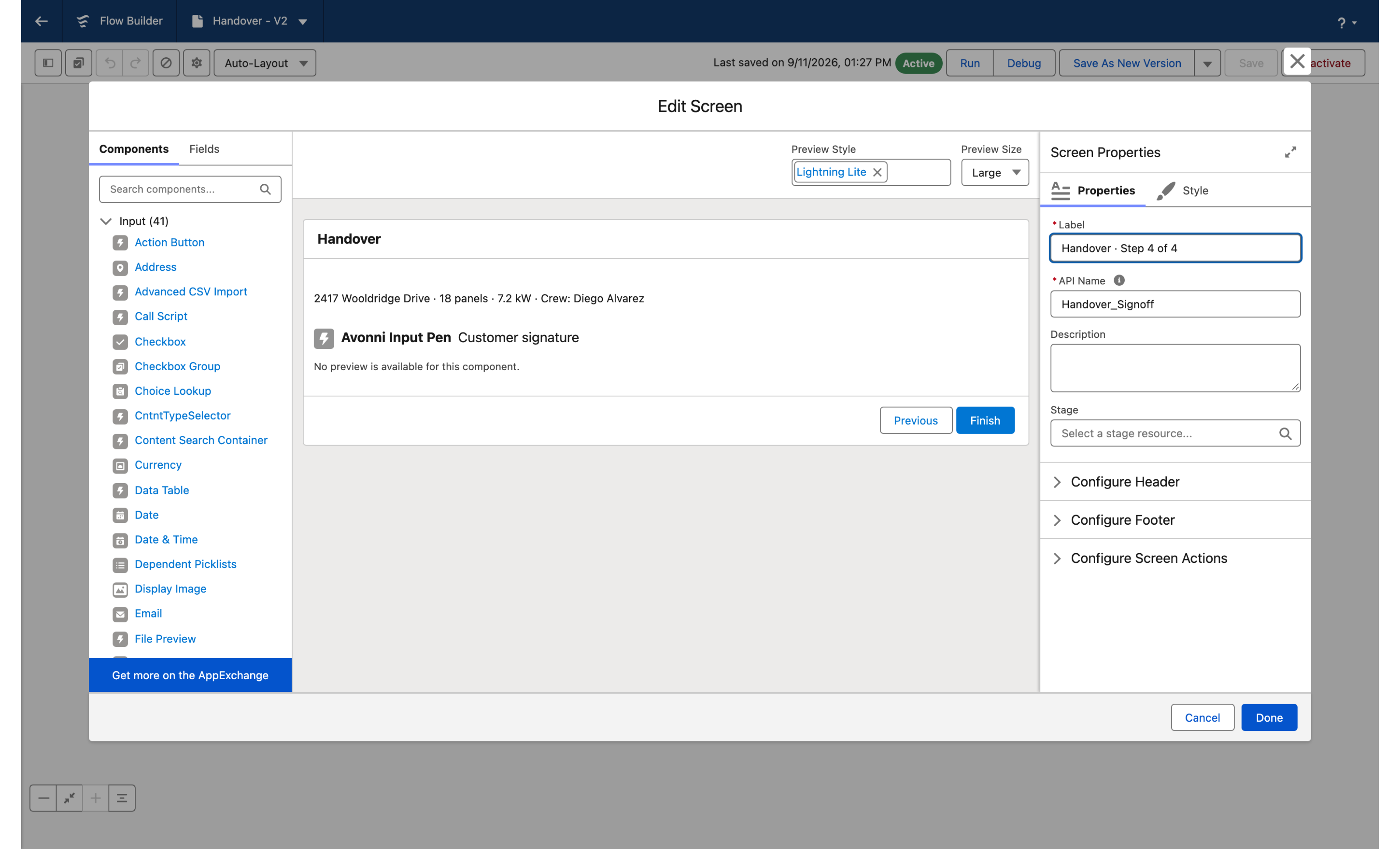
SolarOps closes every installation with a four step screen flow. Step 4 is the signature, under a Display Text that sums up the job: 2417 Wooldridge Drive · 18 panels · 7.2 kW · Crew: Diego Alvarez.
The field is Customer signature, required, with the help text Sign to confirm the installation is complete.
The pad shows a signature line and takes the signature in dark blue ink. The toolbar is reduced to the pen on the left and undo and redo on the right; the clear button is the circular arrow at the top right of the pad.
Save signature files the drawing on the work order as Handover signature WO-2417. Previous and Finish are the standard flow footer.
Before you start
The Avonni Flow Screen Components package is installed, and your technicians hold a license and the permission set. See Installation & Licenses management.
A work order for the installation. The figure uses the standard Work Order object; any object the flow is launched from works the same way.
Work Order (WorkOrder)
Subject
Text
Solar installation, 2417 Wooldridge Drive
Street, City, State
Address
2417 Wooldridge Drive, Austin, TX
Status
Picklist
In Progress while the crew is on site
WorkOrderNumber
Auto Number
Assigned by Salesforce. The SolarOps team calls this job WO-2417; your number will differ.
Sample data. One work order, the one above. The job summary on the last screen (18 panels, 7.2 kW, Crew: Diego Alvarez) is typed into the Display Text in the figure. Replace it with merge fields from your own work order fields when you have them. The signature itself needs no field: it is a Salesforce File linked to the work order when the technician clicks Save signature.
Permissions. The save runs as the running user, who must be able to create Files: Create on ContentVersion and on ContentDocumentLink. Authenticated Salesforce users typically have both. Guest users on an Experience site do not; the Input Pen page describes the alternative for them.
Build it
Create the flow and its record variable
In Setup, open Flows and create a Screen Flow.
In the Toolbox, click New Resource: Resource Type Variable, API Name
recordId, Data Type Text, Available for input checked.Save the flow with the label
Handover.
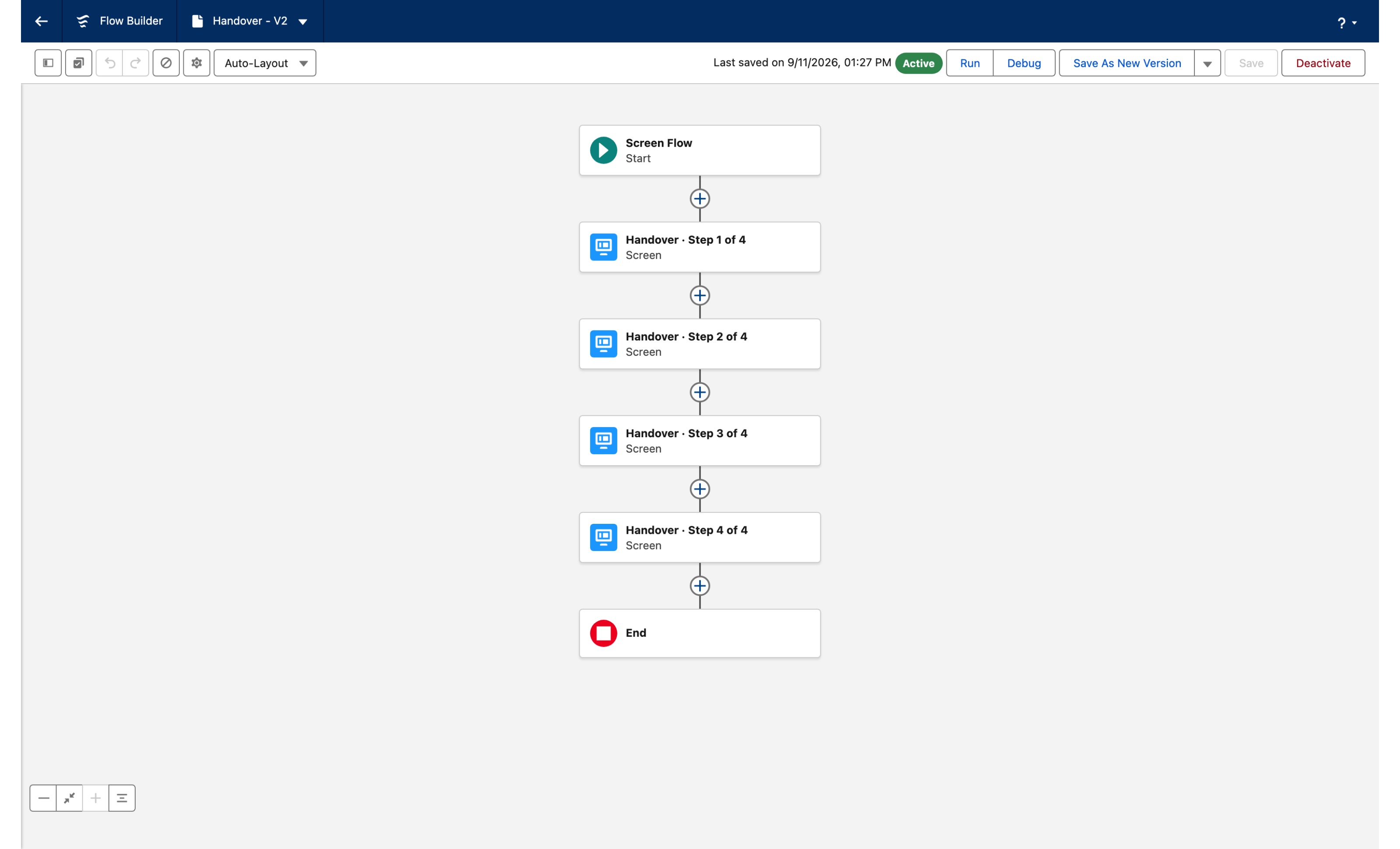
Why: the header of a running screen flow shows the flow label, not the screen label. The flow in the figure is labeled Handover · Step 4 of 4 so that its header reads that way on the captured screen; in a real flow that text would sit on every screen. Label yours Handover and show the step count in a Display Text or a Progress Indicator. The recordId variable receives the work order Id when the flow is launched from the record. See How to pass your current RecordID in your screen flow.
Add the four screens
Add three Screen elements for the steps before the signature, each with a Display Text:
Confirm the work order before the walkthrough.,Run the safety checklist.,Walk the customer through the system.Add a fourth Screen element labeled
Handover · Step 4 of 4. Add a Display Text with the job summary:2417 Wooldridge Drive · 18 panels · 7.2 kW · Crew: Diego Alvarez.Keep the standard header and footer on all four screens. The last screen shows Previous and Finish.
Why: the summary above the pad is what the customer is signing for. Keep it to one line.

Add the Pen Input and make it a signature pad
On the fourth screen, drag the Pen Input component from the Avonni section of the Components panel under the Display Text.
Click the component and open the Edit Input Pen Component panel. In the Properties tab, turn on Show Signature Pad.
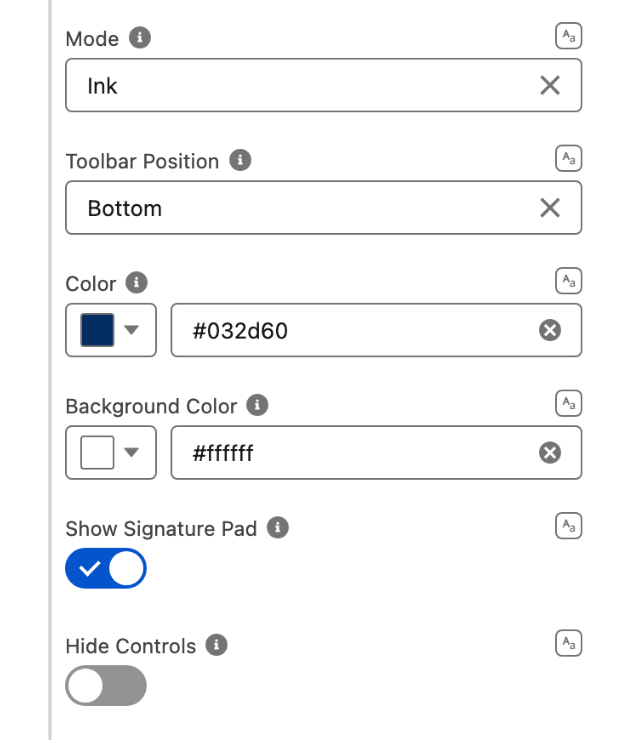
Set Mode to Ink and Toolbar Position to Bottom.
Set Color to
#032d60and leave Background Color at#ffffff.Under Advanced Options, leave Size at 3px.
Why: Show Signature Pad adds the signature line at the bottom of the canvas. Ink varies the stroke with the speed of the hand, which is what a pen does on paper; Draw gives a flat line. The Component Builder also offers a Signature Pad template that turns on the signature pad and Ink mode but hides the toolbar entirely; the figure keeps a reduced toolbar, so set the properties by hand or turn Hide Controls back off after applying the template.


Label it and make it required
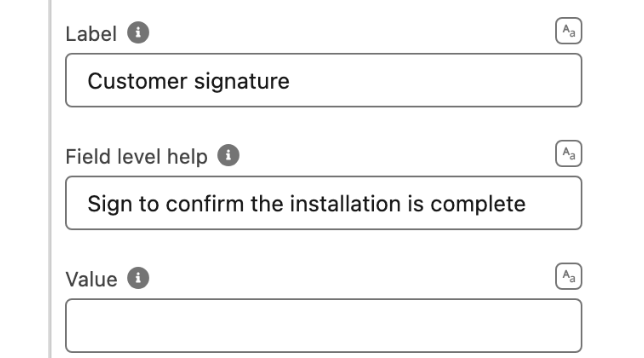
Set Label to
Customer signature.Set Field level help to
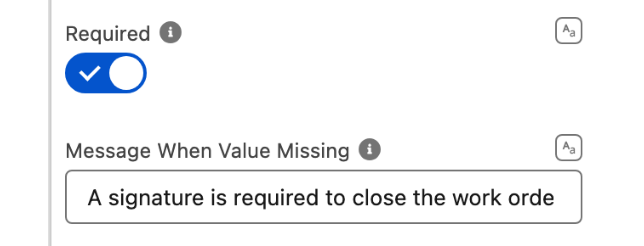
Sign to confirm the installation is complete.Turn on Required and set Message When Value Missing to
A signature is required to close the work order.
Why: Required blocks Finish while the pad is empty, and the message says why in the customer's words.


Reduce the toolbar
Under Advanced Options, open Hidden Buttons.
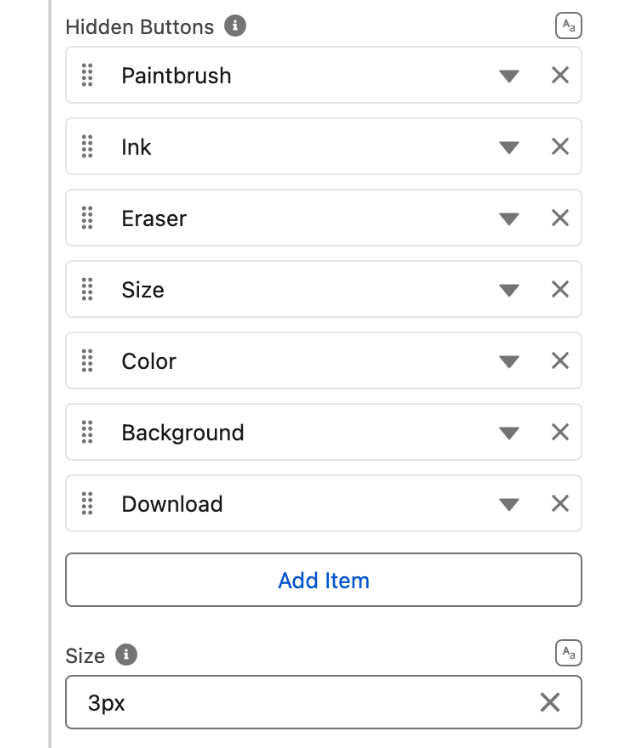
Add seven entries: Paintbrush, Ink, Eraser, Size, Color, Background, Download.
Why: a customer signs; they do not pick brushes or colors. What remains is Pen, Undo, Redo and Clear. Hiding the Ink button does not change the mode: Ink is already the default set in step 3, the button only lets the user switch to it.

Save the signature on the work order
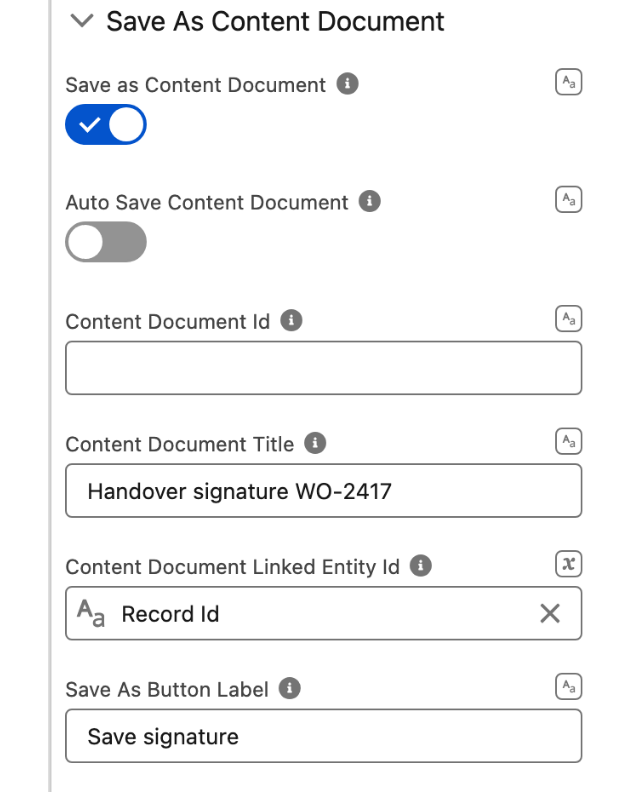
Open the Save As Content Document section and turn on Save as Content Document.
Set Content Document Title to
Handover signature WO-2417. For a title that follows the record, switch it to Mapped or Advanced and build it from the work order number.Switch Content Document Linked Entity Id to Mapped and select
{!recordId}.Set Save As Button Label to
Save signature.Leave Auto Save Content Document off.
Why: Content Document Linked Entity Id is what attaches the file to the record. Without it the signature is created in Files and belongs to no work order. With auto save off, the button appears and the technician files the signature once the customer is done.

Activate and launch it from the work order
Click Done, save the flow and click Activate.
On the Work Order record page, add the standard Flow component in Lightning App Builder, select
Handoverand check Pass record ID into this variable. A quick action on Work Order works the same way.
Why: the figure shows the flow on the Work orders tab of the SolarOps app, which is where the crew opens it. Whatever the entry point, {!recordId} must be populated, or the signature has nothing to attach to.
The settings that matter
Show Signature Pad (showSignaturePad) with Mode (mode)
on, Ink
A signature line and a pen stroke, not a marker.
Required (required) with Message When Value Missing (messageWhenValueMissing)
on, A signature is required to close the work order
No Finish without a signature.
Hidden Buttons (disabledButtonsSerialized)
Paintbrush, Ink, Eraser, Size, Color, Background, Download
Pen, undo, redo and clear are all the customer needs.
Save as Content Document (saveAsContentDocument) with Content Document Linked Entity Id (contentDocumentLinkedEntityId), Content Document Title (contentDocumentTitle) and Save As Button Label (saveAsButtonLabel)
on, {!recordId}, Handover signature WO-2417, Save signature
The signature becomes a named Salesforce File on the work order.
Interactions
Save As Button Click
Built in: the component creates the file and links it to the record
Nothing. You can add a Show Toast with a message such as Signature filed on the work order. The trigger exists only while Auto Save Content Document is off, because auto save removes the button.
Try it
Open a work order and start the flow. Click Next three times to reach the signature screen. Click Finish with an empty pad: the field shows
A signature is required to close the work orderand the flow stays on the screen.Sign on the pad. Click Undo: the last stroke disappears. Click Redo: it is back. The circular arrow at the top right clears the pad.
Sign again and click Save signature, then open the work order in another tab: the Files related list holds
Handover signature WO-2417. Click Finish to close the flow.
Take it further
The same pad exists on two other Avonni surfaces:
Input Pen (Signature) for Dynamic Components, on a Lightning page, with the same signature pad, hidden buttons and Save as Content Document settings.
Signature Pad for LWC Components, as the
avonni-signature-padtag in your own component. It exposes the same drawing options and returns the signature as a Base64 image invalue; storing it is your code's job.
There is no Pen Input for Experience Sites. To collect a signature on a site, run this screen flow on the site, keeping in mind the guest user limitation described on the Input Pen page.
Two variations worth trying:
Turn on Auto Save Content Document to file the signature without a button. Finish then does not depend on the technician remembering to click Save signature.
Build Content Document Title from the record, for example an Advanced value combining
Handover signatureand{!Get_Work_Order.WorkOrderNumber}after a Get Records on the work order, so the file name matches the job in Files.
Troubleshooting
The flow finishes, but no file appears on the work order
The customer signed, but nobody clicked Save signature. Required checks that the pad has a drawing, not that it was saved.
Click Save signature before Finish, or turn on Auto Save Content Document so the file is created without the button.
The file exists in Files, but it is not on the work order
Content Document Linked Entity Id is empty. The component creates the file without linking it to any record.
Set Content Document Linked Entity Id to {!recordId} and make sure the flow receives the record Id when it starts.
The toolbar still shows every tool
Hidden Buttons sits under Advanced Options and is empty, or the Signature Pad template was applied with Hide Controls on, which removes the toolbar entirely.
Expand Advanced Options, list the buttons to hide, and turn Hide Controls off if you want the reduced toolbar rather than none.
Saving fails for a guest user on an Experience site
Guest users cannot create ContentVersion and ContentDocumentLink records.
Turn off Save as Content Document for that flow and store the Value output yourself, as described on the Input Pen page.
The pad is too short for a comfortable signature
The canvas has a default height.
Set Height in the Size section of the Style tab.
The header reads the same on every screen
The flow header shows the flow label, not the screen label.
Keep the flow label short (Handover) and put the step count in a Display Text or a Progress Indicator on each screen.
Was this helpful?