Book the next appointment
A dental clinic books the next visit from a screen flow: one week of slots, lunch and taken slots greyed out, one tap to pick.
Overview
A dental clinic books the next visit from a screen flow: one week of slots, lunch and taken slots greyed out, one tap to pick. No calendar app, no back and forth. The whole step is one Date/Time Picker component from Avonni Flow Screen Components, in its Weekly variant, on step 2 of a three step flow. This tutorial rebuilds the slot screen of Brightsmile Dental in your own org, first with a fixed list of booked slots, then points to the version that reads them from existing appointments.
What you build

Brightsmile Dental creates appointments with a three step flow. Step 2 is the slot, under a Display Text that names the visit: Nadia Ferreira · Hygiene visit · 45 min · Dr. Hana Sato.
The field Pick a slot shows the week of September 14 to 20, 2026, Monday first, from 8:00 AM to 4:30 PM in thirty minute slots, with a date band above the days and Today, previous and next navigation.
Lunch, 12:00 and 12:30, is greyed out on the five weekdays. Eleven booked slots are greyed out. Saturday and Sunday are fully greyed out. Seven columns, five of them open.
Tuesday 15, 10:30 AM is selected. Next in the flow footer carries the choice into step 3, where the appointment is created.
Before you start
The Avonni Flow Screen Components package is installed, and the front desk holds a license and the permission set. See Installation & Licenses management.
The slot screen itself needs no record. Step 3 writes the appointment; the figure does not show it. Any object with a start date and time works. The standard Event is the shortest path:
Event (Event)
StartDateTime
Date/Time
Receives the slot picked in step 2
EndDateTime
Date/Time
The start plus the visit length, 45 minutes here
Subject
Text
Hygiene visit
WhoId
Lookup (Contact)
The patient, Nadia Ferreira
Sample data. None is needed to reproduce the screen. The booked slots in the figure are typed into the panel as a fixed list, which is what Build it does. The last section shows how to read them from existing appointments instead.
Build it
Create the flow and its screens
In Setup, open Flows and create a Screen Flow. Save it with the label
New appointment.Add a first Screen element with a Display Text:
Choose the patient and the visit type.Add a second Screen element labeled
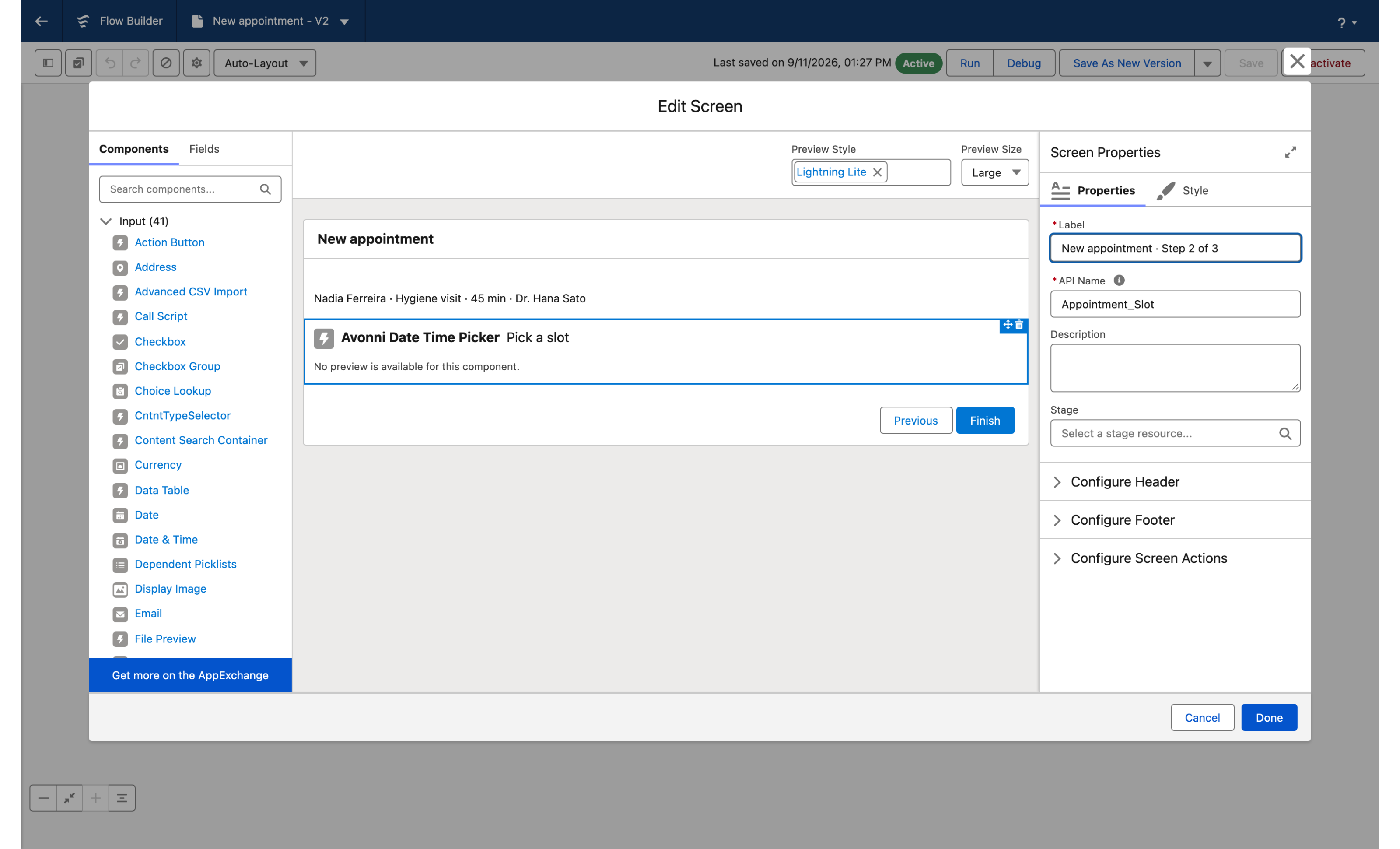
New appointment · Step 2 of 3. Add a Display Text:Nadia Ferreira · Hygiene visit · 45 min · Dr. Hana Sato. This is the slot screen.Add a third Screen element with a Display Text:
Review and confirm the appointment.Keep the standard header and footer on all three screens.
Why: the header of a running screen flow shows the flow label, not the screen label. The flow in the figure is labeled New appointment · Step 2 of 3 so that its header reads that way on the captured screen; in a real flow that text would sit on every screen. Label yours New appointment and show the step count in a Display Text or a Progress Indicator.

Add the Date/Time Picker
On the second screen, drag the Date/Time Picker component from the Avonni section of the Components panel under the Display Text. Give it the API name
appointmentSlot.Click the component and open the Edit Date Time Picker Component panel.
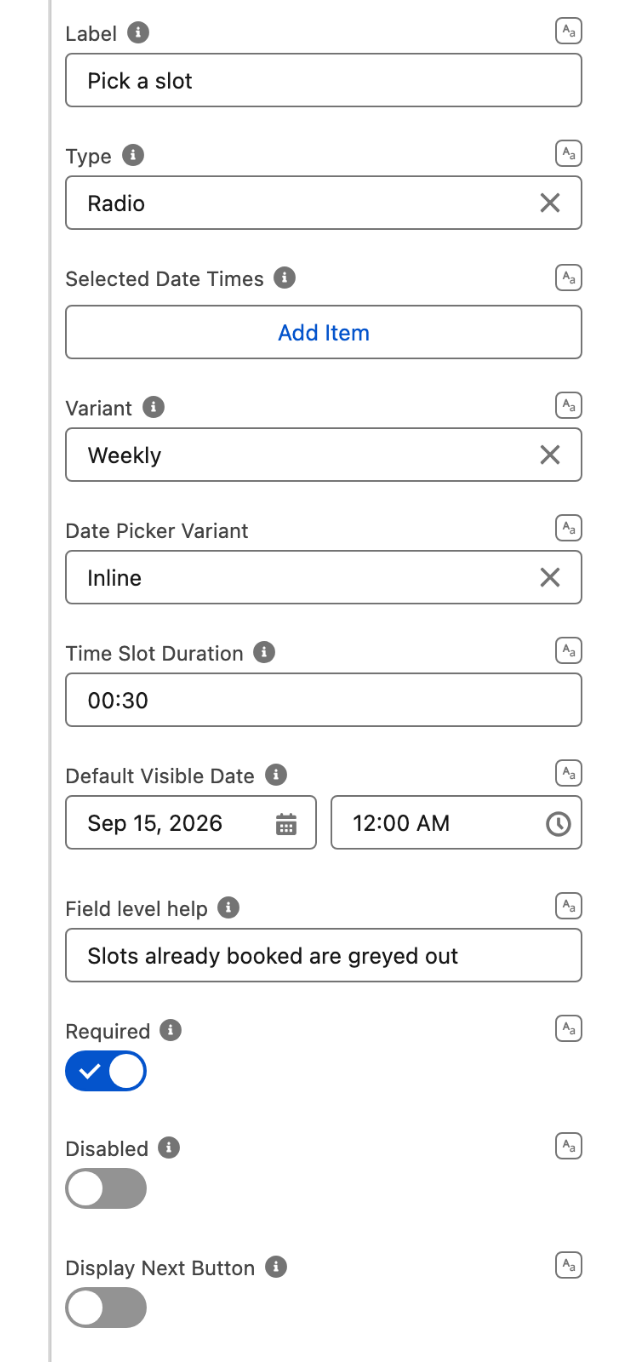
In the Properties tab, set Label to
Pick a slotand Field level help toSlots already booked are greyed out.Turn on Required. Set Type to Radio.
Why: Radio means one slot per booking. Checkbox would let the receptionist pick several, which a visit does not need.


Show one week at a time
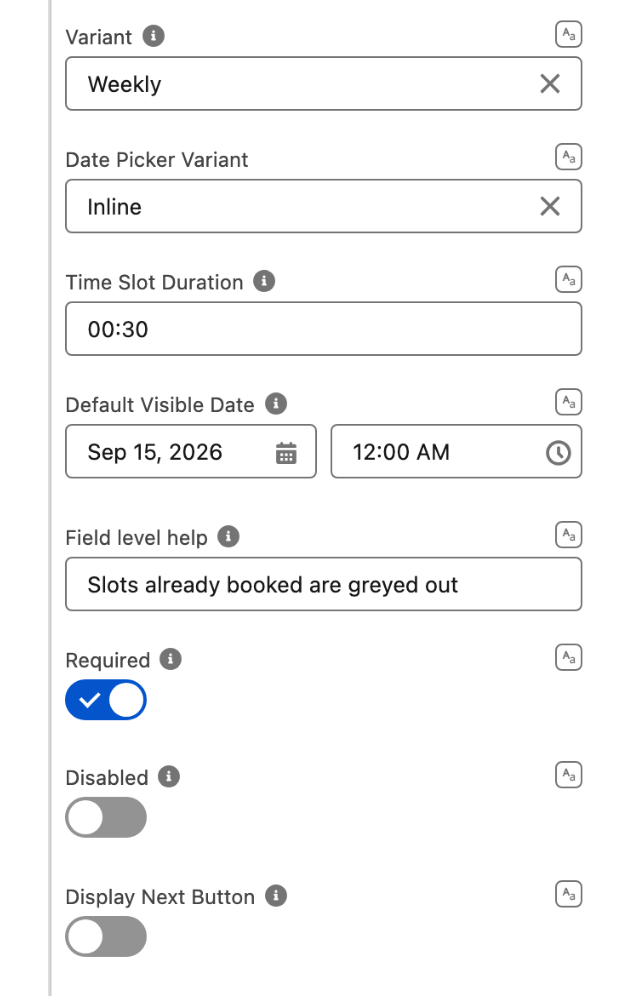
Set Variant to Weekly and Date Picker Variant to Inline.
Set Week Start Day to Monday and Time Slot Duration to
00:30.Set Default Visible Date to September 15, 2026.
Leave Display Next Button off.
Why: Weekly lays the seven days side by side, one column each. Inline shows the date band above the columns instead of a date field. The band highlights the visible date, not the selected slot: the figure highlights Tuesday 15 because that is the day of the chosen slot, so Default Visible Date is set to the 15th; the week shown is the same as with the 14th. The flow footer already has Next, so the component's own button stays off.

Set the clinic's hours
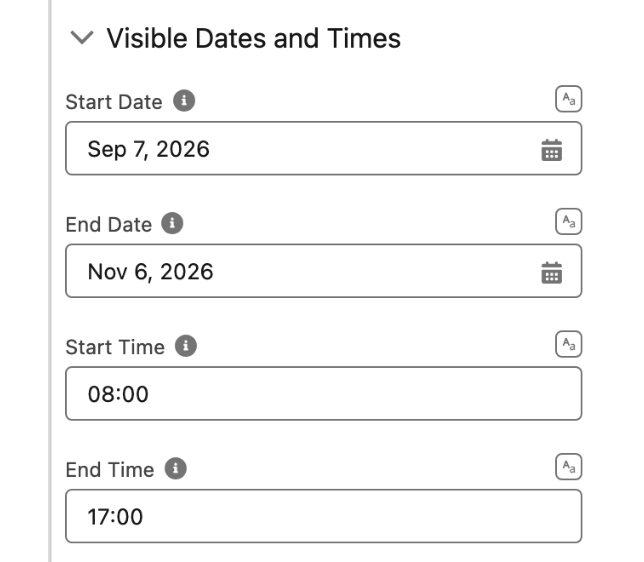
Open the Visible Dates and Times section.
Set Start Date to September 7, 2026 and End Date to November 6, 2026.
Set Start Time to
08:00and End Time to17:00.Turn on Show Disabled Dates.
Why: two months of navigation is enough to book the next visit. End Time is the end of the last slot, so 17:00 makes 4:30 PM the last button. Show Disabled Dates keeps unavailable slots visible in grey rather than removing them, which is how the receptionist sees that a time is taken rather than nonexistent.

Grey out lunch and the weekend
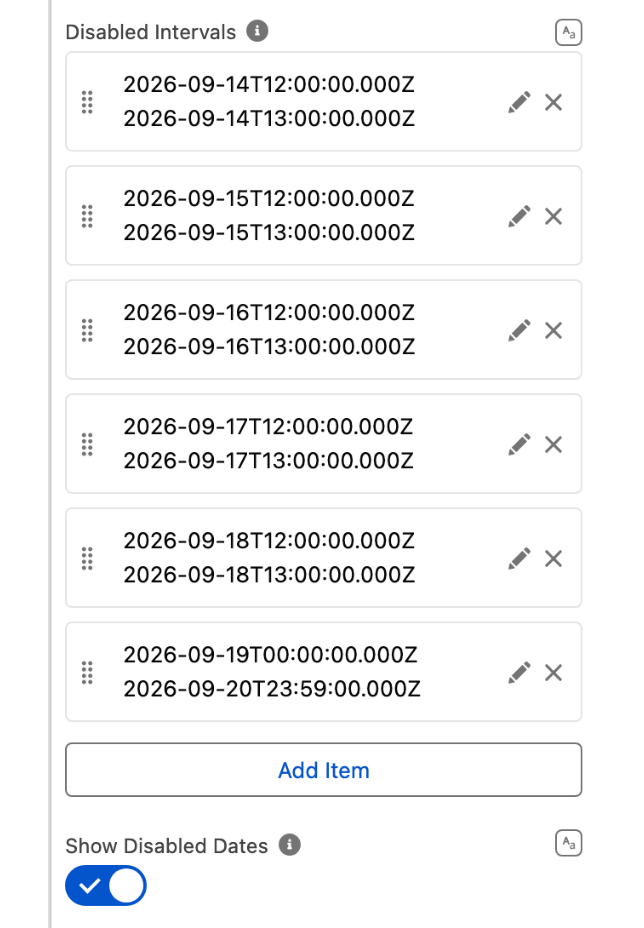
Still in Visible Dates and Times, open Disabled Intervals and add six rows, each with a Start and an End:
Mon, Sep 14, 2026, 12:00 PM
Mon, Sep 14, 2026, 1:00 PM
Lunch
Tue, Sep 15, 2026, 12:00 PM
Tue, Sep 15, 2026, 1:00 PM
Lunch
Wed, Sep 16, 2026, 12:00 PM
Wed, Sep 16, 2026, 1:00 PM
Lunch
Thu, Sep 17, 2026, 12:00 PM
Thu, Sep 17, 2026, 1:00 PM
Lunch
Fri, Sep 18, 2026, 12:00 PM
Fri, Sep 18, 2026, 1:00 PM
Lunch
Sat, Sep 19, 2026, 12:00 AM
Sun, Sep 20, 2026, 11:59 PM
The weekend
Why: an interval greys every slot it covers, so one row handles both lunch slots, and one row handles the whole weekend. Day names such as Sat are not accepted in Disabled Date Times; a dated interval is the way to close the weekend.

Grey out the booked slots
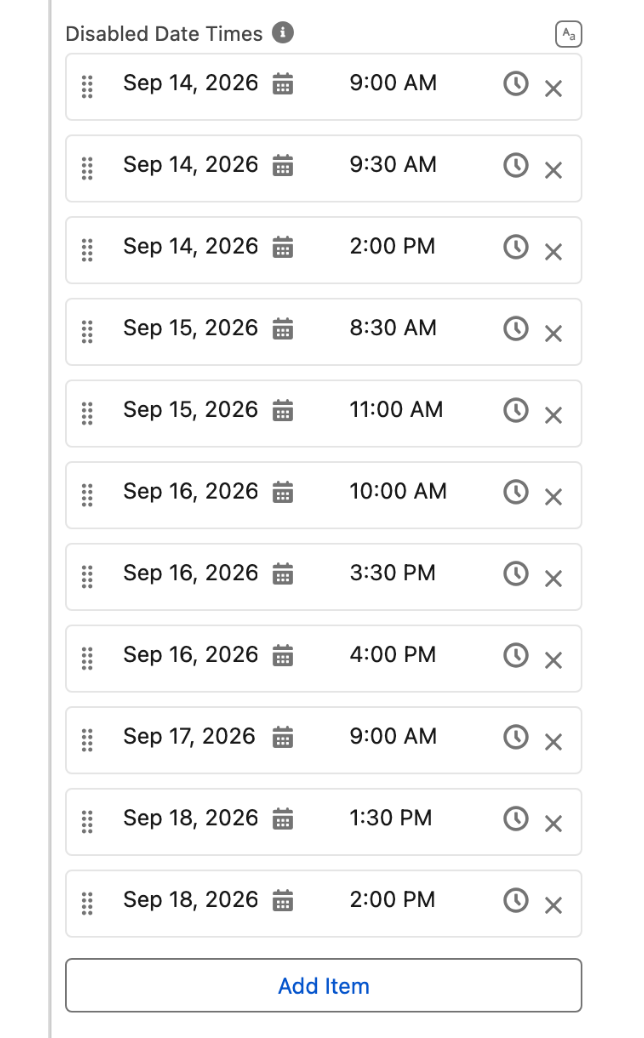
Open Disabled Date Times and add eleven entries, one per booked slot:
Mon, Sep 14, 2026
9:00 AM, 9:30 AM, 2:00 PM
Tue, Sep 15, 2026
8:30 AM, 11:00 AM
Wed, Sep 16, 2026
10:00 AM, 3:30 PM, 4:00 PM
Thu, Sep 17, 2026
9:00 AM
Fri, Sep 18, 2026
1:30 PM, 2:00 PM
Why: a disabled date time greys the slot that starts at that exact time. This fixed list reproduces the figure. In production, the list comes from the appointments already in Salesforce, see Take it further.

Format the days and the hours
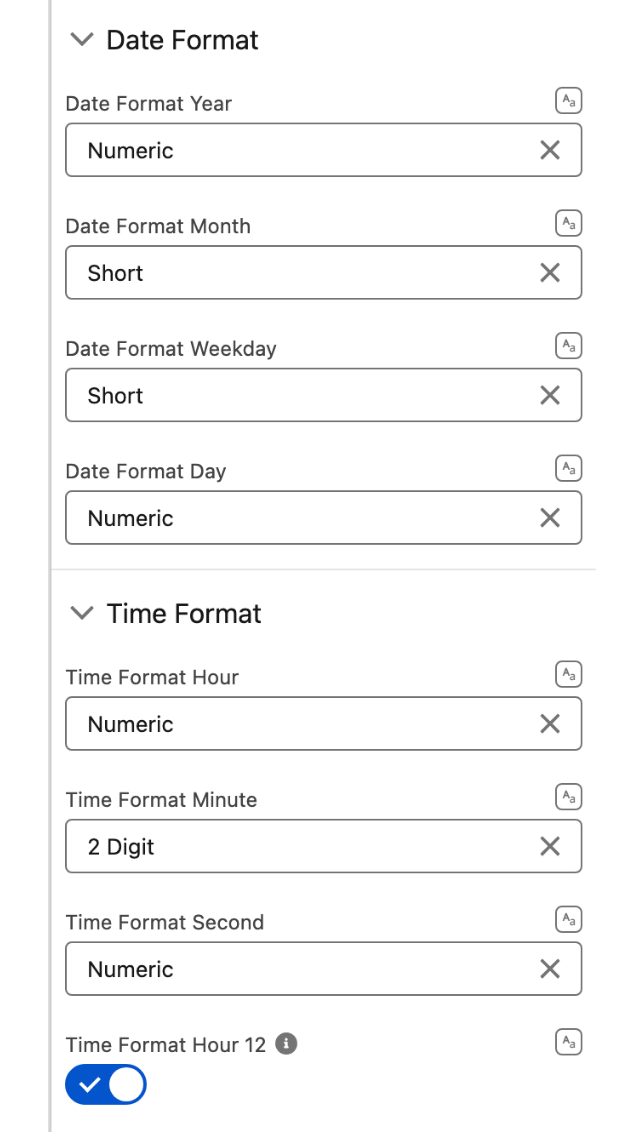
Open the Date Format section: Date Format Weekday Short, Date Format Month Short, Date Format Day Numeric.
Open the Time Format section: Time Format Hour Numeric, Time Format Minute 2 Digit, Time Format Hour 12 on.
Why: the columns read Mon 14 and the band reads Sep 14. The figure shows the slots as 8:00 AM. Built from the panel they read 8:00:00 AM: Time Format Second offers Numeric or 2 Digit and no empty value, so the seconds stay (see Troubleshooting).

Use the slot in step 3, activate
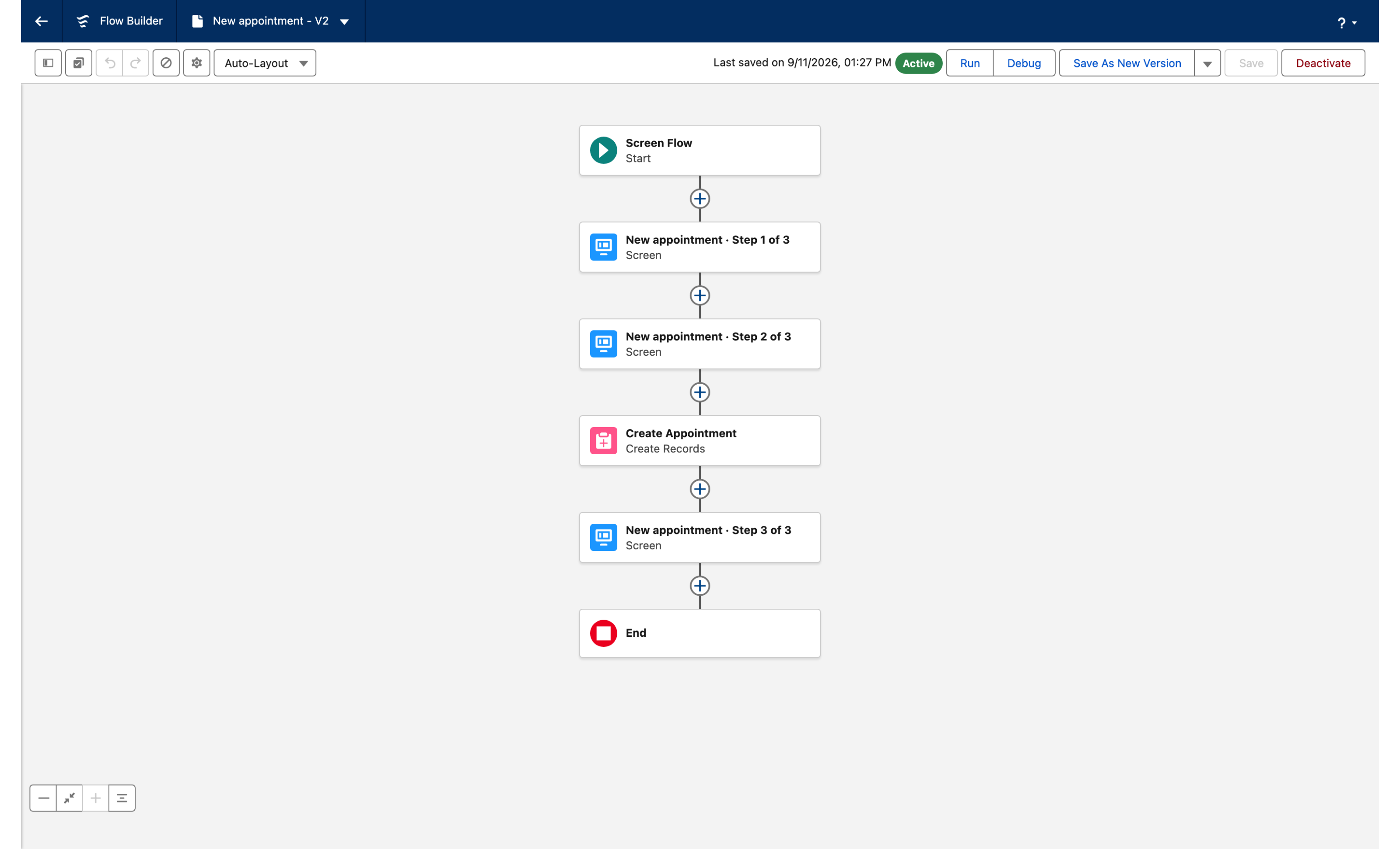
Click Done. After the second screen, add a Create Records element on Event with
StartDateTimeset to{!appointmentSlot.value},SubjecttoHygiene visit, and the other fields your appointment needs.Save the flow and click Activate. Add it to the Appointments page of your app with the standard Flow component in Lightning App Builder, or launch it from the patient record.
Why: Value is the picked slot as a date and time. In Radio mode it holds the single selection.
The settings that matter
Variant (variant) with Date Picker Variant (datePickerVariant)
Weekly, Inline
One week of columns with the date band above them.
Type (type) with Display Next Button (displayNextButton)
Radio, off
One slot per visit, and the flow footer does the Next.
Disabled Intervals (disabledIntervalsSerialized), Disabled Date Times (disabledDateTimesSerialized), Show Disabled Dates (showDisabledDates)
lunch and weekend as intervals, eleven booked slots as date times, on
Taken time stays visible in grey instead of vanishing.
Start Time, End Time, Time Slot Duration (startTime, endTime, timeSlotDuration)
08:00, 17:00, 00:30
The clinic's day, in thirty minute slots, the last one at 4:30 PM.
Interactions
Change, fires when the receptionist selects a slot
Optional: Flow Navigation to move to the next screen as soon as a slot is picked
The Next direction. The figure keeps the standard footer instead, so the receptionist can change her mind before leaving the screen.
Try it
Start the flow and click Next. The week of September 14 opens with Tuesday 15 highlighted in the band, lunch and the weekend in grey, and the eleven booked slots in grey.
Click Next without picking: the field reports that a value is required and the flow stays on the screen. Click the Tuesday 15 slot at 10:30: the button turns solid blue. Click Next: step 3 opens and the Event is created with that start.
Use the next-week arrow: the week of September 21 has no grey slots on weekdays, because the fixed lists cover the 14th to the 20th only. That is the limit of the fixed version, and why the production version below reads the calendar.
Take it further
Read the booked slots from Salesforce. Disabled Date Times accepts a mapped Date/Time collection variable, so the grey slots can come from the appointments already in the org:
Before the slot screen, add a Get Records on Event (or your appointment object) for the practitioner and the date range you show, storing
StartDateTime.Add a Loop over the result and an Assignment that adds
{!Loop.StartDateTime}to a Date/Time collection variable. The tutorial How to create Collection Variables for StartDateTime and EndDateTime walks through those two elements.In the picker, switch Disabled Date Times to Mapped and select that collection.
A disabled date time greys the slot that starts at that time. A 45 minute visit covers two thirty minute slots, so add the start of each slot the visit overlaps. The How to Block Out Times tutorial shows the same idea in a video.
The same picker exists on two other Avonni surfaces:
Date Time Picker for Dynamic Components, on a Lightning page, with the same Weekly variant, disabled intervals and disabled date times.
Date Time Picker for LWC Components, as the
avonni-date-time-pickertag in your own component. It takesdisabledDateTimesbut has no disabled intervals, so lunch and the weekend are listed slot by slot.
There is no Date/Time Picker for Experience Sites; this screen flow can run on a site instead.
Two variations worth trying:
Turn on Show End Time so each button reads
10:30 AM - 11:00 AM.Turn on Hide Navigation when the receptionist must book within the visible week only.
Troubleshooting
Saturday and Sunday still appear, as grey columns
The Weekly variant always shows seven days. With Show Disabled Dates on, the disabled weekend is shown in grey.
This is the figure's state. Turning Show Disabled Dates off hides the weekend columns, but also hides lunch and the booked slots instead of greying them. Choose one behavior for the whole picker.
Entering Sat or Sun in Disabled Date Times does nothing
Only values that parse as dates are kept. Day names are dropped.
Close the weekend with a row in Disabled Intervals, from Saturday 12:00 AM to Sunday 11:59 PM.
The date band highlights Monday, not the day of the chosen slot
The band marks the Default Visible Date, not the selection.
Set Default Visible Date to the day you want highlighted. The week shown does not change as long as the date stays in the same week.
The slots read 8:00:00 AM, with seconds
Time Format Second defaults to Numeric on the Flow component, and the panel offers Numeric or 2 Digit only.
There is no setting in the panel to remove the seconds as of September 2026. Contact Avonni support if the seconds are a problem for your users.
The last slot is 4:30 PM, not 5:00 PM
End Time is the end of the last slot.
Set End Time to 17:30 to offer a slot starting at 5:00 PM.
Grey slots are shifted by a few hours for some users
Disabled date times are stored as absolute instants and displayed in each user's time zone. A lunch entered as 12:00 PM in one time zone shows at another hour for a user in a different one.
Enter the values in the time zone of the clinic and make sure the users who book share it, or turn on Show Time Zone so the picker shows which zone it displays.
Was this helpful?