> For the complete documentation index, see [llms.txt](https://docs.avonnicomponents.com/llms.txt). Markdown versions of documentation pages are available by appending `.md` to page URLs; this page is available as [Markdown](https://docs.avonnicomponents.com/projects/use-cases/expense-approvals-grouped-by-employee.md).

# Expense approvals, grouped by employee

## Overview

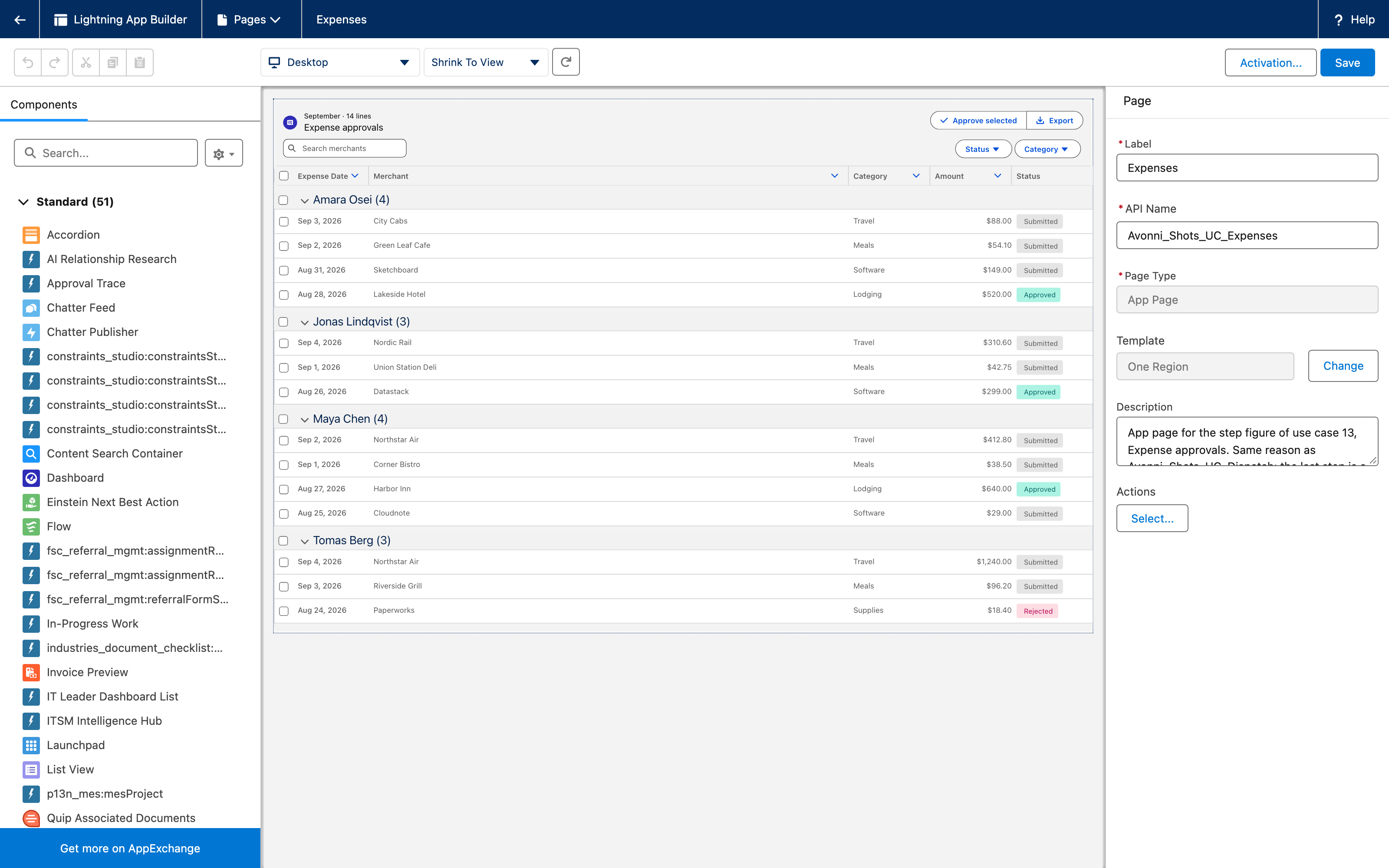
Fourteen expense lines grouped by employee, status badges, three lines checked and an Approve selected button. A finance manager's whole review, in one tag. The whole page is one **Data Table Group By** (`avonni-dd-datatable-group-by`) on an app page, grouping expense records by employee through its own query. This tutorial rebuilds the **Expenses** tab of the Finance app in your own org.

## What you build

![Avonni Data Table Group By in a Lightning Web Component: expense lines grouped by employee with counts, status badges, three checked rows and an Approve selected button](https://3857391697-files.gitbook.io/~/files/v0/b/gitbook-x-prod.appspot.com/o/spaces%2FdHOej9Pd5IxJNGEJMZKW%2Fuploads%2FF4VLsIcKf5Rg422hJrMs%2Fuc-13-expense-approvals-lwc.png?alt=media)

* The **Expenses** tab of Finance opens on the September lines: four employees, four groups with a count, Amara Osei (4), Jonas Lindqvist (3), Maya Chen (4), Tomas Berg (3).
* Every line carries its date, merchant, category, amount aligned right and a status badge: Submitted gray, Approved green, Rejected red.
* Two of Maya Chen's lines and one of Tomas Berg's are checked, and their group checkboxes show the partial state.
* **Approve selected** sits in the header next to **Export**. **Status** and **Category** filter the table, the search box finds a merchant.

## Before you start

{% hint style="info" %}
**Adapt this to your own org.** Expense is an object this tutorial creates, because the org it was captured in had none. If your expenses live somewhere else, point the query at that object and rename the columns. Two things carry this page and are worth keeping when you swap the object: a field to group on, `Employee__c` here, and a text field returning the badge variant, so each row colors itself.
{% endhint %}

* The [Avonni LWC Components](https://appexchange.salesforce.com/appxListingDetail?listingId=a0N4V00000FiERkUAN) package is installed, and the approvers hold a license and the package permission set. See [Installation & Licenses Management](https://docs.avonnicomponents.com/lwc-components/getting-started/installation-and-licenses-management).
* A Lightning app with an app page for the review. The examples below use the **Expenses** tab of the Finance app.
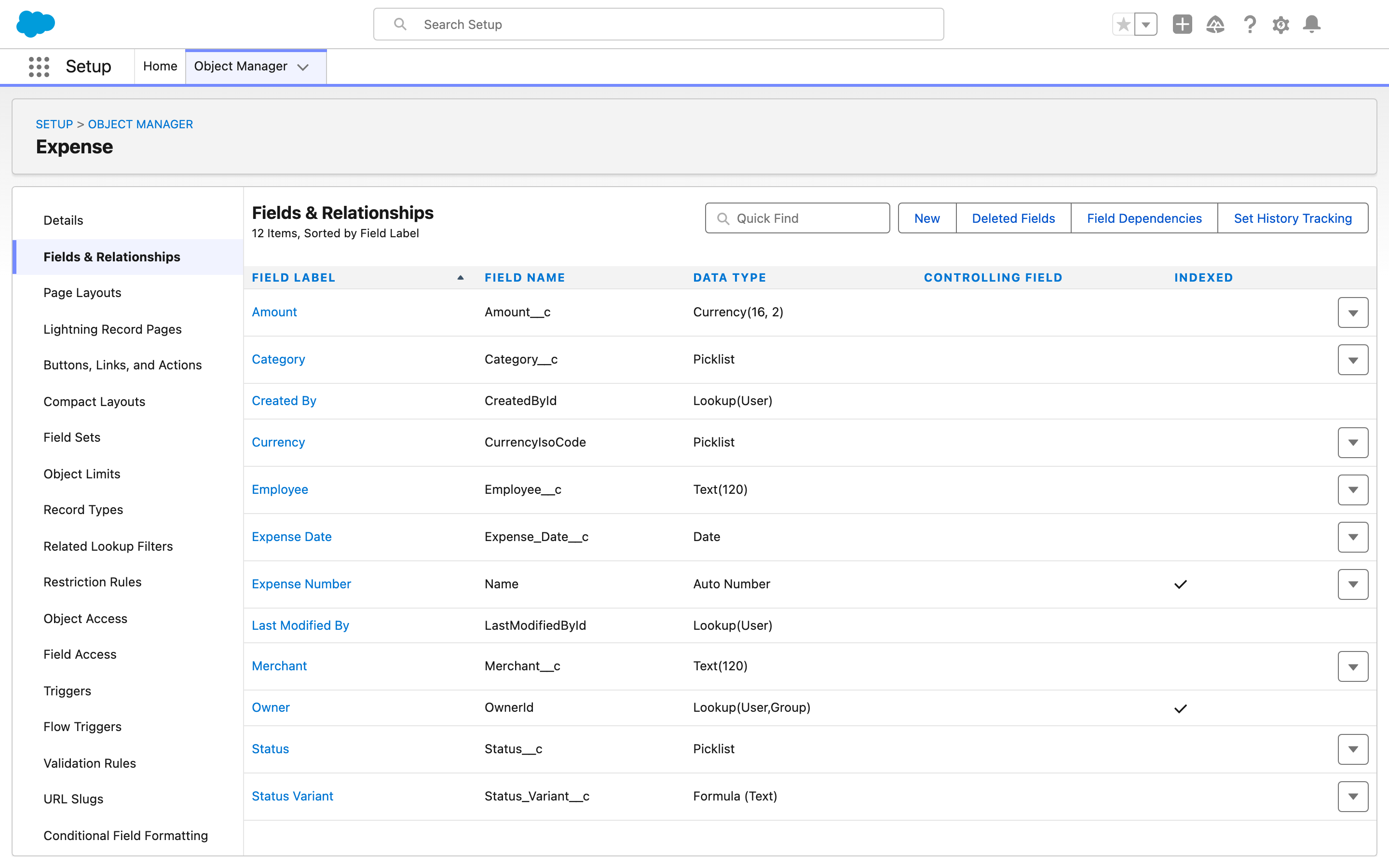
* A custom object for the expense lines. The table needs these fields:

| Object                 | Field               | Type                                                           | Role                                               |
| ---------------------- | ------------------- | -------------------------------------------------------------- | -------------------------------------------------- |
| Expense (`Expense__c`) | `Name`              | Auto Number, `EXP-{0000}`                                      | The line number. Not displayed.                    |
|                        | `Employee__c`       | Text                                                           | The group. One group per distinct value.           |
|                        | `Expense_Date__c`   | Date                                                           | The **Date** column and the sort inside each group |
|                        | `Merchant__c`       | Text                                                           | The **Merchant** column and the search field       |
|                        | `Category__c`       | Picklist: `Travel`, `Meals`, `Lodging`, `Software`, `Supplies` | The **Category** column and the second filter      |
|                        | `Amount__c`         | Currency, 2 decimal places                                     | The **Amount** column                              |
|                        | `Status__c`         | Picklist: `Submitted` (default), `Approved`, `Rejected`        | The badge text and the first filter                |
|                        | `Status_Variant__c` | Formula (Text)                                                 | Turns the status into a badge color, see step 1    |

The field names above are the bare API names. If your org has a namespace, every custom field is addressed with its prefix (`ns__Employee__c`) in the query, the columns, the filters and the search fields.

**Sample data.** Fourteen lines, August 24 to September 4, 2026, four employees:

| Employee        | Date         | Merchant           | Category | Amount   | Status    |
| --------------- | ------------ | ------------------ | -------- | -------- | --------- |
| Amara Osei      | Sep 3, 2026  | City Cabs          | Travel   | 88.00    | Submitted |
| Amara Osei      | Sep 2, 2026  | Green Leaf Cafe    | Meals    | 54.10    | Submitted |
| Amara Osei      | Aug 31, 2026 | Sketchboard        | Software | 149.00   | Submitted |
| Amara Osei      | Aug 28, 2026 | Lakeside Hotel     | Lodging  | 520.00   | Approved  |
| Jonas Lindqvist | Sep 4, 2026  | Nordic Rail        | Travel   | 310.60   | Submitted |
| Jonas Lindqvist | Sep 1, 2026  | Union Station Deli | Meals    | 42.75    | Submitted |
| Jonas Lindqvist | Aug 26, 2026 | Datastack          | Software | 299.00   | Approved  |
| Maya Chen       | Sep 2, 2026  | Northstar Air      | Travel   | 412.80   | Submitted |
| Maya Chen       | Sep 1, 2026  | Corner Bistro      | Meals    | 38.50    | Submitted |
| Maya Chen       | Aug 27, 2026 | Harbor Inn         | Lodging  | 640.00   | Approved  |
| Maya Chen       | Aug 25, 2026 | Cloudnote          | Software | 29.00    | Submitted |
| Tomas Berg      | Sep 4, 2026  | Northstar Air      | Travel   | 1,240.00 | Submitted |
| Tomas Berg      | Sep 3, 2026  | Riverside Grill    | Meals    | 96.20    | Submitted |
| Tomas Berg      | Aug 24, 2026 | Paperworks         | Supplies | 18.40    | Rejected  |

Ten Submitted, three Approved, one Rejected, so every badge color is on the page and the table still reads as a queue.

**Permissions.** Approvers need Read on Expense and its fields, and Edit on `Status__c` for **Approve selected** to save. The Avonni query follows Salesforce sharing.

## Build it

{% stepper %}
{% step %}

### Create the object, the badge formula and the records

1. In **Setup**, open **Object Manager** and create the **Expense** object with the fields listed above.
2. Add the **Status Variant** formula field (return type Text):

```
CASE(TEXT(Status__c), "Approved", "success", "Rejected", "error", "base")
```

3. Load the fourteen sample lines.

*Why:* the badge column colors itself from a named variant (`success`, `error`, `base`, and so on). A formula that returns the variant per status lets every row pick its own color, with nothing to maintain in the code when a status is added.
{% endstep %}

{% step %}

### Create the component and place the tag

Create a Lightning web component named `expenseApprovals`. The template is one tag:

```html
<!-- expenseApprovals.html -->
<template>
    <avonni-dd-datatable-group-by
        header-title="Expense approvals"
        header-caption="September · 14 lines"
        header-avatar={headerAvatar}
        header-actions={headerActions}
        header-visible-actions-count="2"
        query={query}
        columns={columns}
        group-by-attributes={groupByAttributes}
        filters={filters}
        search-fields={searchFields}
        search-attributes={searchAttributes}
        read-only
        onselectrows={handleSelectRows}
        onheaderactionclick={handleHeaderAction}
    ></avonni-dd-datatable-group-by>
</template>
```

`read-only` is a boolean attribute: present means on. Leave the checkbox column on its default (shown): the approver selects rows, they do not edit cells.
{% endstep %}

{% step %}

### Write the query, grouped by employee

```js
// expenseApprovals.js
import { LightningElement } from 'lwc';
import { updateRecord } from 'lightning/uiRecordApi';

export default class ExpenseApprovals extends LightningElement {
    selectedIds = [];

    query = {
        objectApiName: 'Expense__c',
        groupBy: 'Employee__c',
        orderBy: 'Employee__c ASC, Expense_Date__c DESC',
        addedFields: ['Status_Variant__c']
    };
```

*Why:* `groupBy` is required on this component and names the field that makes the groups. `orderBy` sorts the lines inside each group, newest first. `addedFields` pulls the formula into every row even though no visible column displays it, so the badge can read it.
{% endstep %}

{% step %}

### Define the columns

| Column   | `fieldName`         | `type`     | Settings                                                      |
| -------- | ------------------- | ---------- | ------------------------------------------------------------- |
| Date     | `Expense_Date__c`   | `date`     | `initialWidth: 130`                                           |
| Merchant | `Merchant__c`       | `text`     |                                                               |
| Category | `Category__c`       | `text`     | `initialWidth: 140`                                           |
| Amount   | `Amount__c`         | `currency` | `initialWidth: 140`, `cellAttributes: { alignment: 'right' }` |
| Status   | `Status__c`         | `badge`    | `initialWidth: 140`, see step 5                               |
| (hidden) | `Status_Variant__c` | `text`     | `hidden: true`                                                |

```js
    columns = [
        { columnType: 'objectField', fieldName: 'Expense_Date__c', type: 'date', label: 'Date', initialWidth: 130 },
        { columnType: 'objectField', fieldName: 'Merchant__c', type: 'text', label: 'Merchant' },
        { columnType: 'objectField', fieldName: 'Category__c', type: 'text', label: 'Category', initialWidth: 140 },
        {
            columnType: 'objectField',
            fieldName: 'Amount__c',
            type: 'currency',
            label: 'Amount',
            initialWidth: 140,
            cellAttributes: { alignment: 'right' }
        },
        {
            columnType: 'objectField',
            fieldName: 'Status__c',
            type: 'badge',
            label: 'Status',
            initialWidth: 140,
            typeAttributes: { variant: { fieldName: 'Status_Variant__c' } }
        },
        { columnType: 'objectField', fieldName: 'Status_Variant__c', type: 'text', hidden: true }
    ];
```

*Why:* `columnType: 'objectField'` binds a column to a record field, `label` overrides the field label in the header, and `initialWidth` keeps the narrow columns narrow so Merchant takes the room. Category stays a text column: a badge there would need a second variant field for five values, with no gain in reading.
{% endstep %}

{% step %}

### Color the Status badge from the formula

In the Status column above, `typeAttributes.variant` is not a fixed value but `{ fieldName: 'Status_Variant__c' }`: the badge reads its variant from the row. The hidden column carries the formula into the row so the value is there to read.

*Why:* a fixed variant colors every badge the same. Bound to the formula field, Approved reads green (`success`), Rejected red (`error`) and Submitted gray (`base`), straight from the data. Valid variants are `base`, `brand`, `inverse`, `alt-inverse`, `success`, `warning`, `error`, `info` and `offline`.
{% endstep %}

{% step %}

### Group counts, header, filters and search

```js
    groupByAttributes = {
        displayGroupRowsCount: true,
        hideUndefinedGroup: true,
        groupByOrderDirection: { direction: 'asc' }
    };

    headerAvatar = { fallbackIconName: 'standard:expense', variant: 'circle', size: 'small' };
    headerActions = [
        { name: 'approve', label: 'Approve selected', iconName: 'utility:check' },
        { name: 'export', label: 'Export', iconName: 'utility:download' }
    ];
    filters = ['Status__c', 'Category__c'];
    searchFields = ['Merchant__c'];
    searchAttributes = { placeholder: 'Search merchants' };
```

*Why:* `displayGroupRowsCount` puts the (4) after Amara Osei; `hideUndefinedGroup` drops a group for lines with no employee; `groupByOrderDirection` `asc` sorts the groups by employee name, so Amara Osei comes first and Tomas Berg last. With `header-visible-actions-count` at `2`, both actions stay buttons. Filters render above the table (`filters-attributes.type` defaults to `horizontal`), one chip per field, labeled with the field label.
{% endstep %}

{% step %}

### Handle the selection and Approve selected

```js
    handleSelectRows(event) {
        this.selectedIds = event.detail.selectedRowsKeyValue;
    }

    async handleHeaderAction(event) {
        if (event.detail.name === 'approve') {
            await Promise.all(
                this.selectedIds.map((Id) => updateRecord({ fields: { Id, Status__c: 'Approved' } }))
            );
            this.template.querySelector('avonni-dd-datatable-group-by').refresh(true);
        }
        // 'export': build the file from the selection or from your own query
    }
}
```

*Why:* `headeractionclick` carries the action `name` only. The selection arrives through `selectrows`, as the key values of the checked rows (`Id` by default), so the handler keeps them as they change. After the update, `refresh(true)` runs the query again and stays on the current page, and the three badges turn green.
{% endstep %}

{% step %}

### Expose the component and put it on the app page

1. In `expenseApprovals.js-meta.xml`, expose the component for app pages and tabs:

```xml
<?xml version="1.0" encoding="UTF-8"?>
<LightningComponentBundle xmlns="http://soap.sforce.com/2006/04/metadata">
    <apiVersion>66.0</apiVersion>
    <isExposed>true</isExposed>
    <masterLabel>Expense Approvals</masterLabel>
    <targets>
        <target>lightning__AppPage</target>
        <target>lightning__Tab</target>
    </targets>
</LightningComponentBundle>
```

2. Deploy, then in **Lightning App Builder** create an **App Page** with one region, drag **Expense Approvals** into it, **Save** and **Activate** it as the **Expenses** tab of the Finance app.
   {% endstep %}
   {% endstepper %}

## The settings that matter

| Setting                                                       | Value                                         | Why                                                                         |
| ------------------------------------------------------------- | --------------------------------------------- | --------------------------------------------------------------------------- |
| `query.groupBy` and `groupByAttributes.displayGroupRowsCount` | `Employee__c`, `true`                         | One group per person, with the count in the group header.                   |
| Status column `type` and `typeAttributes.variant`             | `badge`, `{ fieldName: 'Status_Variant__c' }` | A color per status, driven by the record. A badge reads faster than a word. |
| `read-only` with the checkbox column shown                    | on, default                                   | Select, then act. Nothing is edited in the cell.                            |
| `header-visible-actions-count`                                | `2`                                           | Approve selected and Export both stay one click away.                       |

## Interactions

| Event               | Payload                       | What to do with it                                                                |
| ------------------- | ----------------------------- | --------------------------------------------------------------------------------- |
| `selectrows`        | `selectedRowsKeyValue`        | Keep the ids of the checked rows. Fires on every check and uncheck.               |
| `headeractionclick` | `name`                        | `approve`: update the kept ids, then `refresh(true)`. `export`: your export code. |
| `filter`            | `value`                       | Optional: the filters applied, keyed by field API name.                           |
| `sort`              | `sortedBy`, `sortedDirection` | Optional: the column the end user sorted on.                                      |

## Try it

1. Open the **Expenses** tab: four groups with their counts, Amara Osei first, fourteen lines, three Approved badges in green and one Rejected in red.
2. Filter **Status** on `Rejected`: one line remains, Paperworks under Tomas Berg, and the other three groups disappear. Clear the filter and search `Northstar`: two lines, one under Maya Chen, one under Tomas Berg.
3. Check Northstar Air ($412.80) and Corner Bistro ($38.50) under Maya Chen and Northstar Air ($1,240.00) under Tomas Berg: the two group checkboxes and the header checkbox switch to the partial state. Click **Approve selected**: the table refreshes and the three badges read Approved.

## Take it further

Grouping exists on the Data Table of the other Avonni surfaces, configured in the builder rather than in code:

* [Data Table](https://docs.avonnicomponents.com/flow/flow-components/data-table) for Flow Screen Components, inside a screen flow, with its **Group By** section.
* [Data Table](https://docs.avonnicomponents.com/dynamic-components/components/data-table) for Dynamic Components, on a Lightning page, with the **Group By** field in **Data Mappings**.

Variations worth trying:

* Groups in a chosen order: `groupByOrderDirection: { direction: 'custom', customValue: ['Maya Chen', 'Tomas Berg', 'Amara Osei', 'Jonas Lindqvist'] }`.
* Start folded: `collapsed: true` in `groupByAttributes` opens every group closed.
* Volume: `show-pagination` with `items-per-page` when a month runs past a screen.

## Troubleshooting

| Problem                                                     | Cause                                                                                                     | Fix                                                                                                                                                               |
| ----------------------------------------------------------- | --------------------------------------------------------------------------------------------------------- | ----------------------------------------------------------------------------------------------------------------------------------------------------------------- |
| Every badge has the same color                              | `typeAttributes.variant` is a fixed value, or the formula returns a name that is not a badge variant.     | Bind `variant` to `{ fieldName: 'Status_Variant__c' }`, keep the hidden column and `addedFields`, and make sure the formula returns `success`, `error` or `base`. |
| The table shows an error or blank cells in a namespaced org | The query and the columns name `Employee__c`, and the org knows the field as `ns__Employee__c`.           | Prefix every custom field name, in the query, the columns, `filters` and `searchFields`.                                                                          |
| The groups are not in the order you expected                | `groupByOrderDirection` `asc` sorts the groups by the value of the group field, alphabetically.           | Use `direction: 'custom'` with `customValue` listing the values in your order.                                                                                    |
| A group checkbox shows a dash instead of a check            | Some rows of the group are checked and some are not.                                                      | Nothing: it is the partial state. Check the group box to select the whole group.                                                                                  |
| **Approve selected** does nothing                           | The handler expects the selection in the `headeractionclick` payload, which carries the action name only. | Handle `selectrows` and keep `selectedRowsKeyValue`; approve those ids.                                                                                           |
| The update fails for some users                             | The user lacks Edit on `Status__c` or on the object; `updateRecord` respects field-level security.        | Grant Edit on Expense and on the **Status** field to the approvers.                                                                                               |


---

# Agent Instructions
This documentation is published with GitBook. GitBook is the documentation platform designed so that both humans and AI agents can read, navigate, and reason over technical content effectively. Learn more at gitbook.com.

## Querying This Documentation
If you need additional information that is not directly available in this page, you can query the documentation dynamically by asking a question.

Perform an HTTP GET request on the current page URL with the `ask` query parameter, and the optional `goal` query parameter:

```
GET https://docs.avonnicomponents.com/projects/use-cases/expense-approvals-grouped-by-employee.md?ask=<question>&goal=<endgoal>
```

`ask` is the immediate question: it should be specific, self-contained, and written in natural language.
`goal` is optional and describes the broader end goal you are ultimately trying to accomplish on behalf of the user. GitBook uses it to tailor the answer towards what is most useful for that goal.

The response will contain a direct answer to the question and relevant excerpts and sources from the documentation.

Use this mechanism when the answer is not explicitly present in the current page, you need clarification or additional context, or you want to retrieve related documentation sections.