> For the complete documentation index, see [llms.txt](https://docs.avonnicomponents.com/llms.txt). Markdown versions of documentation pages are available by appending `.md` to page URLs; this page is available as [Markdown](https://docs.avonnicomponents.com/projects/use-cases/boards-and-pipelines/shipment-tracking-wall.md).

# Shipment Tracking Wall

Track every parcel on one board, refreshed by platform events as the carrier reports.

{% hint style="danger" %}

#### **This is not a carrier integration**

The wall shows what your org already knows about each shipment. Getting the carrier's status into Salesforce is a callout you own, and the carrier decides what it will tell you and how often. This page shows the Salesforce half: how the board reads, and how it stays current without anyone pressing refresh.
{% endhint %}

{% hint style="warning" %}

#### **Before you start**

This use case has configuration prerequisites, including an object to hold shipments and a callout to your carrier. Make sure you review the [**Set up**](#set-up) section of this page before building!
{% endhint %}

{% hint style="success" %}

#### **Learning focus points**

* Repeating one card design across records with the **Repeater**
* Driving a **Progress Indicator** from a record's own status field
* Refreshing every open board from a **platform event**, with no polling
  {% endhint %}

## Objective

Stop customer service from living in the carrier's website.

An agent takes a call asking where an order is. The answer exists, but not in Salesforce: it is on the carrier's tracking page, in another tab, behind a tracking number the agent has to copy across. So every question costs a context switch, and the answer the agent reads is already stale by the time the next person asks.

Worse, nobody can see the shipments that are about to go wrong. A tracking page answers one parcel at a time. It never shows you the six that have not moved in three days.

***

## Solution

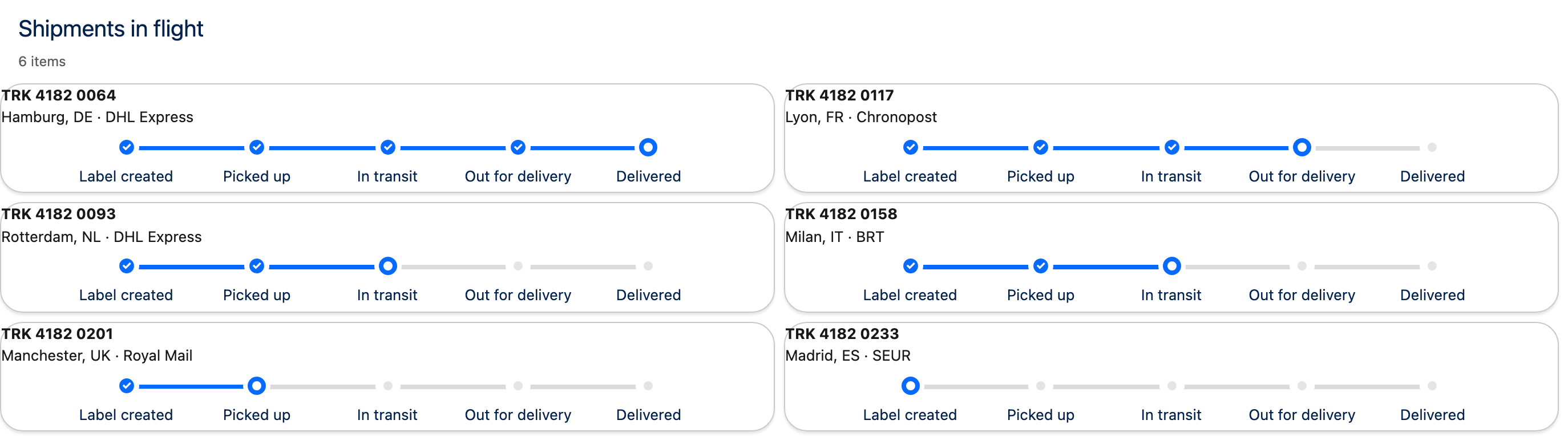
One board, one card per shipment, each card showing exactly where that parcel is in the carrier's own sequence. The board updates itself when the carrier's status changes, so what the agent reads on screen is what the carrier last told us.

This is the same live refresh pattern as the [**Live Call Board**](/projects/use-cases/boards-and-pipelines/live-call-board.md), pointed at external data instead of internal state, and it reuses the external callout approach from [**Contact Local Weather**](/projects/use-cases/outside-data/contact-local-weather.md).

### How It Works (User Perspective)

1. The agent opens the shipment board.
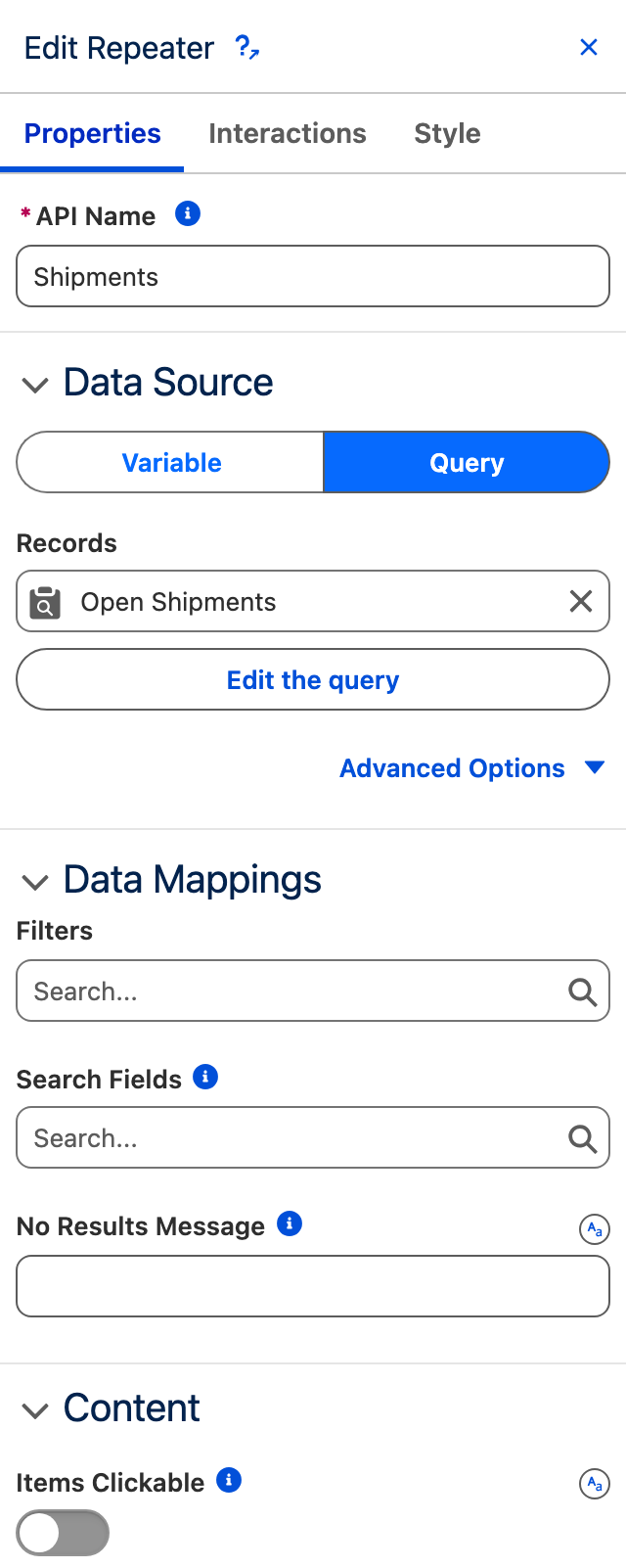
2. Every open shipment is a card, with its tracking number, destination and a progress bar through the carrier's stages.
3. Cards that are stuck are obvious, because their progress sits where it sat yesterday.
4. When the carrier reports a scan, **the card advances on every open board at once**, with nobody pressing refresh.

<figure><img src="https://3857391697-files.gitbook.io/~/files/v0/b/gitbook-x-prod.appspot.com/o/spaces%2FdHOej9Pd5IxJNGEJMZKW%2Fuploads%2FnBy4h2rkFz4CE3gErk6K%2Fshipment-wall.png?alt=media" alt="A board titled Shipments in flight with six cards, each showing a tracking number, destination, carrier and a five-stage progress bar at its own point"><figcaption><p>Six shipments, one card each, every one sitting where the carrier last reported it.</p></figcaption></figure>

### What we'll create

* 1 **Avonni Dynamic Component** holding the board
* 1 **Repeater** rendering one card per shipment
* 1 **Progress Indicator** per card, driven by the shipment's status
* 1 **scheduled flow** that asks the carrier what changed
* 1 **platform event** that pushes the change to every open board

***

## Set up

### Prerequisites

**An object to hold shipments**

* A `Shipment__c` custom object, or whatever you already use, with at least a tracking number, a destination and a **status picklist**.
* Make the status picklist values the carrier's stages, in order. Getting this right now matters: the picklist is what the progress bar reads, and it can also be what supplies the steps.

**A way to reach the carrier**

* A Named Credential and an External Service for your carrier's tracking API, the same shape as the external service in [Contact Local Weather](/projects/use-cases/outside-data/contact-local-weather.md).
* Check the carrier's rate limit before you choose a schedule. Most refuse to be asked every minute.

**A platform event**

* A platform event named `ShipmentUpdate__e`. It carries no payload the board needs; it exists to say "something moved".

### Build the shipment card

{% stepper %}
{% step %}

#### **Create the Dynamic Component**

Create a component named `Shipment_Tracking_Wall`. It sits on a page of its own rather than a record page, because the board is about all shipments, not one.
{% endstep %}

{% step %}

#### **Add the Repeater**

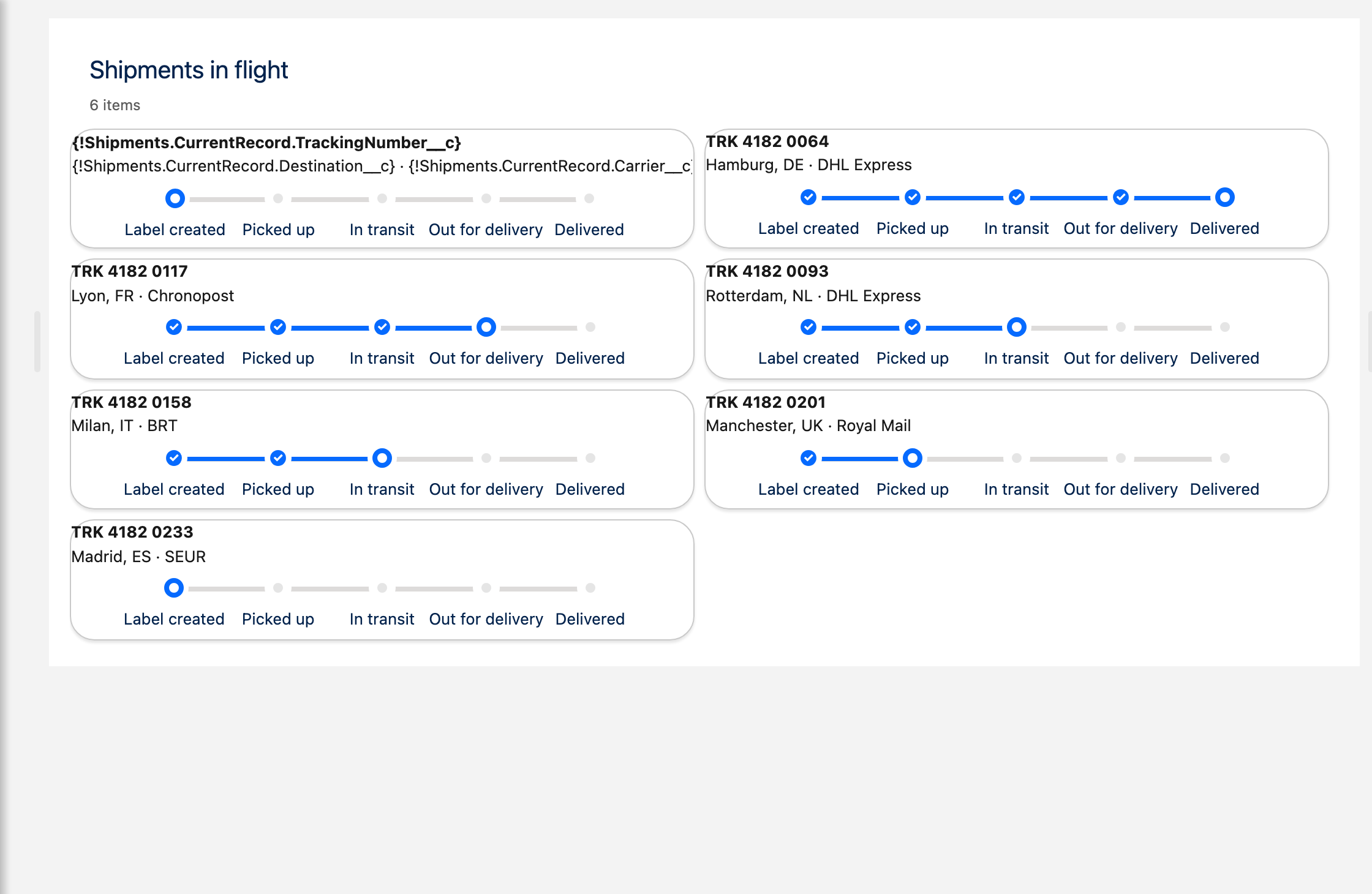
Drop a **Repeater** on the canvas and set its data source to a query on `Shipment__c`, filtered to the shipments still moving.

Name it `Shipments`. That name is the prefix of every binding on the card, so choosing it now saves renaming later.

Set the columns per breakpoint so the board reflows: **1** column on the smallest container and **2** from medium up. Two columns rather than three is deliberate: five stage labels need the width, and at three columns they truncate. Turn on **Equal heights** so a card with a long address does not make its neighbours ragged.

<figure><img src="https://3857391697-files.gitbook.io/~/files/v0/b/gitbook-x-prod.appspot.com/o/spaces%2FdHOej9Pd5IxJNGEJMZKW%2Fuploads%2FZdAIQrhyfHeC66qoenCm%2Fshipment-repeater-data.png?alt=media" alt="The Edit Repeater panel: API Name Shipments, a Variable and Query data source switch with Query selected, and the Open Shipments query" width="320"><figcaption><p>The Repeater reads records from a query. There is no manual list option.</p></figcaption></figure>

{% hint style="info" %}
Set **divider** to `card` and each item gets its own card surface, which is what makes a grid of records read as a wall rather than a list.
{% endhint %}

{% hint style="warning" %}
Give the query a **row limit** and at least one **filter**. A query with neither left the board spinning instead of rendering.
{% endhint %}
{% endstep %}

{% step %}

#### **Lay out one card**

Everything you put in the Repeater's content slot is the template for one card. Add the tracking number and the destination, binding each to the current record with the Repeater's expression:

`{!Shipments.CurrentRecord.TrackingNumber__c}`

Every field you bind must be in the query's selected fields, or the expression resolves to nothing.

<figure><img src="https://3857391697-files.gitbook.io/~/files/v0/b/gitbook-x-prod.appspot.com/o/spaces%2FdHOej9Pd5IxJNGEJMZKW%2Fuploads%2F92anNZkpiLEHR4RLpjig%2Fshipment-wall-builder-canvas.png?alt=media" alt="The builder canvas: the first card shows the raw binding expressions, the other five show the same template resolved against their own shipment"><figcaption><p>The first card is the template you edit. The rest are the same template resolved, one per record.</p></figcaption></figure>
{% endstep %}

{% step %}

#### **Add the carrier stages**

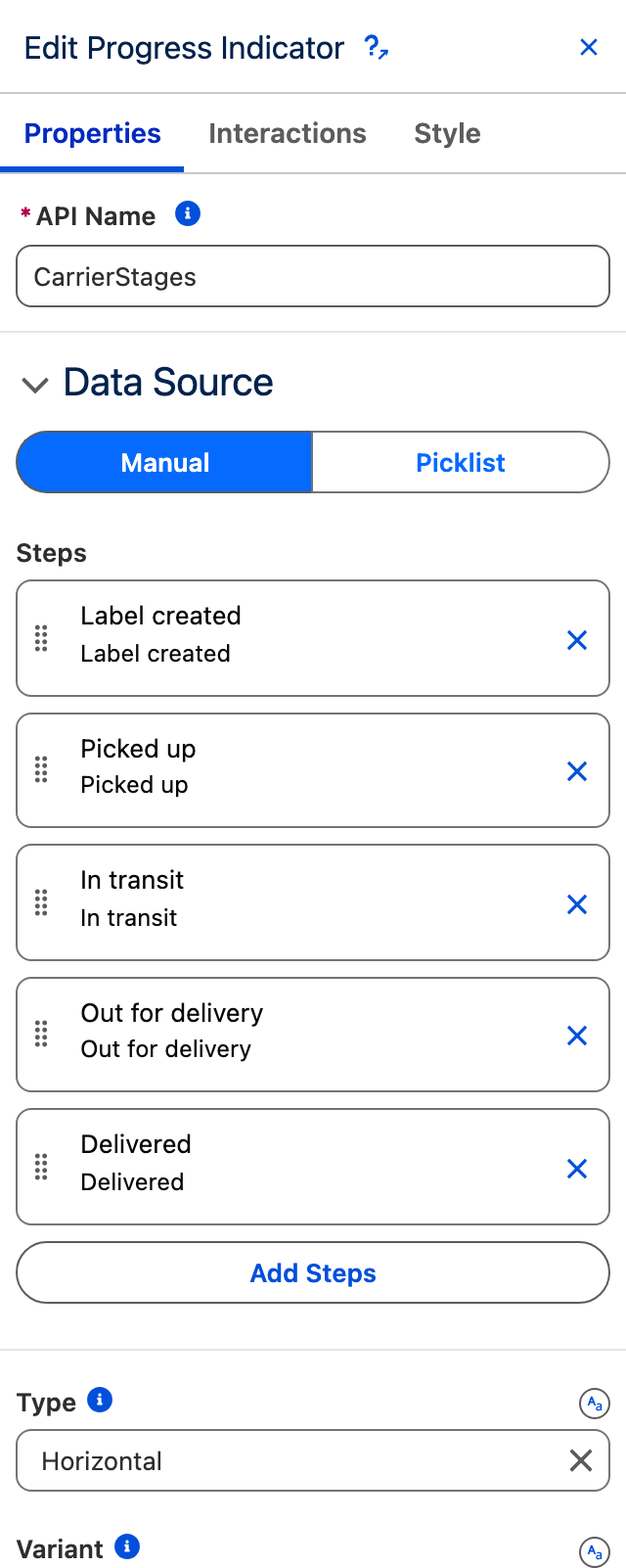
Add a **Progress Indicator** to the card and open its **Properties** tab. Its Data Source offers **Manual** and **Picklist**.

* **Manual** means you type the five stages once, as below.
* **Picklist** means the steps come from a picklist field, so the board and the field can never drift apart.

Pick **Picklist** and point it at your status field if your stages live there. Use Manual when the display order differs from the picklist order.

<figure><img src="https://3857391697-files.gitbook.io/~/files/v0/b/gitbook-x-prod.appspot.com/o/spaces%2FdHOej9Pd5IxJNGEJMZKW%2Fuploads%2FuC9FNHch9rxklPp3bE96%2Fshipment-card-builder-properties.png?alt=media" alt="The Edit Progress Indicator panel: the Manual and Picklist data source switch, the five carrier stage steps listed, and Type set to Horizontal" width="320"><figcaption><p>The five carrier stages, typed once and reused by every card.</p></figcaption></figure>
{% endstep %}

{% step %}

#### **Point each card at its own stage**

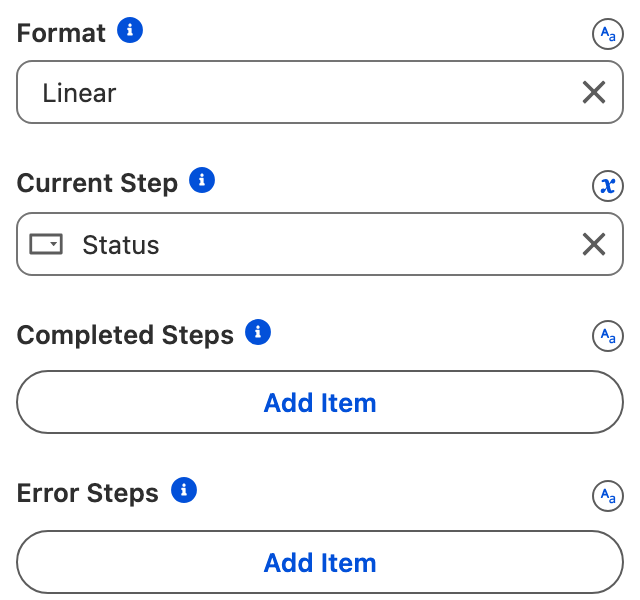
The steps are the same on every card. What differs is where each shipment sits, so bind **Current Step** to the record:

`{!Shipments.CurrentRecord.Status__c}`

The value must match a step's value, not its label. Set **Show step label** on so the stage is readable, and leave the format **linear**, because a parcel does not skip being picked up.

<figure><img src="https://3857391697-files.gitbook.io/~/files/v0/b/gitbook-x-prod.appspot.com/o/spaces%2FdHOej9Pd5IxJNGEJMZKW%2Fuploads%2FAg6S00i5IRfFf5dsFGSx%2Fshipment-current-step.png?alt=media" alt="The Progress Indicator settings: Format set to Linear and Current Step bound to the Status field, marked with the expression icon" width="320"><figcaption><p>Current Step carries an expression, not a value. That is what makes each card differ.</p></figcaption></figure>

One binding, and the same five steps now render six different states:

<figure><img src="https://3857391697-files.gitbook.io/~/files/v0/b/gitbook-x-prod.appspot.com/o/spaces%2FdHOej9Pd5IxJNGEJMZKW%2Fuploads%2FfDqTt8MiVEYwEIr193xK%2Fshipment-carrier-stages.png?alt=media" alt="Three progress indicators with the same five carrier stages, showing shipments in transit, out for delivery and delivered"><figcaption><p>The same component on three shipments, driven only by what is in each record's status field.</p></figcaption></figure>
{% endstep %}
{% endstepper %}

### Keep it live

The board is correct at this point, and stale the moment it loads. These three steps are what make it a wall worth leaving open.

{% stepper %}
{% step %}

#### **Ask the carrier on a schedule**

Build a scheduled flow that runs on your chosen interval, gets the shipments still moving, calls the carrier's tracking action for each, and updates the status when it differs.

Update only on a real change. A flow that writes the same status back every run publishes a change event every run, and the board flickers for no reason.
{% endstep %}

{% step %}

#### **Announce the change**

In the same flow, after the update, create a `ShipmentUpdate__e` platform event record. That is the announcement that something moved.
{% endstep %}

{% step %}

#### **Subscribe the board**

On the Repeater's query, set the advanced setting **Refresh Channel Emp** to `ShipmentUpdate__e`.

The query now listens on that channel and re-runs every time an event is published, so every open board updates itself. This is the same mechanism the [Live Call Board](/projects/use-cases/boards-and-pipelines/live-call-board.md) uses, and it is what replaces polling.
{% endstep %}
{% endstepper %}

***

## Going further

**Let agents find one parcel fast.** Turn on the Repeater's search and add the tracking number to its search fields, so the board answers the "where is my order" call directly.

**Surface the stuck ones.** Add a filter on the status field, or sort by last update ascending, and the shipments nobody has looked at rise to the top.

**Make a card actionable.** The Repeater exposes the clicked record, so an item click can open a side panel with the full history, or launch a flow that emails the customer an update.

**Show a stalled parcel as stalled.** The Progress Indicator takes error steps as well as completed ones, so an exception reported by the carrier can turn that step red instead of leaving the bar looking healthy.

**Related components**

* Repeater
* Progress Indicator
* Columns Container


---

# Agent Instructions
This documentation is published with GitBook. GitBook is the documentation platform designed so that both humans and AI agents can read, navigate, and reason over technical content effectively. Learn more at gitbook.com.

## Querying This Documentation
If you need additional information that is not directly available in this page, you can query the documentation dynamically by asking a question.

Perform an HTTP GET request on the current page URL with the `ask` query parameter, and the optional `goal` query parameter:

```
GET https://docs.avonnicomponents.com/projects/use-cases/boards-and-pipelines/shipment-tracking-wall.md?ask=<question>&goal=<endgoal>
```

`ask` is the immediate question: it should be specific, self-contained, and written in natural language.
`goal` is optional and describes the broader end goal you are ultimately trying to accomplish on behalf of the user. GitBook uses it to tailor the answer towards what is most useful for that goal.

The response will contain a direct answer to the question and relevant excerpts and sources from the documentation.

Use this mechanism when the answer is not explicitly present in the current page, you need clarification or additional context, or you want to retrieve related documentation sections.