> For the complete documentation index, see [llms.txt](https://docs.avonnicomponents.com/llms.txt). Markdown versions of documentation pages are available by appending `.md` to page URLs; this page is available as [Markdown](https://docs.avonnicomponents.com/projects/use-cases/boards-and-pipelines/opportunity-pipeline-board.md).

# Opportunity Pipeline Board

Move a deal by dragging its card, and let a validation rule refuse the moves that are not ready.

{% hint style="danger" %}

#### **The board saves the move, then asks**

Dragging a card writes the new stage to the record immediately. The interaction you attach to the drop runs afterwards, and it runs whether that write succeeded or failed. So a flow on Item Drop is a follow-up, never a gate, and it cannot assume the move stuck. If a move has to be refused, the platform refuses it: a validation rule or a required field.
{% endhint %}

{% hint style="warning" %}

#### **Before you start**

This use case needs a screen flow and, if you want a move to be refusable, a validation rule on the object you are grouping. Review the [**Set up**](#set-up) section before you build.
{% endhint %}

{% hint style="success" %}

#### **Learning focus points**

* Turning a picklist into columns with the **Kanban** group field
* Getting a live total per column from a **group summary**
* Letting the platform refuse a move, and keeping the board honest about it
  {% endhint %}

## Objective

Stop the pipeline from being a week old.

Every sales team has the same gap between what is happening and what Salesforce says is happening. A rep knows a deal moved to Negotiation on Tuesday. Recording it means opening the record, finding the stage picklist, changing it, saving, and then remembering the next step that the new stage implies. None of that is hard. It is just enough friction that it waits, and what it usually waits for is the forecast meeting on Friday.

By then the manager is asking about a pipeline that describes last week, and the stage totals are wrong in the same direction every time: too much sitting in early stages, too little where the deals actually are.

The board is the fix, and it is not really about drag and drop. It is about making the update take one second instead of thirty, and making sure a deal only lands in a stage it qualifies for.

***

## Solution

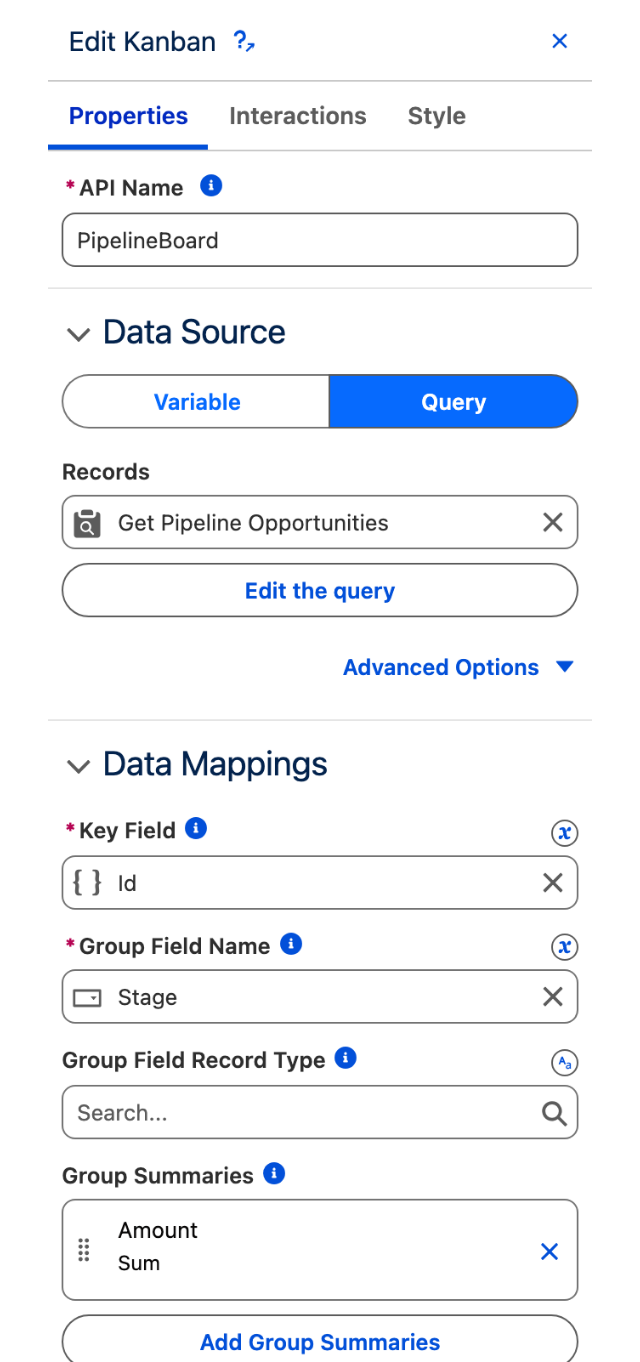
One board. Columns are stages, cards are deals, and each column carries the money in it. Moving a deal is a drag, and the drag is the save.

Three pieces do the work, and dividing them correctly is the whole trick:

* The **gate** is a validation rule. It is the only thing that can refuse a drag.
* The **board** re-reads itself after every drop, so a refused move goes back where it belongs on screen instead of sitting in a column the database disagrees with.
* **Collecting what a stage needs** is a card action, launched by the rep, rather than something that fires on every move.

If you also need the board to redraw when somebody else changes the data, the [**Live Call Board**](/projects/use-cases/boards-and-pipelines/live-call-board.md) shows how a platform event does that.

### How It Works (User Perspective)

1. The rep opens the pipeline board and sees every open deal, grouped by stage.
2. Each column header shows how many deals it holds and what they are worth, so the shape of the pipeline is readable without a report.
3. The rep drags a deal from Proposal to Negotiation.
4. If the deal meets the bar for Negotiation, the stage is saved and both column totals redraw.
5. If it does not, Salesforce refuses the change, an error names what is missing, and the card returns to the column it came from.
6. To fix it, the rep opens the card's own menu, picks **Stage requirements**, fills in what the stage needs, and moves the deal again.

<figure><img src="https://3857391697-files.gitbook.io/~/files/v0/b/gitbook-x-prod.appspot.com/o/spaces%2FdHOej9Pd5IxJNGEJMZKW%2Fuploads%2FUo8dQw7F47yb7sZLG0ai%2Fpipeline-board.png?alt=media" alt="A Kanban titled Sales pipeline with five stage columns, each column header showing a deal count and a currency total above cards carrying a deal name and an amount"><figcaption><p>Five stages, eighteen deals, and the value of each column above the cards that make it up.</p></figcaption></figure>

### What we'll create

* 1 **Avonni Dynamic Component** holding the board
* 1 **Kanban** grouped by stage, with a per column total
* 1 **validation rule** for any move that must be refusable
* 1 **screen flow** that collects what a stage needs, on a **card action**

***

## Set up

### Prerequisites

**A picklist worth grouping on**

* The board's columns are the values of the field you group on. On Opportunity that is Stage. On a custom object it is whatever picklist tracks progress.
* Decide now whether closed records belong on it. Closed Won on the end gives the board a finish line; filtering it out keeps the board to work in progress. The query filter is where you say so.

**A validation rule per gate**

The board cannot block a drag. The database can. Write one validation rule on the object for each stage you want to gate:

* Error condition, for example: `AND(ISPICKVAL(StageName, "Negotiation/Review"), ISBLANK(Competitor__c))`
* Error message: say what to do, not what went wrong. "Name the competitor before moving this deal to Negotiation" beats "Invalid stage transition".
* Set the error location to the field itself. The board surfaces the field name in its error, so pointing the rule at the right field is what makes the message legible.

{% hint style="info" %}
Test the rule from a record page before you build the board. If it does not fire there, it will not fire from the board either, and you will spend an afternoon blaming the component.
{% endhint %}

**A screen flow for what a stage needs**

* A screen flow with two text input variables, the record id and the stage value. Its job is to ask for the one or two fields a stage implies and write them back.

### Build the board

{% stepper %}
{% step %}

#### **Create the Dynamic Component**

Create a component named `Opportunity_Pipeline_Board`. It belongs on a page or a tab of its own rather than on a record page: the board is about the whole pipeline, not about one deal.
{% endstep %}

{% step %}

#### **Add the Kanban and give it records**

Drop a **Kanban** on the canvas and set its data source to **Query**. The Kanban has no manual list mode: it reads records or nothing.

Write the query against Opportunity, filtered to the deals you want, and give it a row limit. A query with neither a filter nor a limit leaves the board spinning rather than empty.

Add every field the cards and columns will need to the query's selected fields. A field that is not in the query resolves to nothing on the card, silently.
{% endstep %}

{% step %}

#### **Group the cards and total the column**

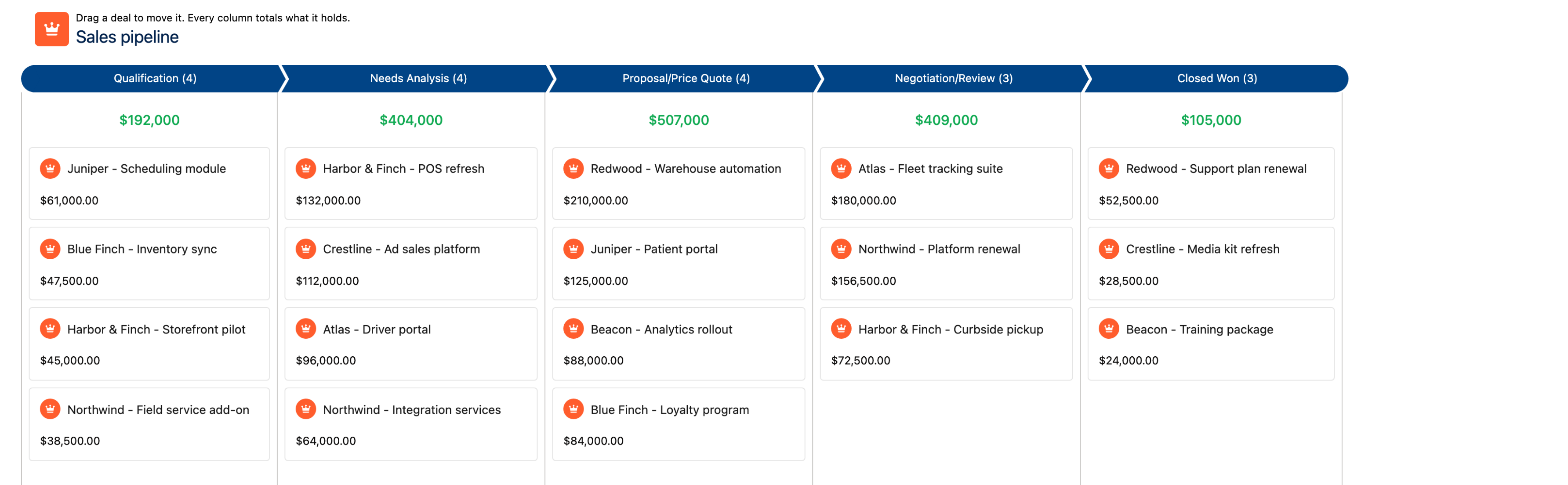
Open **Data Mappings**. Three settings do the work:

* **Key Field** is the record Id.
* **Group Field Name** is the picklist that becomes your columns. Set it to Stage.
* **Group Summaries** is what makes the header worth reading. Add one on Amount with **Sum**, and each column header carries its own total.

<figure><img src="https://3857391697-files.gitbook.io/~/files/v0/b/gitbook-x-prod.appspot.com/o/spaces%2FdHOej9Pd5IxJNGEJMZKW%2Fuploads%2FIyyNRHfiwIUlUu8P4OoT%2Fpipeline-board-mapping.png?alt=media" alt="The Edit Kanban panel on the Properties tab, showing the Query data source, and Data Mappings with Key Field Id, Group Field Name Stage, and a Group Summaries entry reading Amount, Sum" width="320"><figcaption><p>The group field makes the columns. The group summary makes the header worth reading.</p></figcaption></figure>

{% hint style="info" %}
The summary is calculated over the records the query returned, not over the object. Filter the query to one owner and the totals become that owner's.
{% endhint %}

{% hint style="warning" %}
Leave the summary's currency code alone unless you have a reason. Setting it to a currency your records are not in labels real money with the wrong symbol, and nothing in the board will warn you.
{% endhint %}
{% endstep %}

{% step %}

#### **Put the columns in pipeline order**

Alphabetical columns are useless for a pipeline: Negotiation lands before Qualification. Set **Column Order** to **Custom** and list your stage values in the order a deal travels through them.

Set **Variant** to **Path** while you are here. It draws the columns as a path, which is what a pipeline is, and unlike the base variant it does not clip the last card in a full column.

Turn on **Show item count** too. A header that reads Proposal (4) tells a manager something a column of cards does not.
{% endstep %}

{% step %}

#### **Design one card**

Under **Card Attributes**, bind the title to the record name and add the fields that decide whether this deal is worth touching today. Keep it to two or three. A Kanban card is read at a glance or not at all, and every extra field costs vertical space the column does not have.

Make one of them the field your validation rule checks, and set the field display to **Stacked** so the label stays readable at card width. A rep can then see which deals will be refused before touching them.
{% endstep %}
{% endstepper %}

### Keep the board honest

The board is correct until somebody tries a move the gate refuses. These two steps are what make it stay correct after that.

{% stepper %}
{% step %}

#### **Give Item Drop a re-read**

Select the Kanban, open its **Interactions** tab, and add a **Refresh Query** under **Item Drop**, pointing at the board itself.

The board now re-reads the database after every drop. When the gate refuses a move, the error toasts and the card goes back to the column the record is really in.

<figure><img src="https://3857391697-files.gitbook.io/~/files/v0/b/gitbook-x-prod.appspot.com/o/spaces%2FdHOej9Pd5IxJNGEJMZKW%2Fuploads%2Fs5yllG2CQgh9Kd3WwcCu%2Fstage-board-interactions.png?alt=media" alt="The Edit Kanban panel on the Interactions tab: Open Flow Panel for Stage requirements under Item Action Click, and Refresh Query under Item Drop" width="320"><figcaption><p>Item Drop carries a re-read and nothing else. The flow lives on the card action above it.</p></figcaption></figure>

This step is not optional. Without it the record is still safe, because the validation rule already refused the write. What is not safe is the screen: the card stays in the column the rep dropped it into, the totals count it there, and the board disagrees with the database until somebody reloads the page.

<figure><img src="https://3857391697-files.gitbook.io/~/files/v0/b/gitbook-x-prod.appspot.com/o/spaces%2FdHOej9Pd5IxJNGEJMZKW%2Fuploads%2F25FnqmBjqJjK1IMrN9ov%2Fstage-gate-refused.png?alt=media" alt="The pipeline board with an Error Updating Record toast naming the Competitor field, and the dragged deal back in the Proposal column with the original counts and totals"><figcaption><p>A deal with no competitor named, dragged into Negotiation. Salesforce refused the change, the error names the field, and the re-read has already put the card back in Proposal.</p></figcaption></figure>
{% endstep %}

{% step %}

#### **Put the follow-up on a card action, not on the drop**

Add an **item action** to the Kanban named `stage_reqs`, labelled **Stage requirements**. The Kanban has no inline card button: an item action appears in the card's own menu, which is where a rep looks for it.

Then add an **Item Action Click** interaction of type **Open Flow Panel**, with **Target name** set to `stage_reqs` and the flow set to yours. Map the clicked item's key field into the record id and its group value into the stage, and set the panel's **On Finish** to a **Refresh Query** on the board.

<figure><img src="https://3857391697-files.gitbook.io/~/files/v0/b/gitbook-x-prod.appspot.com/o/spaces%2FdHOej9Pd5IxJNGEJMZKW%2Fuploads%2FkRiPhB3pyXVGw6IKhwu9%2Fstage-card-action.png?alt=media" alt="The board with one card&#x27;s menu open, showing a single Stage requirements action"><figcaption><p>The action sits in the card menu, on the deal the gate would refuse.</p></figcaption></figure>

{% hint style="warning" %}
It is tempting to hang this flow on Item Drop instead, so the rep is prompted the moment the card lands. Do not, if any of your moves can be refused. Item Drop fires on a failed save exactly as it does on a successful one, so the flow opens and tells the rep about a stage the deal is not in.
{% endhint %}
{% endstep %}
{% endstepper %}

***

## Going further

**Prompt on the drop anyway, safely.** If you want the drag itself to open the flow, have the flow re-read the record first and branch on the stage it actually finds. That turns "the move happened" from an assumption into something the flow checked.

**Split the board by owner.** Add a subgroup on the owner field and each column breaks into swimlanes, each carrying its own total. This is the manager's view of the same board.

**Filter without building a second board.** Turn on the Kanban's filters and search. One board with a filter beats four boards that drift apart, and the read only setting turns the same board into a manager's view.

**Use it on something other than deals.** Any object with a picklist that describes progress works the same way: cases by status, applications by stage, orders by fulfilment step.

**Related components**

* Kanban


---

# Agent Instructions
This documentation is published with GitBook. GitBook is the documentation platform designed so that both humans and AI agents can read, navigate, and reason over technical content effectively. Learn more at gitbook.com.

## Querying This Documentation
If you need additional information that is not directly available in this page, you can query the documentation dynamically by asking a question.

Perform an HTTP GET request on the current page URL with the `ask` query parameter, and the optional `goal` query parameter:

```
GET https://docs.avonnicomponents.com/projects/use-cases/boards-and-pipelines/opportunity-pipeline-board.md?ask=<question>&goal=<endgoal>
```

`ask` is the immediate question: it should be specific, self-contained, and written in natural language.
`goal` is optional and describes the broader end goal you are ultimately trying to accomplish on behalf of the user. GitBook uses it to tailor the answer towards what is most useful for that goal.

The response will contain a direct answer to the question and relevant excerpts and sources from the documentation.

Use this mechanism when the answer is not explicitly present in the current page, you need clarification or additional context, or you want to retrieve related documentation sections.