For the complete documentation index, see llms.txt. This page is also available as Markdown.

Live crew board

Seven technicians on one day, 7 AM to 6 PM, with reschedule and reassign one click from any job.

Overview

Seven technicians on one day, 7 AM to 6 PM, with reschedule and reassign one click from any job. One tag in your LWC, no scheduling code. The whole board is one Scheduler (avonni-dd-scheduler) in its timeline variant, reading the day's job records through its own query. This tutorial rebuilds the Dispatch tab of SolarOps, a solar installer, in your own org.

What you build

Avonni Scheduler in a Lightning Web Component: seven field technicians on a one day timeline with colored jobs and a popover offering Reschedule and Reassign
  • SolarOps dispatch sees the whole crew on one timeline, Tuesday, September 8, 2026, 7 AM to 6 PM: one row per technician, twenty jobs, each row in its own color.

  • Job labels are short (Roof check, Panel install, Site survey) so the day stays readable. The detail lives in the popover.

  • Click a job and the popover shows its window: Final inspection, 3:00 PM to 4:30 PM, with Reschedule and Reassign as buttons and Open work order in the menu next to them.

  • Auto-dispatch sits in the header, after the date navigation, Today, the view selector and the time zone picker.

Before you start

Adapt this to your own org. Field Job is an object this tutorial creates, because the org it was captured in had no scheduling object of its own. Point the query at whatever already holds your work, a custom object or a standard one. The board asks for four things only: a title, a start, an end, and a field naming the person the row belongs to. That field is a text field here; on a lookup, describe the related record with resourceMapping, as shown under Take it further.

  • The Avonni LWC Components package is installed, and the dispatchers hold a license and the package permission set. See Installation & Licenses Management.

  • A Lightning app with a tab for the board. The examples below use the Dispatch tab of the SolarOps app.

  • A custom object for the jobs. The board needs these fields:

Object
Field
Type
Role

Field Job (Field_Job__c)

Name

Text

The job type, kept short: Panel install

Technician__c

Text

The technician's name. The timeline draws one row per distinct value.

Start__c

Date/Time

When the job starts

End__c

Date/Time

When the job ends

Customer__c

Text

The customer, for the popover (see Take it further)

Address__c

Text

The site address, same use

Sample data. Twenty jobs, all on September 8, 2026, times in your own time zone:

Technician

Job (Name)

Start

End

Customer

Address

Maya Chen

Roof check

7:30 AM

9:00 AM

Maple Ridge HOA

14 Maple Court

Maya Chen

Panel install

9:30 AM

1:00 PM

Maple Ridge HOA

221 Elm Street

Maya Chen

Inverter swap

2:00 PM

4:00 PM

Maple Ridge HOA

37 Birch Lane

Diego Alvarez

Panel install

8:00 AM

12:30 PM

Ridgeway Estates

5 Ridgeway Terrace

Diego Alvarez

Site survey

1:30 PM

3:00 PM

Ridgeway Estates

60 Orchard Way

Diego Alvarez

Warranty visit

3:30 PM

5:00 PM

Ridgeway Estates

8 Willow Close

Priya Nair

Battery commissioning

7:00 AM

10:00 AM

Harbor View HOA

902 Harbor View

Priya Nair

Meter upgrade

10:30 AM

12:00 PM

Harbor View HOA

11 Lakeshore Drive

Priya Nair

Panel cleaning

1:00 PM

2:30 PM

Harbor View HOA

78 Sunset Boulevard

Tomas Berg

Panel install

8:30 AM

2:00 PM

Harbor View HOA

902 Harbor View

Tomas Berg

Final inspection

3:00 PM

4:30 PM

Harbor View HOA

14 Maple Court

Lena Okafor

Site survey

8:00 AM

9:30 AM

Cedar Row Homes

412 Sycamore Avenue

Lena Okafor

Panel install

10:00 AM

3:30 PM

Cedar Row Homes

33 Cedar Row

Lena Okafor

Handover

4:00 PM

5:30 PM

Cedar Row Homes

221 Elm Street

Amara Osei

Site survey

7:00 AM

9:00 AM

Juniper Court Homes

18 Juniper Court

Amara Osei

Panel install

9:30 AM

2:30 PM

Juniper Court Homes

5 Aspen Way

Amara Osei

Meter upgrade

3:00 PM

4:30 PM

Juniper Court Homes

61 Poplar Street

Jonas Lindqvist

Roof check

8:00 AM

9:30 AM

Alder Grove Estates

9 Alder Grove

Jonas Lindqvist

Panel install

10:00 AM

3:00 PM

Alder Grove Estates

140 Chestnut Row

Jonas Lindqvist

Handover

3:30 PM

5:00 PM

Alder Grove Estates

27 Hawthorn Lane

Permissions. Dispatchers need Read on Field Job and its fields. The Avonni query follows Salesforce sharing: a user only ever sees the jobs Salesforce lets them see. Rescheduling by drag (see Take it further) needs Edit on Start__c and End__c.

Build it

1

Create the object and the records

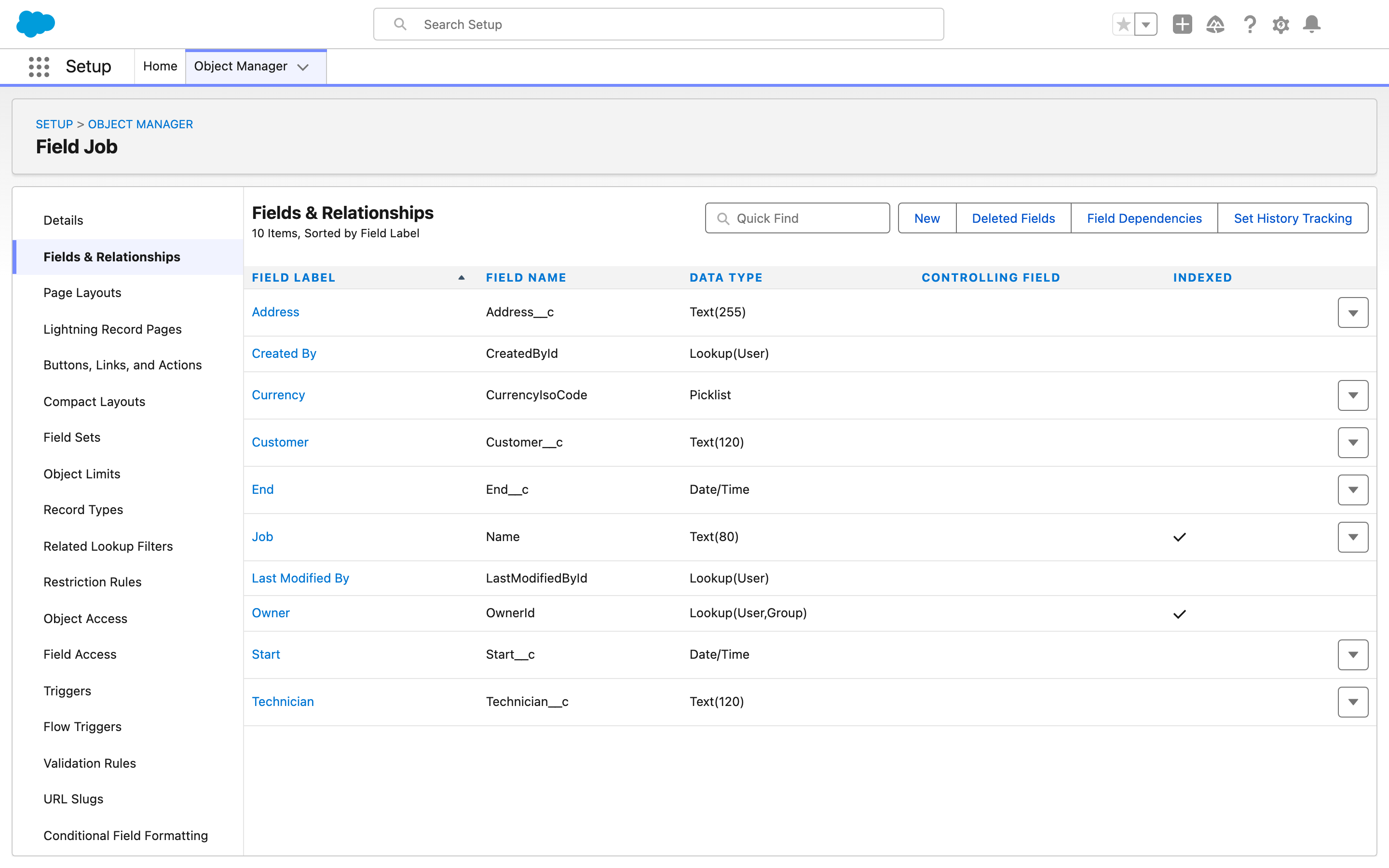
  1. In Setup, open Object Manager and create the Field Job object with the fields listed above.

  2. Load the twenty sample jobs, or your own day of work.

Why: the board reads records and nothing else. Every row, color and bar below comes from these twenty records.

Setup, Object Manager, the Field Job object on Fields and Relationships, with Technician, Start, End, Customer and Address
The six fields on Fields & Relationships once the object is created. The object label reads Field Job, and Name is labeled Job.
2

Create the component and place the tag

Create a Lightning web component named crewBoard with three files. The template is one tag:

Every attribute is filled in from the JavaScript in the next steps.

3

Write the query and the mapping

In crewBoard.js, describe where the jobs come from and which field plays which part:

Why: resourceName is what turns a list of jobs into a crew board: the scheduler creates one row per distinct technician and labels it with the value. The rows come from a second query the component runs on its own, grouped by Technician__c, so orderBy sorts the jobs and not the rows: expect the rows in the order Salesforce returns the grouped values. The timeline draws the selected day only, so twenty records need no filter. On a live board, add filter: 'Start__c = THIS_WEEK' to keep the query bounded.

4

Frame the working day

Still in the class body:

Why: variant="timeline" and the day time span (Standard.Scheduler.DayTimeSpan) give one day across the width; zoomToFit makes it fit without horizontal scrolling. available-time-frames cuts the axis to 7 AM to 6 PM and available-days-of-the-week hides the weekend. selected-date opens the board on the sample day; remove it and the board opens on today. The time in the string is read in the viewer's time zone, which keeps the board on the right date wherever the user is.

5

Color by technician and add the actions

Why: the palette is handed out per resource, in row order, so every technician gets a color and every job takes its technician's color. Item actions appear in the popover and in the right-click menu of a job: the first two as buttons, the rest in a menu. Header actions sit at the right of the header.

6

Handle the events

Why: the component draws and the code decides. itemactionclick carries the action name and the job record; headeractionclick carries the name only. After your code changes records, refresh() runs the query again.

7

Expose the component and put it on the tab

  1. In crewBoard.js-meta.xml, expose the component for app pages and tabs:

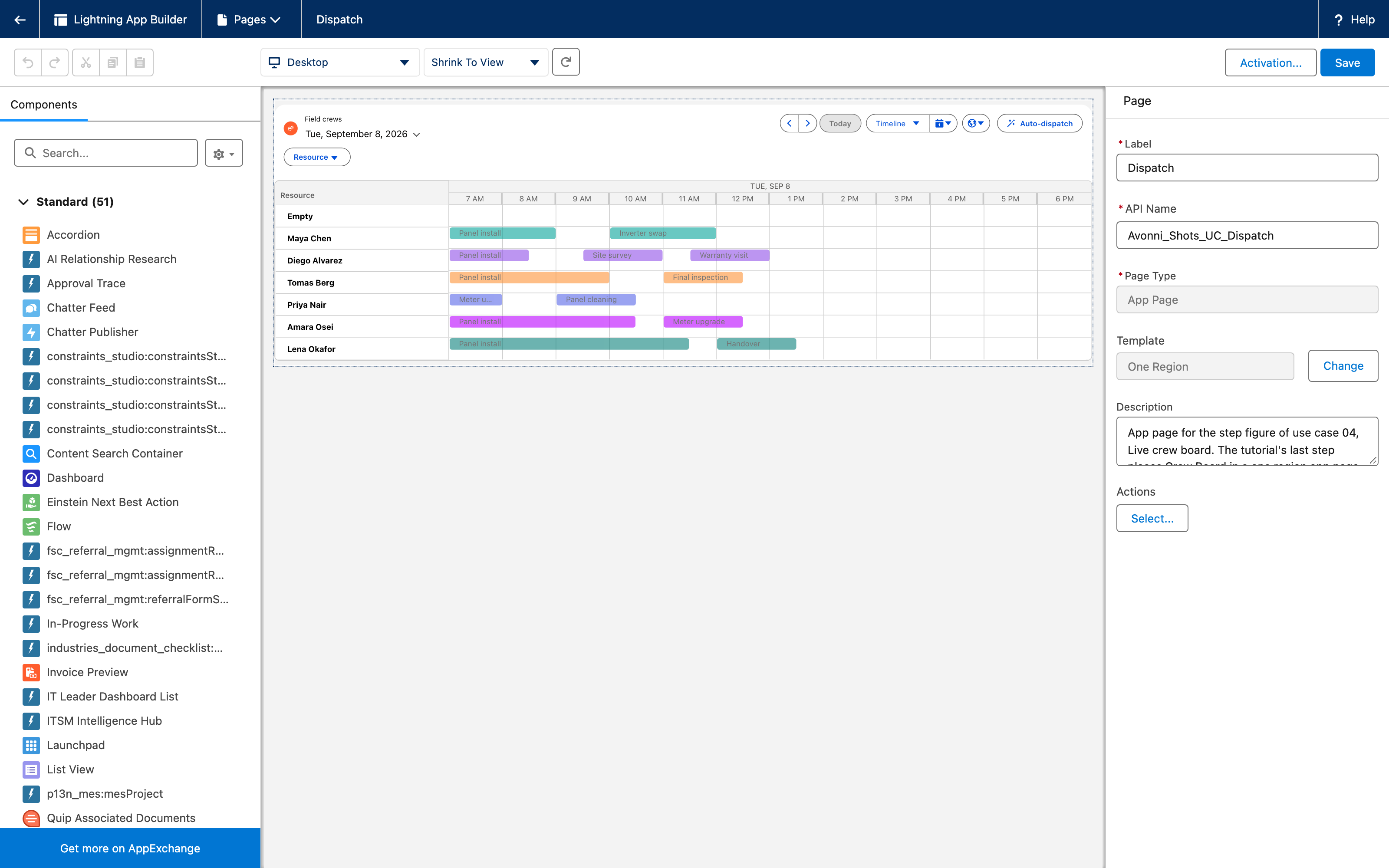
  1. Deploy, then in Setup create a Lightning Component Tab named Dispatch on Crew Board, or build an app page in Lightning App Builder with the component in a one-region layout and assign it to the tab.

  2. Add the tab to the SolarOps app and open it.

Lightning App Builder with Crew Board on a one region app page: the timeline for Tuesday September 8, 7 AM to 6 PM, and the page rail on Dispatch, App Page, One Region
The app page in Lightning App Builder. The board also draws an Empty resource row above the seven technicians; it carries no job.

The settings that matter

Setting
Value
Why

variant and variant-attributes

timeline, { zoomToFit: true }

The dispatch view: one row per technician, the whole day in the width of the page.

available-time-frames and selected-time-span-name

['07:00-18:59'], Standard.Scheduler.DayTimeSpan

The working day, one day at a time. Hours outside the frame do not exist on the axis.

mapping.resourceName and item-palette

{{Record.Technician__c}}, seven colors

One row per person, one color per person, read from the records.

item-actions

Reschedule, Reassign, Open work order

The popover offers the two dispatch gestures on every job.

Interactions

Event
Payload
What to do with it

itemactionclick

name, item, record

reschedule and reassign: open your form or flow on record.Id. openWorkOrder: navigate to the record.

headeractionclick

name

autoDispatch: run your logic, then call refresh().

itemedit, with editItemOnDrag on (see Take it further)

start, end, record

Save the new window on the record.

Try it

  1. Open the Dispatch tab: seven rows, 7 AM to 6 PM, twenty bars, each row in its own color.

  2. Click Final inspection on Tomas Berg's row: the popover reads Sep 8, 2026, 3:00 PM to 4:30 PM, with Reschedule and Reassign. Open the arrow menu next to them and click Open work order: the job record opens.

  3. Open the Resource filter above the timeline and uncheck a technician: their jobs leave the board. Check them again.

  4. Click Auto-dispatch: your handler runs.

Take it further

The same component exists on the other Avonni surfaces, under the name Calendar, with the Timeline display:

  • Calendar for Flow Screen Components, inside a screen flow.

  • Calendar for Dynamic Components, on a Lightning page.

  • AX - Calendar for Experience Sites.

Variations worth trying:

  • Reschedule by dragging: set variantAttributes = { zoomToFit: true, editItemOnDrag: true } and handle onitemedit, whose start and end are the new window of record.

  • Lock the view: hidden-variants set to ['agenda', 'calendar'] removes the view selector.

  • Show the customer and the address in the popover instead of the window: item-popover-fields set to [{ value: 'Customer__c' }, { value: 'Address__c' }].

  • Rows with real avatars: map resourceName to a lookup (a User or a Contact) and describe the related record with resourceMapping (label, name, avatarFallbackIconName, avatarSrc).

Troubleshooting

Problem
Cause
Fix

The board is empty

query.objectApiName or a mapped field name is wrong, or the jobs fall outside the selected date, the available days or the time frames.

Check the API names, then the date: a job at 6:30 PM is outside 07:00-18:59 and a Saturday job is outside [1, 2, 3, 4, 5].

Every job has the same color, or all jobs sit on one row

resourceName is not mapped, or Technician__c is empty on the records.

Map resourceName and fill the field. The palette is handed out per resource.

The rows are not in the order you expected

With resourceName on a text field, the rows come from a query grouped by that field that the component runs on its own; the orderBy of your query sorts the jobs, not the rows (checked in the component source on September 6, 2026).

There is no row-order setting on a text field. Each technician keeps their own color whatever the order.

Job labels are cut off

The title is longer than the bar.

Keep Name short (Roof check, not Roof inspection) and put the detail in the popover.

Dragging a job does nothing

editItemOnDrag is off.

Add it to variant-attributes. It applies to the calendar and timeline variants.

The board opens on September 8 instead of today

selected-date is still set.

Remove it: with no selected date, the scheduler centers on the current date.

Was this helpful?